


HDR (High Dynamic Range Imaging) has the characteristics of clear gradation of bright parts and easier visibility of dark parts, allowing you to see more light and dark details and rich colors. In fact, when using a computer, if there are no special needs, the HDR function is rarely turned on, because it only operates HDR for supported videos and games, so it is often ignored. It is quite simple to turn on the HDR function. 1. Use a DP1.2 or higher cable or use an HDMI 2.0 cable. 2. The screen supports the HDR function. If you meet the above conditions, you can easily enjoy the HDR function. For today’s demonstration, we will use YouTube, a video channel that is commonly watched by the public, as a test. First, find videos with HDR function on YouTube:
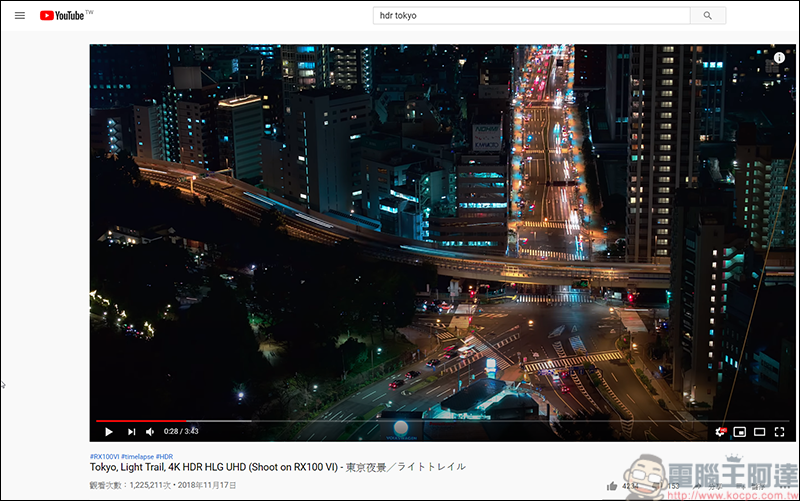
(HDR video sample URL)
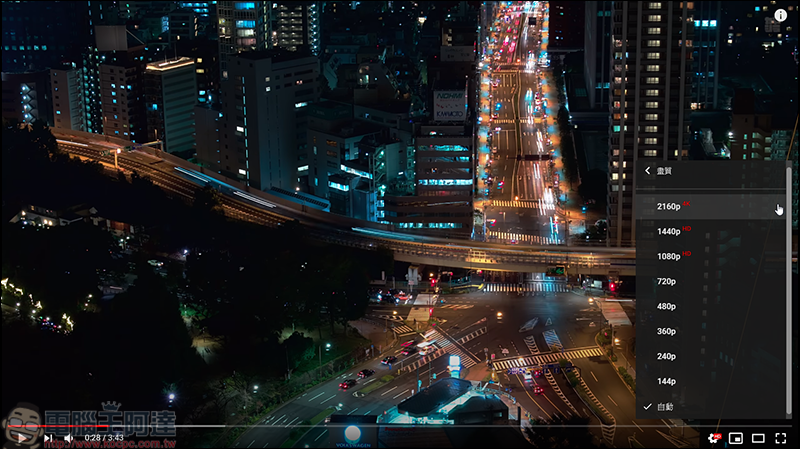
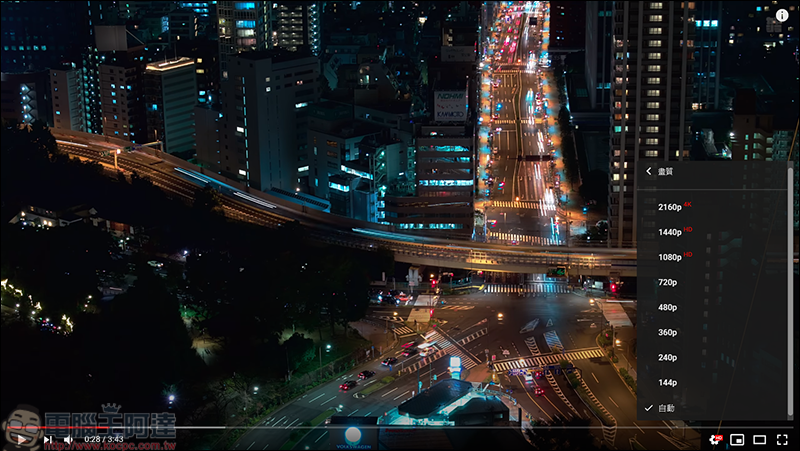
The actual shot looks like this. You can see that the black part is very dark and there is no sense of hierarchy between light and dark:
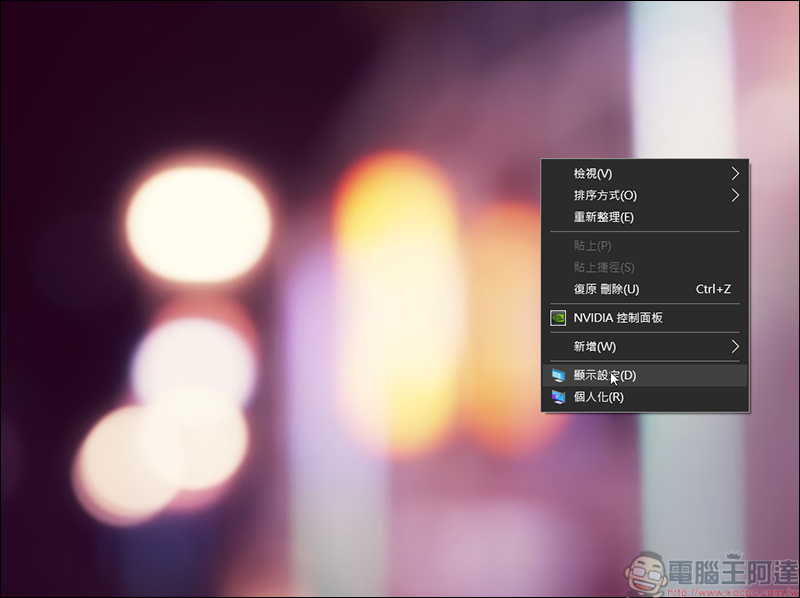
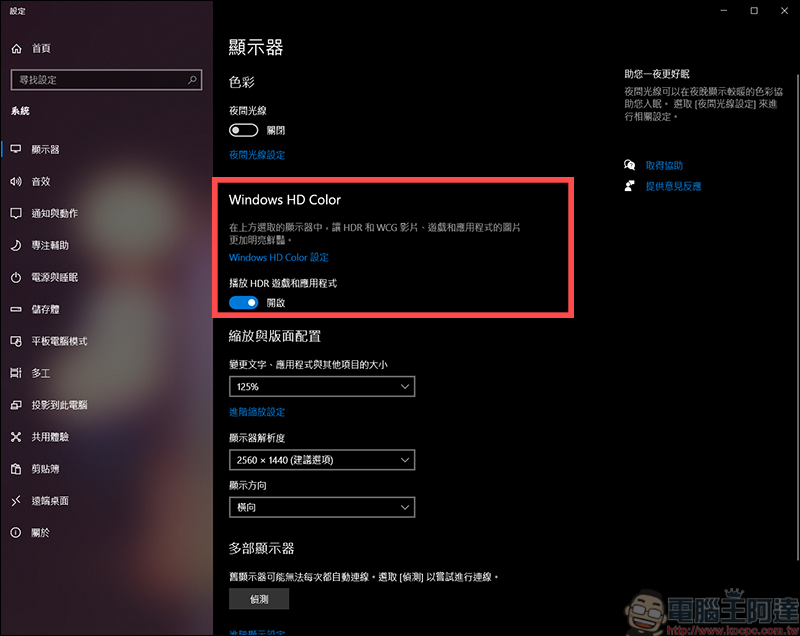
Then go back to the desktop and right-click → Display settings:
After entering the settings, you will find Windows HD Color, where you will open HDR games and applications:
Then go back to YouTube and you will see that the original HD settings are still there. Don’t worry! Remember that the web page needs to be refreshed:
After reorganizing, you will find that in the image quality settings, there will be the word HDR behind the image quality above 1080p, and the colors will also become different: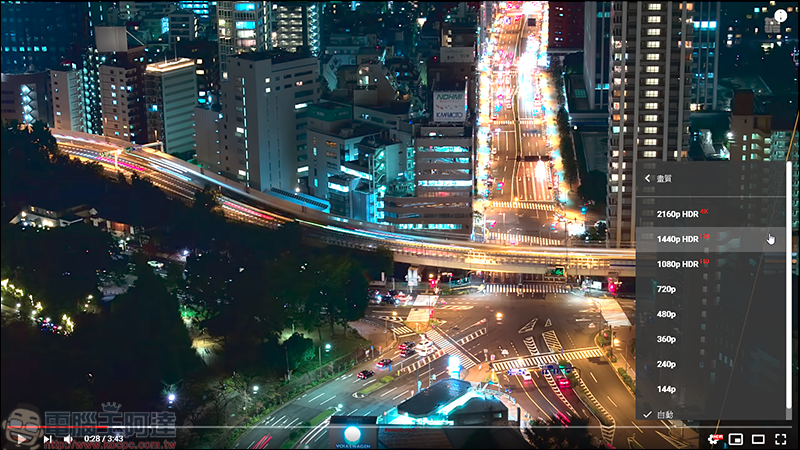
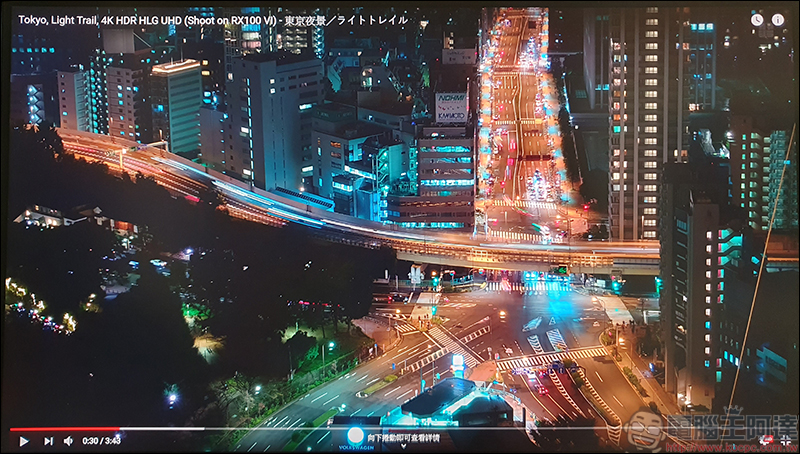
Through actual shooting, you can see that the originally dark areas are no longer so dark, and the details of light and dark are also clearer:
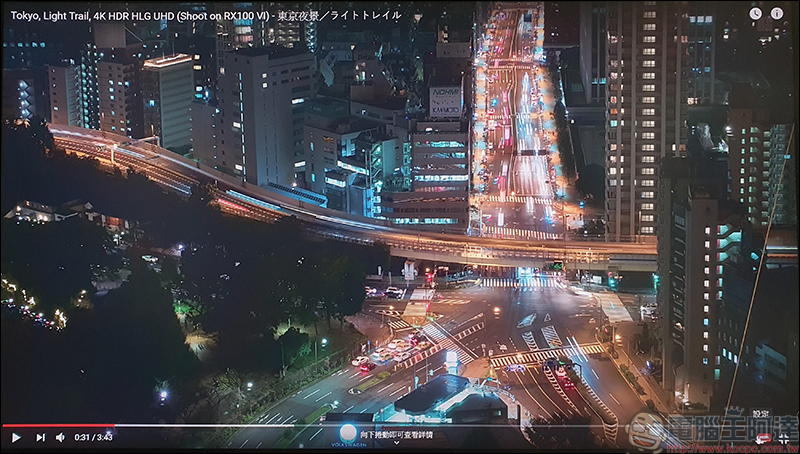
On the left, HDR is not turned on, and on the right, HDR is turned on. You can see that after turning on HDR, the performance of bright layer details is better!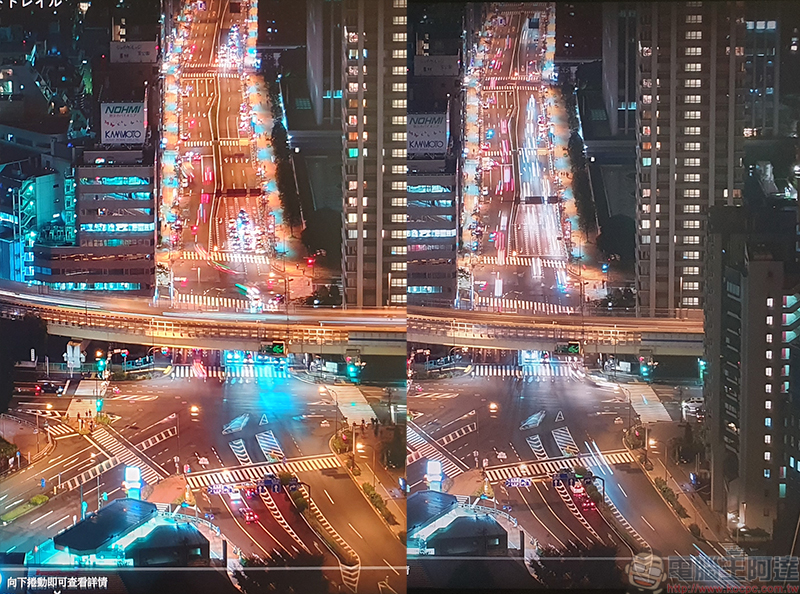
Source: KOCPC Chinese