


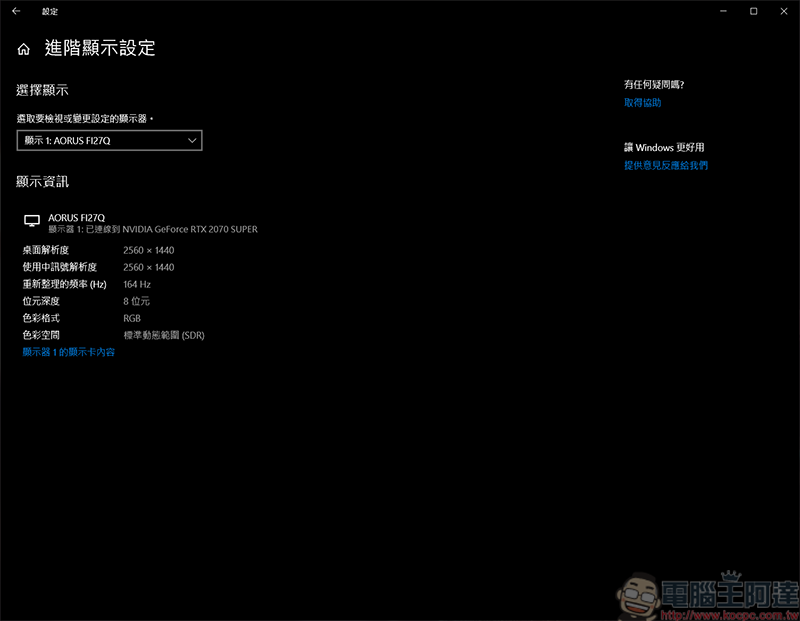
Recently, the author bought a new screen. Due to work and video game needs, I chose a screen with a 165Hz refresh rate and 10Bit color in terms of specifications (my wallet instantly lost weight), but what! After using it for a period of time, the screen color can only turn on 8Bit at most. What is the promised 10Bit color? I am constantly researching it. Then, I discovered that in order to enable 10Bit color, the screen refresh rate must be lowered below 120Hz to enable it. The adjustment method is also very simple and can be done in just a few steps. The screen specifications used by the author here are 2K, 165Hz, 10Bit color, and the graphics card uses N card 2070S, so the N card method is used as a tutorial:
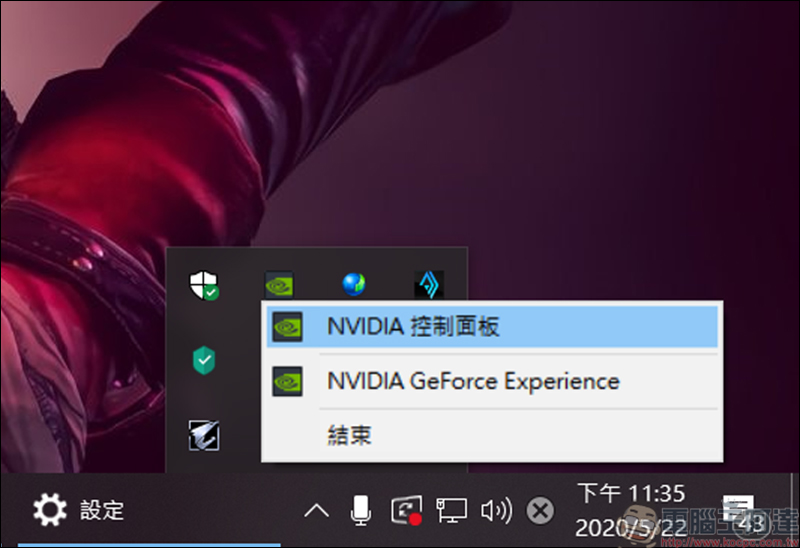
First, open the NVIDIA control panel. As long as the driver is installed, you can find this function in the toolbar in the lower right corner:
After turning it on, you can see the current computer screen configuration in the Change Resolution section, 2K resolution, 165Hz refresh rate, 8Bit color:
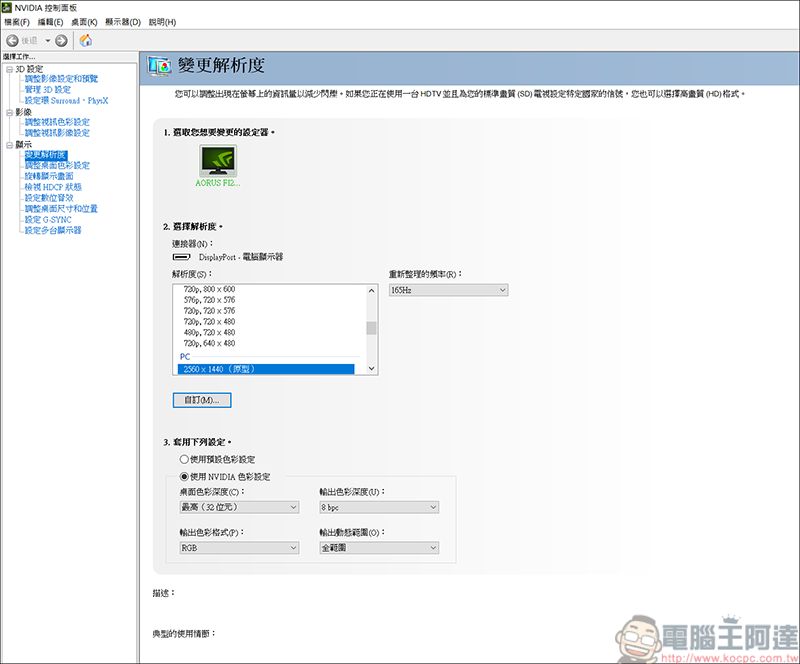
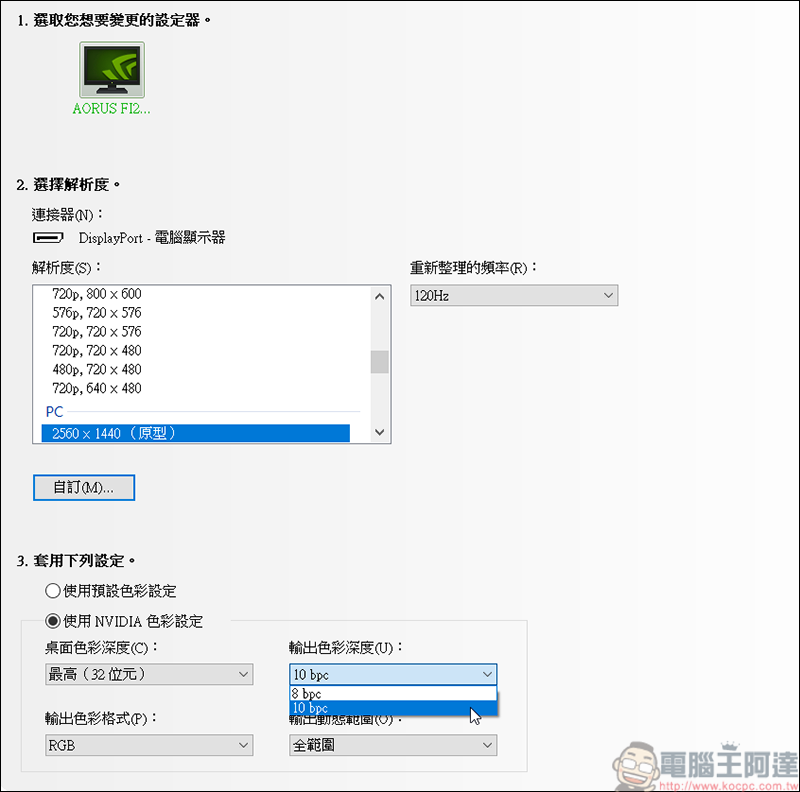
It can be seen that at a refresh rate of 165Hz, the color can only be maintained at 8Bit:
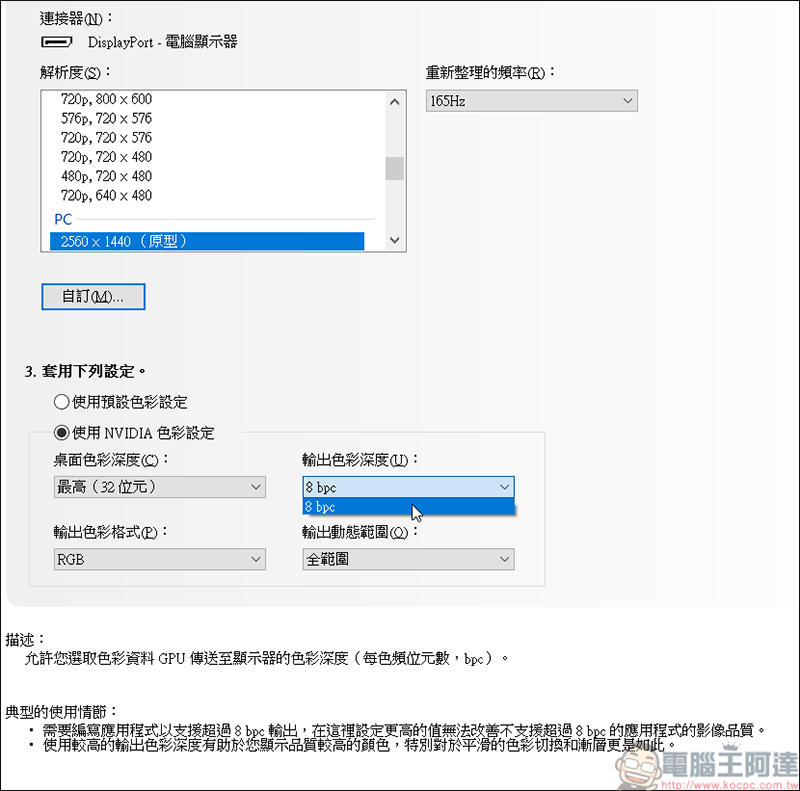
Then just adjust the screen refresh rate to below 120Hz. Remember to click Apply after making changes before proceeding to the next step:
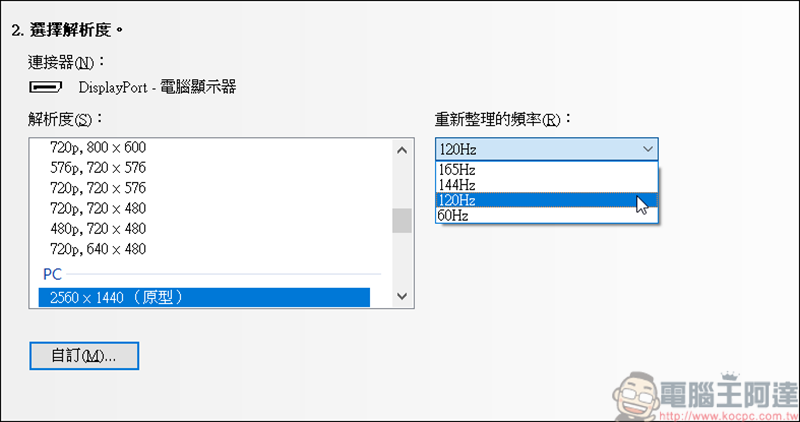
The color can be changed to 10Bit at a refresh rate below 120Hz. For example, I will change to this mode when editing videos and retouching pictures. When I want to play games, I will adjust the refresh rate back. Although I have to adjust it manually, I bought a good screen. I’m really sorry that it didn’t play its full role. If you are an A card user or have the built-in display of i Home, you can also adjust it through each company’s software. However, I don’t have computers from these two companies at hand, so I can’t test it for everyone (kneeling):
Source: KOCPC Chinese