


With the end of the life of Windows 7, a large number of newcomers to Windows 10 have been born. In the past system, the two system shortcuts of “My Computer” and “Console” have been placed on the desktop by default. However, in Windows 10, you may not be able to find it and feel flustered, or you may have accidentally deleted it by yourself. Today, let the author tell you how to get these two shortcuts back at once!
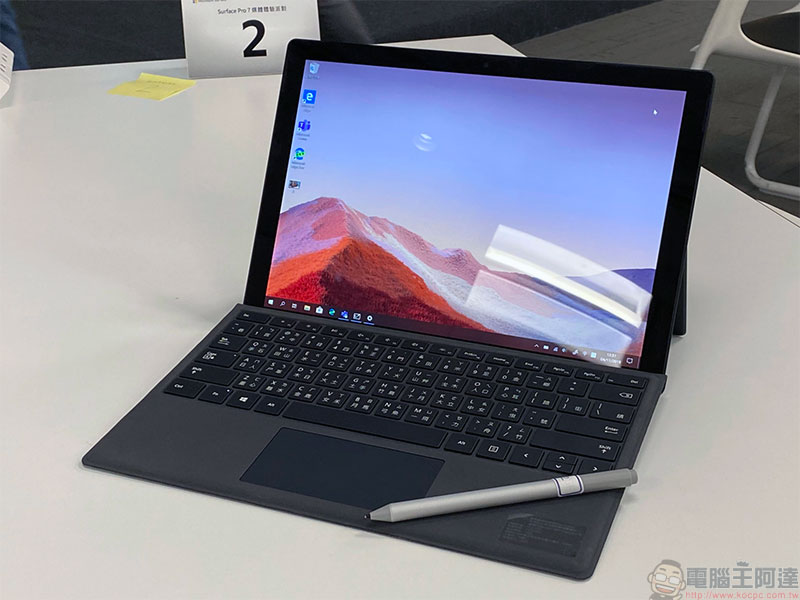
A must-learn for Windows 10 newbies! How to get “My Computer” and “Control Panel” back to the desktop?
The usefulness of “My Computer” and “Control Panel” is that they allow you to quickly access and view the local hard drive. As a newbie to Windows 10, are you feeling flustered because you can’t find “My Computer” and “Control Panel” on your desktop? Do you feel like you don’t know the fastest way to get to these two locations in the new system? Although the new system may seem unfamiliar at first glance, you can actually make it more familiar. Just follow the author’s steps and you will soon be back to the comfortable environment you are used to.
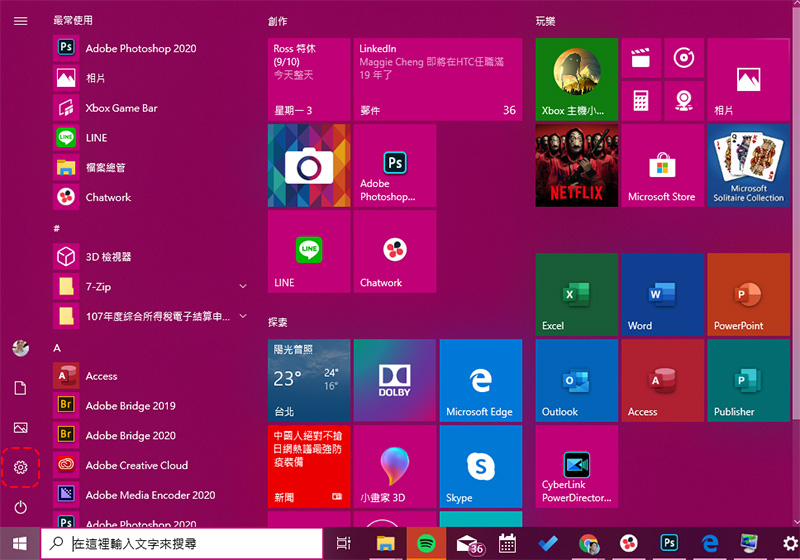
1. Click “Settings” in the “Open” menu.
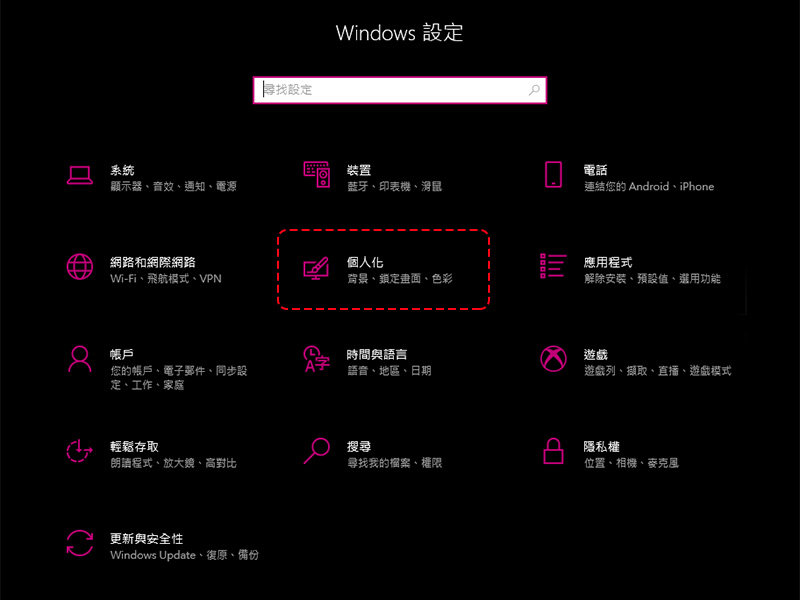
2. Select the “Personalization” option.
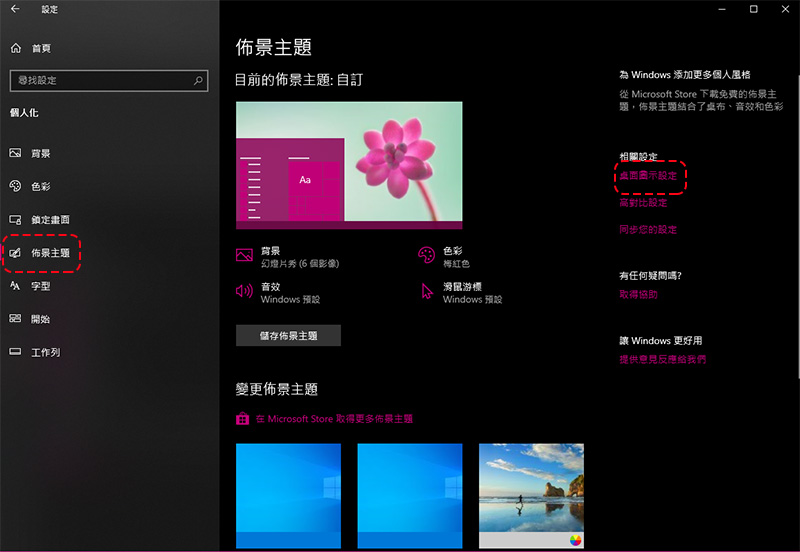
3. Select the “Theme” item in the sidebar, and then click “Desktop Icon Settings” under the related settings next to it.
4. Does the next window look as familiar as seeing a fellow villager? That’s right! Thanks (?) to the fragmented design among the Windows 10 project teams, we can still see the UI interface design in Windows 10 that has not yet been fully unified. In this Windows 7-style window, you can display the system shortcuts you want to display on the desktop, including our protagonists this time “My Computer” and “Control Panel.” Just tick the check box in front of the item in the “Desktop Icon” and click Finish and OK at the bottom after completing the settings.
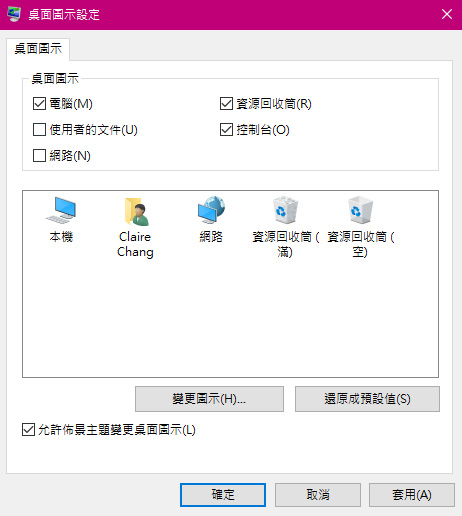
Isn’t it quite simple? It’s always reassuring to see familiar people in unfamiliar places. I hope today’s simple tutorial can help you adapt to Windows 10 faster!
Source: KOCPC Chinese