


When it comes to local AI video subtitle tools, most require installation, but OpenSubs, which this article will introduce, is different: it runs right in your browser, 100% locally, and uses the Whisper model to convert subtitles (it will download the model on first use). More importantly, if you’re satisfied, once the conversion is complete you can merge it directly with the video without using other editing software, and it’s completely free to use.
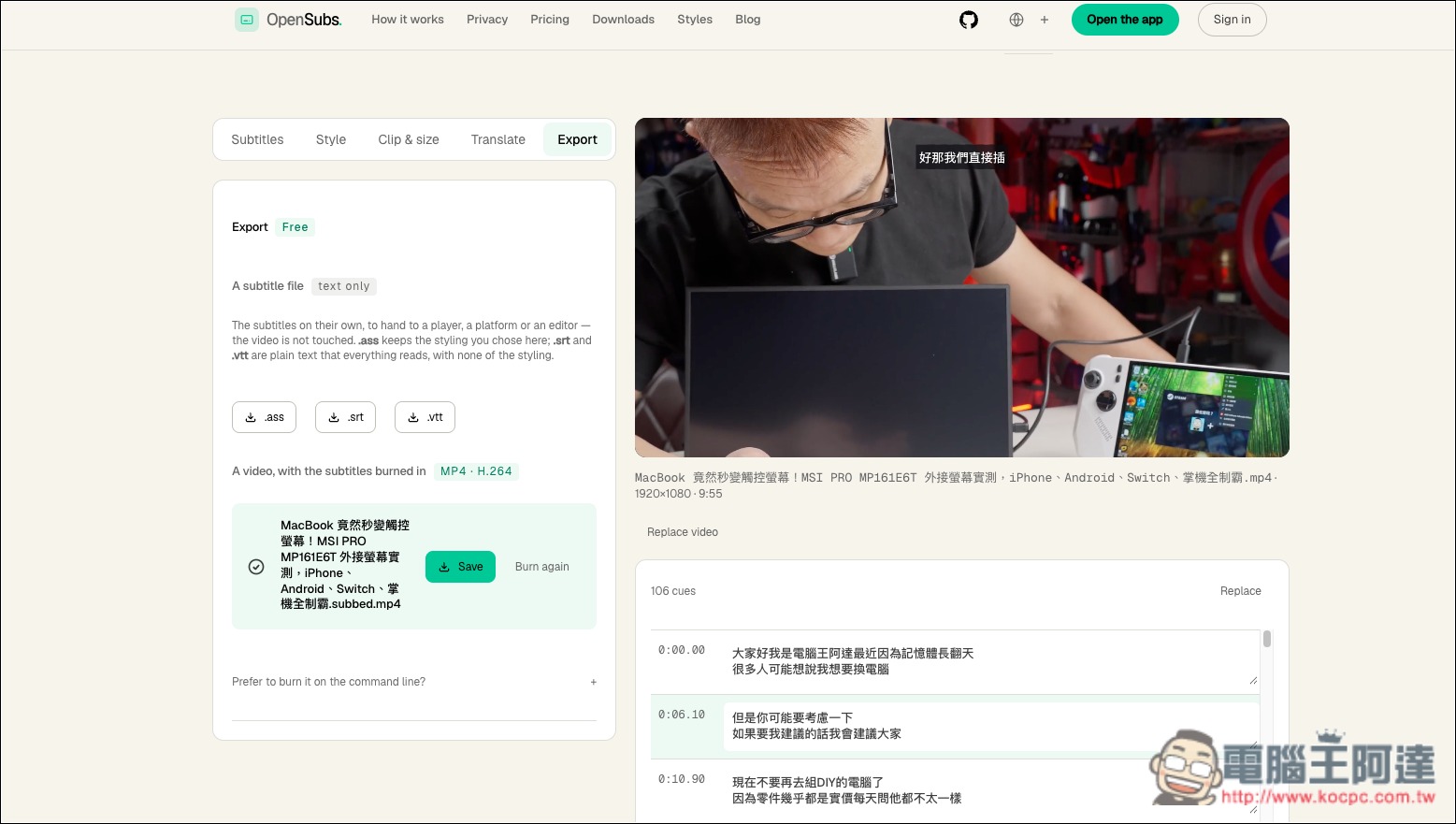
Introducing OpenSubs, a free AI video subtitle tool! Works directly in your browser, 100% locally.
OpenSubs is a free, open-source AI video subtitle generation tool that requires no installation or account registration and can be used directly in your browser.
It uses OpenAI’s open-source Whisper speech recognition model to automatically convert speech in videos into subtitles. It also supports multilingual translation, bilingual subtitles, subtitle style adjustments, and direct export of MP4 videos with subtitles. Its biggest feature is that it runs entirely locally; videos do not need to be uploaded to cloud servers, which not only protects privacy but also means you don’t have to worry about free usage quotas or watermark restrictions.
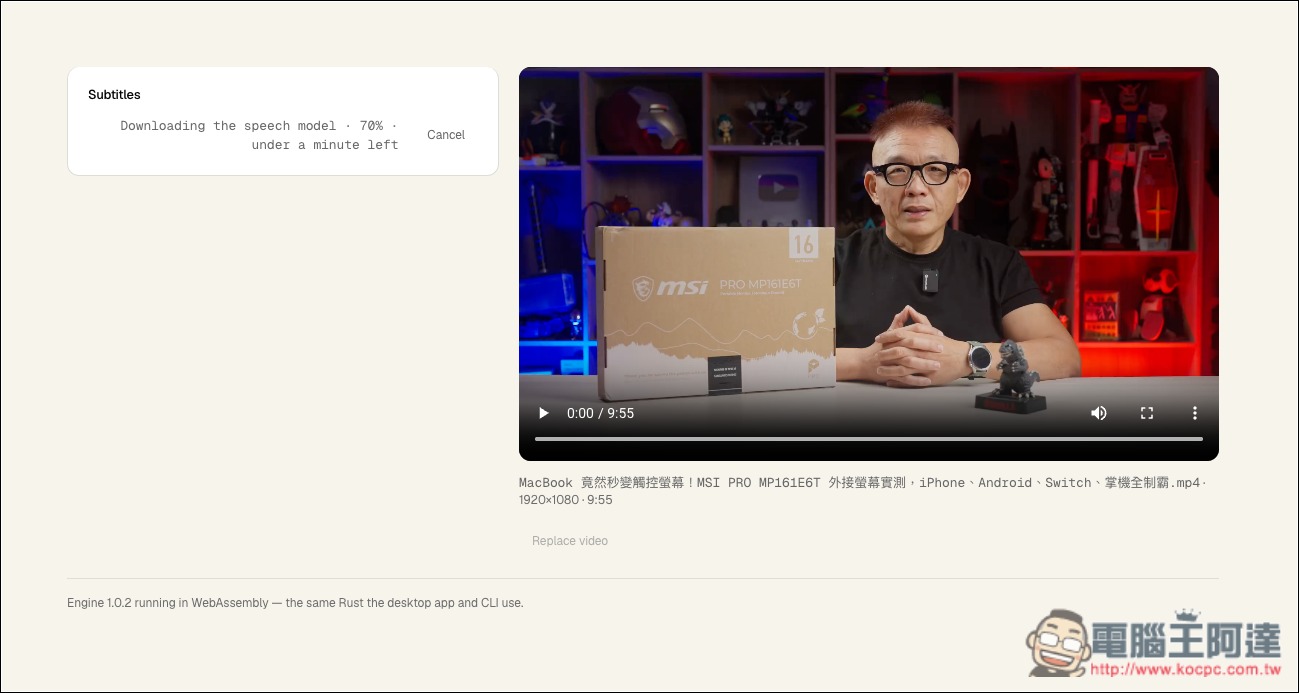
Using it is quite intuitive: just drag an MP4, MOV, WebM, or MKV video into the webpage, select a speech recognition model, and you can use OpenAI’s open-source Whisper to convert the spoken content in the video into subtitles. The recognition process runs directly using the browser and your computer’s hardware, and devices that support WebGPU can process it faster. The first time you use it, you need to download a model of about 40MB to 250MB; after that, it is cached in the browser, so you don’t have to download it again every time.
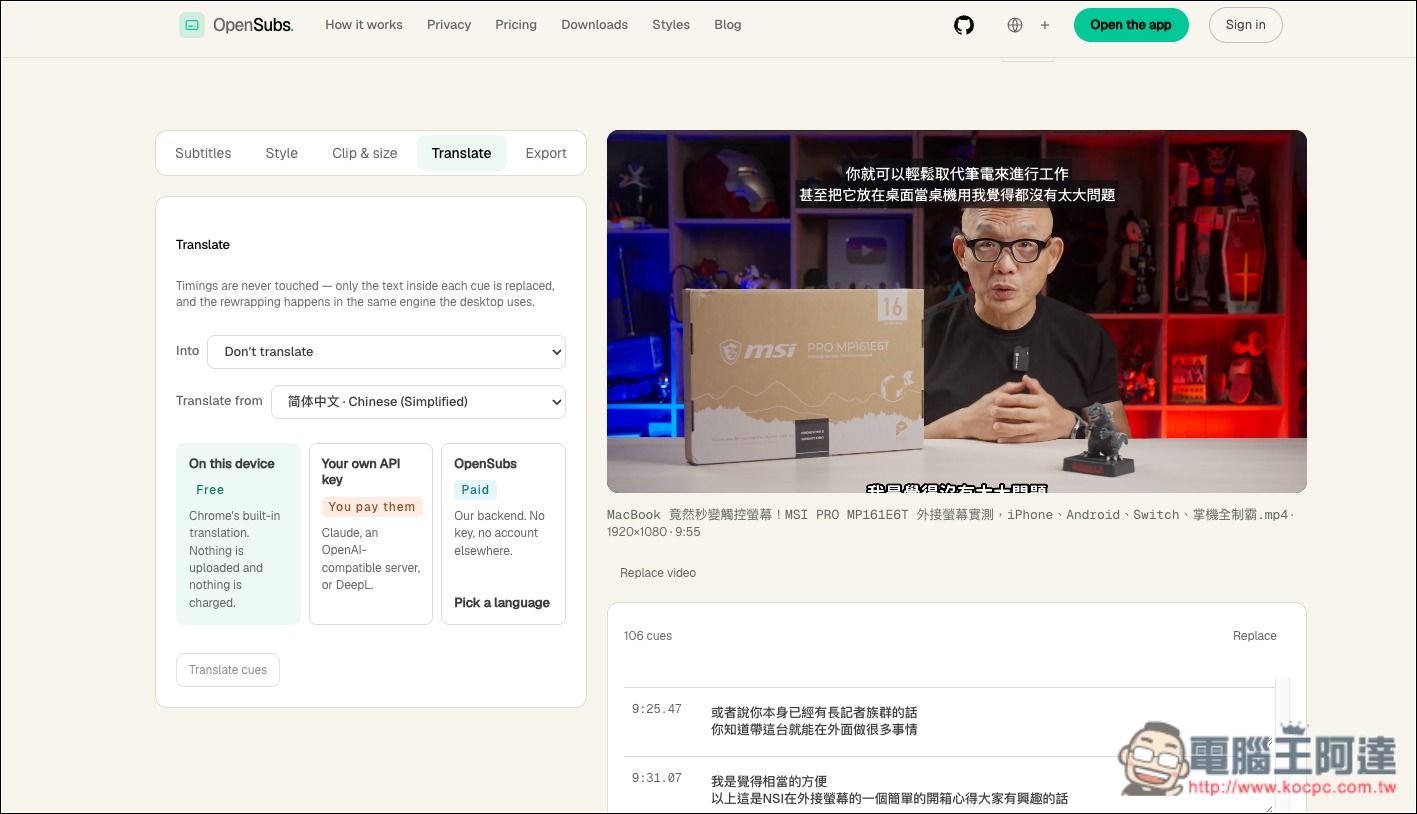
In addition to automatically generating subtitles, OpenSubs also provides subtitle translation and can translate into multiple languages such as Traditional Chinese, Japanese, and English. When using a compatible Chrome on-device translation feature, the translated text can also remain on the device for processing. If you want better translation quality, you can also integrate cloud services such as OpenAI, Claude, or DeepL yourself, but in that case the subtitle text will be sent to a third-party platform and may incur API fees.
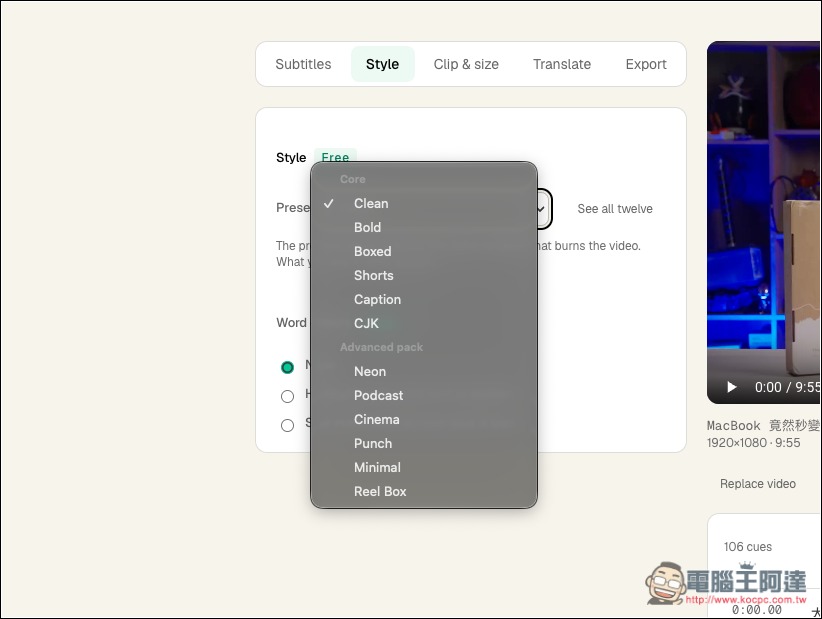
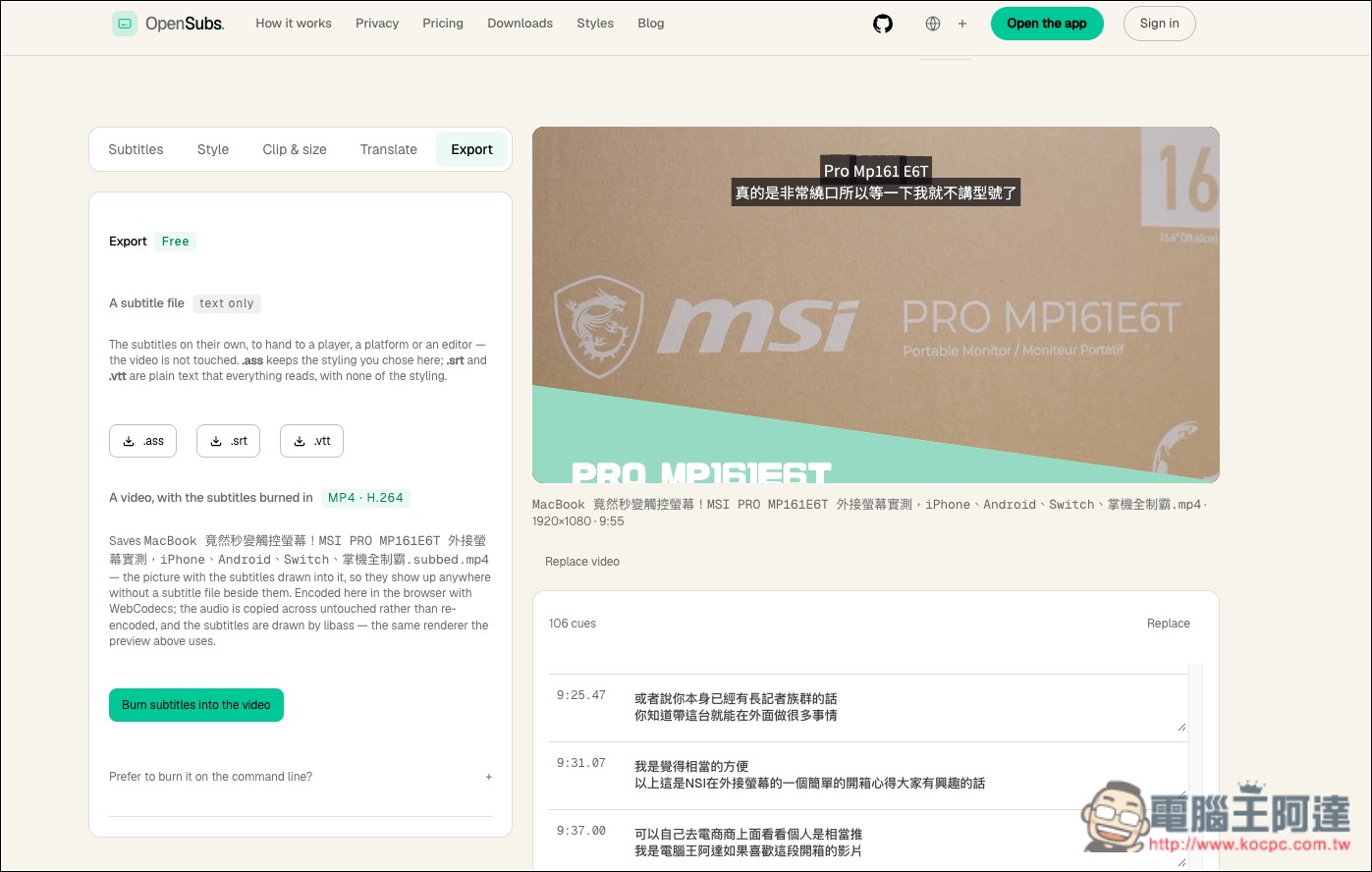
After the subtitles are complete, users can correct recognition errors in the editing interface and review the content sentence by sentence alongside video playback. The tool includes 12 subtitle styles, including clean subtitles suitable for general videos and word-by-word highlighting common in short videos, and can also display the original text and translation on screen at the same time. Finally, you can export SRT, VTT, and ASS subtitle files for use in other editing software, or burn the subtitles directly into the video in the browser and output a watermark-free MP4.
Key Features
- Completely free and open source: licensed under AGPL-3.0-or-later, with core features free to use and no account registration required.
- No installation required; use directly in your browser: supports mainstream browsers including Chrome, Edge, Safari, and Firefox.
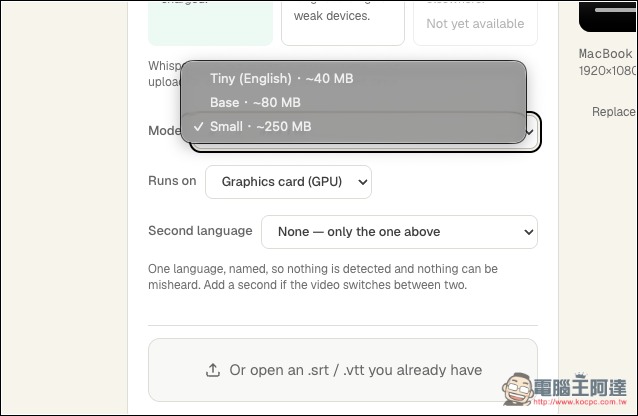
- AI automatic subtitle generation: uses the Whisper speech recognition model, offering three options: Tiny, Base, and Small.
- Runs locally, protecting video privacy: speech recognition, subtitle editing, and video export can all be done locally, with no need to upload videos.
- Supports subtitle translation in 20 languages, including Traditional Chinese, Simplified Chinese, Japanese, and more, with local or cloud translation.
- 12 subtitle styles: supports word-by-word highlighting, animated subtitles, and bilingual display of original and translated text.
- Supports multiple video formats: can handle MP4, MOV, WebM, and MKV videos.
- Flexible subtitle file export: supports SRT, VTT, and ASS formats, and can be used with other video editing software.
- Directly export subtitled videos: burn subtitles into MP4, and even free use won’t add watermarks.
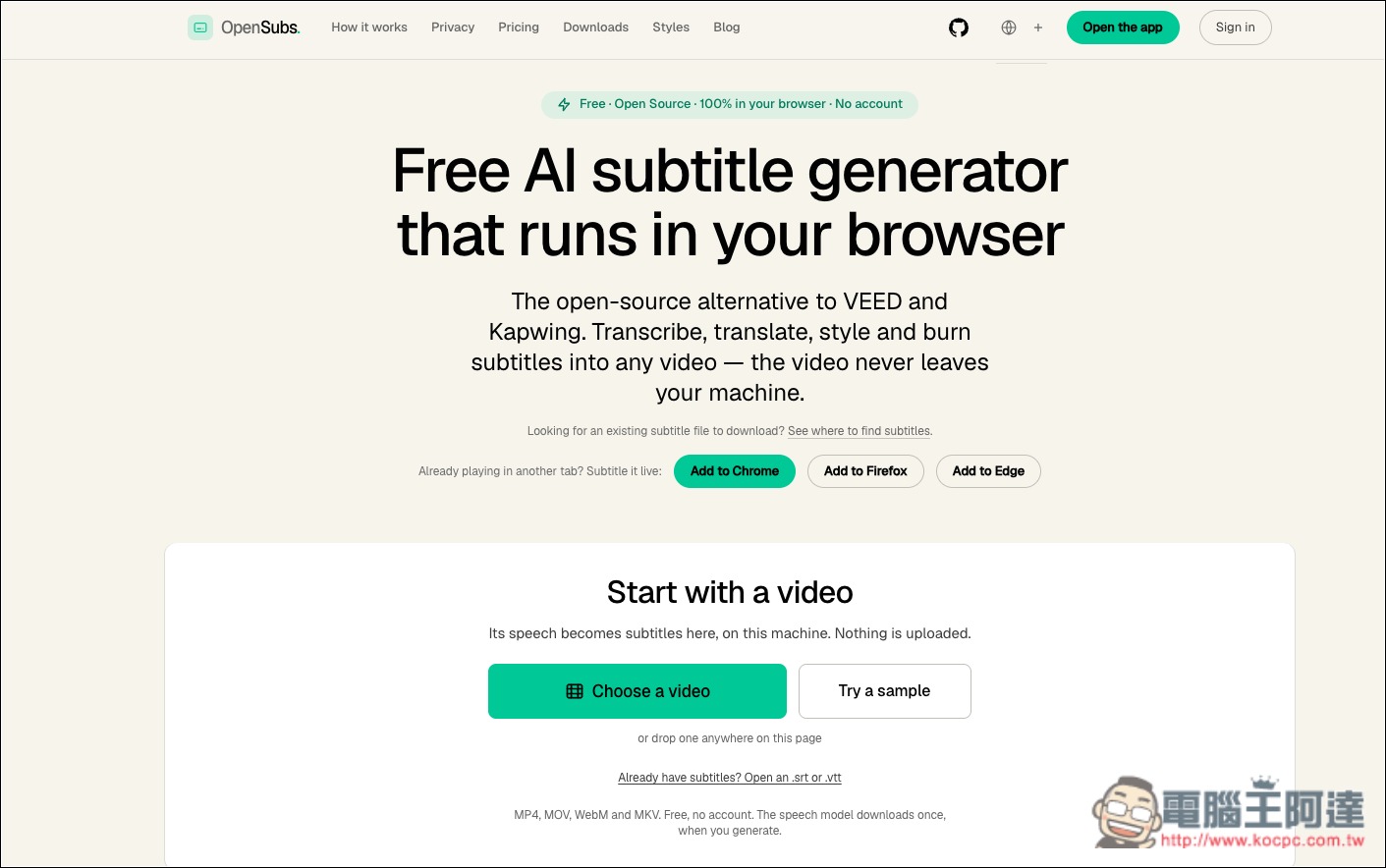
After you follow the link above to OpenSubs, you can click Choose a video to select the video whose subtitles you want to convert:
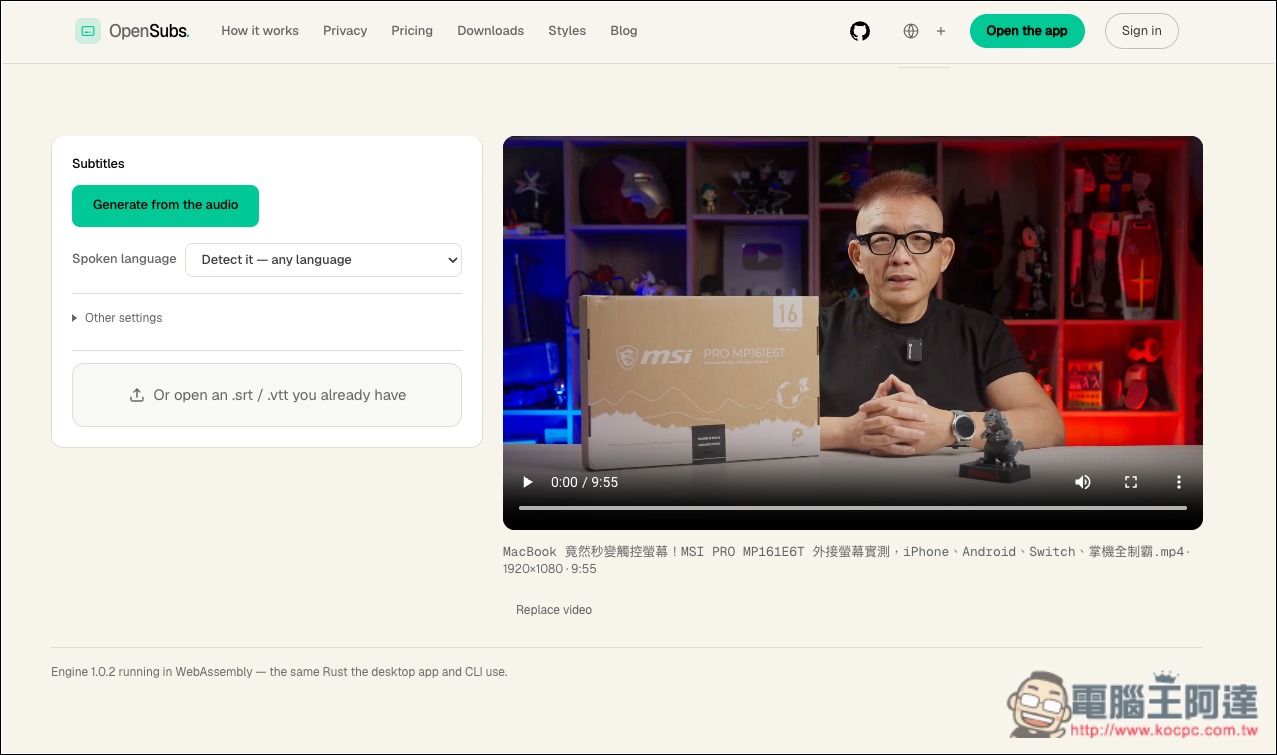
Next, select the video language; the default is auto-detect:
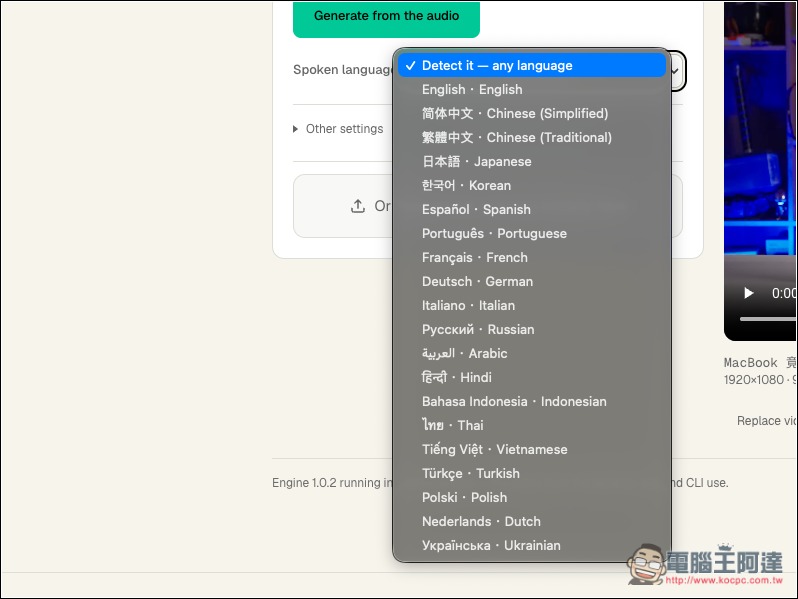
You can also specify the subtitle language to convert. For the Chinese part, it is recommended to set it directly to Traditional Chinese or Simplified Chinese, which will help avoid errors:
In Other Settings, you can set the AI model you want to use. By default, it is the largest model provided by this tool (Small). Of course, you can also use your own API:
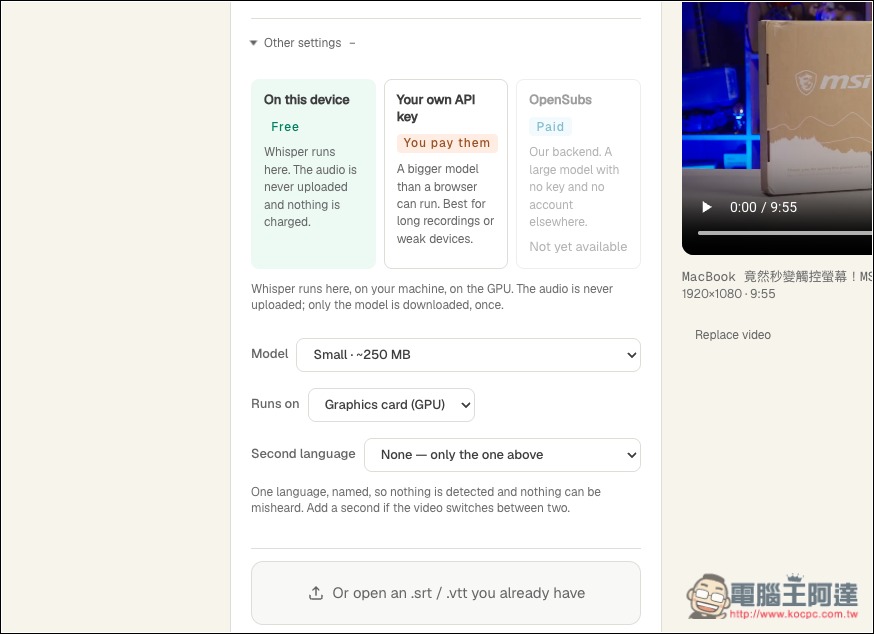
It can also be changed to Base or Tiny:
The first conversion will automatically download the model you configured:
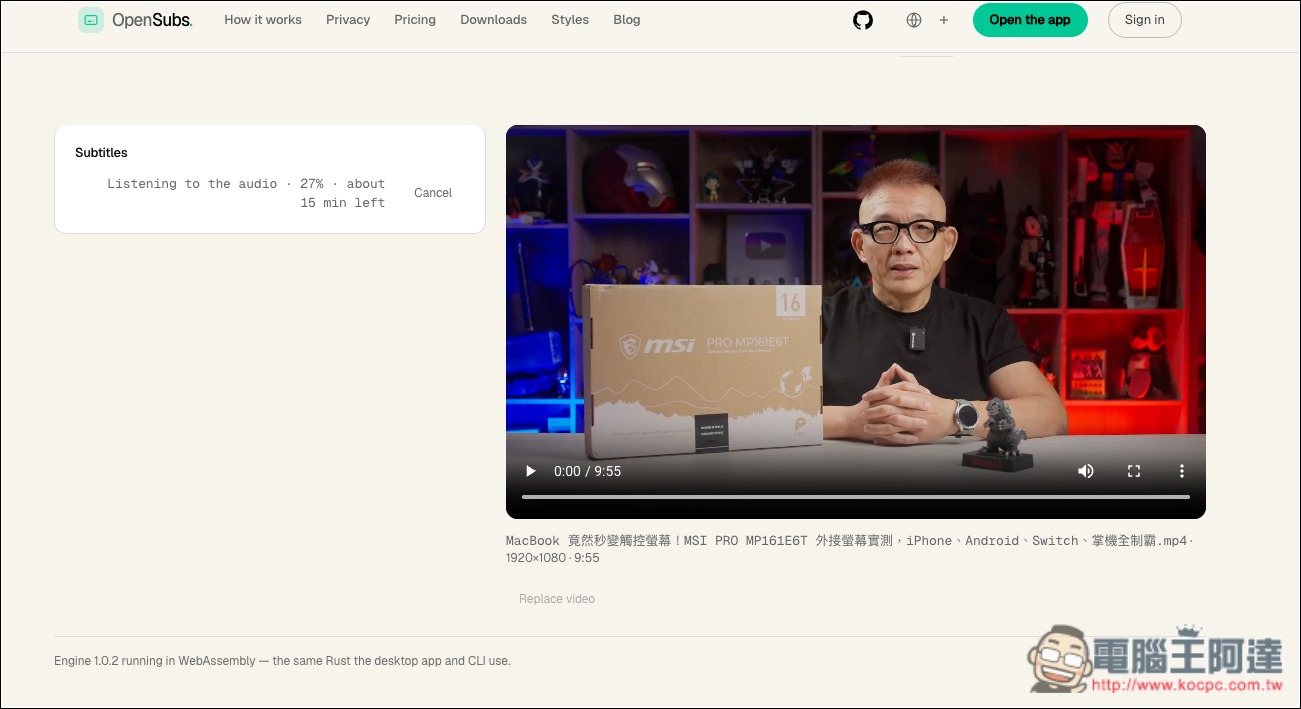
Once the download is complete, the conversion will start, and the screen will also show an estimated time. How fast it goes depends on your computer’s hardware specifications:
After conversion, subtitles will appear in the lower right corner, while various subtitle settings will be on the left:
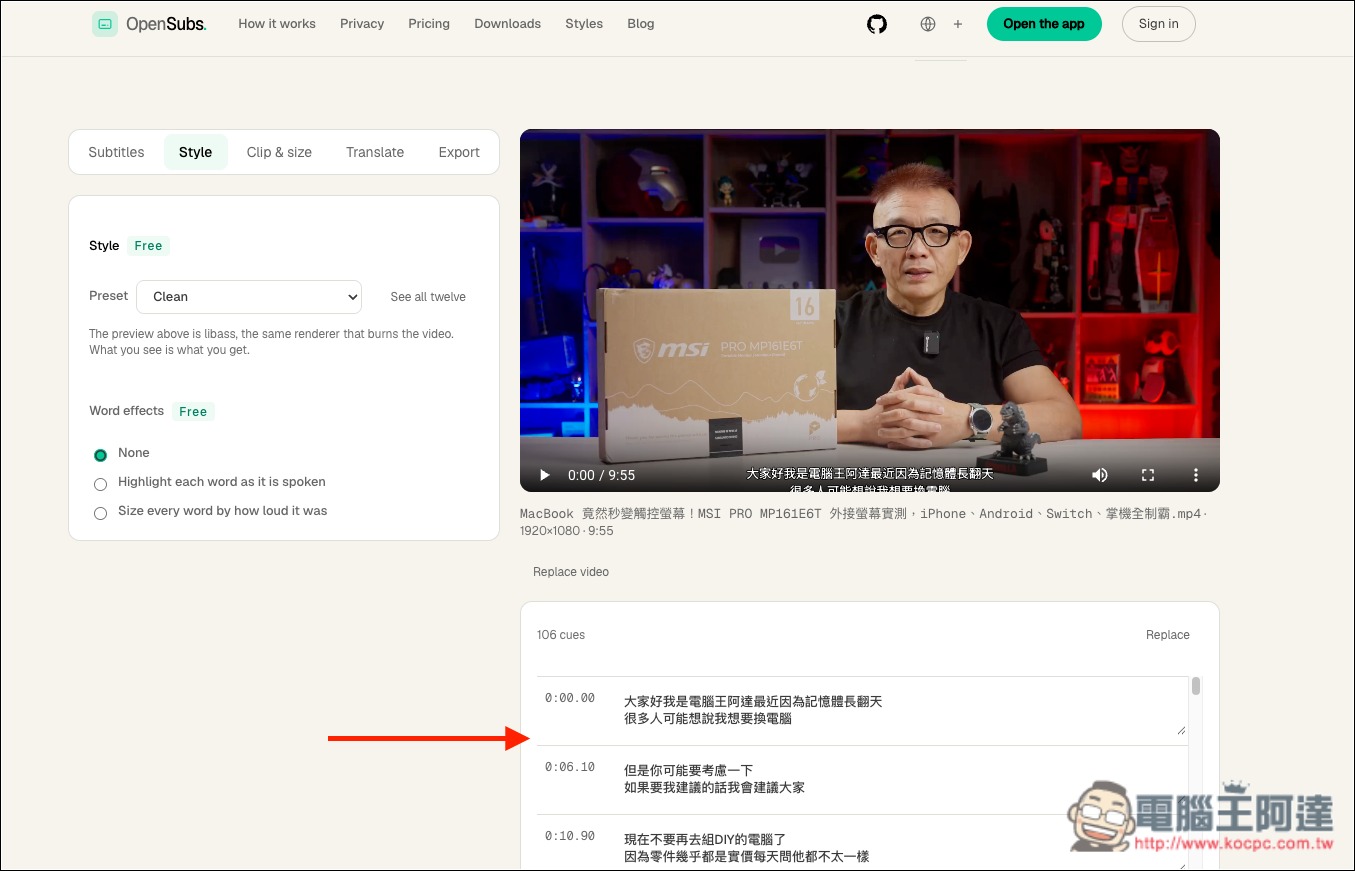
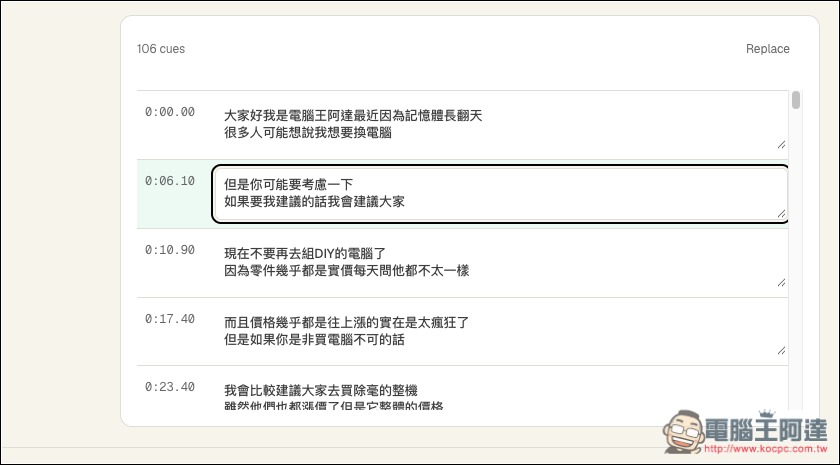
If there are any recognition errors, you can also correct them manually, but you can’t add timestamps yourself, which is a bit of a shame:
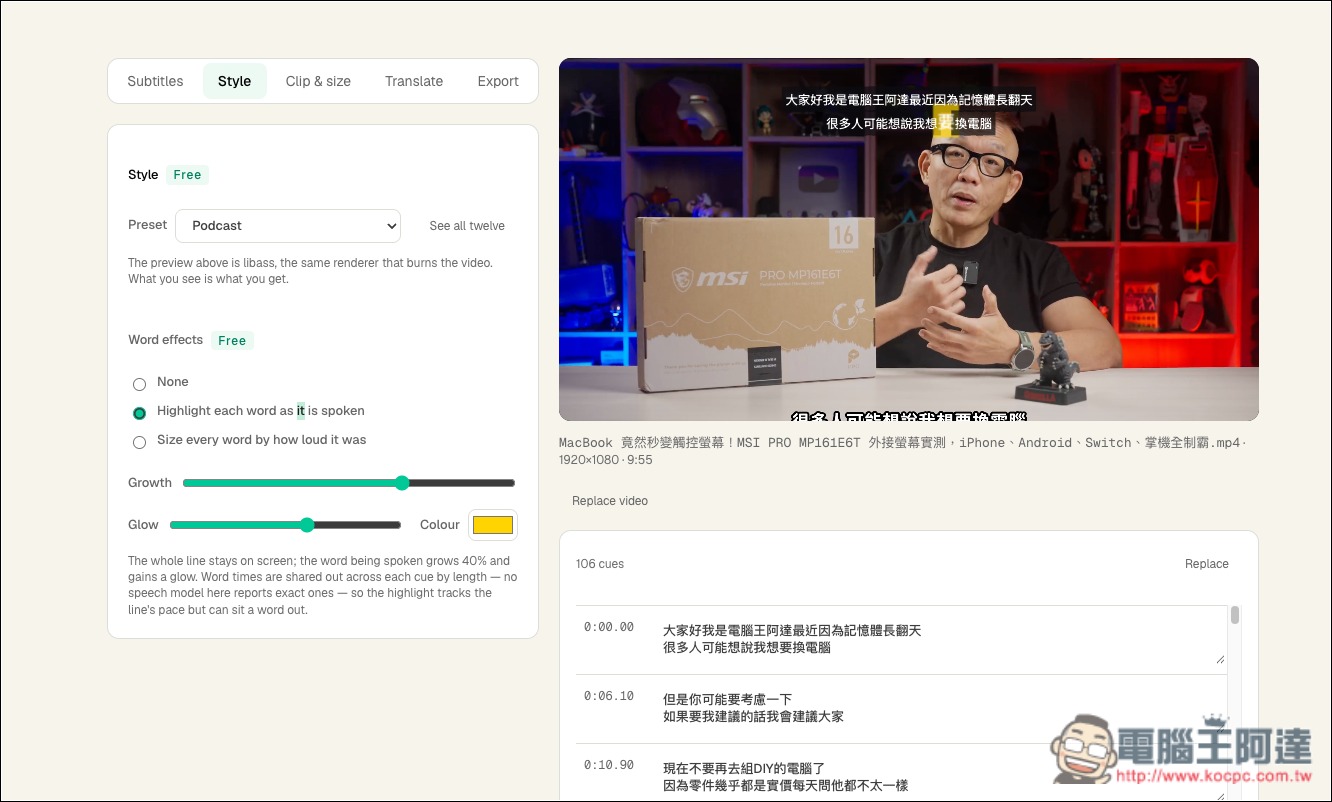
Preset is the mode and style of subtitle display:
After making changes, you’ll see that the position or appearance of the subtitles on the right has changed:
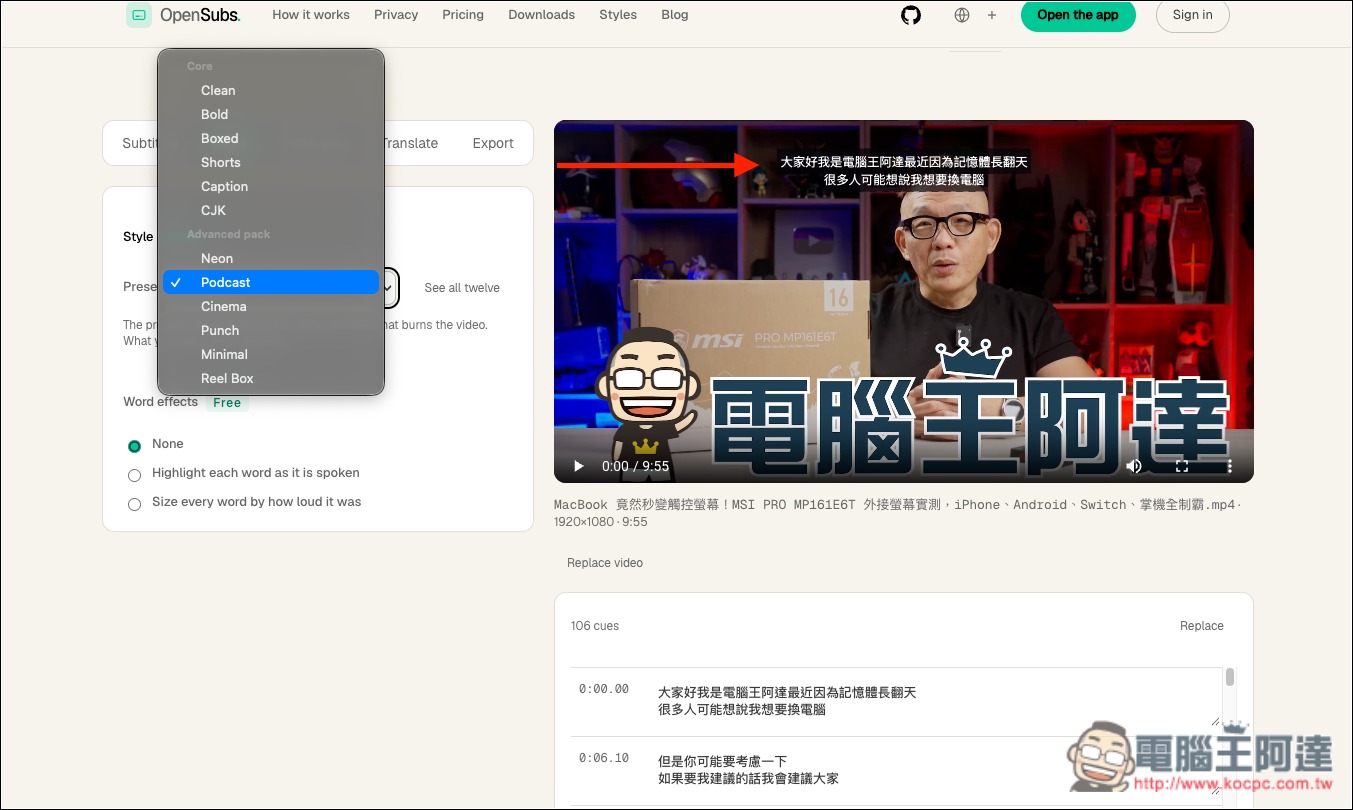
Below are also Word effects options:
It also supports translation: you can use Chrome’s built-in translation, add your own API Key, or use the OpenSubs paid service:
Export is the output settings; it supports exporting subtitles as .ass, .srt, or .vtt. Clicking Burn subtitles into the video below will merge the subtitles and video:
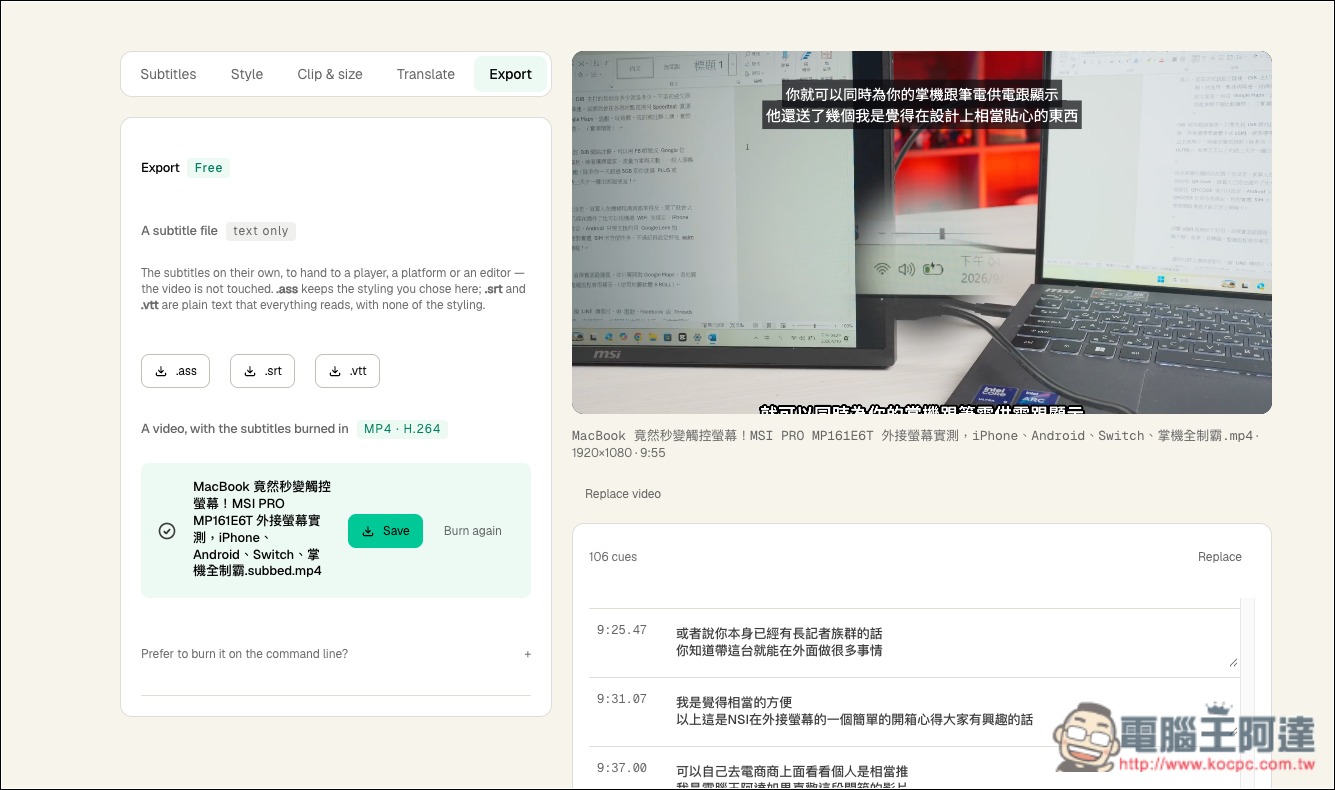
Once merged, you can save it to your device:
Source: KOCPC Chinese