


In the past, if you made a typo in a LINE chat, there was only one way to fix it: recall the message and resend it. Unlike chat apps like Telegram, WhatsApp, Messenger, and iMessage, LINE didn’t have the ability to edit messages after they were sent. However, the “recall” feature was pretty awkward—when free users recalled a message, the chat would leave a line saying “Message recalled,” which basically meant everyone in the chat knew you had just recalled something. To avoid misunderstandings, many people would just leave the typo as is and simply retype the message instead.
Recently, LINE has finally caught up! LINE has started gradually rolling out the “Edit Message” feature in LINE Labs. If your account has received the push, you’ll see this new option in LINE Labs. Once enabled, you can edit message content within 15 minutes after sending, without needing to recall or resend it. Here’s how to do it. Also, one thing to mention first: LINE has confirmed that this feature will later become exclusive to LINE Premium paid members, meaning it’s currently just a limited-time free perk.
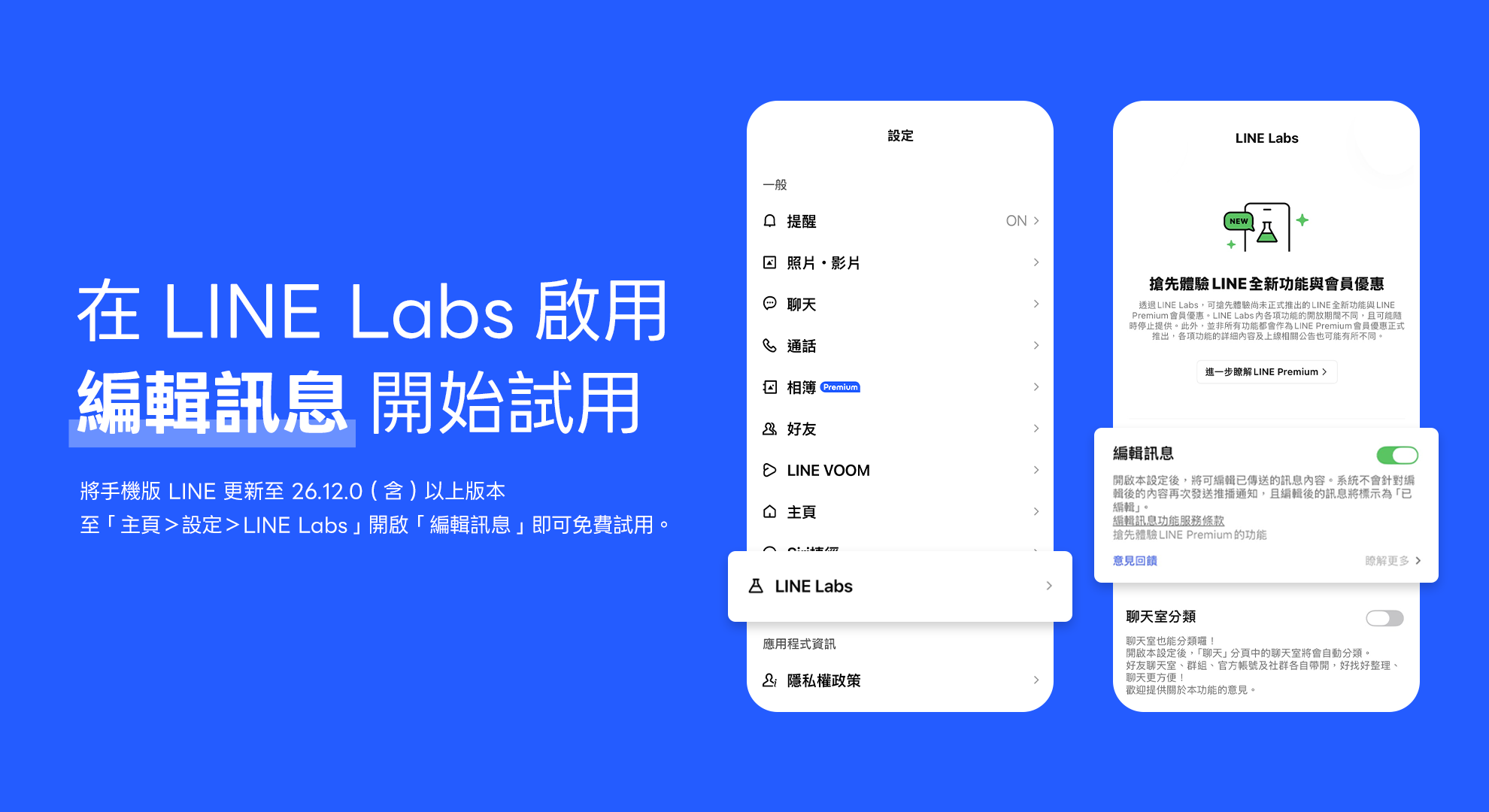
LINE finally lets you edit messages! No need to recall and resend typos—just edit within 15 minutes. Open the tutorial to see how.
First, you need to confirm whether LINE has been upgraded to a supported version. The LINE on phones and tablets needs to be updated to 26.12.0 or above, and the desktop version for Windows and Mac needs to be 26.4.0 or above. If the version isn’t high enough, you won’t find this option in the settings, so it’s recommended to check for updates on the App Store or Google Play first. If you want to confirm your current version, you can go to “Settings → About LINE” to check.
Next, go to LINE Labs and turn on the “Edit Message” switch: LINE home → gear icon at top right (Settings) → scroll down to “LINE Labs” → enter and find “Edit Message” → flip the switch on the right. Once it’s on, you can go straight back to the chat room and use it; no need to restart the app.
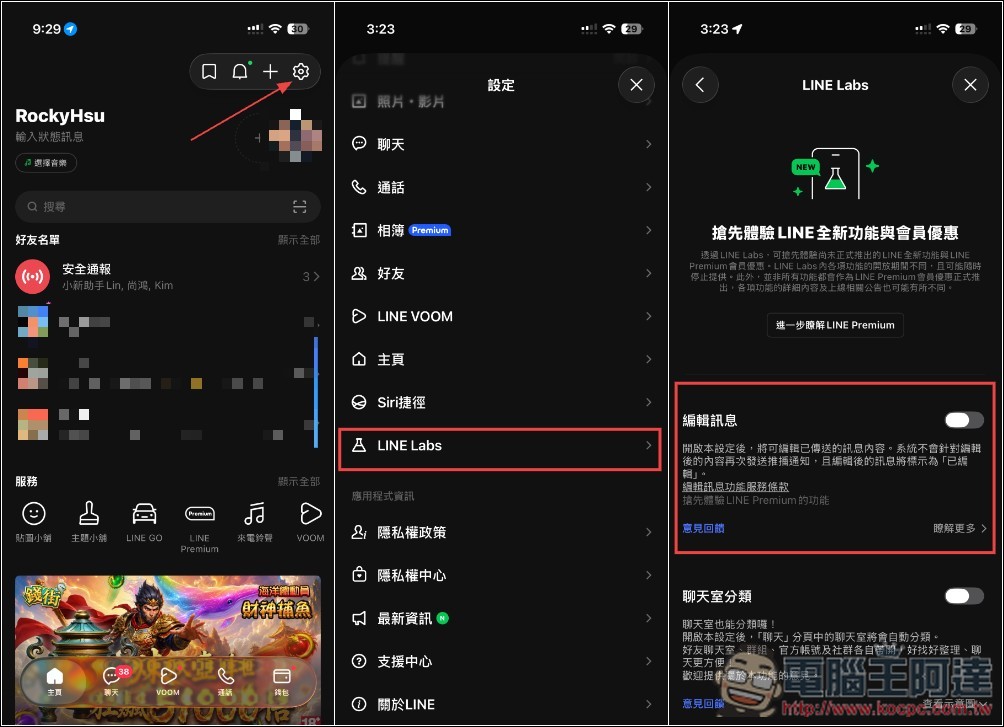
As for the desktop version, since there’s no LINE Labs option there, you just need to enable this feature on your phone or tablet, and the setting will automatically sync to all logged-in devices. No additional setup is needed on the desktop—it works right away.
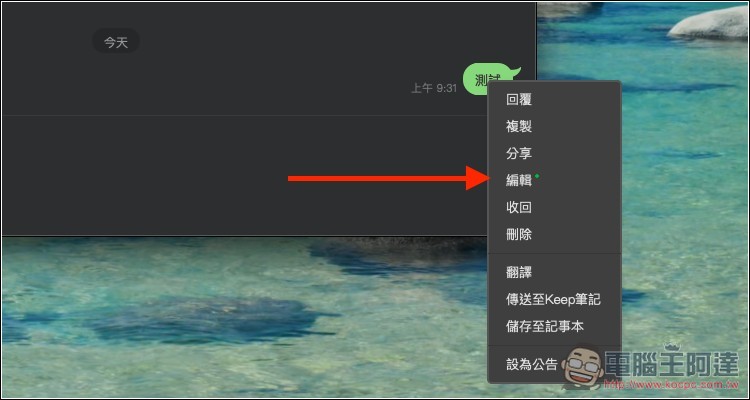
For example, my iOS version has already enabled the “Edit Message” feature. After making sure the desktop version is upgraded to 26.4.0, within 15 minutes of sending a message, the right-click menu for that message will show the “Edit Message” option:
Using it is simple: in the chat, long-press the text message you want to edit, and you’ll see a new “Edit” option in the menu. Tap it, and you’ll return to the input box with the original message content loaded for you to change. After editing, tap the Done (checkmark) icon next to it to send. A small “Edited” label will appear next to the message, and it will show up in both your chat and the other person’s chat. This cannot be turned off:
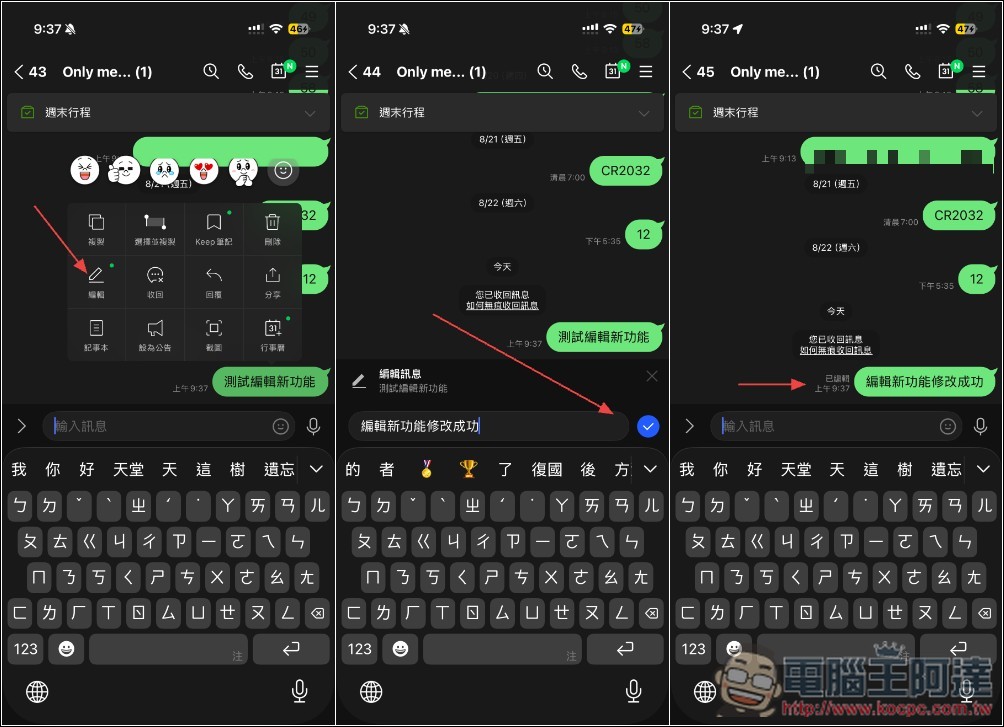
One thing to keep in mind is that the other person won’t receive any notification after you edit the message. The message won’t pop up again, there won’t be a red dot, and no push notification either. This means if the person has already read the message and you edit it afterward, they probably won’t know you’ve changed it unless they go back and check it themselves. So if it’s important information, it’s safer to send another message to let them know.
Currently, LINE doesn’t offer a feature to view edit history either, so once you change it, it’s changed—there’s no way to see what you originally typed.
The following is a summary of the limitations of the editing function:
- The editing time limit is only 15 minutes. Whether it’s a one-on-one chat or a group, the 15 minutes starts from the moment the message is sent. After that, long-pressing the message won’t show “Edit” anymore — much shorter than LINE’s recall feature.
- Keep notes are an exception, with 6 days. Because Keep notes sent to yourself are more like memos, LINE gives a much longer editing time.
- Only text messages can be edited. Photos, videos, voice messages, stickers, files, and location info cannot be changed at all. If you send the wrong image, you can still only recall it.
- LINE Communities (OpenChat) currently do not support message editing. If a group includes LINE official accounts, you can edit messages, but some recipients may not see the modified content correctly, and LINE will also show a reminder.
- If the other party’s version is too old, they will see the original version you didn’t edit. This is very important. According to LINE’s official explanation, if the recipient’s phone/tablet version is lower than 26.5.0, or the desktop version is lower than 26.1.0, even if you edit the message, what appears on their screen is still the one you originally sent. LINE also recommends that for important messages, rather than editing, it’s safer to resend them.
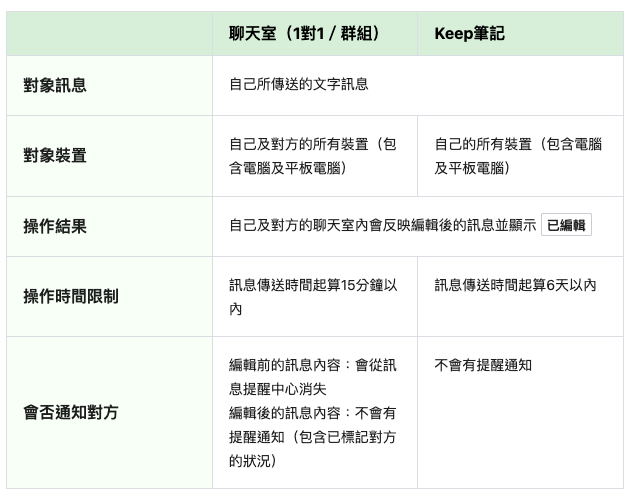
LINE official on the FAQ pageAlso, after the free trial ends, “Edit Message” will officially become a LINE Premium member-exclusive feature. The exact end date isn’t known yet, and it will be announced separately on the LINE settings page.
Source: KOCPC Chinese