


For people who make videos, adding subtitles has always been a frustrating problem. While there are many tools that can convert videos and audio recordings into transcripts, subtitles are a different matter entirely. Besides requiring highly accurate speech-to-text recognition, the timestamps also need to be correct. Recently, I came across KIAO Voice, a tool developed by a Taiwanese team. At its core, it’s an AI voice input tool, but the official website also offers features for converting videos and recordings into transcripts and subtitles. I tried it out and found it to be quite impressive—not only is the recognition rate extremely high, but the finished transcript can also be directly converted into a subtitle file. You can even listen to and edit each line individually, which makes it very handy for subtitling.
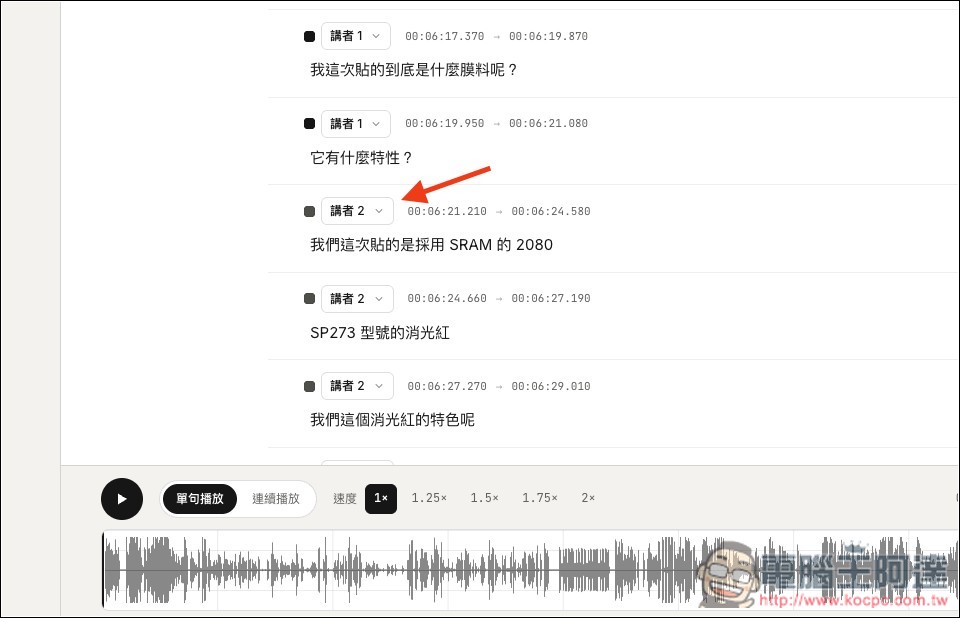
Additionally, it will automatically identify different speakers, and if it detects different voices, it will label them as Speaker 1, Speaker 2, and so on. However, a heads-up: this feature isn’t entirely free. Each account gets 25 free credits per month (roughly 25 minutes of transcription), and anything beyond that requires payment. The first 10 minutes are free to transcribe.
KIAO Voice: A Super Simple Free Tool for Converting Videos and Recordings into Transcripts and Subtitles – Introduction and How-To
KIAO Voice is an AI voice input tool developed by a Taiwanese team, with its main feature being optimization for Traditional Chinese and common Taiwanese expressions. When in use, just press a shortcut key on Windows or macOS and speak directly, and KIAO Voice will convert speech to text, use AI to help clean up filler words, grammar, and punctuation, then directly paste it at the current cursor location. It’s suitable for replying to emails, writing articles, organizing thoughts, or handling other tasks that require a lot of text input.
In addition to real-time voice input, the official website also offers an “audio-to-transcript” feature that lets you directly upload files such as videos, interviews, podcasts, and meeting recordings, and automatically converts the content into a complete verbatim transcript. The official version has been specifically tuned for Traditional Chinese and mixed Chinese-English usage, so even if you keep switching between Chinese and English while speaking, it can still recognize the speech.
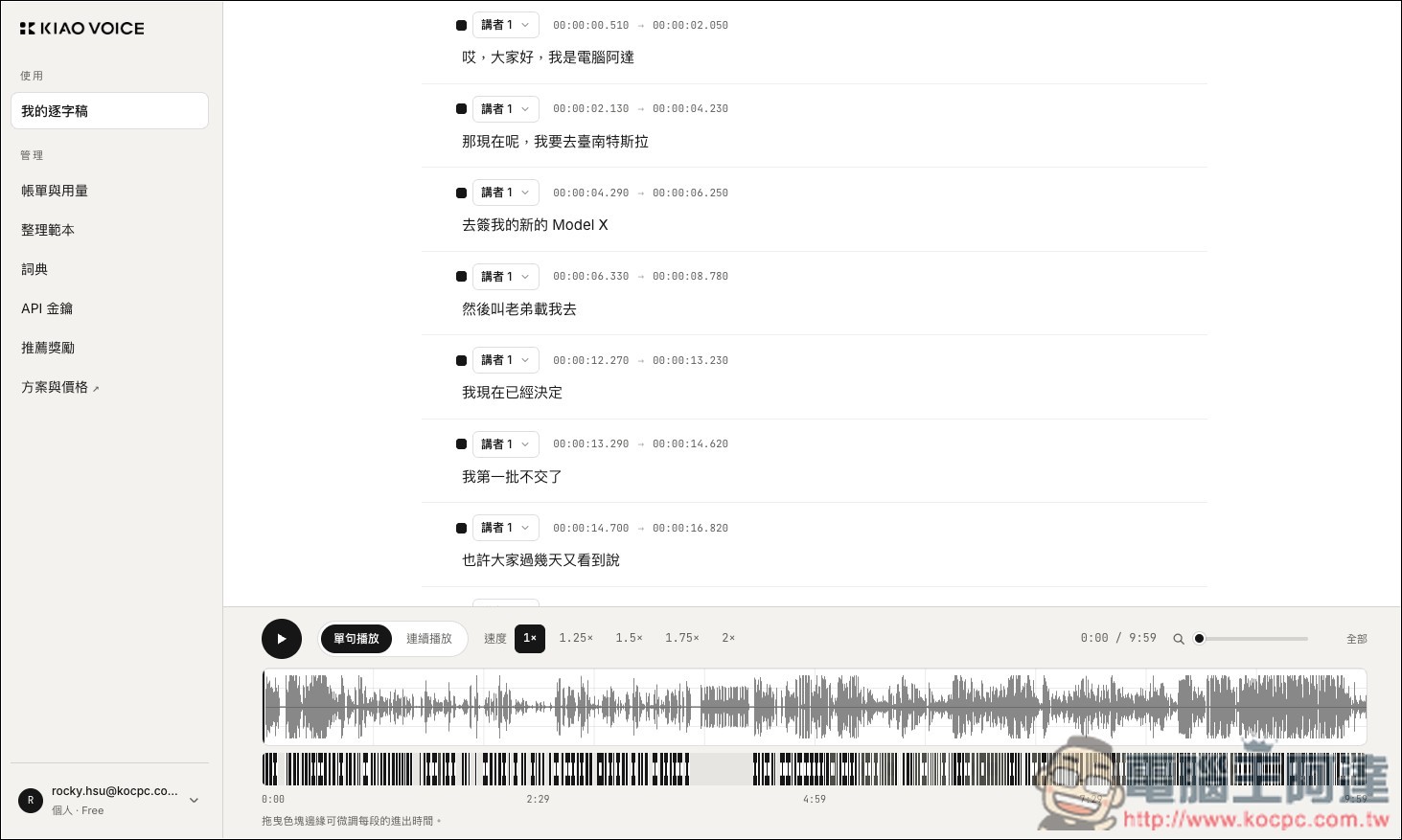
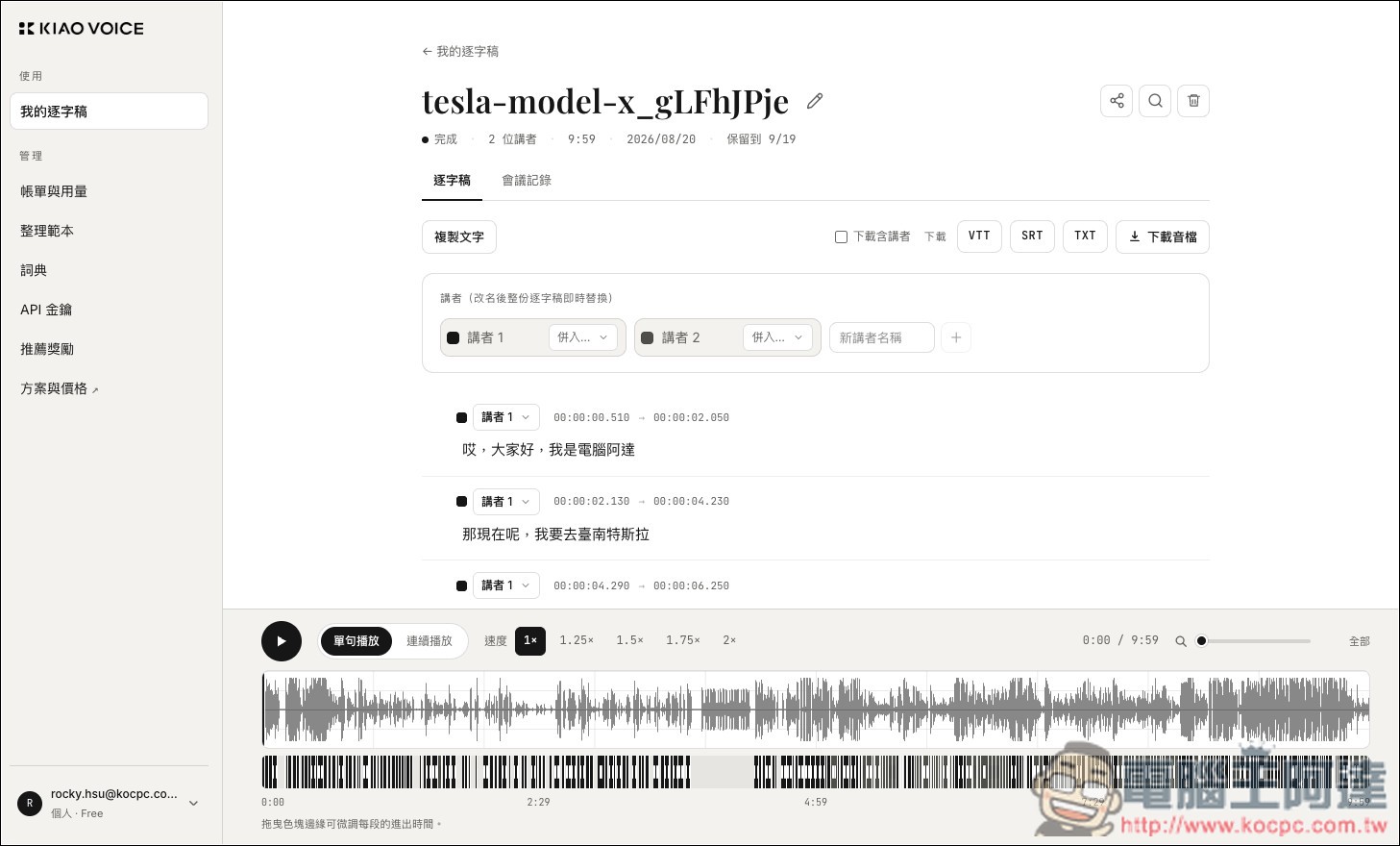
After transcription is complete, the system doesn’t just output a block of text. Instead, it automatically identifies different speakers, arranges each line along a timeline, and provides a waveform player so you can play the original audio while reviewing and editing the transcript. You can also rename speakers directly. For anyone who needs to organize interviews or meeting records, this saves a huge amount of manual transcription time. For YouTubers, podcast creators, or video editors, the results can also be exported directly for use as subtitles, with support for three formats: VTT, SRT, and TXT.
KIAO Voice’s transcription feature requires no software download—just head to the transcript section above to try it out. Your first 10 minutes of transcription are free, so be sure to take advantage of that. After you’ve transcribed, you can register an account to get around 25 minutes of free transcription every month. Audio and video files support mp3, wav, m4a, flac, ogg, webm, mp4, mov, and m4v formats.
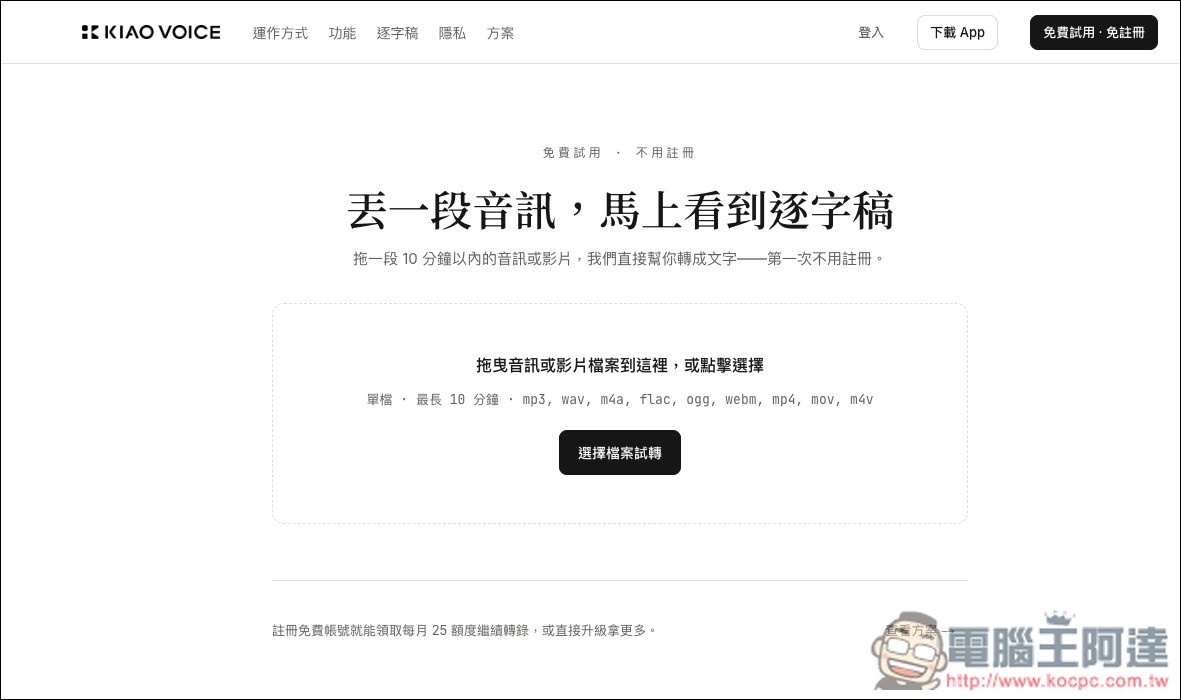
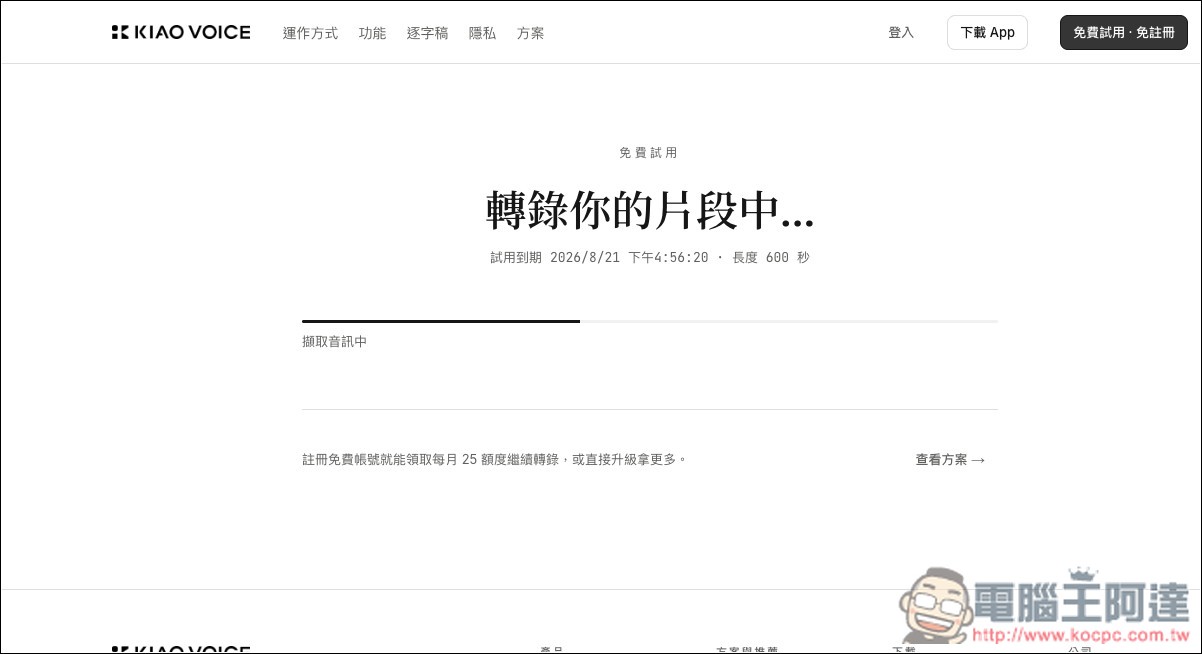
Once you select the file, transcription will begin—wait for the loading screen to finish.
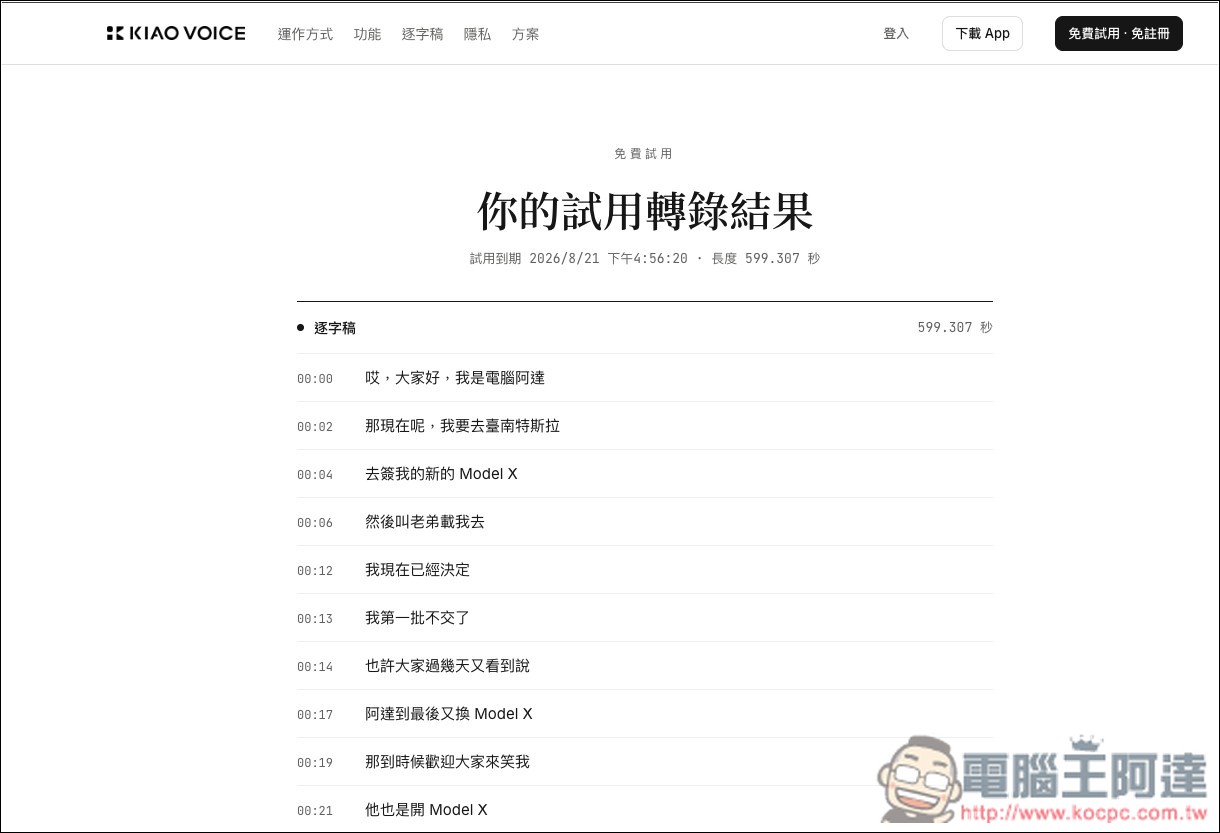
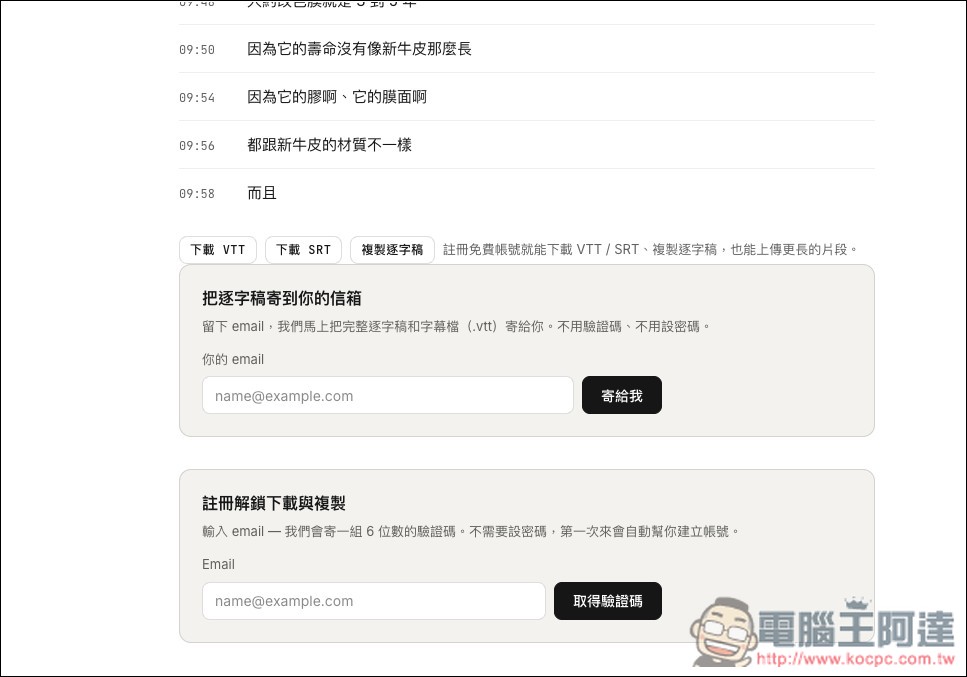
Then the transcription results will appear, with each segment having a timestamp and transcribed subtitles. At this point, please scroll all the way down to the bottom:
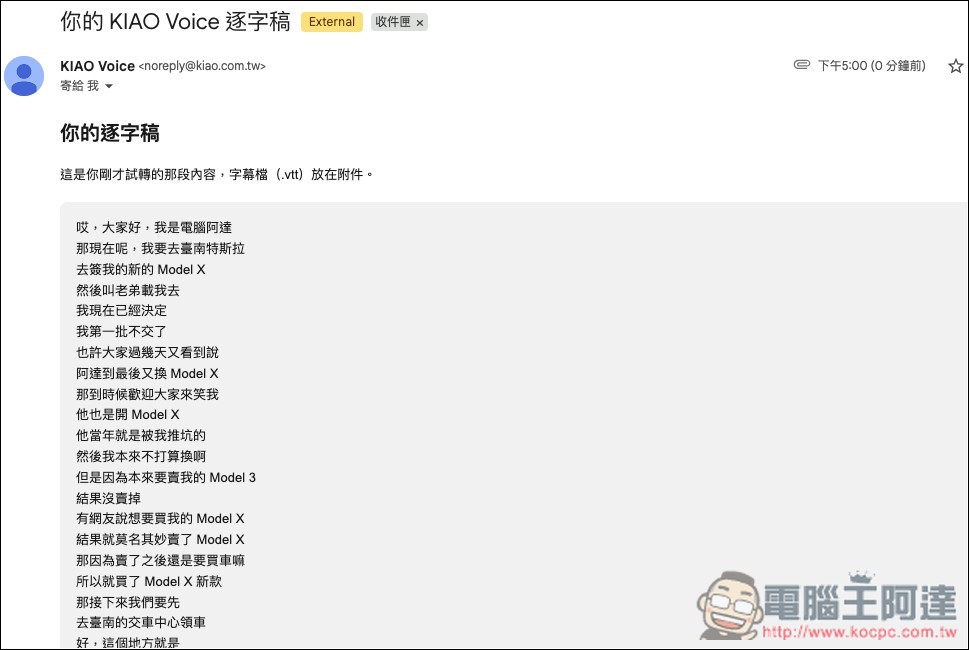
If you only need the transcript, there’s no need to register an account—just fill in your email and you’ll receive the transcript (without timestamps). If you need SRT subtitle files, you’ll need to register an account. In the “Register to Unlock Download and Copy” section below, enter your email:
The image below shows the content of the transcript:
Once you’ve registered and entered the backend, you’ll see the transcript from the free transcription. From there, you can edit and listen to it.
If the system identifies the voice as a different person, it will mark a different speaker. Of course, if it misidentifies, you can also modify:
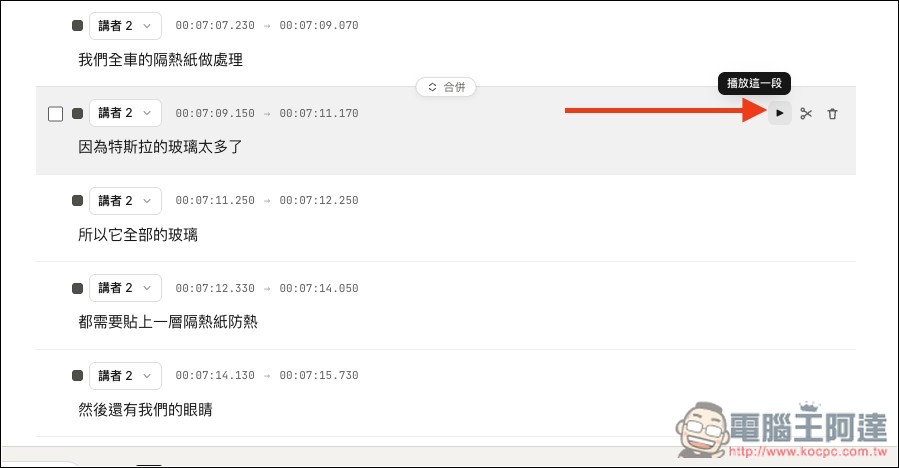
You can play each subtitle segment to check whether it’s correct, and if it’s not, you can manually edit it. From my testing, as long as the audio quality isn’t too poor, it’s almost always accurate.
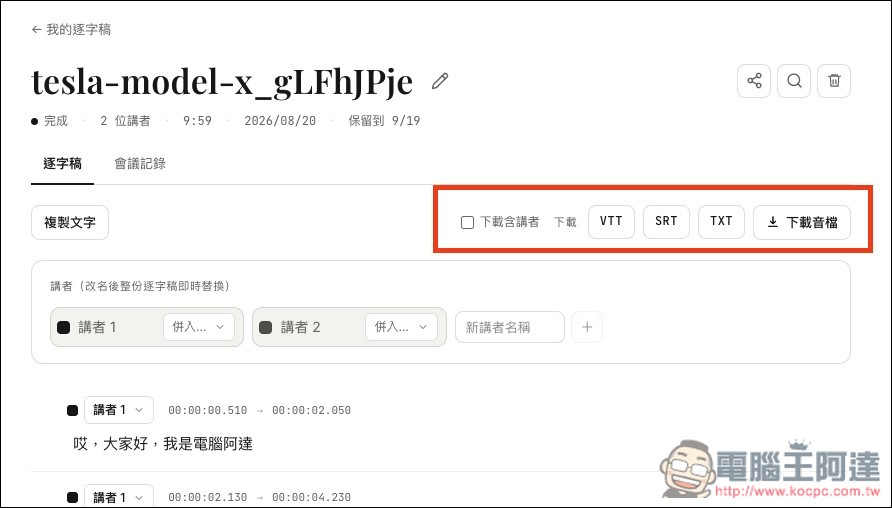
After confirming the content is correct, you can download the subtitle file from the top right corner. If you need it to include the speaker, remember to check the box. Also, one more thing to note: the transcription result is not saved permanently; it will indicate at the top how long it will be kept:
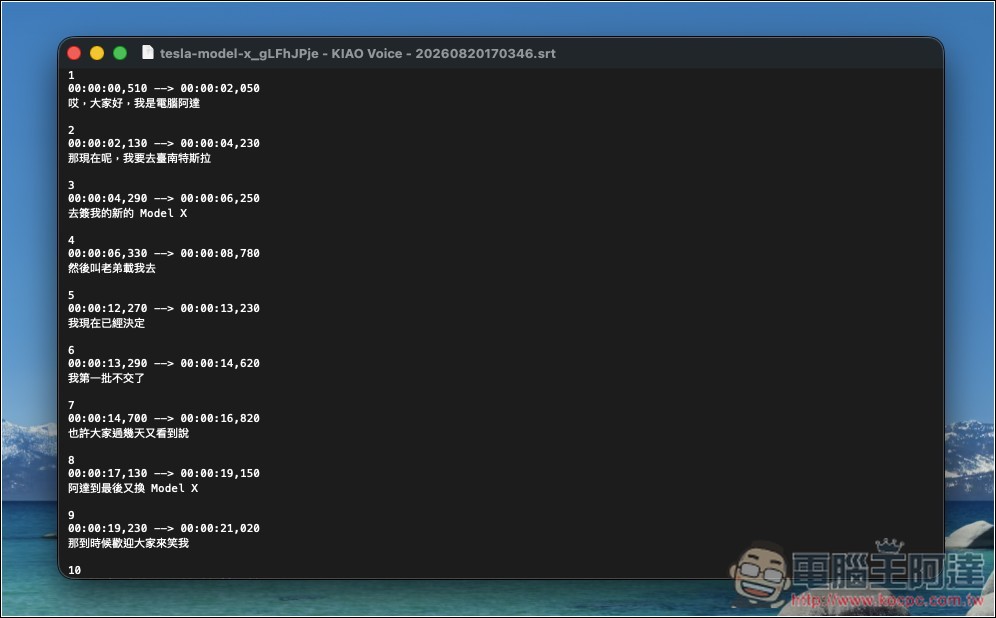
The content of the downloaded SRT subtitle file can be used directly:
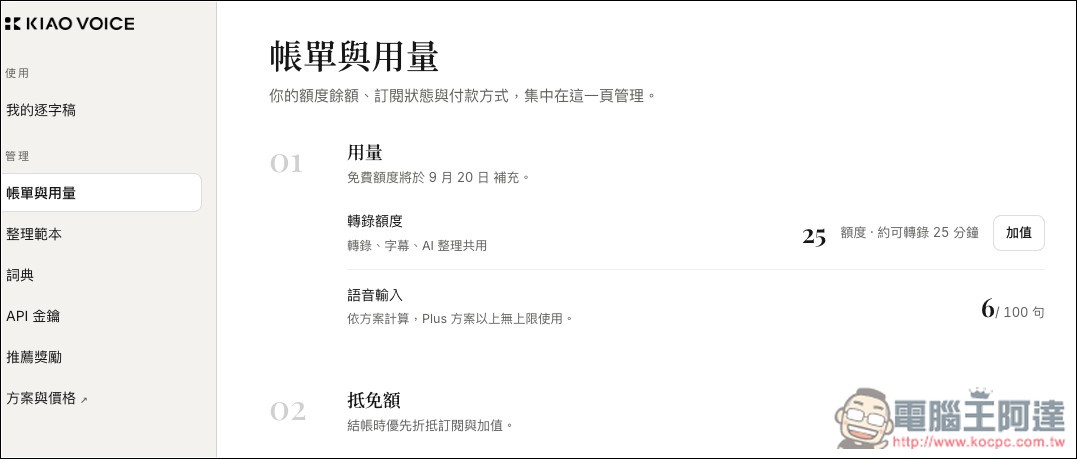
On the Billing and Usage page, you can see how much credit you have left:
Additionally, when uploading files in the backend, you can also set the dictionary, prompts, and what file format you want after conversion:
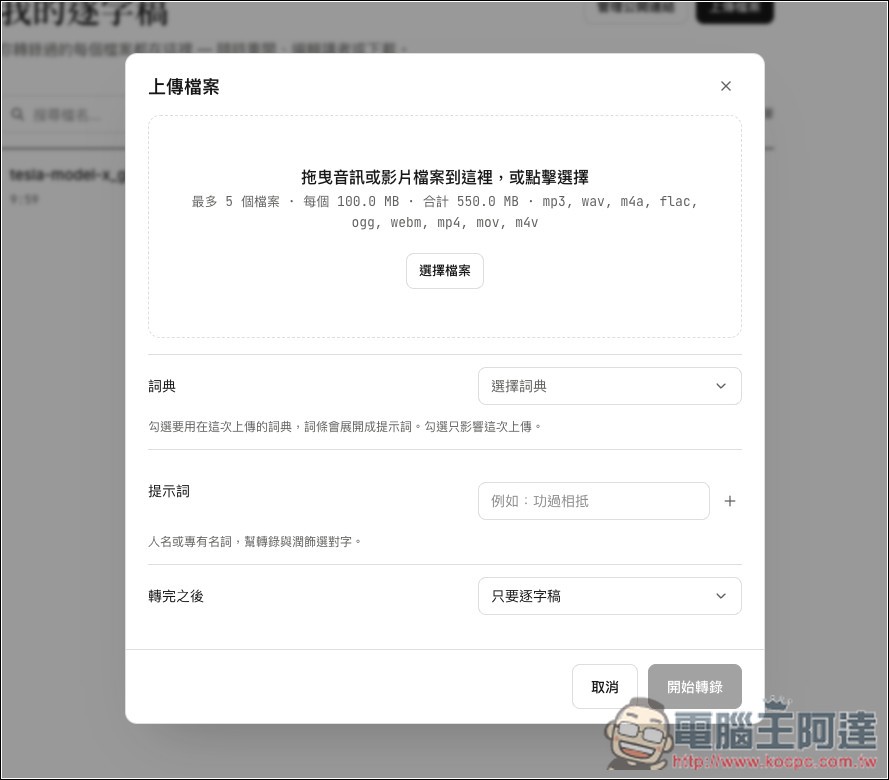
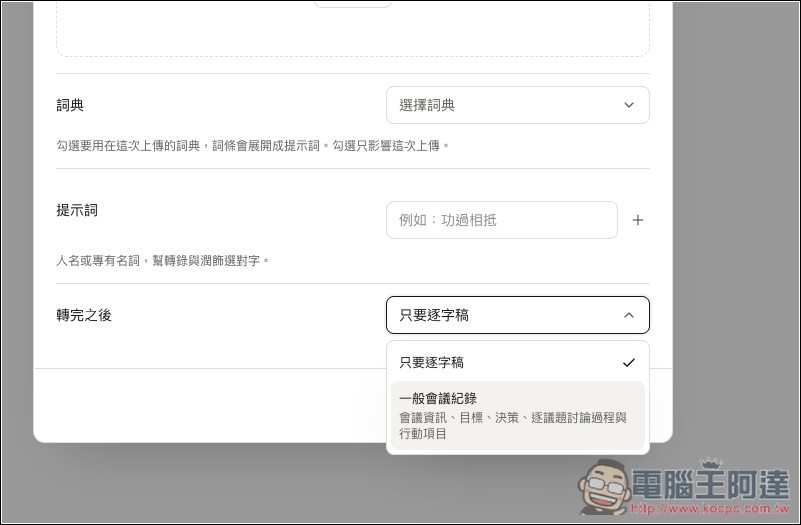
You can choose between a verbatim transcript or regular meeting minutes:
Source: KOCPC Chinese