


Since Apple began equipping Macs, MacBooks, and iPads with ARM-based M-series processors, it’s been no secret that macOS should be able to run on iPads—it’s simply a matter of Apple’s product segmentation. Someone has also previously managed to run macOS on an iPhone, and we’ve written about that as well. How to Run Windows on iPad / iPhonePreviously, to achieve this, one mostly had to rely on pure software emulation solutions like UTM, which compromised performance and compatibility. Recently, an open-source project called “Virtual Mac on iPad” has paved a new way: it leverages the hardware CPU virtualization capabilities of the M1/M2 chips, along with graphics acceleration, to let certain jailbroken iPads boot full macOS directly on the device, allowing professional software like Xcode and Terminal to run natively in the virtual machine.
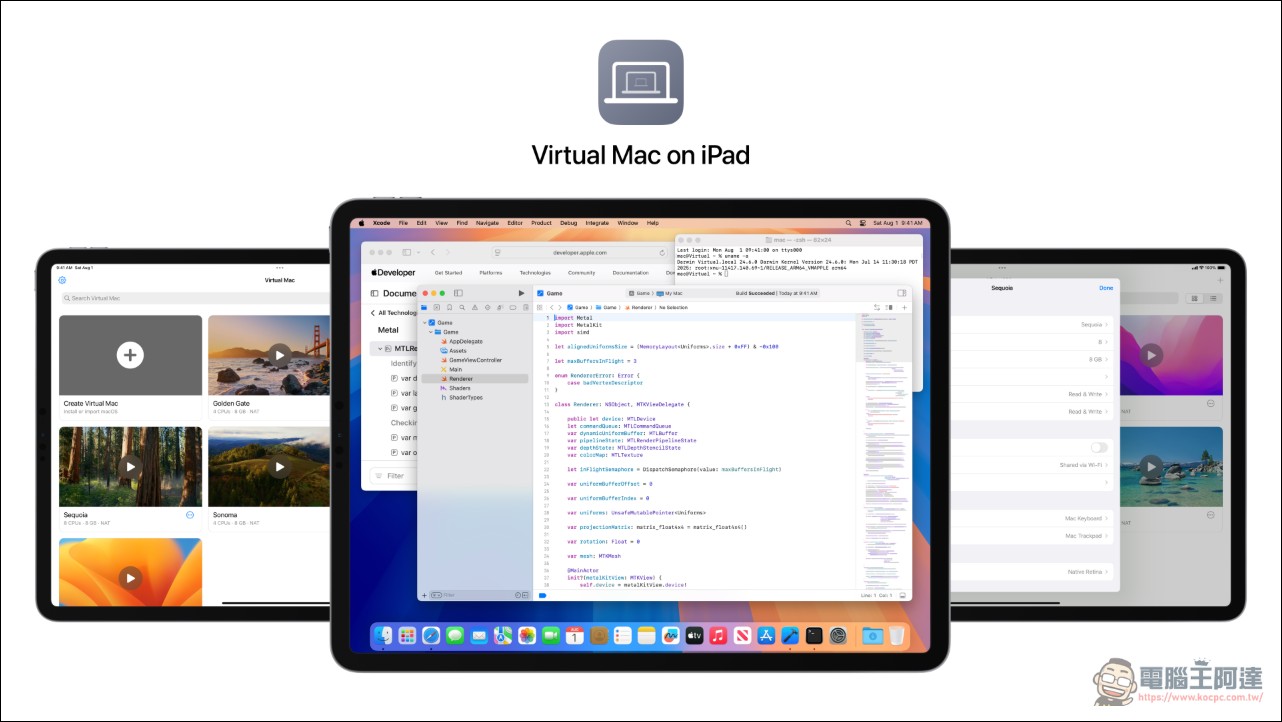
Supported Models and System Versions for Virtual Mac on iPad
“Virtual Mac on iPad” is only supported on iPad Pro models with M1 or M2 chips and the M1 iPad Air, limited to iPadOS 16 through 16.3.1. Apple recommends prioritizing iPad Pro models with 1TB or 2TB storage, as these come with 16GB RAM, offering the best performance and experience. Other storage capacities can also be installed, but models with less memory will have a more limited experience.
Virtual Mac on iPad: People have dreamed of running macOS on iPad for more than a decade. Today, that dream comes true.
byu/nfzerox injailbreak
Why is support only up to 16.3.1? The key is that starting with iPadOS 16.4, Apple removed Hypervisor support from the XNU kernel, causing the underlying interfaces needed for hardware virtualization to completely disappear. To re-support versions after 16.4 would require a significant amount of additional engineering; in contrast, the developers think it’s actually easier to go back and support iPadOS 15.
Supported macOS versions
The range of systems that can be installed on the virtual machine spans from macOS 12 Monterey all the way to the still-experimental macOS 26 Tahoe and macOS 27 Golden Gate. The officially recommended stable range is macOS 13 Ventura through macOS 15 Sequoia; experimental versions may encounter minor visual or performance issues. Additionally, since you cannot sign in to iCloud or Apple accounts, remember to select “Set Up Later” when prompted to log in during installation.
People who want to use Xcode in a virtual machine can download the corresponding Xcode version based on the installed macOS version: for example, Sequoia corresponds to Xcode 26.3, Sonoma to Xcode 16.2, Ventura to Xcode 15.2, and Monterey to Xcode 14.2. This means that using an iPad directly for iOS/macOS app development is now technically viable.
performance effectiveness
In terms of performance, since the virtual machine uses an improved version of Apple’s own macOS virtualization framework, combined with hardware CPU virtualization and graphics acceleration, everyday operations are roughly on par with running macOS via VirtualBuddy or UTM on an M1/M2 Mac.
In terms of operation, the Magic Keyboard is officially recommended but not required. Those without a keyboard can use the touchscreen with the virtual keyboard for basic operations, such as dragging to select menu items and pressing Command + O to open files. You can also go to Appearance in System Settings to set scroll bars to Always Show, making touch scrolling more comfortable. If the virtual keyboard covers the screen, long-press the button in the bottom-right corner to switch to floating mode. The HUD interface can also be dragged to a corner or hidden from the More menu; when needed, long-press the Virtual Mac icon on the Home Screen to bring it back. For those who want to boot directly into macOS, you can enable auto-login in System Settings, set the lock screen to Never, and change the Virtual Mac startup option from Show Library to the specific virtual machine name.
Virtual Mac on iPad Project
Restrictions and Precautions
The project is still in its early stages; the first commit to the repository was made about a day ago, with subsequent minor fixes. In addition to the previously mentioned device model and system version restrictions, users may also encounter issues such as installer permission errors and conflicts with other tweaks. The README lists several troubleshooting methods for known issues, such as using Filza to adjust access permissions for /var/root and disabling the Tweak Injection setting in Choicy.
Additionally, this project isn’t suitable for average users to try, as it only supports iPads with M1 or M2 chips, and iPadOS must be a version before 16.4. It also requires jailbreaking, which is fairly difficult for general users. Those who have the skills and happen to have an iPad that meets the requirements can give it a try themselves.
Source: KOCPC Chinese