


In the past, many people chose the Pro series iPhone, what I like is ProMotion Bringing a high update rate and smooth experience, this year iPhone 17 The standard version also supports ProMotion, making it a high-cost iPhone choice. However, in actual use, I found that the sliding feel of Safari when browsing the web seemed different from other system interfaces. Although it has hardware support, I always feel that it is missing that smooth and sticky feeling. What is the problem?
actually,Safari There is an advanced setting related to the page update rate, but it does not fully unleash the potential of the monitor in the default state. With just a few simple adjustments, the screen updates when browsing the web will be more immediate, scrolling will be more natural, and it will be closer to what you expect from a high-end iPhone. Next, I will take you step by step to understand this Safari high update rate setting that most people have never noticed.
120Hz is forcibly unlocked! Teach you how to make iPhone Safari actually run to 120Hz to unlock a super smooth browsing experience
Since the iPhone 13 Pro series, Apple has introduced ProMotion display technology on Pro models, which can automatically adjust the refresh rate between 10Hz and 120Hz according to the screen content. This specification was also devolved to the standard iPhone 17 for the first time in the iPhone 17 series this year. This adaptive dynamic update rate design aims to strike a balance between fluency and battery life. It can slide the screen smoothly and reduce power consumption when the screen is still.
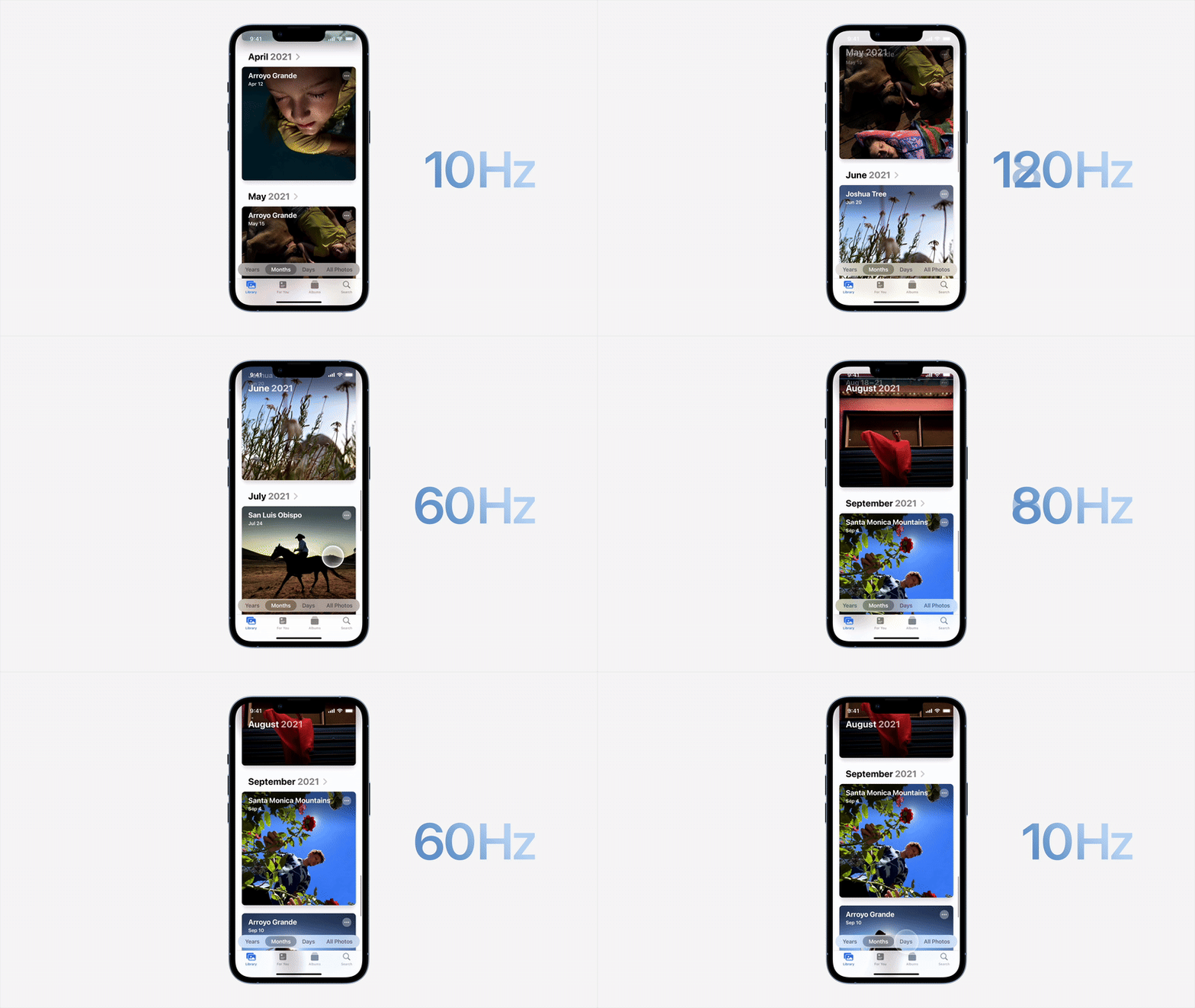
▲Image source: Apple
However, after actual experience, many users will find that the system interface, app switching and even game screens are very smooth. However, once they enter the Safari browser and slide the web page, the update rate seems to be restricted. When scrolling long pages, the smoothness of the high update rate is missing.
This is not your illusion, but Safari has a default page rendering setting that favors stability and power saving, which will keep the update rate of most web pages close to 60fps. Even if the hardware supports 120Hz, it will not actively output at full power.
The good news is that this limitation can actually be adjusted through hidden settings, allowing Safari to truly run close to 120Hz under appropriate circumstances.
Which iPhones support Safari 120Hz browsing mode
Before you start setting up, make sure your iPhone has a ProMotion display. Only models that support ProMotion can Safari unlock high refresh rates.
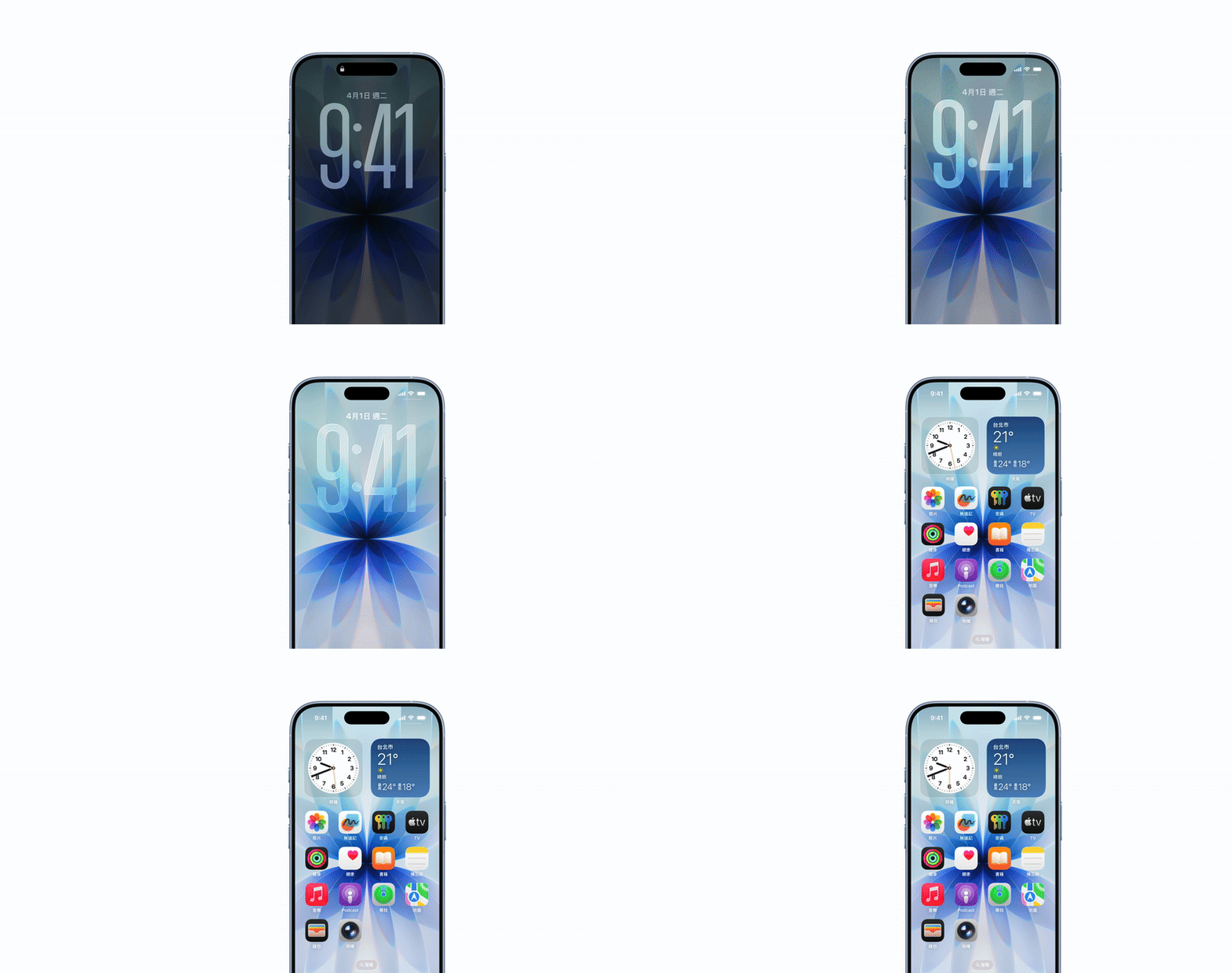
▲Image source: Apple
Currently supported iPhones include:
- iPhone 13 Pro
- iPhone 13 Pro Max
- iPhone 14 Pro
- iPhone 14 Pro Max
- iPhone 15 Pro
- iPhone 15 Pro Max
- iPhone 16 Pro
- iPhone 16 Pro Max
- iPhone 17
- iPhone 17 Pro
- iPhone 17 Pro Max
- iPhone Air
- and subsequent ProMotion models
If you are using a regular version, such as iPhone 13, iPhone 14, iPhone 15, and iPhone 16 non-Pro models, the highest screen refresh rate is 60Hz. Even if you adjust the advanced settings of Safari, the 120Hz effect will not appear. In addition, the system version needs to be updated to iOS 18 or later to see the corresponding feature flag options.
Practical tutorial on how to force Safari to turn on 120Hz
The entire setting process is not complicated, but the options are hidden deep, so you just need to follow the order.
Step 1. Open the Safari settings page
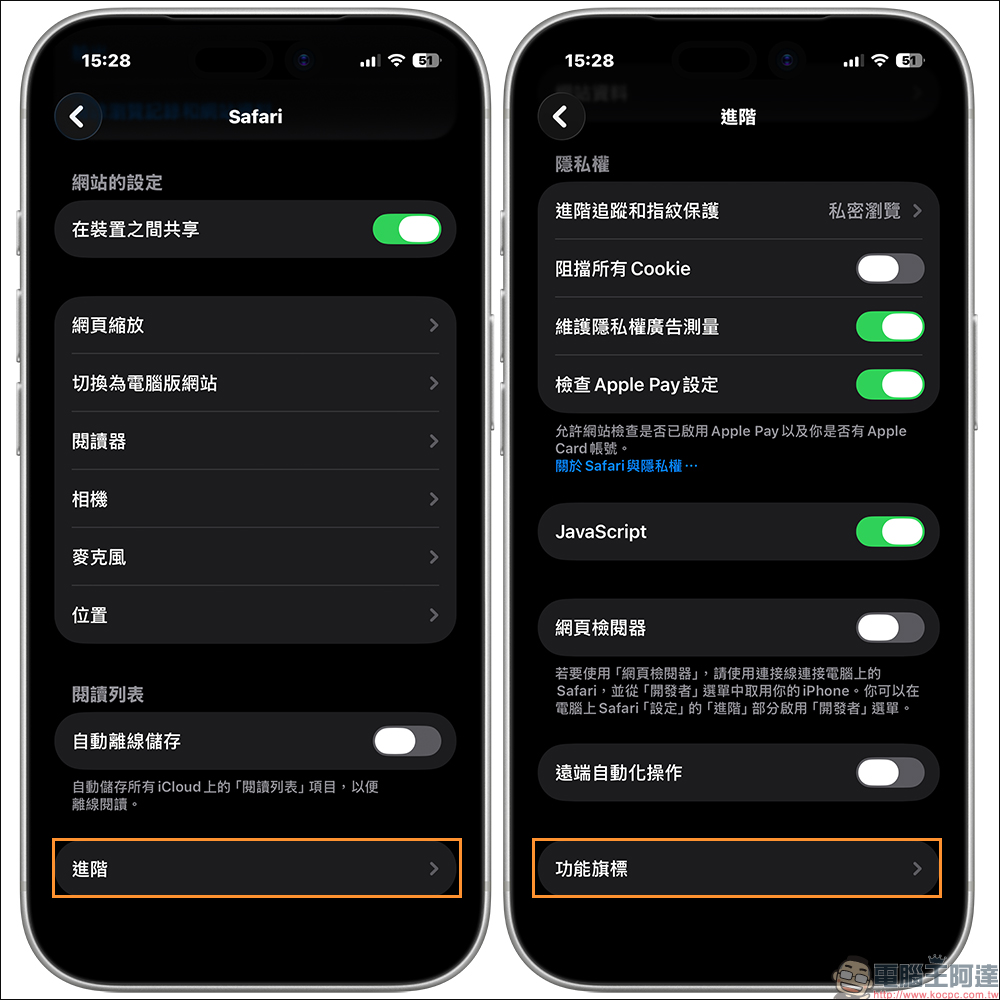
First open the iPhone’s built-in “Settings”, scroll down to the App section, click on it to find Safari, and enter Safari’s exclusive settings page.
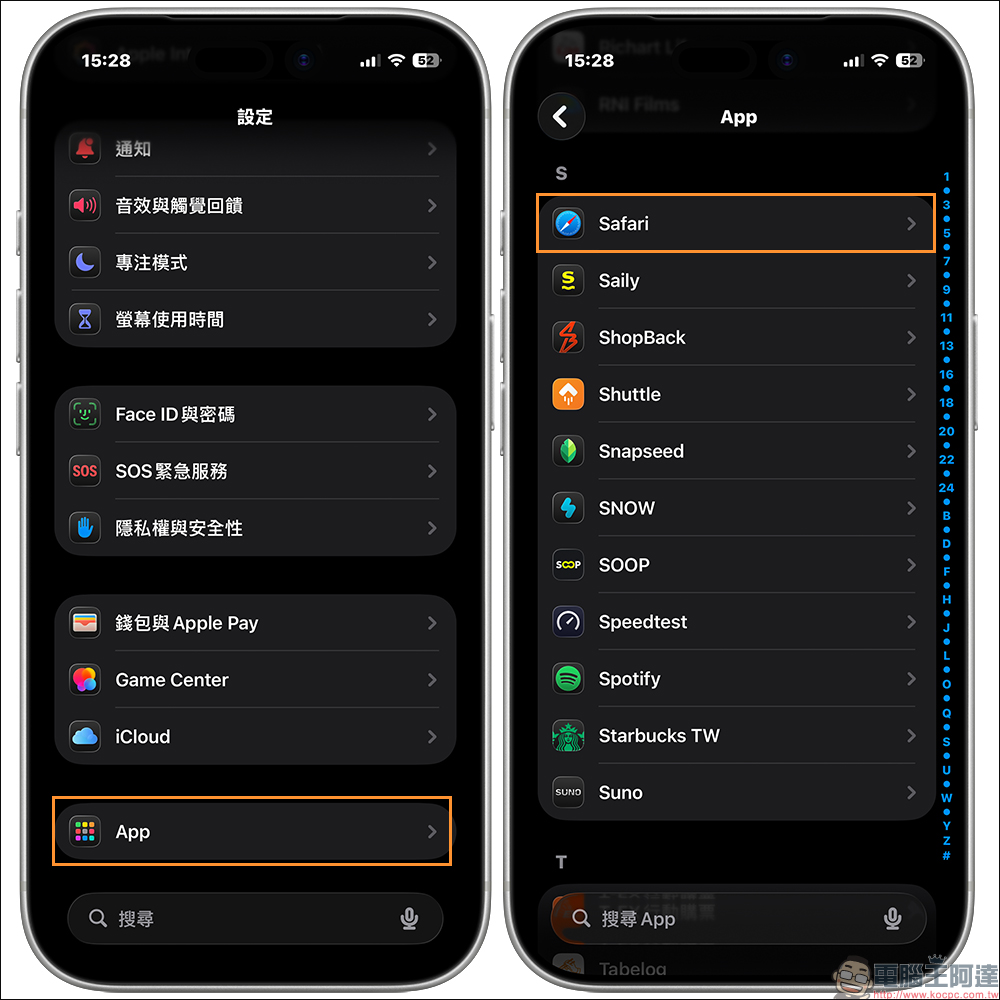
Step 2. Enter advanced settings and function flags
In Safari settings, scroll down to the bottom and click “Advanced”. After entering, continue to slide to the bottom, you will see the option “Function Flag”, click to enter.
Step 3. Turn off the preferred 60fps page rendering setting
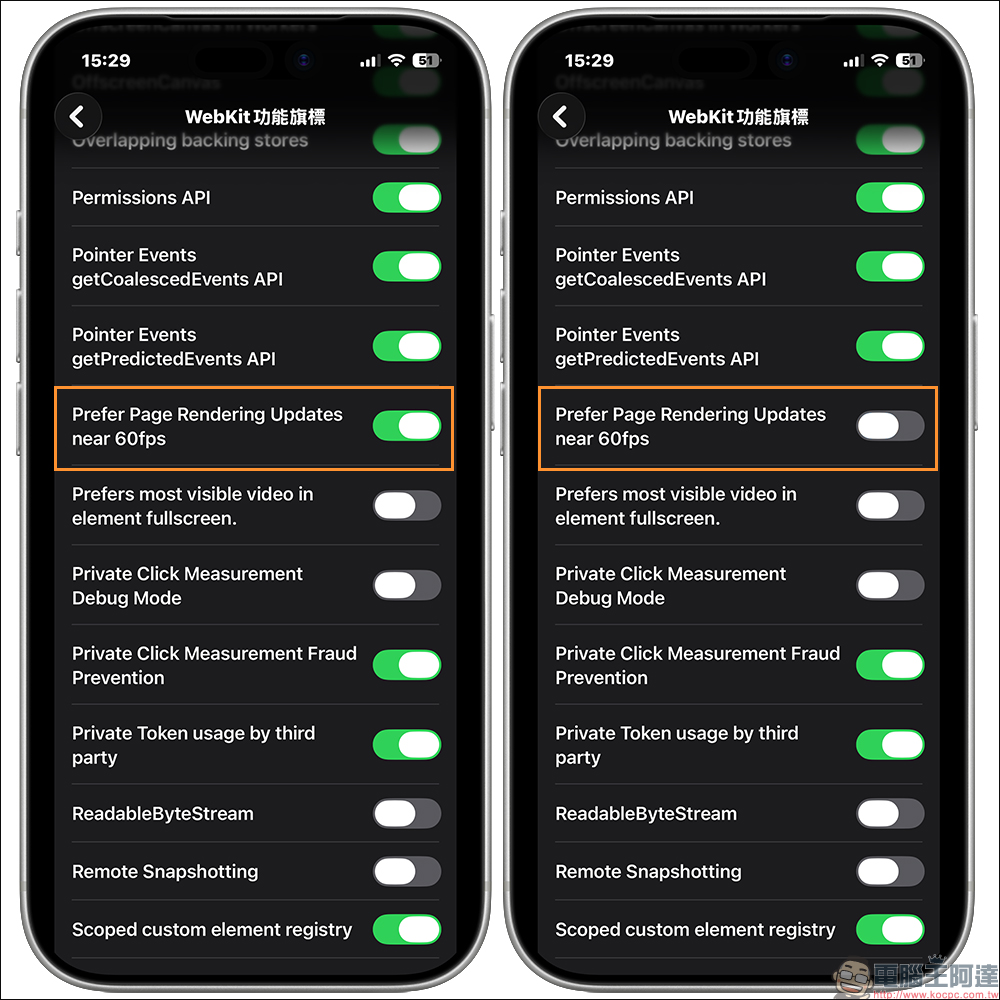
This is the advanced experimental functional area of WebKit. It is rarely used, but it is the key. In the list of feature flags, find the option “Prefer Page Rendering Updates near 60fps”. The system default is on, which means Safari will prioritize updating the screen at close to 60fps. Turning off this option is equivalent to telling Safari not to deliberately limit the page update rate, allowing the display to increase the update frequency as needed.
Step 4. Restart Safari and confirm the effect
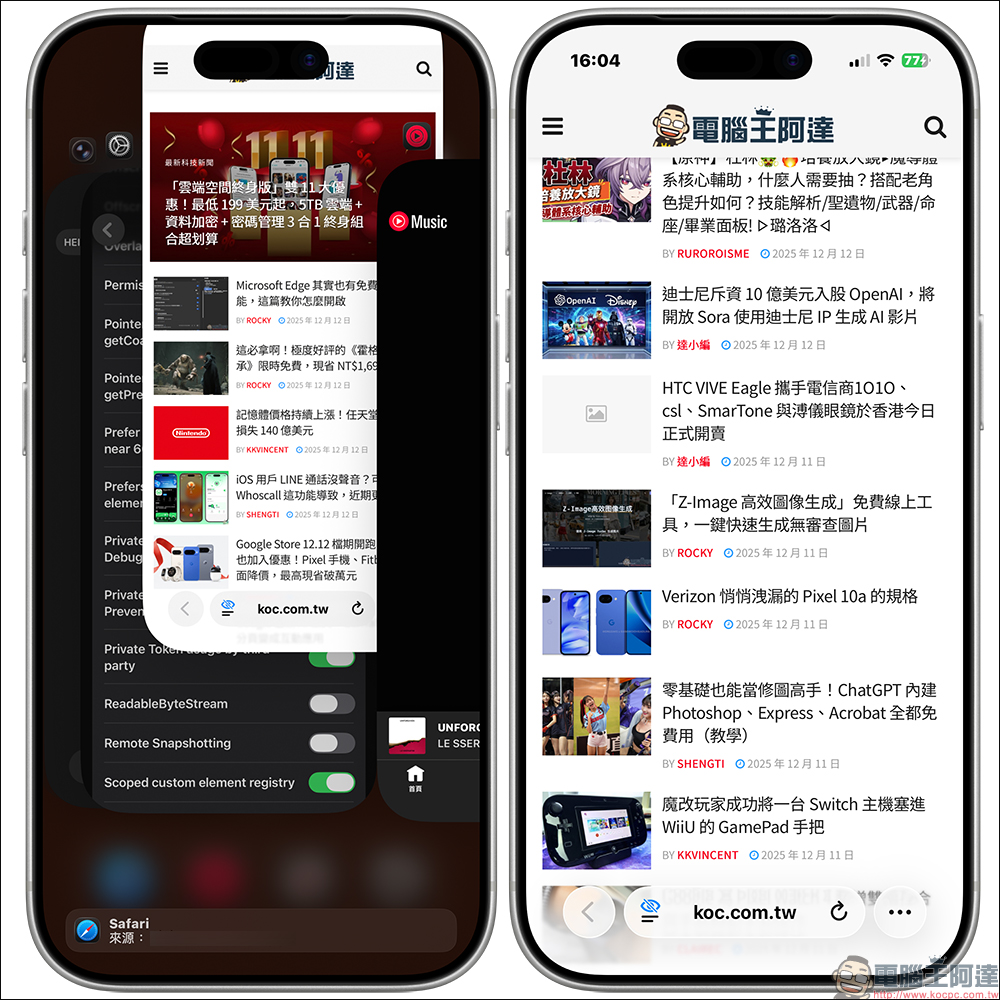
After completing the setup, remember to completely close Safari from the background and reopen it.
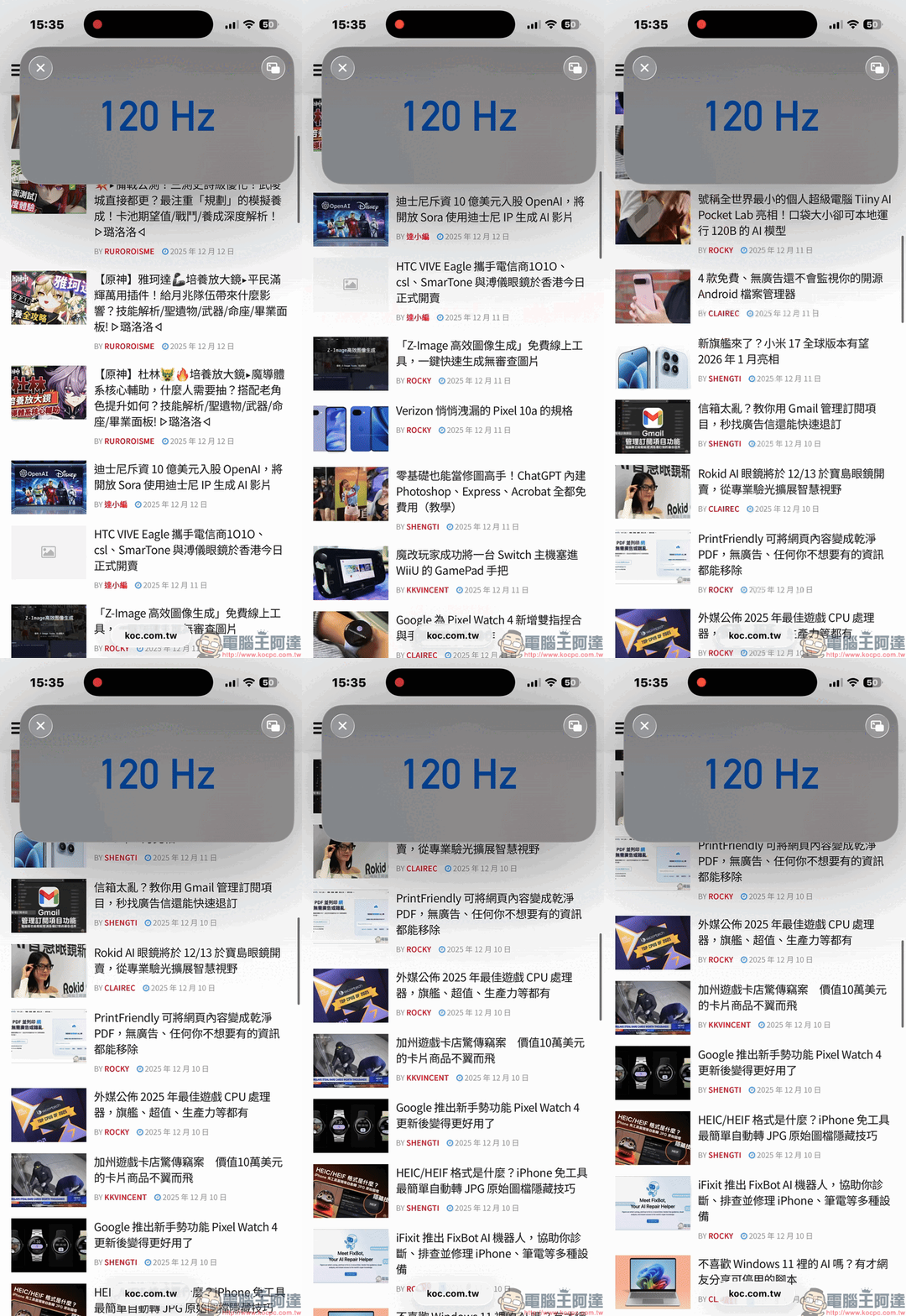
If you want to actually confirm whether the forced 120Hz update rate is successfully enabled, you can use the screen update rate test app and wait for the screen detection to be completed. If everything goes well, you will see that Safari’s page rendering update rate has increased from nearly 60fps to nearly 120fps, which means that the setting has successfully taken effect.
Conclusion
If you meet the following usage habits, it is highly recommended to spend a few minutes adjusting this setting. For example, users who are very sensitive to picture smoothness and can tell the difference between 60Hz and 120Hz with just one swipe; users who often use Safari to read long articles, forums or social networking sites and need to frequently scroll up and down the page and want the sliding feel to be closer to native apps; advanced users who want to fully experience the ProMotion display effect when buying a Pro series iPhone.
On the other hand, if you usually turn on low power mode most of the time, or you don’t feel the difference in update rate in particular, it’s actually no problem to maintain the default settings.
Further reading:
Source: KOCPC Chinese