


It seems to be limited by computational power, regardless. ChatGPTor Gemini wait AI The images generated by the service tend to be low in resolution, so for those who want higher resolution, they need to use a separate upscaling tool. This article recommends a pretty good one: “Nero AI Online AI Image Enhancer & Upscaler Free Tool.” It requires no registration, and the free version supports up to 4x, with multiple AI model options.
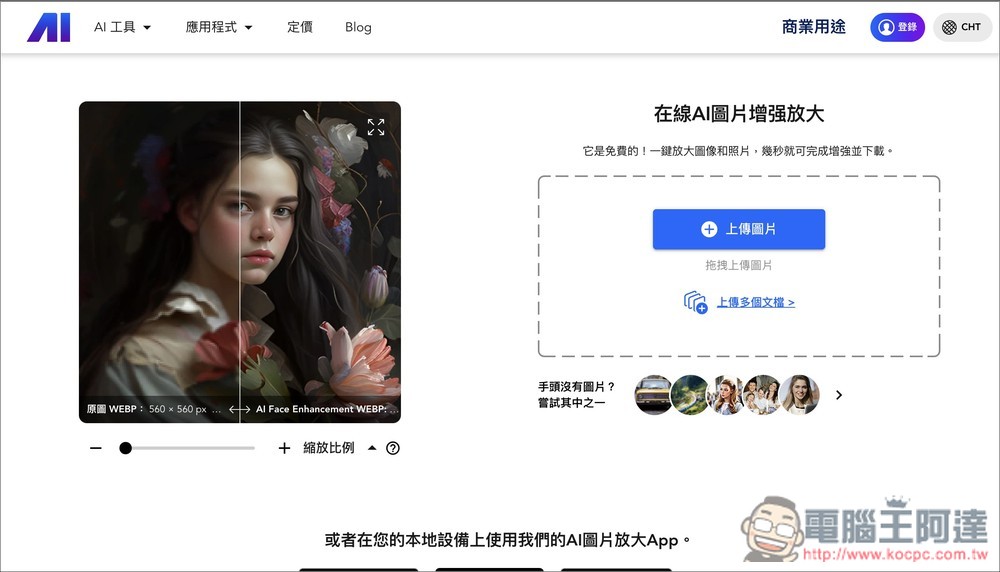
Nero AI online AI image enhancer and upscaler – free tool that boosts resolution by up to 4x at no cost.
Nero AI Image Upscaler is a tool that uses AI models to increase image resolution to several times the original without reducing quality. It automatically detects edges, textures, and details in the image, intelligently fills in pixels, and keeps enlarged images sharp and clear. It supports importing various image formats (such as PNG, JPG, JPEG), and allows free upscaling of images up to 4x (8x is paid only).
Nero AI also offers additional features such as “AI Image Sharpening,” “AI Denoising,” and “AI Face Enhancement” to meet different needs. Those who need them can give it a try.
Key Features
- AI Lossless Upscaling: Up to 4x resolution boost for free, preserving detail and clarity.
- Multi-format support: Compatible with PNG, JPG, JPEG, and other image formats.
- Various AI additional features: includes sharpening, denoising, and facial and anime image enhancement.
- Free online use: The cloud AI engine completes upscaling within seconds, and no software download is needed.
Go to the Nero AI Image Enhancement and Upscaling Tool
After accessing the Nero AI image enhancement and upscaling tool via the link above, upload the image you want to enlarge on the right side. You can select it manually or simply drag and drop it in. If you’d like to try it out first, there are also some sample images provided below:

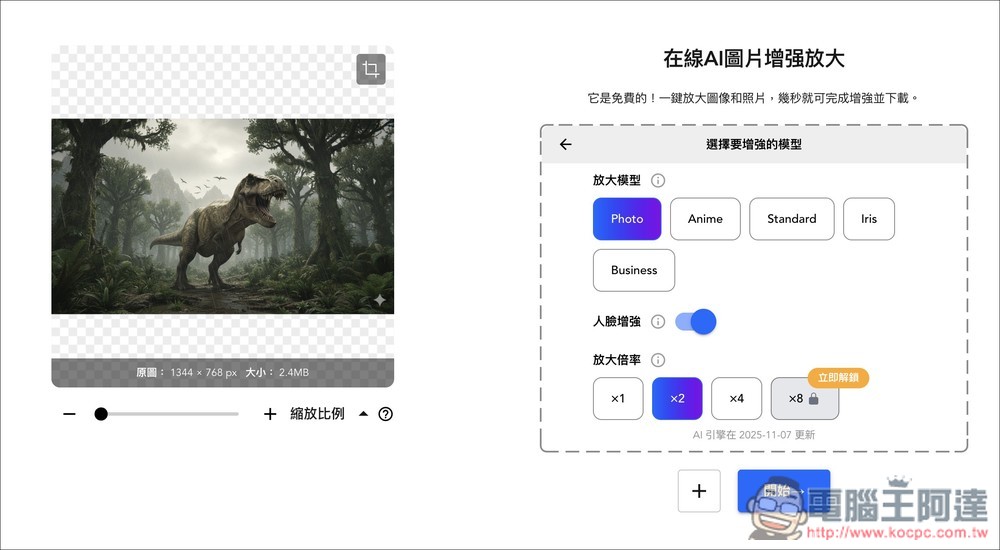
This dinosaur image was generated by me using Gemini, with an original resolution of only 1344 x 768px. On the right side, there are five upscaling models suited for different purposes. Below is the magnification scale; the free version lets you choose 1x, 2x, or 4x:
- Photo: Images of people, nature, architecture, etc. captured with a phone or digital camera. Compared to the standard model, the results are softer.
- Anime: Suitable for AI art, illustrations, painting, animation, and cartoons. Can apply painting effects to photos.
- Standard: For landscapes, city skylines, and other snapshots.
- Iris: Emphasizes high-contrast details in eyes, fur, hair, feathers, and similar features.
- Business: Makes text, real estate images, digital art, and product photos clearer. Longer processing time.
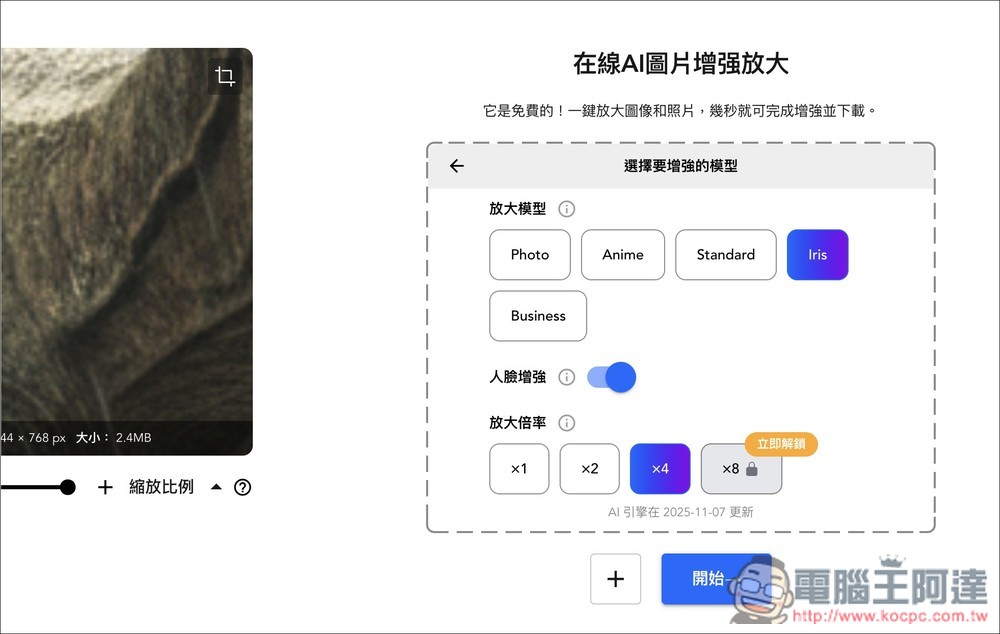
My image here is a dinosaur, so I chose Iris, focusing on details like fur and such:
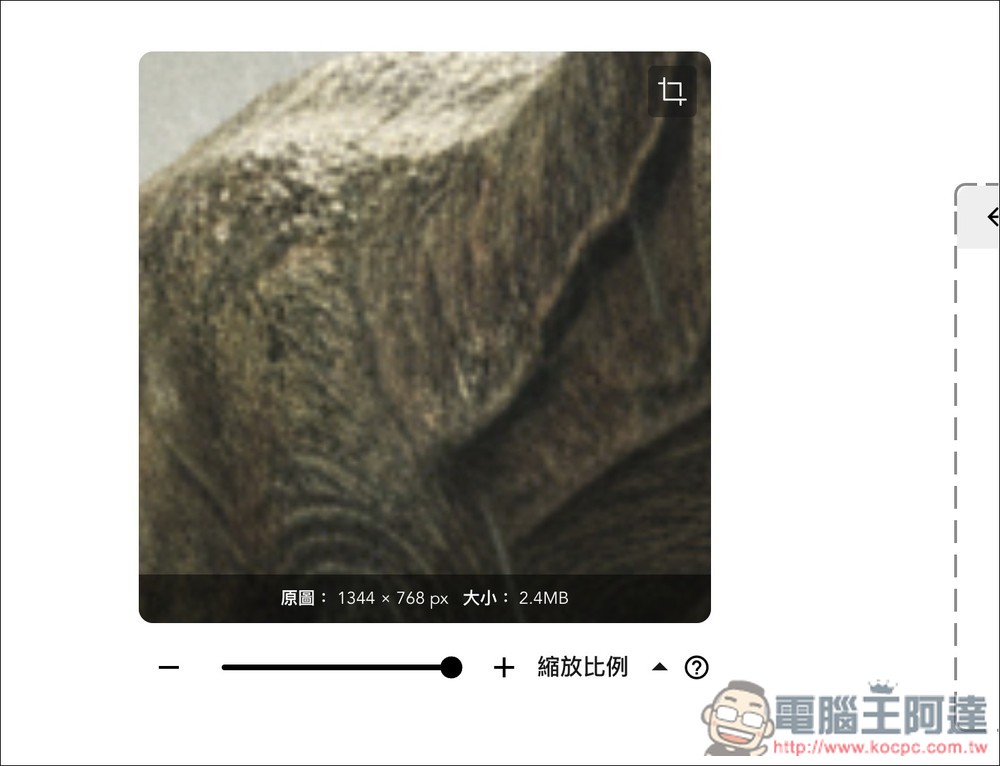
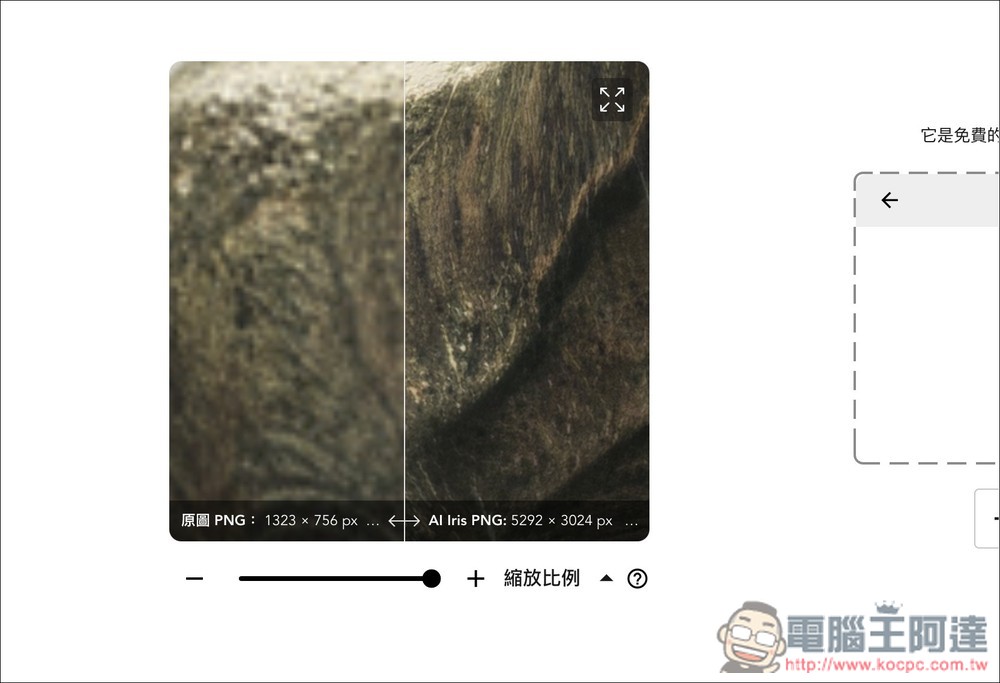
Below is a screenshot of me zooming in on the dinosaur’s body; you can see the original resolution is very blurry:
After selecting the upscaling model and upscale ratio, press Start below:
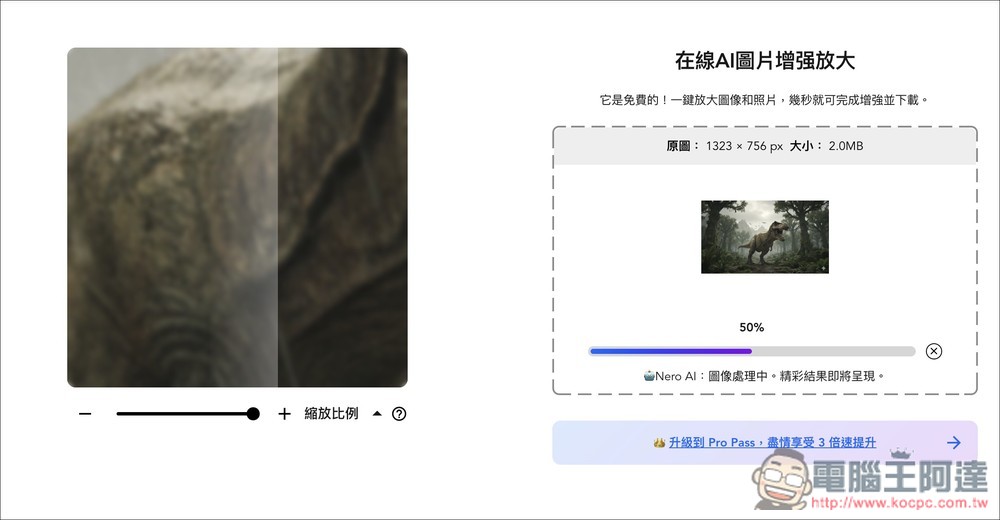
Wait for the percentage on the loading screen to finish, which takes about ten to twenty seconds:
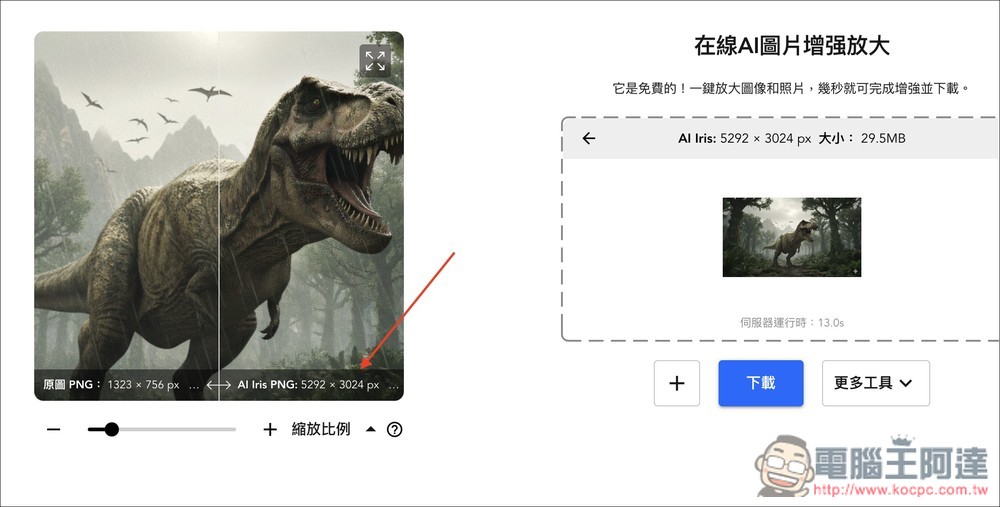
After completion, the comparison image before and after the enlargement will be displayed on the left, along with the resolution. I enlarged it 4 times, so the resolution becomes 5292 x 3024 px, which is a huge difference. Click the download button at the bottom right to download the enlarged image:
It’s much more obvious when you zoom in—the difference is really huge, and all the details come out:
Source: KOCPC Chinese