


Google of AI One could say the tools are becoming increasingly diverse and complete — now even AI Virtual avatarThe video is already there, meaning you don’t need to appear on camera or record anything. Just type in the text you want, and the AI avatar will read it out for you. However, it currently only supports English; Chinese is not available yet.
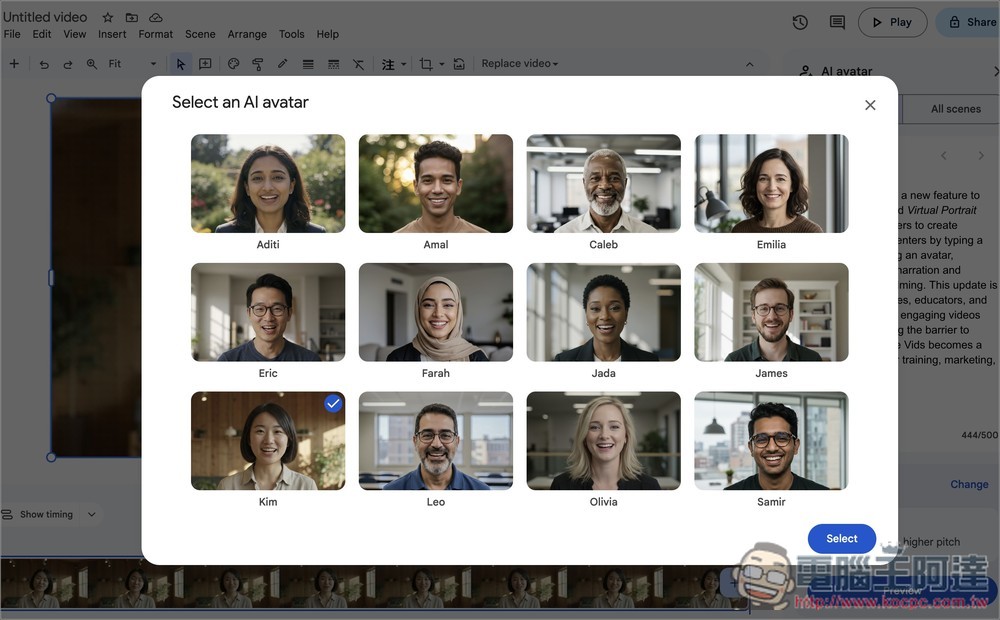
How do I currently use Google’s AI avatar video generation tool? Account language set to English + paid user
Google’s AI avatar video generation tool is currently available in Google Vids, an online video editing app we mentioned earlier when covering Veo 3 video generation. Since it only supports English for now, your Google account language must be set to English to see this feature; it won’t appear if set to Chinese. We’ll also show you how to switch it below.
Additionally, I tested with a free Google account and it seems it’s not available yet; only the paid version has it. Feel free to try this out.
First, you must change your Google account language to English. After going to the “Personal info” page, you can find the language settings in the “General preferences for the web” section on the right.
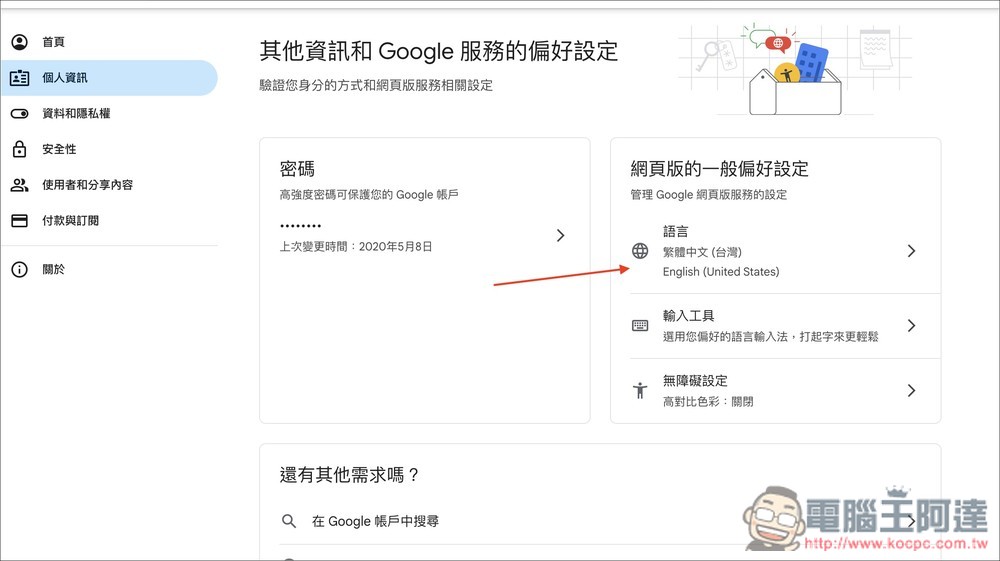
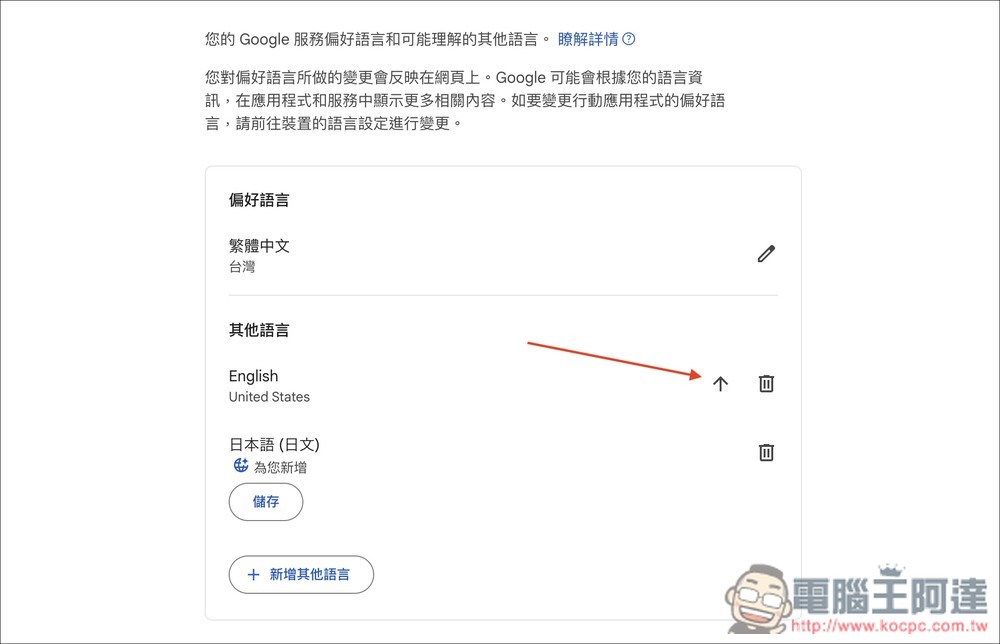
After entering, move English up to make it your preferred language. If English doesn’t appear, click “Add another language” below to add it.
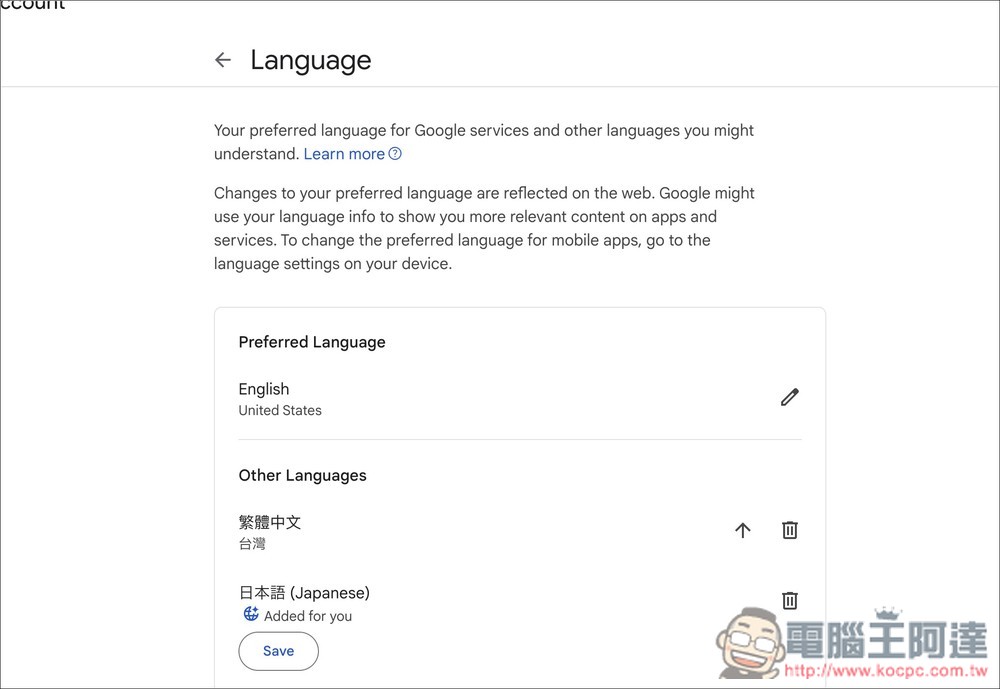
After you see the interface all in English, the setup is complete:
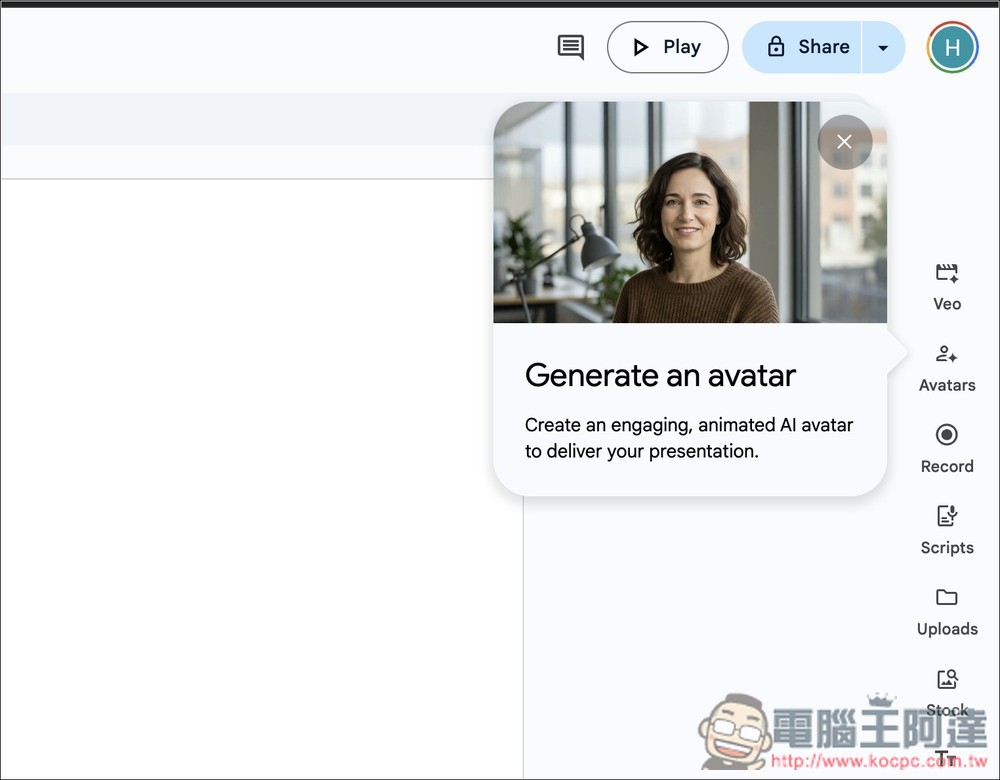
Next, go into Google Vids and create a new project, and on the right you’ll see the “Avatars” feature:
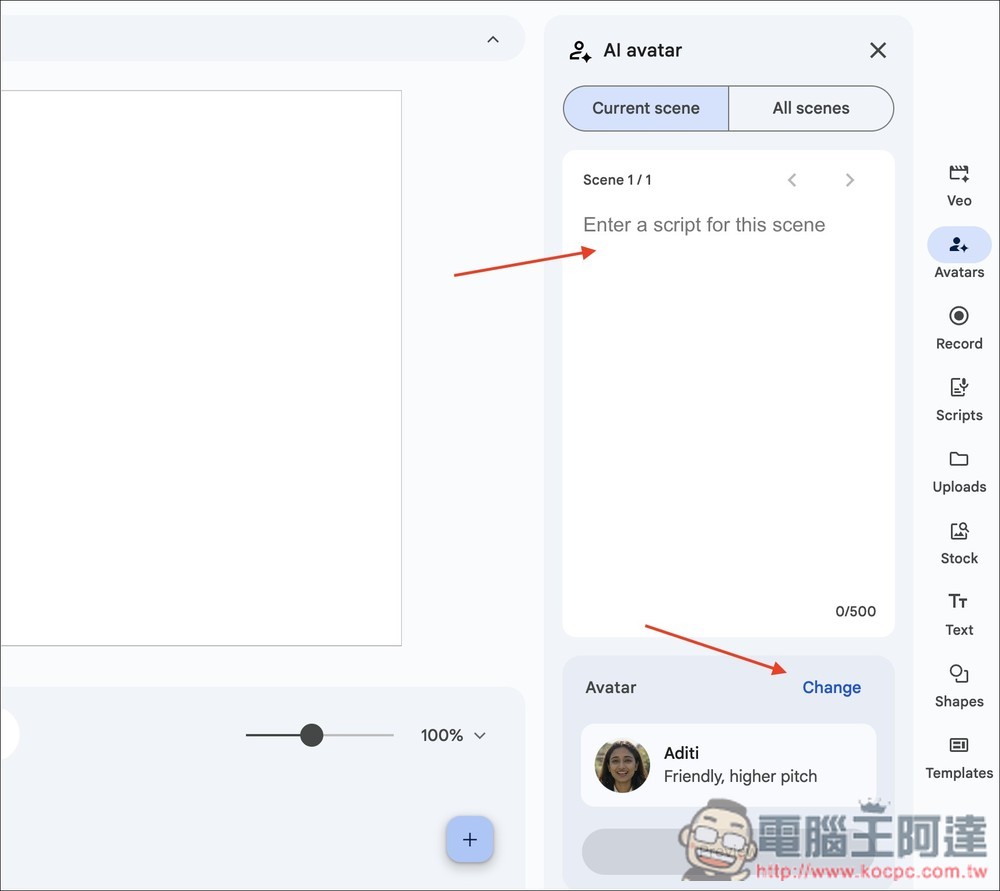
After enabling, enter the text you want the AI virtual avatar to read in the field above; below, you can switch to other avatars.
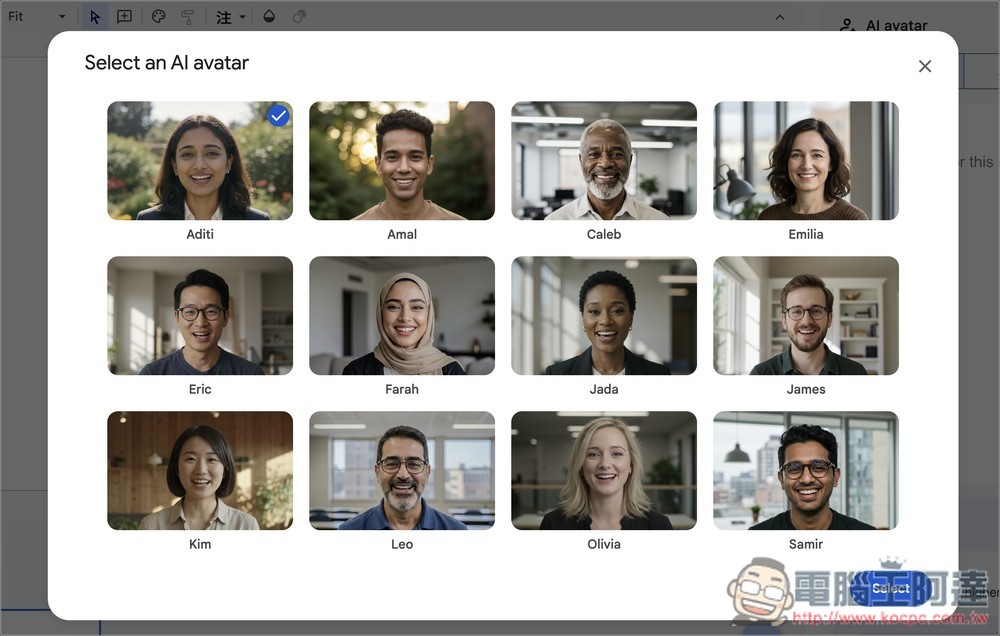
There are currently 12 types. Hover your mouse over each one to preview that virtual avatar’s voice:
After entering your text and selecting a virtual avatar, click Preview below to preview:
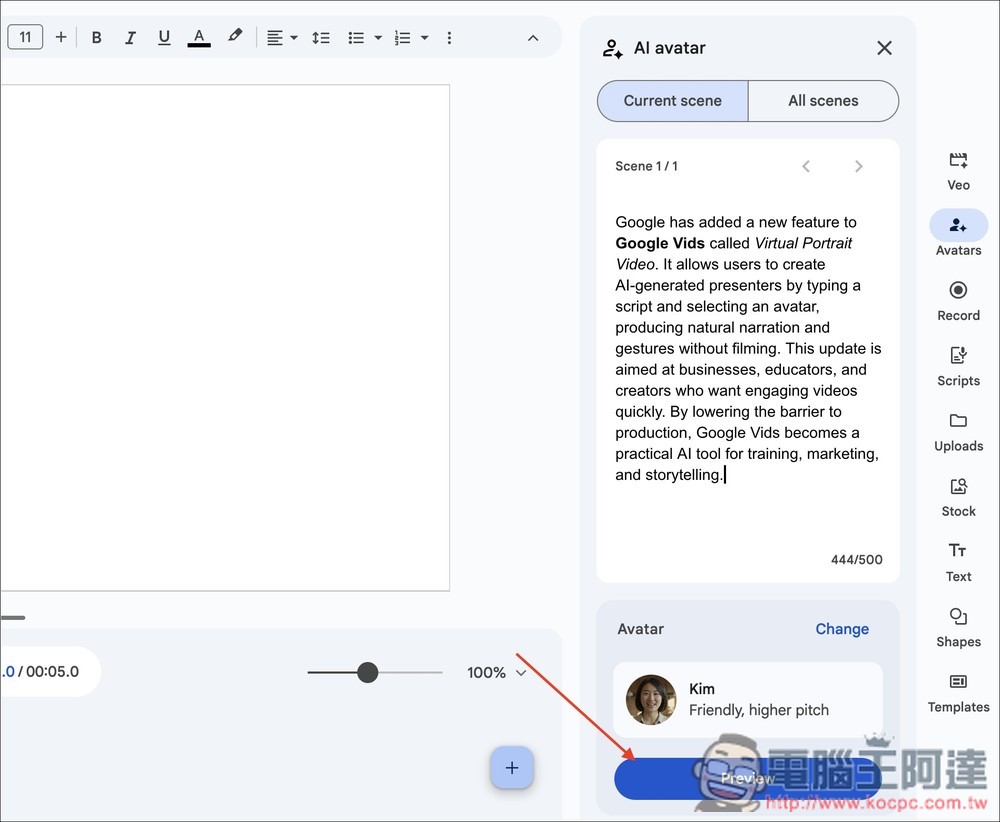
The preview only lets you listen to a sample of the voice spoken by the AI virtual avatar—the lip movements aren’t synced yet, that only happens in the final generation. It’s a thoughtful design that saves waiting time. If the voice doesn’t suit you, just go back a step and switch to a different AI virtual avatar.
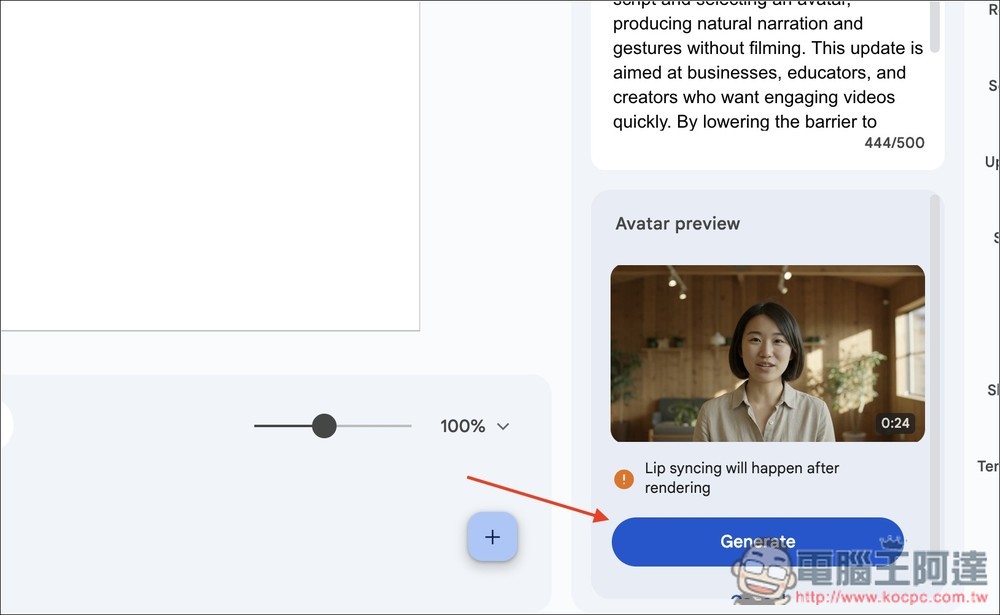
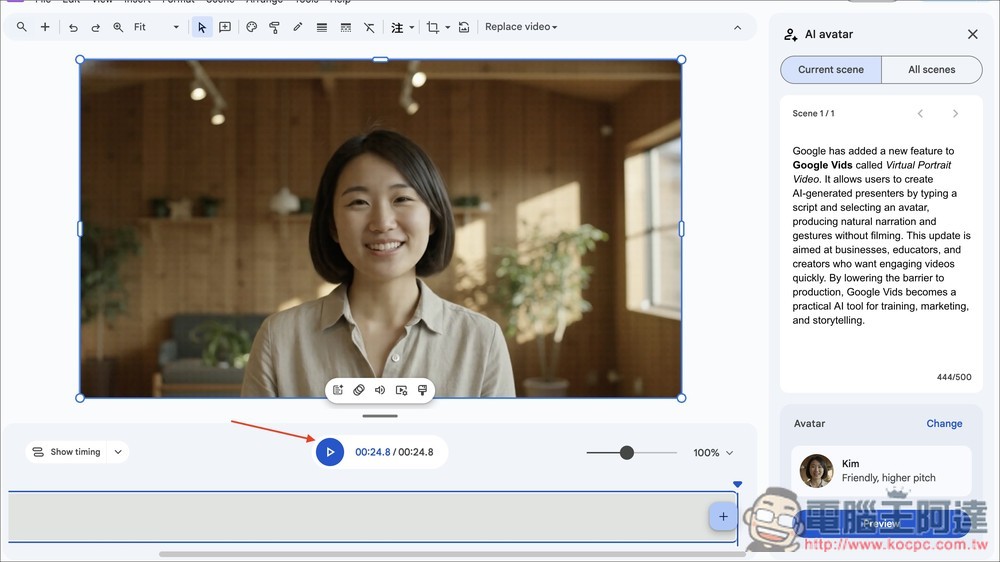
Generation will take a little time. Once it’s done, the video will appear on the left, and you can press the play button to watch it. If you’re satisfied, you can continue with editing the full video:
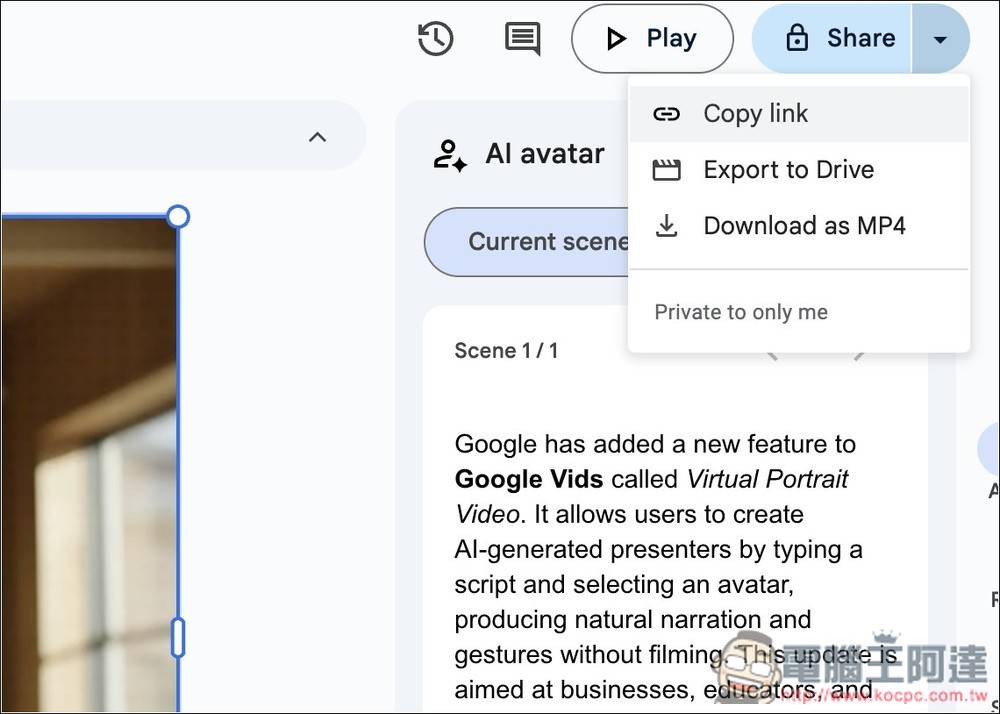
Or you can directly download this as an MP4 video file; open the Share function in the top right corner and you’ll find “Download as MP4”:
This is the effect of the video I tested. Although the lip sync is quite accurate, compared to real people talking, it still feels a bit unnatural.
Since Google’s AI portrait generation has just been released, at this stage it may not yet be as good as some mature tools on the market. However, given how fast Google AI has been improving recently (Veo 3 and Nano Banana are both examples), we can expect that it won’t be long before the results get better and better, including support for more languages.
Furthermore, AI portrait generation should also have opportunities to be integrated into more Google AI tools in the future, especially Gemini, which is very likely. For Google AI paid subscribers, the value of this subscription fee becomes even higher.
Source: KOCPC Chinese