


ChatGPT The project feature was launched as early as the end of last year, but it was only open to ChatGPT Plus, Pro, and Teams subscribers; free users couldn’t access it. Nearly 9 months later, just earlier… OpenAI It’s finally been announced that it’s being rolled out to free users. Starting now, ChatGPT free users can also create their own projects, making it easy to manage chat content, files, and use cases.
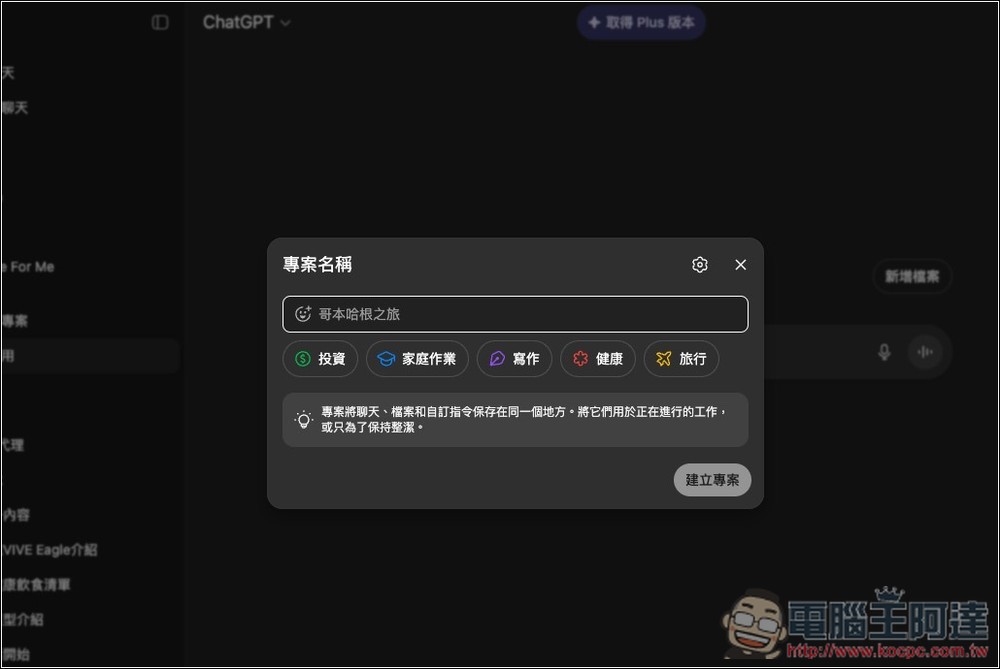
ChatGPT’s free version now supports the “Projects” feature too! Here’s how to use it.
Previously, ChatGPT conversations were all separate records, so after extended use, it was easy to end up with too many chat threads that were hard to track. The Projects feature works somewhat like folders—you can create projects based on different topics or work needs, keeping related conversations and files together.
The project also supports file uploads. Before responding, the AI analyzes the project’s data first, which improves workflow efficiency—this is very handy.
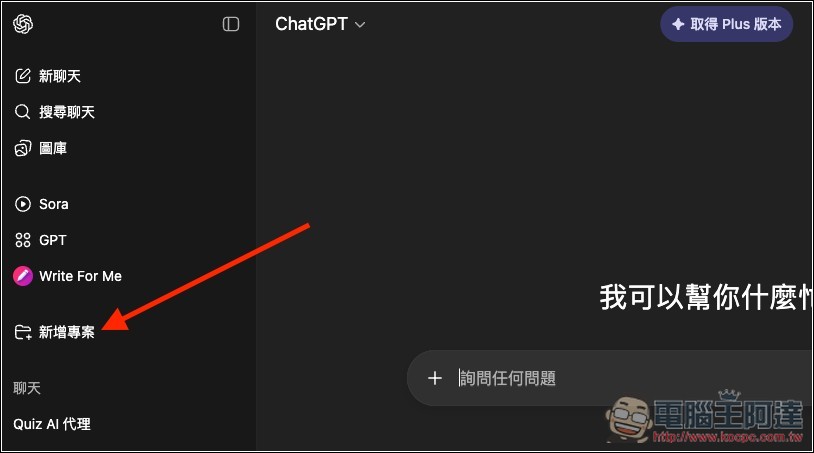
Free-tier users will now see the new “New Project” feature on the left side after opening ChatGPT:
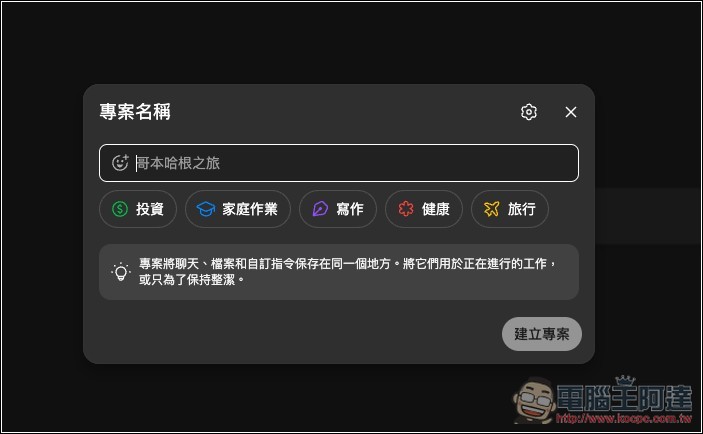
Next, start creating your project by entering the project name. Below, there are also five commonly used options — “Investment,” “Homework,” “Writing,” “Health,” and “Travel” — so you can quickly click to create one.
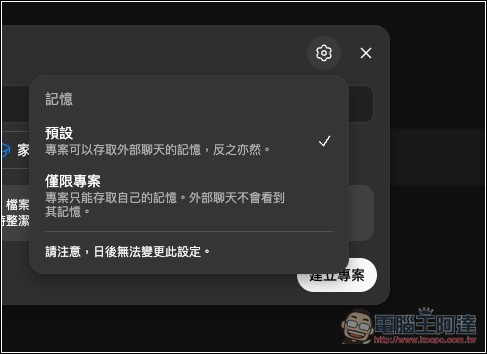
The gear icon in the upper right corner lets you configure this project’s “memory” access settings. By default, it can access external chat history. If you don’t want to be influenced by external memory, change it to “Project only.” Note that this setting requires special attention—once created, it cannot be modified.
After clicking “Create Project,” you’ll enter the project and can start chatting. If you want to upload files, click “Add File” next to it.
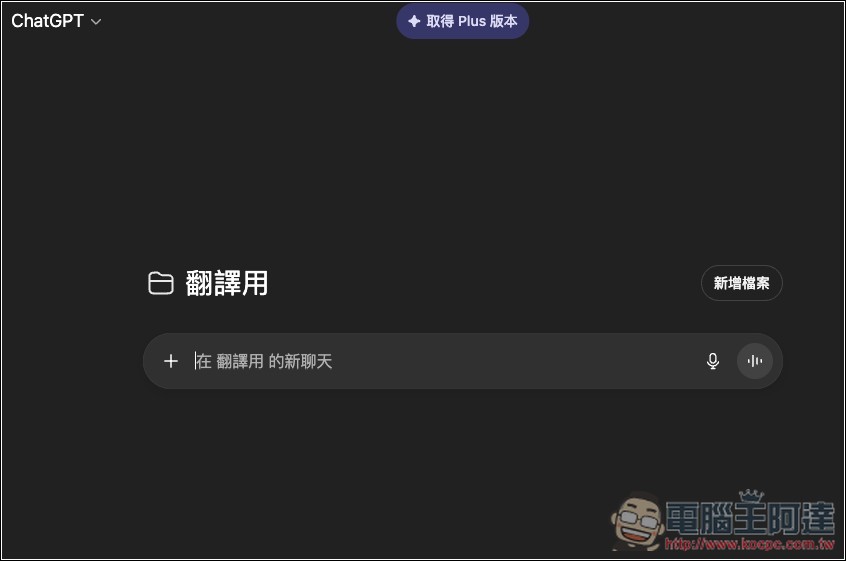
All file formats supported by ChatGPT can be uploaded to the project. In the future, before ChatGPT answers your questions, it will first search here for answers. Another thing to note is that free users can upload fewer files, according to OpenAI:
- Free version users: upload up to 5 files to a project.
- ChatGPT Plus: Upload up to 25 files to a project.
- ChatGPT Pro/Business/Enterprise: Upload up to 40 files to the project.
Of course, you can manage the uploaded files, delete any you don’t need at any time, and then upload new files:
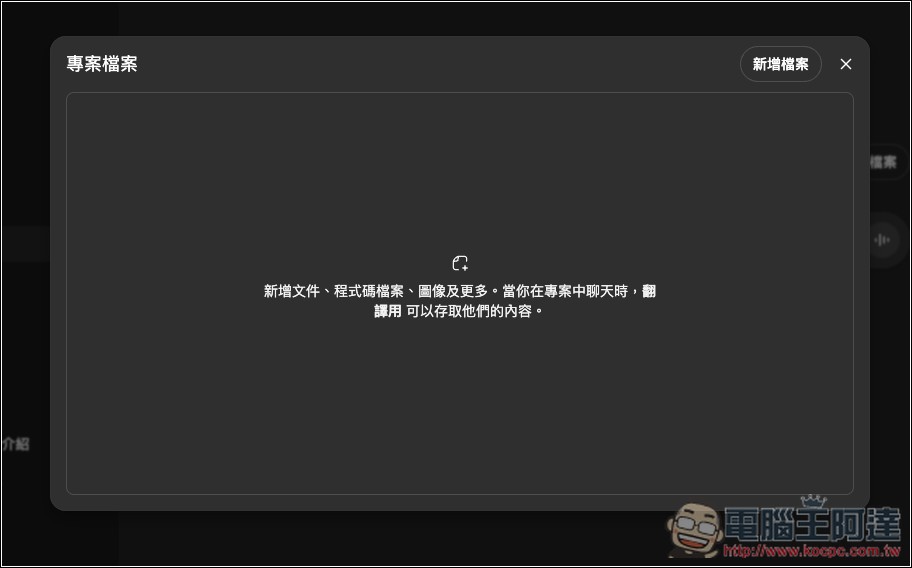
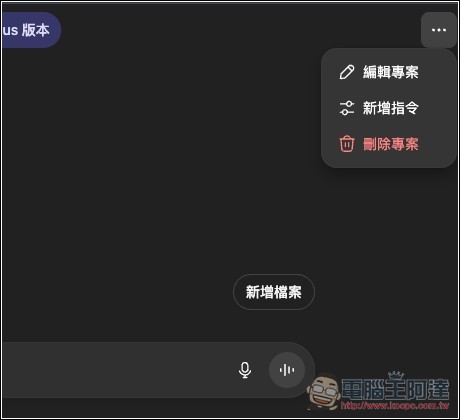
If you want to create dedicated prompts for this project, in the top-right menu (the one with …), you can find the “Add Command” feature:
Then you can input your prompt. For example, since this project of mine is for translation, I write my translation needs, word choices, and arrangement style all in here:
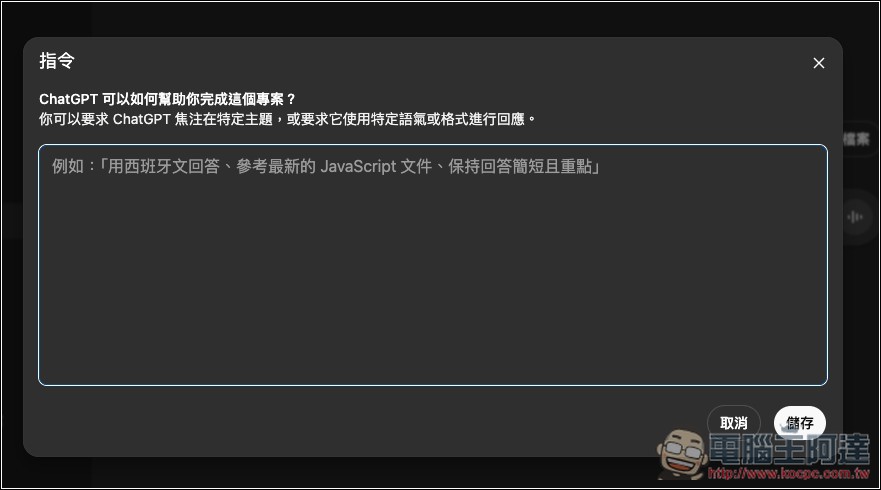
If you often use the same prompt for certain topics, using projects will be more convenient. After setting the project prompt, in the future you can just paste in the new request or content, without having to provide the prompt.
Although general GPT can do this too, the conversation content isn’t categorized and gets mixed in with regular chat rooms, making it hard to manage and search. This project improves on that shortcoming.
OpenAI also added new “Colors and Icons” settings to the project.
Projects in ChatGPT are now available to Free users.
In addition, we’ve added:
– Larger file uploads per project (up to 5 for Free, 25 for Plus, 40 for Pro/Business/Enterprise)
– Option to select colors and icons for more customization
– Project-only memory controls for more… pic.twitter.com/GGygJuBify— OpenAI (@OpenAI) September 3, 2025
Source: KOCPC Chinese