


When it comes to AI drawing, many people may think that it can be done on a computer, or through a web page, such as DALL-E. In fact, there are many excellent free AI drawing apps in the mobile App Store. For example, the “Machine Painter” to be introduced in this article is one of them. Enter the prompt to let the AI generate the picture you want. If you don’t know how to do it, except for the common ones, the App It will also display pictures generated by other users and tell you all the tips on how to use it. It is quite easy to use and currently has Android and iOS versions.
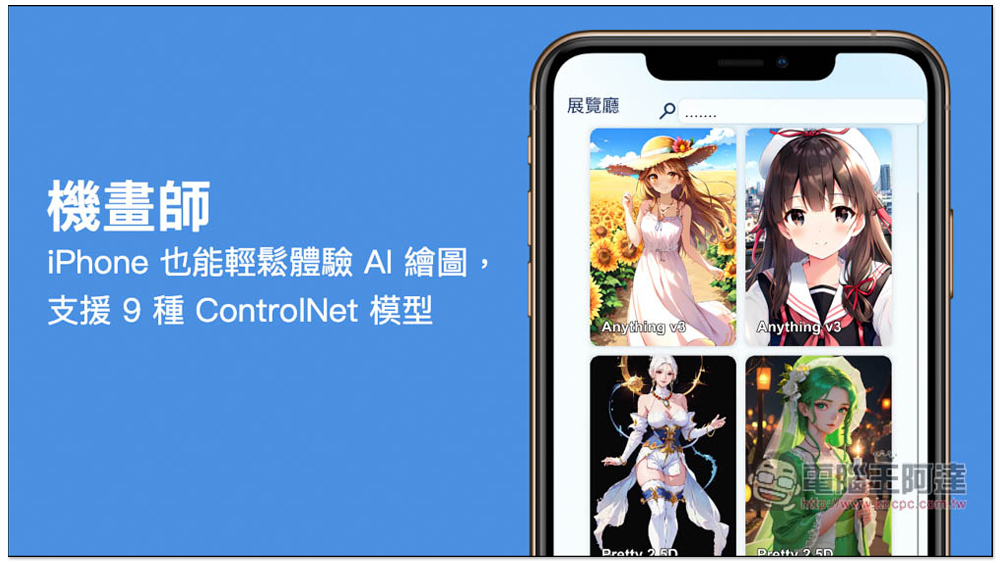
“Machine Painter” Android and iPhone can also easily experience AI drawing, support 9 types of ControlNet models, and provide multiple examples for reference
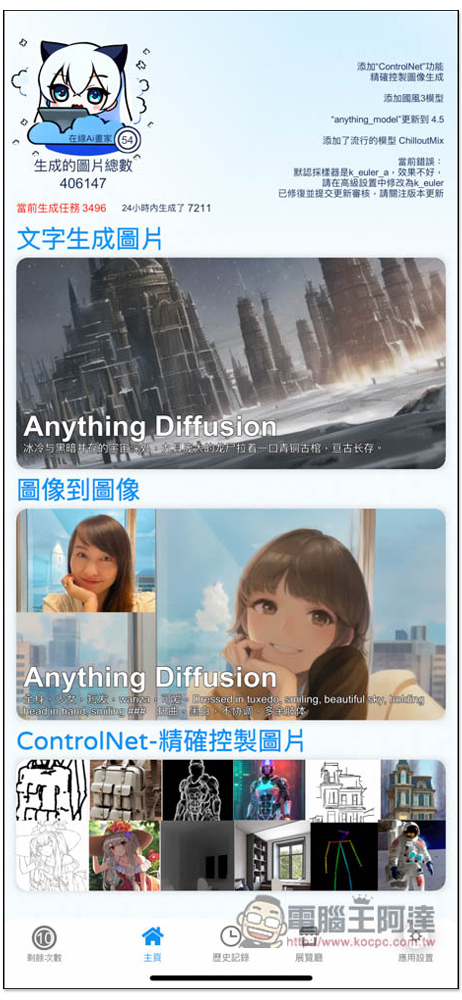
After opening the Auto Painter, there will be three modes on the homepage, namely “Text to Image”, “Image to Image” and “ControINet – Precise Control of Images”. The top will also display how many images this AI drawing tool has generated. I have generated 7211 within 24 hours of using it, which shows that there are many users:
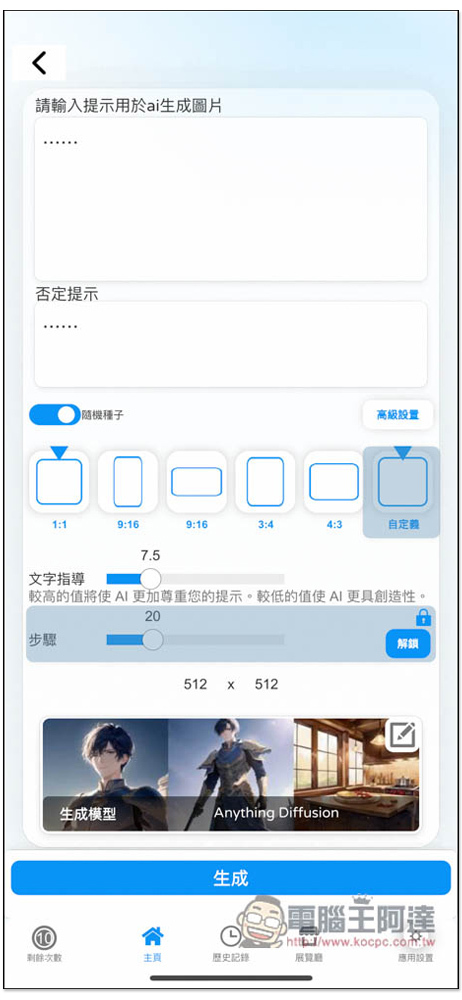
The first “Text to Image” mode, after entering, enter the prompt you want at the top, and the negative prompt at the bottom. There are 6 image sizes, and the customization part is only available to paying members. There are also text guidance, steps, and adjustment options for generating the model below:
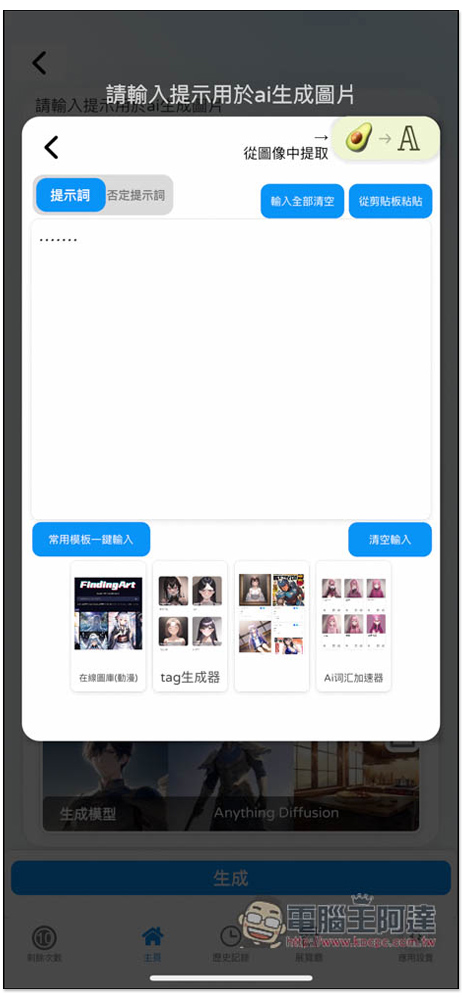
Text prompts: If you don’t know what to input, the App provides “one-click input of common templates”. Click to input prompt examples. You can try it out first. In addition, there are four resources at the bottom, including online gallery (animation), tag generator, AI vocabulary accelerator, etc. You can also find some tips here:
The picture below is a commonly used template. You can add others, or use this template directly without changing it:
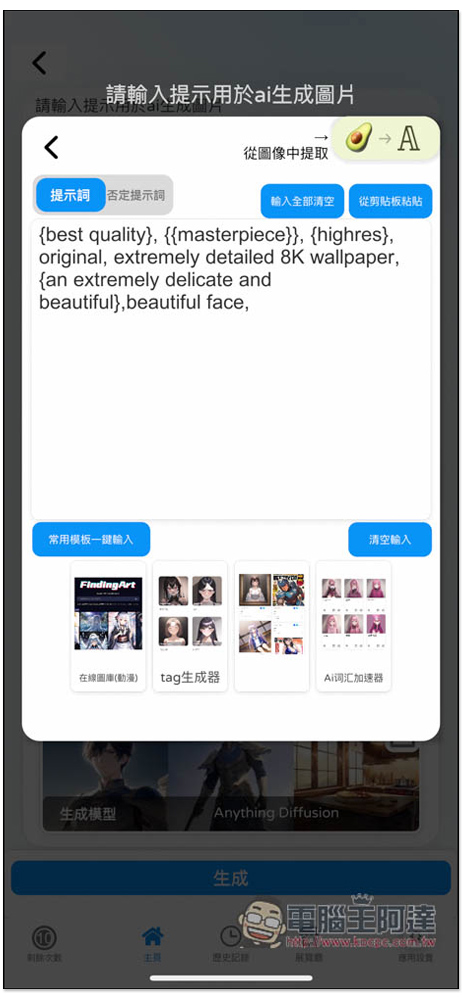
Once everything is set up, press Generate at the bottom:
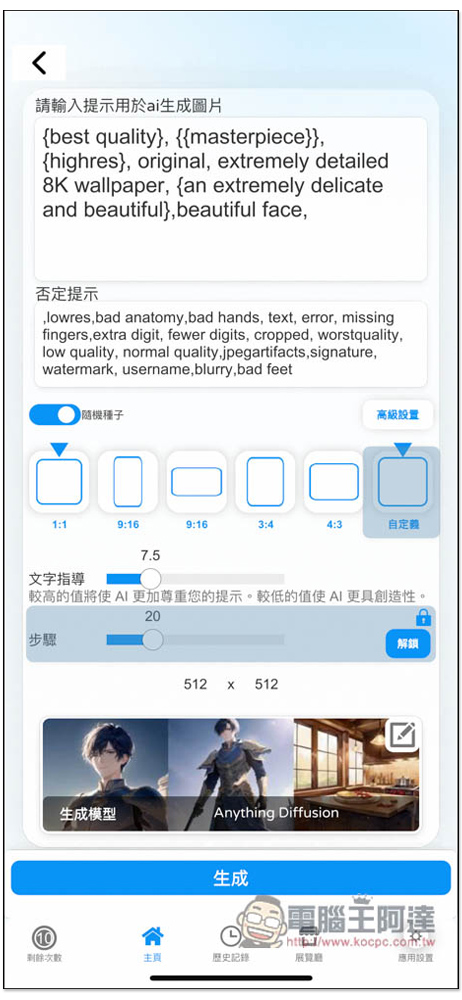
Then just wait for the image to be generated, which will be completed within 1 minute very quickly:
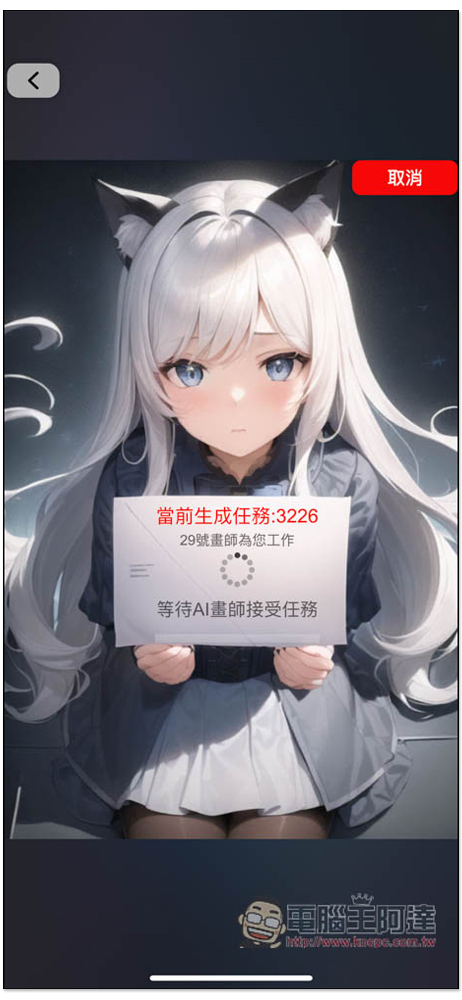
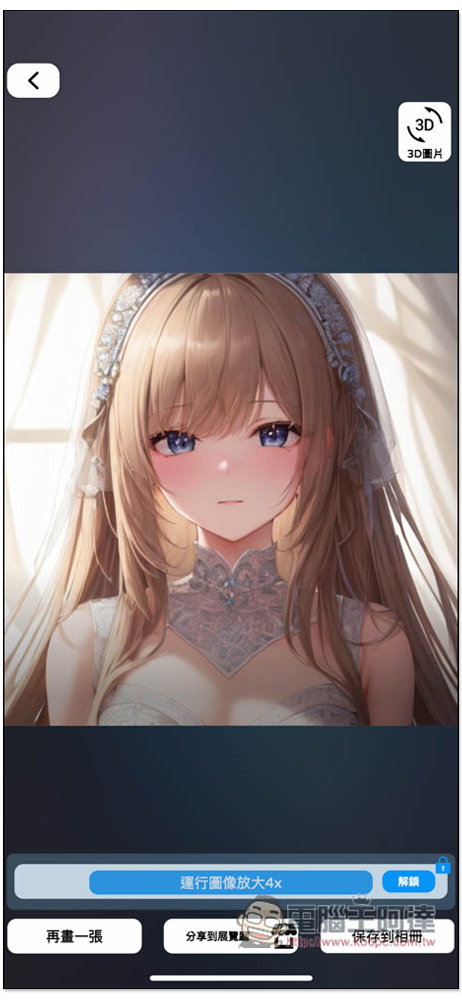
The picture below is a picture I generated using a commonly used template. There is a 3D picture function in the upper right corner. You can play with it to see if you need it. If you like it, click “Save to Album” in the lower right corner to save it to your iPhone album:
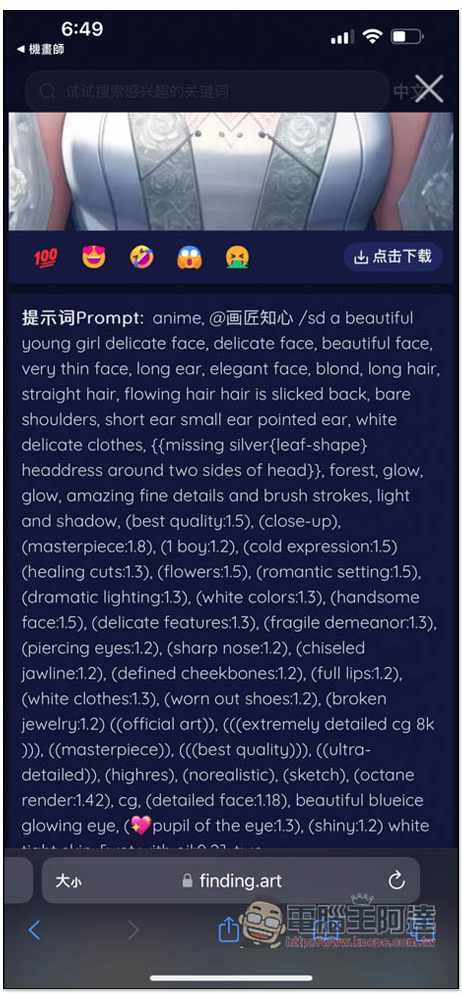
The picture below is the prompt word of one of the pictures in the online gallery (animation) resource. If you don’t want to use the example, you can also go to this website to find the picture you like, and then copy the entire prompt word into the illustrator for use:
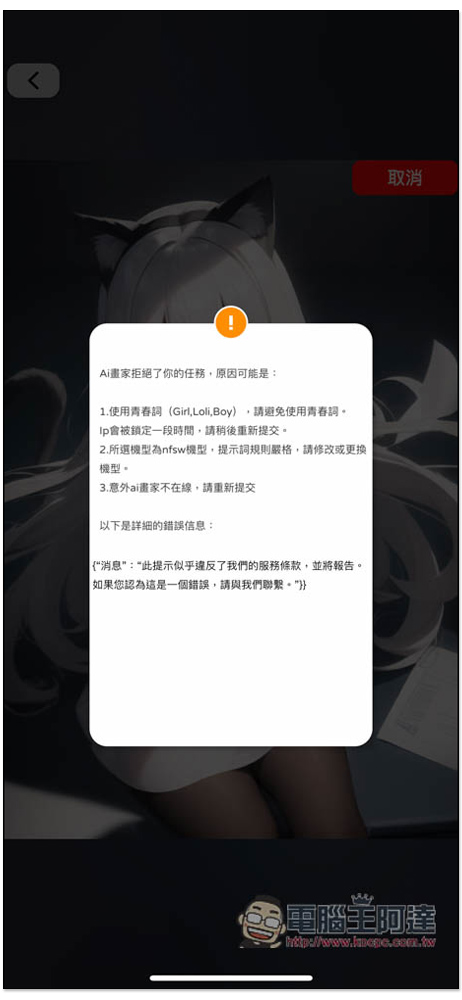
The only thing to note is that some prompt words cannot be used, such as girl, loli, boy and other youthful words. If you use them accidentally, your IP will be locked for a while. The first offense will probably be a few minutes. If you keep using it incorrectly, you are not sure whether the time will be extended, so remember to avoid:
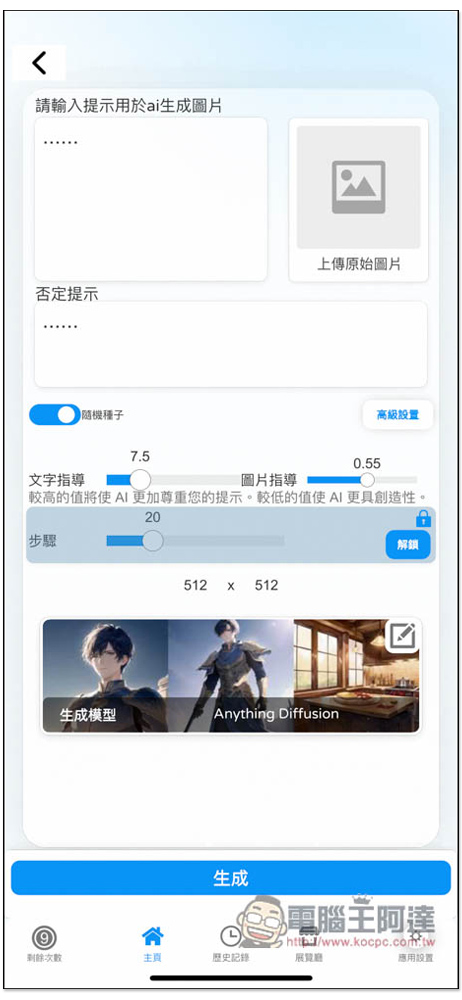
In the AI picture section, you can also enter prompt words and negative prompts, but there is an additional function to upload original pictures, which will be based on the pictures you uploaded and then modified:
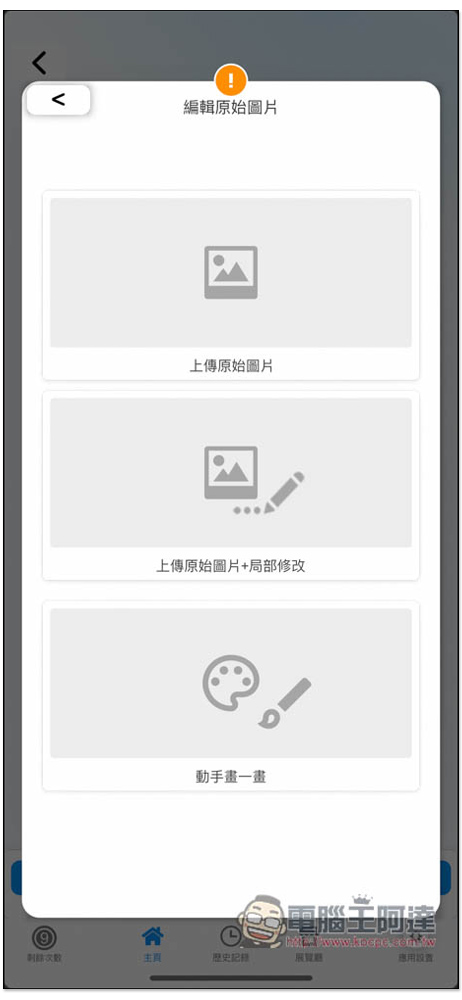
When uploading, the original image also supports partial modification, or you can draw it yourself:
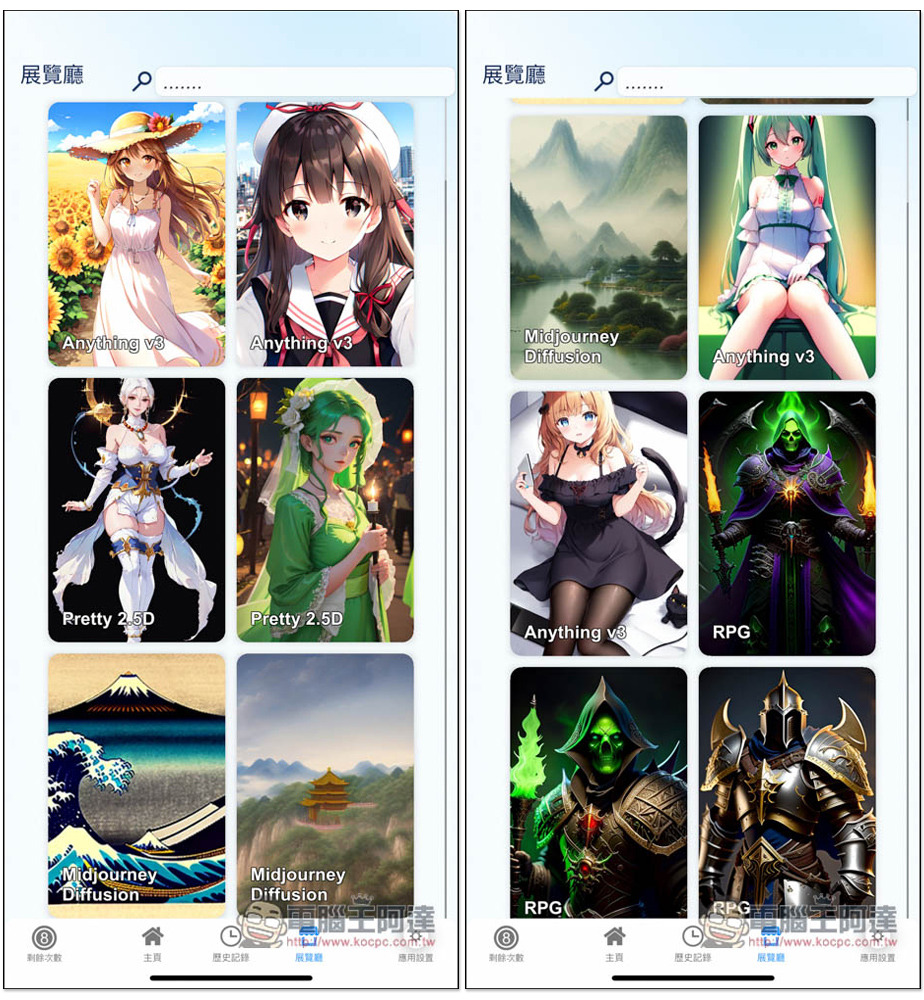
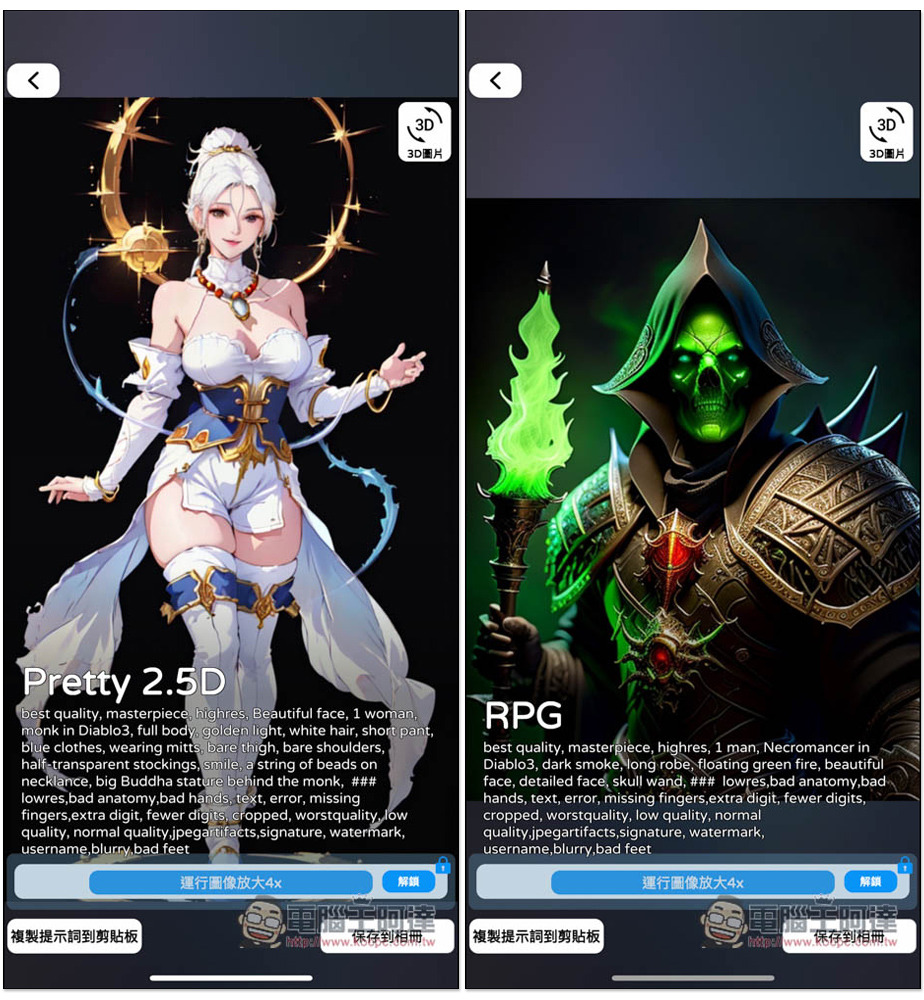
In the exhibition hall section, you can find examples shared by other netizens, and the prompt words they use can also be found here:
Like this, press “Copy Prompt Words to Clipboard” to copy all prompt words:
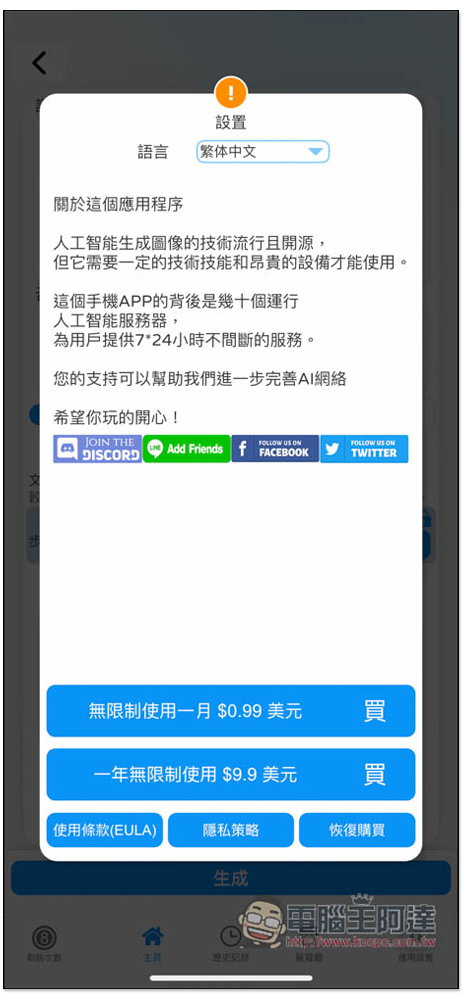
The only thing to note is that the free version only has 10 credits. If you like it and want to continue using it, you must upgrade to the paid version. The price is not expensive:
Source: KOCPC Chinese