


With OpenAI’s GPT-4o gaining image generation capabilities, ChatGPT’s image generation has seen a major boost. It can now create images in various anime and cartoon styles, and it has strong support for Chinese characters. More importantly, the AI-generated images look really impressive. We’ve also written quite a few tutorials on this before, such asVirtual pet device and Lego figure、Animal Crossing, Pixar, Snoopy characters、Chibi figures and blind boxes, and the most popularGhibli style。
However, after generating multiple AI images, many people definitely have this frustration—it’s hard to find previously generated AI images. Just recently, ChatGPT introduced a brand new feature called “Image Library” that automatically collects all the AI images users have generated in the past. This means you no longer have to search through chat threads one by one; you can go straight to this library to quickly find the exact AI image you want. It’s available for free users too.
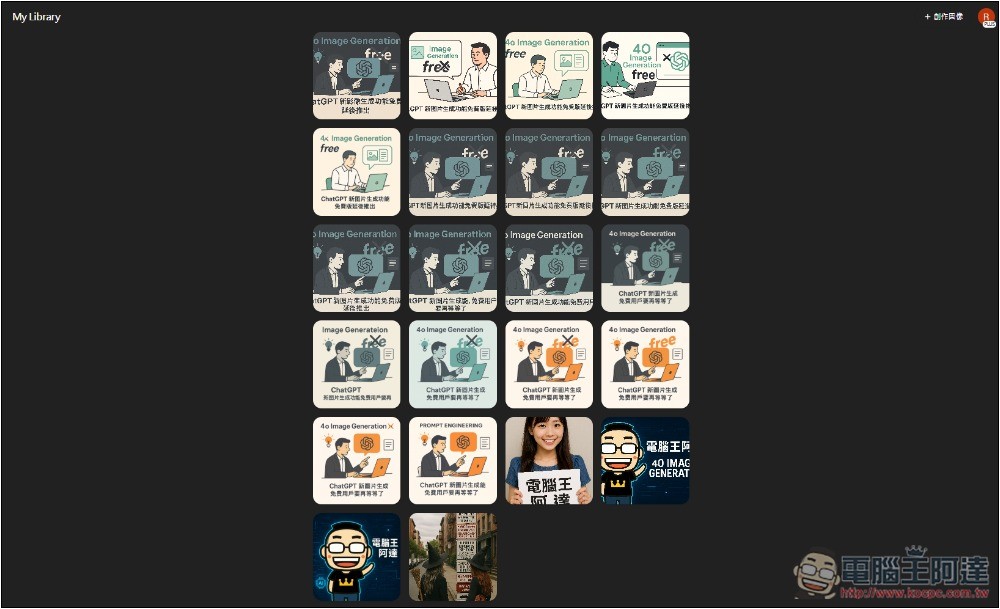
Introduction to Using ChatGPT’s New Image Library Feature
Earlier, OpenAI announced on the X social platform that ChatGPT free, Plus, and Pro users can all access the new “Image Library” feature on mobile and the ChatGPT web interface (the desktop app has it too, actually).
你的所有圖片創作,盡在此一處!全新「ChatGPT 圖片創作庫」現已推出,適用於所有 Free、Plus 以及 Pro 用戶,不論是在行動裝置或在 chatgpt.com 上均可使用。
All of your image creations, all in one place.
Introducing the new library for your ChatGPT image creations—rolling out now to all Free, Plus, and Pro users on mobile and https://t.co/nYW5KO1aIg. pic.twitter.com/ADWuf5fPbj
— OpenAI (@OpenAI) April 15, 2025
Now when you open ChatGPT, you’ll see a new “Library” option in the left sidebar. I’m using the Windows desktop app: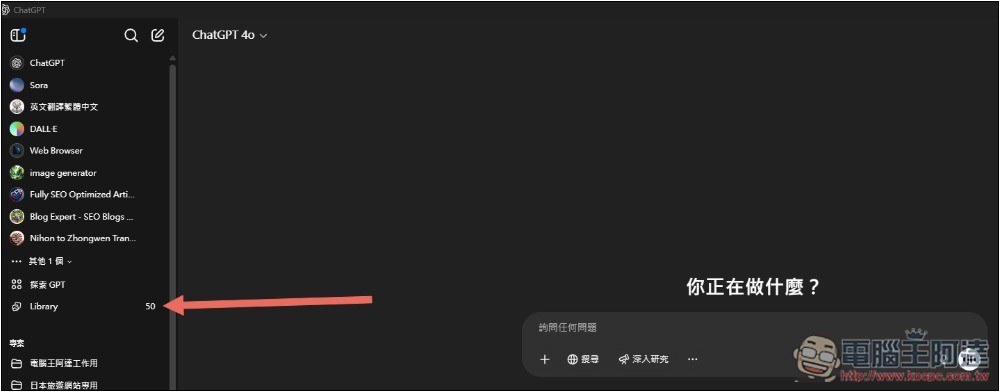
Then, on the right side, you’ll see the AI images you’ve previously generated with GPT-4o, available since the moment GPT-4o was first launched—provided you haven’t deleted the chat. If you delete it, the images will disappear, so keep that in mind. Also, this Library only applies to GPT-4o; images generated with DALL-E won’t be included.
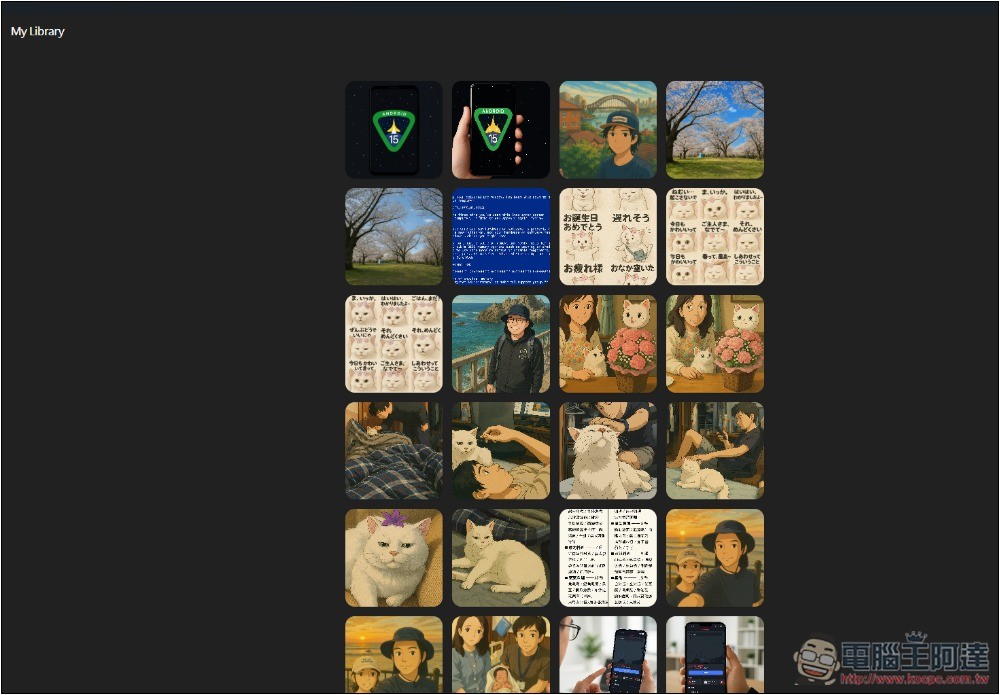
After finding the AI image you want, you can zoom in and download it:
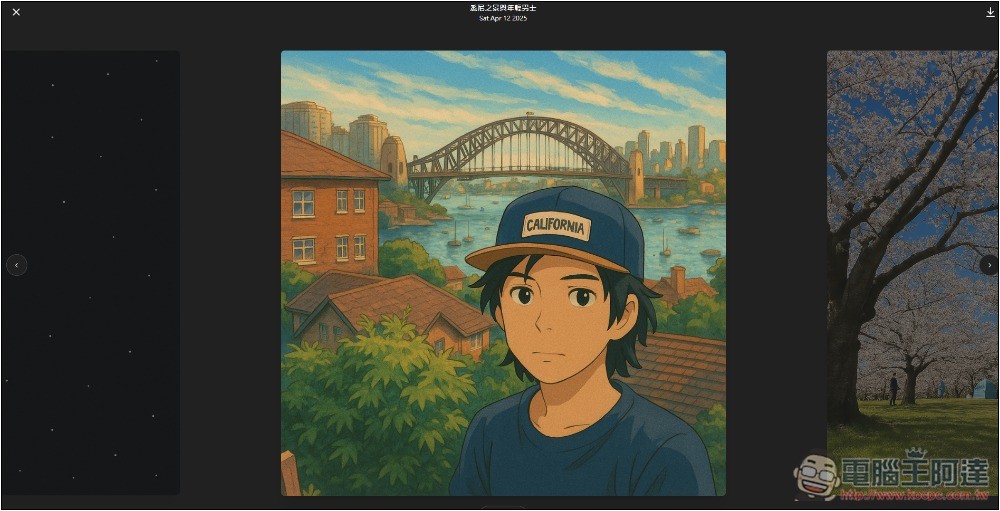
Swipe left or right to view other images. If you’d like to make further fine adjustments, tap Edit Image at the bottom, and an input field will appear where you can enter prompts to add or modify, and you can also upload files:
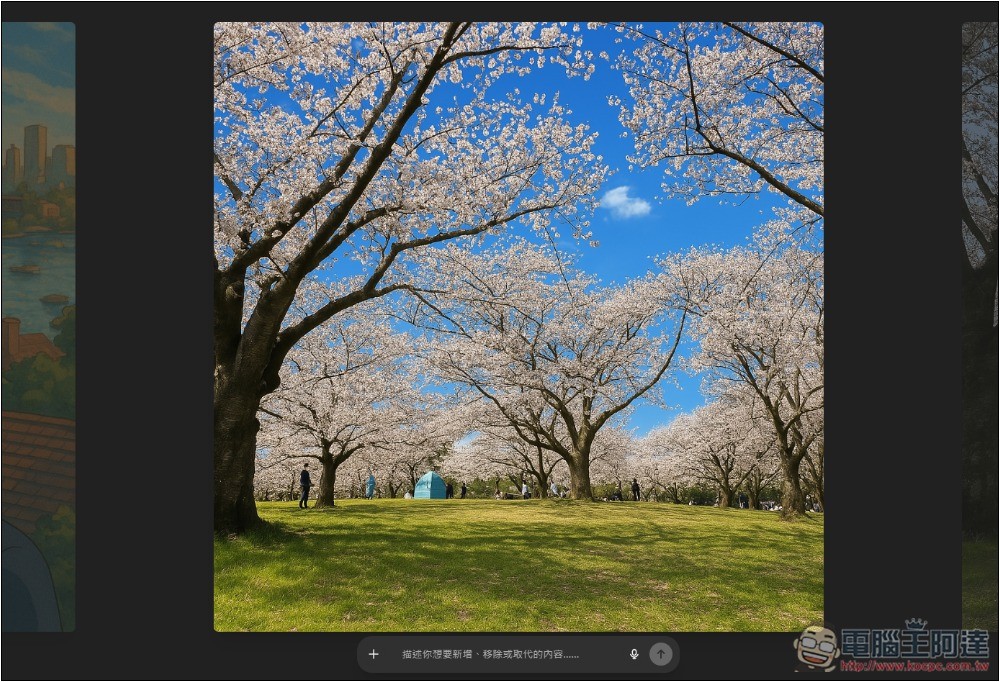
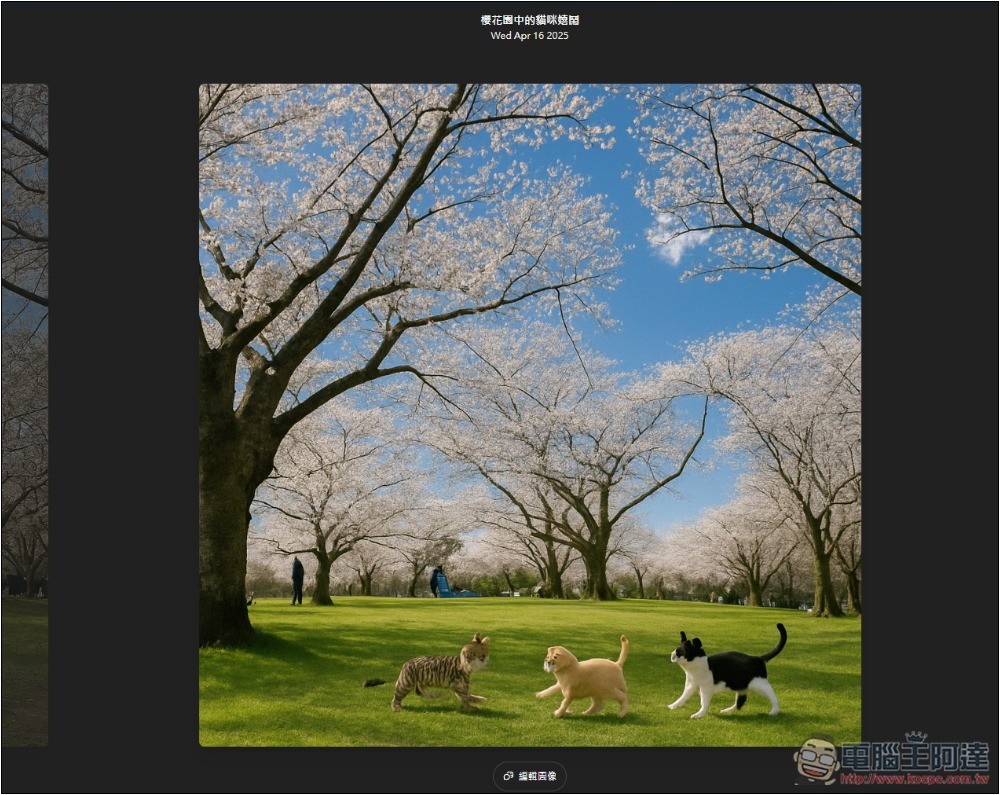
Then it opens the chat room for that image and starts processing your request. I asked it to add three kittens playing in this photo, and while it did add them, they look really fake and the cats’ shapes are weird too (laughs):
Notably, the top-right corner of Library also has a “+ Create Image” button. Clicking it quickly opens a new ChatGPT chat for AI image generation. To the right of the Library on the left, it also displays the current number of images.
Currently, the Library has just been launched, so it only offers the ability to quickly browse previously generated AI images. Barring any surprises, more useful features should be added in the future, such as quick image deletion, categorization, or even selecting multiple images for AI integration, so there’s something to look forward to.
Source: KOCPC Chinese