


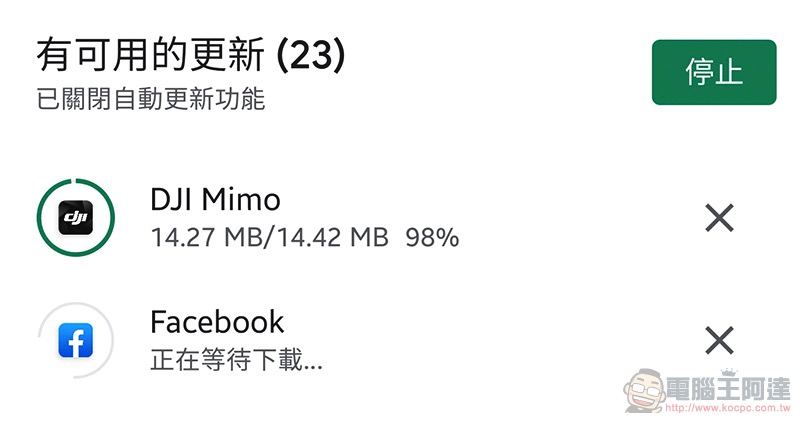
We at Computer King Ada often share many software feature updates on our website. As soon as I see them, I open Android’s Google Play and want to update and try them out. As a result, I encountered a status of always being “Downloading” or updating to “98%” but not installing it. After almost half an hour, there was still no movement. Chang didn’t know what to do? I have to say that the editor who often wants to test new functions often encounters this situation. Later, he also found a solution online and shared it with all readers here. Continue reading Wait until the end of time for Google Play App updates? Three steps teach you to easily solve the content of your report.
Google Play App application update has been waiting for eternity but no response? Simple steps to teach you how to solve it easily
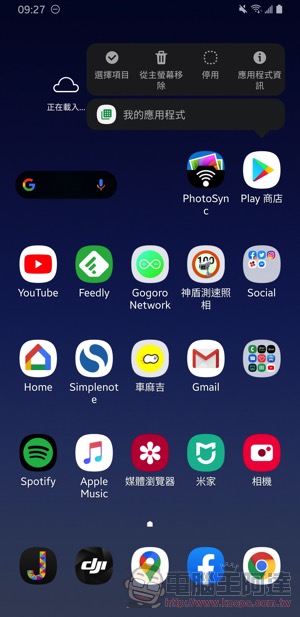
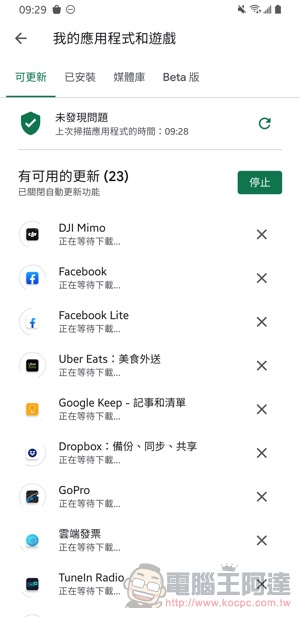
Before the tutorial begins, I will also share how I usually check Google Play for app updates – as shown in the picture on the left, as long as you long press the Play Store icon, the “My Apps” shortcut will pop up. Click this to enter the update page. After clicking in, you can see that the available updates have started running one by one when you clicked update – but maybe half an hour later, the screen is still stuck here (stunned). Here we will teach you how to solve it:
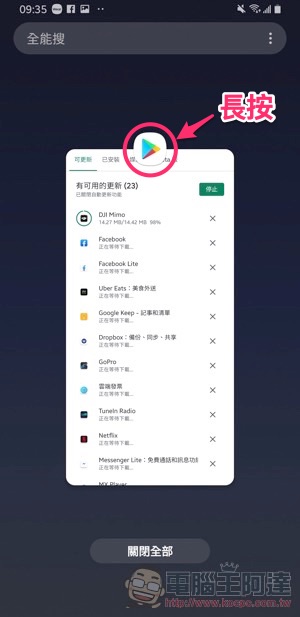
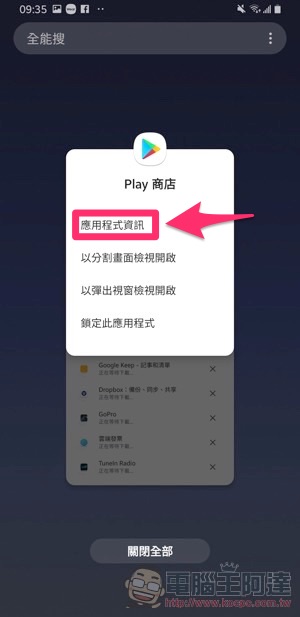
First, you can use the multi-tasking button “III” among the three default system buttons in Android to call up the application’s view screen. Samsung users can choose to long press the App icon at the top of the app preview screen to bring up the function menu, and then select “Application Information” – if phones with different operating systems cannot enter here, you can find the app from the settings and go to the Google Play Store to select:
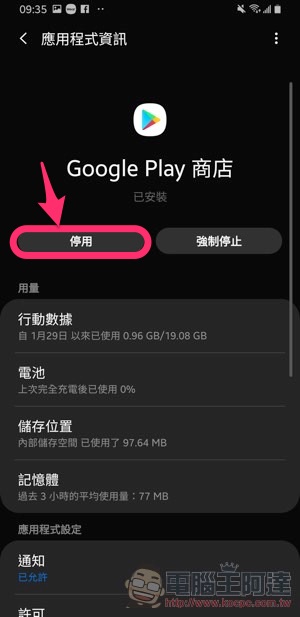
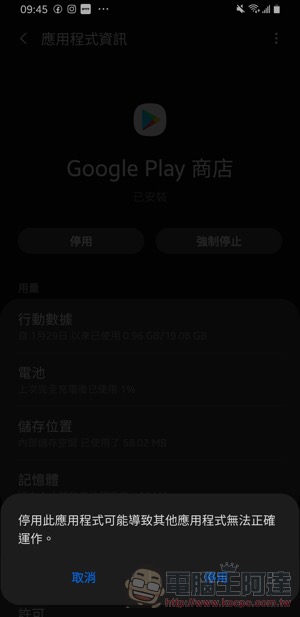
At this time, you can see that there are two buttons on the screen, “Disable” and “Force Stop”. Just press the Disable button on the left. A prompt window will be displayed, still choose to disable, and thenPress the button where it was originally disabled to reactivate it.:
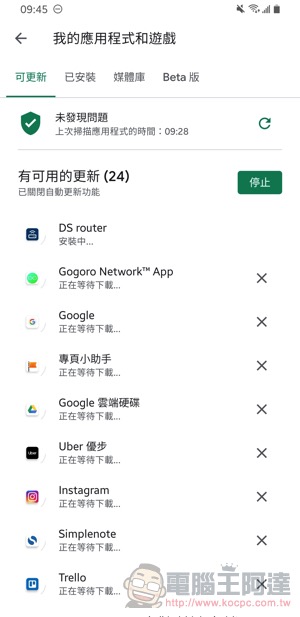
At this time, launch the Play Store App again and you will see that the update can be installed normally:
In fact, this bug is almost always encountered by the editor as soon as the phone is restarted and played. It feels really annoying, but fortunately, this “disable and then enable” method can make Google Play updates come back to life again. Friends who have encountered the same situation can refer to it to see if it can solve your problem.
Further reading:

Source: KOCPC Chinese