


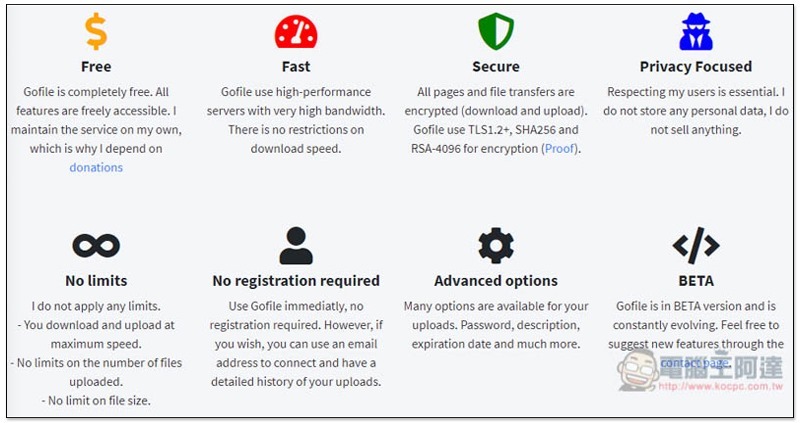
There are many file sharing services on the Internet, but most of the free ones have some limitations, such as: single file capacity limit, the maximum number of files that can be uploaded, or speed limit. The GoFile file sharing service recommended in this article is advertised as being free. You can upload as many files as you want. It has the fastest upload and download speeds. It can be used without registration. It even provides some advanced settings, such as you can set a download password and how long it will take for the files to be automatically deleted (invalid).
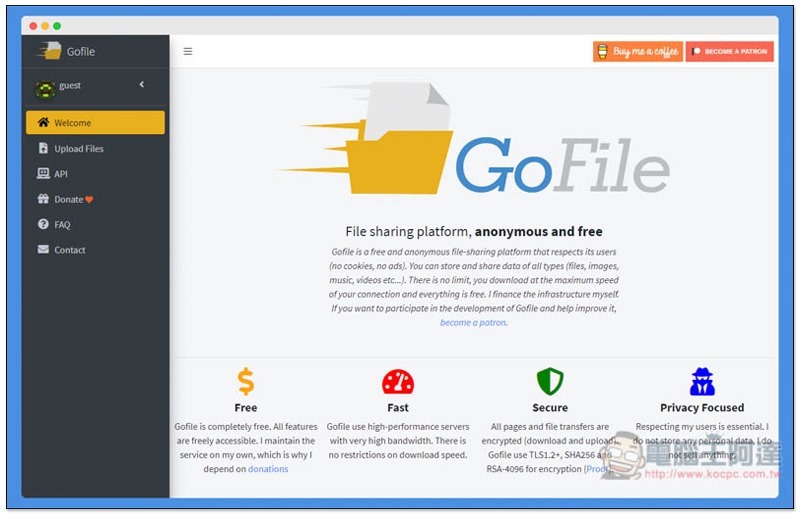
Introduction to GoFile file sharing tool
GoFile It is a completely free file sharing platform that supports all formats, including pictures, music, and videos. The files will be uploaded to their servers. Whether uploading or downloading, you can get the highest speed. It also has TLS1.2+, SHA256 and RSA-4096 encryption technologies. Although the security part looks very good, I personally recommend that if you have important files, it is safer to use your own cloud:
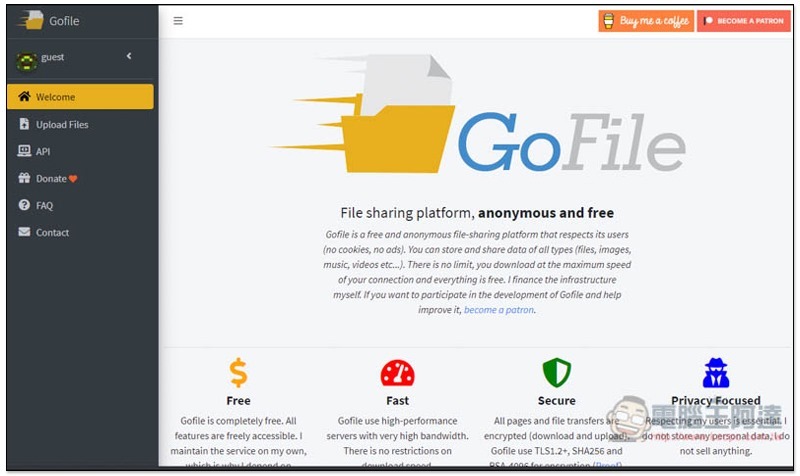
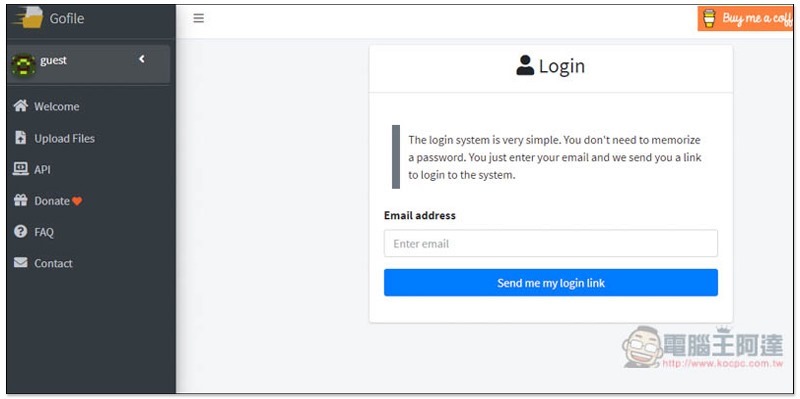
You don’t need to log in to use it, but if you want to be able to control files (delete, etc.), just enter your email:
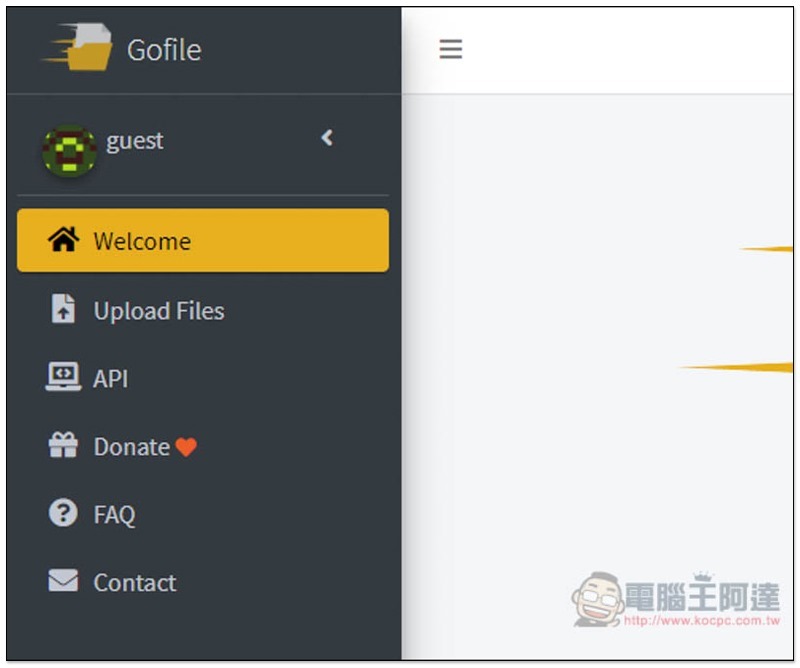
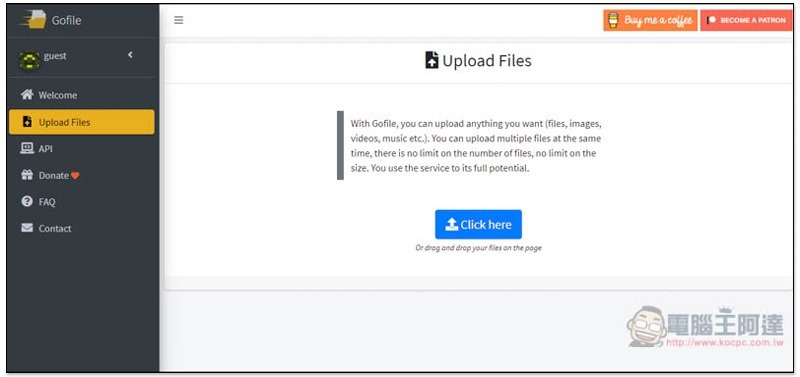
The main selection is on the left, click Upload Files to upload files:
You can drag files directly into the window, or click here to select:
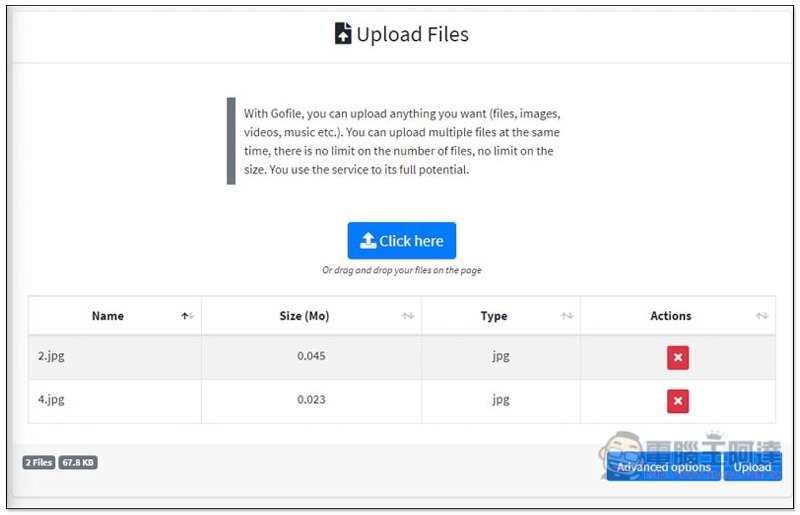
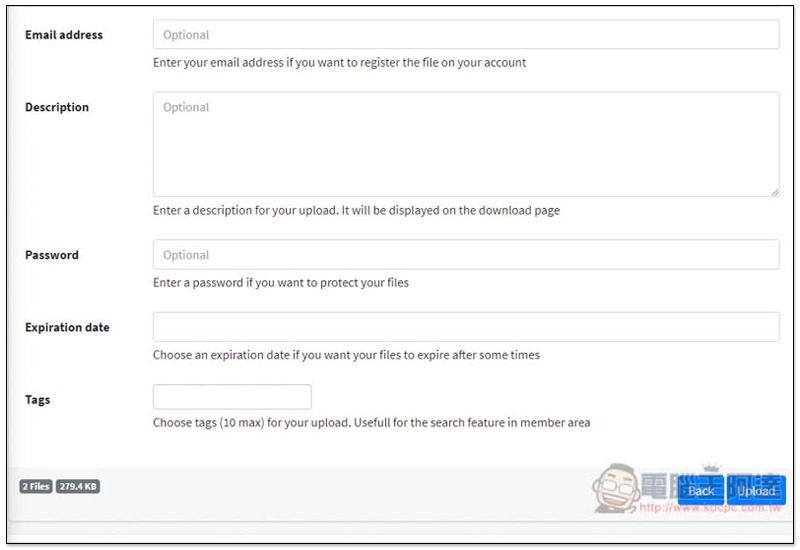
As shown in the figure below, multiple files can be uploaded at one time. Before uploading, there is an Advanced options in the lower right corner:
- E-mail address: After entering, the file can be registered to your email, and you can then control it through this email.
- Description: File description.
- Password: File password, the other party must enter the specified password to download.
- Expiration date: Expiration date, if you want to specify it. Generally speaking, as long as someone keeps downloading it, it will exist forever. However, if no one downloads it for more than 10 days, the server will decide whether to delete it based on the space capacity.
- Tags: Tags.
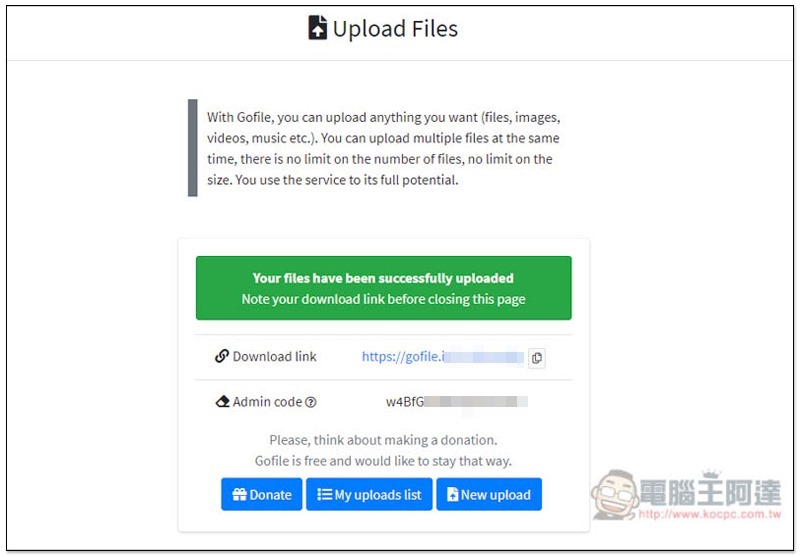
Press Upload and the upload will start. This screen appears to indicate success:
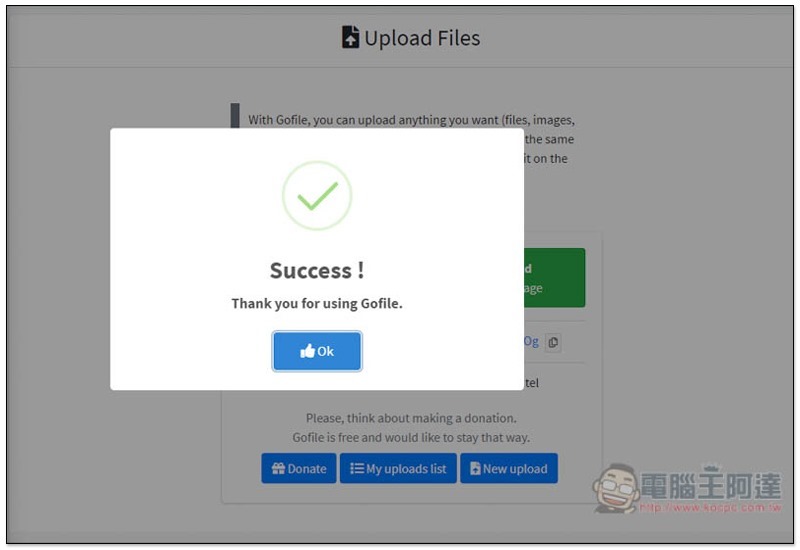
You will get the download link:
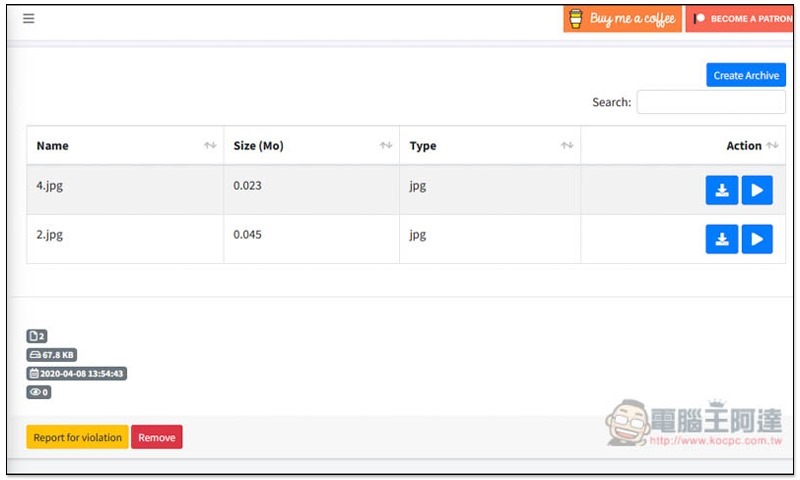
The download screen looks like this. The file name, size and type will be displayed. You can click to download individually. Some formats also support the preview function:
For those who frequently share files, it is highly recommended to register for email, so that in the future you can control all shared files at once just by clicking on a specified link:
Supplementary information
GoFile website:Click here to go
Source: KOCPC Chinese