


The translation quality of LLM models is almost always better than that of established translation tools like Google and Microsoft, so many people will surely want to switch to LLM models. Although there are now many extensions that can connect to local LLM models to translate web pages, anyone who has used them has probably felt this: “It’s still too slow,” and over time they go back to using Google Translate. Recently I came across a new free extension called Sakutto. It downloads the LLM model directly into the Chrome browser, so not only do you not need to enter an API Key, but translation is also faster. In my testing, that’s indeed the case—it’s much faster. I recommend it to everyone.
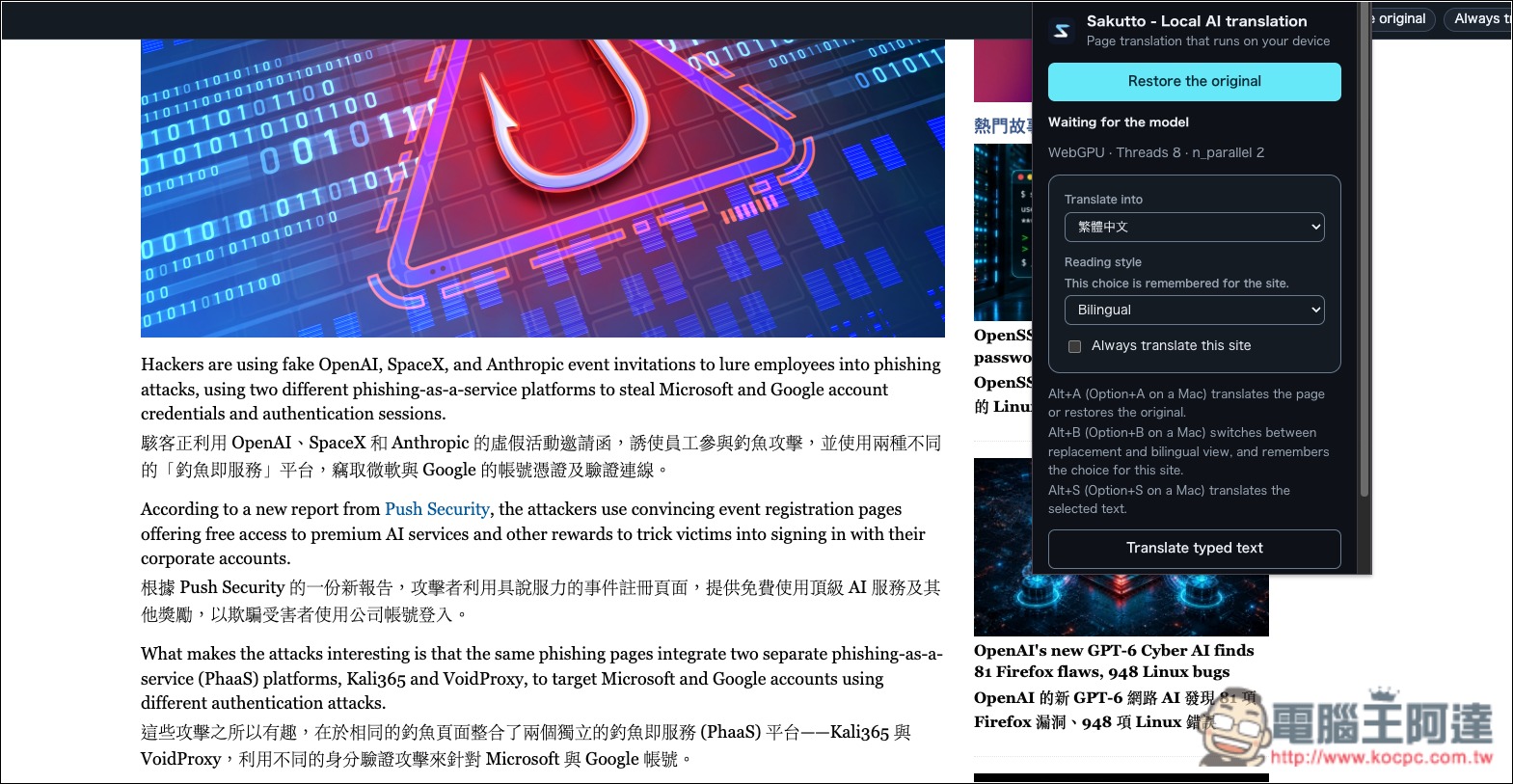
Sakutto Free AI Translation Extension Introduction
Sakutto is a free, open-source Chrome AI web page translation extension created by Japanese developer jammaru. It uses a local large language model (LLM) in the browser to handle translation, so there is no need to send webpage text to an external translation server.
The LLM model currently used is PLaMo 3 Translate, which performs translation in the browser’s computing environment rather than calling a cloud or local AI API. After installation, you can translate an entire webpage, select only the paragraphs you’re interested in, or open the text translation page and paste text to get results. For reading, you can choose to have the translation directly replace the original text or display the original and translation at the same time.
In terms of language support, PLaMo 3 Translate can handle 53 languages. The source language of a webpage is detected automatically, while the default translation target follows the browser interface language setting and can also be adjusted for the current website. For language combinations that are not covered, the extension falls back to Chrome’s built-in local translation capabilities. In addition to manual translation, Sakutto also offers automatic translation for specific websites, glossaries, and translation caching.
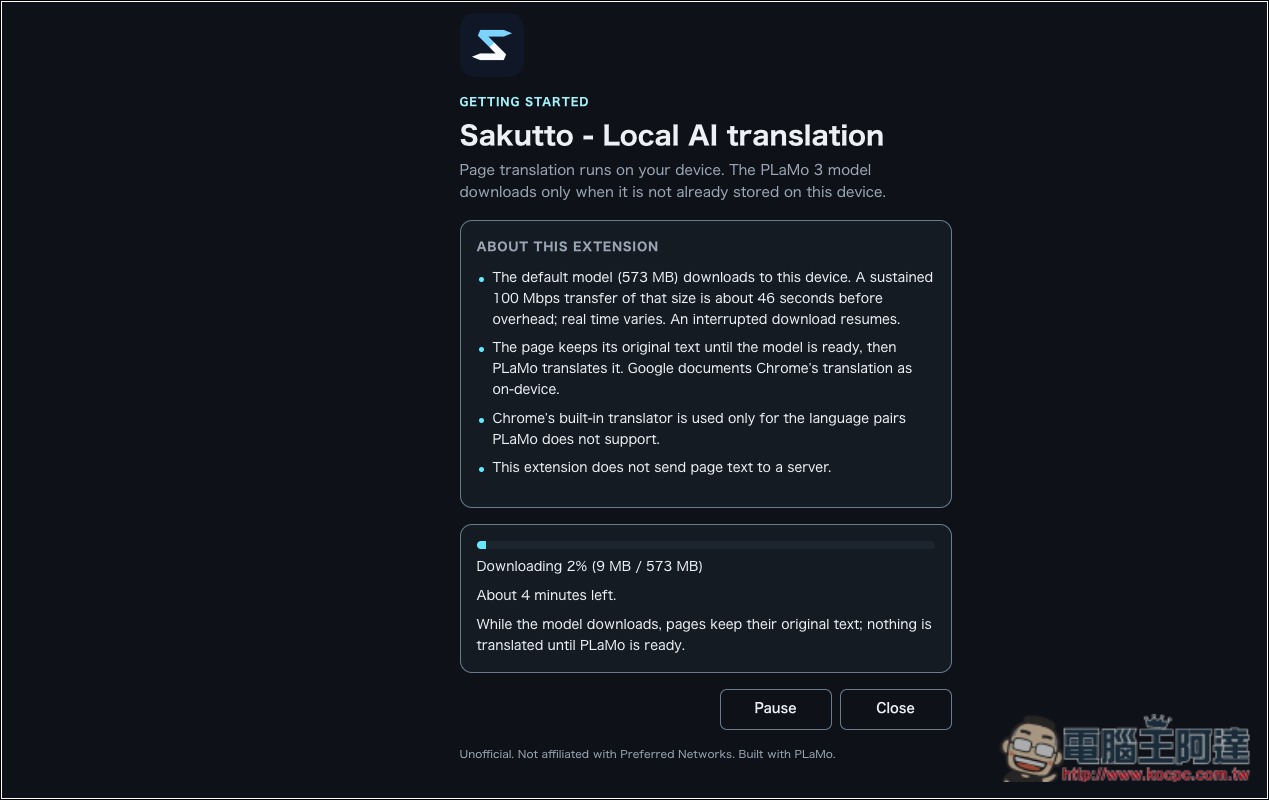
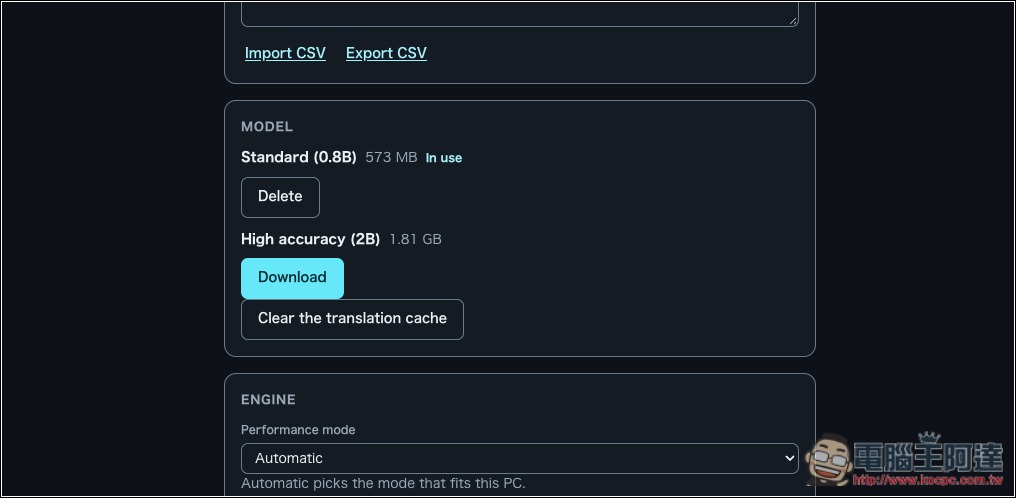
On first launch, Sakutto downloads the AI model from Hugging Face. The default 0.8B model is about 573 MB, and a larger 2B model is also available. Once the model has been downloaded and saved, you can use PLaMo translation offline. Actual speed will still depend on your computer hardware, article length, and the model you choose.
In terms of privacy, the developer states that Sakutto does not collect translation content, does not display ads, and does not use behavioral analytics or tracking mechanisms. The original text, translations, glossary, and cached data remain on the user’s device.
Key Features
- Completely free to use: no paid subscription required, and no ads or paid premium features.
- No account or API Key required: just install the Chrome extension to start setup and use.
- On-device AI translation: runs translation on the user’s device via PLaMo 3 Translate, supporting 53 languages.
- Full-page webpage translation: directly convert foreign-language webpage content into a specified language.
- Select text to translate: only translate the text paragraphs that need to be read.
- Supports manual input translation: paste text without having to open a separate translation website.
- Original and translation comparison: provides modes for replacing the original text and displaying bilingual side-by-side comparisons.
- Supports offline translation: once the AI model is downloaded, it can be used without an internet connection.
- Model options are available: the 0.8B model is used by default, and the larger 2B model can also be selected.
- Supports keyboard shortcuts: quickly translate the entire page, selected text, and switch display modes.
- Open source and transparent: The extension’s source code is publicly available on GitHub under the MIT license.
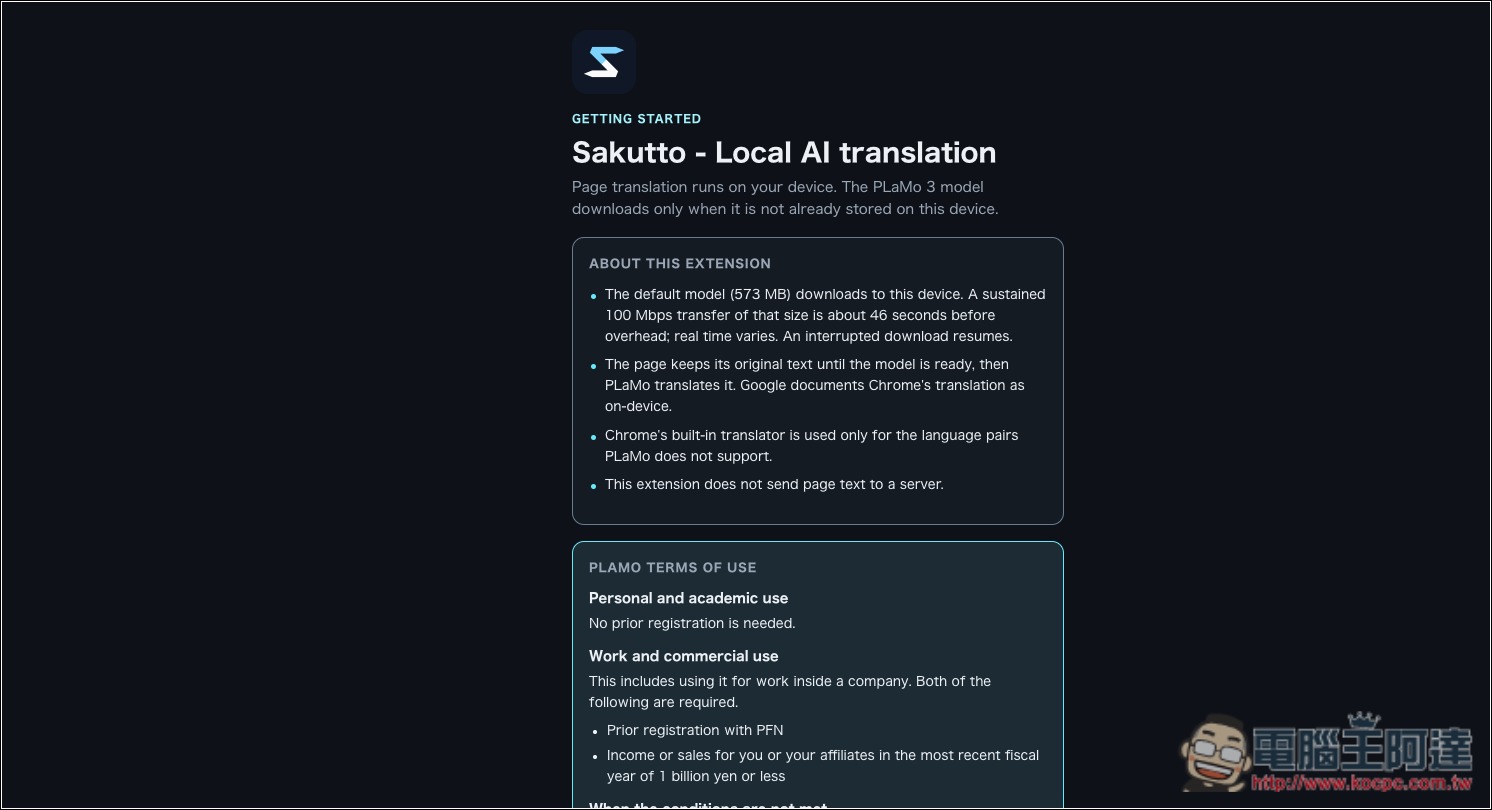
After Sakutto is installed, the instructions and consent terms will pop up first:
Next, it will download the smaller 0.8B model by default. If you want to use the 2B model, you can switch to it later in Settings:
Once the model is downloaded, you can start using it:
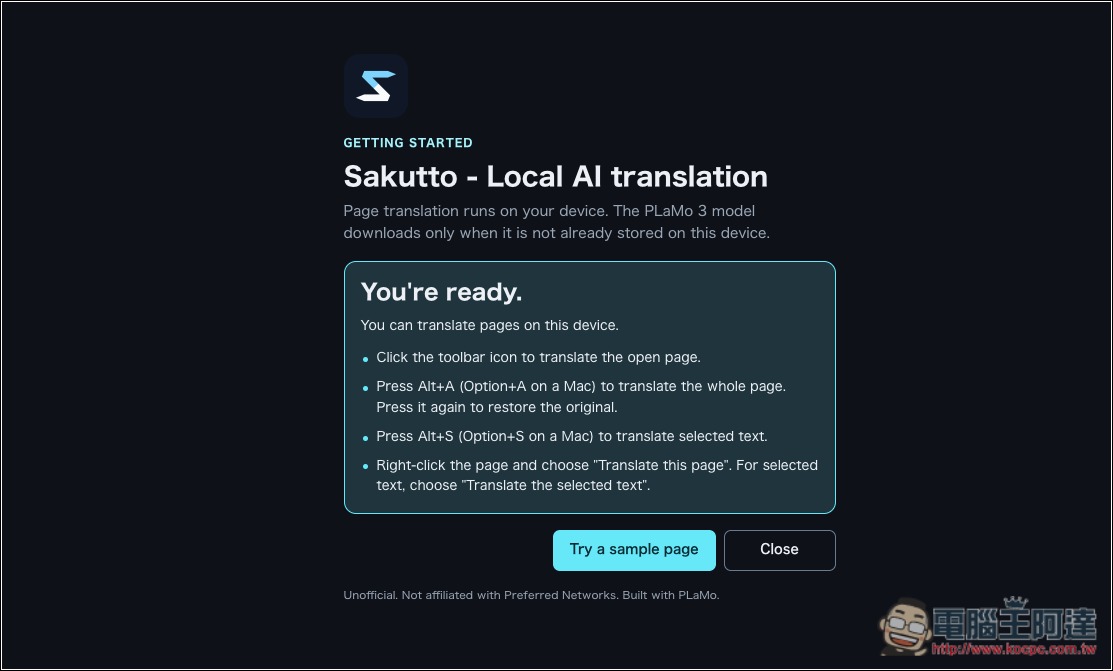
Using it is simple: after opening the webpage you want to translate, you can use a keyboard shortcut directly, or click the “Translate this page” option in the extension icon, or use the translation option in the right-click menu, and it will translate:

Next, you’ll see the text begin translating from the very top of the webpage, and the screen will also display the Token speed and how much remains untranslated:
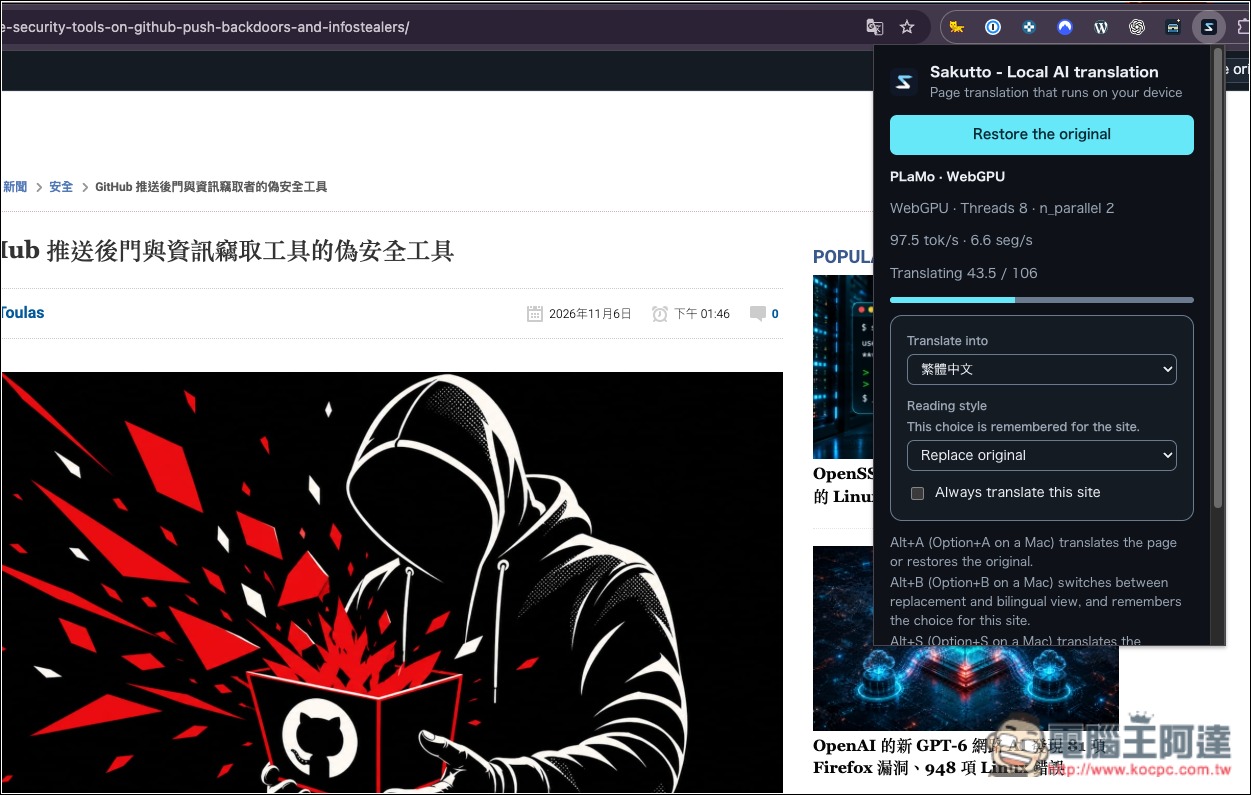
The speed varies from computer to computer. The GIF below shows how it runs on my computer:

If you want to keep the original text and display the translation below, switch to Bilingual mode:
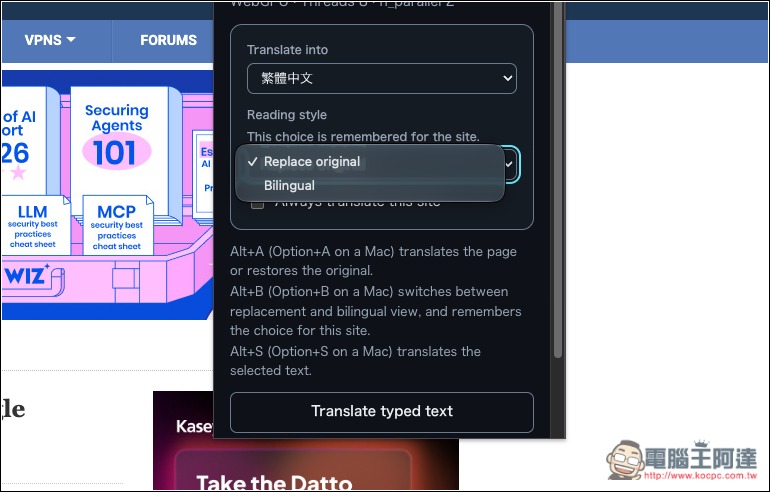
It will turn out like this:

The MODEL option in settings lets you switch the model you want to use:
Source: KOCPC Chinese