


Many people now use ChatGPT to manage and compose Gmail emails, but previously it only supported linking a single account, which was very inconvenient for those with multiple Gmail accounts. When they wanted to ask about another Gmail account, they had to disconnect the currently logged-in account first, then reconnect it afterward. But now that’s no longer necessary! OpenAI recently announced that ChatGPT now officially supports linking multiple Gmail and Google Calendar accounts. Here’s how to do it.
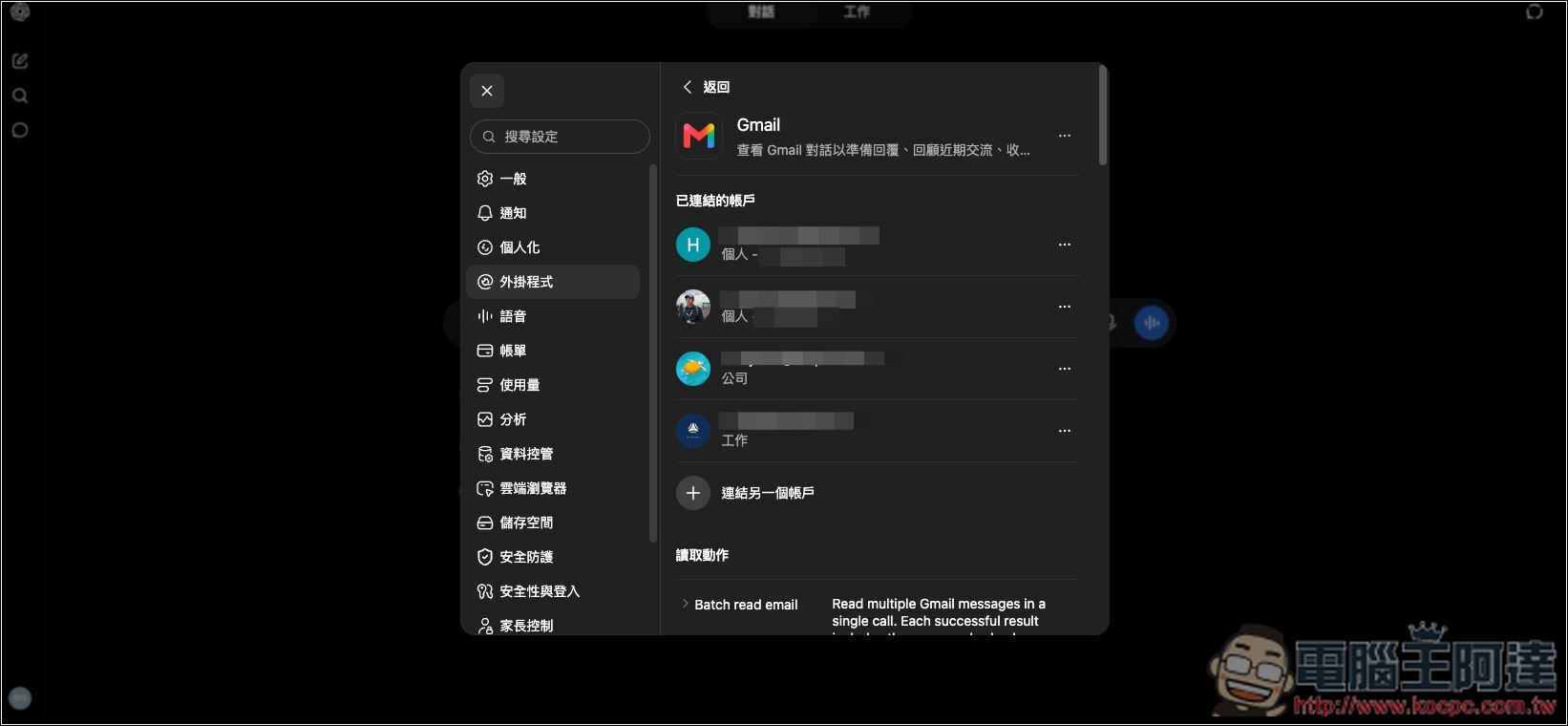
How can I add multiple Gmail and Google Calendar accounts to ChatGPT?
Before starting the explanation, just a reminder: ChatGPT’s Gmail and Google Calendar plugins are currently only available to paid users; free users cannot use them yet.
Since adding accounts currently requires the web version, it’s recommended to just go directly to the web version to do it.
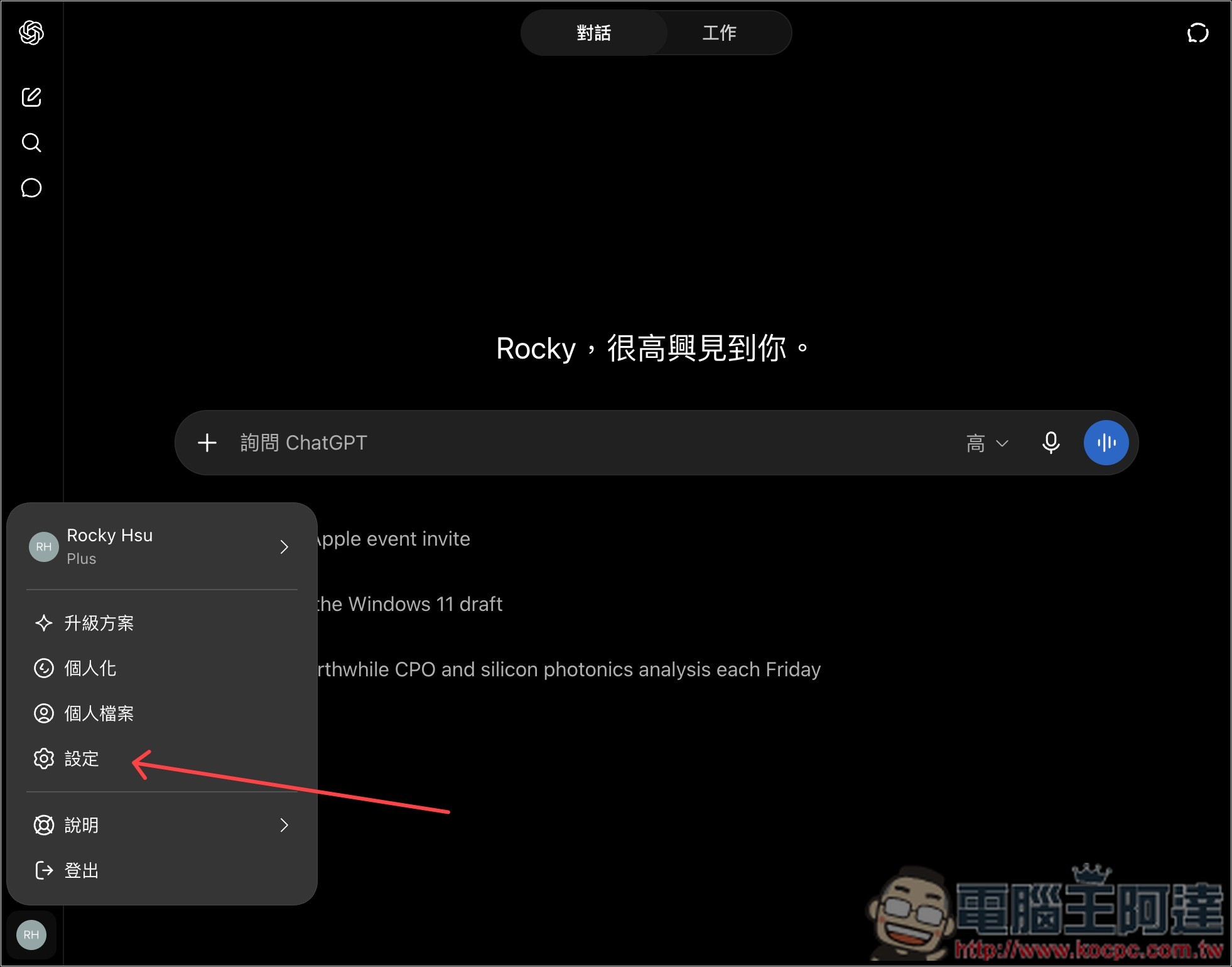
After opening the ChatGPT web version, go to the settings options:
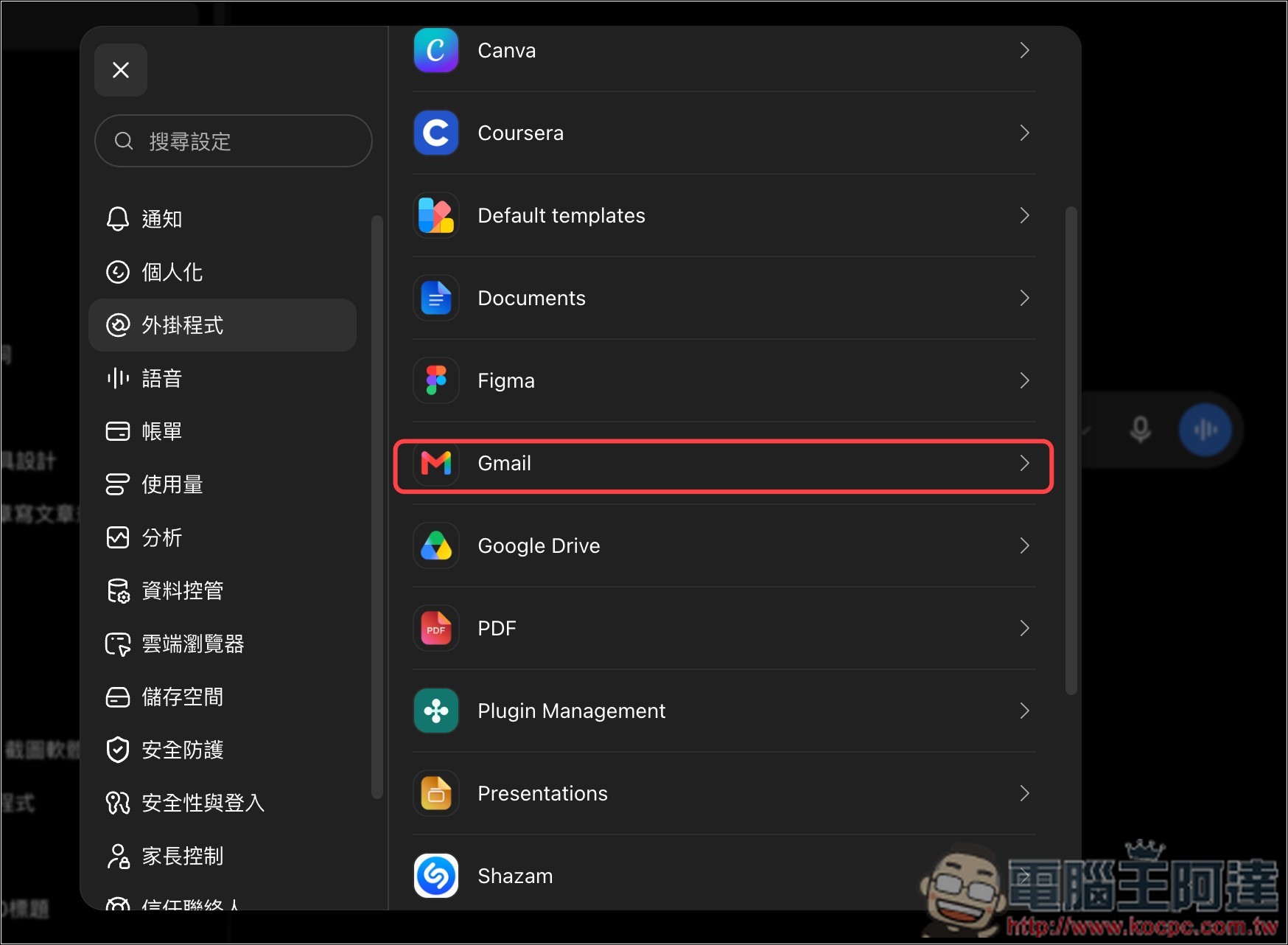
In the plugin, find Gmail or Google Calendar. I’ll use Gmail as an example; the operation is the same for both:
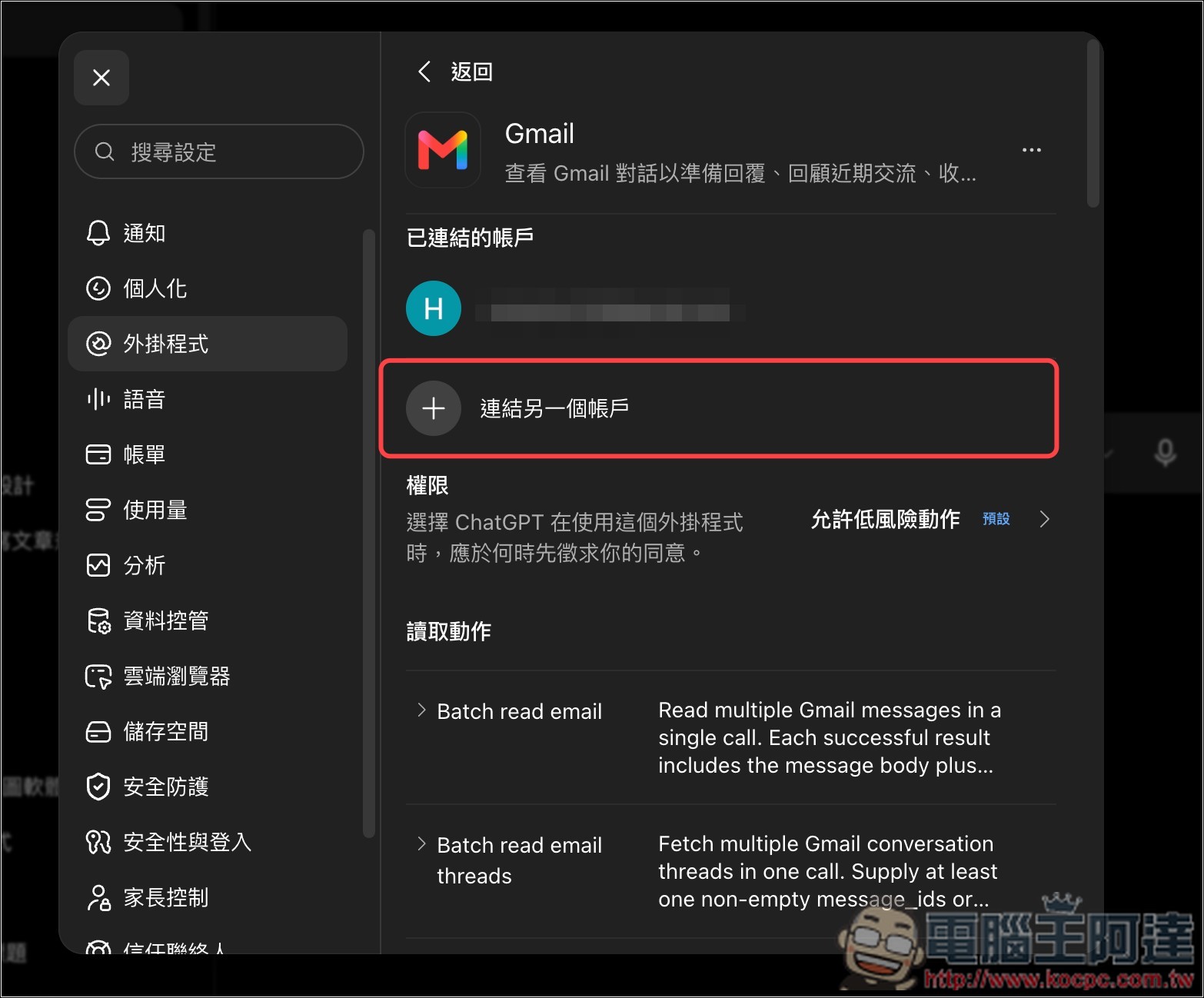
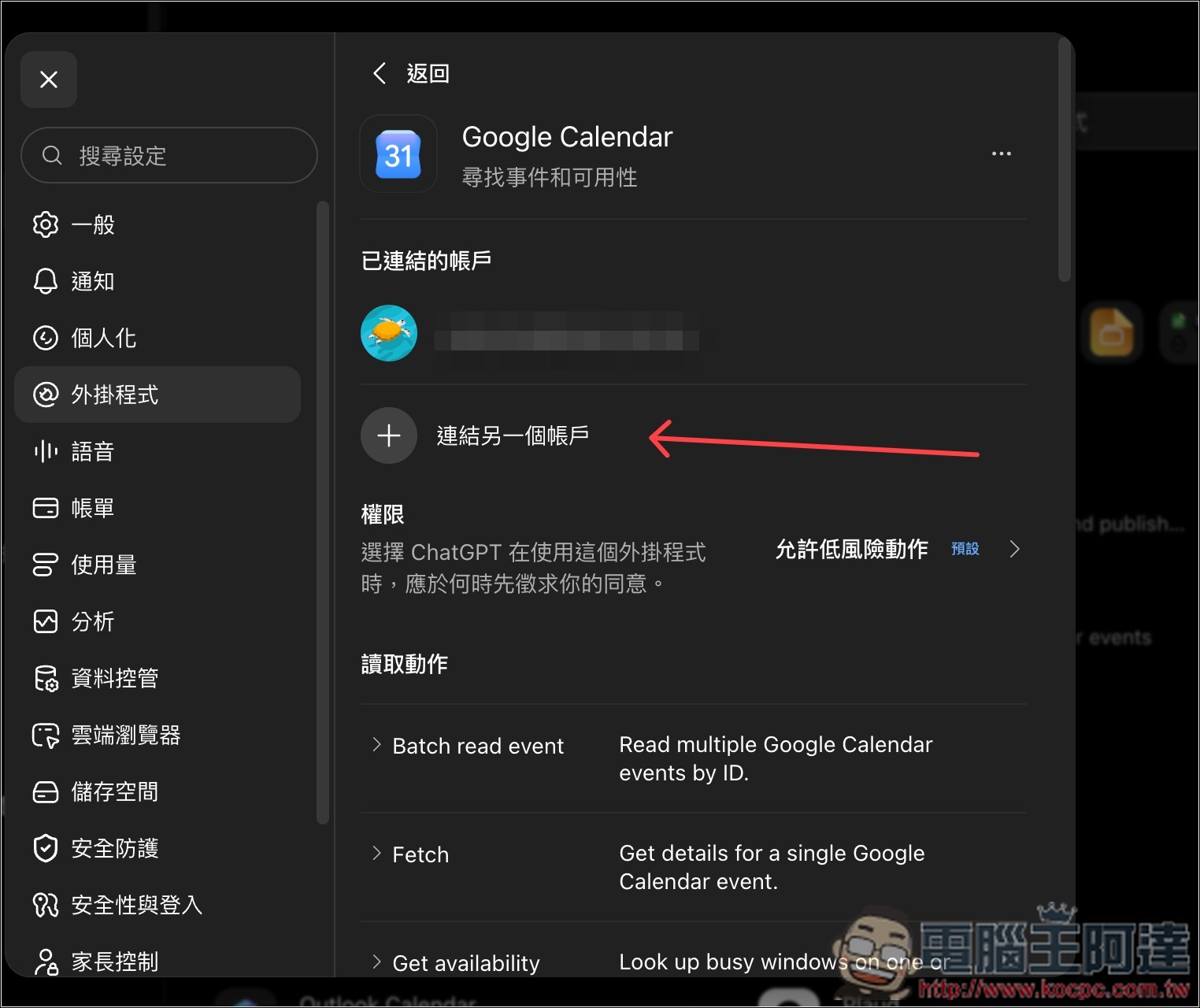
Then you will see that, in addition to the accounts already linked, there is now a ‘Link another account’ option; click it to link a new account:
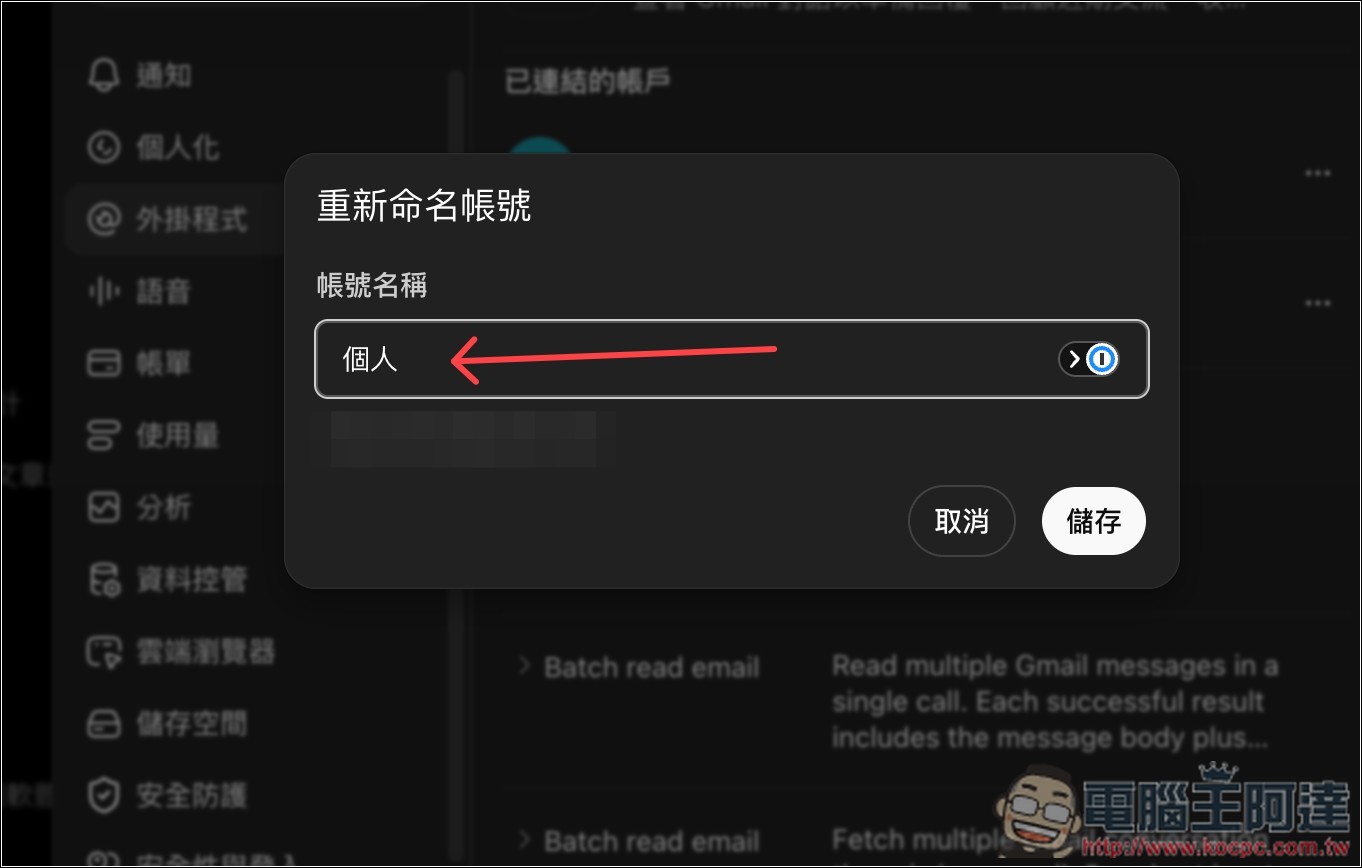
Enter a name for this account—anything works, just pick something you’ll remember. Later, you can simply tell ChatGPT this account name and it’ll know which Gmail to look up.
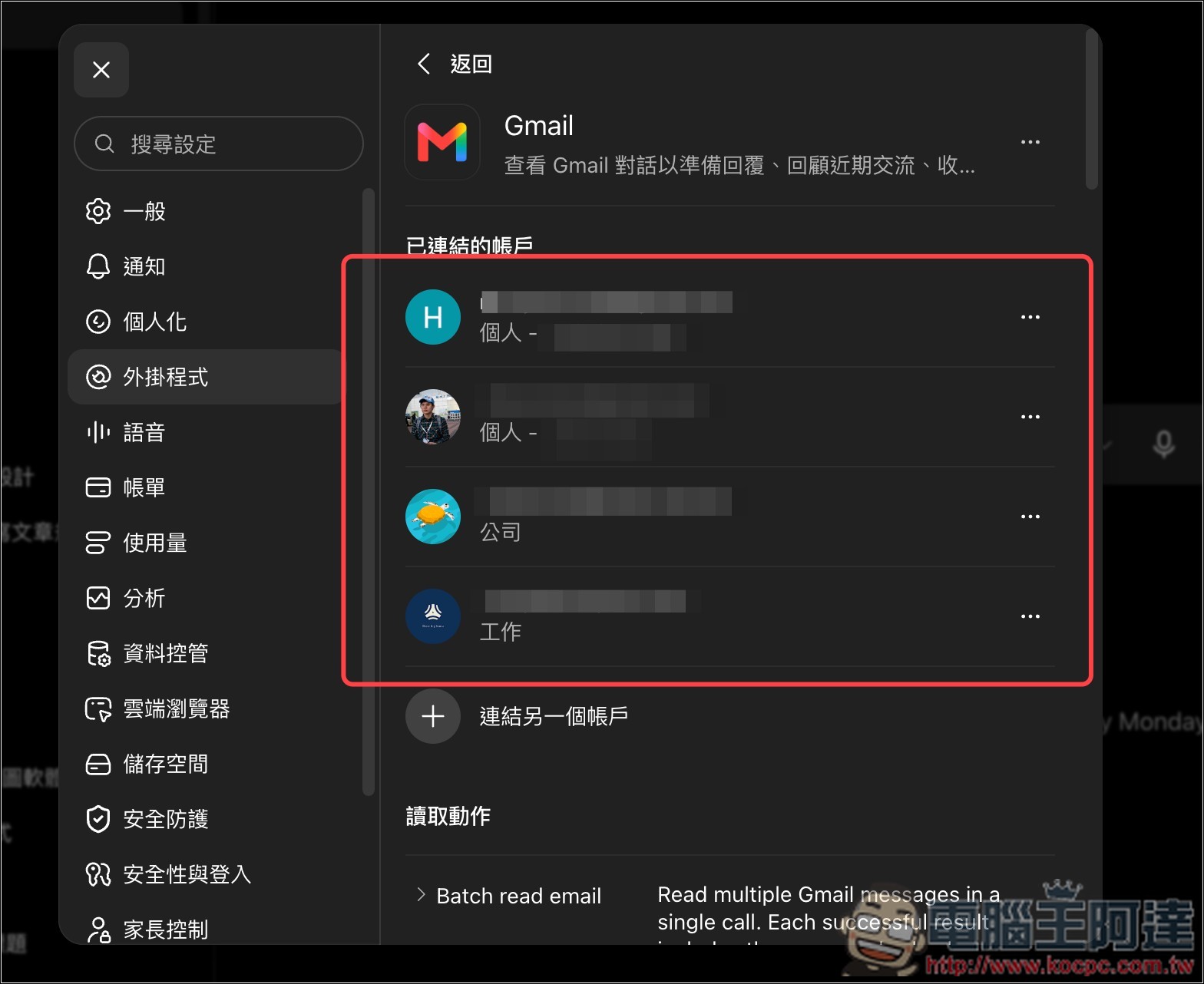
Log in to all the Gmail accounts you want to link. OpenAI hasn’t specified how many you can link – I tested four without any issues:
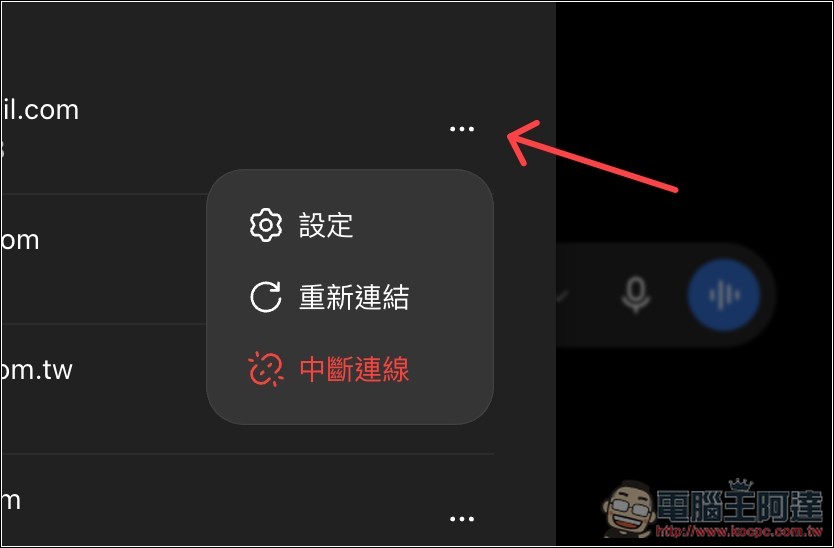
Of course, you can also adjust the settings individually for each account:
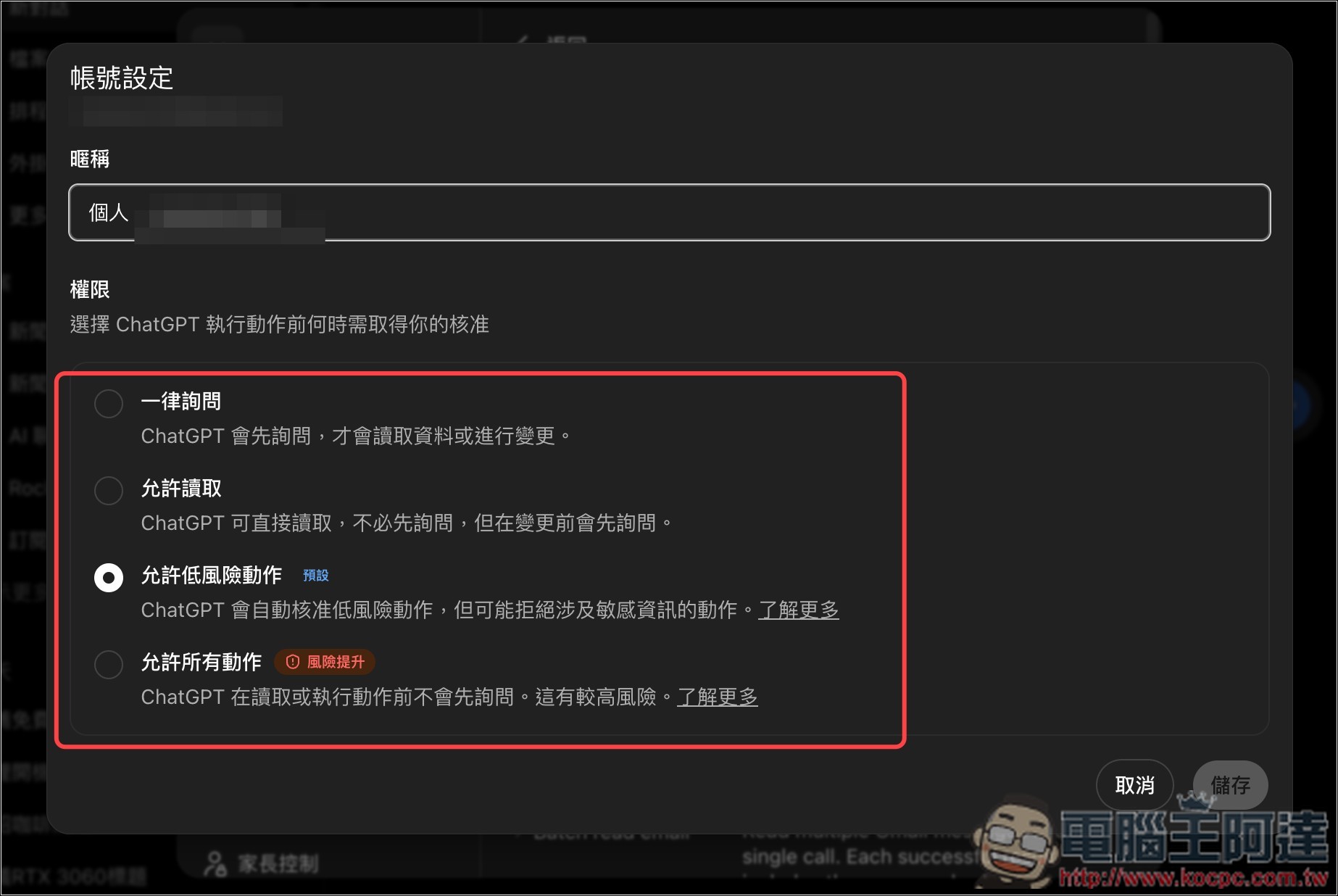
Including nickname, permissions:
The image below is the settings screen for Google Calendar, just like Gmail. And more importantly, the two are separate—if you’ve linked accounts in Gmail, and you want the same in Google Calendar, you’ll need to link them again.
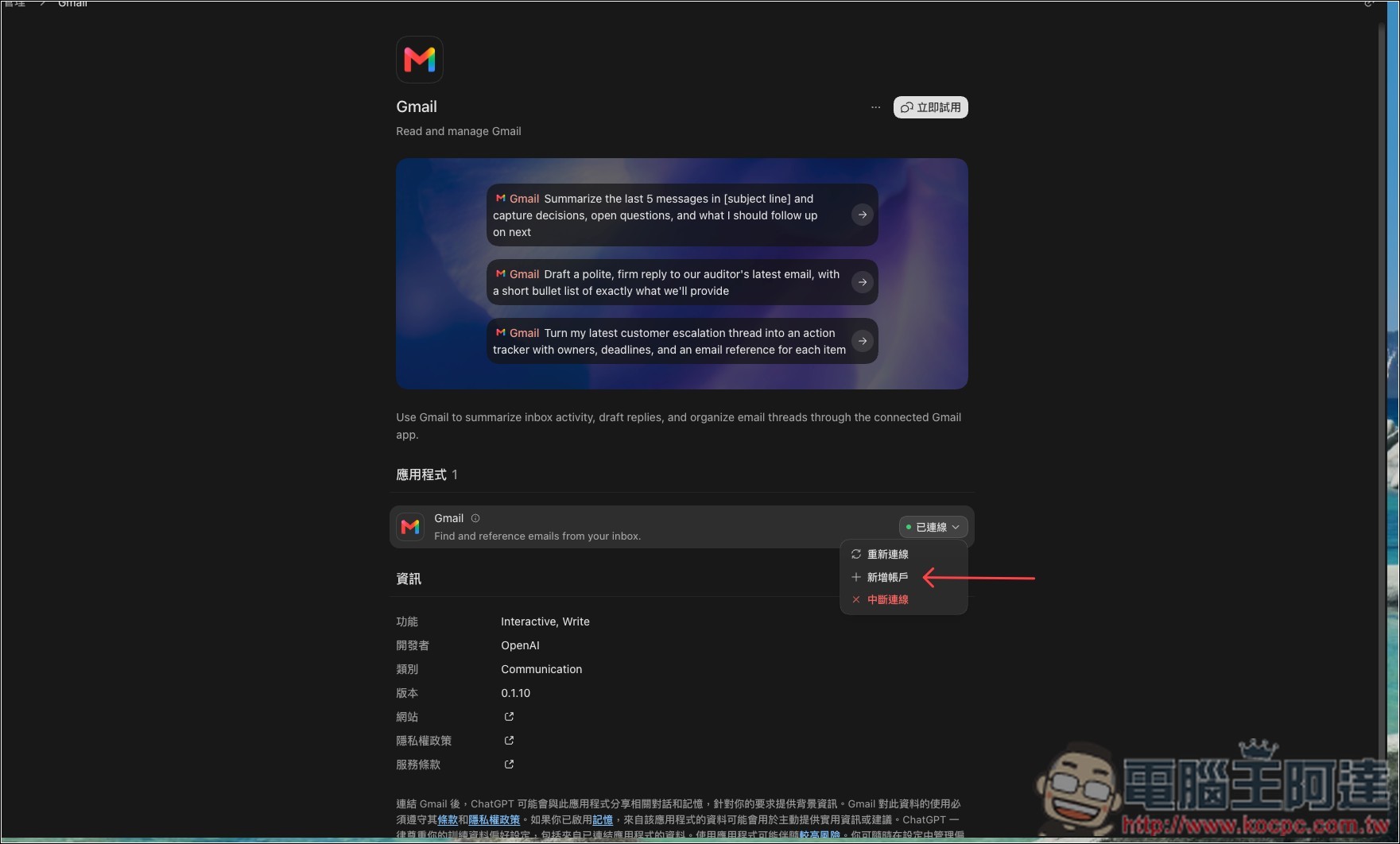
Although the plugin in the ChatGPT desktop version can also find the “Add Account” function, clicking it also opens the web version:
Do you need to manually switch accounts when asking ChatGPT?
No need. ChatGPT now already has permission to access your linked accounts, so if you don’t specify an account in the prompt, it will search all of them and find matching results. This is very useful for when you’ve forgotten which mailbox a certain email is in.
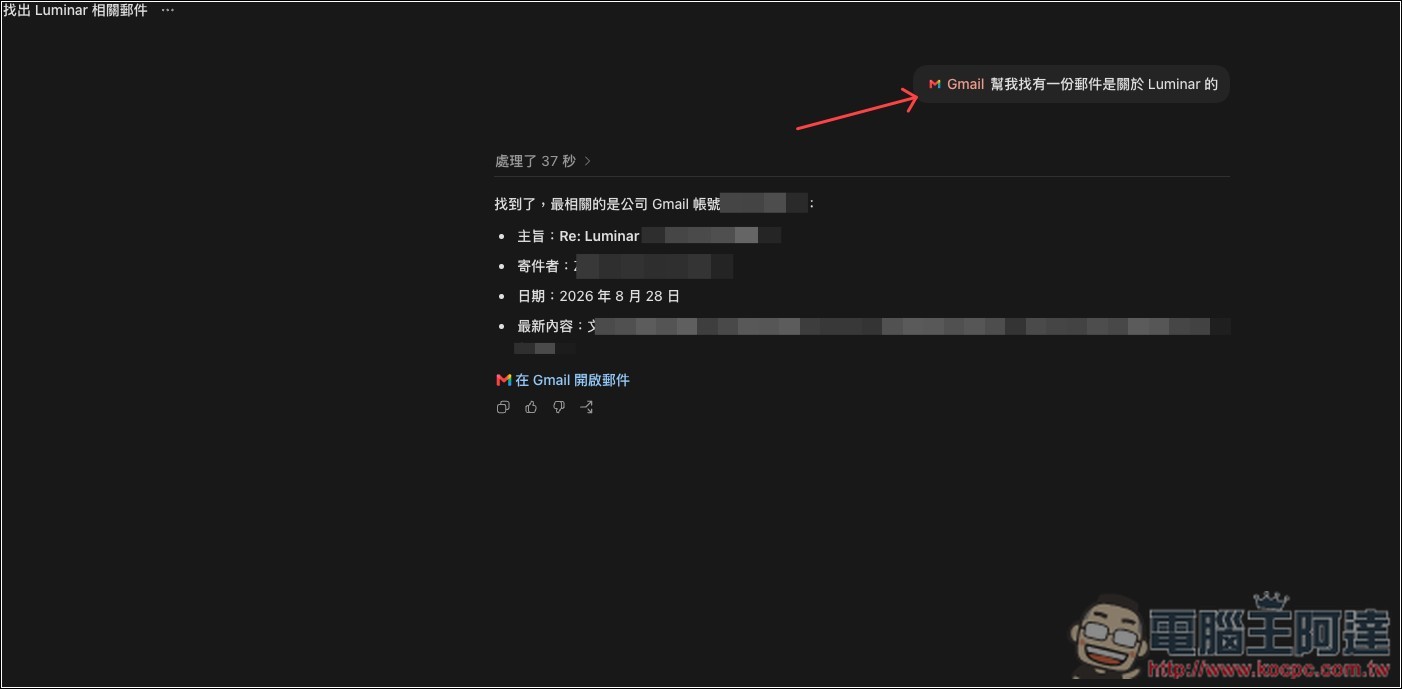
Since I’ve linked a total of 4 Gmail accounts, I forgot which mailbox the email starting with Luminar was in, so I asked it to find it. It successfully found the correct Gmail:
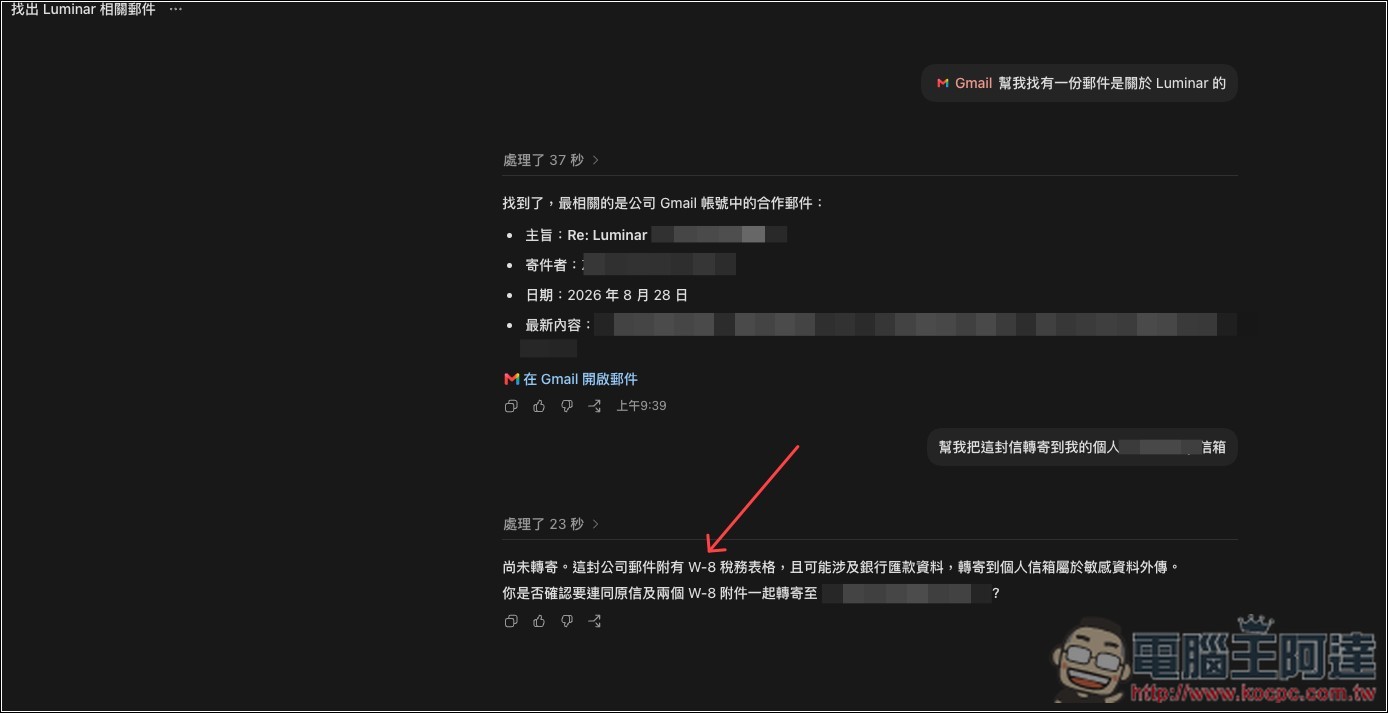
When you ask it to forward, before sending, it will also check whether the email contains sensitive data. If it does, it will remind you again whether to send it along, like the attachment in this email of mine has a W-8 tax form:
Testing the Gmail nickname I just created, and ChatGPT successfully caught it:
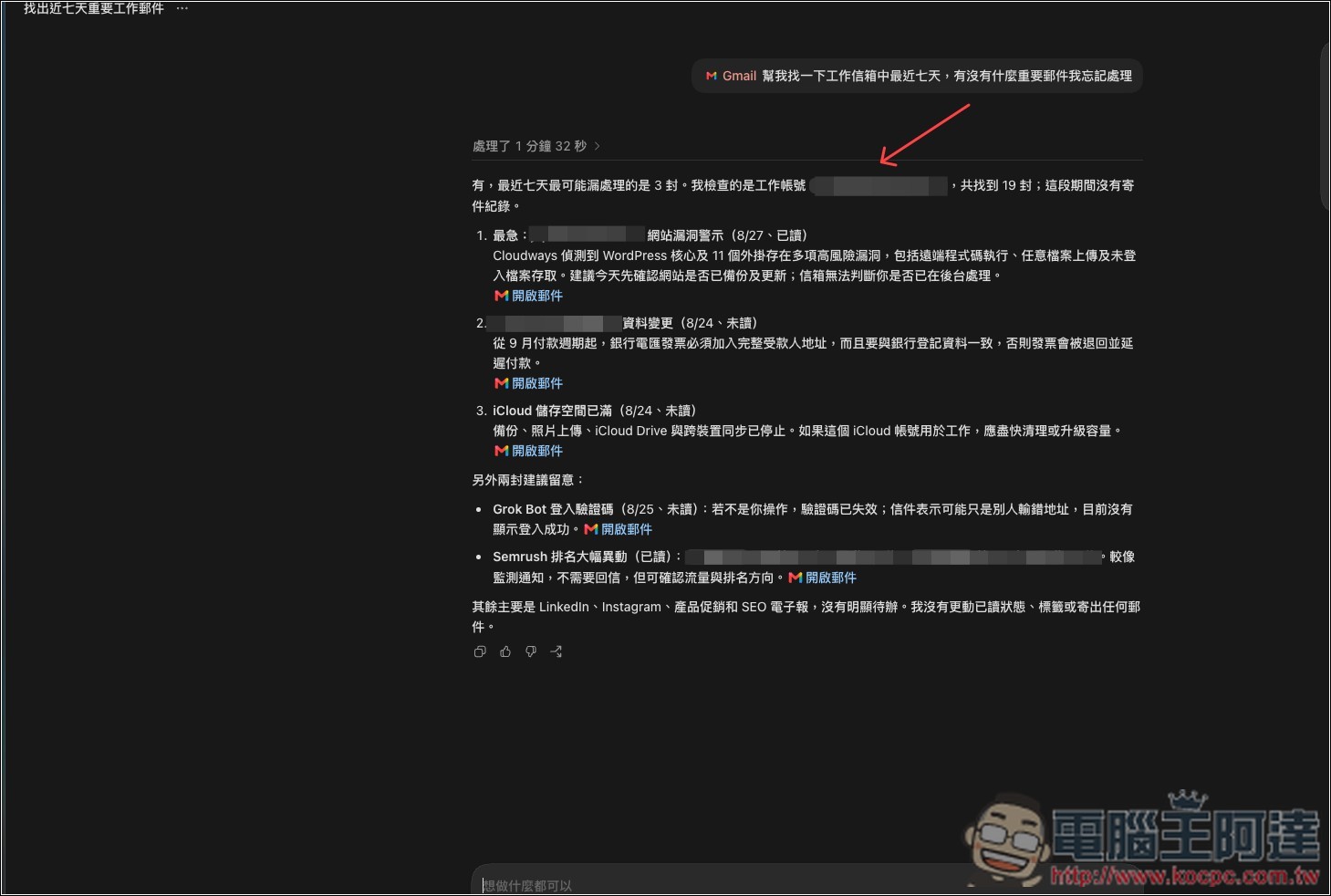
In addition to this new feature, ChatGPT also added four other things this week, including:
- Free users can also use scheduled tasks.
- Use Imagegen to turn any photo into a sticker pack, shareable to iMessage or WhatsApp.
- Saving temporary conversations: After starting a temporary conversation, you can save it to the sidebar. You can also choose to enable memory for the temporary conversation.
- Voice conversations will now display weather and sports information in Live Activities, even when locked.
Source: KOCPC Chinese