


Windows 10 and Windows 11 have a very practical “virtual desktop” function built in, which allows users to classify different types of desktops, such as working, watching videos, editing pictures, etc. Through classification, it can greatly improve screen tidiness, fishing, and work concentration. However, when switching the native virtual desktop function of Windows, the system prompts that the desktop name is too small, and there is no mark on the taskbar. Sometimes there are too many virtual desktops opened, and I forget which one I opened. In order to make up for this shortcoming, developer Dan Krusi launched an open source, lightweight gadget “Windows Virtual Desktop Helper” on GitHub:
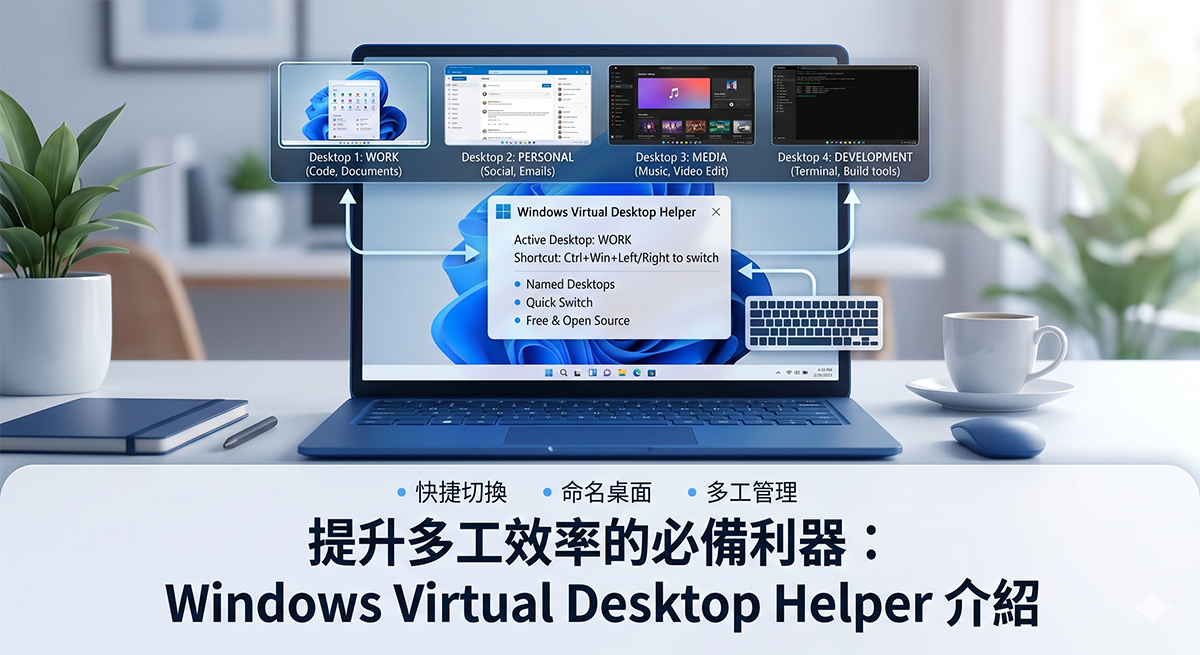
(Image source: AI generated)
Windows Virtual Desktop Helper Download
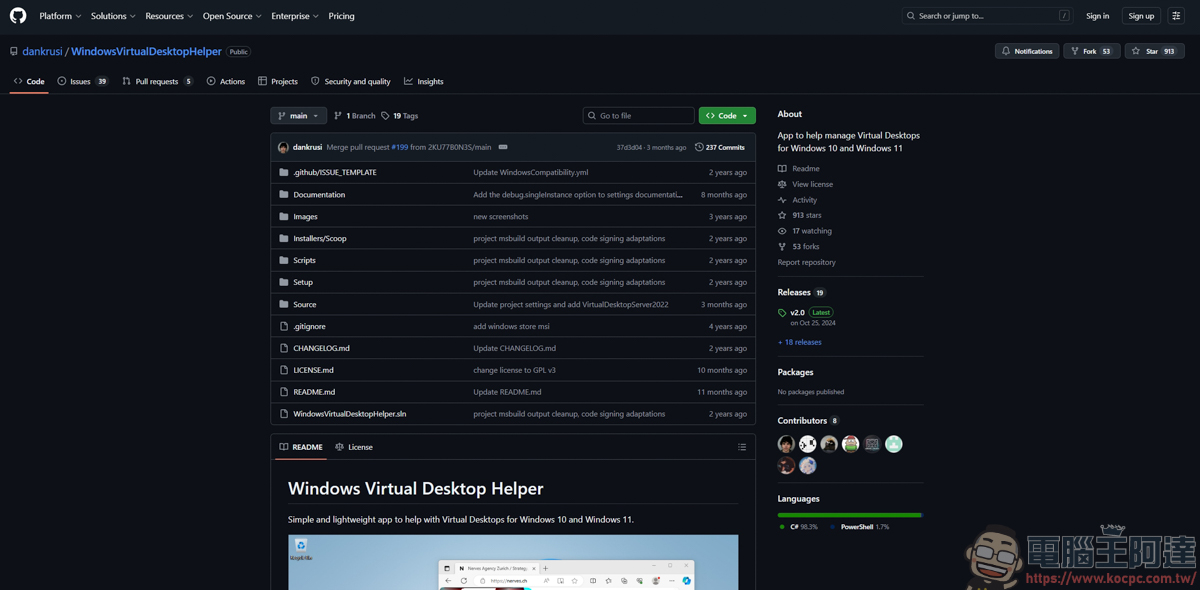
Windows Virtual Desktop Helper is available for free download on github, developed by Dan Krusi:
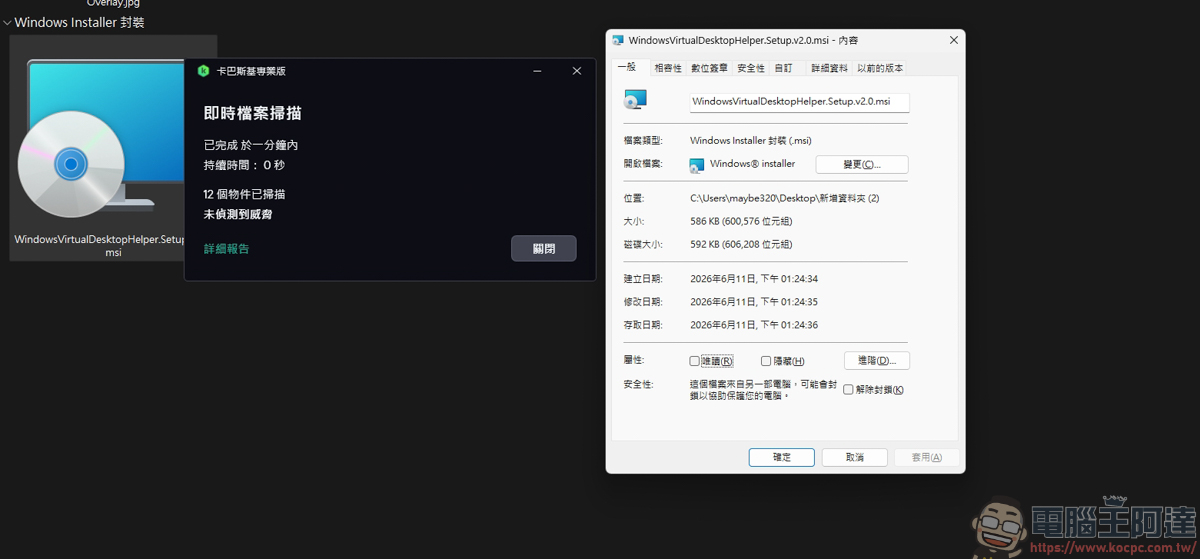
The file is extremely small, only 586KB, and there is no problem scanning it with anti-virus software. In addition, the installation method can choose MSI installation file, ZIP decompression, or Scoop command line installation. Just choose one and use it:
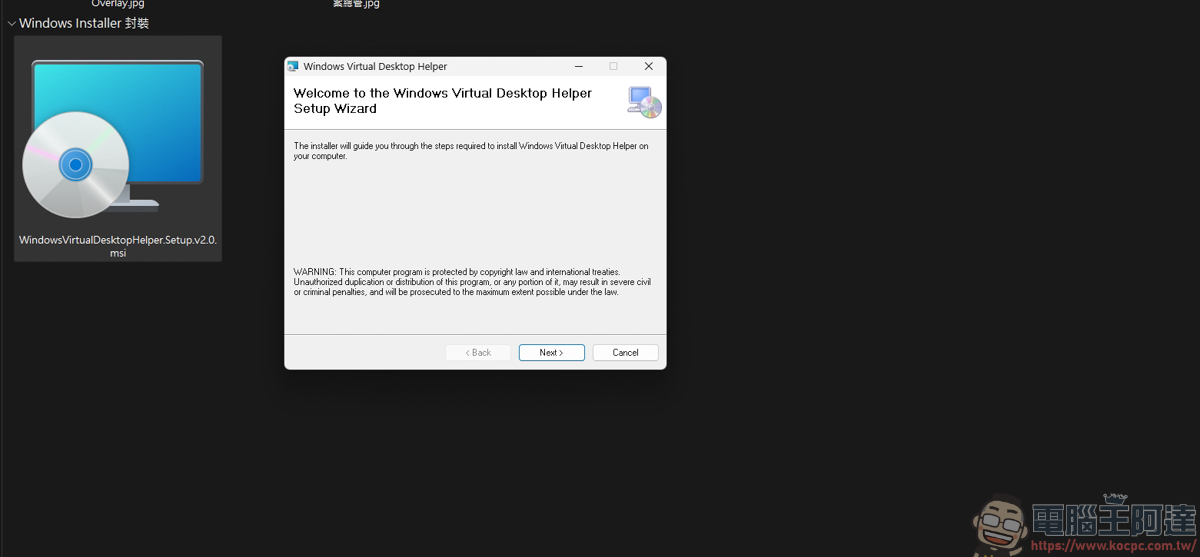
The installation method is as simple as ordinary application installation. You can complete the installation by continuing to the next step:
How to use Windows Virtual Desktop Helper
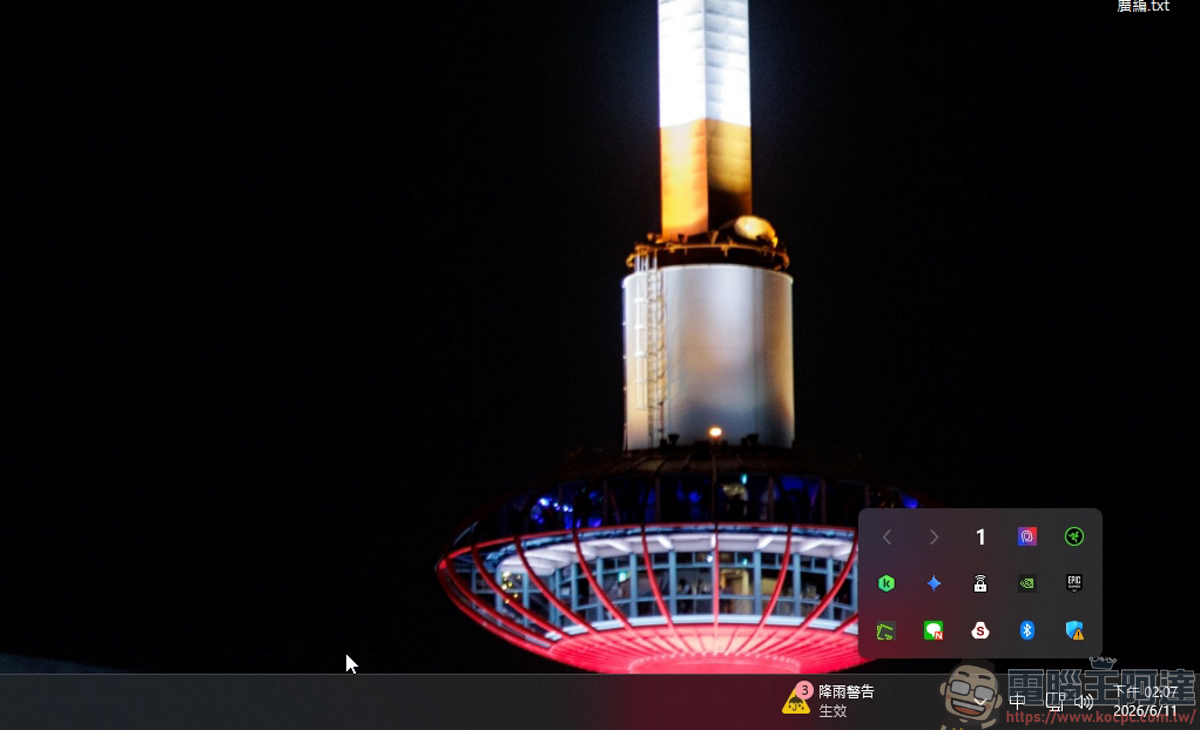
After installation, after opening the application, icons <, >, and 1 will appear on the toolbar in the lower right corner, indicating that Windows Virtual Desktop Helper is running:
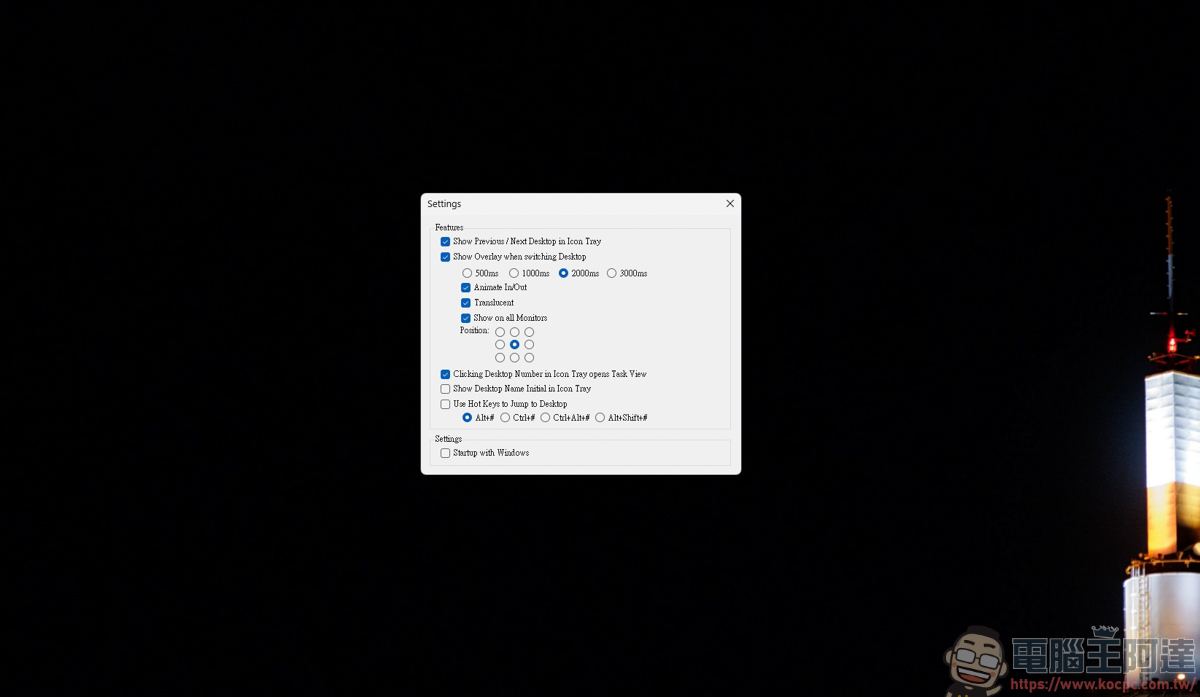
The options that can be set in Windows Virtual Desktop Helper are as follows:
-
Visual switching prompt (Overlay) When you use shortcut keys to switch virtual desktops, the “name” and “number” of the current desktop will immediately appear in the center of the screen, letting you know exactly where you are switching to and no longer need to guess.
-
Work column icon display It will add a small icon in the system box (Notification Area) in the lower right corner, directly displaying the desktop number (or the first letter of the desktop name) you are currently on. Just glance at the lower right corner to grasp your current location.
-
Mouse click to switch In addition to using keyboard shortcuts, you can also have the system tray display the “previous/next” arrow icons, and you can quickly switch desktops by clicking them with your mouse.
-
Highly customizable hotkeys Supports customized shortcut key settings. For example, you can set “Ctrl + Alt + Shift + 1” to jump directly to “Desktop 1”, making multi-desktop management more efficient.
-
Lightweight and supports auto-starting at boot The software does not take up too much system resources, and can be set to start automatically when Windows boots, perfectly integrating into daily workflow.
Press the WIN+TAB keys on the keyboard to add a virtual desktop at the bottom:
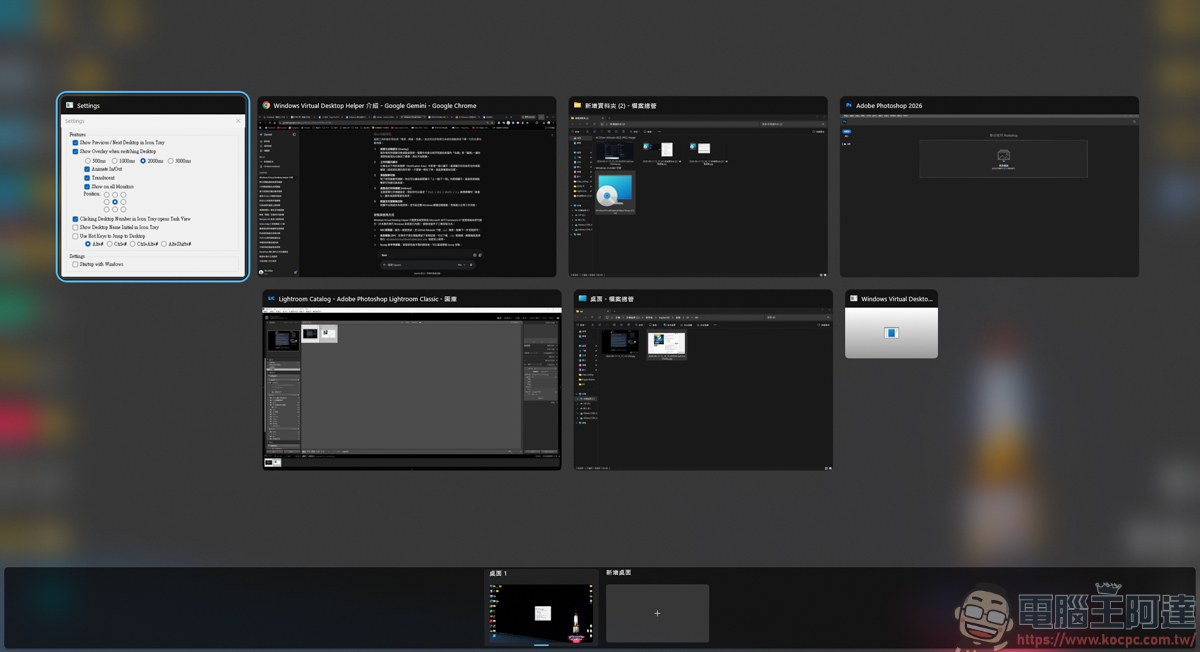
In the past, to use the native Windows switching method, you had to switch through the WIN+TAB keys. But after installing Windows Virtual Desktop Helper, you can set it to Ctrl / Alt / Shift + number to achieve the quick switching function or click the arrow on the toolbar to switch, so you don’t need to press the WIN + TAB key to switch.
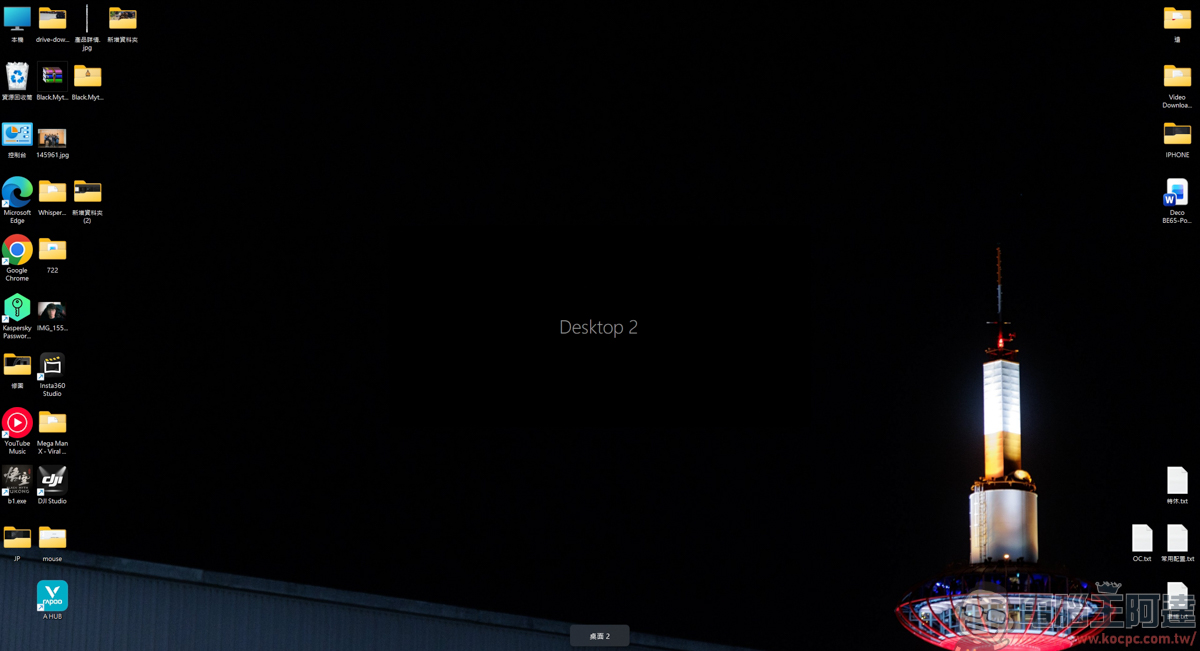
At the same time, the switched screen will also display the name of the desktop (customizable), and the Windows native one will also be displayed, but the font is very small and sometimes you will ignore it (at the bottom). The Windows Virtual Desktop Helper will prompt with larger words (the middle words can also be selected to pop up), so that during the switching process, you can know the currently switching screen:
In addition, if you want to name the virtual desktop, you can rename it by right-clicking the desktop while holding the WIN+TAB keys: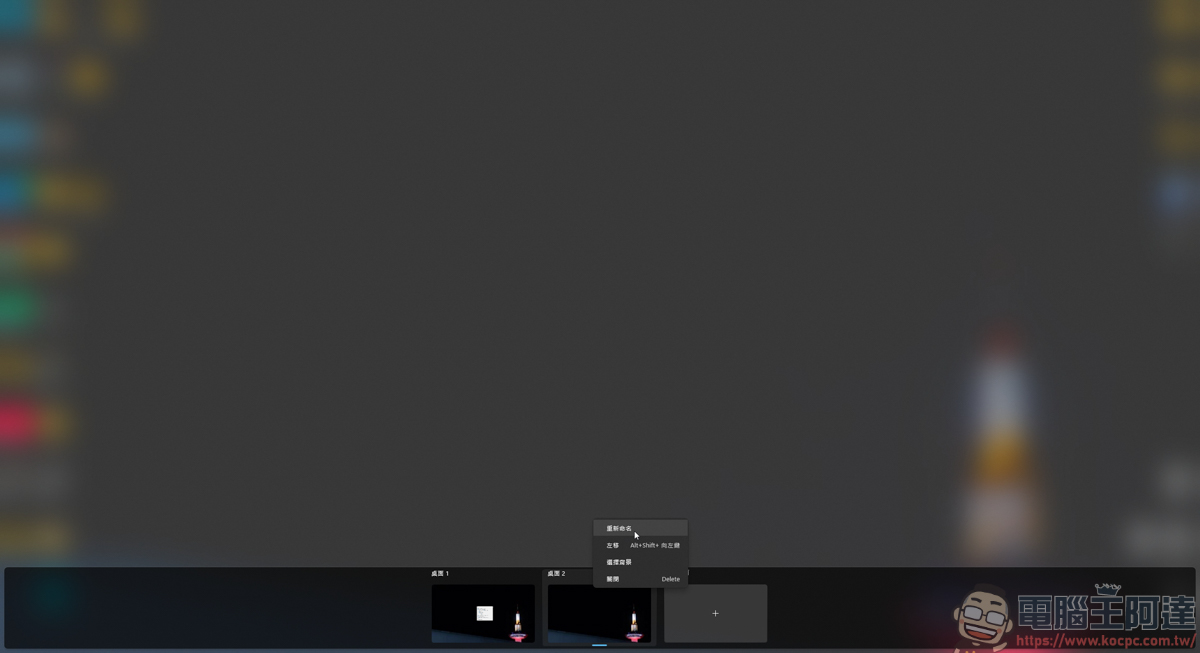
User experience
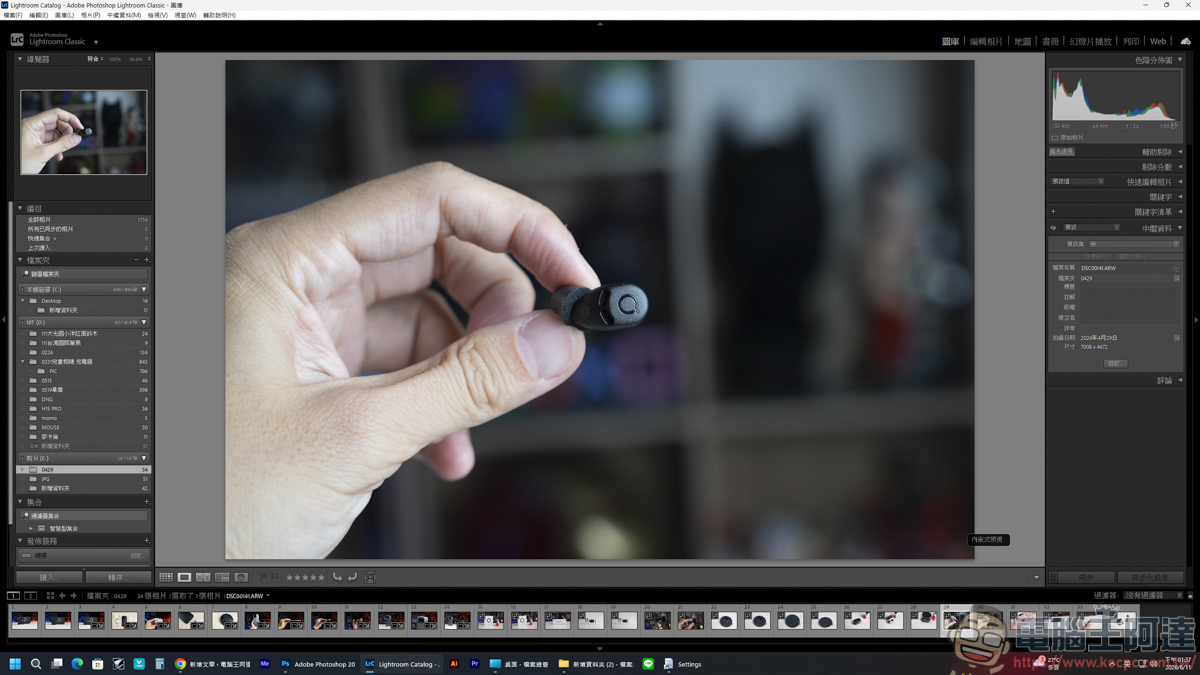
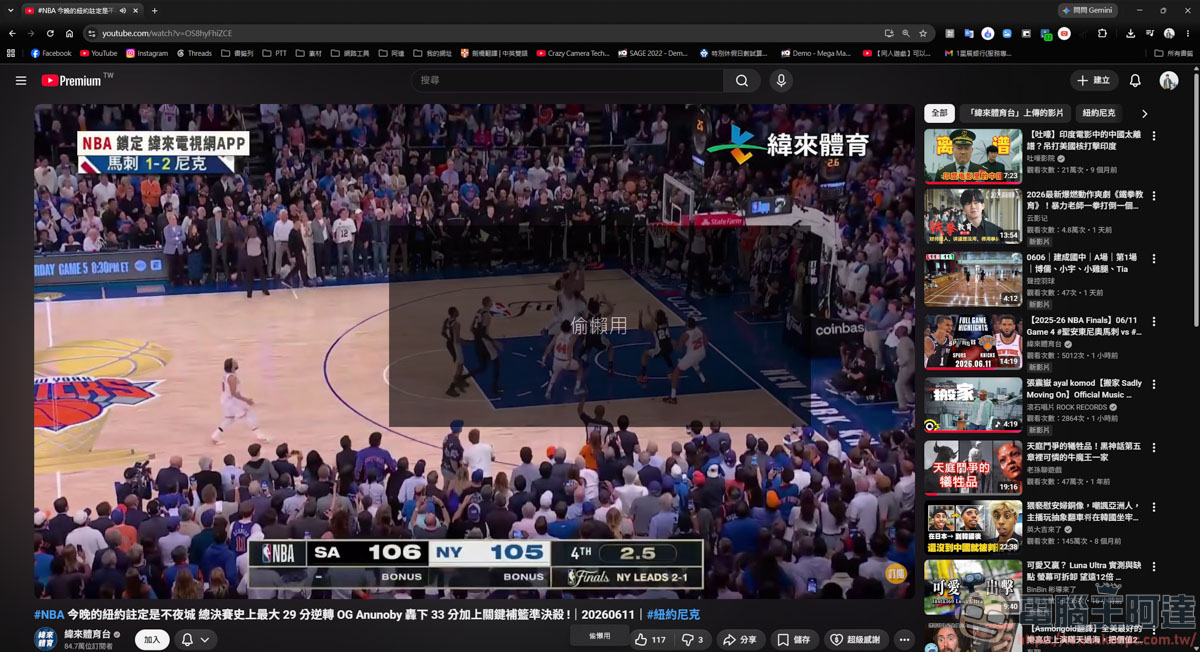
In this way, you can quickly switch between work/fishing (as shown in the two pictures below), and you can also quickly know which virtual desktop to switch to during the switching process. If you are also a heavy reliance on Windows Virtual Desktop and often get “lost” between different desktops, then Windows Virtual Desktop Helper, a free and open source software, is quite useful:
Source: KOCPC Chinese