


I wonder what travel tools everyone uses to plan consecutive vacations? Although many people have begun to use various social software such as Instagram to search for dream destinations they want to visit. But in the end, attractions should be organized using Google Maps, which is best for planning itineraries and even directly storing locations for navigation, right? As the summer vacation approaches, we also find that Google Maps, which always hopes to consider users first and allow everyone to better plan their itinerary, has silently updated the desktop version with a super easy-to-use multi-tasking tool – or should it be called a “multi-point” operation mode. Continue reading Essential tools for doing homework during summer vacation! Google Maps can now “multi-task” your journey planning (teach you how to use it). Report content.
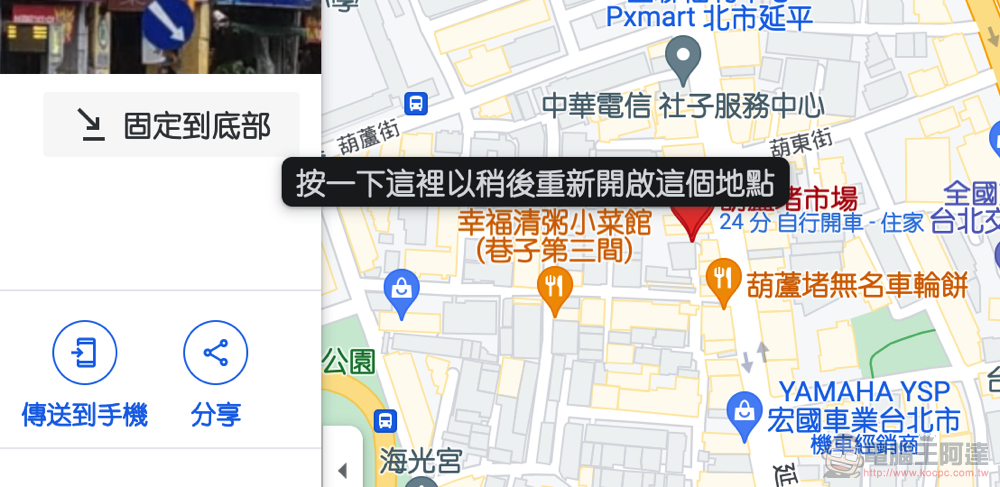
A must-have tool for doing homework during summer vacation! Google Maps can now “multi-task” your journey planning (teach you how to use it)
The concept of multitasking can be seen in many action systems. This kind of operation method and interface is a rare and great feature for users who need to deal with complicated tasks. However, for the usage scenarios of map navigation in the past, it seems that most of them were single-point search and movement? At most, it’s just a need to add passing points in the middle?
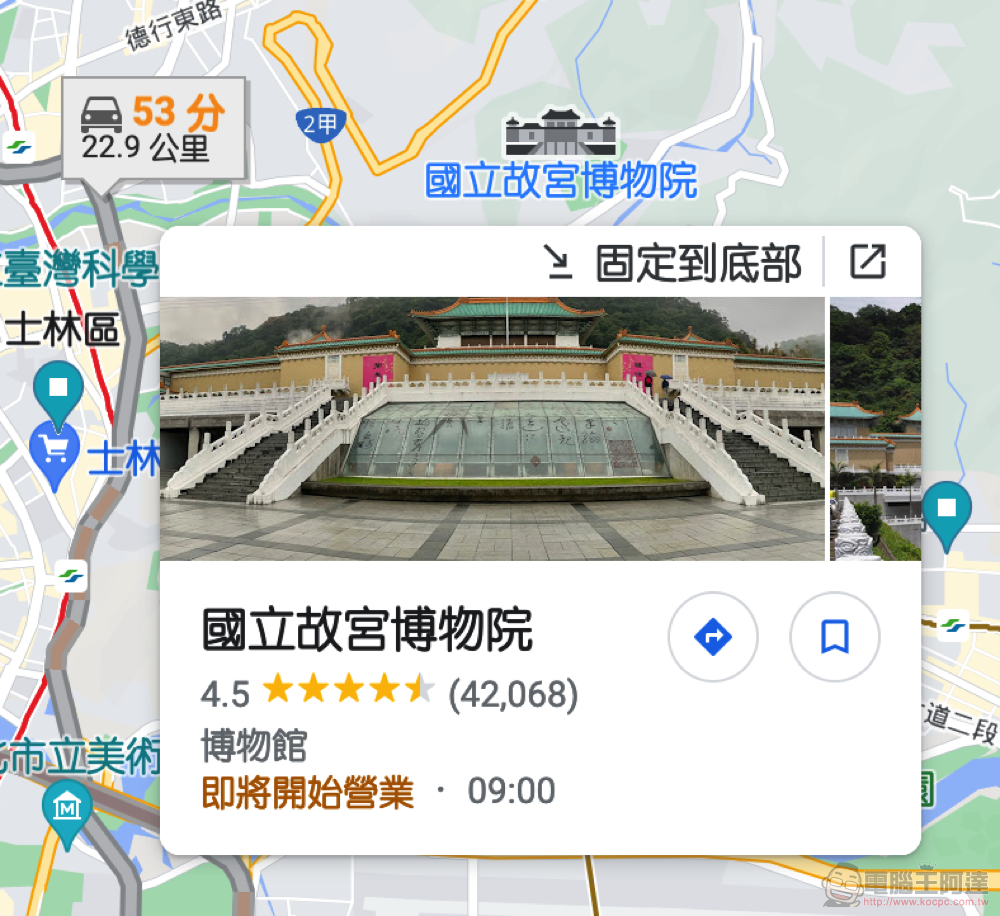
As the functions of Google Maps become more and more powerful, more and more people use it. The team also thought of many functional tools that would make it easier for users to plan their journeys. For example, the function of being able to store or share your own scenic spot information, and even adding notes is very useful. Recently, the editor discovered that a “pin to bottom” button function suddenly appeared in the location function of the desktop version of Google Maps. I found it to be really useful!
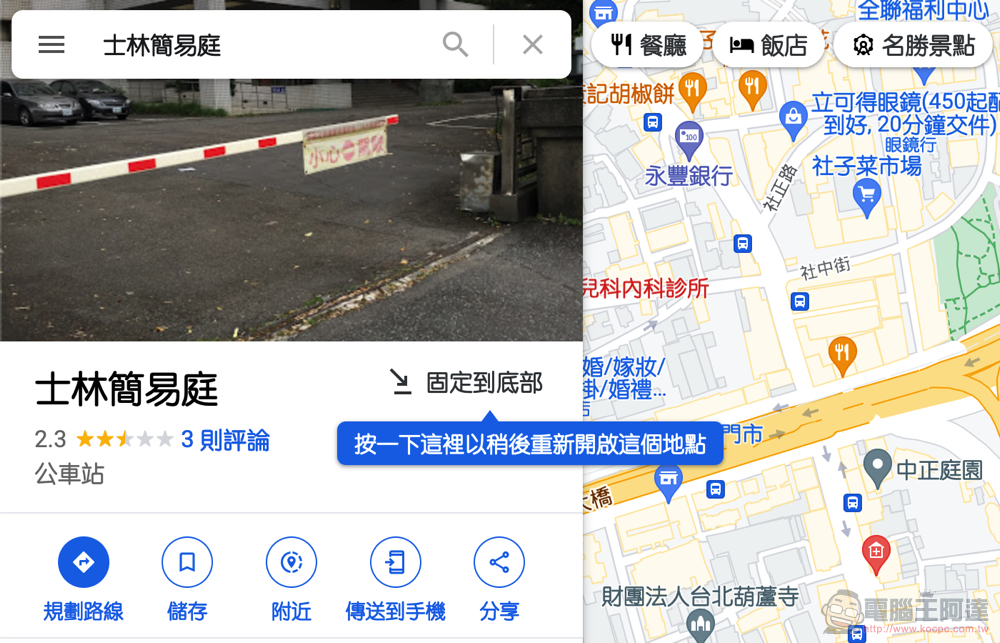
This feature can be called a multi-tasking feature within Google Maps. With it, you will be able to temporarily save multiple location items at one time. You no longer have to search again in order to return to the previously searched places when doing travel homework, or you just want to use them temporarily but have to save them first and then go to the list.
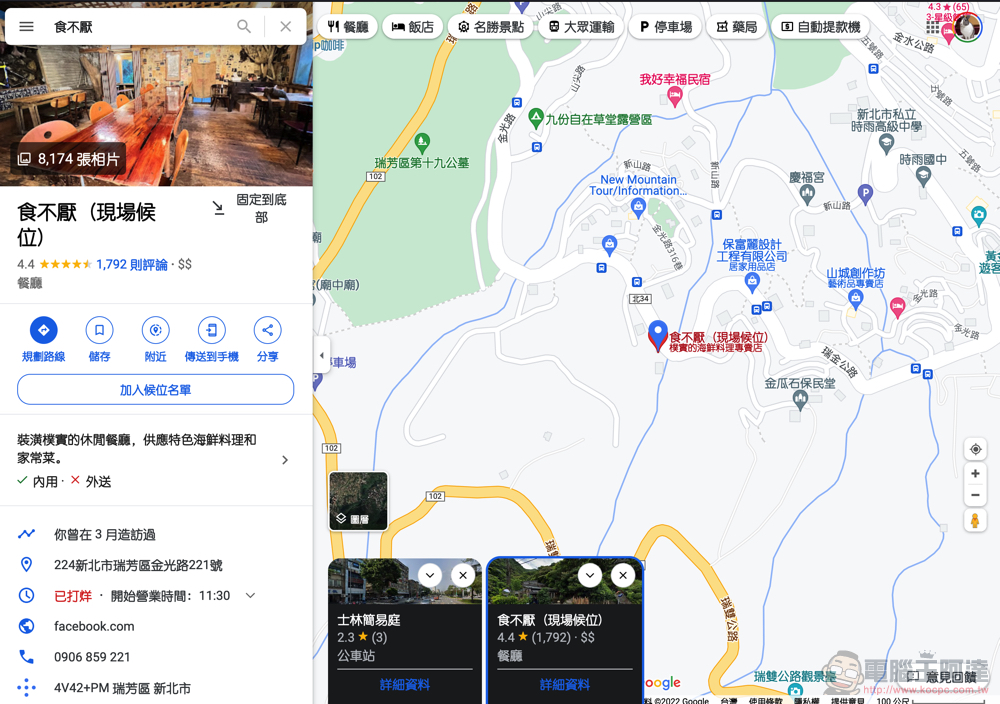
Because if you think this location can be saved for later research, just press the “Pin to Bottom” button to the right of the attraction name. The attraction will shrink to the bottom of the “Layers” button – very similar to the concept of shrinking the window in computer systems such as Windows. However, in the initial state of Google Maps “pinned to bottom”, there will be thumbnails of attractions.
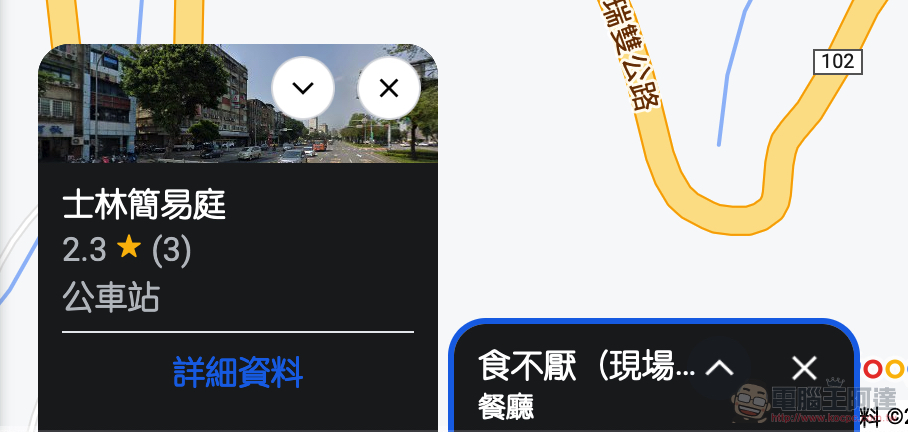
If you feel that such a block takes up a lot of the screen, you can also use the collapse button to shrink it to a smaller rectangular state, or even directly use “X” to close the temporary storage location that you don’t use or find it annoying. It should be noted that the “save” function is different from saving attractions to the list. This feature is really just a temporary storage concept, so once the web page is reorganized, all items currently “pinned to the bottom” will disappear. So remember, if you need to save it, use the save button to save it to the list.
Overall, I personally think this is a very practical feature. It is recommended that you use it when planning your trip.
Further reading:
Source: KOCPC Chinese