


Google Assistant is the default voice assistant on most Android phones and tablets. It allows you to ask questions and get answers through voice commands, text input, etc., or perform various operations through spoken commands. You can also use the voice assistant as a control center after connecting to IoT products. However, sometimes Google Assistant may become too proactive and come out on its own for no reason to increase its presence.
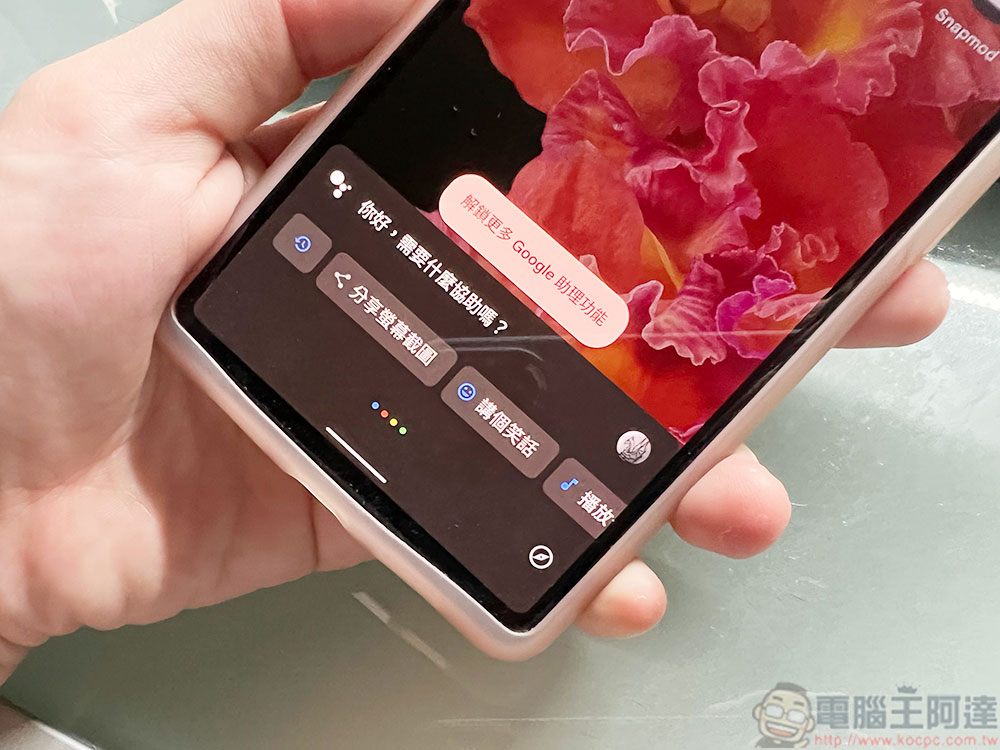
Google Assistant on your Android phone often pops up to refresh its presence, teach you how to turn it off!
Google Assistant’s combination of two-way communication and AI can be used to instantly answer any question you ask and help you perform various actions without using your hands. As useful as it is, Google Assistant can also be annoying at times. It may trigger inexplicably when you are talking to someone or playing TV or music. In order not to be distracted by interference, you can only disable Google Assistant on your Android device. This guide is here to tell you how to do it.
Best way to stop Google Assistant from automatically popping up?
You need to first figure out why Google Assistant suddenly ran out without being summoned. Whether it was caused by the detection of the trigger phrase Ok Google / Hey Google, or whether it randomly came out for a walk without warning. There are two different solutions depending on the situation. First, you can turn off the Google Assistant function completely, and secondly, disable the trigger phrase to avoid accidental detection (the author encountered the Google Assistant on the phone automatically responded countless times while watching the announcement of new Assistant features at Google I/O).
How to disable Google Assistant trigger phrases on Android?
If you still frequently perform various operations on Google Voice Assistant, the best way for you is to turn off the trigger phrase. You can follow the steps below to set it up on your Android device:
- Open the Google app on your phone.
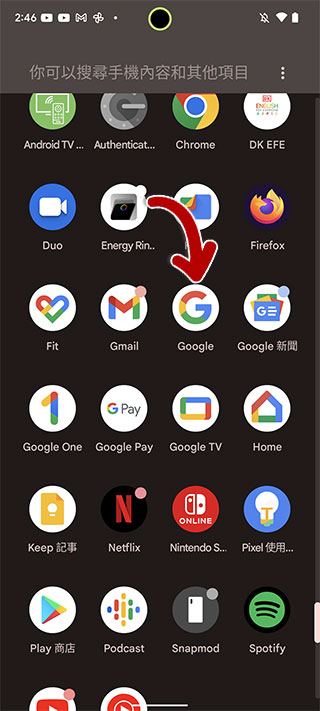
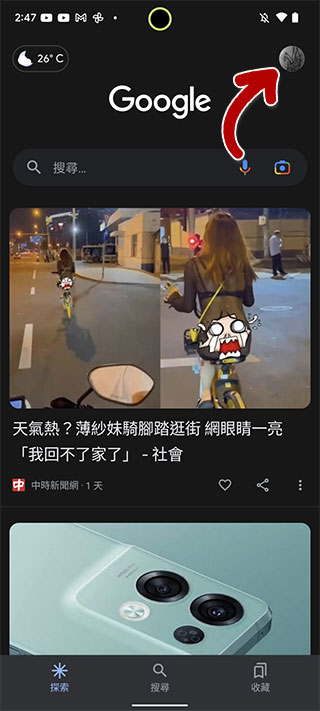
- Click on your profile picture in the upper right corner and select “Settings” from the list.
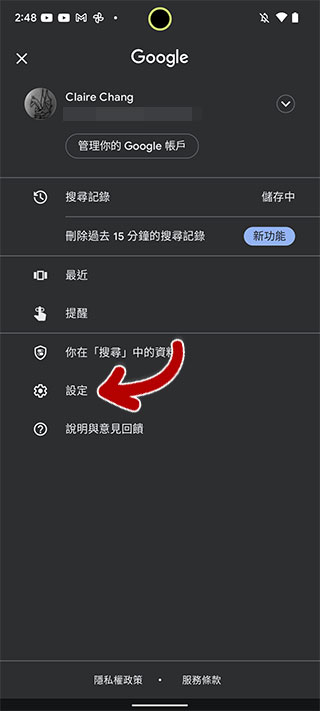
- Select “Google Assistant” in the settings page and click the “OK Google and Voice Match settings” item.
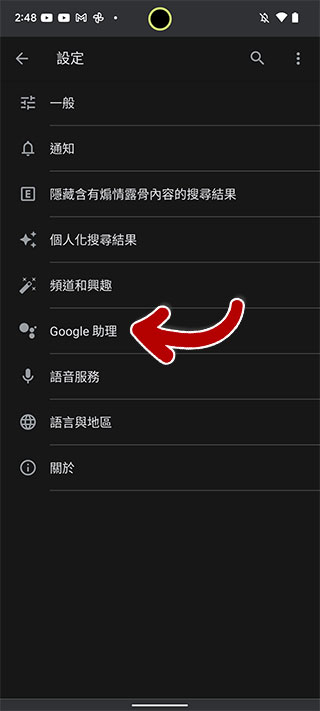
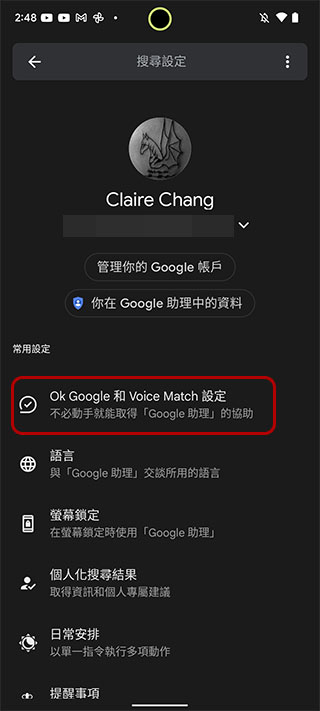
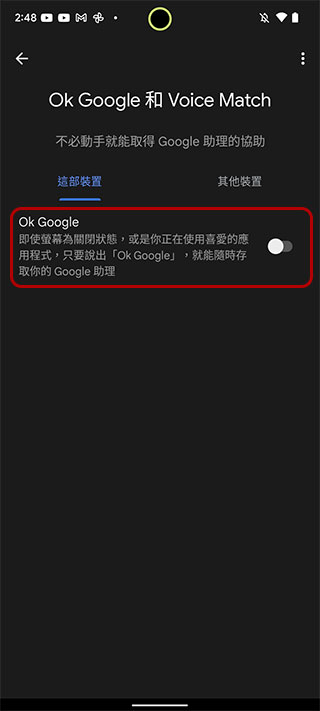
- The last step is to turn off the “OK Google” trigger phrase. In the future, when you say Ok Google / Hey Google in front of your Android phone, Google Assistant will not be triggered, and it is also the most likely way to prevent it from jumping out on its own.
How to disable Google Assistant on Android phone?
If you only use Google Assistant occasionally or find that disabling trigger phrases doesn’t help, you can disable Google Assistant entirely and store it in your phone’s storage:
- Open the Google app on your phone.
- Click on your profile picture in the upper right corner and select “Settings” from the list.
- Select “Google Assistant” in the settings page and scroll down to find the “General” item.
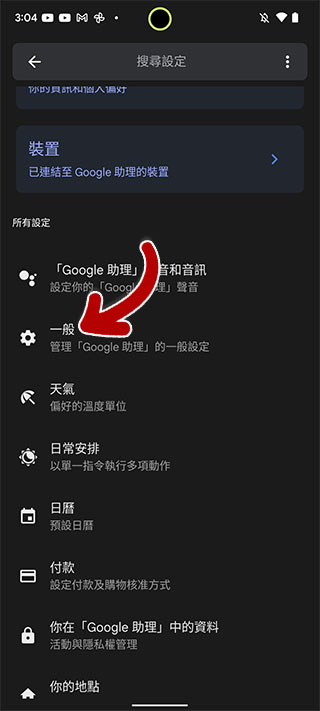
- Just turn off the “Google Assistant” switch at the top. Since such an action completely disables Google Assistant, it won’t continue its auto-popup rampage on your device. If you change your mind and decide to start again, repeat the above steps.
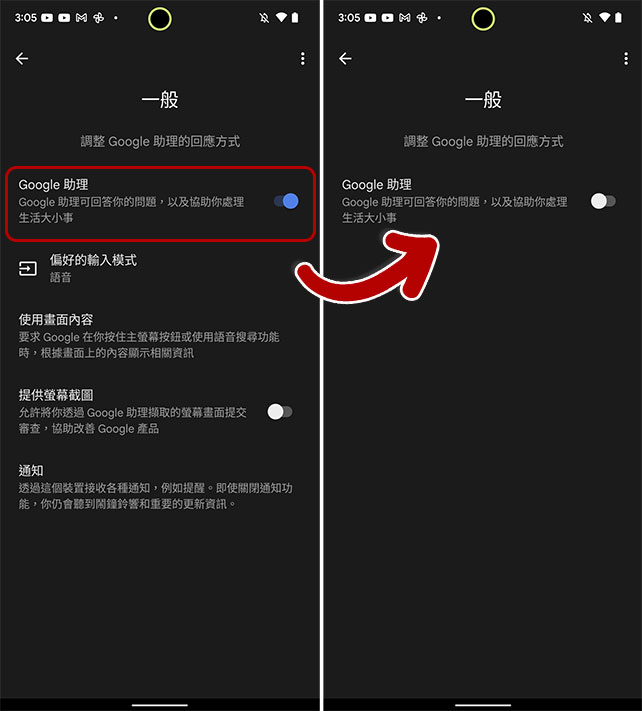
From the above two methods, you can choose the one that best suits your usage situation. In addition, some people will definitely want to ask how to turn off Google Assistant on the Nest series smart speakers. You cannot disable its Assistant function, but you can turn off its microphone (the physical switch is located on the body), so that it will not continue to listen to your commands until you turn it back on.
Source: KOCPC Chinese