


Google Docs is a mainstream word processing tool comparable to Microsoft Word in recent years. It is free, easy to use, and provides many practical functions. In Google Docs, you can create and edit files, and you can also collaborate with others. If you don’t know much about this service, the 10 tips compiled this time can help you make full use of it.
10 helpful tips to speed up your writing and reporting with Google Docs
Google Docs is not as popular as the old Microsoft Word, but there is no doubt that it is a very good word processing tool that you can work seamlessly on computers, mobile phones and tablets. Although there are many users, not many people understand it deeply. Google Docs actually contains many features that make writing easier, let’s take a look this time!
1. Always display word count
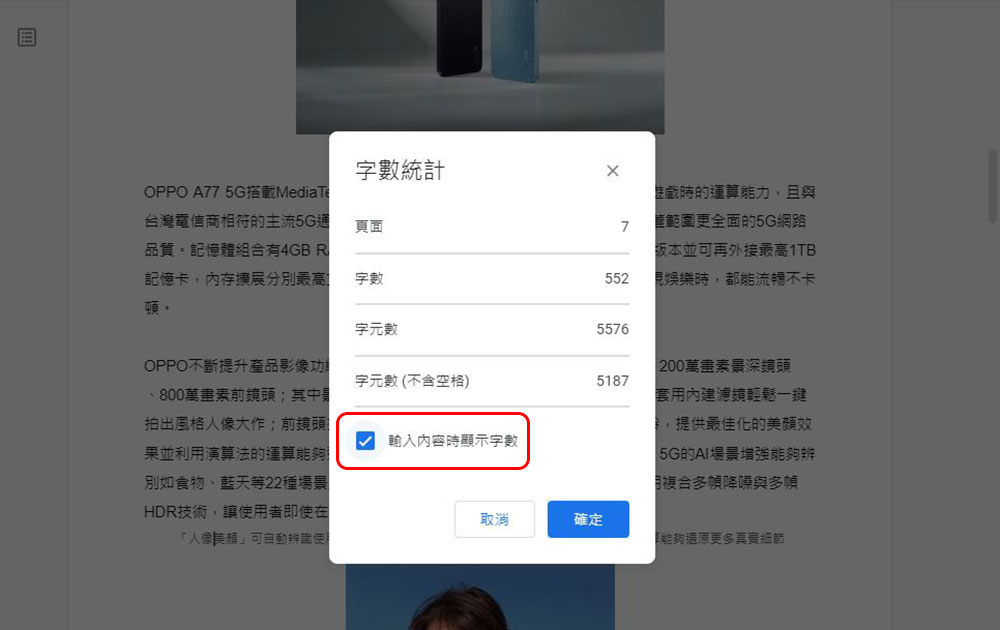
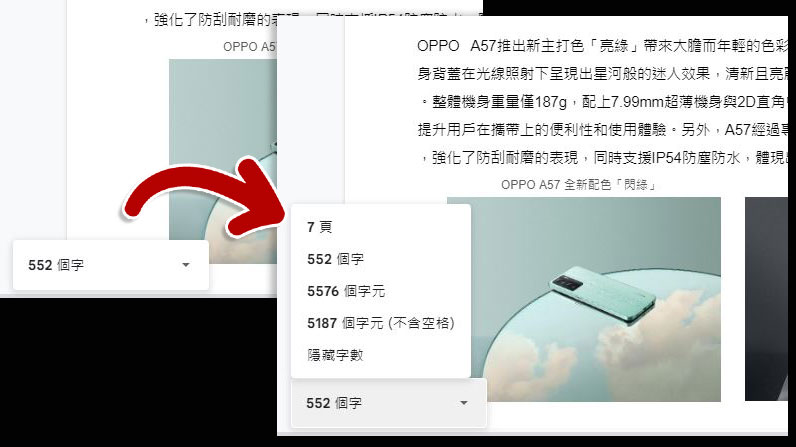
For those who make a career out of writing, “word count” is something you either love or hate but are indispensable. Just like every word processing tool, Google Docs has a convenient word count function (You can use Ctrl + Shift + C or Command + Shift + C to call it out), but it is obviously troublesome to do it separately when you want statistics. There is a function in Google Docs that allows you to keep the word count in a concise small box in the lower left corner of the screen at any time. Just after calling the word count function, check “Show word count when typing”.
When you click on the arrow next to the word count in the lower left corner, you can see further statistics.
2. Quickly create new files
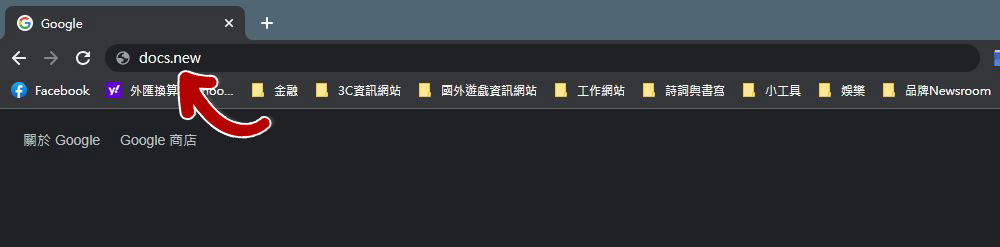
When you want to create a new document from scratch, you used to go to the browser, log in to your Google account, click on the document from a bunch of services, and then click on the “+” sign in the lower right corner of the browser after reaching the document library. Although it is not troublesome, it is very scattered. If you want to open a new file more easily, just enter “https://docs.new” (In fact, you don’t need to type the https:// in front) to open a new blank file.
3. Search the web in documents
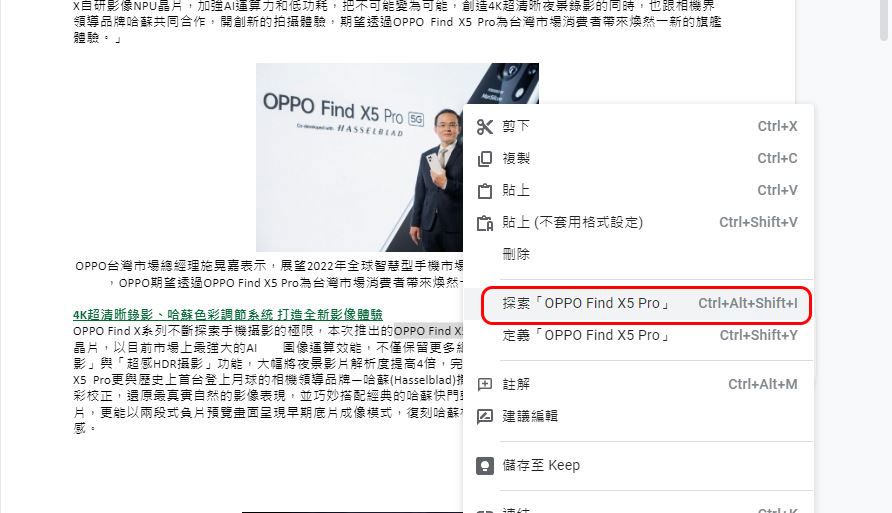
If you are reading information in Google Docs and encounter some content that you need to search and research, you will usually open a new tab and enter keywords to search, adding another tab to the already opened enough tabs. But you can actually search directly in Google Docs and view the results. Just highlight the word you want to search, right-click to bring up the menu, and select “Explore xxxxx” (xxxx refers to the text you selected) to search the web directly without leaving Google Docs.
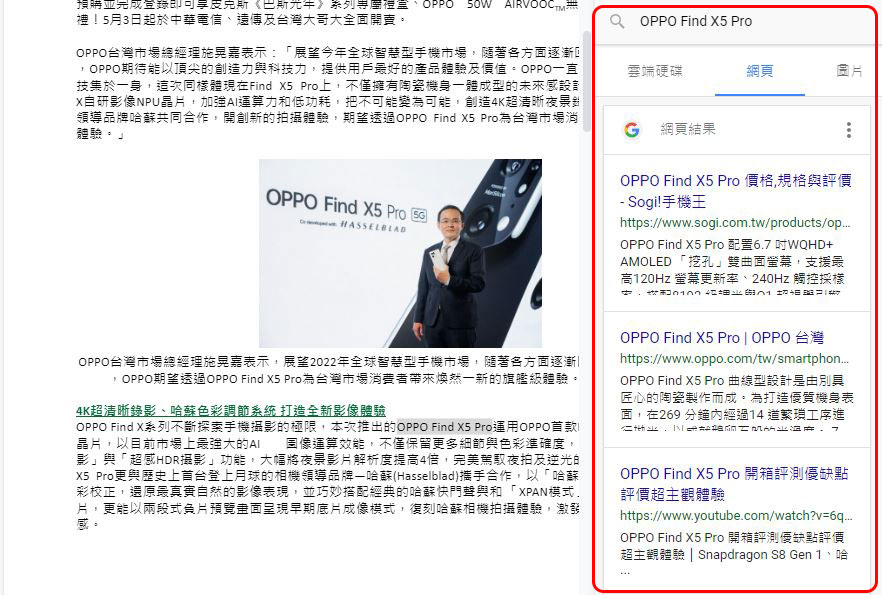
Display search results in the right sidebar. The search results include three tabs: document search, web search, and image search. You can click to switch to view different search results. When you click on an item in the results, a new tab opens to display the content.
4. Paste formatted text
When you want to copy and paste text from elsewhere into your own documents or reports as a reference, if you simply use Ctrl + V to paste, you will often have to reformat the text after pasting to make it consistent with the content of your document because the text from elsewhere comes with its own font, font, paragraph spacing, etc. If you are smart, of course you should not foolishly paste it first and then reformat it. For general operation, you can click “Paste (without applying format settings)” in the “Edit” menu above.
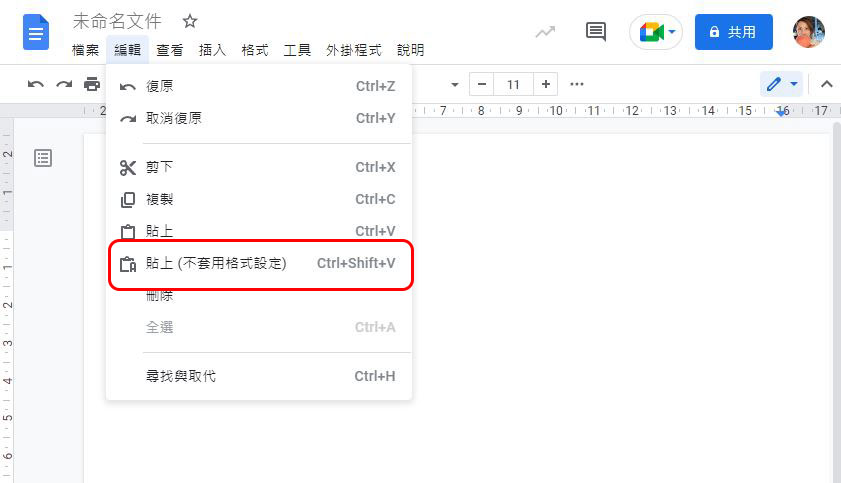
A smarter approach would be to add it directly to the file with“Ctrl + Shift + V” or “Command + Shift + V”Paste plain text with all original formatting removed, so that the copied text can be pasted directly in the same format as your document.
5. Add more fonts to Google Docs
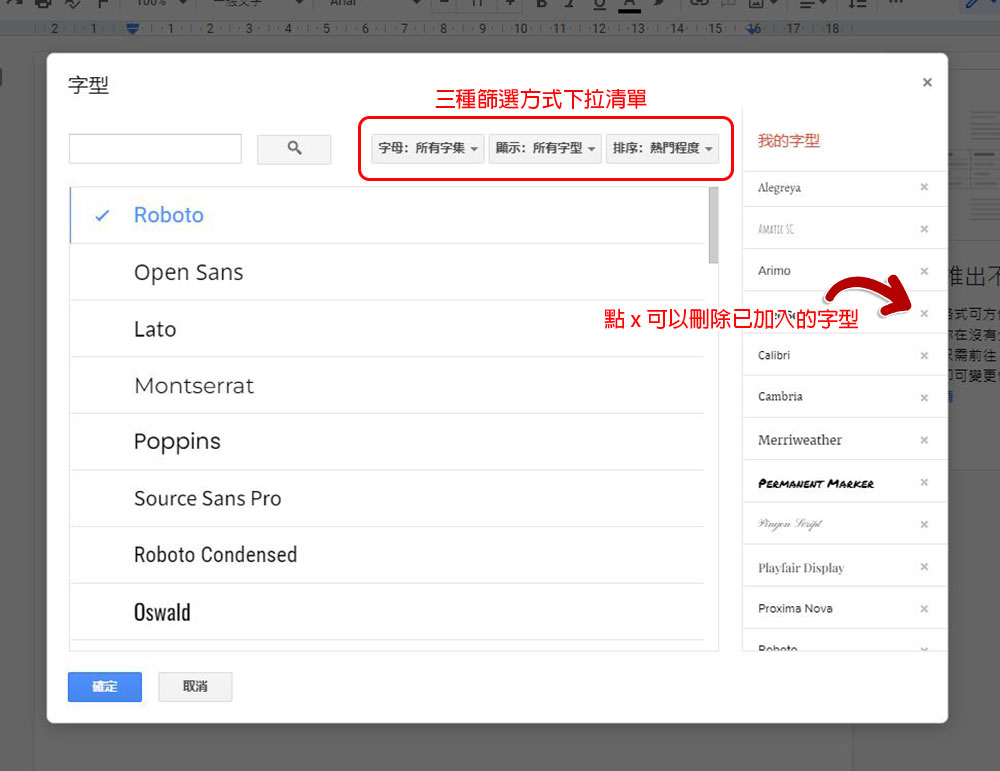
Many people will think that the fonts provided in Google Docs are lacking at first glance. In fact, you can add more fonts to it. The first thing you have to do is click the arrow next to the font display on the function bar and select “More Fonts.”
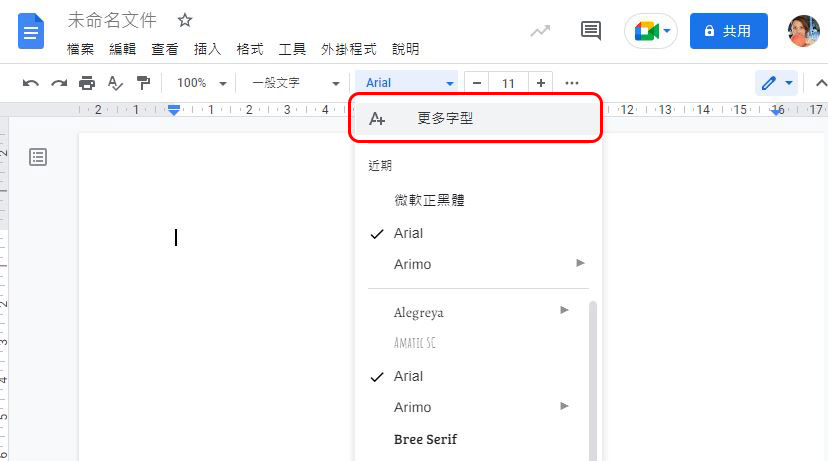
You can then search for the font you want in the font collection provided by Google or remove the font that already exists in your Google Docs. It provides three filtering methods for you to use, including alphabet (that is, by language), display and sorting by different conditions, and check the desired items to add to your font options.
6. Use symbol key combinations to quickly adjust text size
Adjusting the text size in Google Docs is very simple. Next to the font box, you can see the font size display box with + and – adjustment buttons. You can frame the content you want to change the size and directly press the two buttons to make the text reach your target size. Of course, you can also directly enter the desired font size in the box.
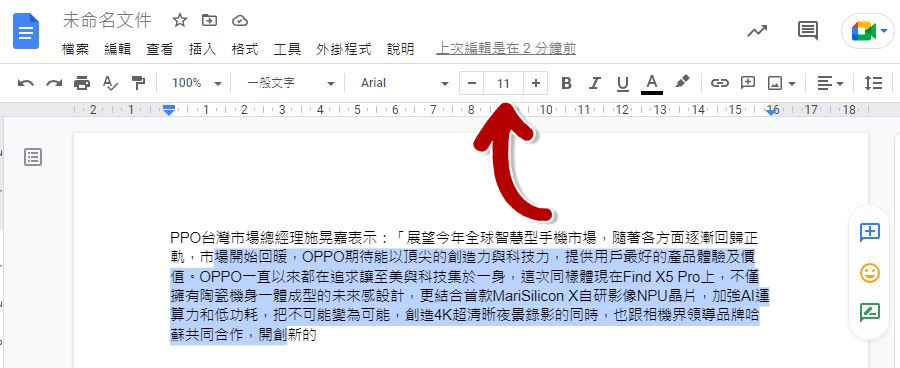
But it’s not intuitive if you have to go back and click every time you work. You can just press and hold“Ctrl + Shift + .” (Command + Shift + .) to enlarge the font, or “Ctrl + Shift + ,” (Command + Shift + ,)to reduce the font size.
7. Get a bigger, cleaner writing space
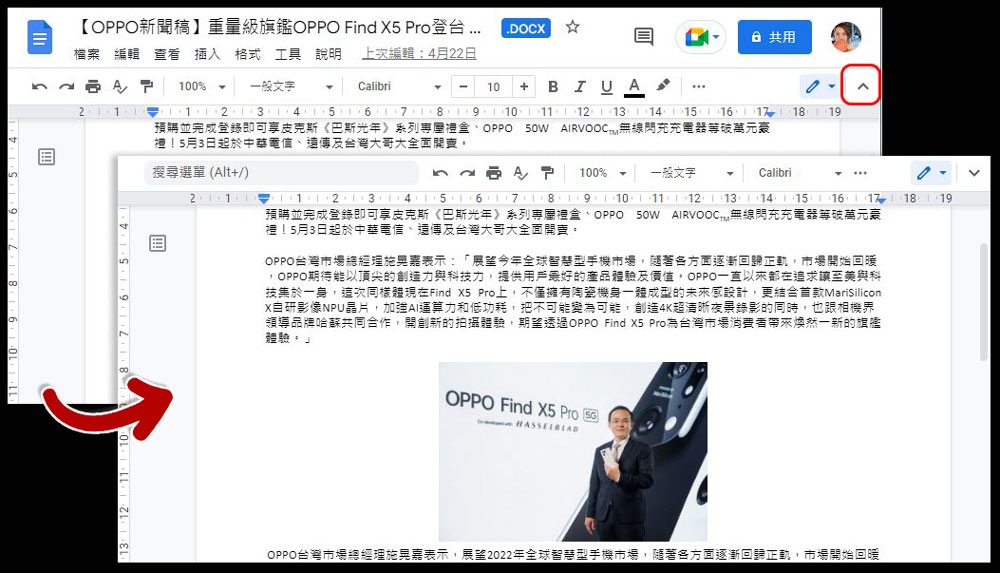
Although Google Docs is not like Microsoft Word where all the function options are stuck at the top to take up space, sometimes you need more screen space and hope to reduce the height of the function bar display and retain only some basic functions. Just press the upward arrow on the far right of the function bar (if you want to call all the function bars back, click again and it will turn into a downward arrow).
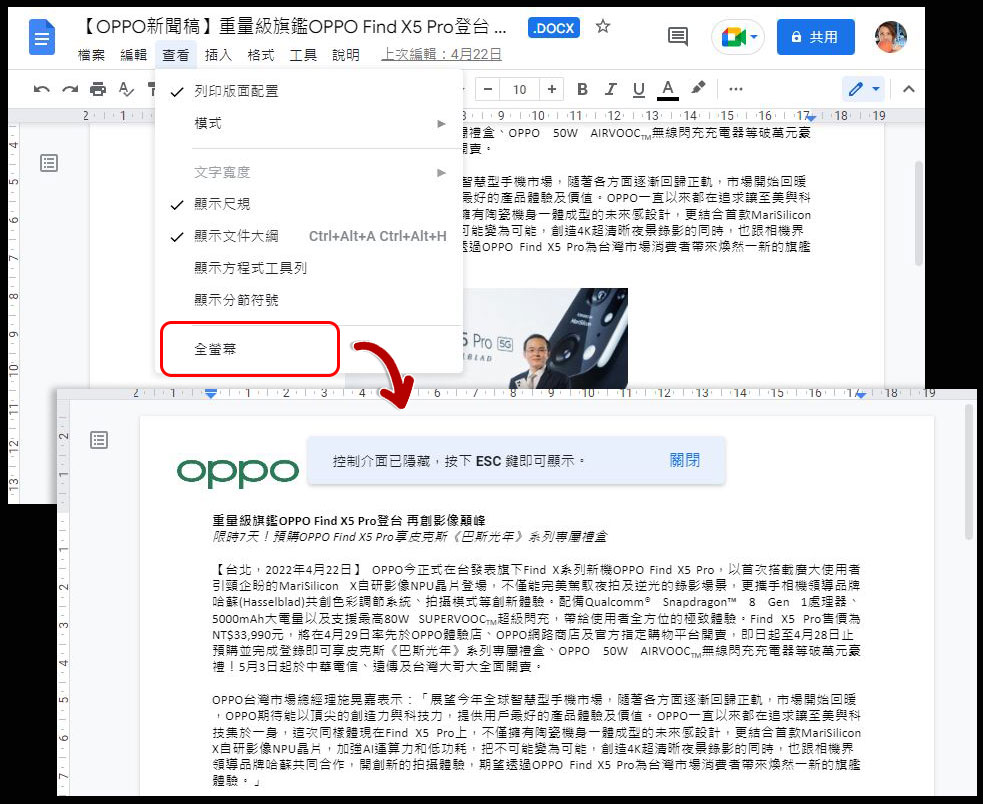
If you don’t want even this bit, and just want to write completely cleanly and purely, then you need to click “View” on the function bar and click “Full Screen” to hide all the above menus. If you want to recall the function bar control item, just press Esc.
8. Add bookmarks to files
Whether you are writing a report or an assignment, sometimes the content of a document may need to be linked or referenced from other documents. There is a feature called “Bookmarks” in Google Docs that can help you mark special content and set it across documents, so that you don’t have to search for the file the next time you check it. First, highlight the content you want to reference to other Google Docs files, then click “Insert” on the function bar and select “Bookmarks”. You can see a blue icon in front of the framed part, which indicates that the bookmark has been successfully added.
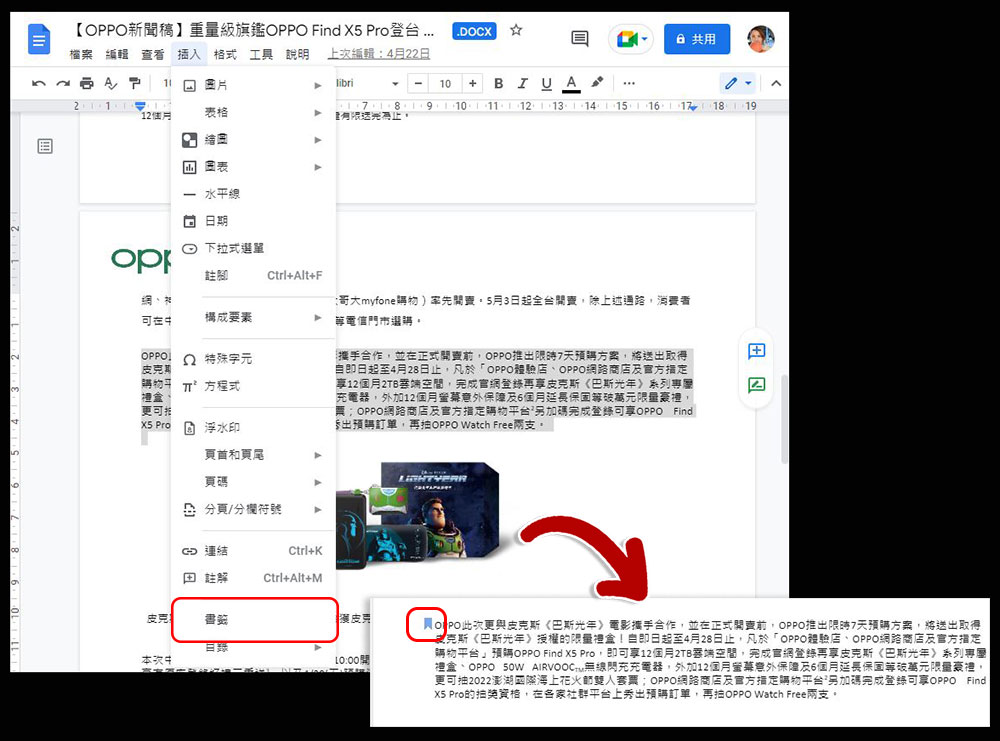
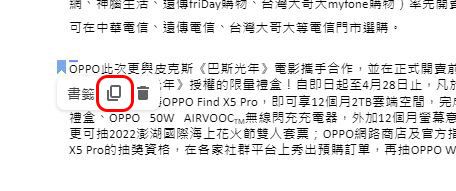
After clicking the bookmark icon with your mouse, you will see the options of copying the link and deleting it. Click Copy Link.
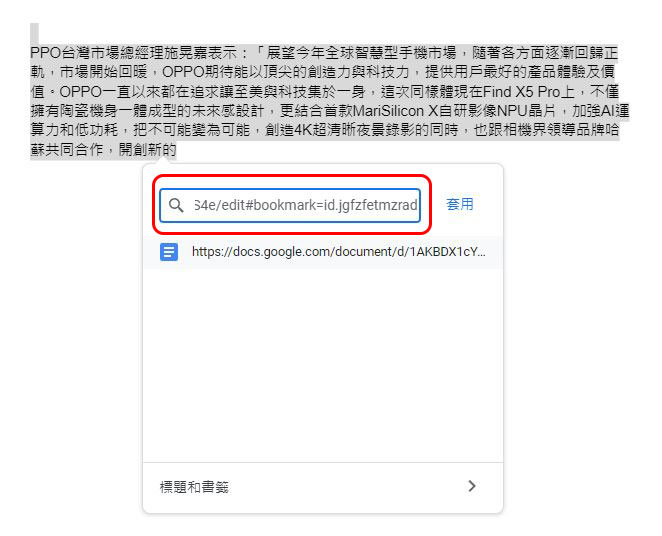
Go to another document you want to quote, highlight the relevant content, and use “Ctrl + K” (Command + K) to call up the dialog window for inserting a hyperlink. Then directly paste the link you just copied and click Apply.
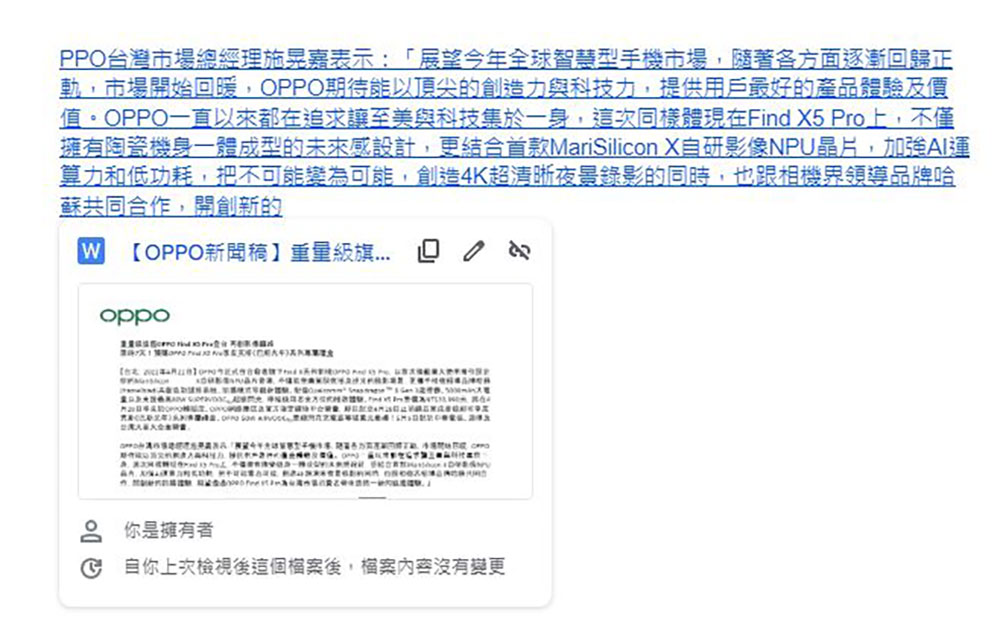
Next time when you are reading a referenced document, just move the mouse cursor and click on the text to see the reference source and file of the content. Then click on the content displayed inside, and Google Docs will open the referenced file in a new tab and scroll to the location of the bookmark.
9. Added a new personal dictionary (useful when writing English documents)
In some cases, you need to write a document entirely in English. After writing, you often use the spelling and grammar checker tool in Google Docs to go over it. It may contain some unique words, such as brand names, technical names, etc., which will be regarded as misspellings by the spelling and grammar tool. At this time, you can add these unique words to your personal dictionary so that you can avoid these words in the future. First click “Tools” on the function bar, then click “Personal Dictionary” under the “Spelling and Grammar” item.
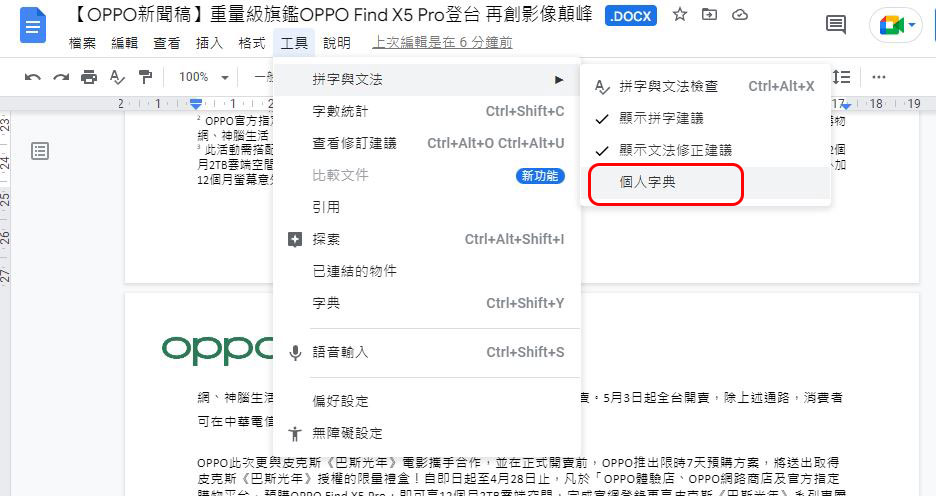
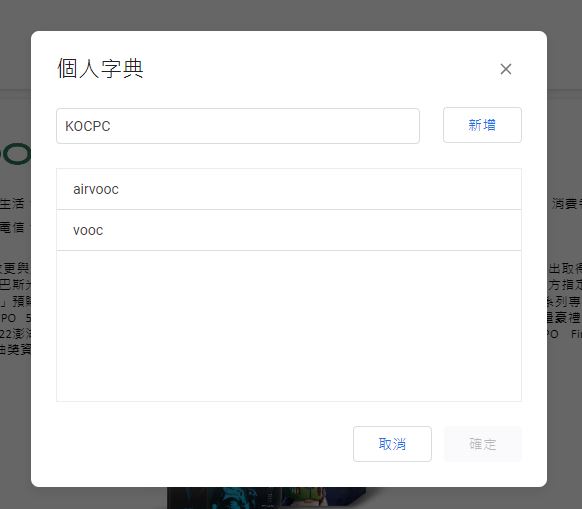
Then fill in the words you want to add, click “Add” at the end, and finally click OK. Once completed, these unique words will no longer be listed as spelling errors in future checks.
10. If the function cannot be found, please call “Help”
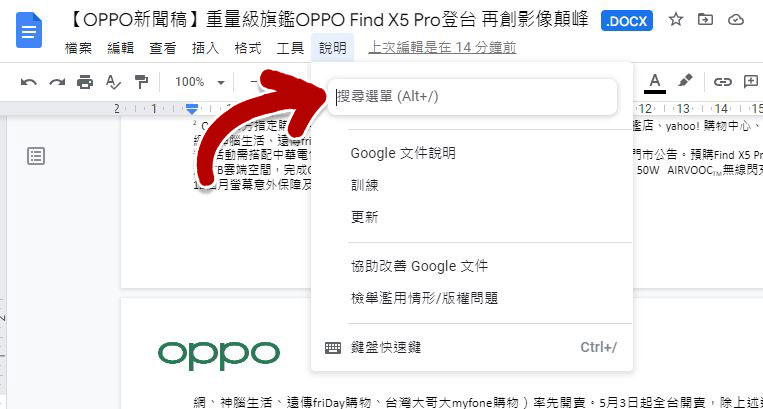
Although the functions of Google Docs have been much simplified compared to Microsoft Word, it is undeniable that for novices or some lesser-used functions, you may not find them. Instead of hovering your mouse cursor over each item to see its own help, you can be smarter and use Help in Google Docs to help. The most basic method is to click “Help” from the function bar, and then fill in the keywords you want to find in the search menu field. But you can also use shortcut keys「Alt + /」(Option + /)Quickly enter and search directly after typing.
Source: KOCPC Chinese