


When viewing social platforms such as Facebook and Pinterest, if you see a picture you are interested in, you need to click again to expand the picture. At the same time, you need to close the picture and return to the previous picture. I believe some people must find it a bit cumbersome. This article recommends a very convenient free extension function “Imagus”. After installation, move the mouse over the picture and a large picture will be displayed, which means that you can view the large picture without clicking. It can be installed on Chrome and Edge.

Introduction to Imagus, a free extension (Chrome/Edge) that lets you move your mouse over images on a webpage to enlarge the preview
This Imagus extension can be installed on both Edge and Chrome. I will use Edge as an example. After entering the Chrome Store, click “Add to Chrome” on the right:

This window will pop up above, click “Add extension” to install:
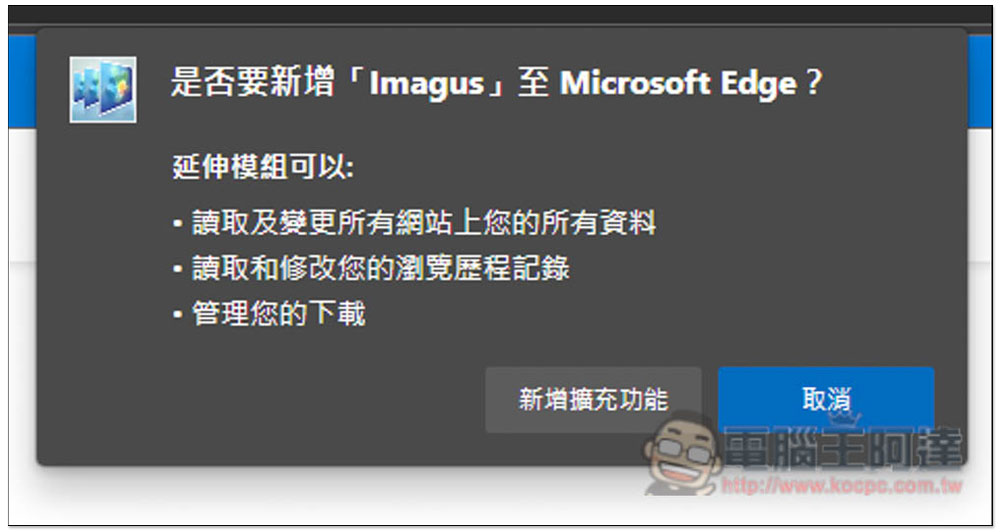
When this message appears in the upper right corner, it means that the installation is complete and you have started using it:

Like this, after I move the mouse over the picture, a large picture will automatically pop up. Not only the general picture sharing, but also the picture of the article, which is super convenient. This way, if you just want to see the cover picture, you don’t have to click into the article to see it:

There are many functional options in the settings that can be adjusted, such as how long to delay the large image preview (Display delay), whether to preload images (Preload Images), prefer images with higher resolution (Prefer images with higher resolution), etc. Shortcut key functions are also supported:
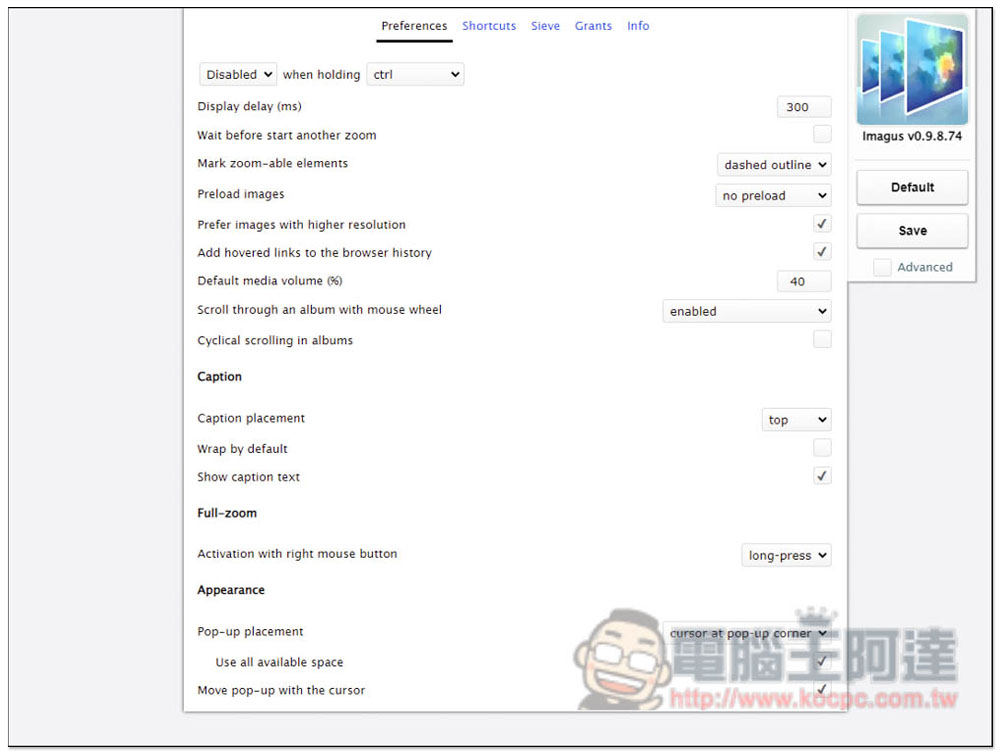
For example, press Z to maximize the image, press O to open the image in a new branch, press H to add or remove from the history, and even the previous step and next step. The shortcut key functions are super complete, which also means that this extended function is quite powerful:

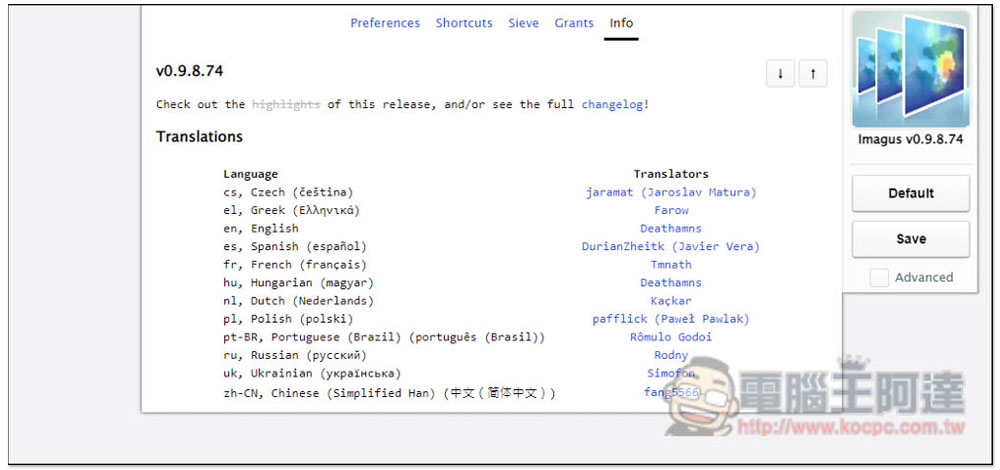
In addition, in the Info option, I found the translation of Simplified Chinese, but I am not sure where to switch. I don’t see it in Preferences, and I can’t find it when I open Advanced. I’ll let friends in need look for this part themselves:
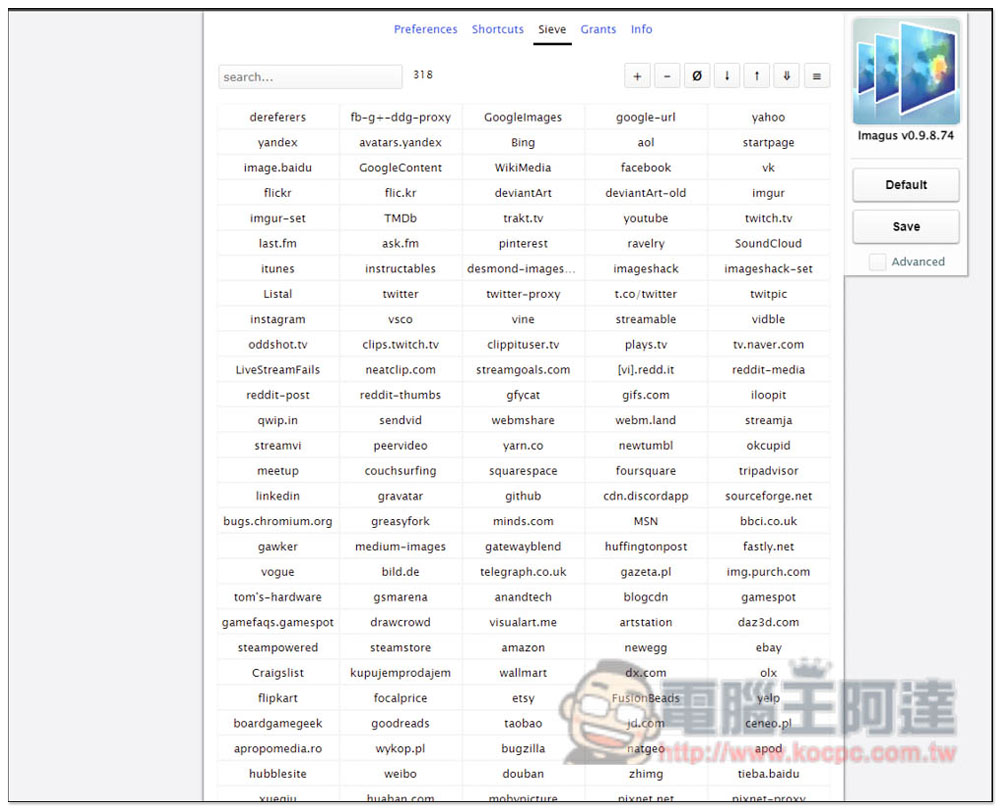
Sieve displays supported websites, and there are currently 318 of them. This means that not every one of them is supported. However, if you understand programming, you can also add it yourself by pressing + on the upper right:
In addition, when you see a picture that you want to download and collect, you can directly press the Ctrl + S shortcut key and it will automatically download it for you. I also find this function very convenient.
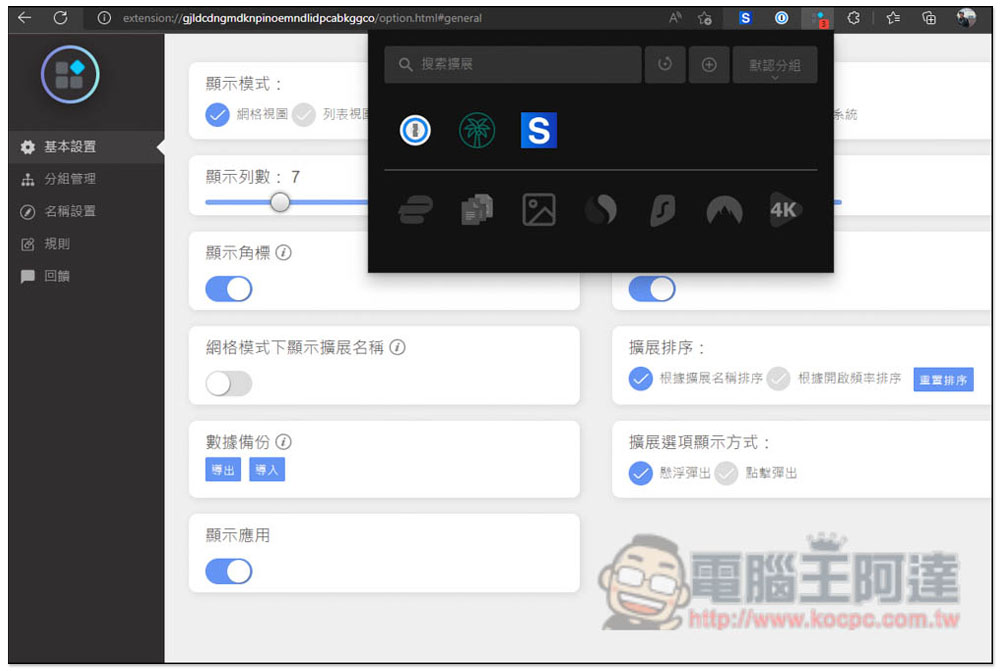
If you have more and more extensions installed and don’t know how to manage them, or if you have a whole row of extensions on the upper right and are worried about drag performance, you can refer to the “Extensions/Extension Manager”, this one is also an expansion function, but it provides powerful management tools. Not only can you enable/disable expansion functions with one click, but it also provides a grouping function, which can quickly switch the expansion functions you will use according to your usage:
Source: KOCPC Chinese