


More and more applications, browsers, etc. have introduced dark mode to make it more comfortable for the eyes and save power when using it. Microsoft has introduced dark mode to its signature document tool Office a long time ago. Although its setting is bound to the entire Office, I believe many people have already started using it. However, there are some small settings that you have not noticed that can make your work smoother.

Small dark mode settings in Microsoft Word, black background and white paper make your work smoother
The dark mode of Microsoft Word applies a black theme to the entire user interface. However, if the work page is also displayed in black, it is sometimes confusing. Is the text and background color I am entering now what I want? Today I will not only tell you how to turn on or off the dark mode of Word, but if you want the background to be dark but the paper to remain light, I will also teach you this time.
The Basics: Turning Microsoft Word’s Dark Mode on and off
This is the most basic setting for getting started, but Microsoft is actually not smart in this setting, because when you set it up, it will apply this setting to other Office tools, including PowerPoint, Excel, etc., will become dark mode, which is equivalent to binding your entire account to action, and cannot be adjusted for a single tool application.
- Open the Microsoft Word application and click “Account” in the lower left corner of the window.
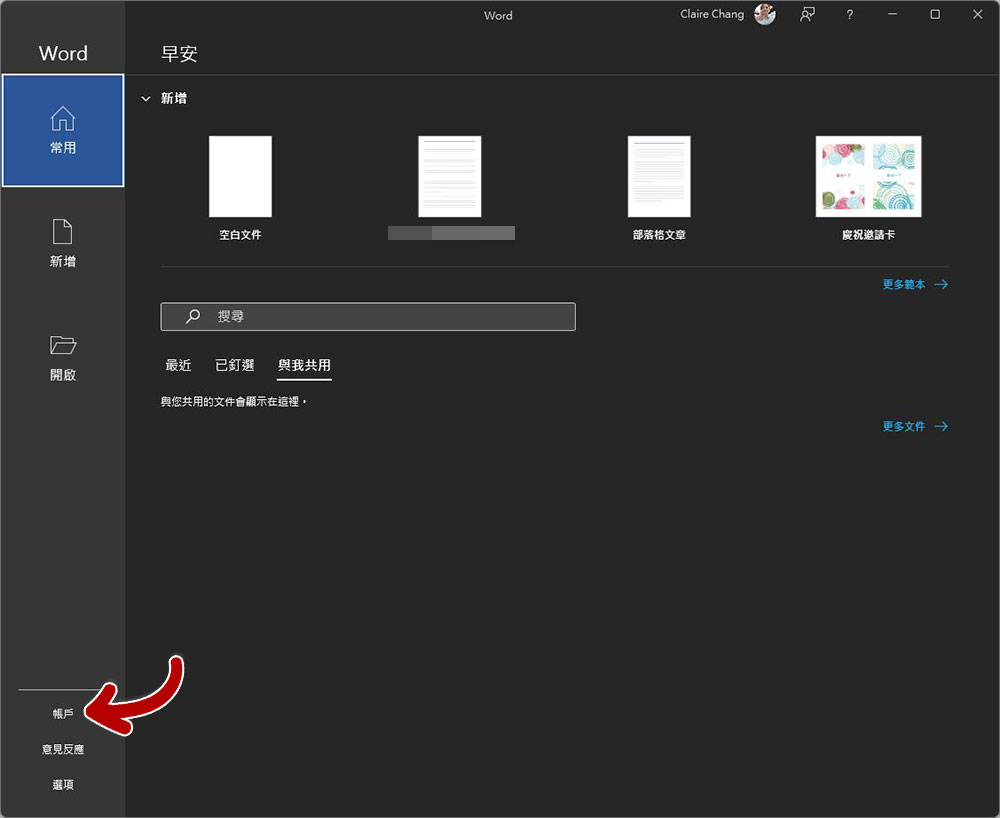
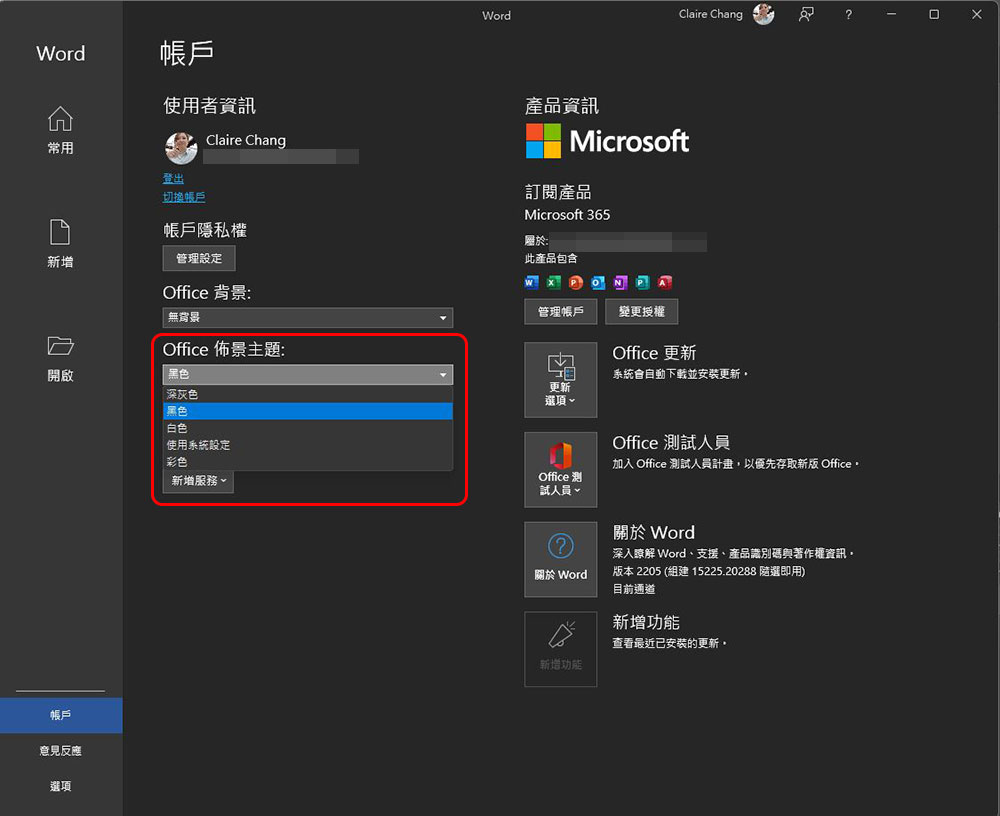
- Just switch the “Office Theme” to black. Of course, you can also switch it to other colors, dark gray or follow the computer system settings.
Advanced settings: Keep work pages white in dark mode
This setting is more advanced! Especially when creating documentation with illustrations and text, or using different colors and lines to mark key points, if you use a black work page in dark mode, it is easy for people to hesitate because the colors are sometimes displayed in reverse, and you have to switch to preview printing to see the true appearance of the document, which can easily interrupt your work. So let’s learn how to keep the work page white for easy viewing in the overall dark mode.
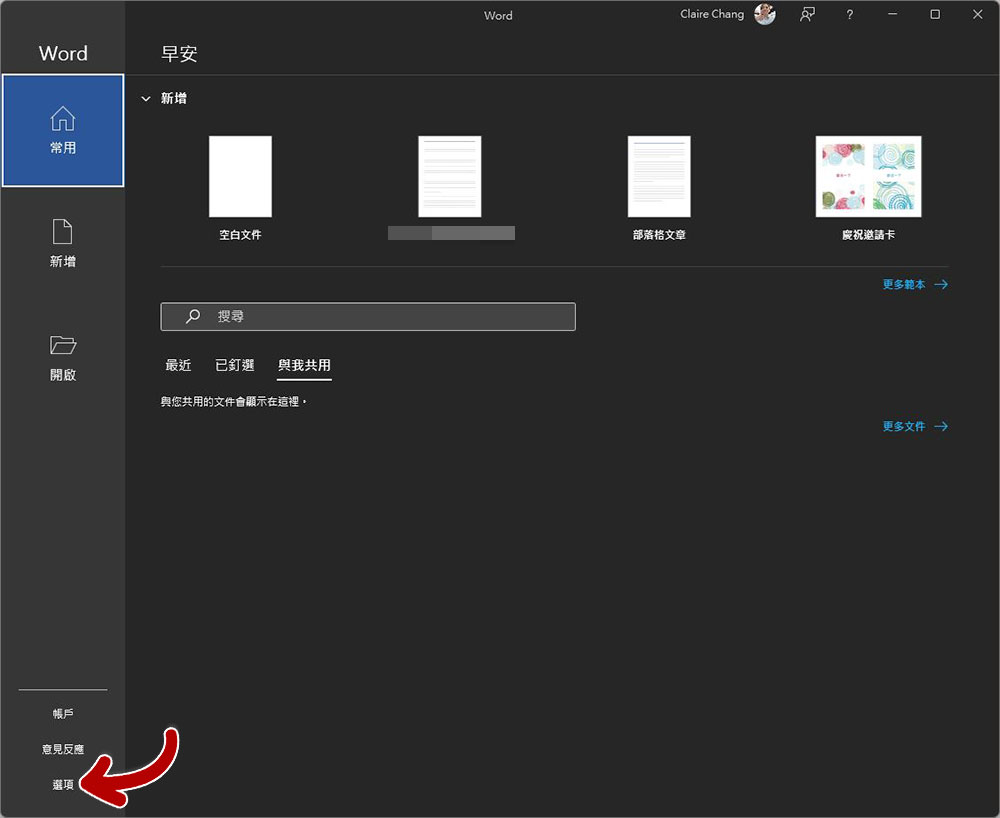
- Open the Microsoft Word application and click “Options” in the lower left corner of the page.
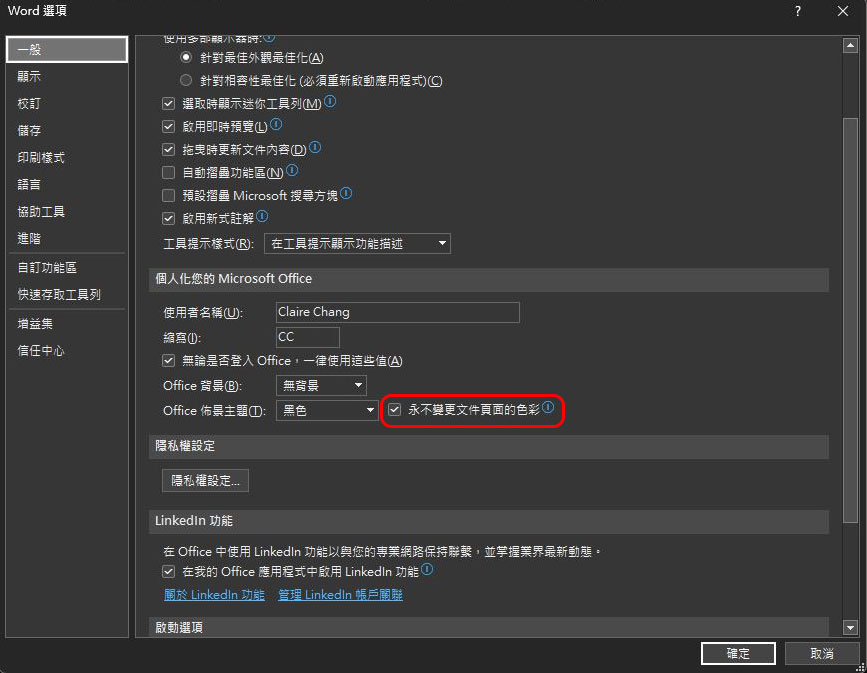
- Scroll down in the “General” settings page, find the “Personalize your Microsoft Office” section, then check the check box in front of “Never change document page color” behind the Office background theme, and click OK.
- After you complete the settings, when you open a new document in Microsoft Word, it will have a black background with a white worksheet.
This function of setting the theme background color and work page separately is a unique advanced setting option of Word in the Microsoft Office series tools, allowing you to work more smoothly when working, without having to repeatedly stop the work at hand to confirm the color selection, allowing you to focus on your work, greatly improving your productivity.
Source: KOCPC Chinese