


In addition to some promotional activities, Shopee’s built-in “Shrimp Coin Rewards” function allows members to simply sign in every day to receive shrimp coin rewards. But I believe everyone often forgets to sign in because they are busy, right? If you don’t want to set an alarm to remind yourself, what else can you do? Today I will share an awesome “Shopee automatic check-in robot” that will automatically help you receive shrimp coins when the time comes every day!
Shopee automatic sign-in robot setting tutorial: receive daily shrimp coin rewards automatically, so you don’t have to worry about forgetting to collect them!
Shopee’s 618 Mid-year celebration promotion has just ended. What good things did you buy this time? If you like shopping at Shopee, you must know the function where members can sign in every day to receive shrimp coin rewards. Although you can get a few shrimp coins by signing in every day, as long as you persist and remember to sign in every day, you will accumulate a lot in the long run.
However, after all, most people do not shop online so diligently every day. You must remember to open the Shopee shopping app to complete the check-in. Unless you set a calendar, alarm clock, etc. to remind yourself, otherwise everyone will only click on the check-in function when they think about it. So what is the easiest way to receive shrimp coin rewards? Just rely on robots to help!
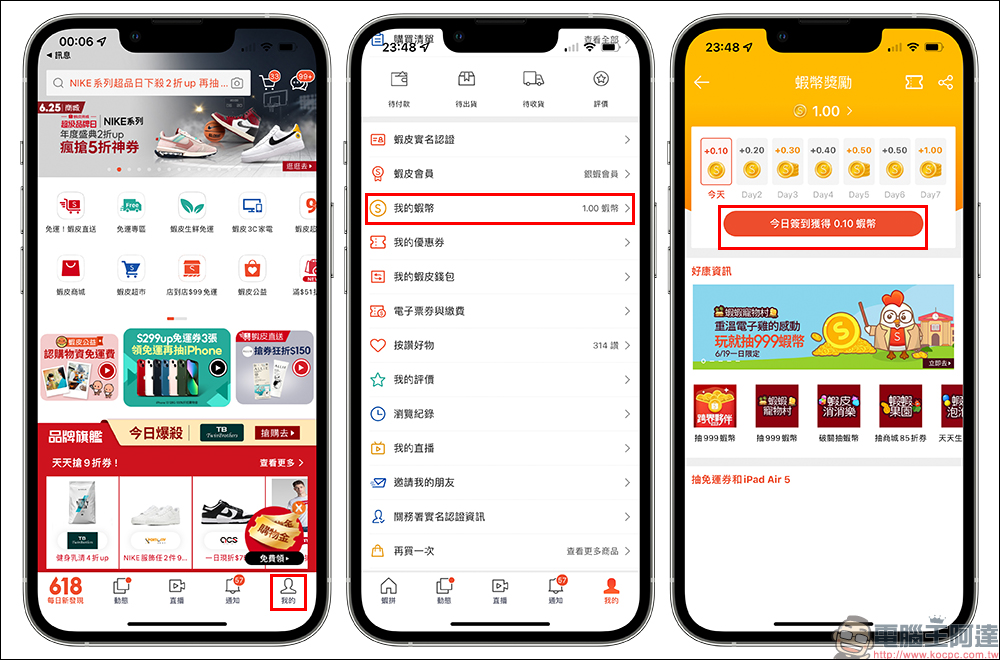
Today I would like to introduce to you “Shopee check-in robot”, as long as you make some settings on GitHub, you can have the robot automatically complete the daily shrimp coin sign-in task for you, and automatically help you receive money (prawn coins). This tutorial will use GitHub Actions to run the robot. You don’t need to prepare your own machine, and it’s completely free!
If you don’t have a GitHub membership, remember to register as a GitHub member before you start. Just select a free membership when registering.

Shopee automatic check-in robot (GitHub):Original project (click here to go)
Set up Shopee automatic check-in robot
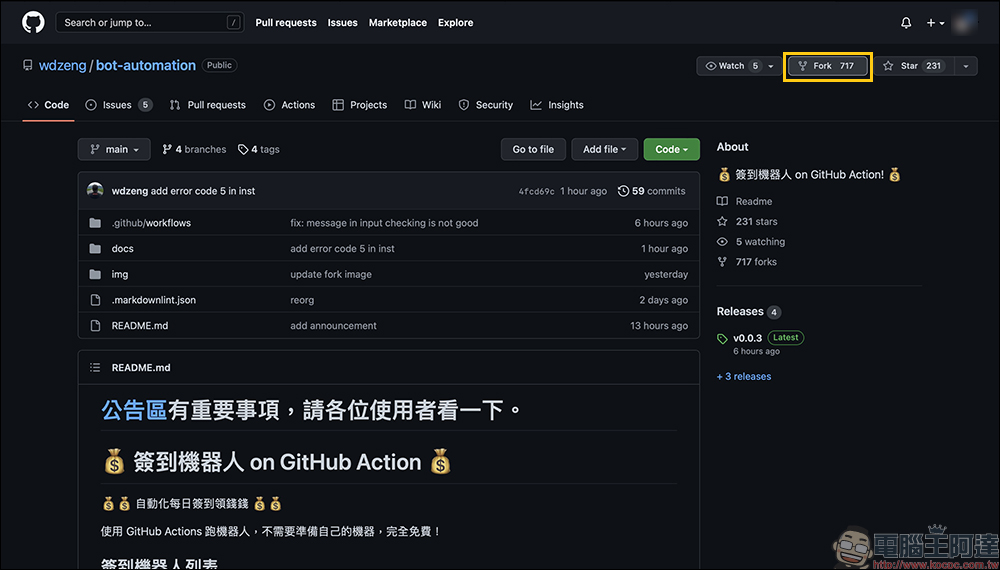
After completing the membership registration, go to wdzeng’s “Shopee check-in robot“Original project, click the “Fork” button on the screen to offload the project to your own GitHub account:
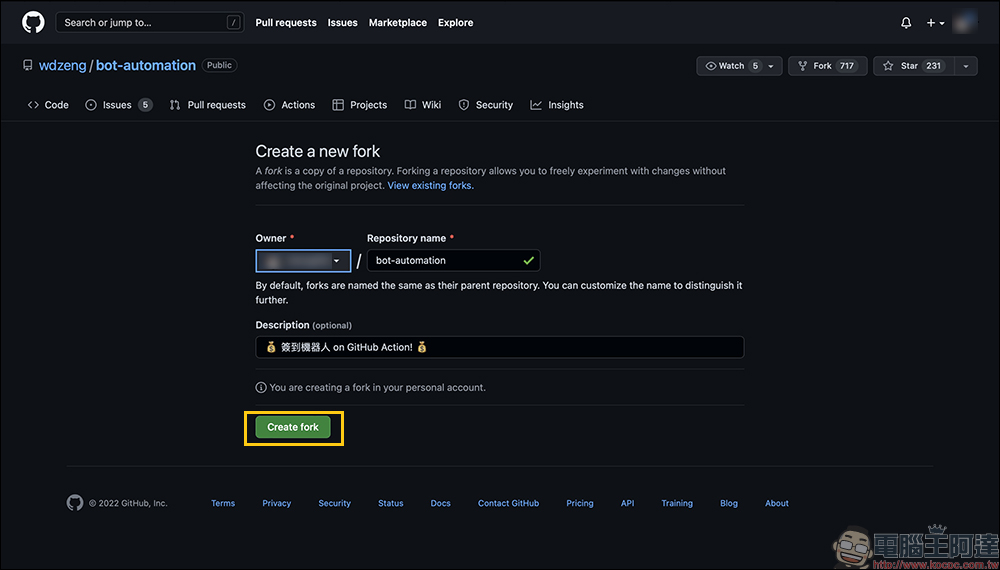
Then press “Create fork” to proceed to the next step:
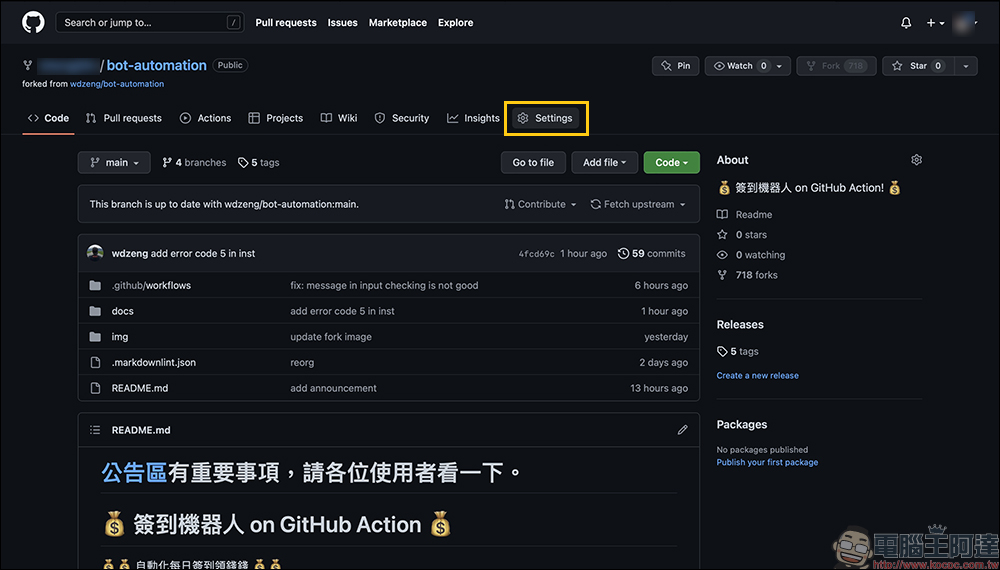
After successfully adding the project to your account, it will be in the “bot-automation” Shopee robot project. Since everything on the GitHub project is public, we need to encrypt the cookies, so next click “Settings” on the screen to start the settings:
Enter the settings page of your personal project, then select the Actions option under Secrets on the left, and then click the “New repository secret” button:
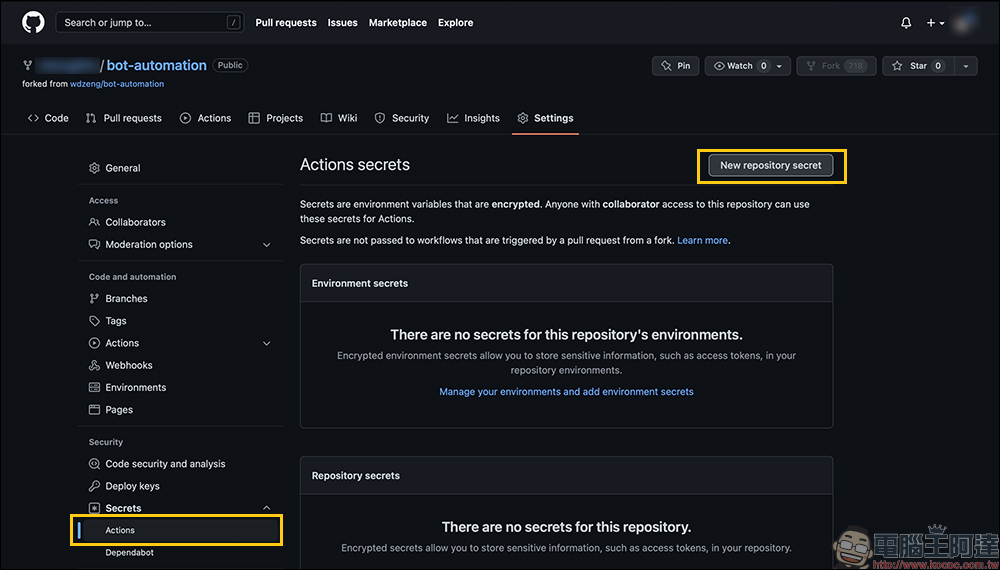
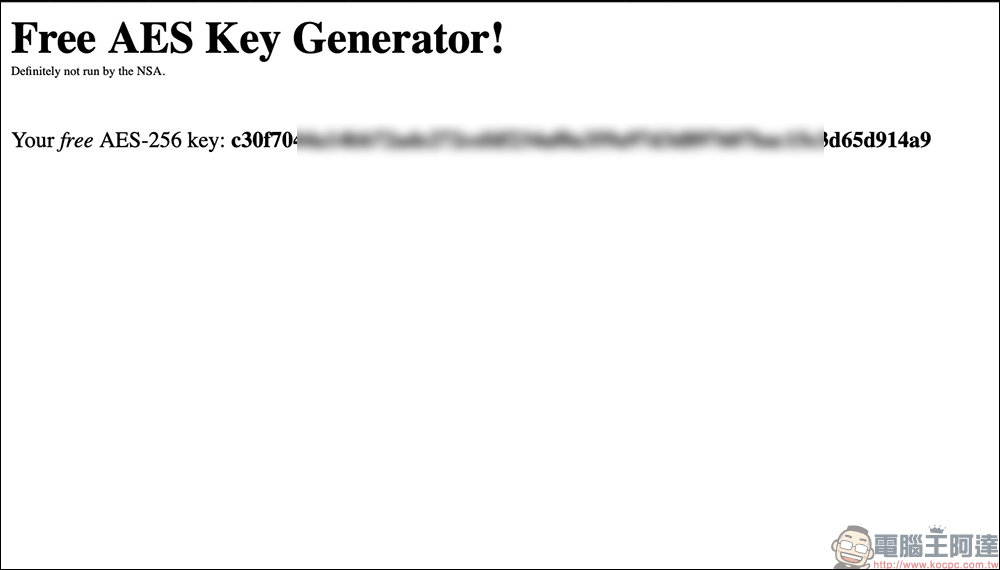
There are three pieces of information we need to fill in here, namely “Shopee Account”, “Shopee Password” and “Gold Key”. part of the key, toThis website (please click me)Generate a key that is used to encrypt your cookies. Remember not to leak your key, otherwise your account will be stolen.
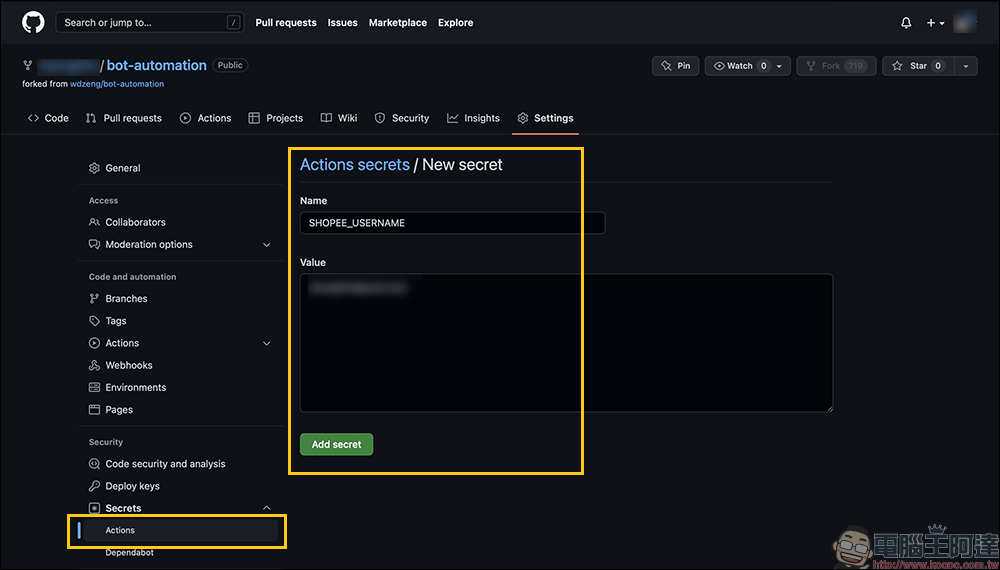
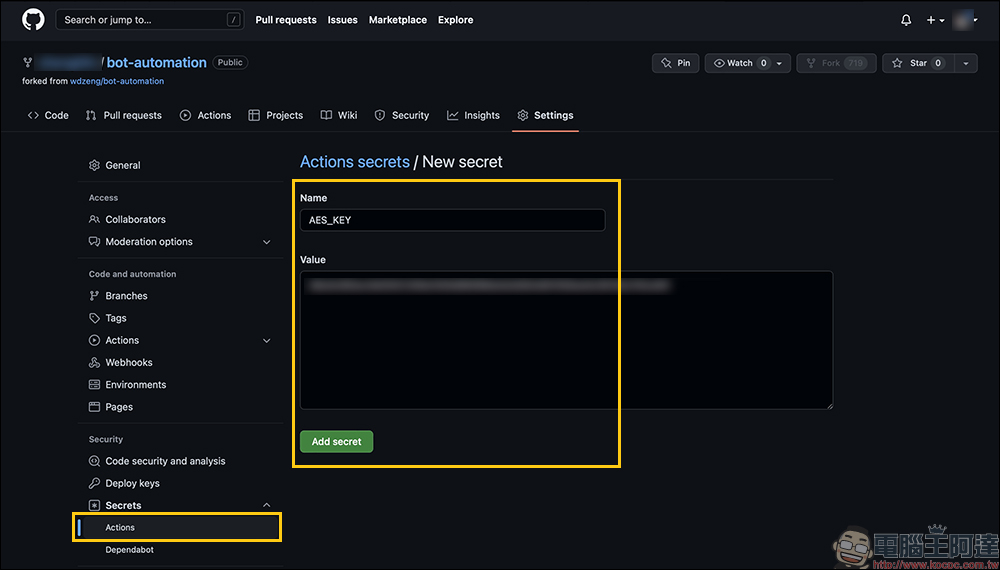
After clicking the “New repository secret” button, paste “SHOPEE_USERNAME” in the Name field, then paste your Shopee account in the Value field, which can be an email address, mobile phone number or ID, and then click the “Add secret” button to complete the addition.
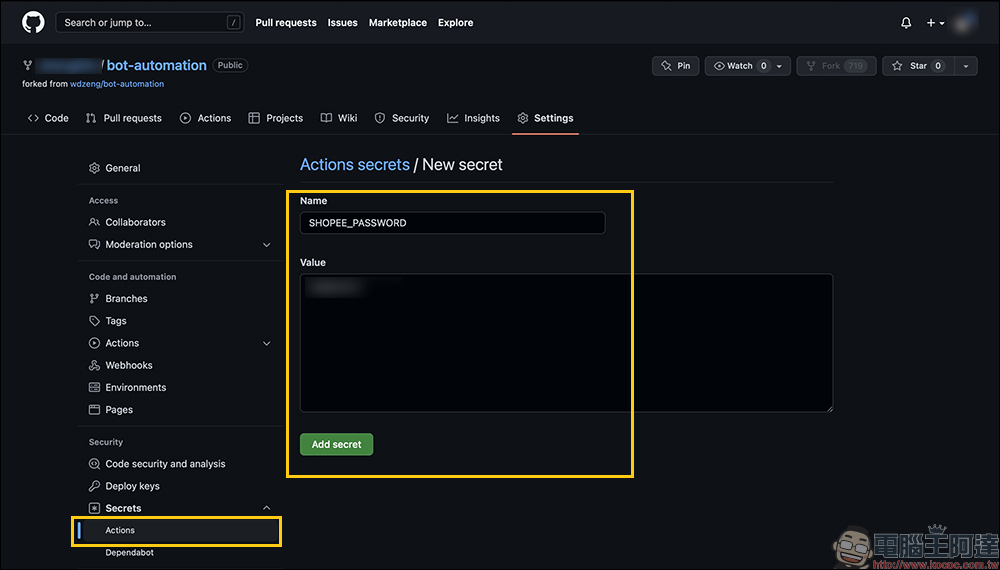
Then click the “New repository secret” button again, this time paste “SHOPEE_PASSWORD” in the Name field, enter your Shopee password in the Value field, and press the “Add secret” button again.
The third time is to add the key. Paste “AES_KEY” in the Name field, and paste the key generated on the website in the previous paragraph of this article in the Value field. Press the Add secret button after the input is completed.
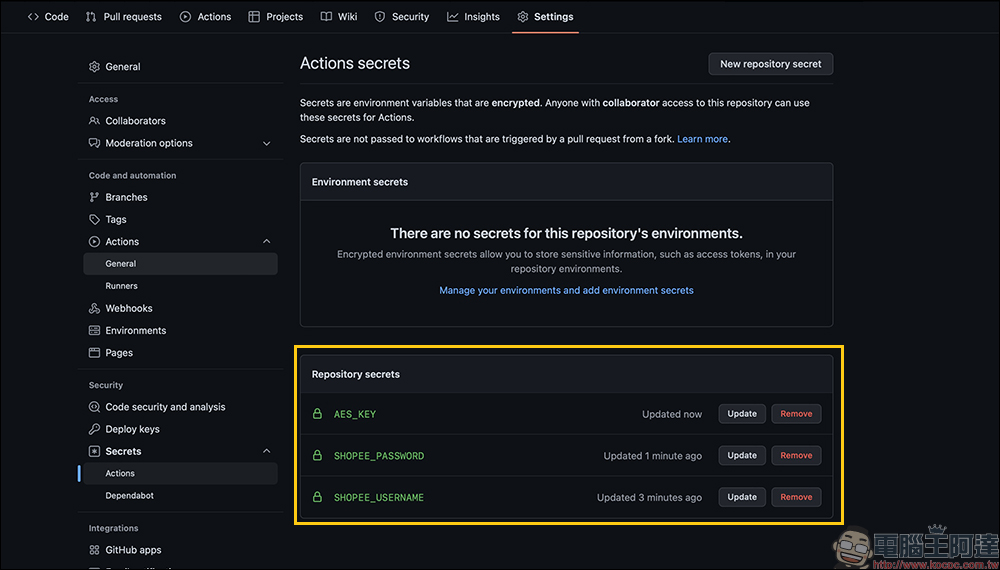
When you return to the Actions secrets page, you can see that the Repository secrets fields include “SHOPEE_USERNAME”, “SHOPEE_PASSWORD” and “AES_KEY”.
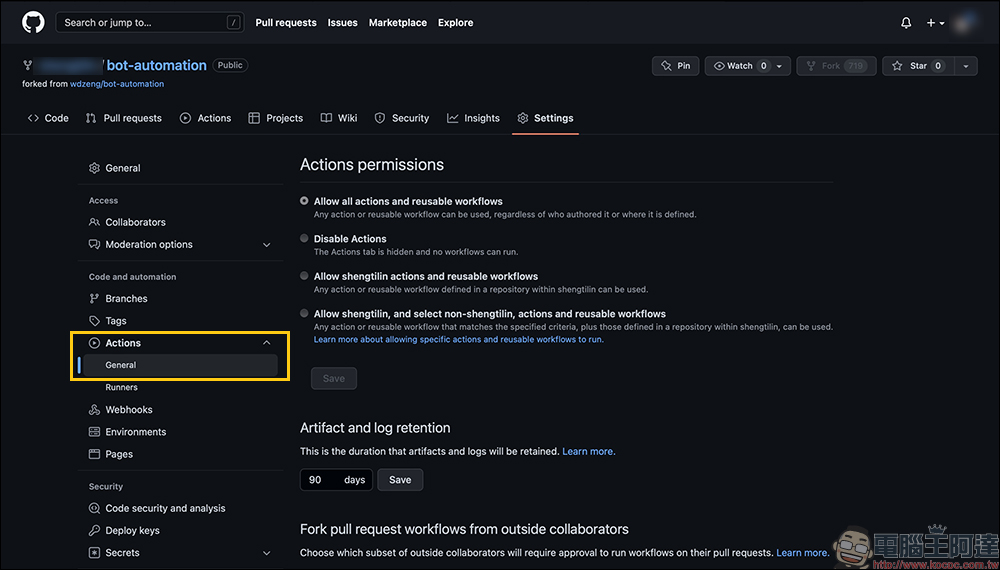
Next, we find “Actions” in the function menu on the left side of the screen, expand it and enter the “General” page.
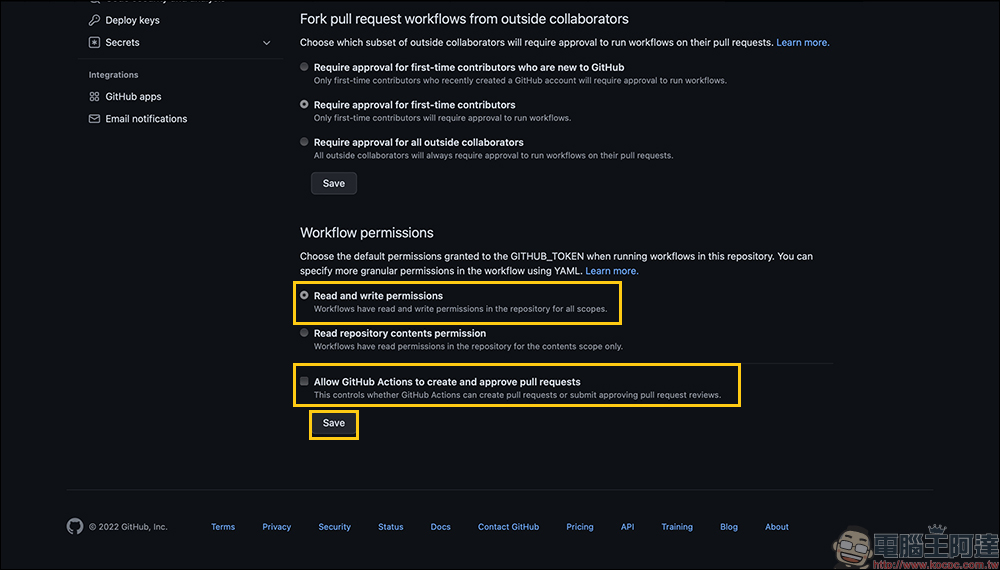
Scroll to the bottom to select “Read and write permissions” and cancel “Allow Github Actions to create and approve pull reuests”, and finally press the “Save” button to save.
Start the Shopee automatic check-in robot
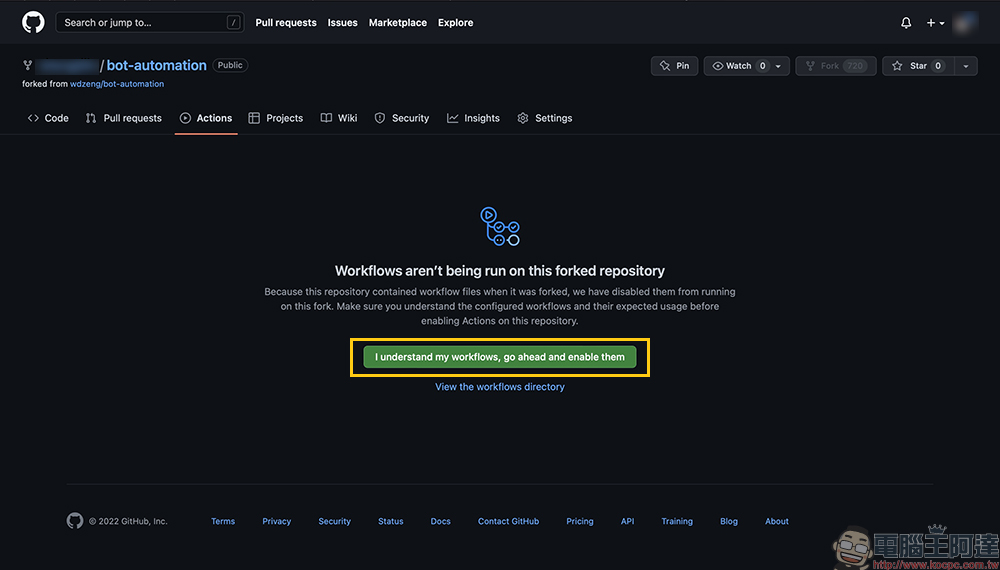
After completing the settings, we are ready to start the Shopee automatic robot! Click the “Actions” page at the top of the screen, and then press the “I understand my workflows, go ahead and enable them” button to enable the workflow function.
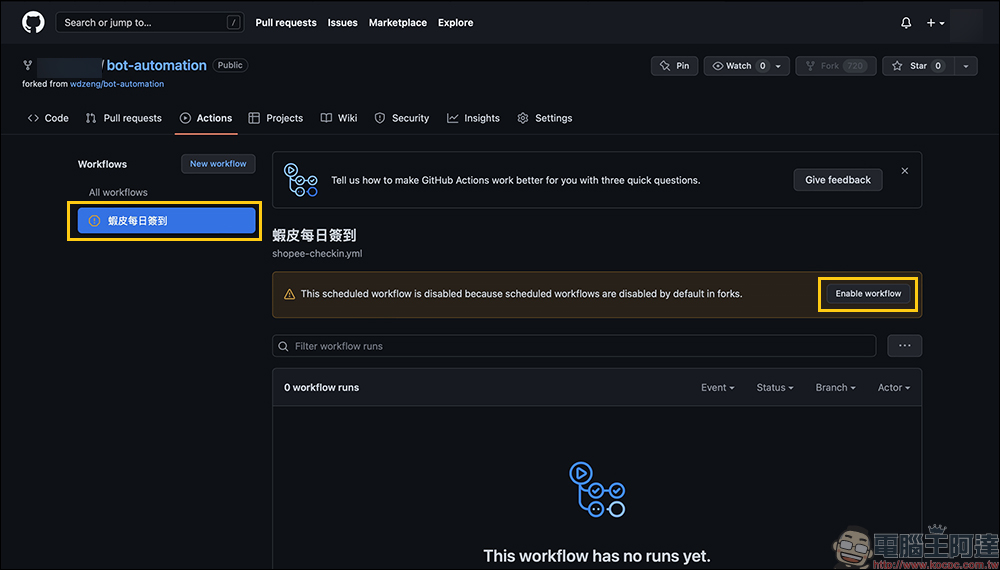
When using it for the first time, you need to go through the manual robot sign-in process. At this time, the screen will switch from Workflows to “Shopee Daily Check-in”, and then click the “Ennable workflow” button:
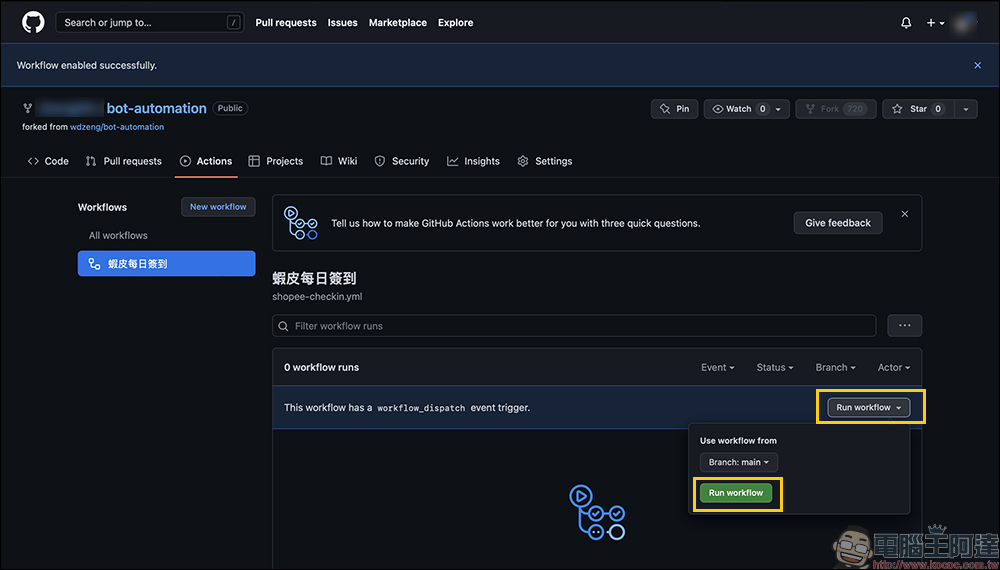
Click to expand the “Run workflow” menu, and press the “Run workflow” button to execute it manually first:
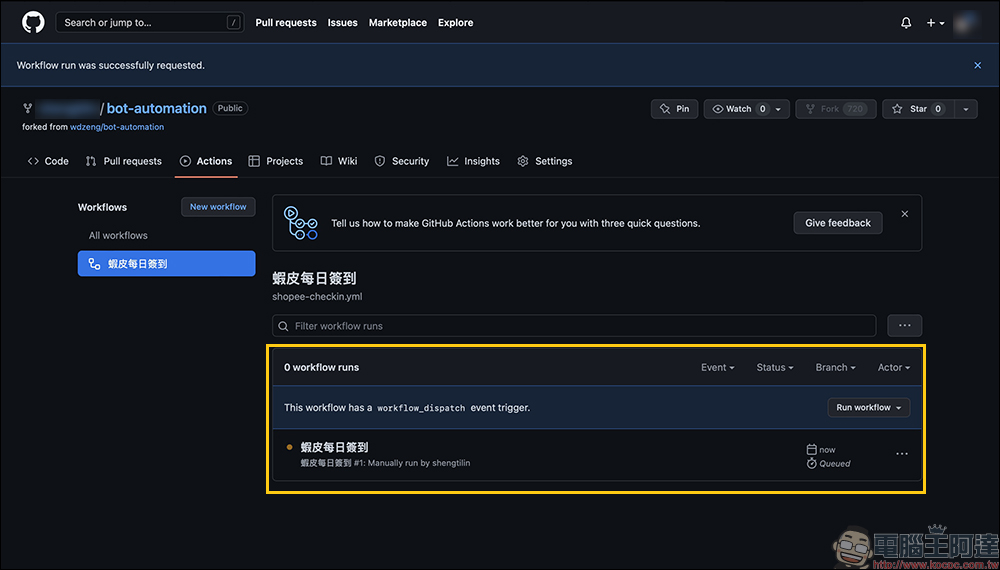
At this time, wait a moment. It will take about 10 to 60 seconds (or re-arrange the web page) to see that the robot has started running. If everything goes well, you will receive SMS verification.
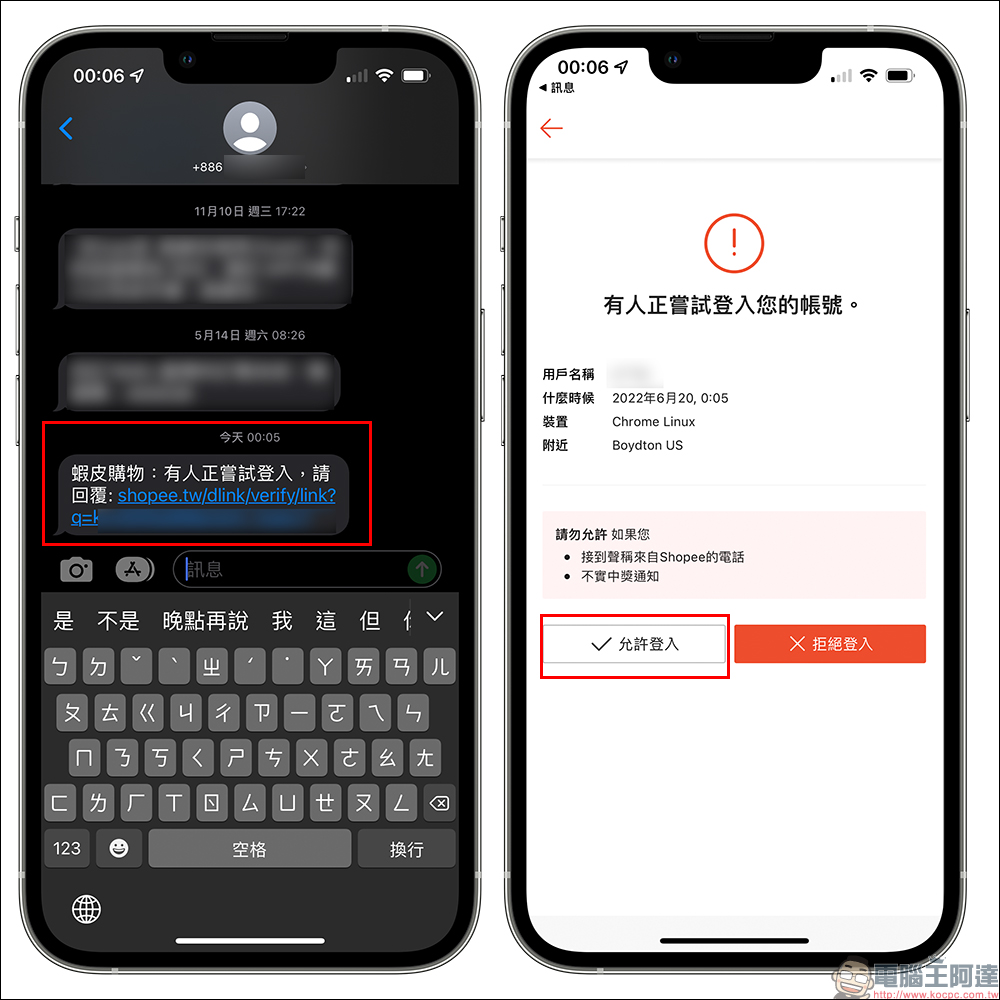
You will receive a notification in the text message saying “Shopee Shopping: Someone is trying to log in, please reply.” Just click on the URL in the text message to enter and click “Allow login”.
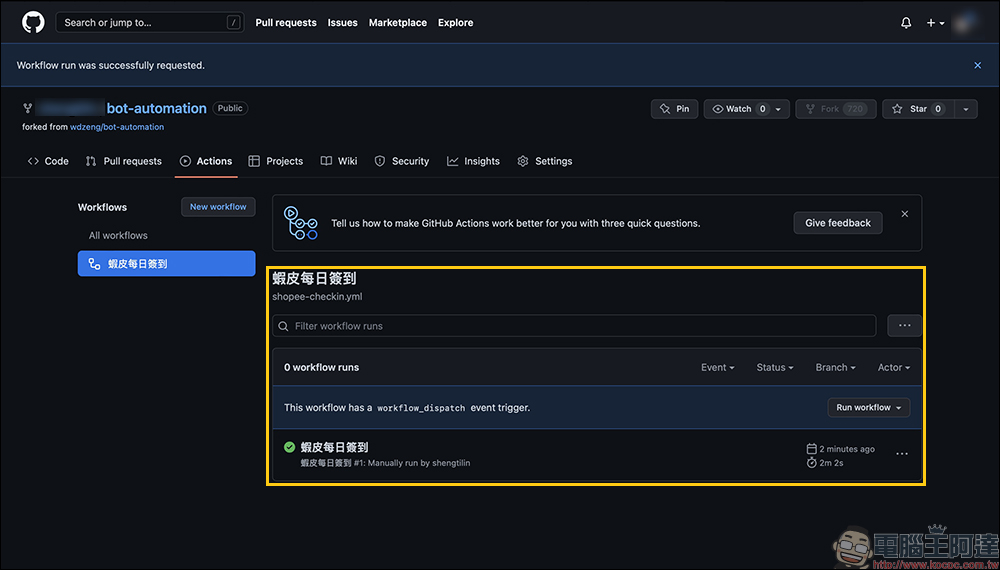
At this time, the status of the original “Shopee Daily Check-in” has changed from the original orange to a green check mark, which means that the check-in has been completed. At this stage, we have successfully completed the first manual robot check-in.
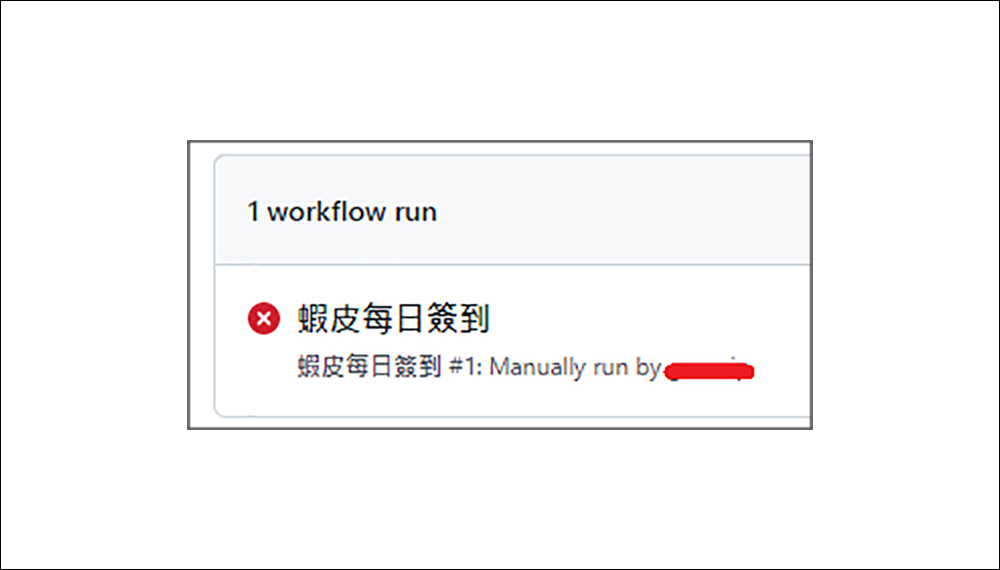
If the execution fails, the following figure will appear. Please refer toTroubleshooting (please click me), if you have no clue, you can refer toError report (please click me)。
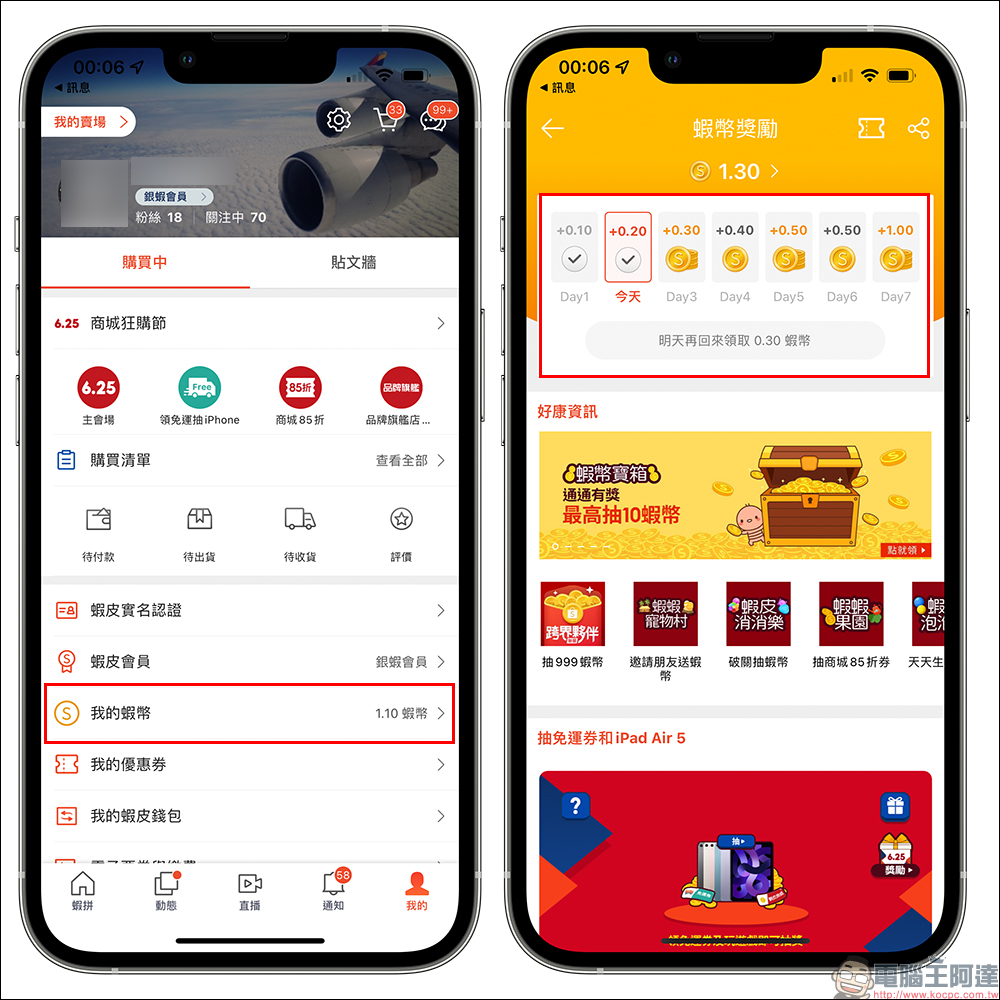
When we successfully sign in manually for the first time, the Shopee automatic sign-in robot will start to sign in automatically at 00:10 every morning, so you don’t need to make any other settings! Although this time you need to set up GitHub first, as long as you follow the above-mentioned step-by-step instructions, the check-in robot should be able to run smoothly.
Shopee automatic check-in robot (GitHub):Original project (click here to go)
The author will update the robot from time to time. You can apply the latest updates as follows. Note that this is the screen on your own project page, not wdzeng’s project page. If you find that the button does not appear on the screen, it means it is already the latest version!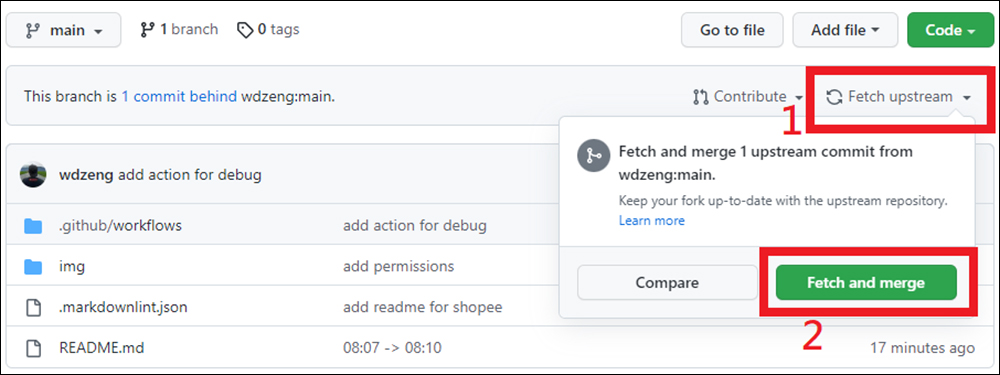
In addition to the developers of the “Shopee automatic check-in robot” introduced this timeCurrently we are also working on the “Pinkoi check-in robot”, you can continue to follow his latest progress (please click me).
Further reading:
A man and a woman were holding an “instrument concert” while driving in Florida, USA. They crossed into the opposite direction and hit a FedEx truck, causing OO to be injured.

▲Picture source:WPLG Local 10
Source: KOCPC Chinese