


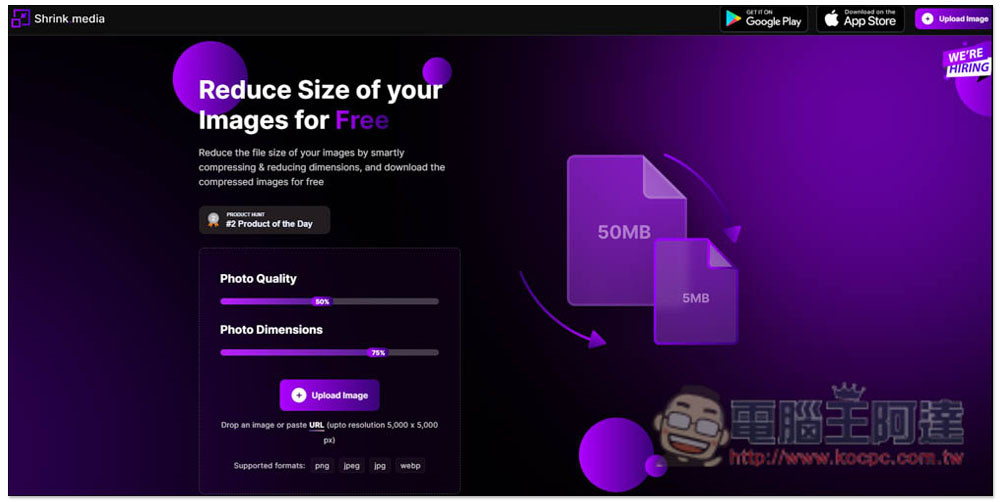
For those who run websites or blogs and have small computer or mobile phone storage space, they will definitely encounter situations where they want to compress images to free up more storage space or make the website faster. If you haven’t found one that works well, Shrink.media is a pretty good choice. It’s completely free. It provides web version, iOS and Android apps. It’s very flexible to use and supports a maximum resolution of 5,000 x 5,000. Let’s quickly introduce it to you.
Introduction to Shrink.media, a free image compression tool that supports multiple platforms
- Click here to go to Shrink.media free image compression tool web version
- App Store Download
- Google Play Download
Here I take the web version as an example. After entering the website, you can drag in the image you want to compress, or manually select (Upload Image). URL addresses are also supported. Supported formats are PNG, JPEG, JPG and WEBP. The compression method is by reducing the picture quality (Photo Quality) and size (Photo Dimensions). You can freely control how much to reduce both. If you want the size to be larger and the quality to be lower, or vice versa, this is more flexible than other websites that provide similar functions:
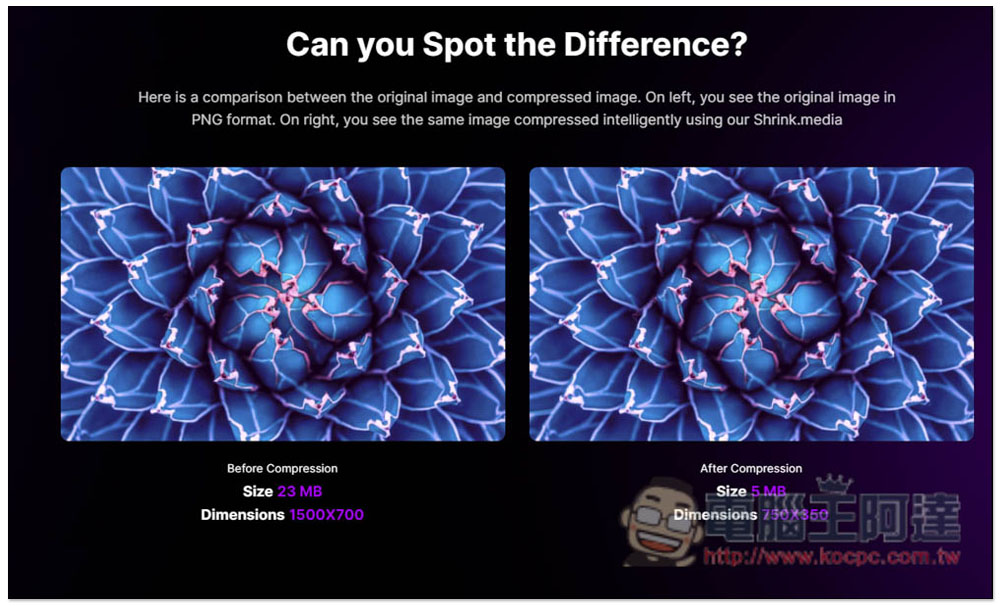
There are also examples of before and after compression at the bottom of the homepage for your reference, but this is basically of no reference value because they will definitely use the best images:
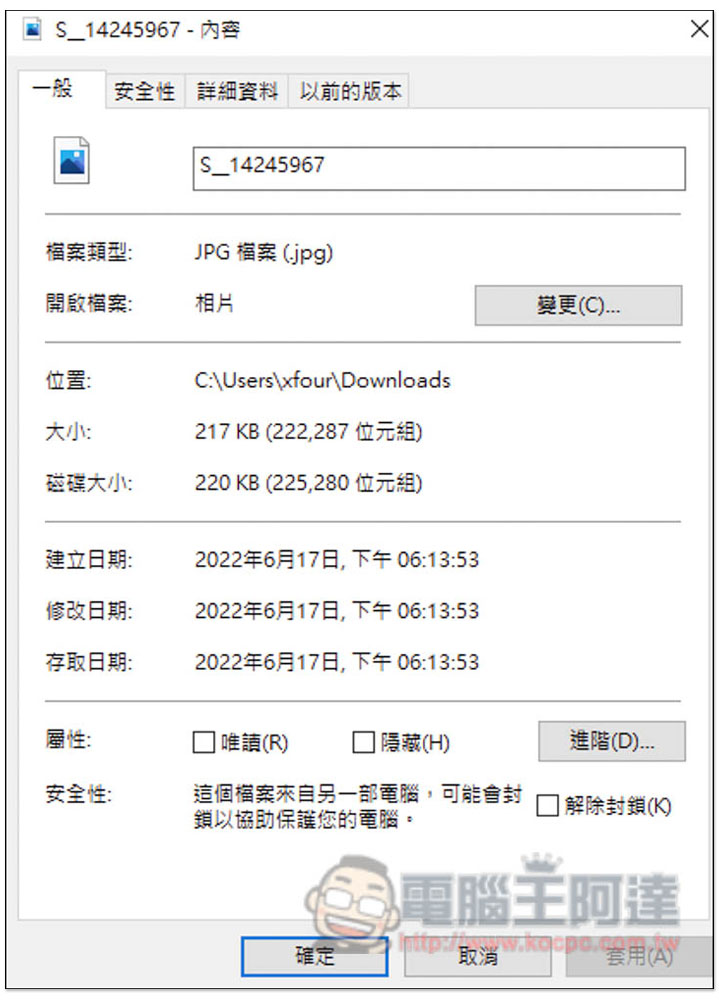
I take this picture as an example, the original size is 217KB:
After processing, the right side will display the result of compression and how much file capacity has been reduced. I originally thought that the original file of 217KB was small enough, but I didn’t expect that it could be reduced to 44.57KB, with a compression of 79%, which is really amazing. If you are satisfied, click Download to download:
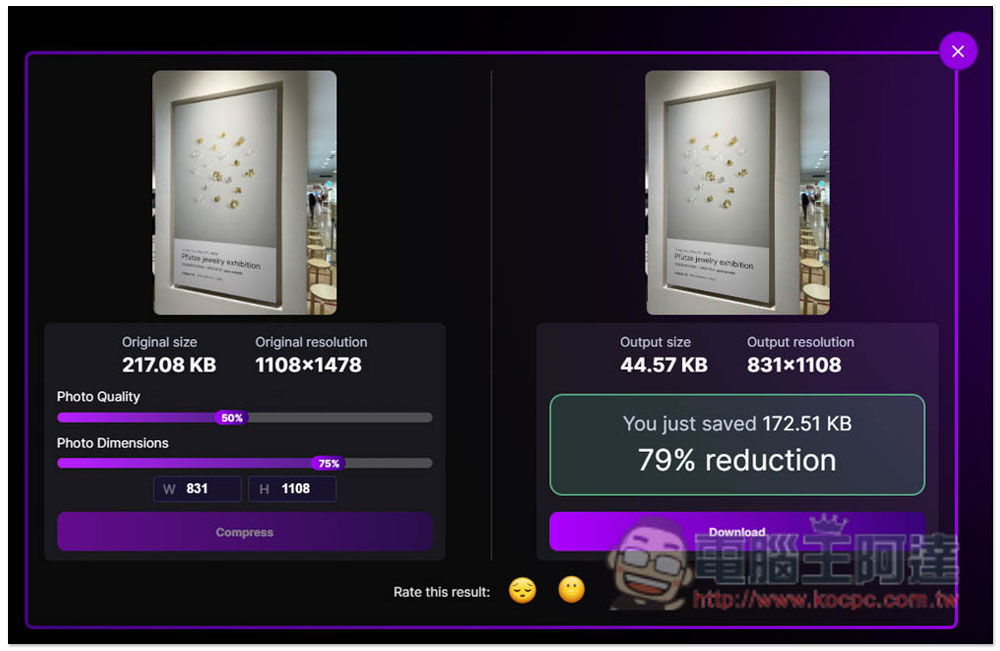
If you feel that the compression is not enough or the file size becomes too small, you can also directly adjust the Photo Quality and Photo Dimensions on the left, and then press Compress. The W and H below will prompt you how much the remaining image size is after compression:
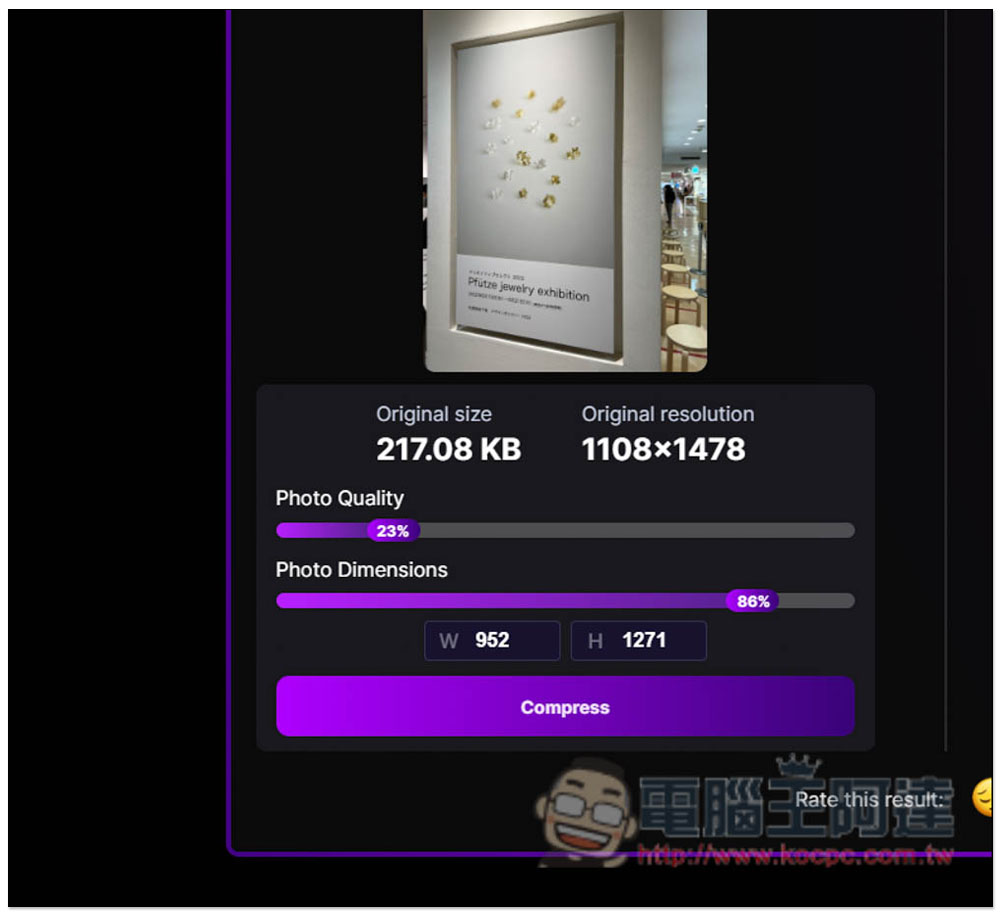
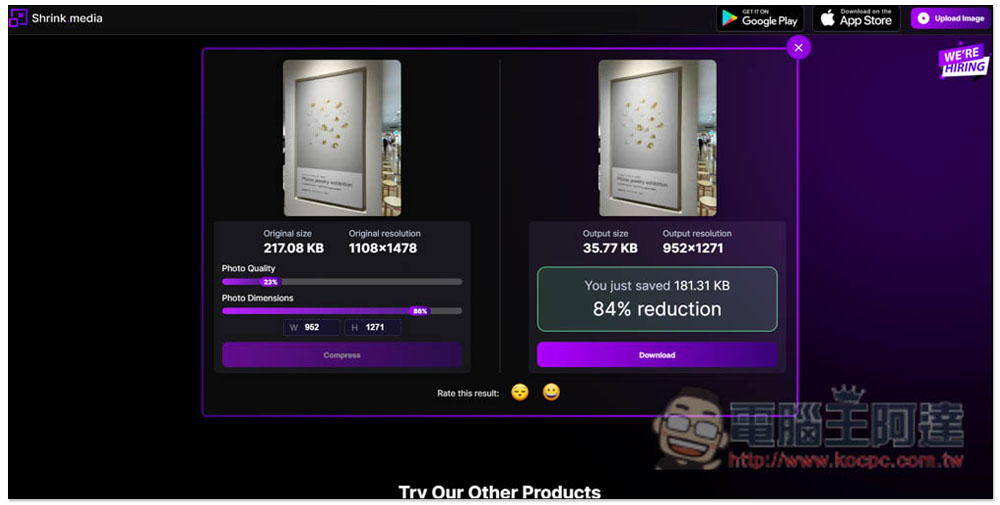
I made some adjustments and compressed more, reaching a compression ratio of 84%. The original 217 KB became only 35KB:
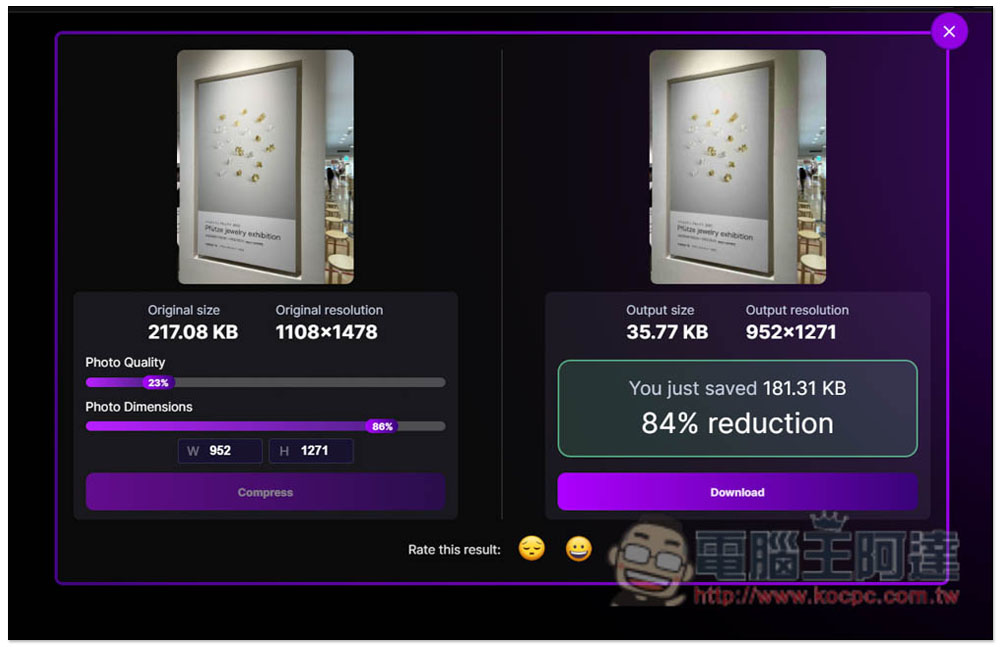
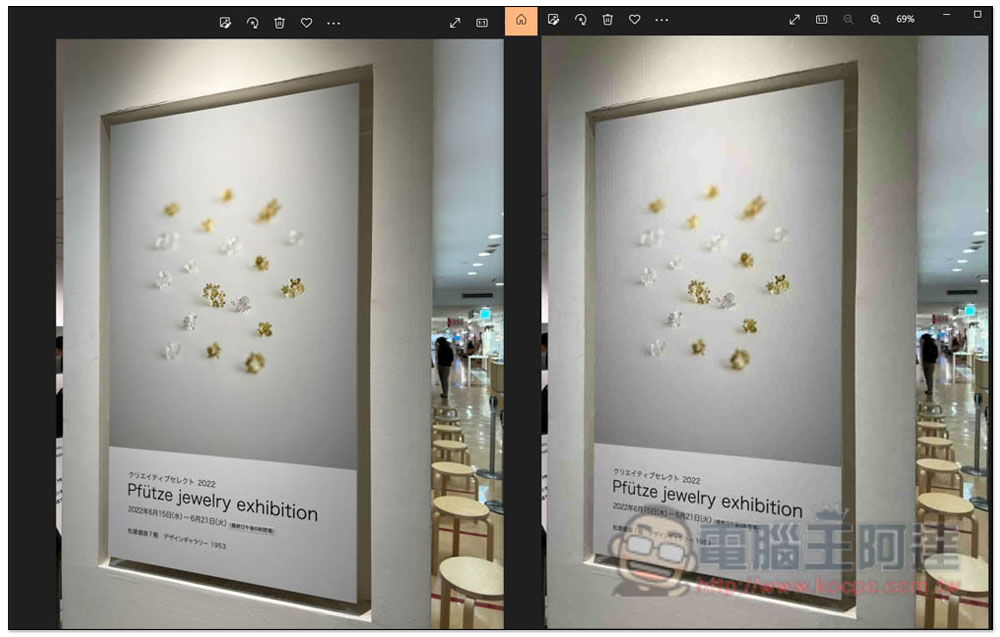
The picture below is a comparison before and after compression. The left side is before compression, and the right side is after compression. If you zoom in, you can still see that the image quality is a bit different, but when you zoom out on a single picture, it is still very good overall. Especially this one is still compressed by more than 80%:
The only drawback is that Shrink.media can only compress one image at a time, and cannot compress multiple images at a time. The operation will be more troublesome, but at least you can throw them into the window one by one and process them without going back to the home page. However, you can still download them one by one.
In addition to this one, we have also introduced it before Recompressor、YouCompress、Image pressureFree compression tools are also useful, so you can try them out to see which one best meets your needs.
Source: KOCPC Chinese