


A passerby who was kicked made his own various bootable USB flash drives, such as WinPE Rescue,Windows USB installation disk、Windows to go, or evenAndroid x86 installed to USB disk, so there are countless flash drives, large and small. USBOX 7.0 is a free Windows 11 PE ISO bootable CD image file that supports network, NVME, Intel 12th generation platform, BIOS/UEFI dual boot, and contains backup and restore, disk management… and many other useful software. When your Win or Mac system has problems and cannot boot, as long as you have USBOX 7.0 to start WinPE boot, everything will be done.

用 Telegram 訂閱【挨踢路人甲】最新文章:https://t.me/itwshare
I have been working in the computer field for more than 20 years. In a stable system, after a long period of installation, removal and operation, I have seen the inability to enter the computer system again and again. Faced with various computer problems, a USB boot repair disk is indispensable. USBOX 7.0 can turn your USB flash drive into a USB flash drive for the WinPE rescue system. You don’t have to worry about your computer not having a CD-ROM drive. When you are unable to enter the Windows or Mac system, you will find that the flash drive turns magic into power and will be your little magic lamp.
[Software name]: USBOX 7.0
[Software size]: 1.9 GB
[Operating system]: Windows 11 PE
【Official website】:https://bit.ly/3wTXaTT
Download USBOX 7.0
USBOX 7.0 is a system maintenance tool that supports BIOS/UEFI booting. You can see the version evolution and content description on the official website.

Scroll down to find the download link, one-click production version and ISO file. The ISO version file provided by USBOX in 7.0 has added native Ventoy support. Just put the ISO file directly on the flash drive, which is a great boon for users who like to use Ventoy.

The author chooses titanium disk cloud space to download. When you see the picture below, click [Download File].

After downloading, it is an compressed file. Before decompressing, it is best to turn off the real-time scanning behavior of the anti-virus software. Because USBOX uses the au3 scripting language and involves disk reading and writing and login file operations, the anti-virus software may cause false positives. The author uses the built-in security protection of Windows 10 as an example, as shown in the figure below to temporarily turn off real-time protection.

After unzipping and looking inside the folder, you should pay attention to the PDF file and the USBOX_v7.exe file. USBOX_v7.exe is a one-click program, and the PDF is the program’s documentation.

Make a bootable disk
Before making a USBOX 7.0 Windows 11 PE disk, please insert the USB flash drive first.

Execute the decompressed USBOX_v7.exe, and you will immediately see the production window screen. Check in the right column of “Select Device” to see if it is the flash drive you inserted, and directly click “New Creation”.

Before production, you will be warned to delete all data on the flash drive. If there is no backup, you can press [Cancel]. If you are sure there is no important data, press [OK] to start production.

During the production process, there will be a five-step process at the bottom of the window. When you see the text “5/5 is writing to the EFI area”, it means it is almost completed.

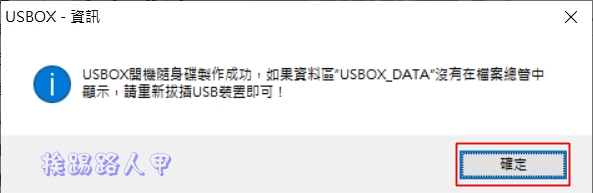
After completion, you will see a message that the USBOX bootable disk was successfully created.
Boot using USBOX
Plug it into the USB 3.0 hole on the front of the computer I DIYed and turn it on.

Insert the boot flash drive into the USB slot, enter the motherboard UEFI screen, set the boot mode to UEFI, and boot with USB boot first. Each brand of motherboard has a different interface. The picture below is the setting screen of the ASUS motherboard.

Enter the Windows boot management process. There are three options: maintenance version, all-in-one version and 32-bit device version. Generally, the maintenance version is used. There is no network tool. If you want to have network functions, please choose the all-in-one version.

Entering Windows 11 PE is to execute the original Win 11 installation program, which automatically bypasses restrictions such as TPM and Secure Boot. The operation is the same, and it is actually a smaller version of Windows 11!

ISO and other tools production
If you are troubled by the fact that the one-click installation version you downloaded has been removed by the real-time scanning behavior of the anti-virus software, you can also download the ISO version and use the one I have introduced before.RufusUSB disk creation tool to create. According to the USBOX official code, the UD three-partition method used is better than Ventoy’s architecture and is better for old computers, but I have always used it.Ventoy multiple system menu USB bootable disk tool, I saw that USBOX 7.0 directly supports Ventoy natively. Just pull the ISO file directly into it and it will be automatically mounted at boot. There is no need to copy the file and ISO.flag (Ventoy Compatible).

Sure enough, the menu screen appears, and as long as the image file is detected, it will appear on the menu.

The author often has to install different operating systems, so he prefers Ventoy’s multiple system menu method, which can install and select the same system. Now there is a USBOX 7.0 system maintenance tool for Windows 11 PE.

Further reading:
- MediaCreationTool easily bypasses Windows 11 hardware check, and old computers can be directly upgraded
- Ventoy – a new generation tool for creating free USB multiple system menu bootable disks
- Use Rufus to create a Windows 11 USB bootable installation disk without TPM requirements
- Rufus is a small yet comprehensive USB boot tool that supports direct downloading of Windows 10
Source: KOCPC Chinese