


Although there are many AI image generation tools on the internet now, for people who don’t know how to write prompts, it may still feel difficult to generate the images they want. This article recommends a pretty good tool called AUX MACHINA, which offers image-to-image functionality. That is, you can provide an image (or use the built-in search) and let AI generate images in a similar style. But that’s not all—you can also ask it to add content you want based on the generated image. This way, you can step by step generate satisfying images without worrying about prompts, and it supports Chinese as well.
More importantly, the generated images can be used for commercial purposes, and there’s a daily free quota of 100 images, which is definitely enough for you.
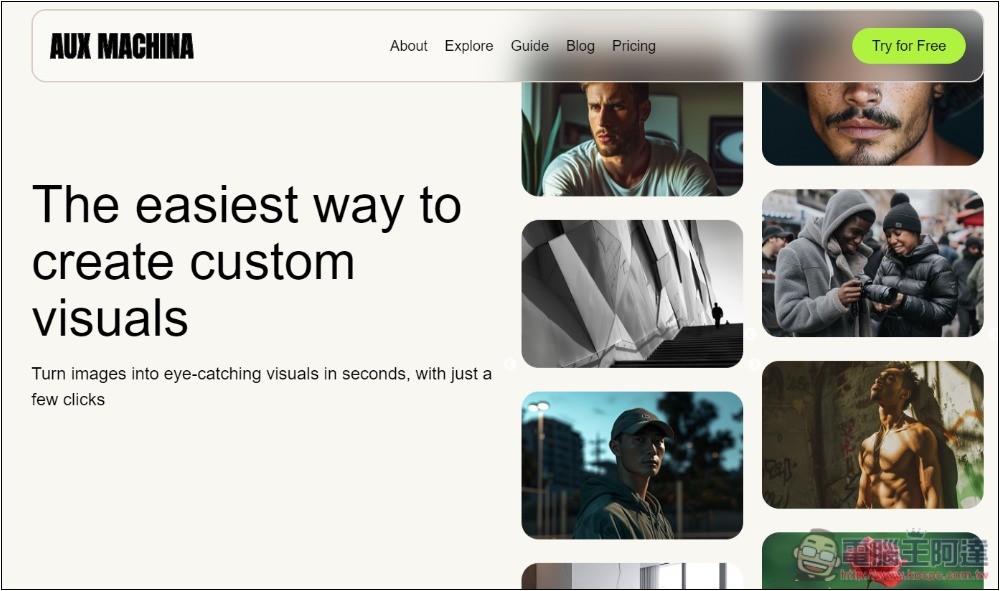
AUX MACHINA offers free AI image-to-image generation tools.
Before starting the introduction, I should clarify that AUX MACHINA’s image-to-image feature generates similar images, but the composition and such will change; it’s not the kind of feature that can produce nearly identical images.
You need to register an account before using it. Free members get a daily quota of 100 images, and since each generation produces 4 images, that means 25 generations—quite enough. Although it’s not fast generation, there don’t seem to be many users yet, and in my test the generation speed was quite quick, finishing in just a few seconds. Images generated by free members can also be used for commercial purposes.
There are two ways to generate images: one is to upload your own image, and the other is to search by keyword, which will show search results from the internet.
Go to the AUX MACHINA website, click “Try for Free” at the top right to register an account:
After logging in, you will be taken to the image generation tool page. You can upload an image by following the camera icon, or directly enter the image keywords you want, such as car, keyboard, mouse, etc. Chinese is also supported. Additionally, below you can select the image generation engine. There are six in total, including the well-known Midjourney, Dall E, and SDXL, among others. However, some are currently unavailable. The free version seems to only use the default Berserq. I tested it and the generation quality is also good:

I just uploaded an image that I generated using Dall E. YouTube tipsCover image:

It shows a countdown in seconds during generation, which is pretty nice—you don’t have to just wait around.
Then it generates four similar images. Although the quality is quite good, the TIPS screen on the computer monitor from the original image has been retained, but YouTube is gone:
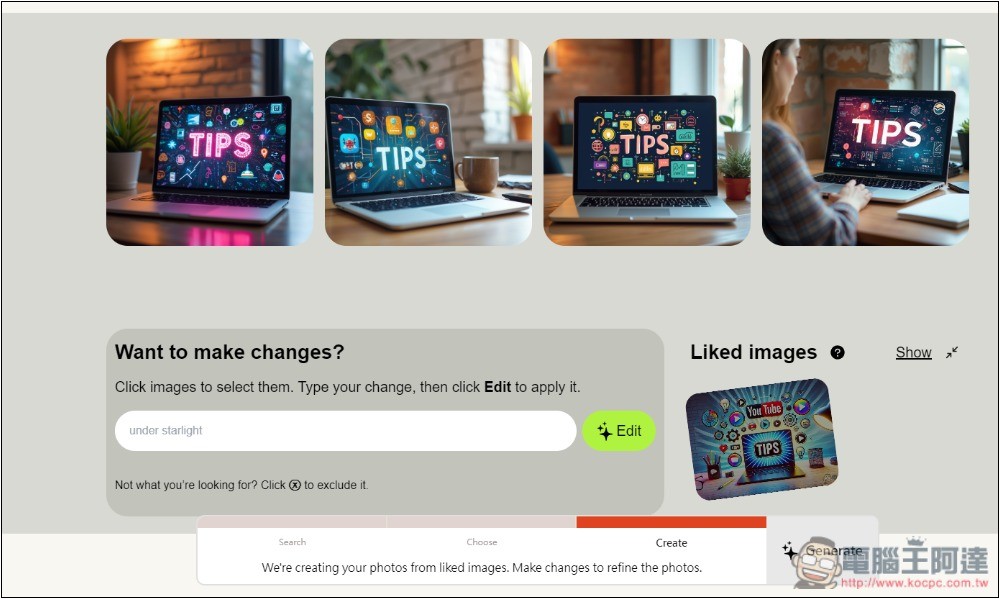
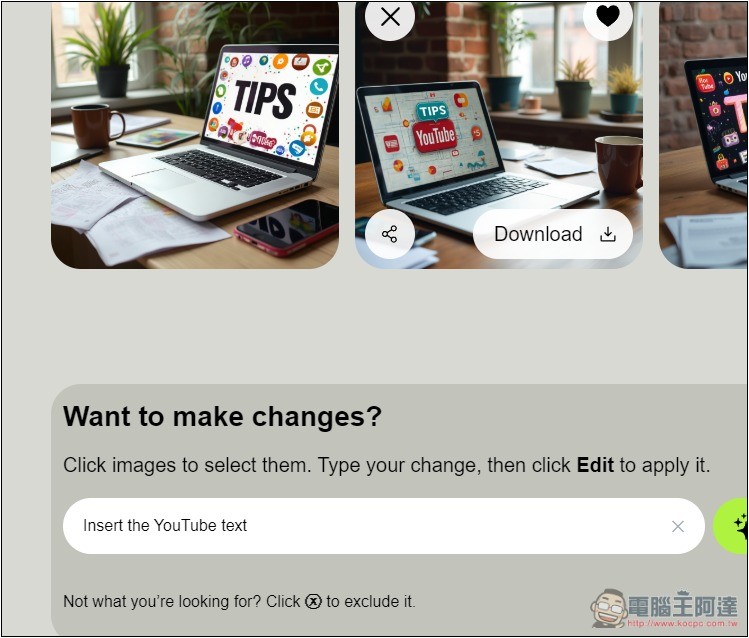
If there’s an image you like, tap the heart icon in the upper right corner. It will then generate new images based on that one. Next, enter the description of the new content you want to add below, and press the Edit button. Chinese is supported, but I’m entering English in the Insert the YouTube text field.
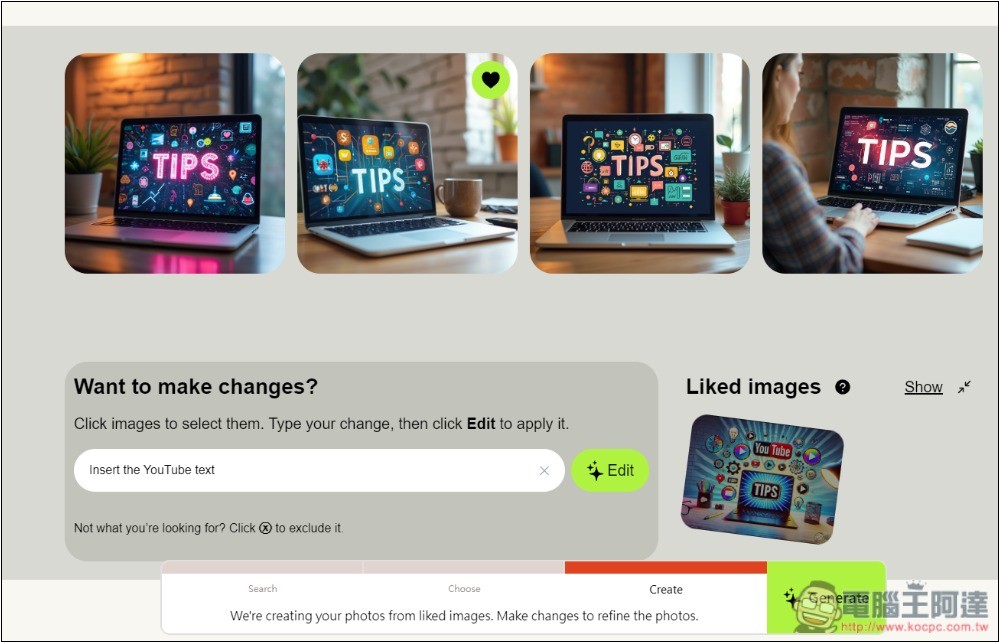
This image adds the requested YouTube text right into the screen, without randomly placing it elsewhere—that’s pretty clever. You can also notice that while it’s not exactly the same as the original image, all the elements are preserved, like the laptop, camera angle, coffee cup, and so on. If you want to add more new things, just type them in the input below until you’re satisfied. Hover your mouse over the image and a Download button will appear.
If there’s no image, that’s fine too. Just type in the image you’re looking for—it can be a keyword, or you can describe the scene like I did: “a car driving fast on the highway.”

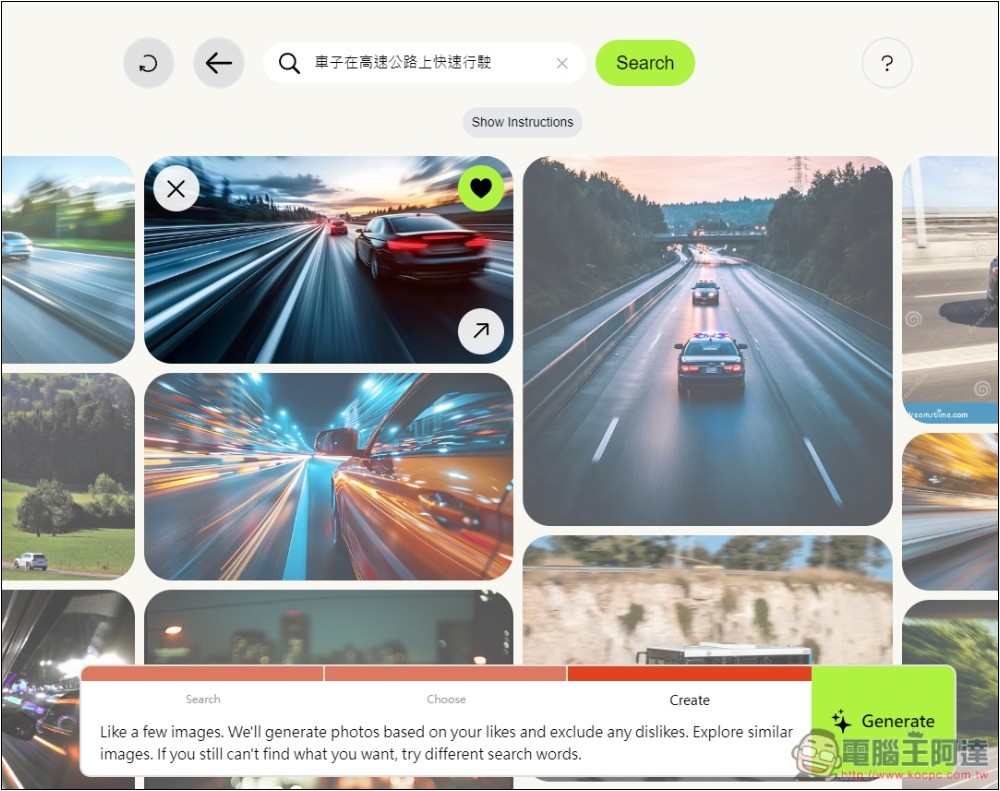
Then matching image results will be displayed:
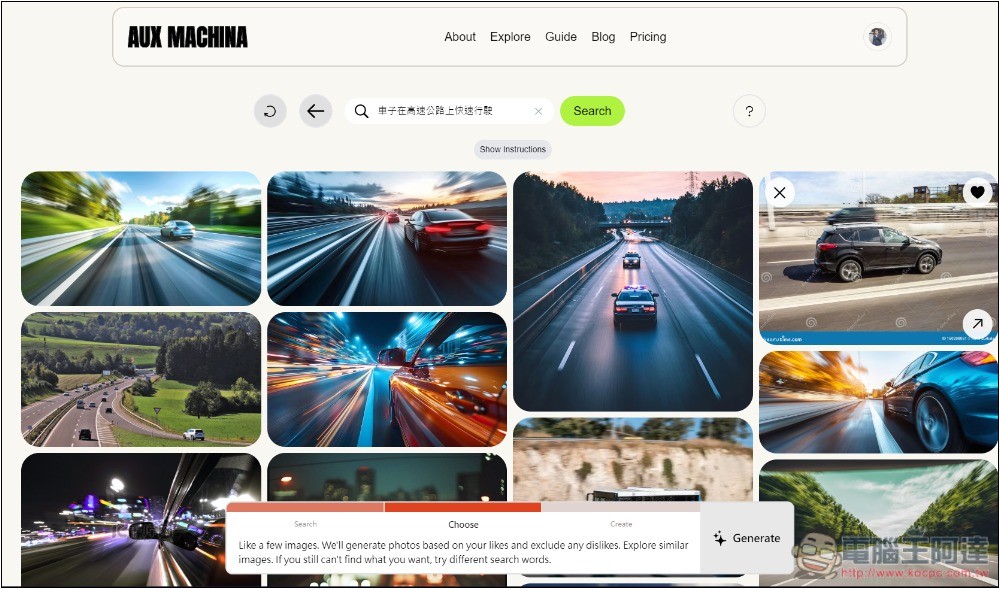
If you found an image you like, tap the heart icon in the top right corner, then tap Generate below to start generating:
The next steps are the same as described above; I want to add another yellow sports car on top:
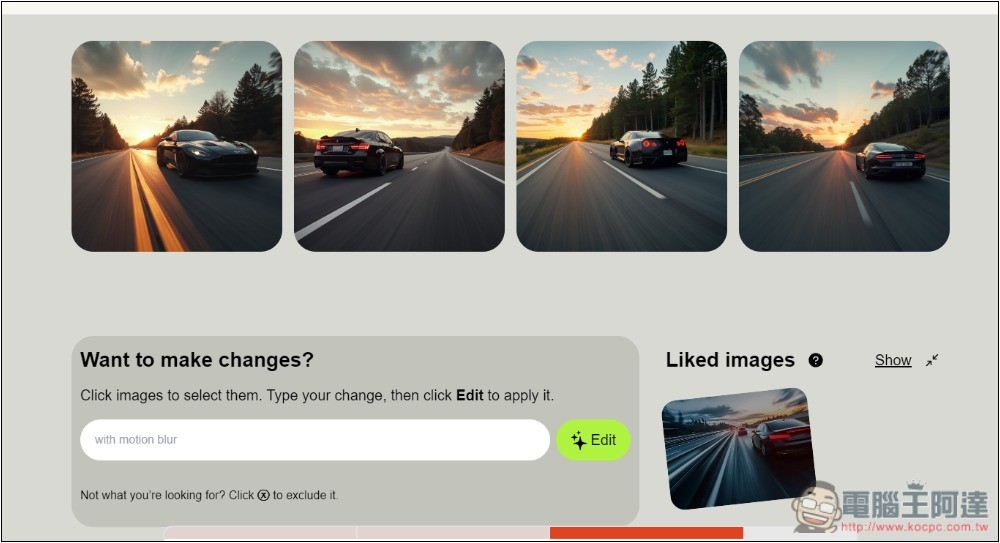
Choose your preferred image and enter the description in the box below:
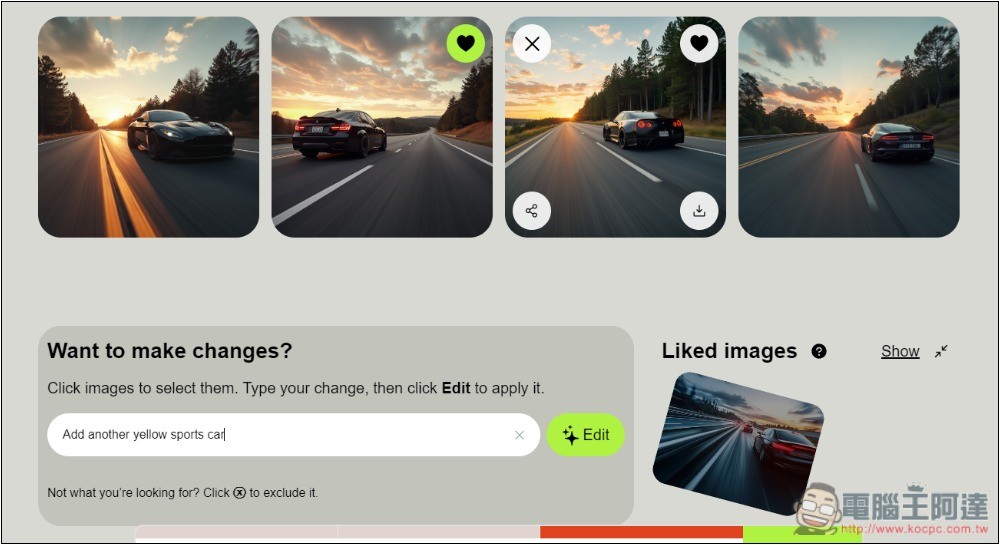
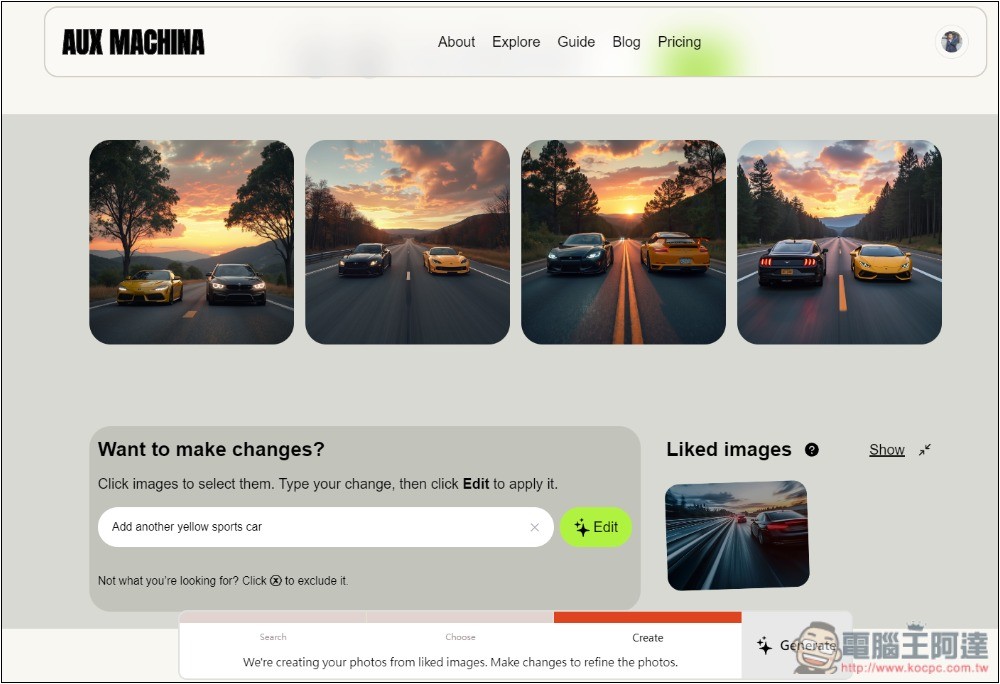
The yellow sports car then added:
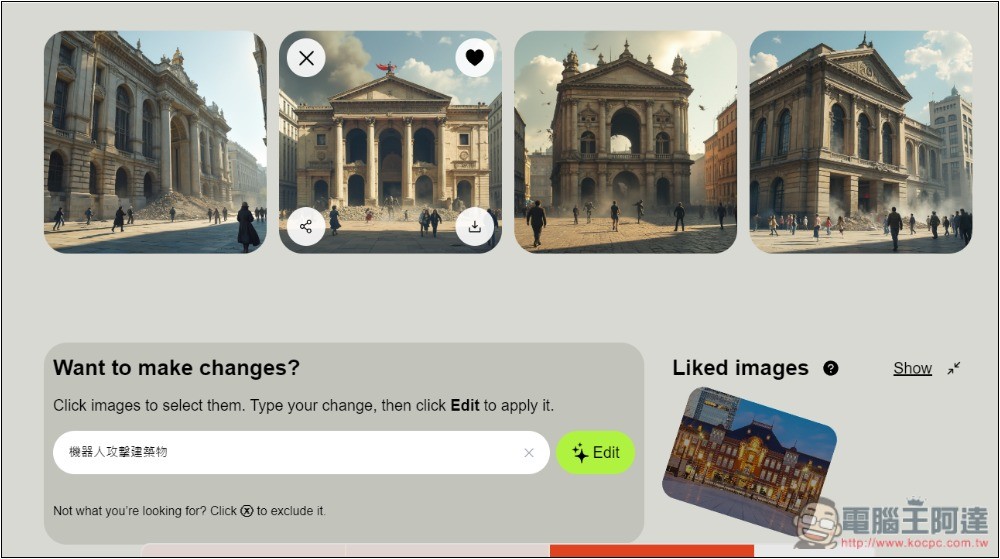
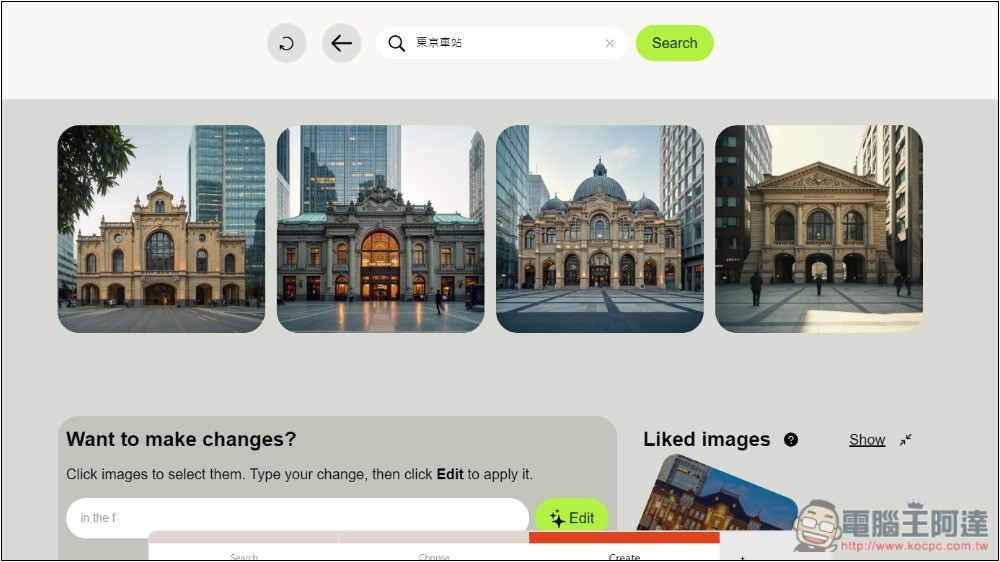
I also tested whether it could generate images that look like real photos, and I used a photo of Tokyo Station:
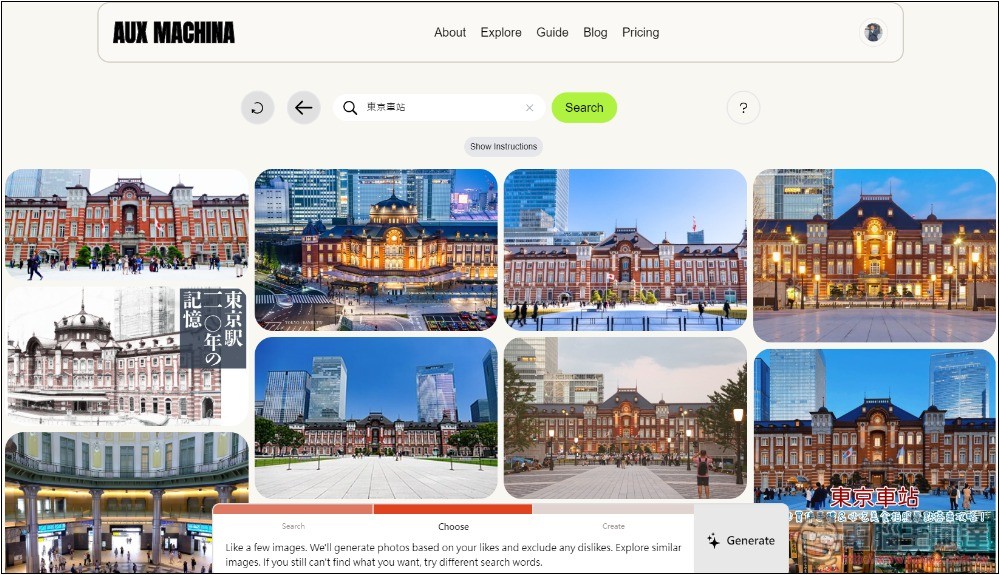
Unfortunately, there’s no way, so this tool can’t be used to generate the same real scenic spot photos:
Source: KOCPC Chinese