


For those who usually use Adobe Premiere, most of them probably use it to make videos, right? In fact, in addition to making ordinary videos, Premier can also make videos into Gifs very easily. For example, in the articles on Computer King Ada’s website, if dynamic presentation is needed, some of them will choose to use Gif animations. The advantage is that the file is small and can be uploaded quickly (depending on how you compress it). The disadvantage is that it cannot be as smooth as watching a video (depending on your frame settings). Sometimes the article requires a lot of dynamic presentation, but if you upload the video clips to YT one by one, your YT backend will have a lot of information. What’s more troublesome is that you have to copy the URLs one by one and then insert them. Unlike GIFs, which can be easily uploaded by just pulling up, the convenience is still quite high:
Adobe Premier Gif production tutorial
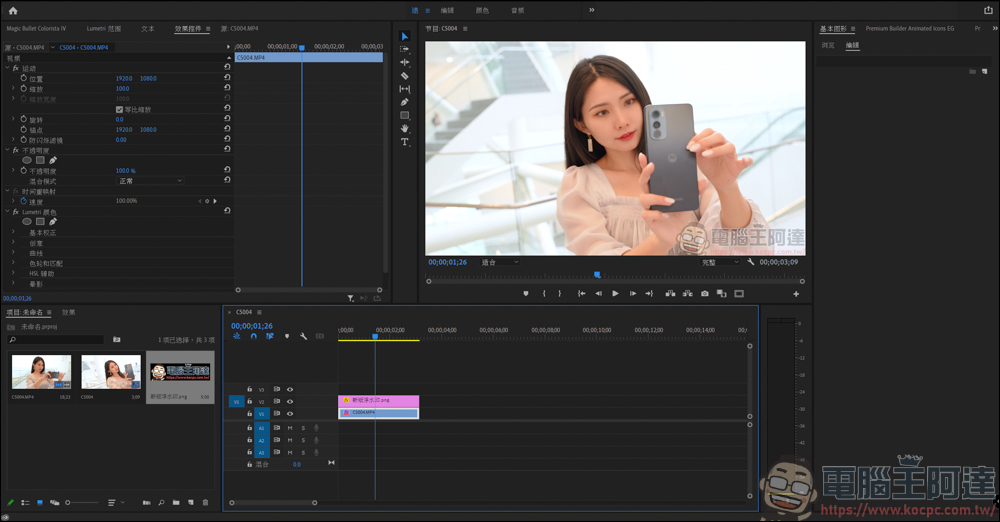
First, import the material into Premier, and then adjust the time and color of the clips you want to present:
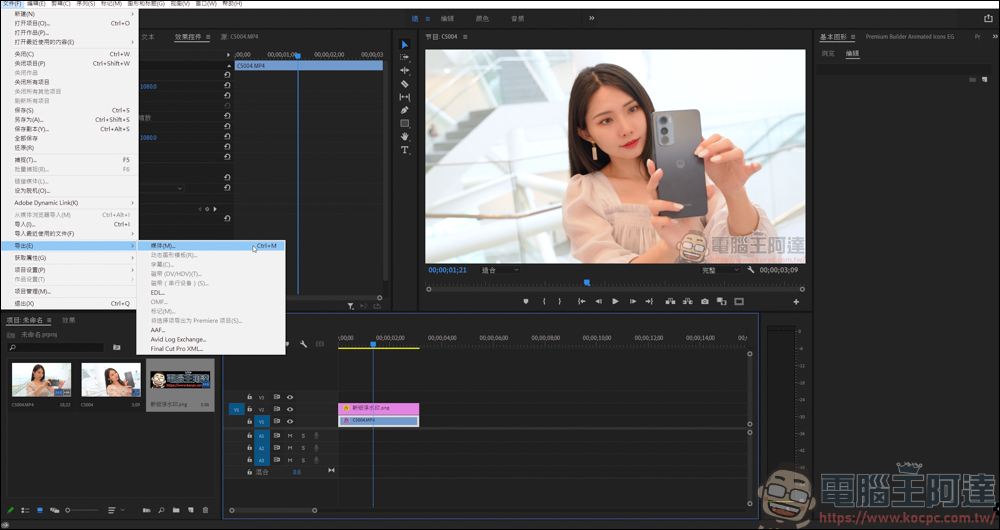
After adjusting, go to File → Export → Media, or directly press CTRL + M to quickly call:
After entering the output settings, we usually use the H.264 option when converting videos. This time, if we want to make a Gif, we must choose dynamic Gif:
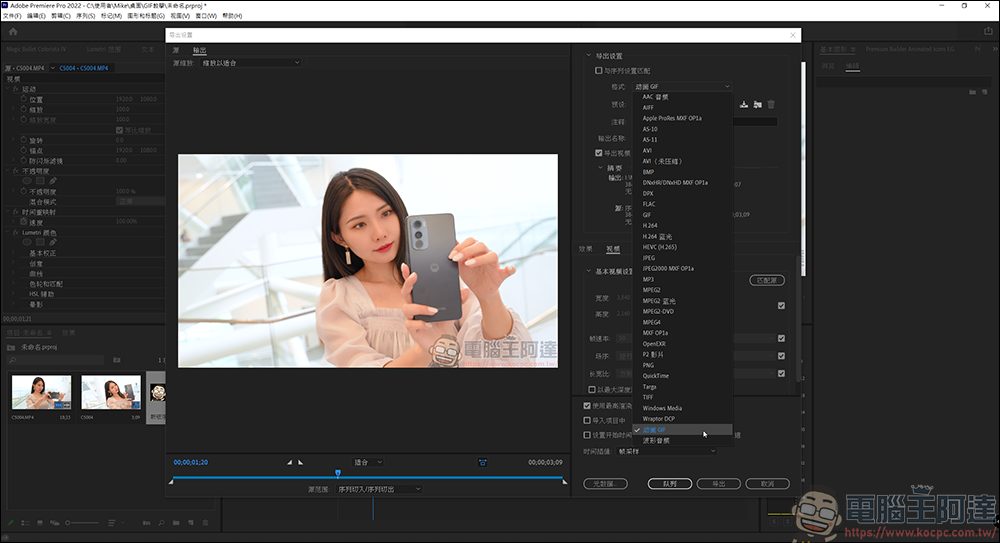
There is no need to set the default part, because there is only one option:
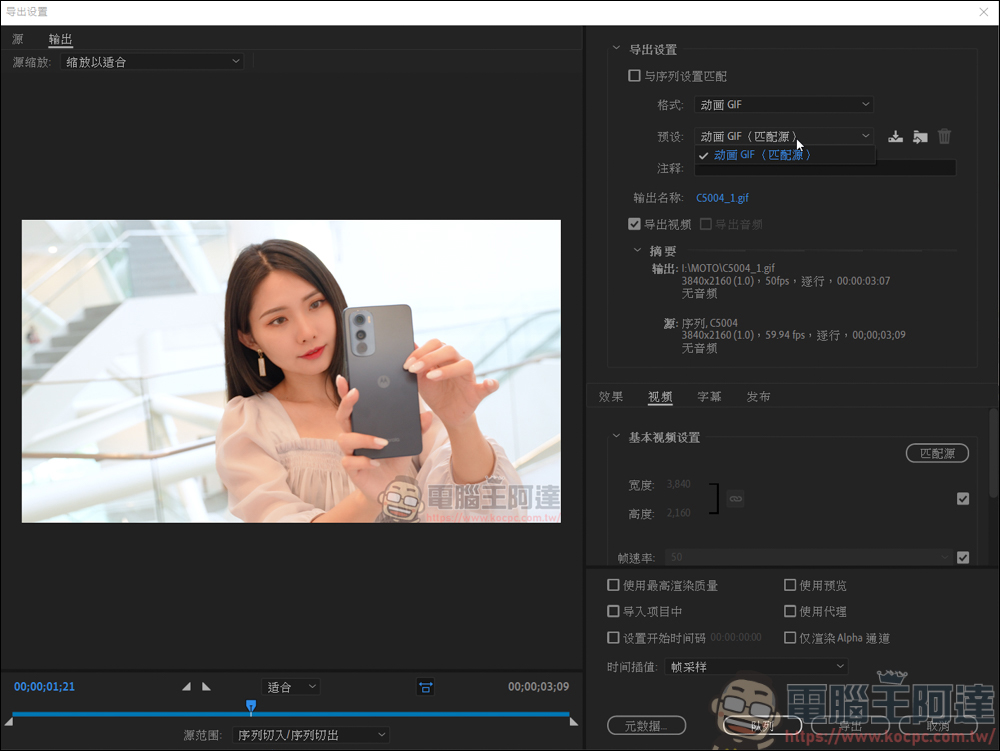
Basically, there is nothing to set for Gif, but if you have size, frame rate, and file size requirements, then the size and frame rate below must be adjusted separately. The size of the Gif file will depend on your settings:
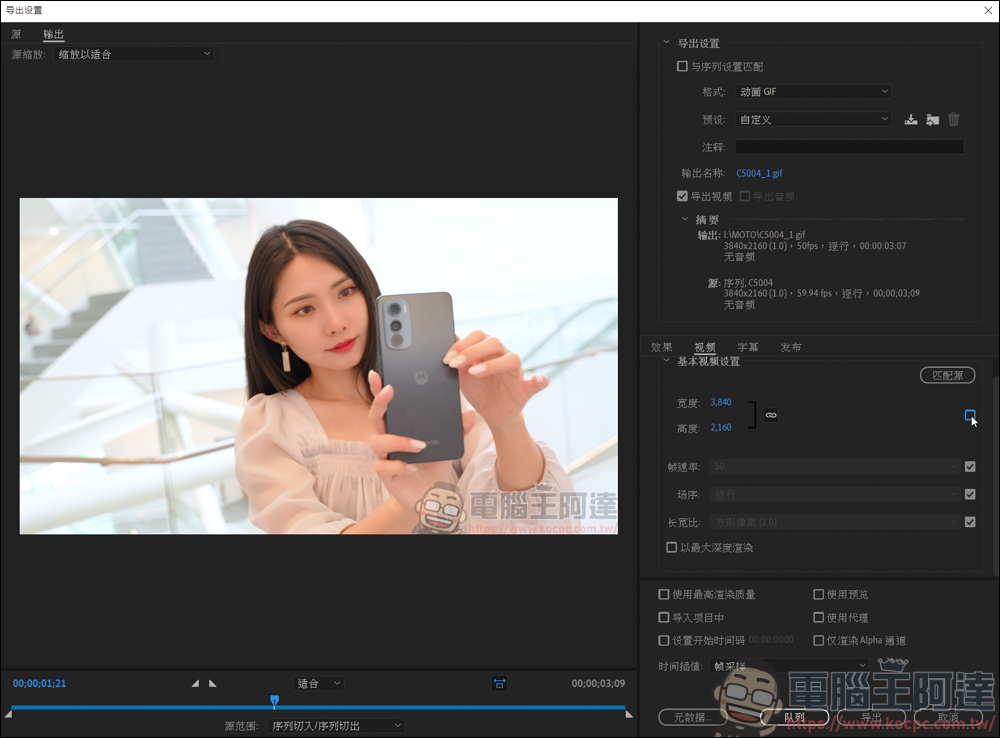
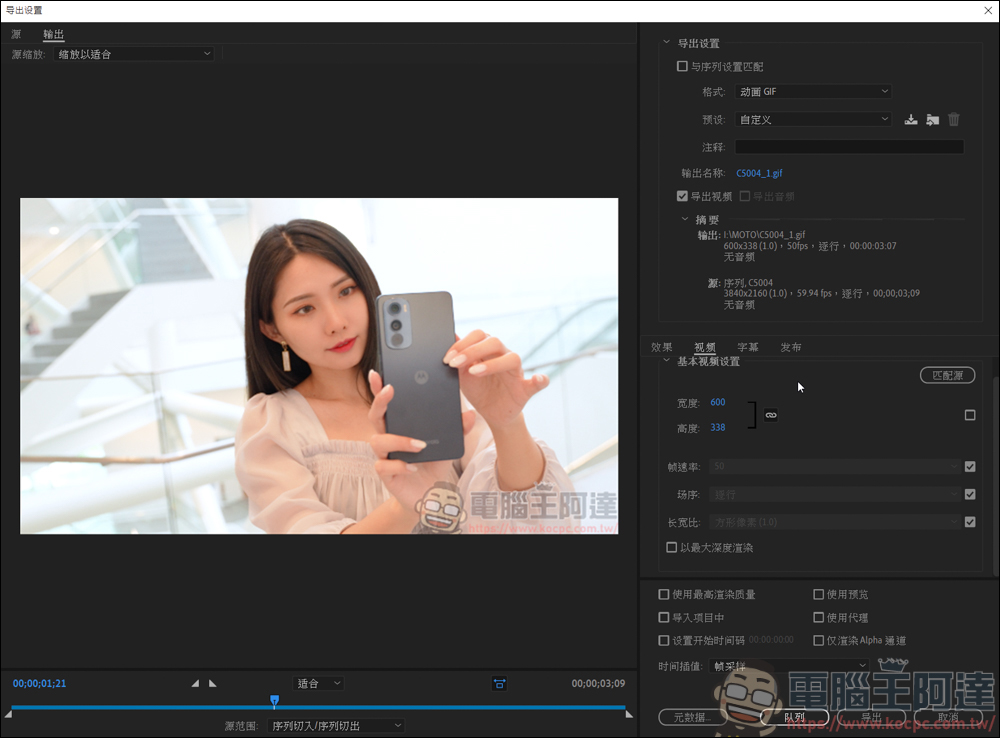
In order to provide readers with a smoother reading speed and quality, general websites usually compress photos so that readers will not have to download the images for a long time because the image files are too large. On the other hand, through appropriate cropping, viewers can have a good viewing effect whether they are viewing the text on a computer or a mobile phone. For example, there is a 2MB limit for image files uploaded to our website. Generally, we will compress the size of Gif to a range of 600 ~ 800:
Another factor that affects the size of Gif files is the frame rate. The frame rate will affect the smoothness of the Gif. The higher the frame rate, the smoothness of the Gif will be like a video. Otherwise, the Gif will have a lag-like presentation:
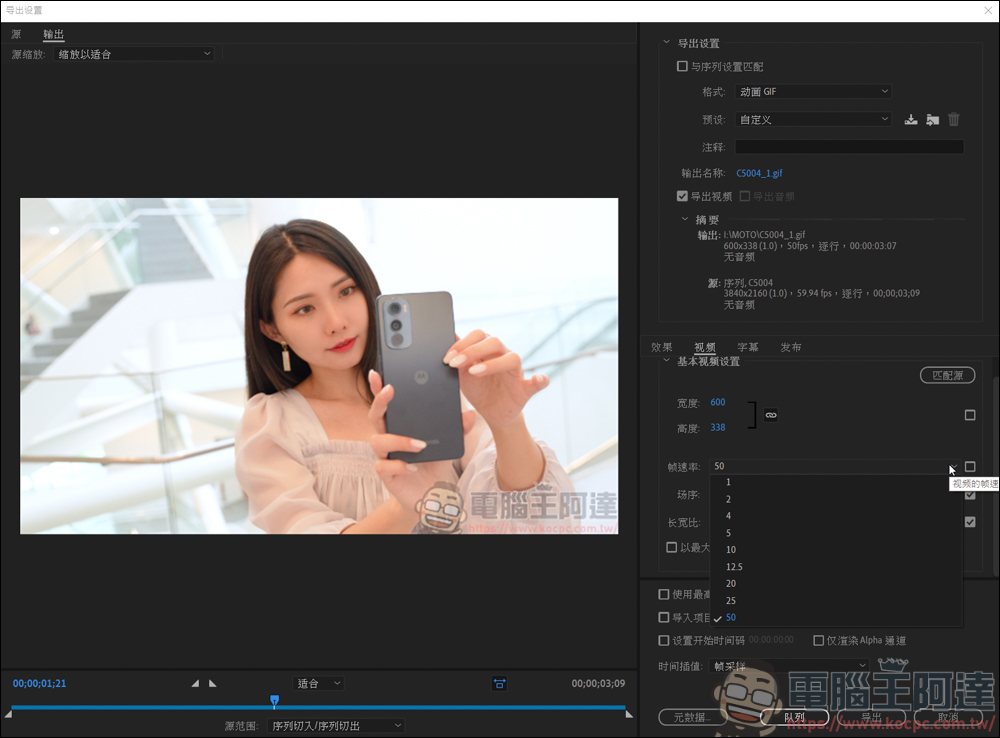
As for the picture below, under the same Gif size, the left side is exported at 4fps, and the right side is exported at 50fps. The file size is very different:
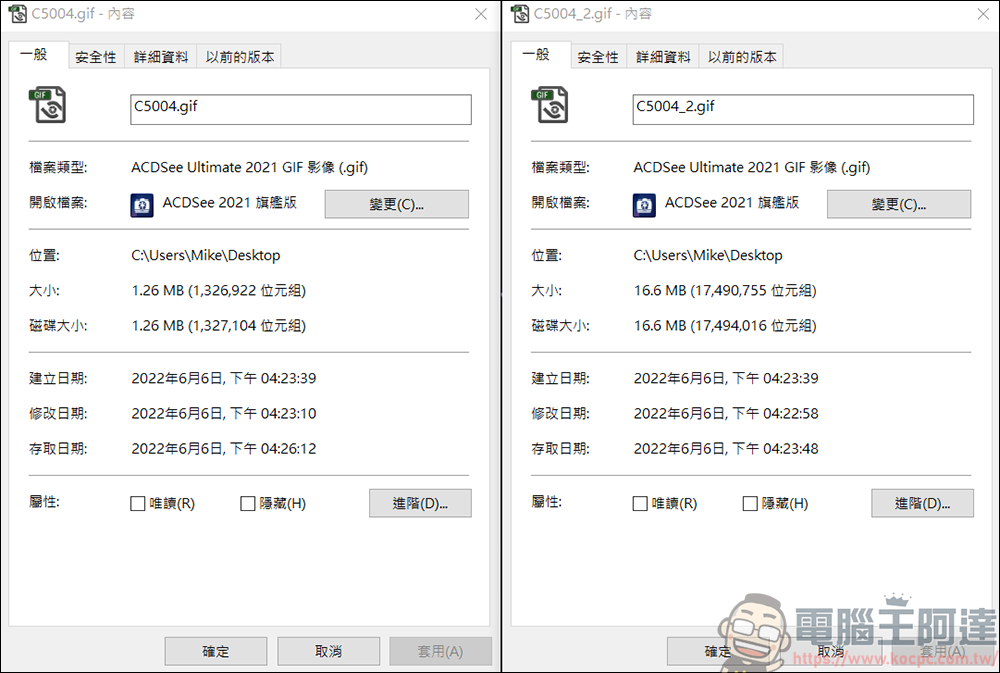
In case you don’t understand, I’ve also used a comparison video here to let you see the difference between the two (please ignore the image quality). With the same width of 600, the 50fps picture will be much smoother than the 4fps picture, but the file will also be correspondingly larger. As for how many fps to use to make Gif, everything depends on your purpose:
Source: KOCPC Chinese