


If a computer has been used for a long time, it must have a lot of software installed. No one would regularly check whether each set of software is the latest version, right? Usually, the new version will be installed only after opening the software and receiving the update notification. SUMo is a very good auxiliary tool. It can not only check whether the version of each set of software in the computer is the latest with one click, but also directly provide you with the installation point, allowing you to quickly go to the official website to download the installation file of the new version. The latter function is only available to users of the professional version. Recently, the SUMo Pro professional version has a limited free event, and it is a lifetime serial number. Those who need it, don’t miss it, and you can save US$29.99.
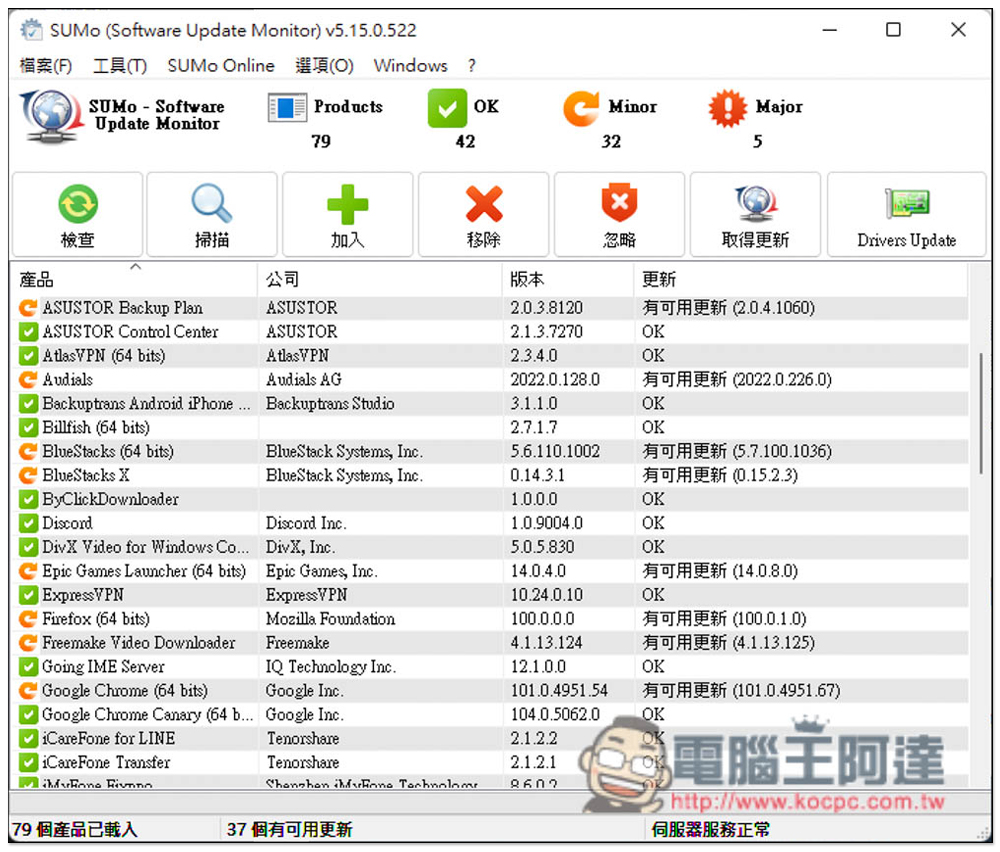
SUMo PRO professional version is free for a limited time. One-click to check whether the computer software is the latest version.
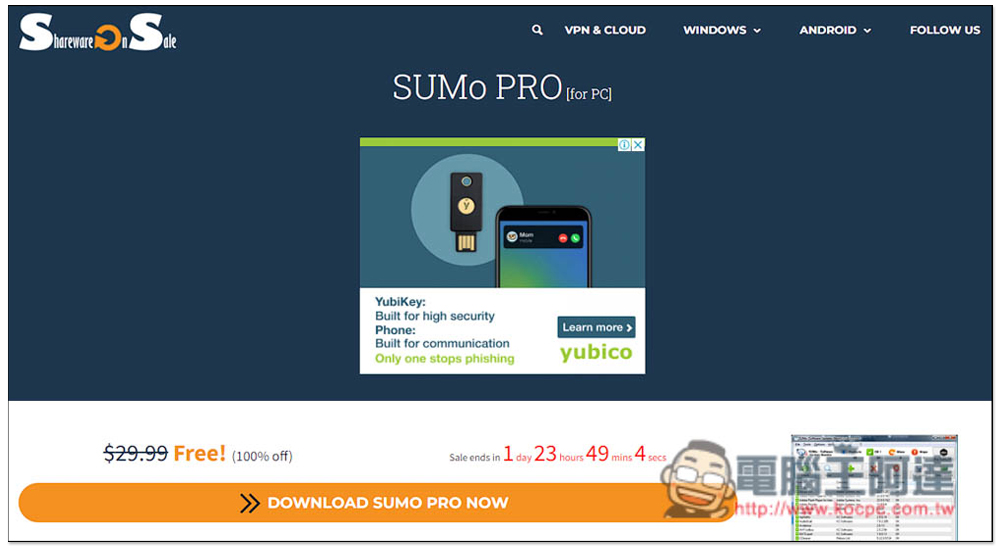
After entering the SUMo PRO limited free event page, click DOWNLOAD SUMO PRONOW. The current limited free time is about 2 days and it is almost over. Those who need it should take advantage of it:
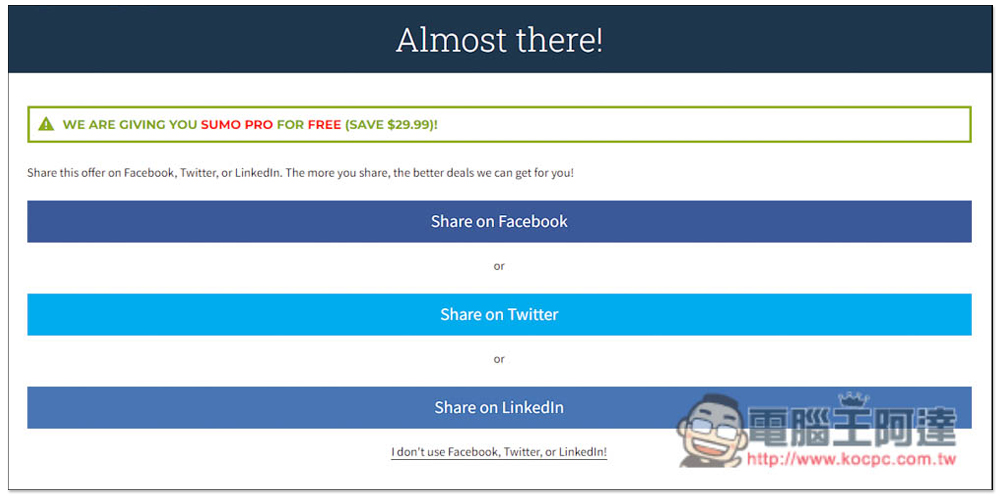
You can choose to share this page on FB, Twitter or Linkedln. Those who don’t want to share it can also click I don’t use… below:
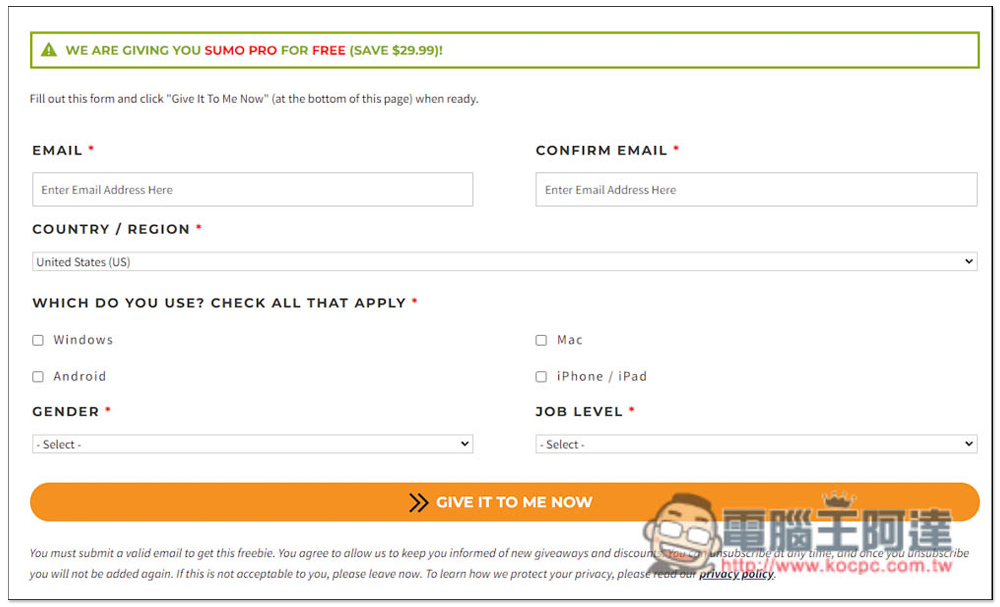
Just enter basic information and click Give it to me now:
You will get the download point and registration code on the next page:
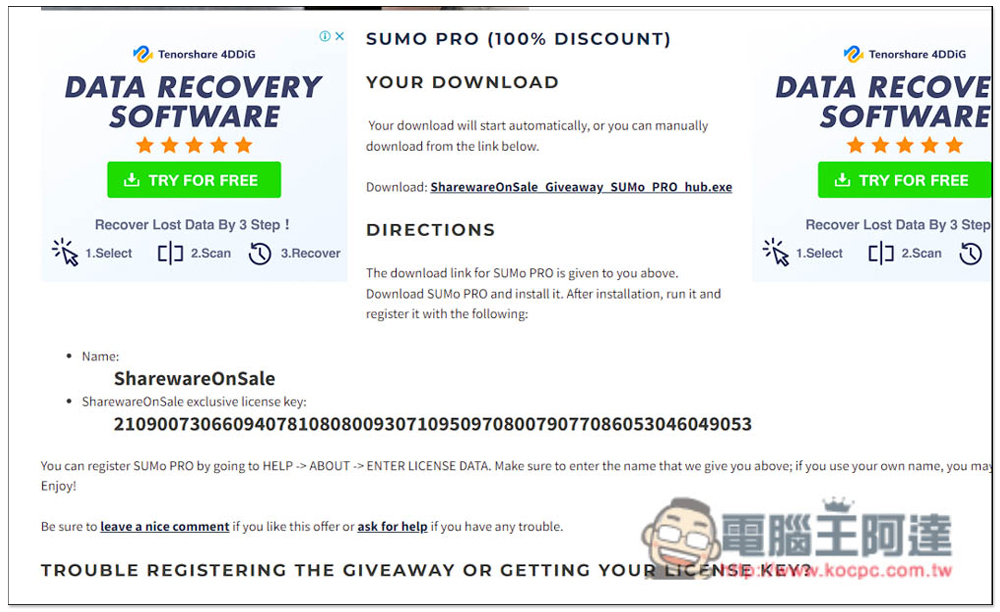
The downloaded file is the Hub of Sharewareonsale. The installation file of SUMo PRO needs to be downloaded using this:

This one is, press Yes:
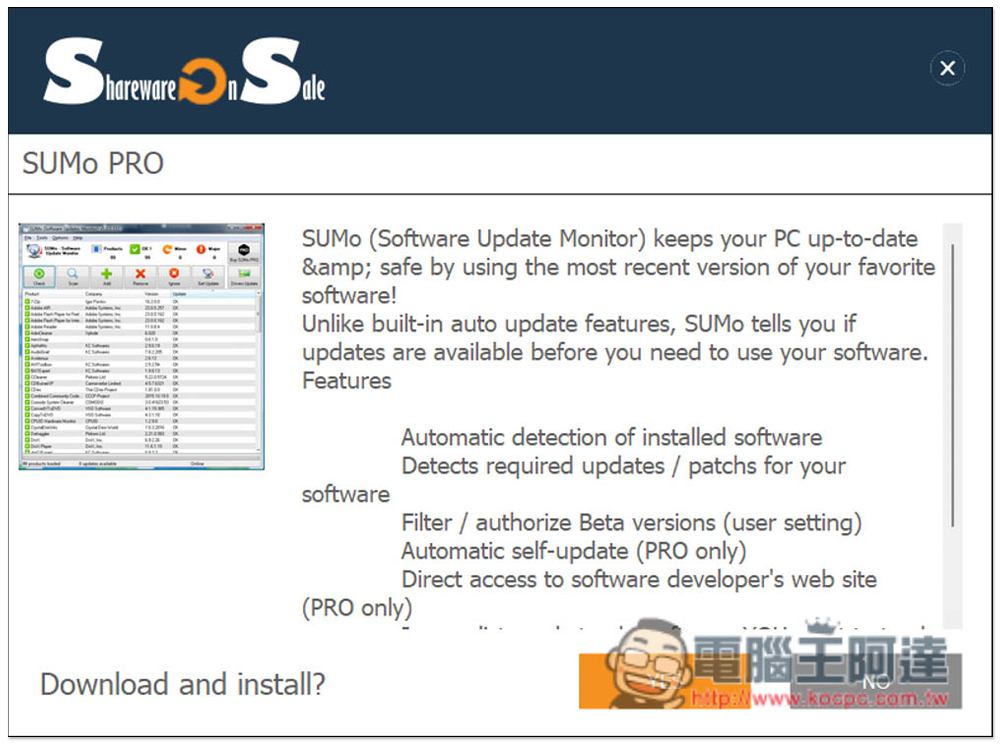
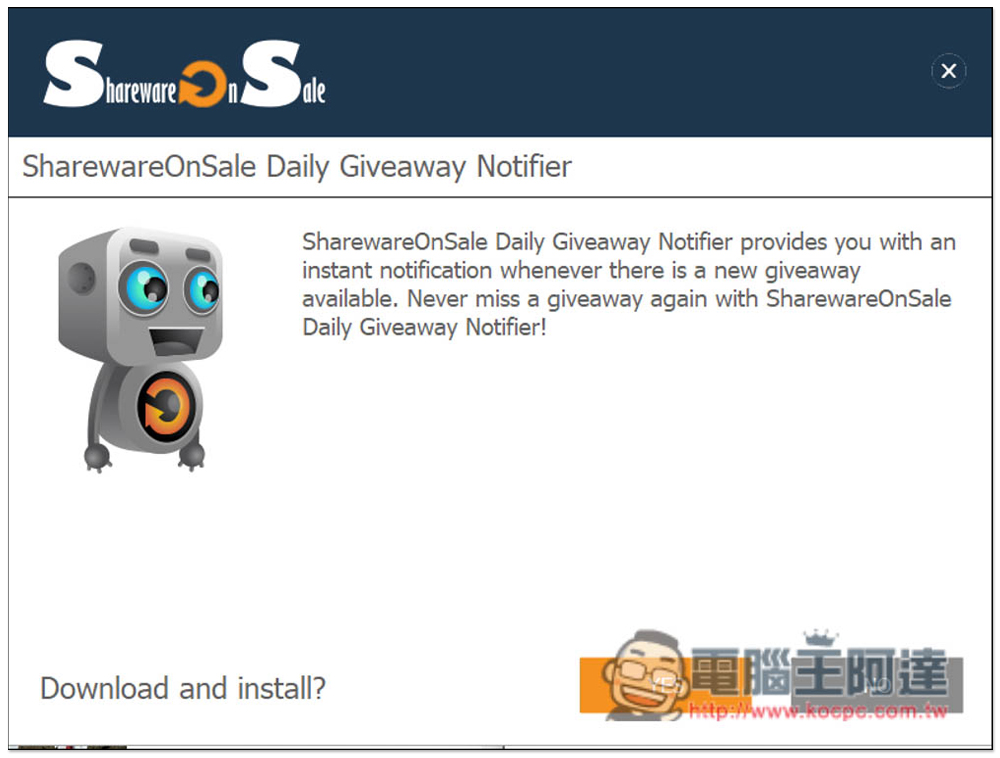
The next page is Sharewareonsale’s daily limited free notification tool. See if you need it. If not, just press No:
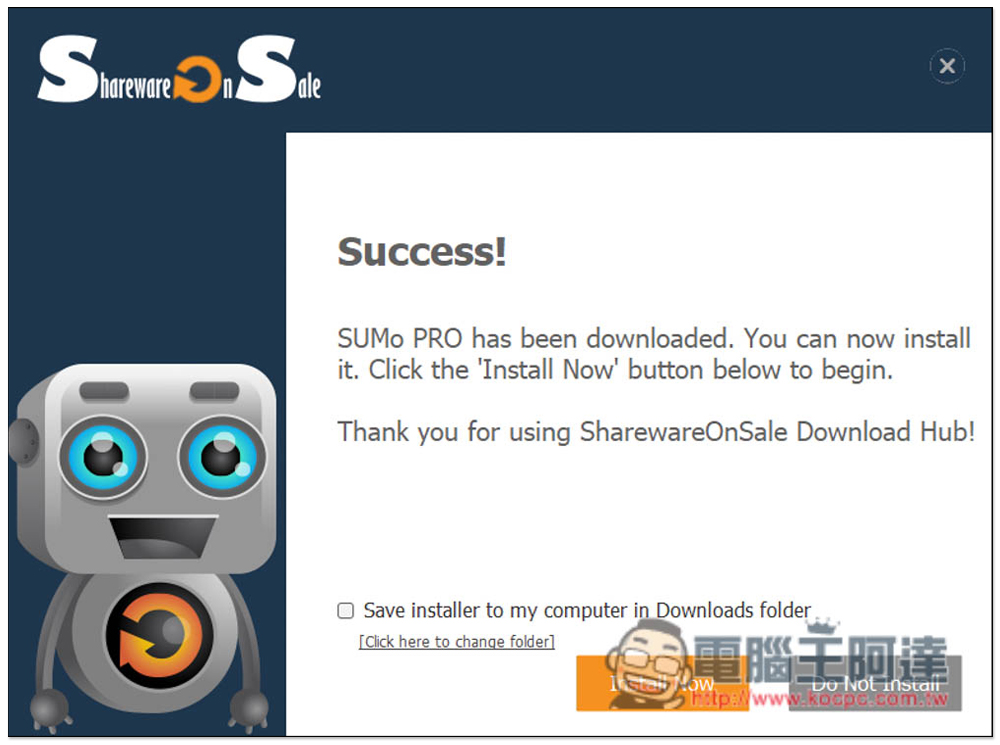
After the download is complete, the installation can begin, click Install now:
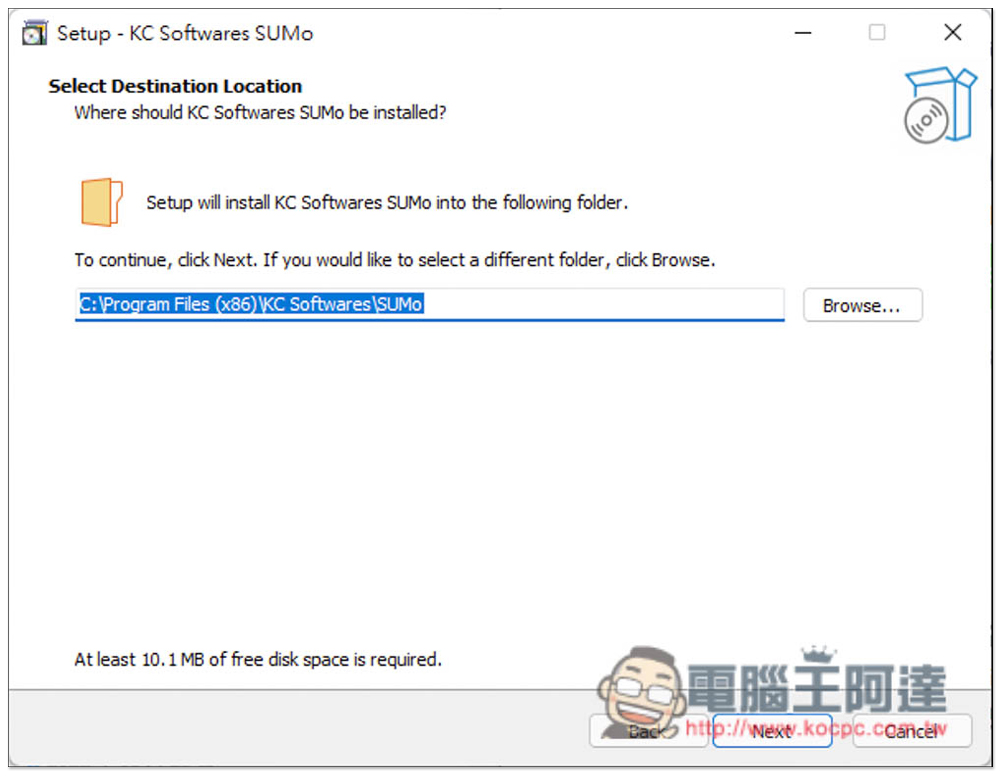
Just click Next during the installation process. This tool is available in Chinese, so don’t worry about not understanding it:
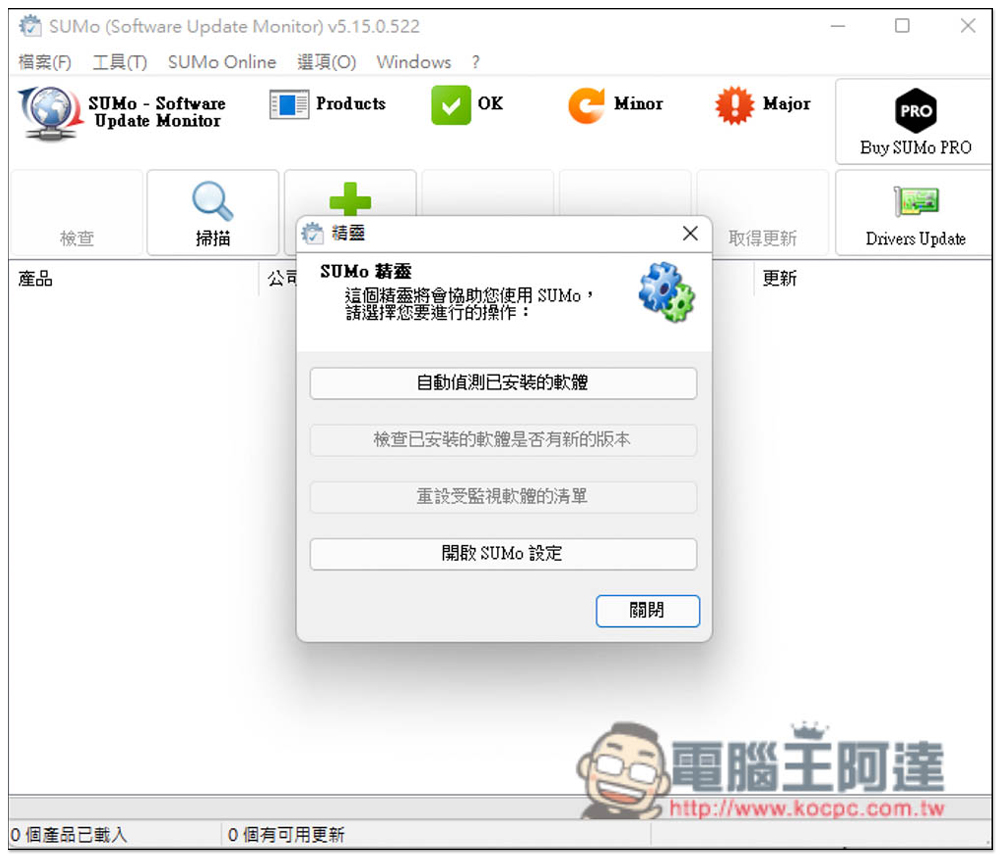
After installation, you can start using it. It is currently only a free version. The free version can check the versions of all software on the computer and whether there are new versions. However, the official website download point for the new version is only available to professional version users:
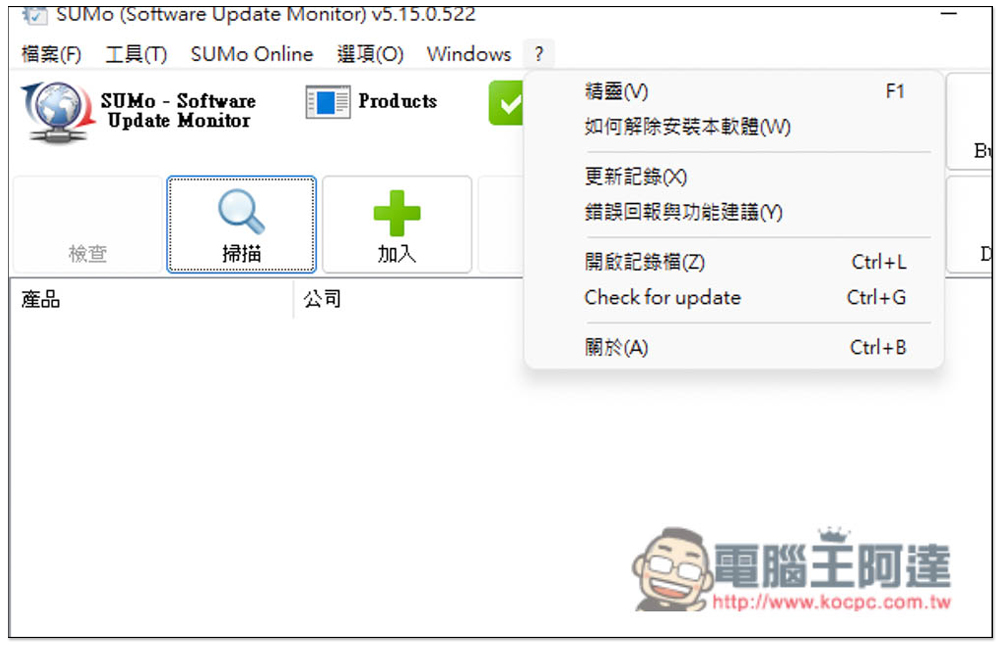
Open the ? option above and click “About”:
You will see the “Register” function:
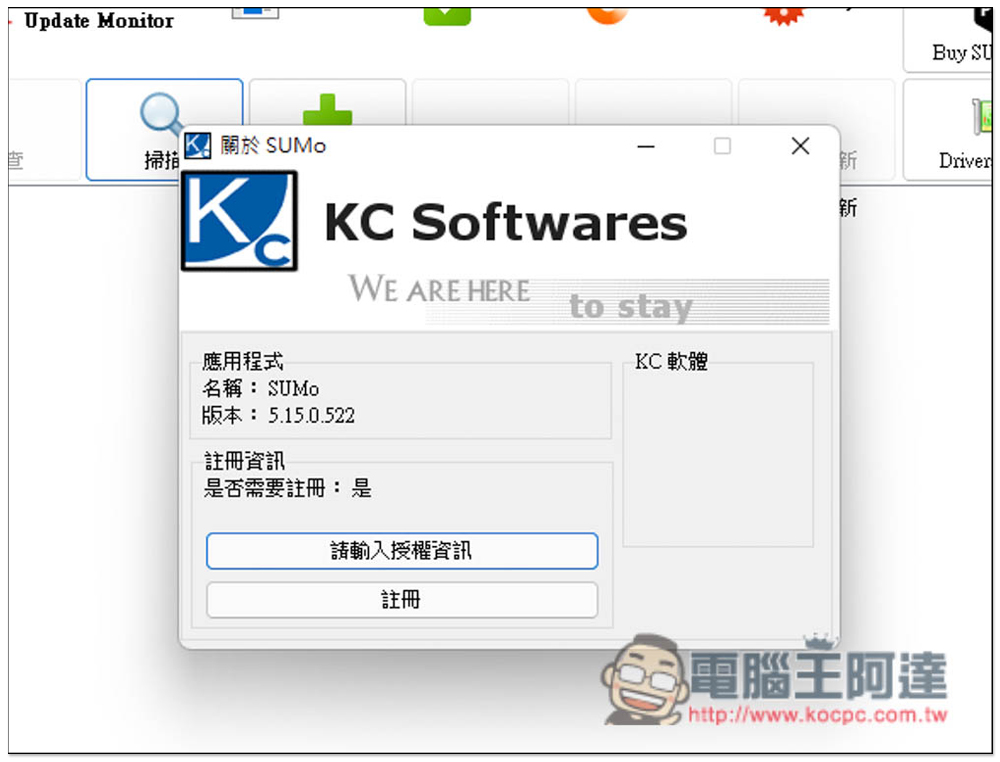
Fill in the registration name and serial number you just obtained, and then press OK:
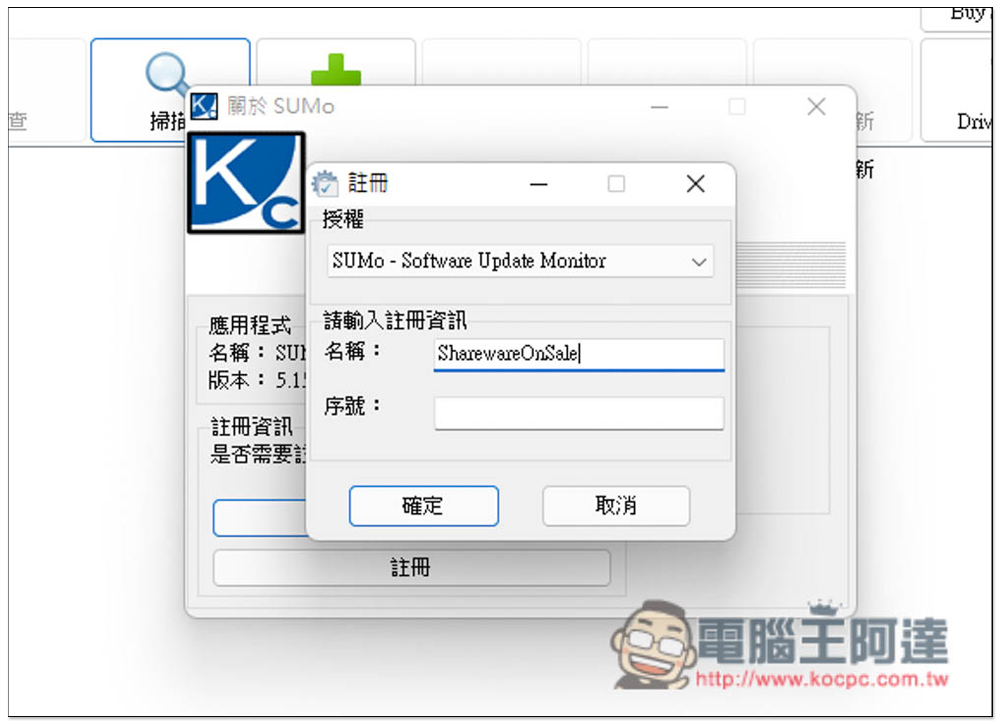
The registration is successful! The words “Buy Pro” in the upper right corner are also missing. The method of use is also very simple. Click Scan to check the software version on your computer:
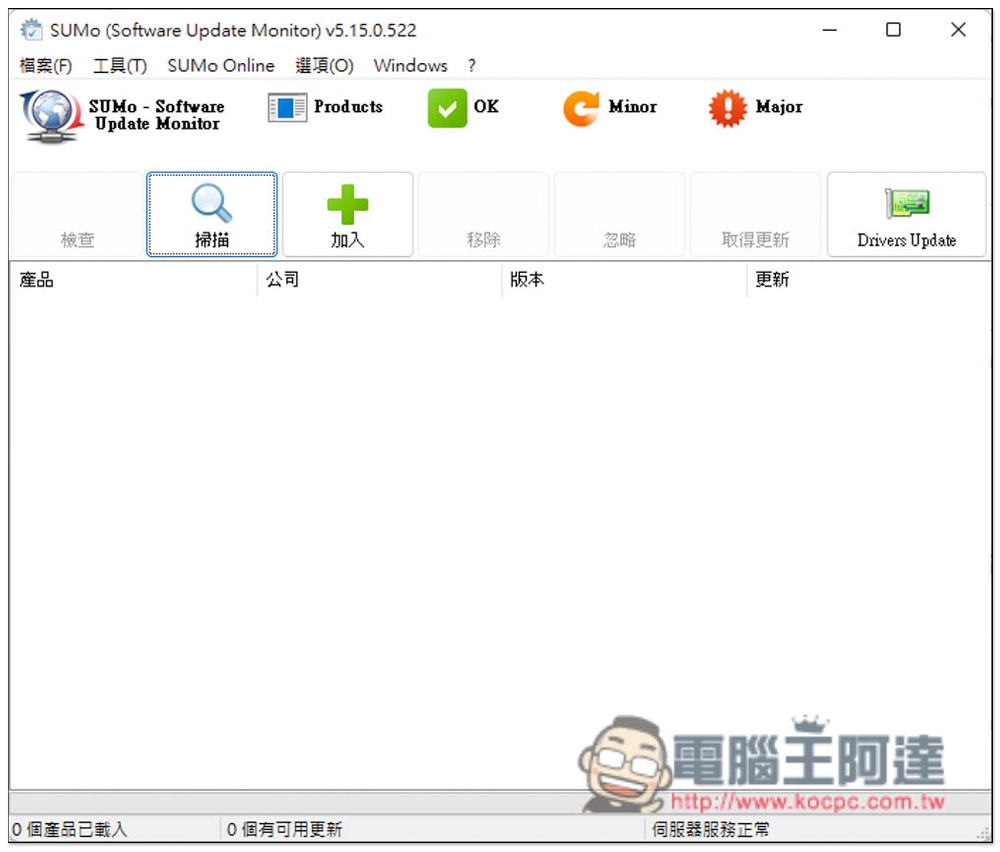
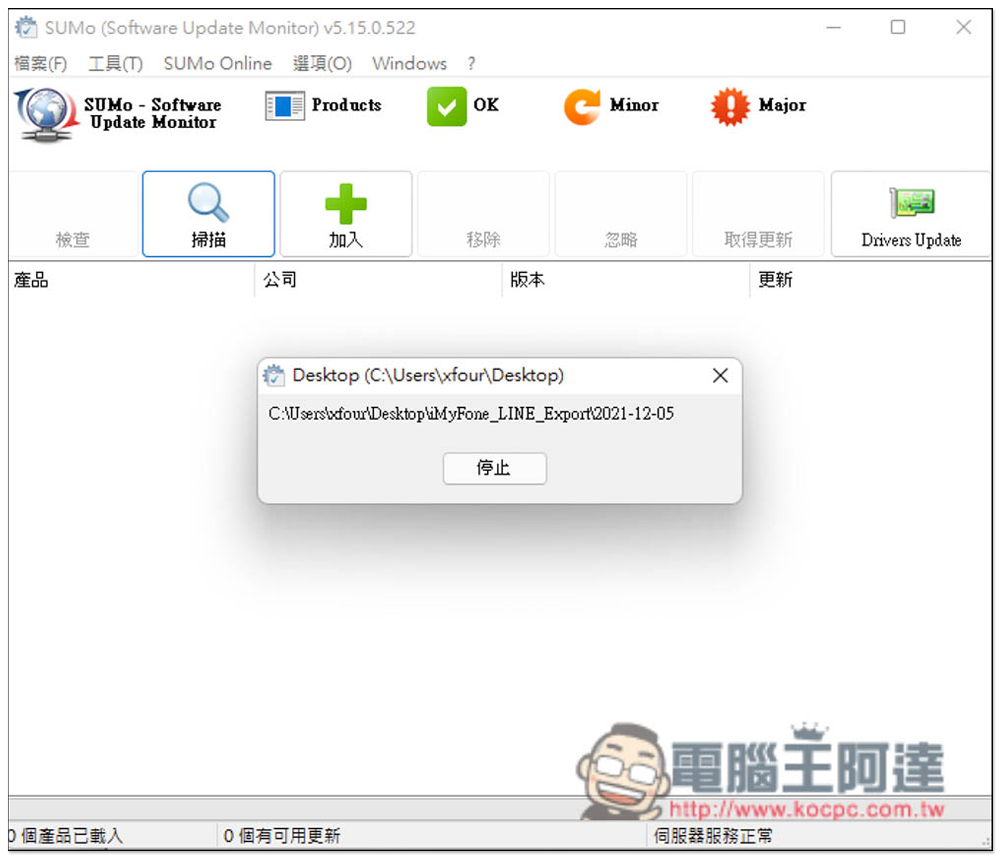
The scanning time depends on whether you have a lot of software on your computer. If you have a lot of software, it will take a while:
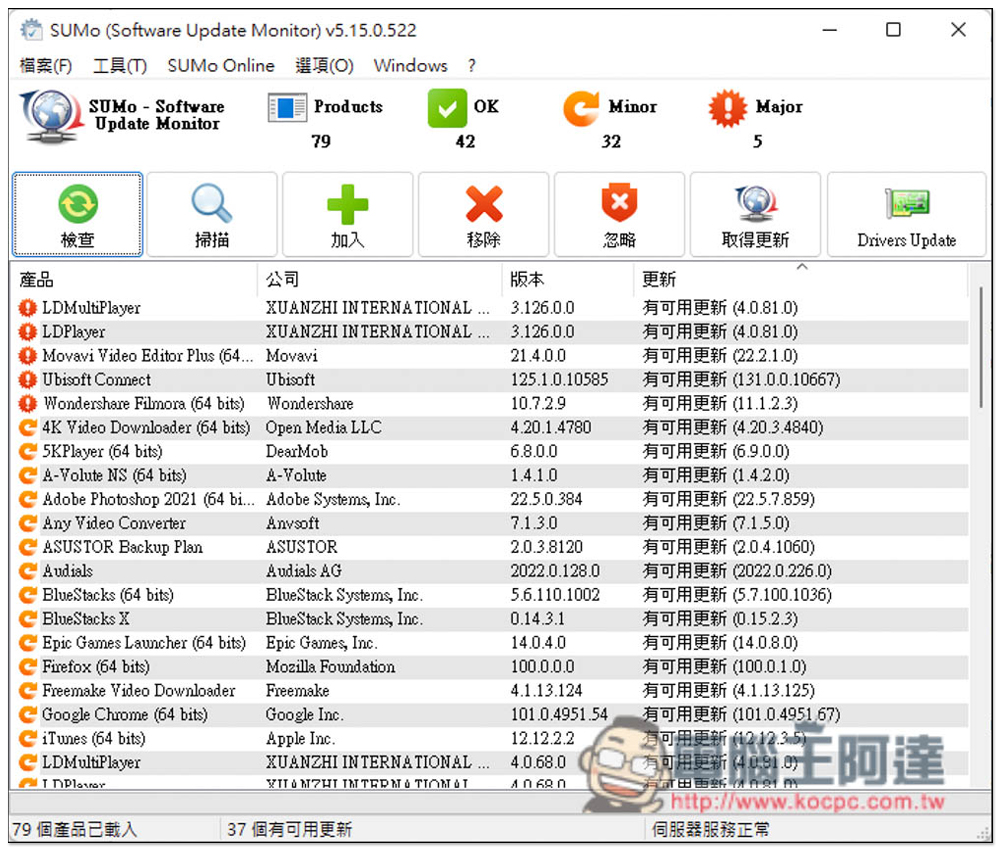
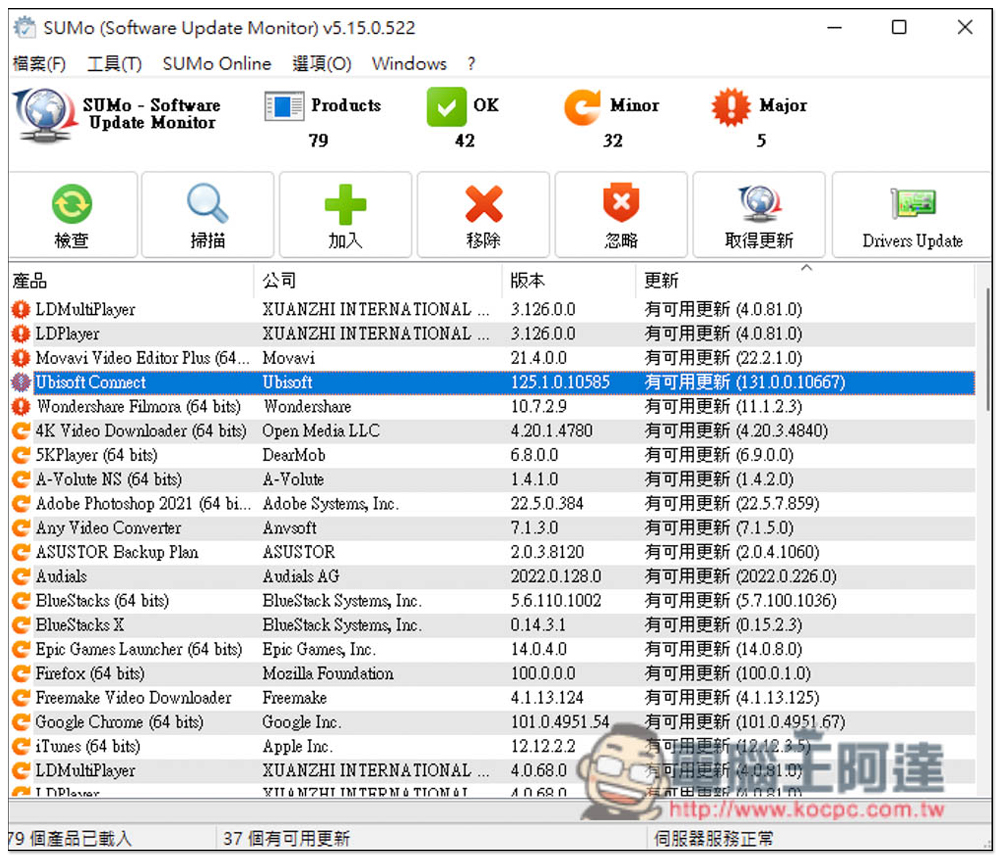
After scanning, software with available updates will be listed at the top, and there will be a red exclamation mark ! on the left to remind you to update:
As for the download point of the new version, just double-click the software you want to update, and the official website of the software will automatically open. However, not every model I tested will open the official website. Some are provided by the SUMo official website itself:
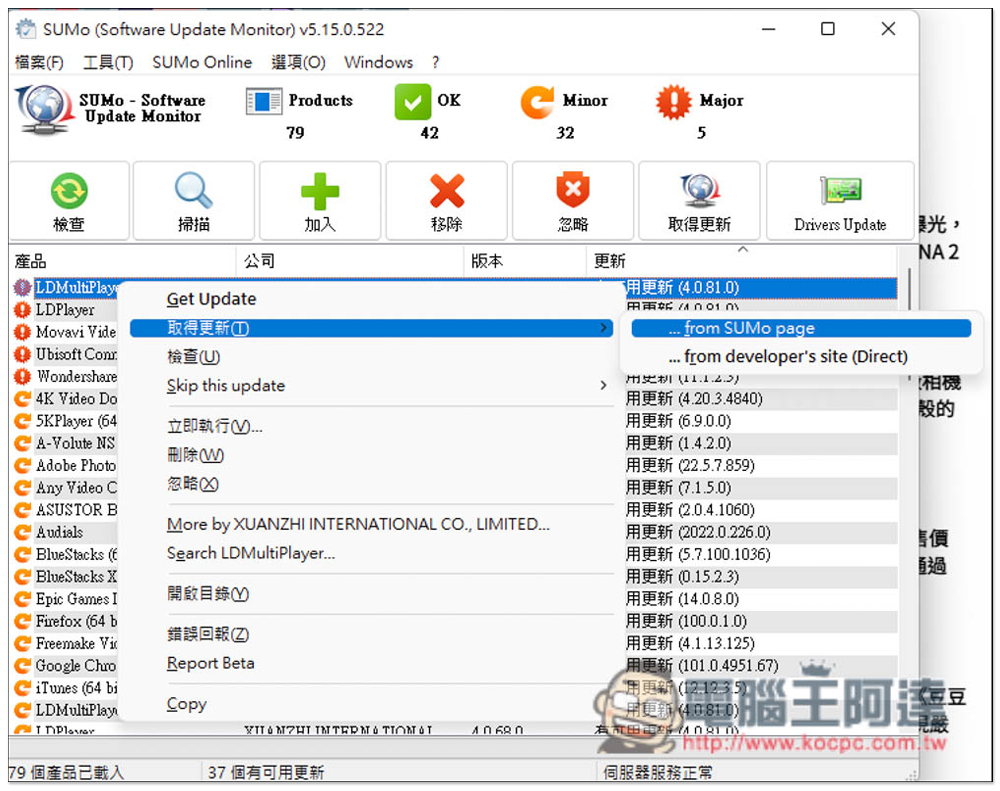
In addition, you can also open the right-click menu and choose how you want to get updates:
The official website mentions that the professional version has a built-in Automatic self-update function. I am not sure whether this refers to the SUMo tool itself or the computer software, because the software I tested did not have the automatic update function (or I am not sure whether it is in other places, so I will leave it to readers to try it themselves).
Source: KOCPC Chinese