


As the epidemic situation heats up recently, many companies and schools have more time to communicate remotely. Among them, using LINE to communicate about work and study is very convenient. In addition to text message conversations, do you know what features LINE has that can make long-distance communication more efficient? This time LINE officially shared 5 useful LINE functions!

▲Picture source:LINE Taiwan official BLOG
LINE officially shares 5 practical LINE functions to “improve distance communication and efficiency”
If you need to communicate remotely recently, you can make good use of LINE’s built-in functions to solve meetings and discussions, make announcements, improve work efficiency, and archive and back up important content. Whether it is the workplace or school, the communication between classes will be smoother!
Recommended function 1|LINE meeting room
When working remotely, if you need to hold a meeting, you can choose LINE’s built-in “Conference Room” function. In the LINE meeting room, you don’t need to add friends to each other or create a group in advance. You only need to create a “meeting room” on the chat page.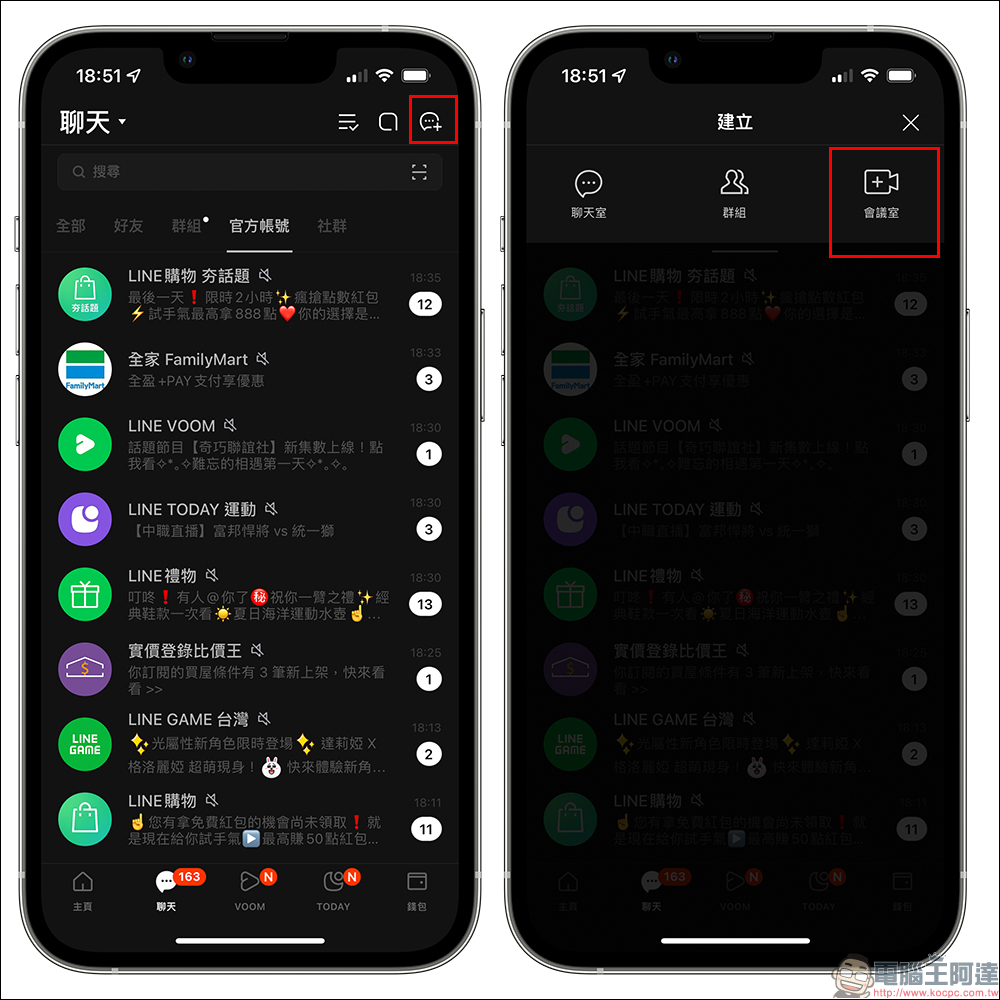
After the meeting room is successfully created, a link to the group meeting room will be generated. Just copy the link and share it with the people you want to invite to the meeting. When the meeting officially starts, just click “Start” to start using the meeting room function.
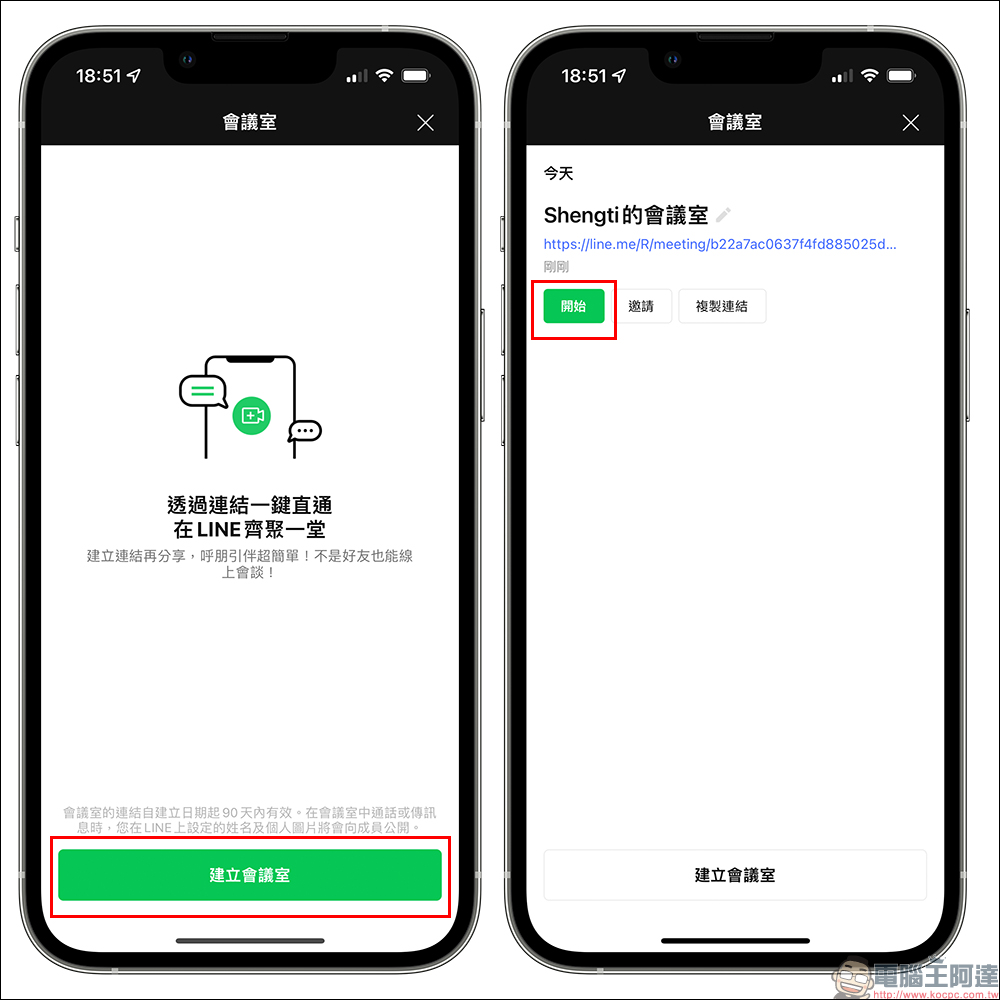
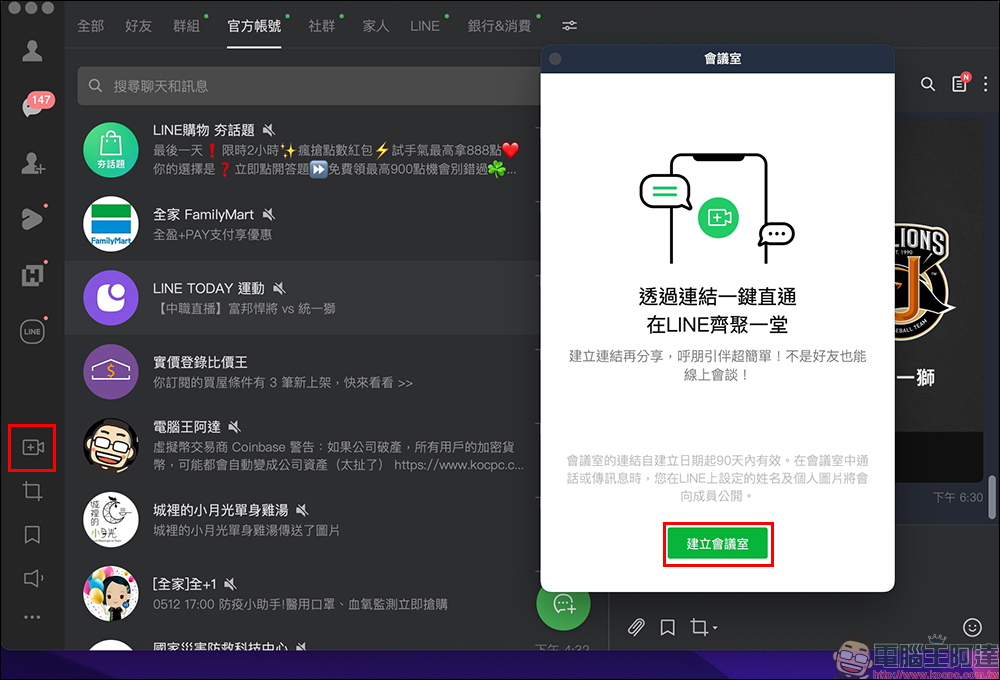
In addition to the mobile LINE App, LINE meeting rooms can also be created in the LINE PC version.
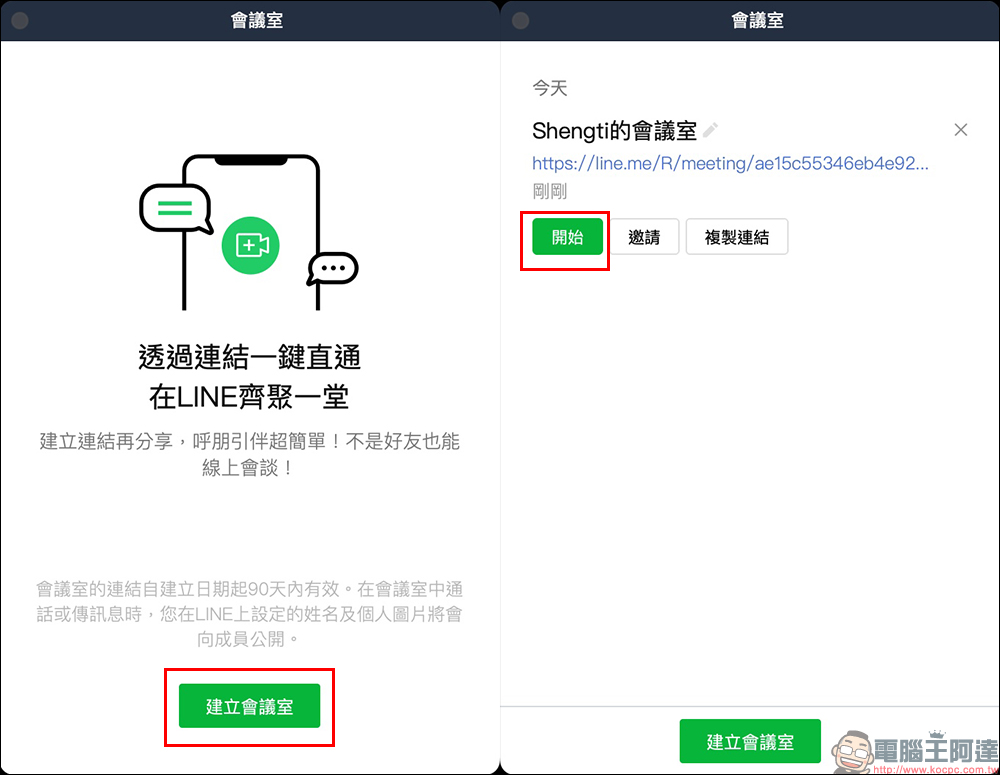
The operation method of starting a meeting in the computer version is similar to that in the mobile version.
After entering the conference room, an instant conference chat room will appear. Participants can not only use video calls, but also use text to communicate, send files and photos, etc. However, please pay special attention to the fact that when you leave the conference room, the conference room chat room will also disappear (including the contents of the notepad). Therefore, if there is important content during the meeting, remember to access it before leaving the meeting room. The access method can also use LINE’s Keep function or long screenshot function.
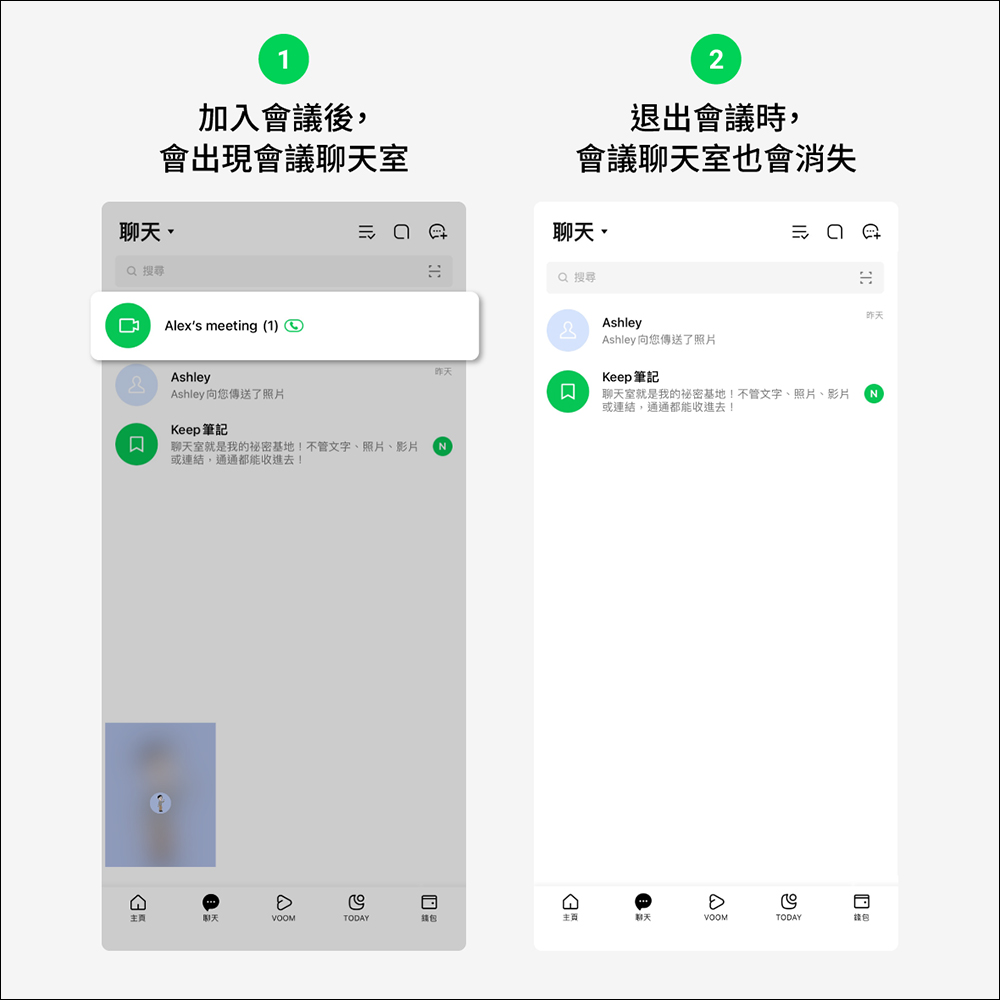
▲Picture source:LINE Taiwan official BLOG
During a LINE video conference, users can use the color pen or stamp function to mark the key points to be emphasized when sharing the screen with themselves or others, which can also increase the efficiency of everyone’s meeting communication. After the recent update of LINE PC version, using the graffiti function will display the avatar and name of the graffiti creator at the same time.

▲Picture source:LINE Taiwan official BLOG
Recommended function 2|LINE community
In addition to using LINE groups during remote work and classes, you can also create a “LINE community” to facilitate communication among colleagues, students and parents. Different from LINE groups, LINE community managers are more suitable for teachers who take classes remotely and supervisors who work remotely to organize information and make important announcements. LINE communities can also set up “automatic responses” so that community members can automatically respond to questions when they have difficult questions. The LINE community can accommodate more than 500 members, and there is no need to worry about people changing the group.
If you want to set up “Automatic Response”, the administrator or co-administrator can not only upgrade to LINE 11.0.0 (inclusive) or above version of the App, but can select “Automatic Program” in the community’s settings function, then turn on “Automatic Response” and further enable the welcome message, reservation message and keyword response message.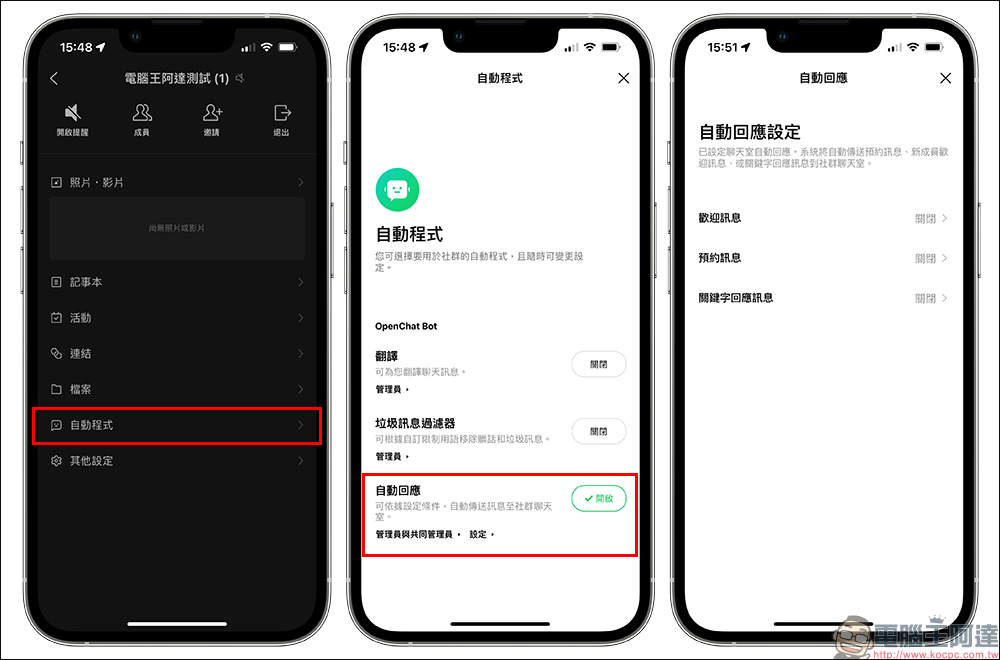
Recommended function three|Link to add friends
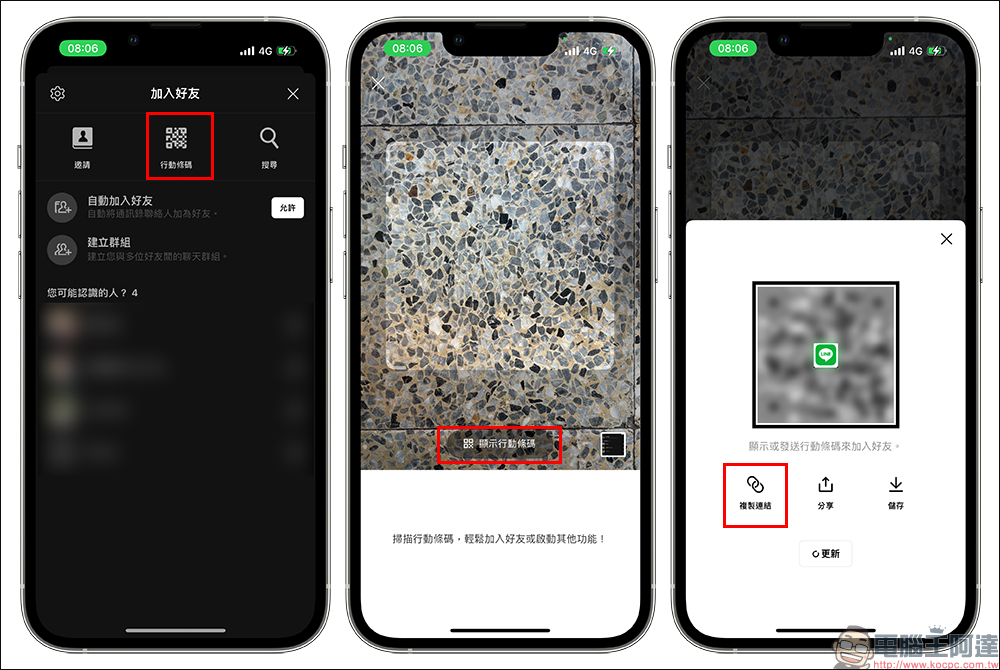
In the past, when adding LINE friends, you could scan the QR Code and enter your LINE ID to join. But what should you do if you cannot meet directly and want to let the other party add you as a friend directly? After the LINE.12.3.0 version update, a new method has been added to facilitate users to copy their own LINE friend links. Just copy the link and paste it to the other party. Click the link to join directly!
Recommended function four|One person group
Whenever we have some text, pictures, files or to-do items and don’t know where they should be stored, where should we post them? In fact, you only need to create a “one-person group” with just yourself on LINE! When creating a group, just click “Next” without selecting any friend on the friend selection page, then set the group name and click “Create”.
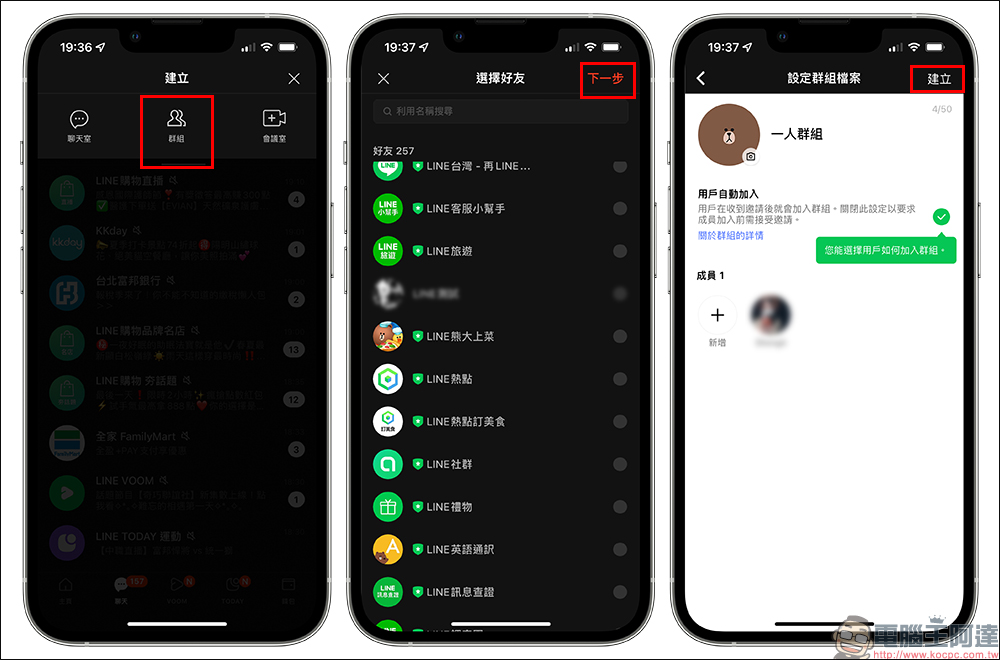
After successfully creating a group, if you are worried that the group will be flooded with chat messages, you can pin the pin to the top. In this group only for yourself, you can post text, photos, videos, files and other content as much as you want without worrying about disturbing other friends.
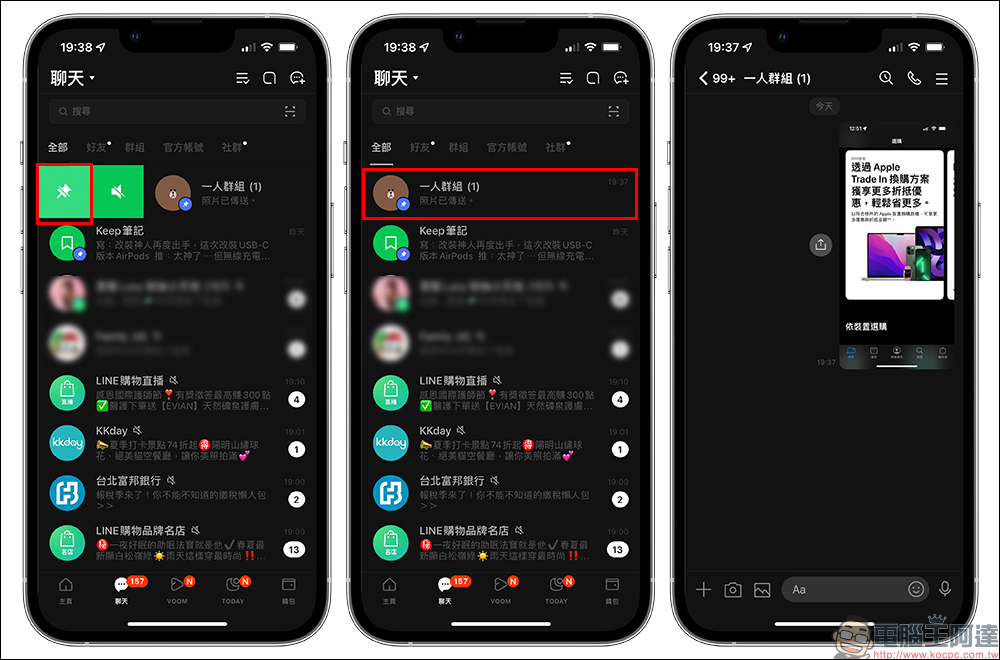
Recommended function five|Keep
In addition to the one-person group temporary storage method, what if there are important files that you want to store in LINE for a long time? You can make good use of LINE’s Keep storage function. You can directly save the information you want to save in the LINE chat room and click “Keep” to save it. The content stored in Keep can be viewed in Keep on the home page. LINE Keep provides 1GB of free space for use, and you don’t have to worry about the storage period expiring (within 50MB). All text, photos, videos, links, and files can be saved.
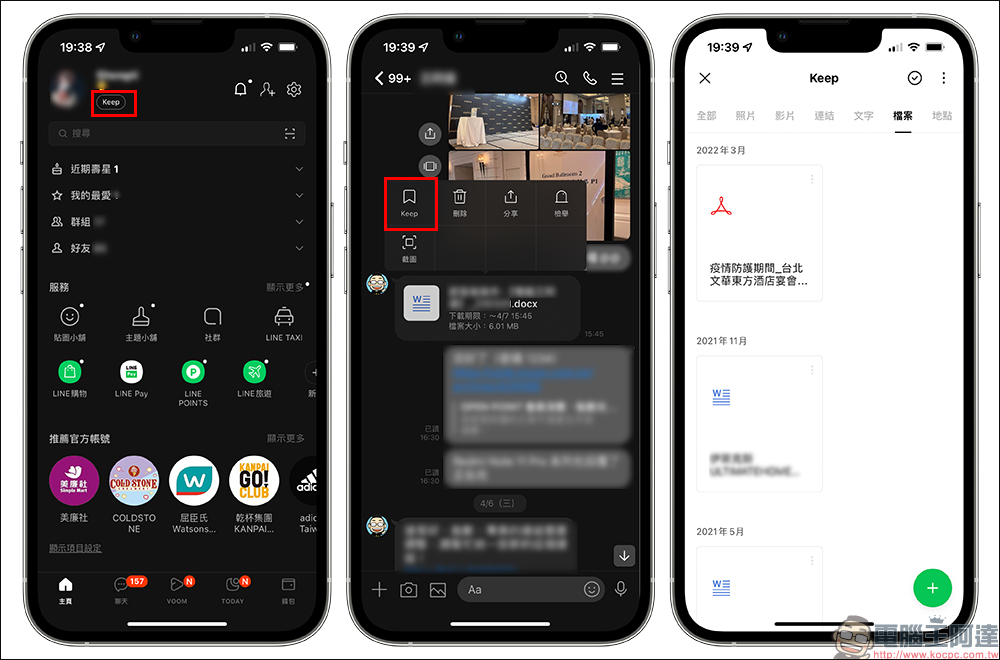
Source: KOCPC Chinese