


On Windows 11, device drivers include devices that allow the system to communicate with and control hardware (such as network cards, video cards, hard drives, etc.) and almost all peripheral devices connected to the computer. Although Windows already allows you to configure most hardware through a basic driver library and automatic detection, sometimes the system may not detect certain devices.

How to manually install device drivers on Windows 11
If your computer lacks device drivers, or your device is still using outdated drivers, the temptation is that you must update existing components to the latest version, etc. Windows 11 supports a variety of methods to manually download and install these drivers. In this tutorial, the author will tell you step by step how to manually install missing drivers on your computer.
Install manually from Settings
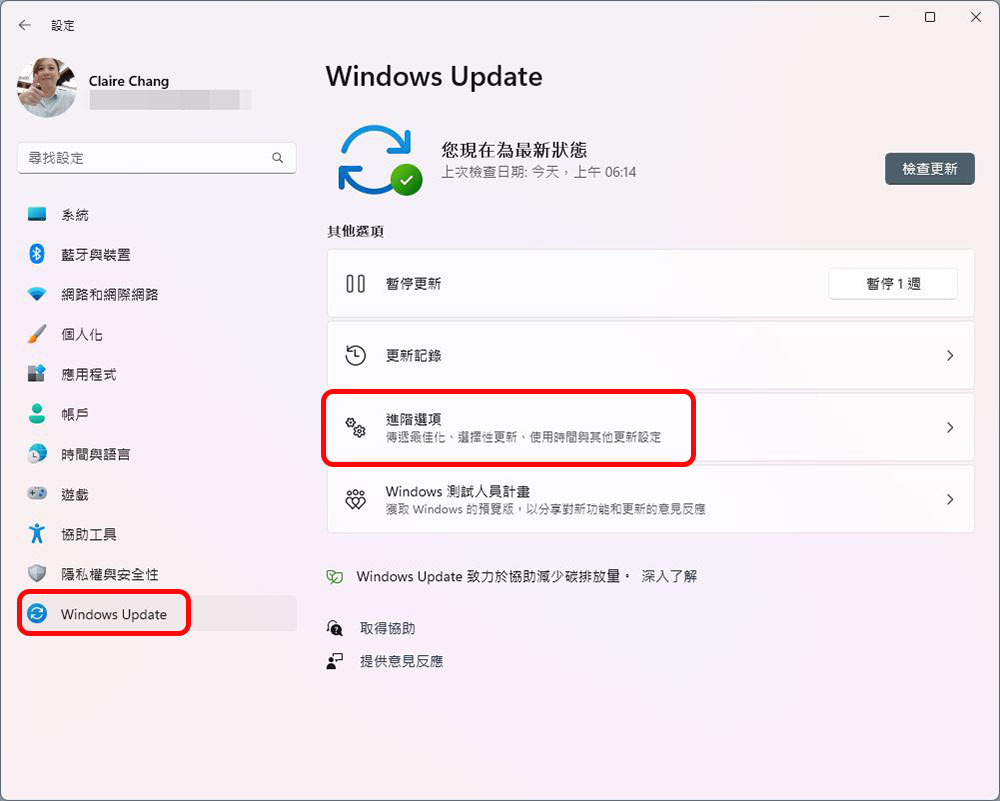
- Open “Settings”, enter “Windows Update”, and click “Advanced Options”.
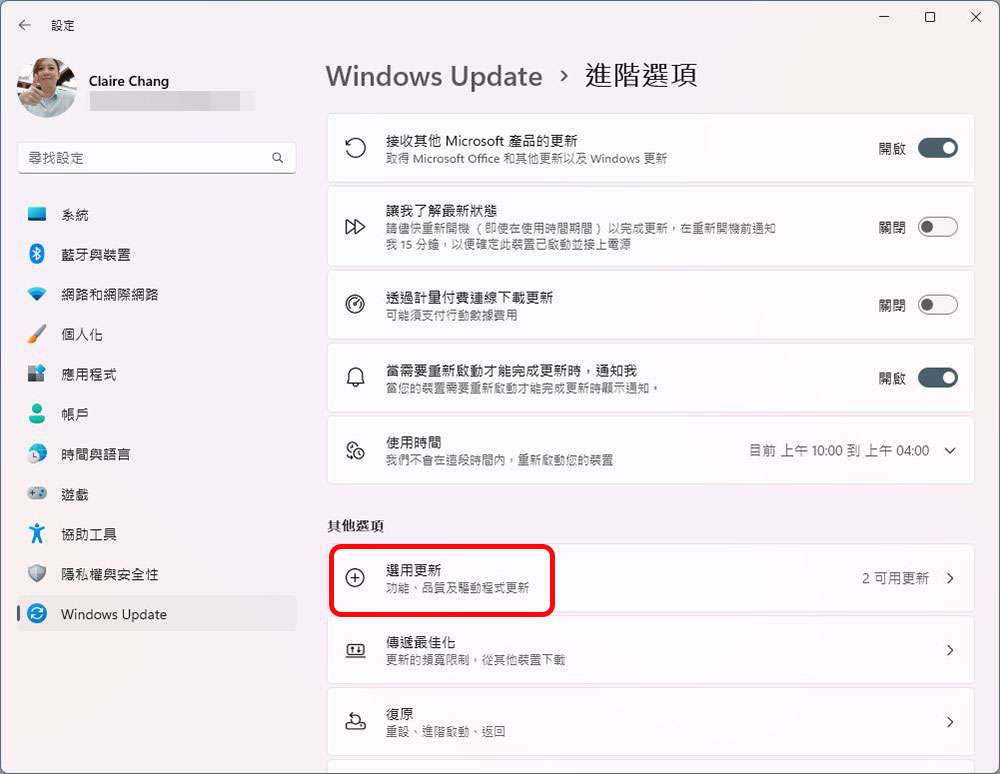
- Click the “Opt-in to Updates” option.
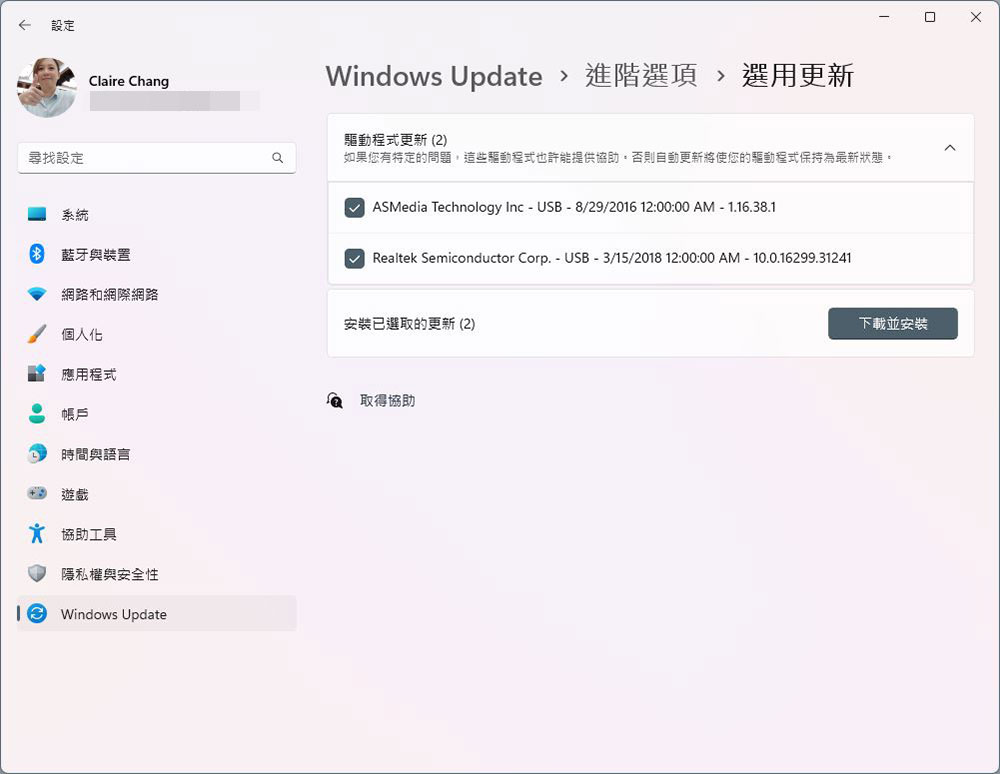
- Click “Driver Update” to check the driver to be installed on Windows 11, then check the checkbox in front of the application you want to install and click “Download and Install”.
Install the driver from Device Manager
If you must download the driver manually, go to each brand’s driver and support page, search for your hardware model or serial number, and click the download button. However, each support website is different, so please follow the instructions on each website to download the latest updated software package available. The author below lists commonly used brand driver download webpages. Download the required drivers before proceeding with the subsequent steps:
| Intel | AMD | Dell | Lenovo |
| HP | ASUS | Acer | Nvidia |
| MSI | Gigabyte |
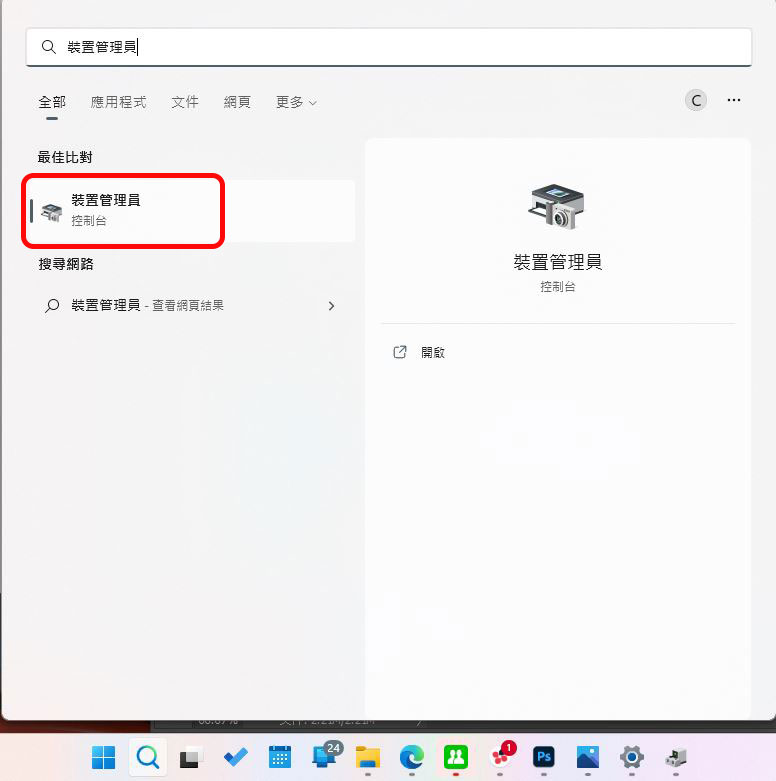
- Search for “Device Manager” on your computer and open the application.
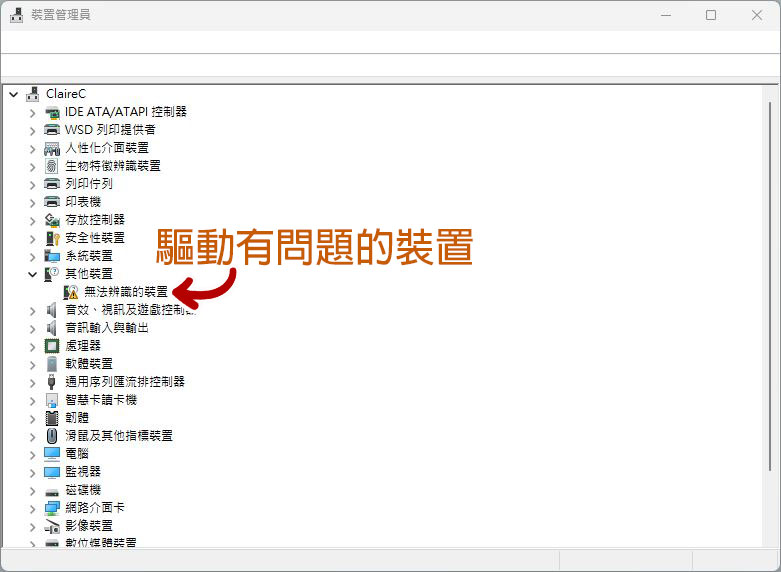
- Open the folding menu of the device category you want to install the driver for. If there is a problem with the driver, a red or yellow sign will sometimes be displayed to remind you.
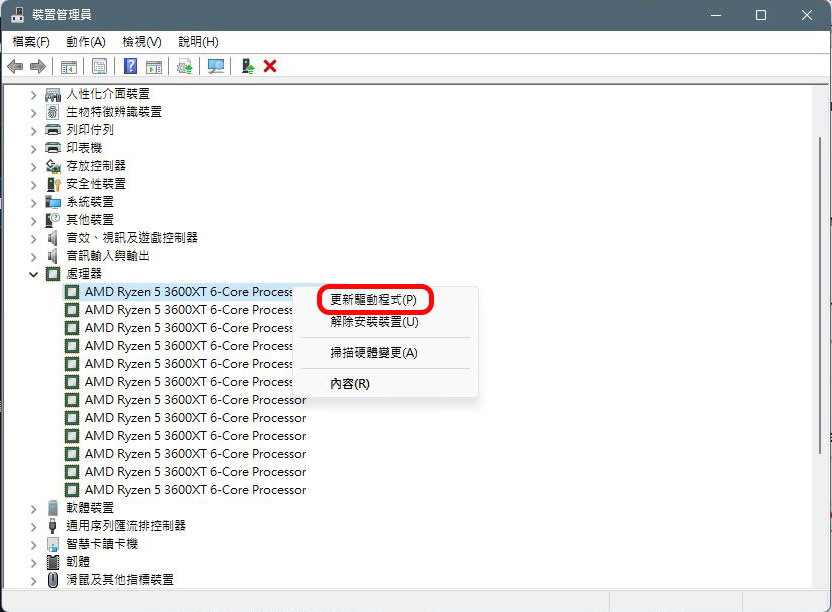
- Right-click the hardware device on which the updated driver needs to be installed and click “Update Driver” in the menu.
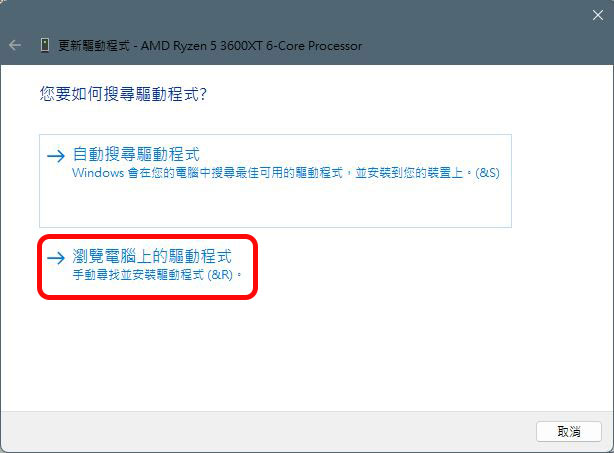
- Click “Browse my computer for driver” between the two options. In the next window that appears, click “Browse” and specify the folder where you want to install the driver. (If the download is a compressed file, remember to unzip it to a folder first, then click Browse and point directly to the folder)
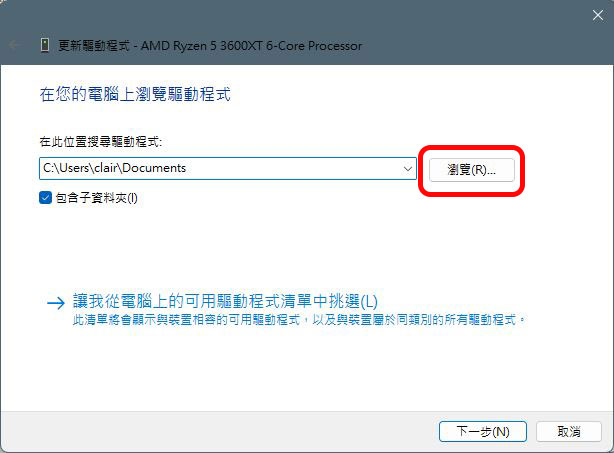
- Then the system will grab the driver installation program inside and install it.
How to check if driver installation is successful on Windows 11?
If you are not sure whether the device driver was installed successfully, you can use the following steps to check:
- Open “Device Manager”
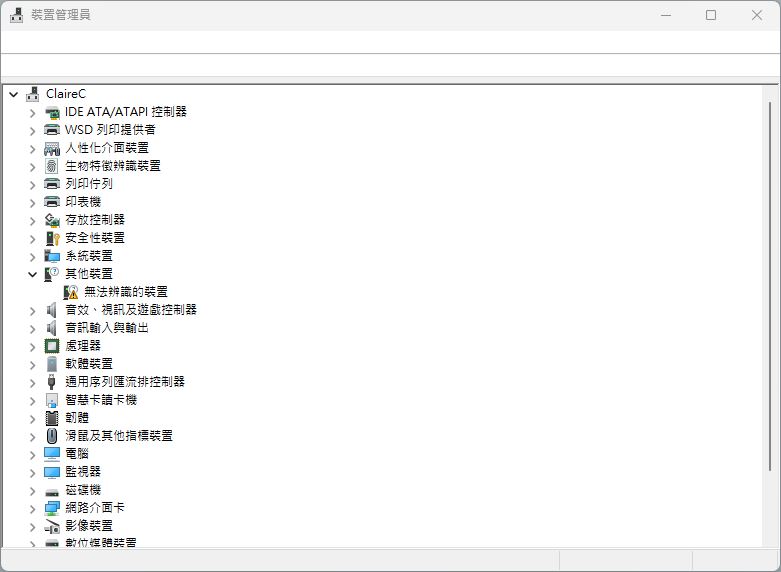
- First, check whether there are red or yellow marks on all the devices in the folded list one by one.
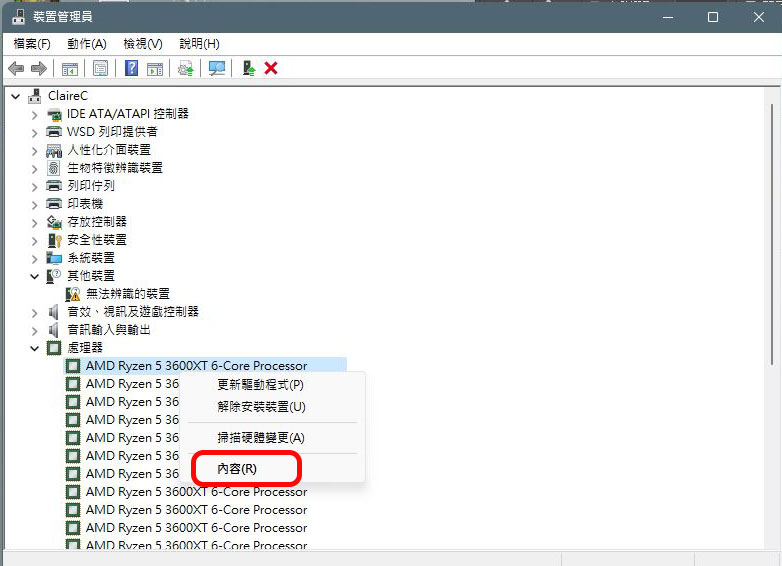
- Right-click the device you want to check and click “Content” in the menu.
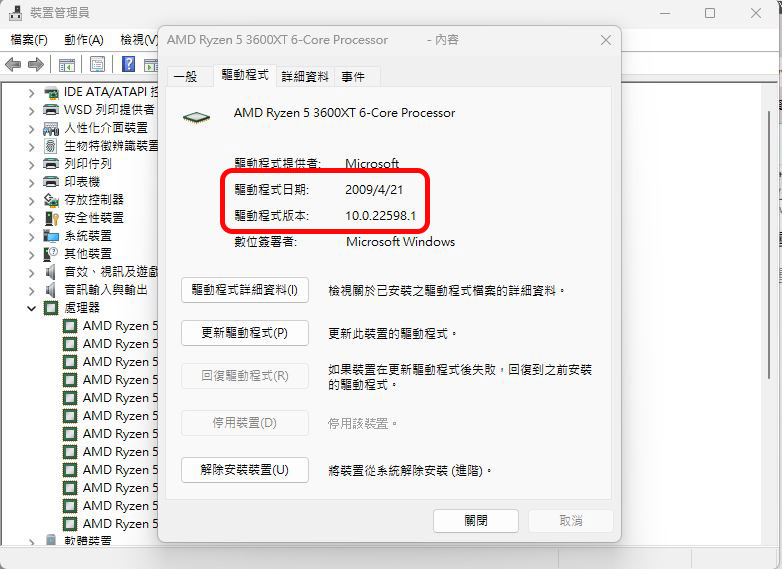
- Switch to the “Driver” tab and check the date and installed version of the driver. If it matches the information provided by the brand, it means that the latest version of the driver has been installed.
Source: KOCPC Chinese