


In Windows 11 and Windows 10, Microsoft has set up a gadget tray to make it easier for everyone to see the content they care about. However, at this stage, only first-party applications can be used. For more people, it seems more intrusive and may pop up accidentally. If you want to make your desktop environment simpler and purer, let’s learn how to turn off gadgets today.
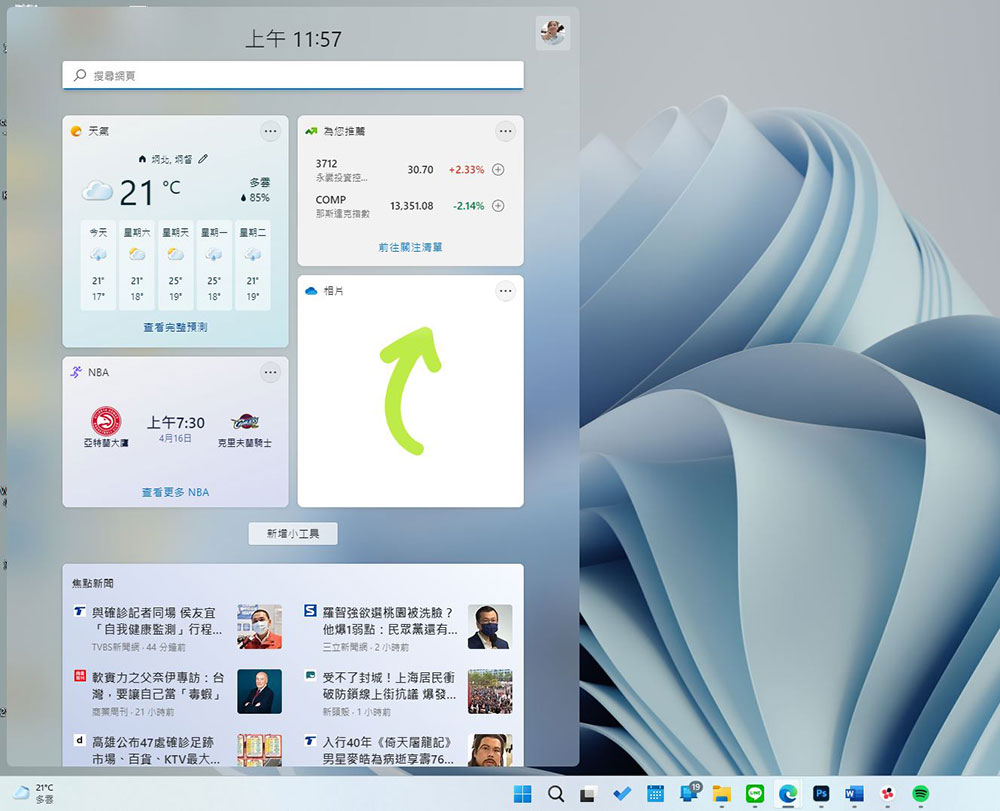
How to turn off gadgets in Windows 10 and Windows 11
Gadgets have polarized reviews in Windows 11. Gadgets are imported into Windows 11 after being upgraded from the “News and Interests” in Windows 10. Although they can bring convenience, they are a bit strange.There is news that third-party gadgets will be introduced in the future, but for some people, the gadget is very useless. Fortunately, you can still turn it off relatively easily.
Windows 11
Like most things in Windows 11, you can adjust its appearance or behavior in the Windows 11 Settings app, where you can also turn off gadgets.
(1) Open the “Settings” application (shortcut key combination: Win + I), or right-click on the taskbar and click “Taskbar Settings”.
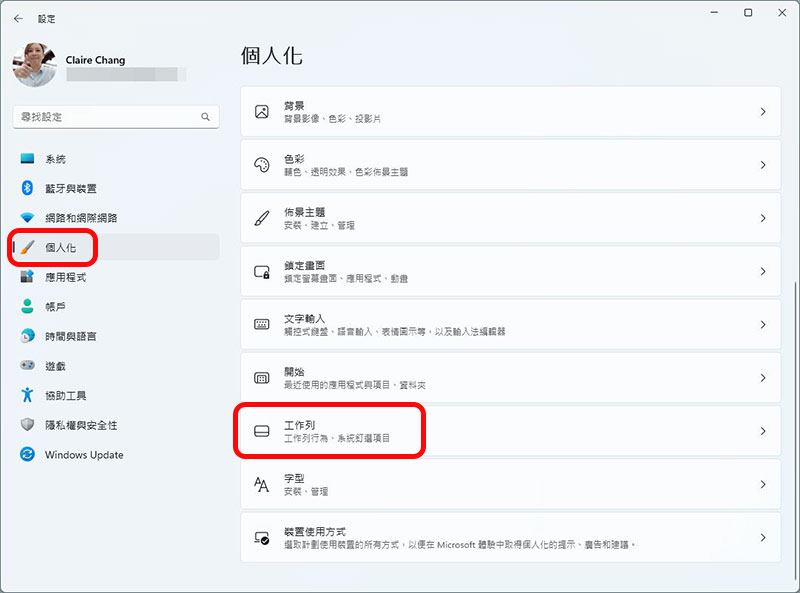
(2) Click “Personalization” in the sidebar and select “Task Bar Item” there.
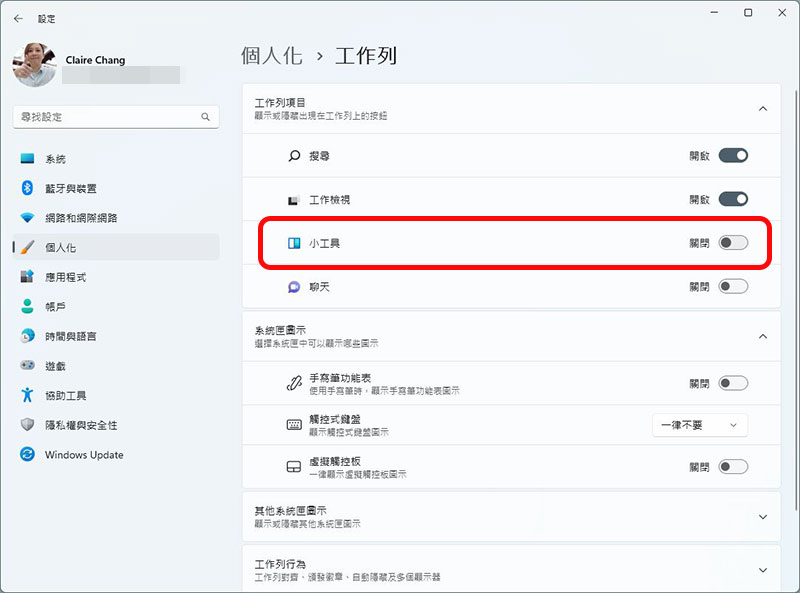
(3) Turn the switch behind the “Gadgets” item to off.
Windows 10
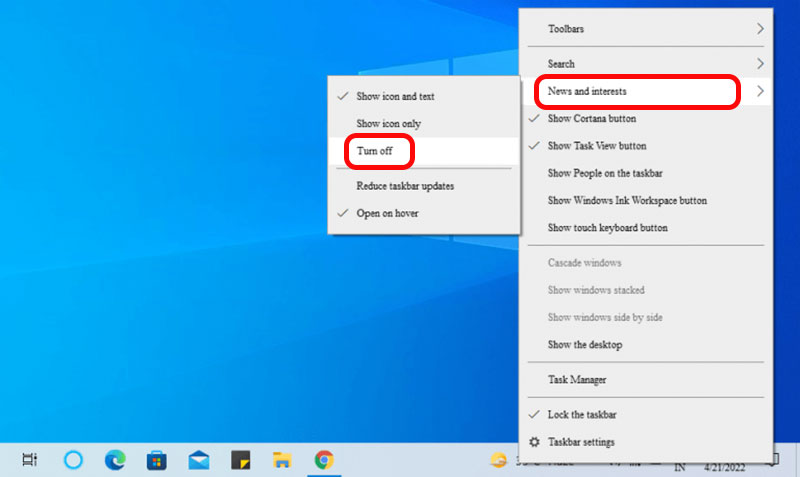
If you are still using the Windows 10 operating system, the gadget on Windows 10 exists in a version called “News and Interests”. If you want to turn it off, you can perform the following operations.
(1) Right-click the “Weather” icon.
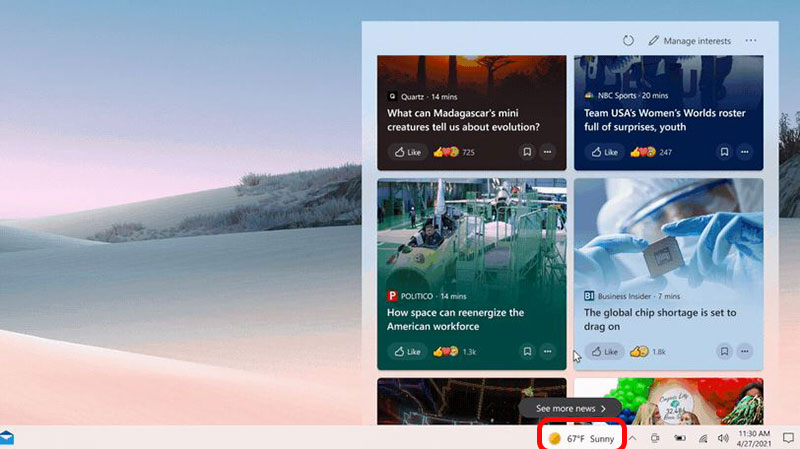
(2) Select “News and Interests” and click “Close”.
Also featured: Adding and removing gadgets in Windows 11
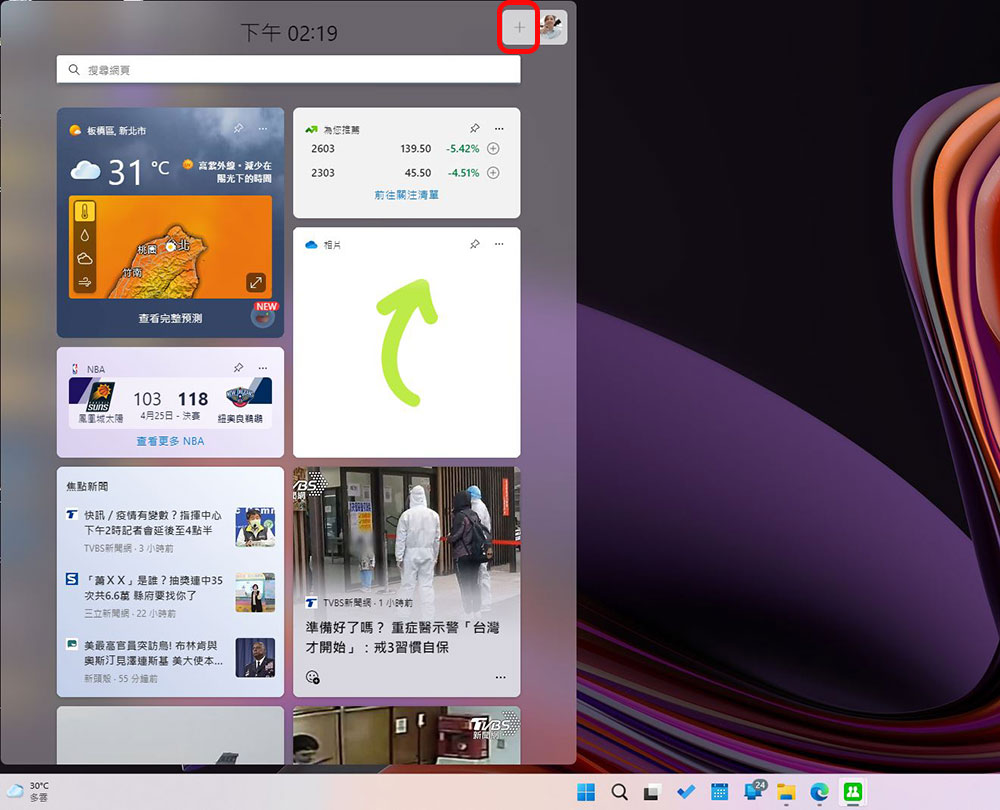
In the widget tray, you can add the applications you are interested in, and you can also remove the application widgets you don’t care about and are not using. The customization method is very simple. Please do this with me!
(1) After calling up the gadget tray, click the “+” sign next to the profile picture in the upper right corner.
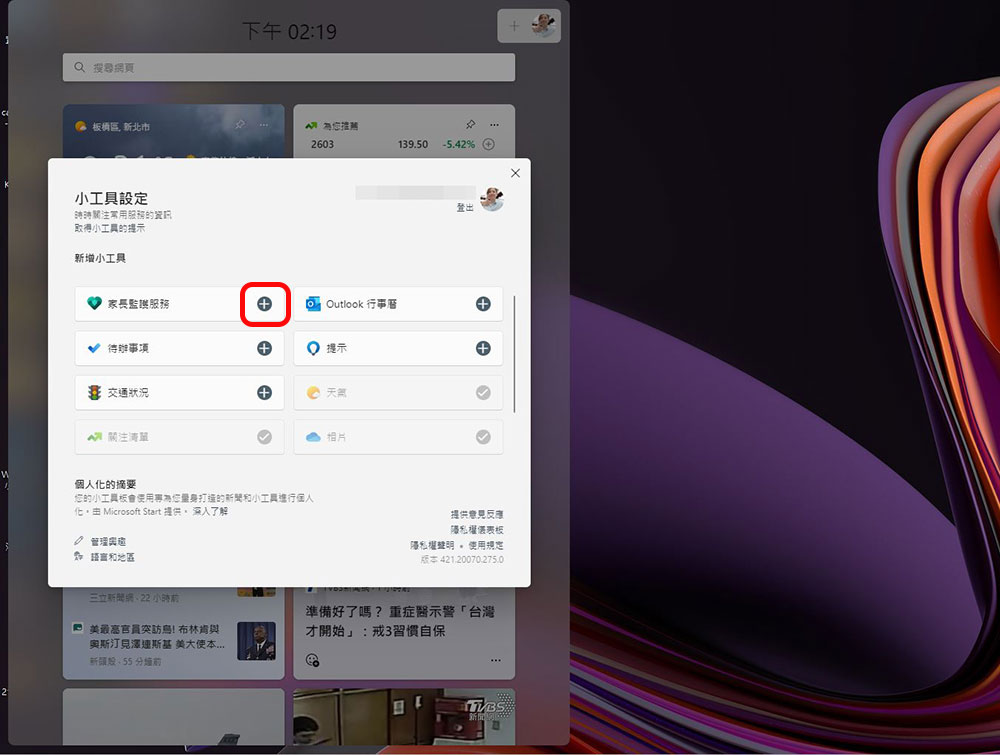
(2) Click the “+” sign next to the gadget you want to add to the tray to add it.
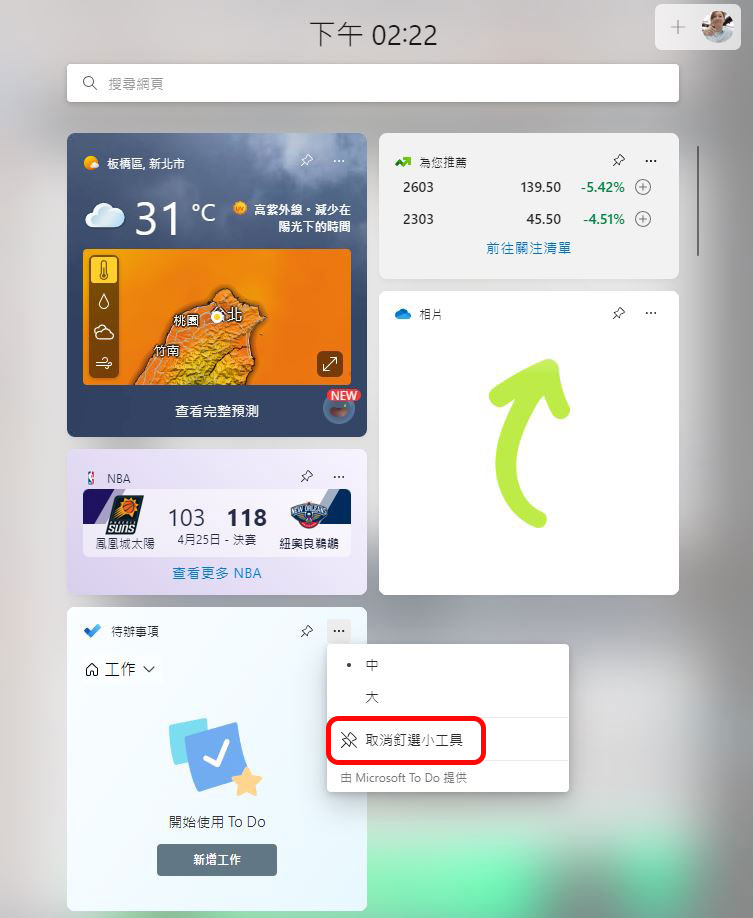
If you want to remove a widget that’s already on the tray, Microsoft’s design is a bit weird, with a different way and path for adding widgets. Click the three-dot menu in the upper right corner of the gadget you want to remove, and then select “Unpin Gadget” to remove the gadget from the tray.
Source: KOCPC Chinese