


Using the iPhone for a long time to play games, watch videos, listen to music, and scroll through social media also requires users to find ways to reduce power consumption. However, some power-saving methods in the past were too extreme and are not suitable for daily usage unless the iPhone is already in a low-power state. Today I’m going to share some iPhone power saving tips and teach you how to extend the use time without relying on power saving mode!
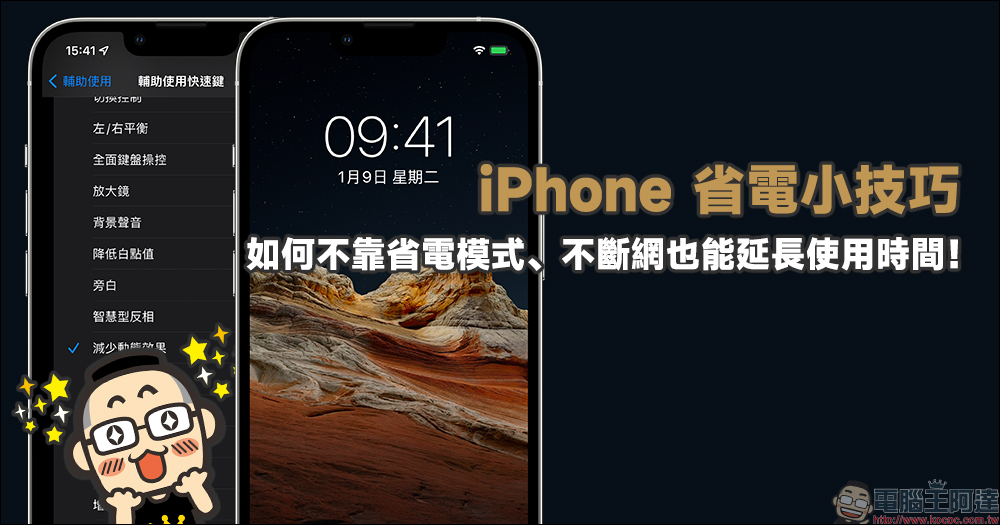
iPhone battery saving tips, how to extend the use time without relying on low power mode and continuous Internet connection! (auxiliary use + reduce dynamic effects)
In the past, many people would share various extreme power-saving methods, but they did not meet the actual application scenarios. Today, I would like to share with you several power-saving methods that can prevent users from affecting their user experience and maintain communities and other applications.
low power mode
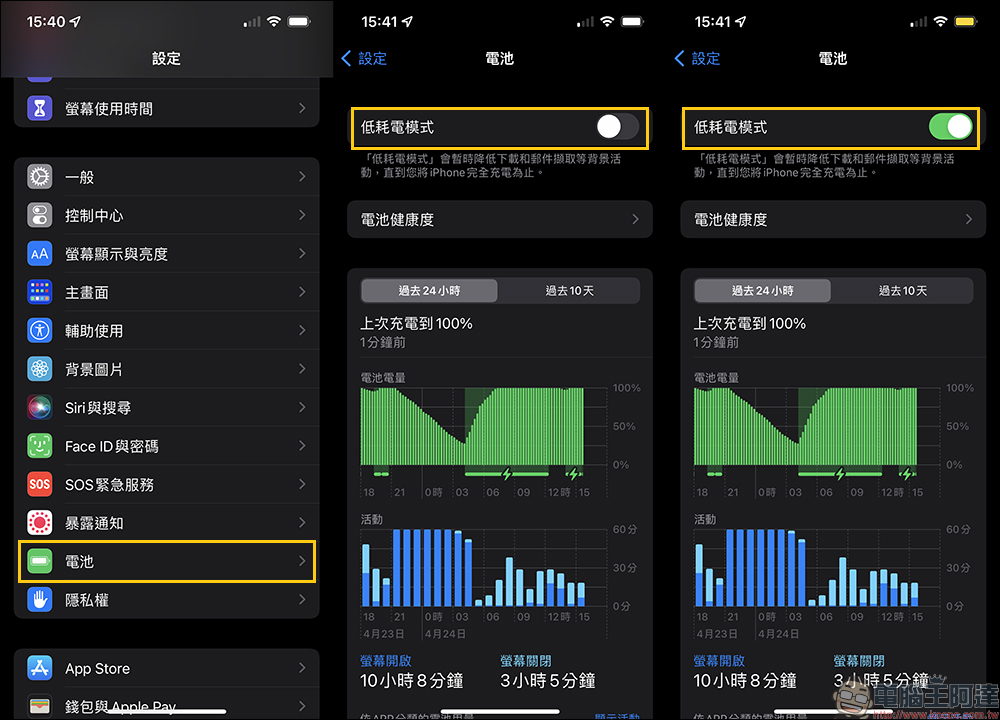
Generally speaking, if you want to extend the battery life of your iPhone and prevent it from being completely unable to “normally use” various application functions, you can go to “Settings” > “Battery” and turn on “Low Power Consumption Mode”. According to the instructions of the iOS system, when “Low Power Mode” is turned on, background activities such as downloading and email retrieval will be temporarily reduced.
Reduce dynamic effects
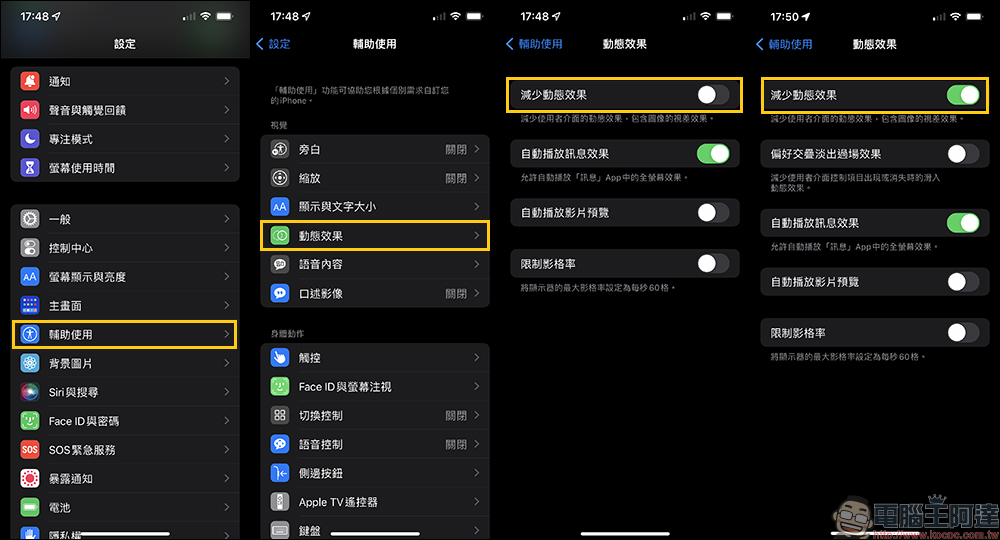
If you don’t want to use low power mode to affect background notifications, you can consider turning on “Reduce Dynamic Effects”. Users can go to “Settings” > “Accessibility” > “Dynamic Effects” > turn on “Reduce Dynamic Effects”. When this feature is turned on, it will reduce the dynamic effects of the user interface, including the parallax effect of images.
Limit frame rate
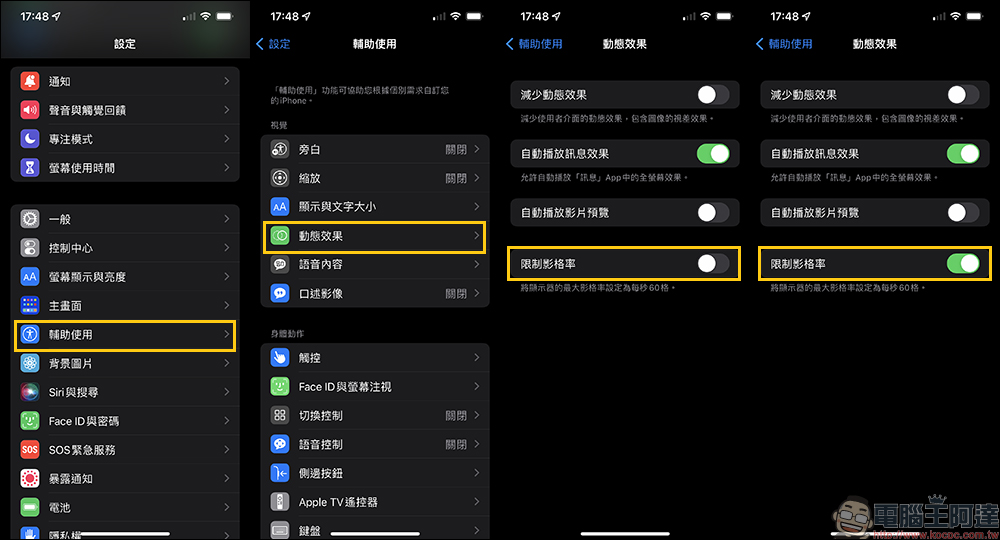
For iPhone 13 Pro series or iPad Pro that support up to 120Hz ProMotion adaptive refresh rate technology, you can save power consumption by “limiting the frame rate.” ProMotion adaptive refresh rate technology automatically adjusts the screen refresh rate (adjustable range is 10Hz~120Hz) according to user usage scenarios.
If you want to turn on this feature, users can go to “Settings” > “Dynamic Effects” > turn on “Limit Frame Rate”. After turning on this feature, set the monitor’s maximum frame rate to 60Hz.
Of course, unless 120Hz is not needed, users who want to pursue a smooth screen update rate experience of 120Hz should not actively turn it on.
Quickly turn on “Reduce Dynamic Effects” (use shortcut keys with auxiliary)
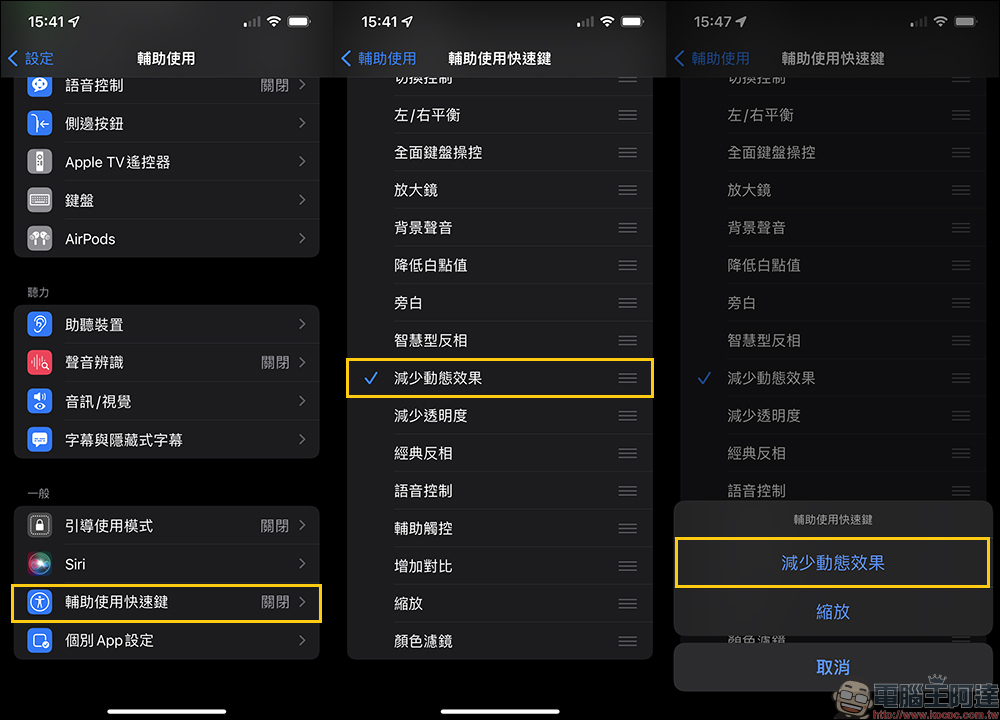
Finally, if you want to quickly turn on or off “Reduce Dynamic Effects”, you can use the trick we shared beforelow light modeHow to open it (auxiliary use of shortcut keys). In the “Accessibility” in the settings, select “Accessibility to use shortcut keys” and check “Reduce dynamic effects”. After turning it on, users can turn “reduce motion effects” on or off by clicking the power button three times. If the previously introduced “zoom (low light mode)” setting is also used, a selection window will appear when the auxiliary shortcut key is executed.
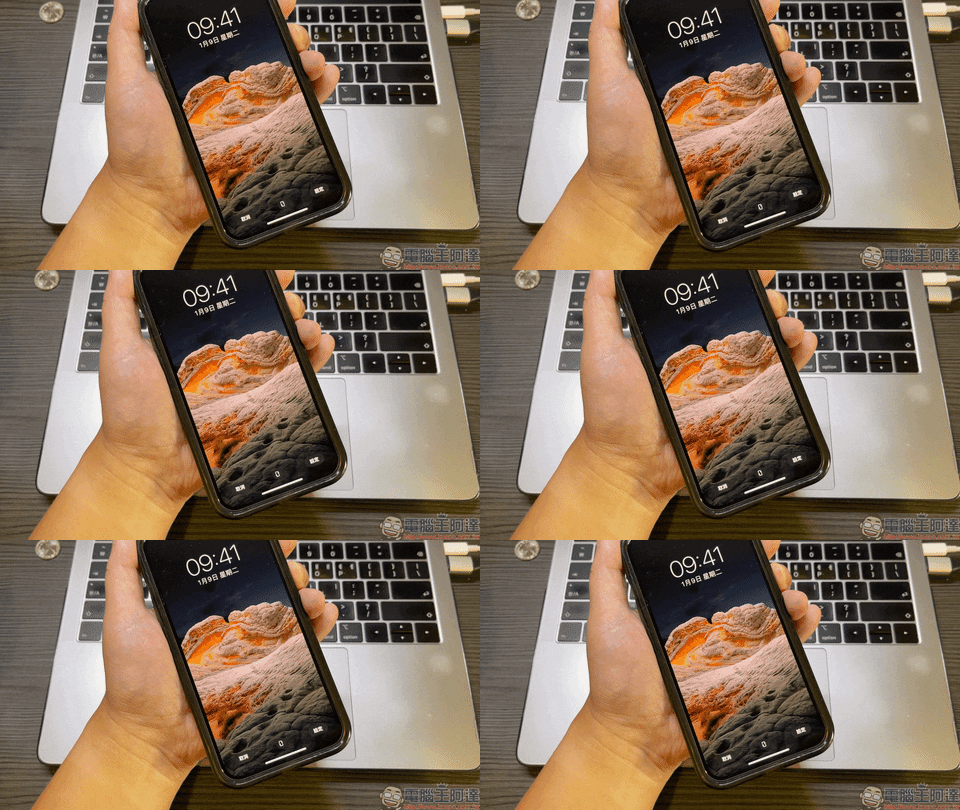
Here we take setting the iOS background image (desktop background) as an example. After clicking the power button three times in a row to turn on “Reduce Dynamic Effects”, you will find that the original perspective scaling effect has been turned off.
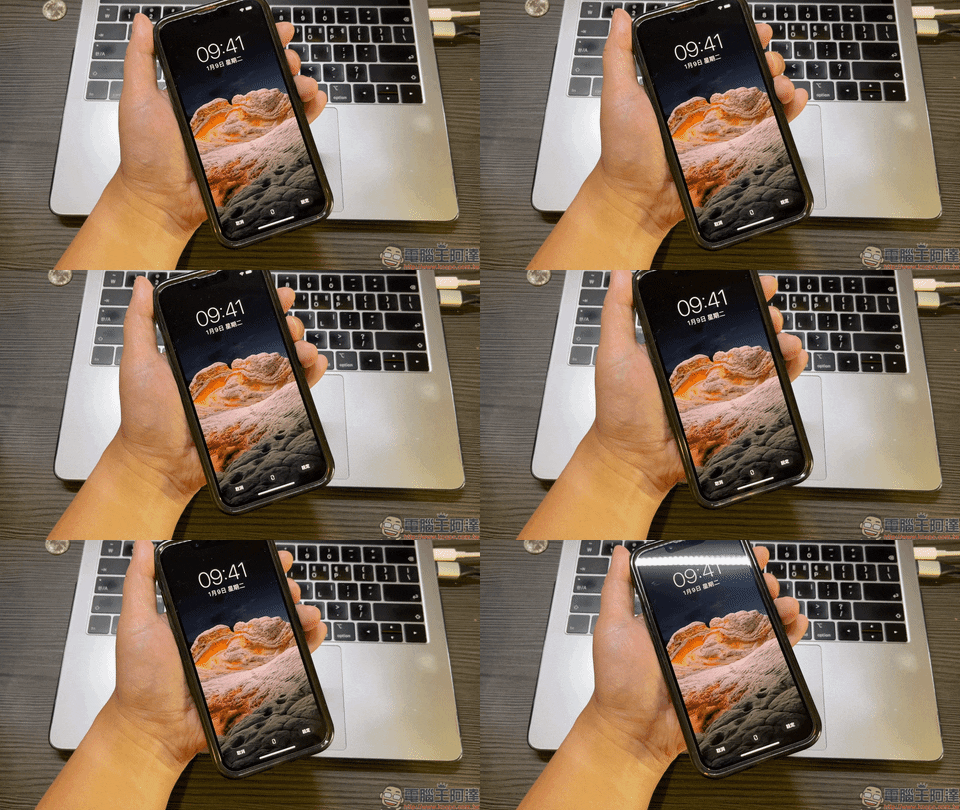
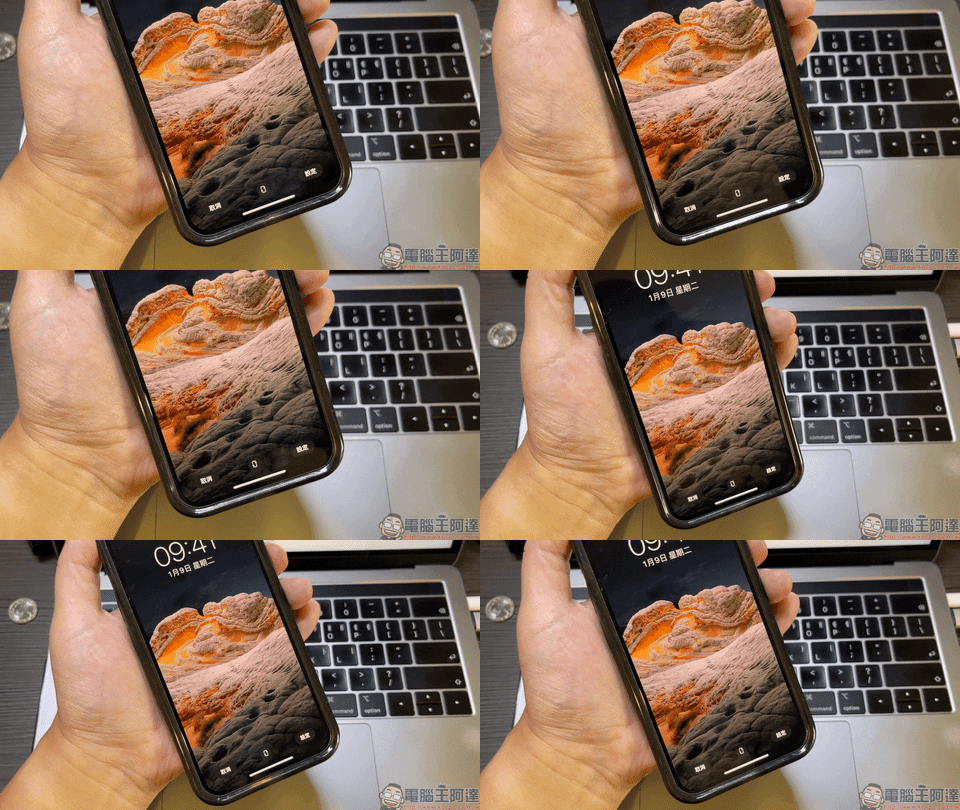
In contrast, if the dynamic effect reduction is not turned on, the perspective scaling can run normally.
Source: KOCPC Chinese