


For designers or friends who like to collect materials, you must know that Eagle is a software that is easy to use, but it requires payment, which may not be affordable for people with limited budgets. Recently, I discovered Billfish material management software that is very similar to Eagle. Although it is not as functional as Eagle, it is completely free. It also has the basic functions of material management and supports more than 61 formats. Those who need it can try it.
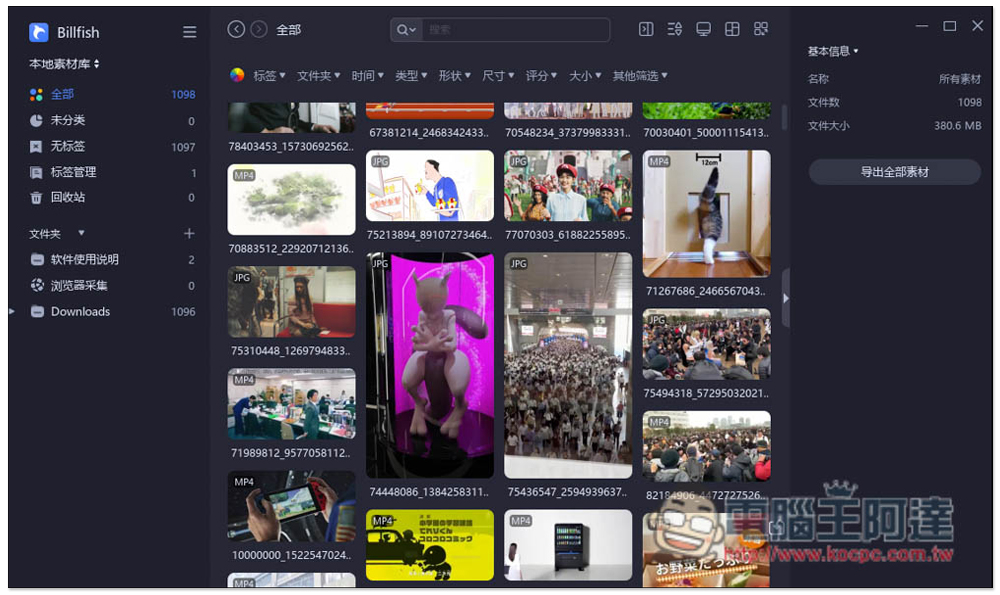
Introduction to Billfish material management free software, supporting 61+ file formats
Billfish is a set of free material management software developed in China. The interface is almost the same as Eagle. People who have used Eagle before should be able to get started quickly. Simplified Chinese is available, so you don’t have to worry about not being able to understand it during operation. Both Windows and Mac versions are available.
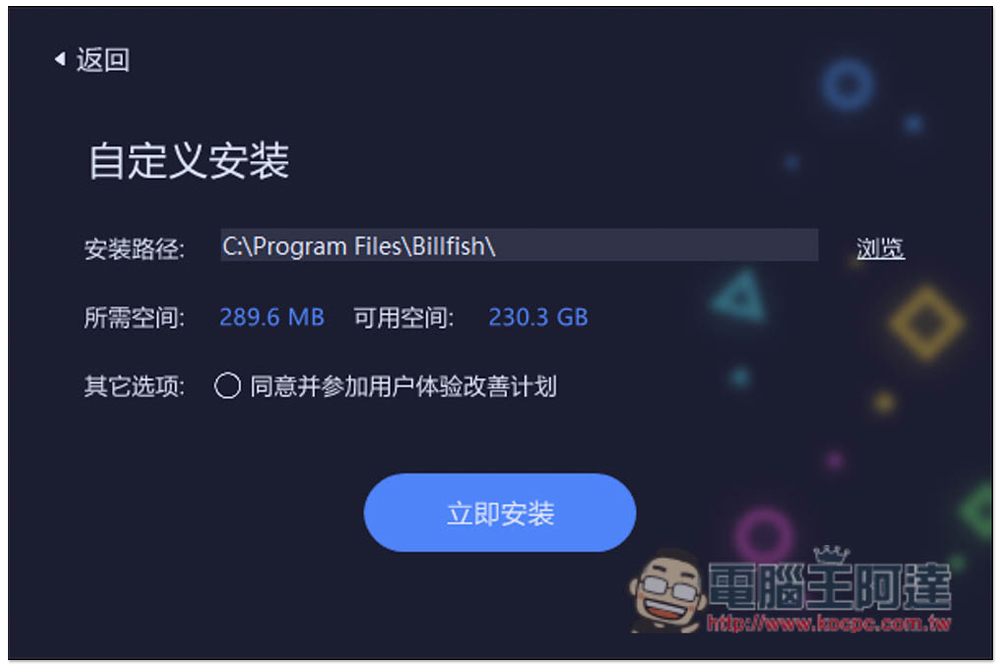
It is recommended to use a custom installation because there is an option to turn it off:

Participate in the User Experience Improvement Project and see if you need it. If not, cancel your agreement and click Install Now:
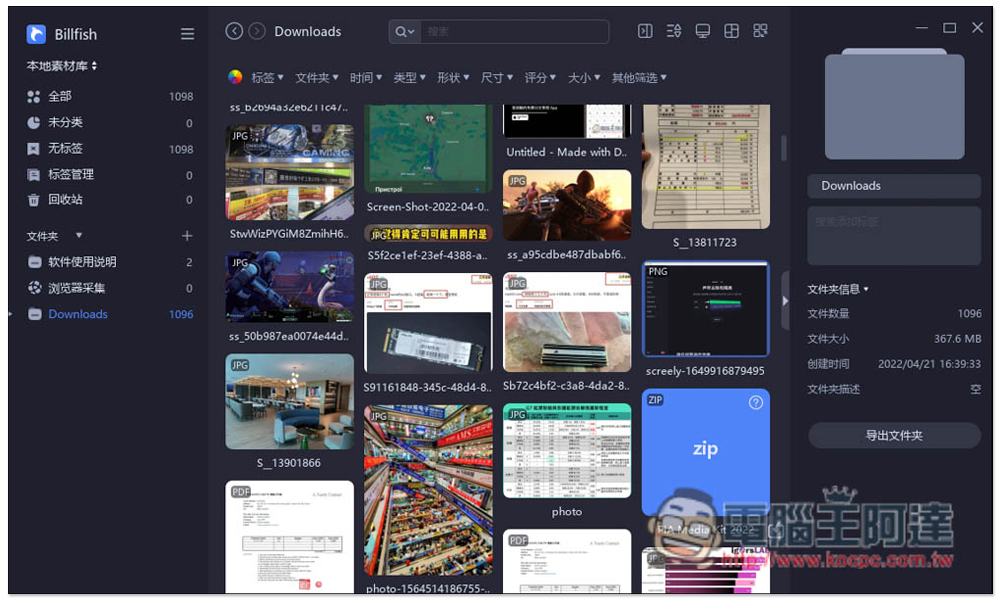
After installation, you can start using it. As mentioned before, the Billfish interface is almost the same as Eagle. The left side shows the material folders and categories, the middle shows the material files, and the right side shows some material or folder information:
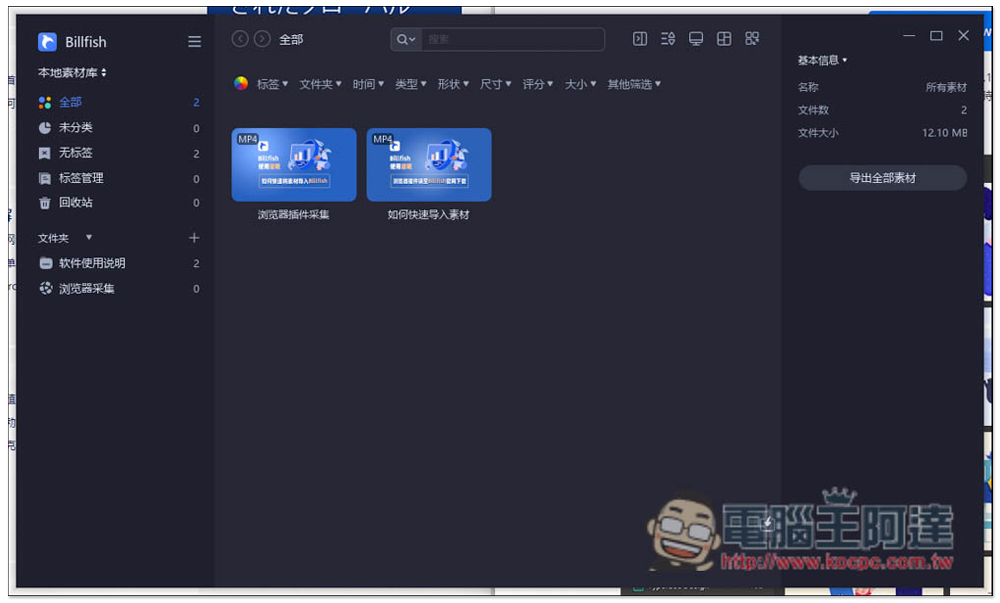
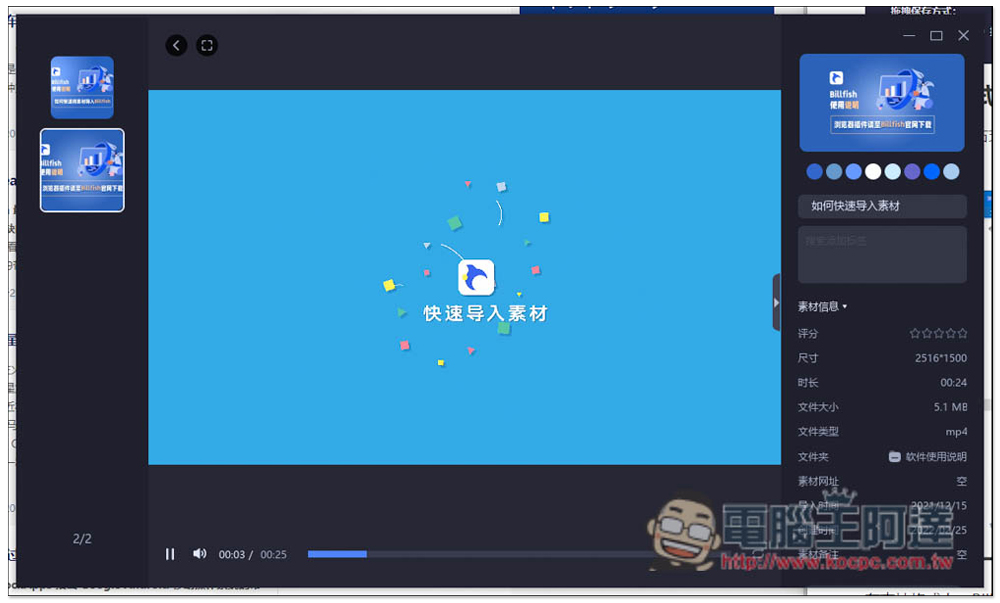
The developer has pre-recorded two instructional videos. Those who want to get started quickly can watch them. They are not very long:
Importing materials supports the direct drag function, that is, you can directly drag the folder where the materials are originally stored to the left side without manually selecting a path:
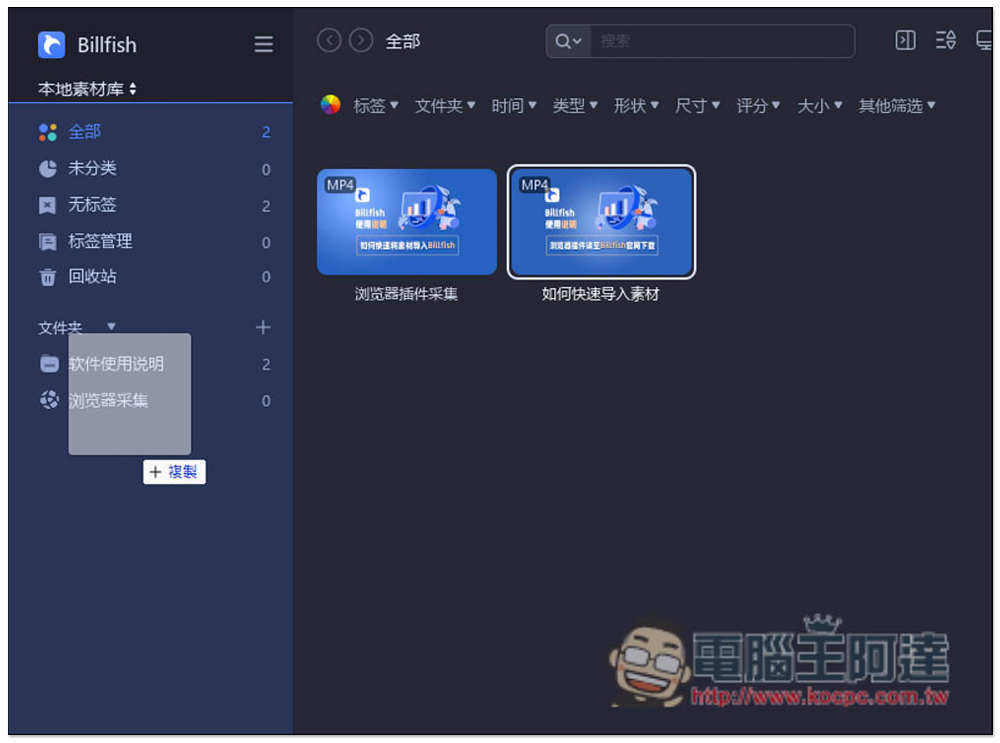
Three import methods are provided, copy, cut, and index. It depends on which one you want to use. If you don’t know what it means, you can read the instructions first. Copying simply means copying a copy of your material folder to the Billfish material library folder:
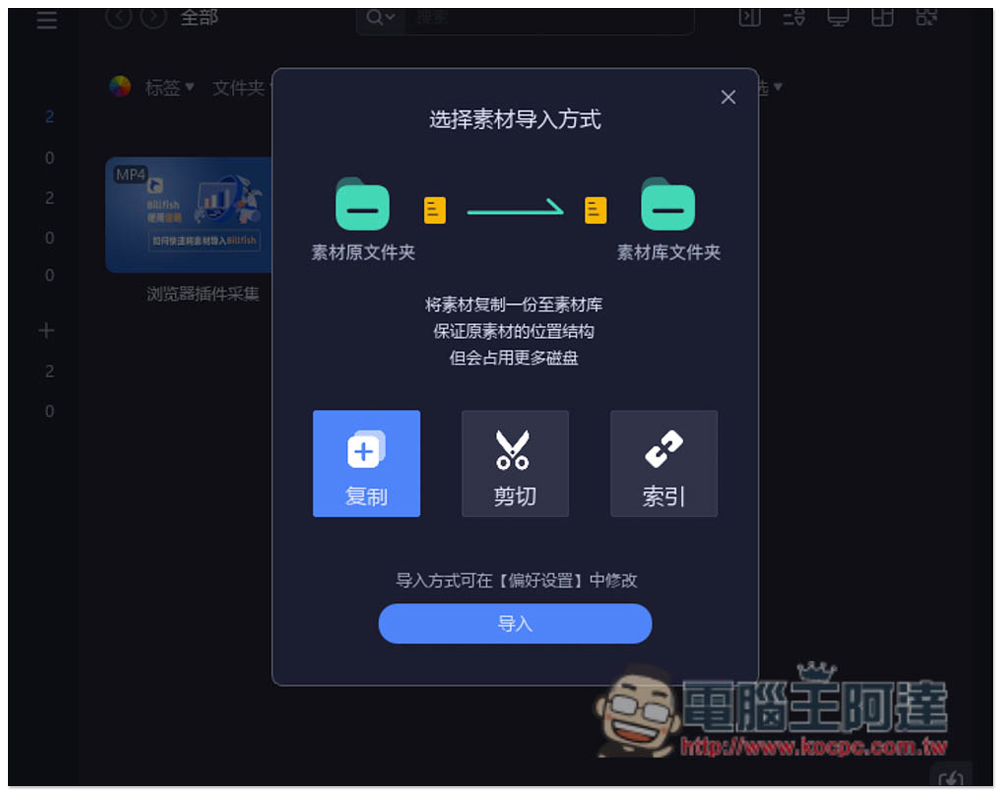
The index will be directly imported into your original material folder path. If there are changes in the future, it may not be read:

Then all the materials in the folder will be displayed in the middle:
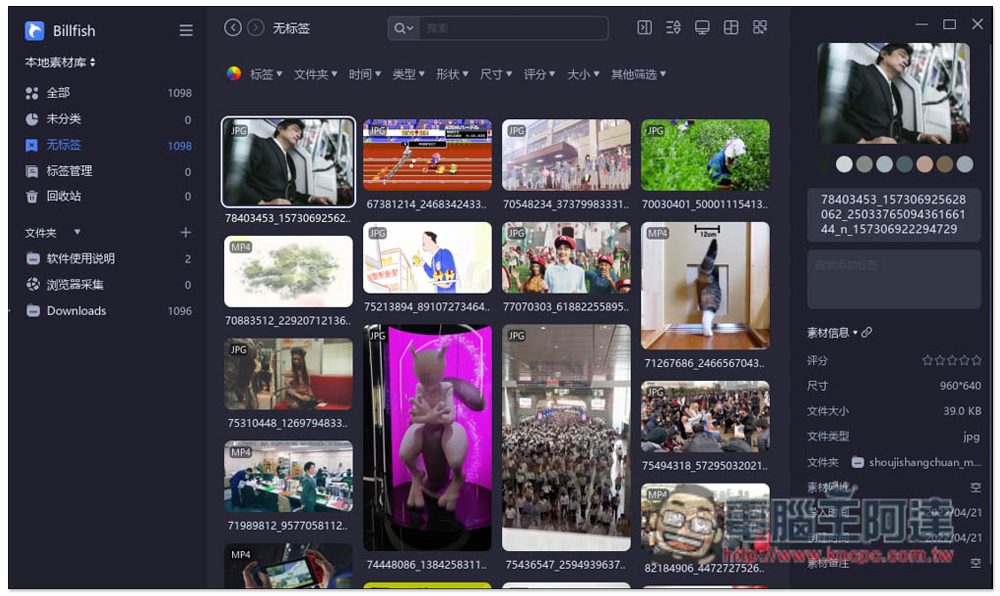
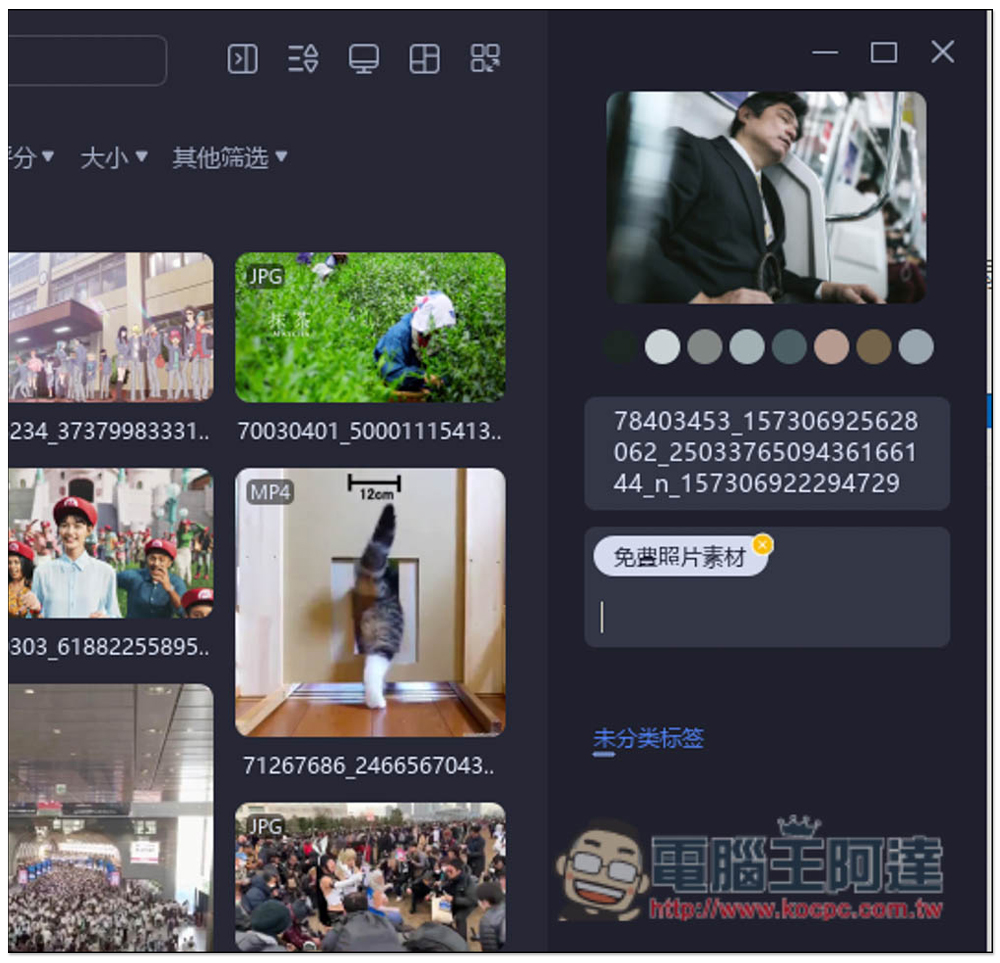
Click on any material and detailed information will be displayed on the right, including the colors used:
Of course, there is also a tag function. First go to all tags and create what you need:
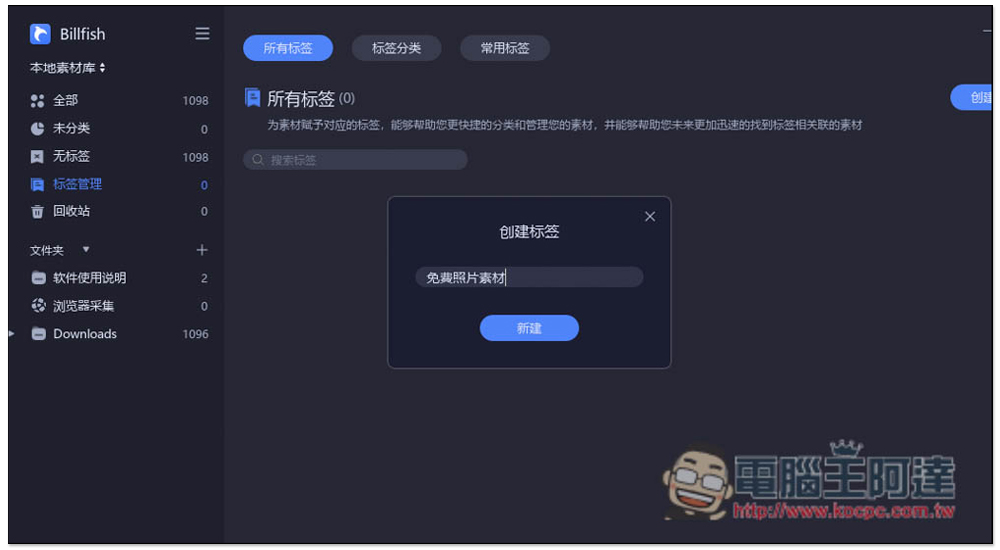
Then click on the material and you can see the function of adding tags in the right column:
Billfish also provides browser extensions. After installation, you can quickly collect materials on the Internet without having to download and add them manually. It is recommended for people who often look for materials on the Internet to try:
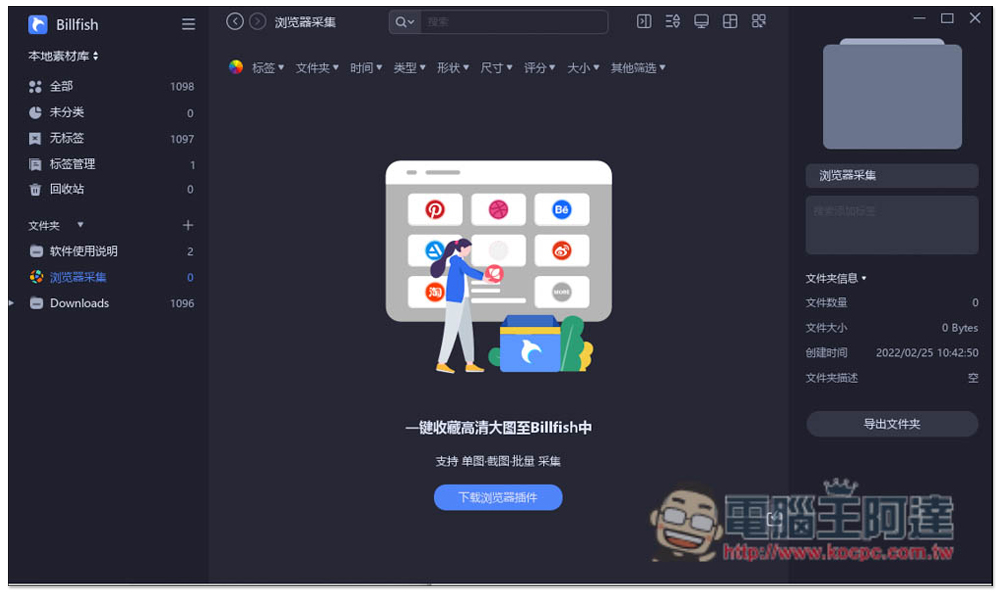
However, it may be because it was launched not long ago. According to feedback from Chinese users, the current browser extension function seems to conflict with some applications or software, so please pay attention when using it.
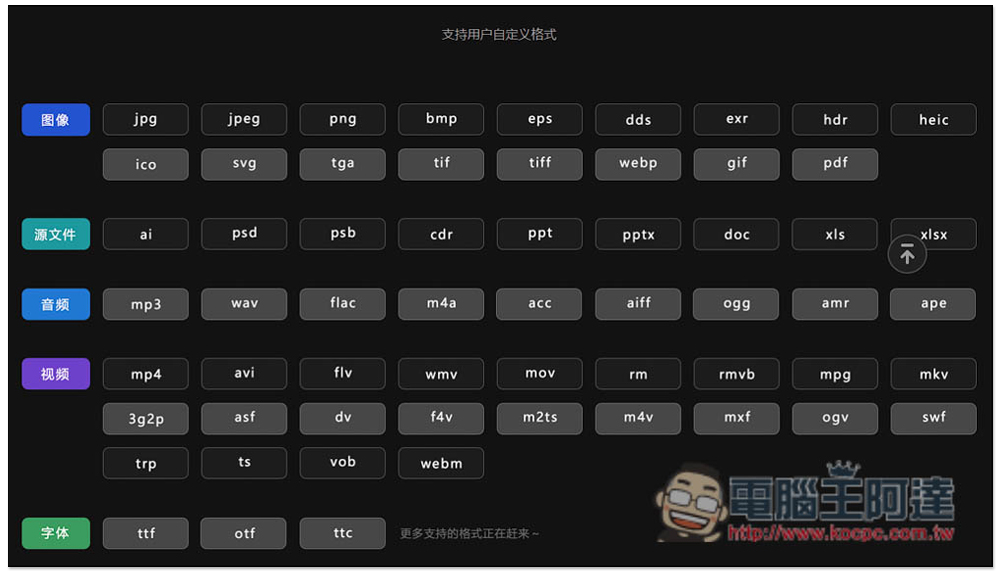
The picture below shows the formats supported by Billfish. Common image, video, music, and media formats are available, and other formats will be added in the future. In addition, this set also supports preview function, which is quite good. You can open these supported formats directly in the software, which means that you can also use this set to manage videos on your computer:
Source: KOCPC Chinese