


Whenever there is a new reminder notification on the iPhone, there will always be a small red dot with a number on the App to remind the user how many messages have not been read. For many people who can’t help but want to click out unread messages when they see them, they spend a lot of time every day dealing with these trivial things. So how to quickly open apps with these “little red dot” notifications on iPhone? Today I’m going to share some hidden tips that many people don’t know!
How to quickly open apps with these “little red dot” notifications on iPhone? Hidden tricks that many people don’t know about
In recent years, in addition to social platforms becoming the main channel for people to communicate with each other, many consumer applications, email mailboxes or other applications with specific functions will push notification messages from time to time. Since there are so many apps on the iPhone, many people will classify the apps according to their functions, such as social media, productivity tools and other folders so that they can be kept as organized as possible and can be found faster when they need to be used.
However, whether there is a message from a friend on a social platform, or an advertisement promoted by an application, new notification messages may be generated. As long as the user does not open them, these notifications will become “little red dots” in the upper right corner of the application and accumulate. If there are unread messages, obsessive-compulsive users who cannot help but click them will always have to spend time to “break them one by one” when they see these little red dots.
But if there are many apps in an application folder, it will take a lot of time to quickly find the app with unread notifications. Is there a way to quickly open and eliminate it?
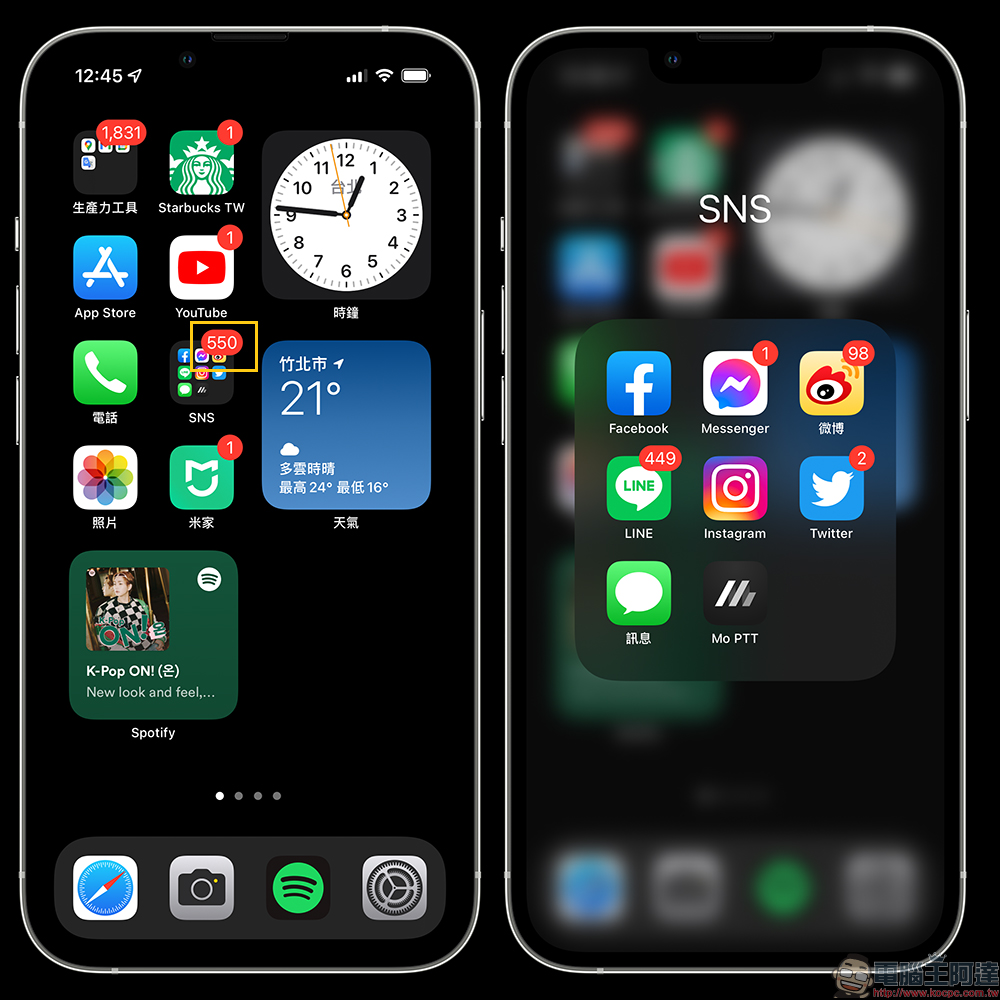
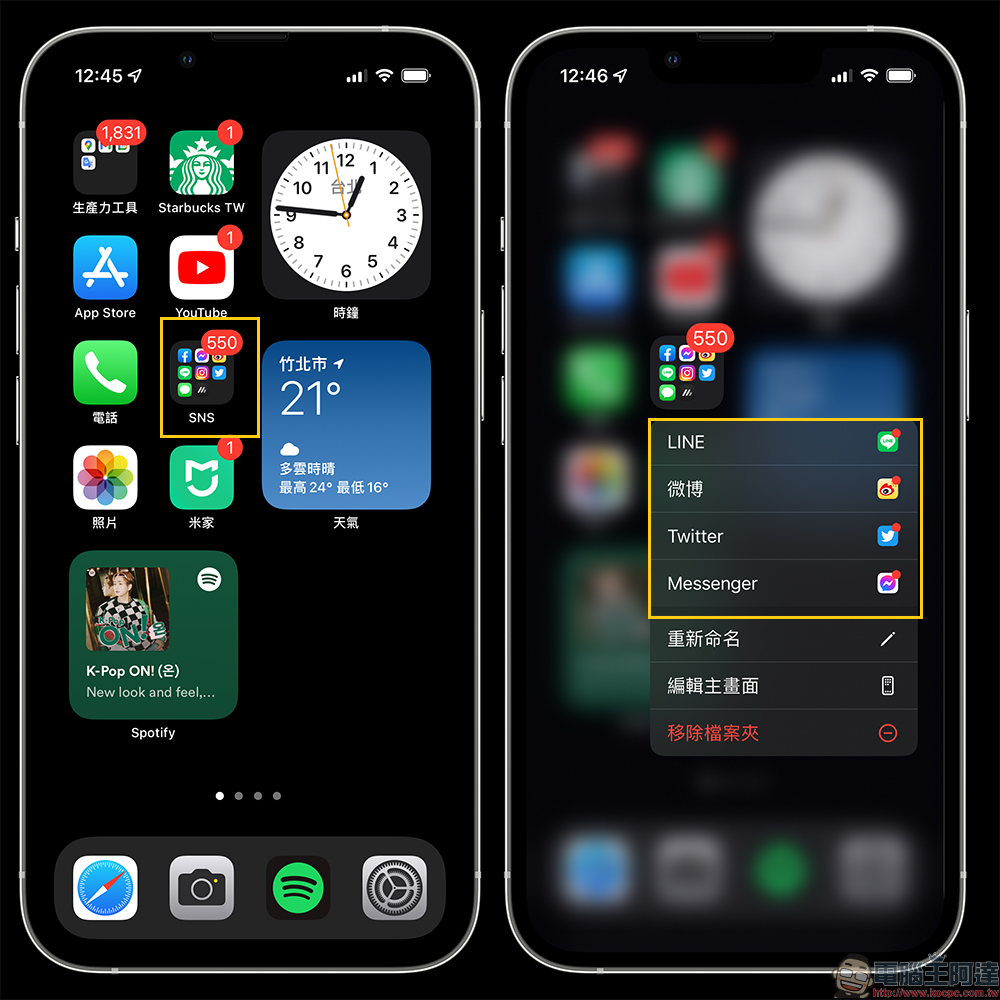
In fact, the user only needs to “long press” on the folder. When the menu is expanded, in addition to renaming, editing the main screen, and removing the folder, if there are apps with “little red dot” notifications in the folder, they will also be directly listed in the menu. Then the user only needs to click on the app they want to “unlock” to open it and learn about the new unread content!
As shown in the figure below, after you expand the menu, you will know that the apps with unread notifications are LINE, Weibo, Twitter, and Messenger. As for other apps that do not appear in this menu, it means that there are no new unread notifications. This method also allows users to quickly understand which applications have unread notification content waiting to be read, and also allows many users with obsessive-compulsive disorder to quickly eliminate all application notifications with “little red dots”.
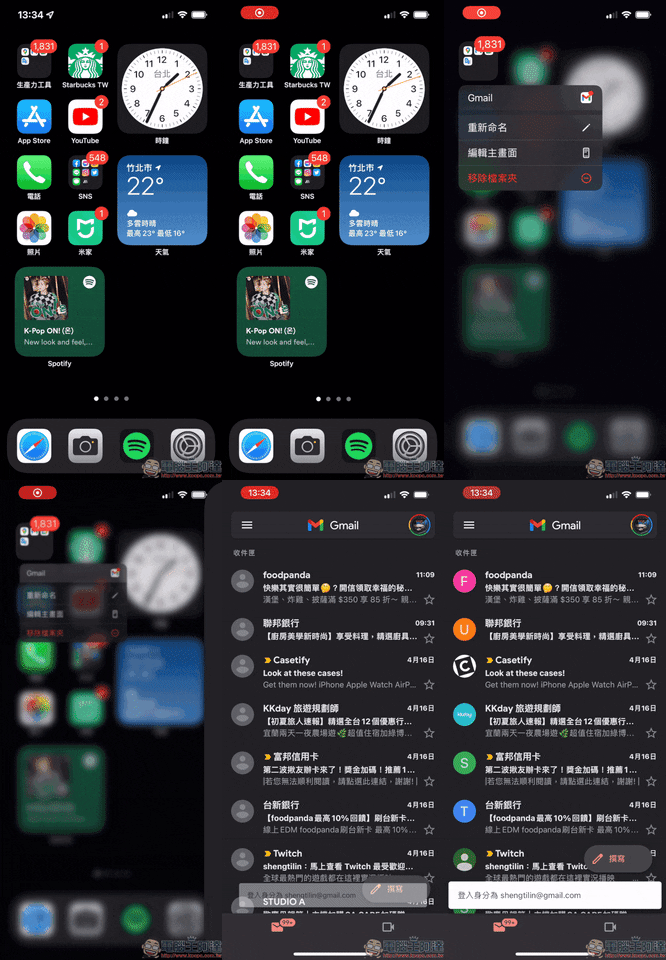
The following is a simple demonstration focusing on the difference between a folder with only a single app and multiple apps. First, you can see in the picture below that there is only one Gmail app in the “Productivity Tools” folder with unread messages. At this time, the menu will only display “Gmail”.
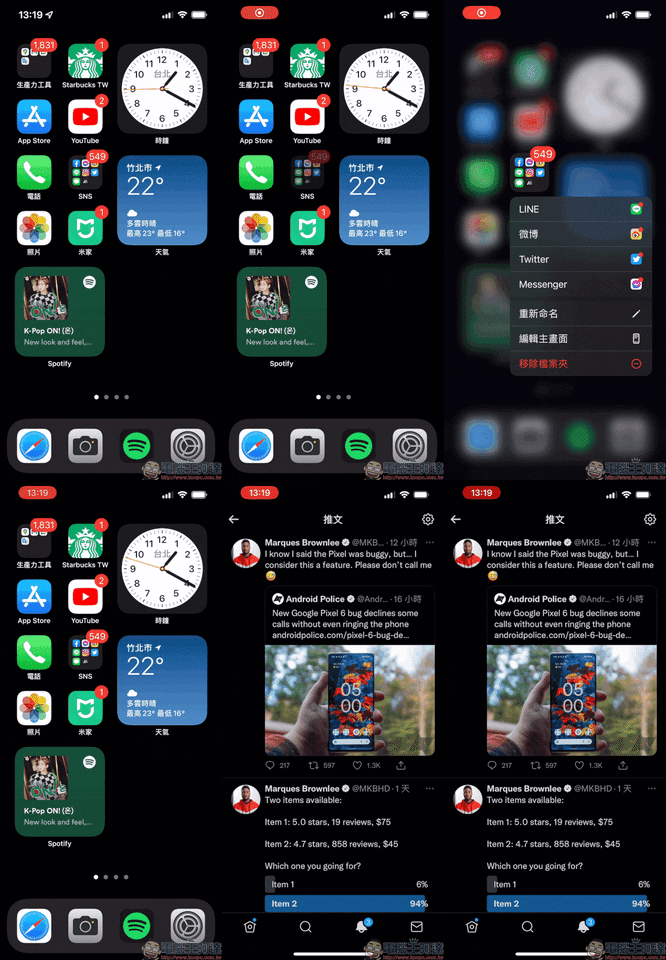
On the other hand, if there are many unread apps in the folder, the user can select the app to open according to the needs. Just click on the menu to directly open and go to the app without having to search in the folder. For users with dozens of apps in the folder, this can save a lot of time in searching for unread apps.
Further reading:
Safari browser tips: Quickly open the reader with one click, quickly generate full-screen PDF and share it
Source: KOCPC Chinese