


When we browse the web on iPhone or iPad, if we don’t want the web page layout or advertisements to affect the experience of browsing articles, many people choose to turn on the built-in “Reader” mode of the Safari browser. Today I will share tips on how to quickly open/close the reader with one click. I will also share how to take full-screen screenshots, save PDFs and share them in a faster way.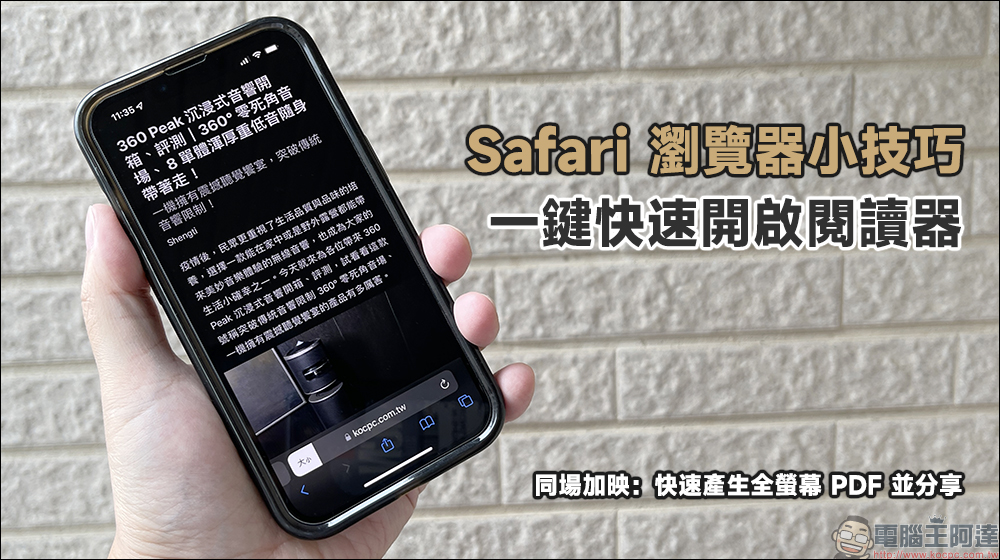
Safari Browser Tips: Quickly open the reader with one click
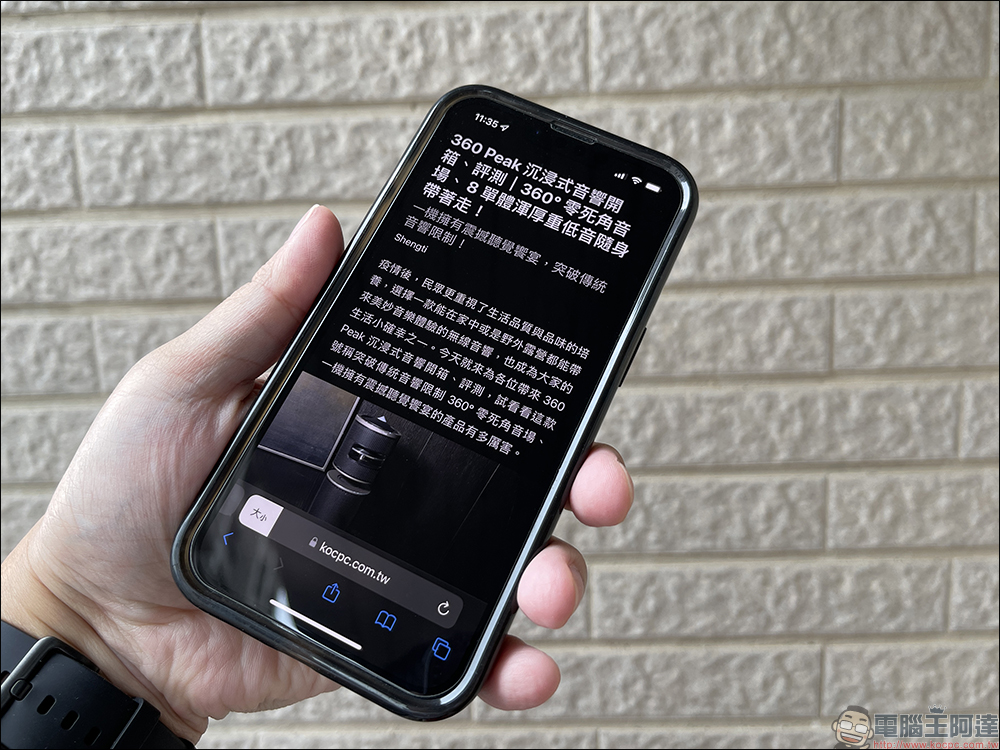
Whenever we want to concentrate on reading an article on iPhone or iPad, choosing to turn on the “Reader” mode in the Safari browser is a feature that can greatly improve the reading experience. Not only can each website bring the same graphic and text interface, but it can also prevent the cover ads of some news websites from blocking the screen. However, do you feel that the process of opening or closing the reader every time is too cumbersome? Today I’m going to share a hidden quick opening trick that many people don’t know about.
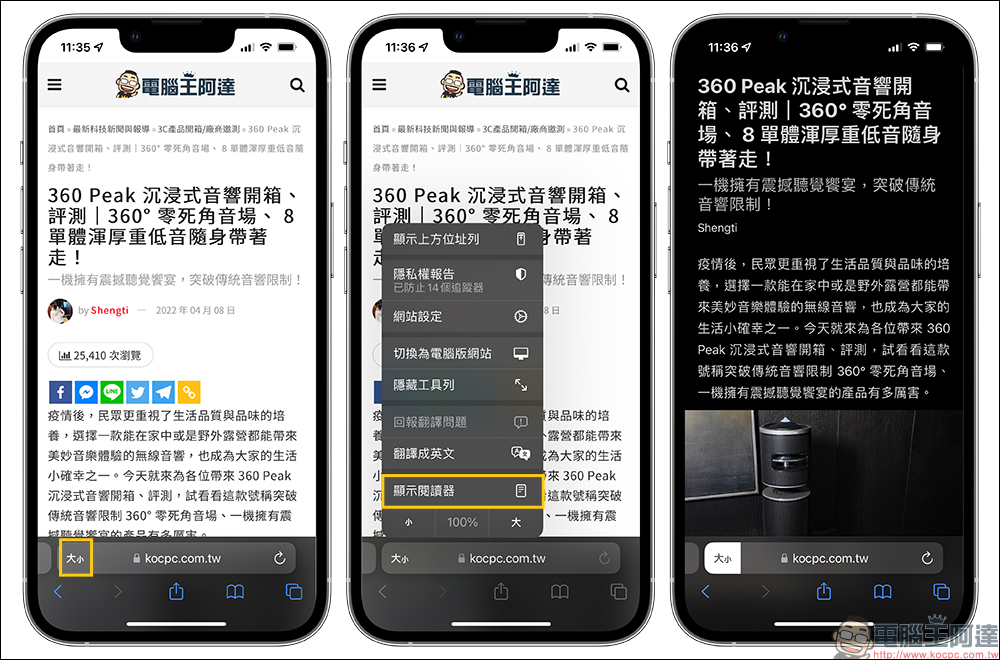
Let’s take a quick look at what we did in the past when we wanted to open the Safari browser? First, click the “Size” icon on the left side of the URL to expand the function menu, and then click “Show Reader”. If you want to turn it off while in Reader mode, follow the same steps again and select “Hide Reader”.
Although the traditional steps of turning on “display reader” are not too troublesome if you are familiar with them, most of us probably operate the phone with one hand when commuting or walking. It takes some skill to operate it accurately with one hand. If you are not careful, you may accidentally touch other functions.
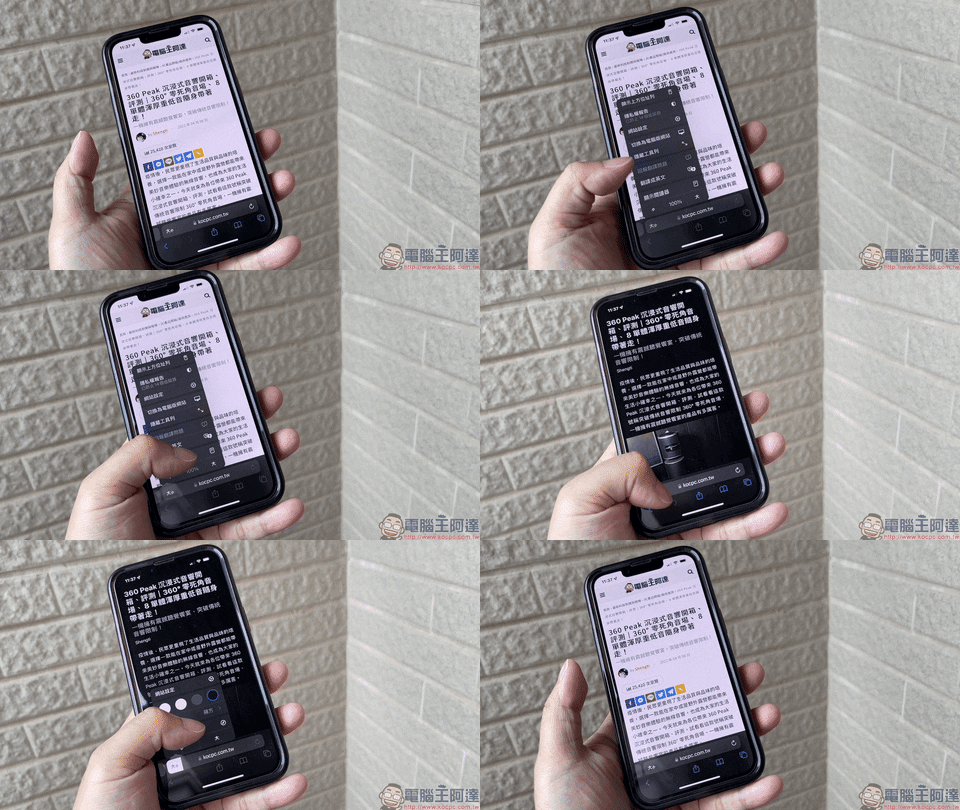
What should I do if I want to quickly open or close the Safari browser? In fact, you don’t need to short-press the “size” icon, but “long-press” it!
When we press and hold it, we will find that there is no need to select any function at all, and we can directly switch between the reader switches with one click. When we press and hold on the normal browsing screen, the reader mode will be displayed directly. If you press and hold again in reader mode, you can close the reader and return to the original browsing mode. You can switch the reader mode with just one click. You don’t have to spend a long time selecting it like in the past!

Simultaneous screening: quickly generate full-screen PDF and share it
After understanding how to open the reader faster, what should we do if we browse to an article we like and want to save his entire webpage? In the past, most people would directly select the screenshot, select “Full Page” and click “Save PDF to File”. But sometimes we save web pages as PDFs to back up to other platforms such as computers, and do not intend to let them exist in the iPhone’s file app. So what should we do when encountering this kind of situation?

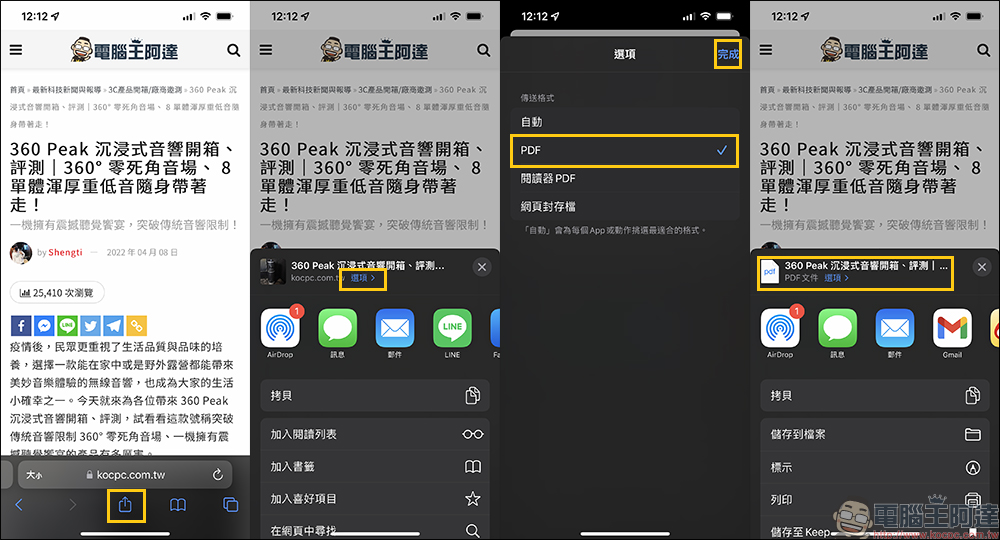
We only need to click the “Share” button in the browser, then click “Options” and select “PDF” and finish. Then we will find that the sharing method has been changed to “PDF file”, and then we can choose to use AirDrop to send the PDF file to other iPhones, iPads, Mac computers, or send it as an attachment in an email mailbox. Of course, after changing the option to “PDF”, we can still find “Save to File” in the sharing options.
Source: KOCPC Chinese