


Although we often see a lot of tutorials on how to use the iPhone, most of them revolve around some functions or features that everyone is familiar with. In fact, there are many hidden gems in the iPhone that no one knows about but are super easy to use. The one I want to talk about this time is the unknown but very practical “Back Tap” function that has been hidden in the auxiliary functions.
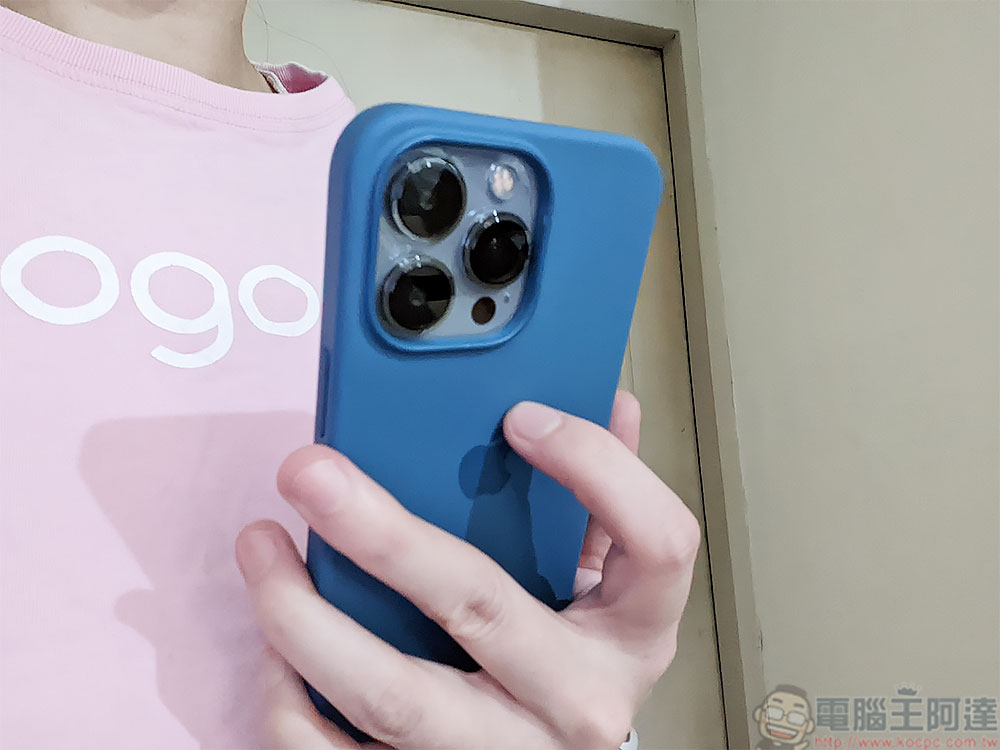
Do you know the Tap Back function in the iPhone? It would be a pity not to use it
There is a very convenient “quick tap” function on Android. You can take a screenshot or other customized actions by double tapping on the back of the phone. iPhone users, don’t be envious. In fact, similar functions exist in the iPhone, and there are more options that can be set. However, the discussion is too low, there are too few articles mentioning it, and it is hidden in the auxiliary functions that people rarely use. Today, the author will teach you how to set up and use it!
How to enable and set up
If your iPhone is iOS 14 or above, or iPhone 8 or later, you can use the back tap function. In the iPhone’s system default, the back tap function is turned off. If you want to use it, you must first go to the settings to turn it on.
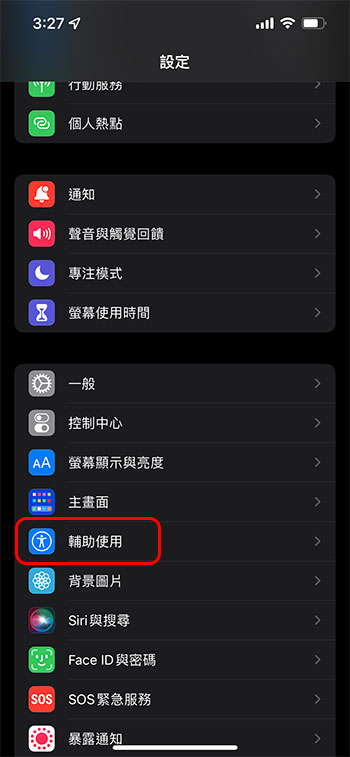
- Open the Settings app, enter the “Accessibility” item, and then click “Touch” in the body movement category.
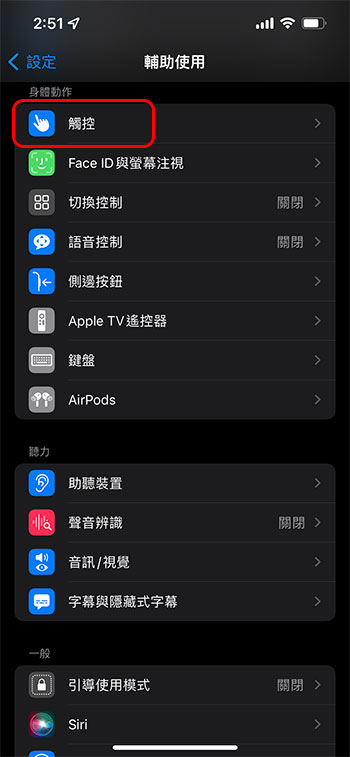
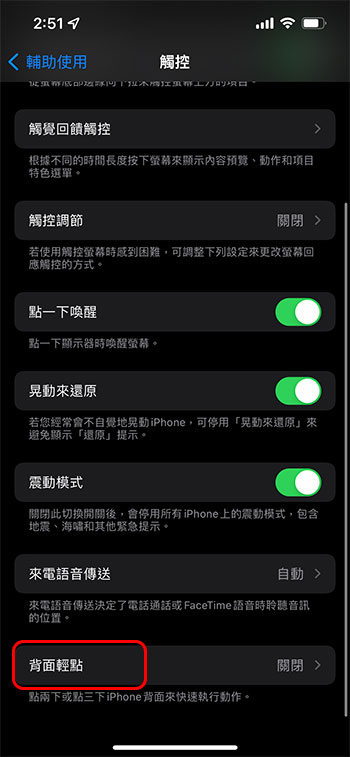
- Scroll to the bottom of the page to see the “Back Tap” function. After entering, there are two settings: tap three times and tap twice. Then you can select the corresponding commands and operations for the two settings.
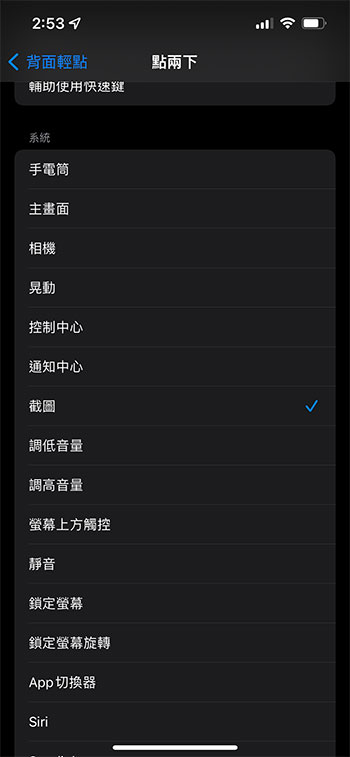
Why use back tap?
The back tap function is mainly used to enable you to launch frequently used designated functions on the iPhone faster. For example, you may need to open the camera at any time to take pictures, but you have to slide away from the screen every time and wait for a while, which means it is too late to capture the wonderful picture. In this case, you can set it to the corresponding operation of two or three taps. If you want to open the camera in the future, you only need to tap 2 or 3 times on the back of the phone. For example, I set two taps on the back to take screenshots, allowing me to quickly take screenshots while watching online live videos, without having to free my hands to press the power button and volume up button.
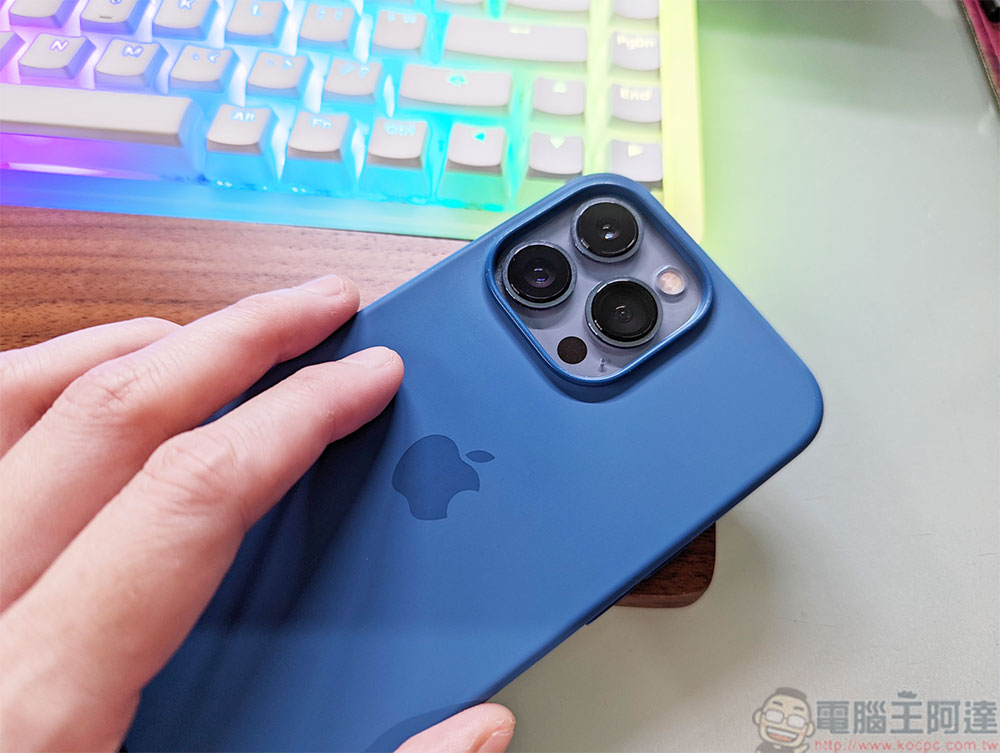
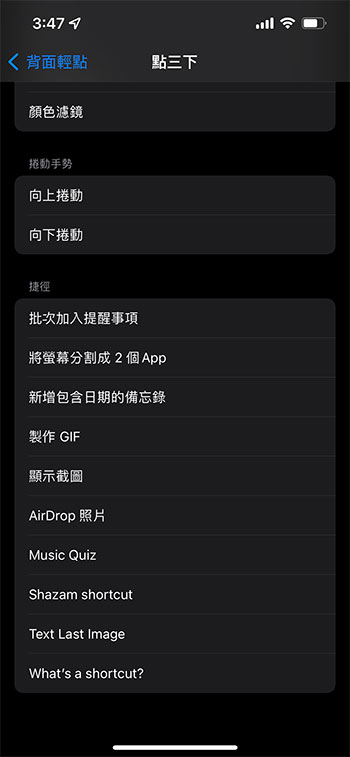
In addition to the basic settings, you can also set the back tap with other auxiliary functions such as a magnifying glass to ensure that you can turn on or off some auxiliary functions at any time without having to turn them on layer by layer. Others can also be directed to shortcuts, etc. In addition, if you like to read online, you can set it to perform functions such as leaf sliding downwards, which can be used very well with one hand when commuting.
In actual use, the back tap function on iPhone is better than Android. In addition to more pointing options, the tap sensing area is also larger, and it works almost on the entire back of the phone. It does not affect it even if a protective case is installed, because it seems to use the motion sensor inside the iPhone to receive, which is very convenient.
Source: KOCPC Chinese