


If the app you use and the information within it have any possibility of being something you absolutely do not want AI to learn from or even utilize in any way, experts are now urging that you may want to consider turning off the app learning features that come enabled by default with Apple Intelligence & Siri starting in iOS 18.1. This article will also show you how to check these settings. Continue reading: Concerned about banking and finance apps being “learned” by Apple Intelligence? You may want to consider disabling these settings.
▲Image source: Apple
Concerned about Apple Intelligence “learning” from your banking apps? Consider turning off these settings
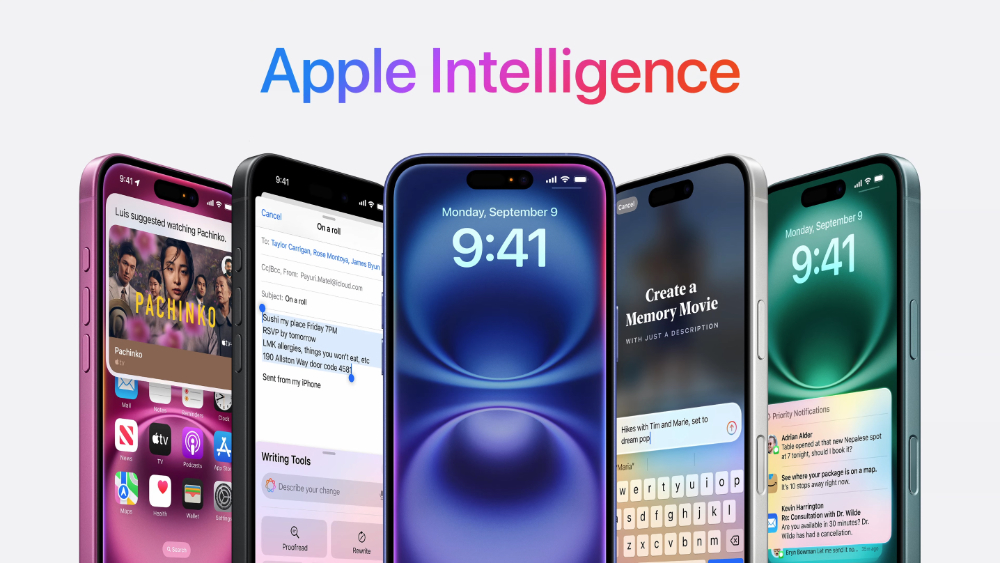
Although Apple Intelligence made privacy promises at the launch event, its website also thoroughly spelled out guarantees including: “We will never store your data,” “Used only to process your requests,” “Verifiable privacy protections,” and “While getting to know you, we do not allow anyone else to access your data—not even Apple.”
▲Image source: Hallett
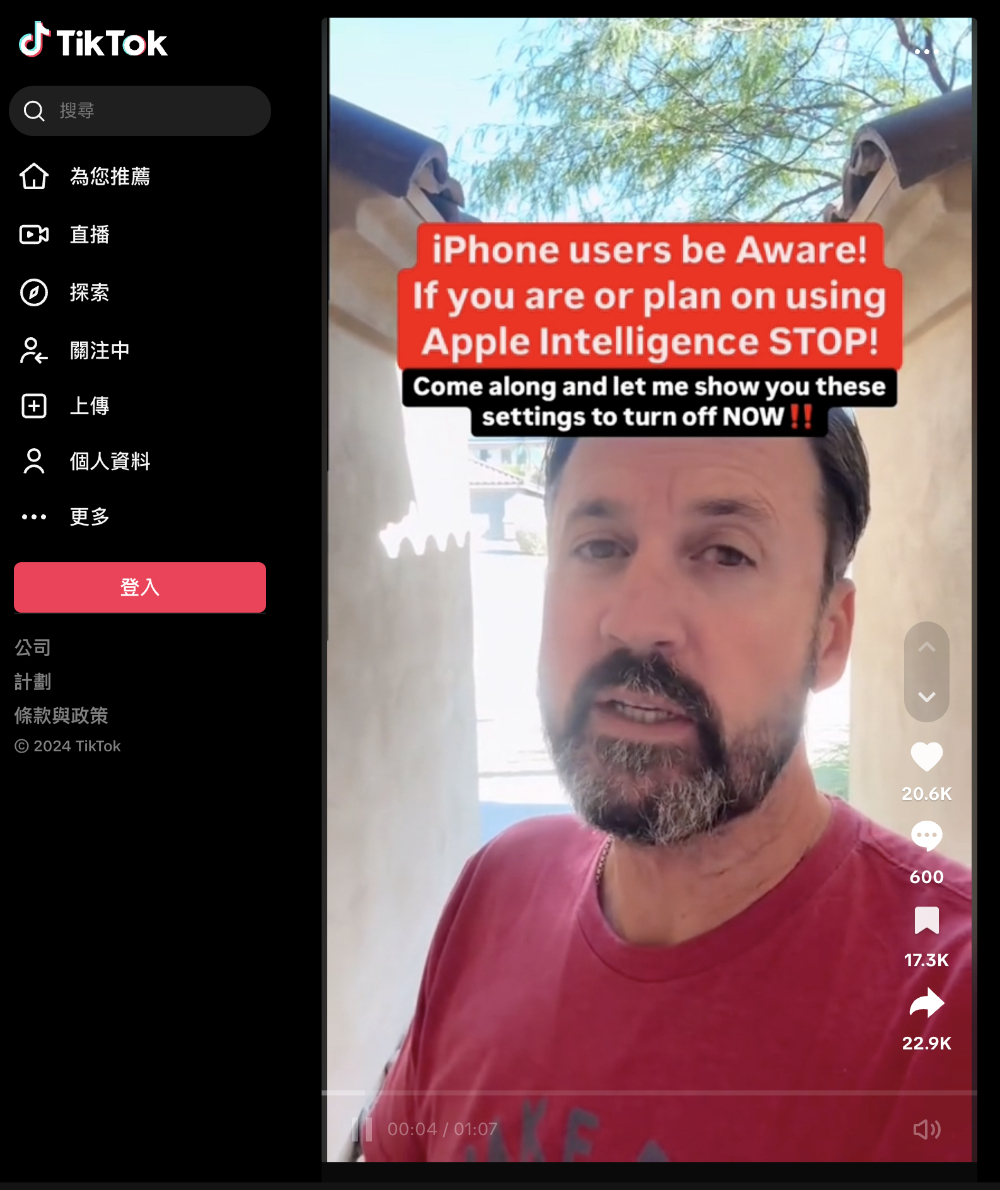
However, if there is any possibility that you absolutely don’t want AI to learn from or even use the apps you use and the information in them – then… for now, the ones I can roughly think of are health, finance, and banking-related apps, or note apps that store confidential information, etc.
Experts are now urging that you may want to consider turning off the app learning feature that is enabled by default with Apple Intelligence & Siri starting in iOS 18.1. This article also shows you how to check these settings.
How to turn off Apple Intelligence’s “Learn from This App” feature
If you want to turn off the “Learn from this App” feature in Apple Intelligence, there are basically two ways to access this option – both require finding the “App” item.
First, in Settings, find the “Apple Intelligence & Siri” feature, scroll all the way down to see “Apps,” then look within it for the app you want to disable learning for.
Second, in Settings, scroll all the way to the bottom to find “Apps”, then tap the “Apple Intelligence & Siri” option in each app.
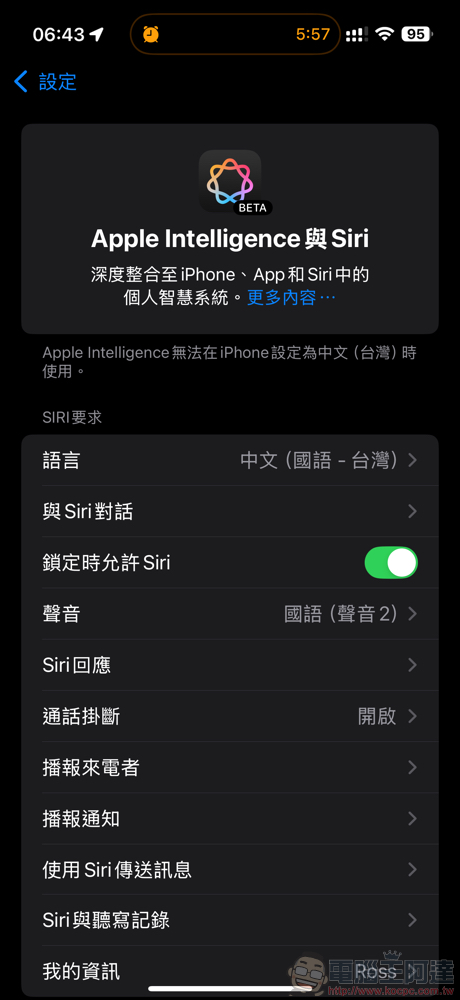
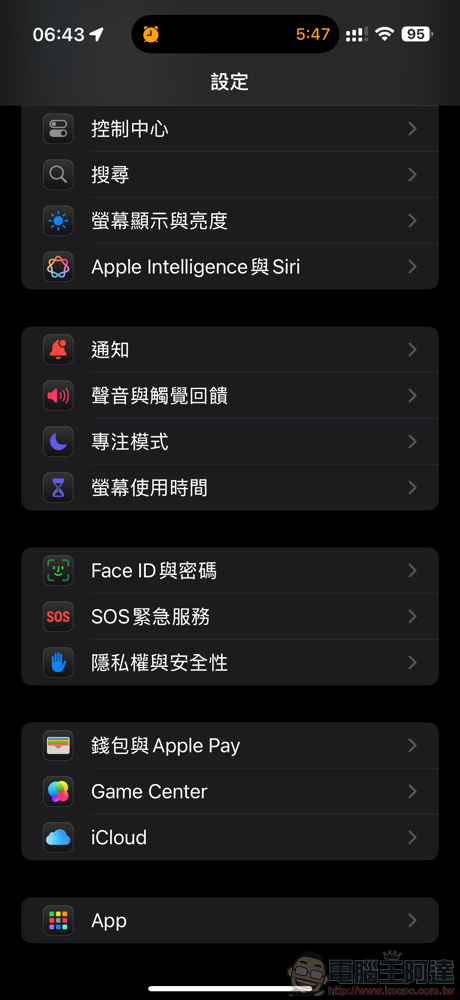
As for foreign media’s advice, you can turn off the two options “Learn from This App” and “Suggestions Notifications.” As for the suggestions on TikTok, turn them all off.
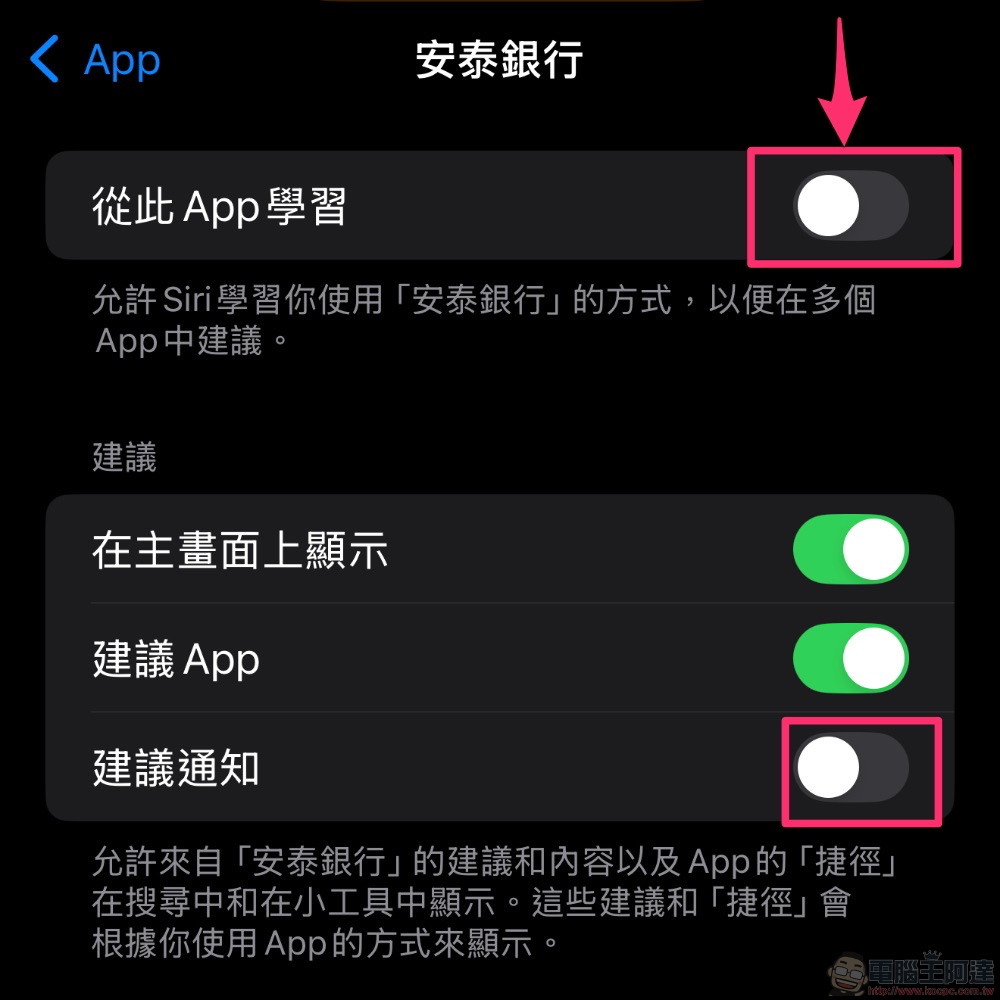
However, in my personal impression, the three options below should have existed long before Apple Intelligence. So if you’ve been using an iPhone and haven’t suffered serious privacy leaks as a result, I personally think you can assess whether to fully adopt this expert’s advice.
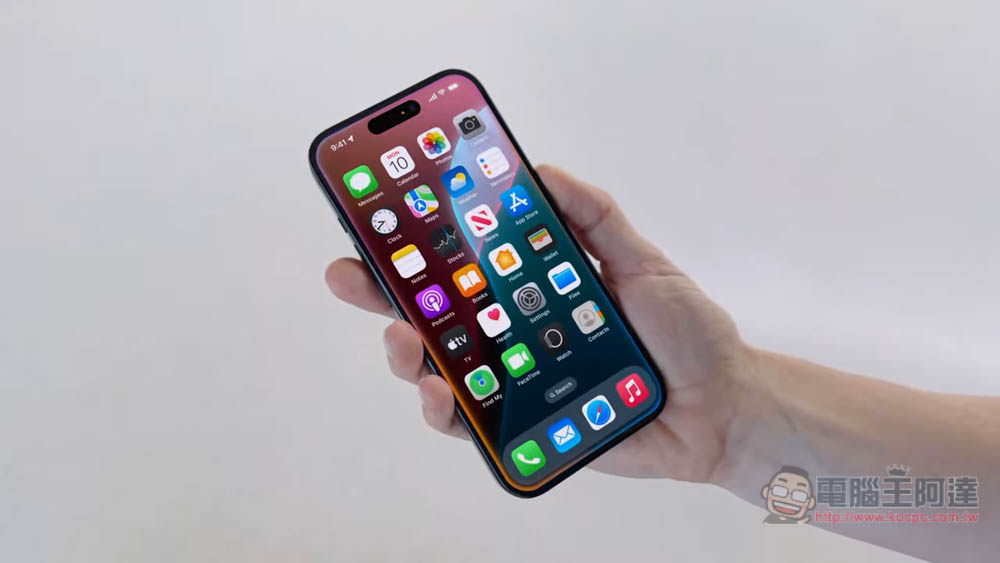
That said, the features Apple Intelligence is currently expected to launch do indeed include a smarter voice assistant that learns your personal information. According to Apple’s official description: “With full awareness of your personal context, the ability to take action within and across apps, and product knowledge of device features and settings, Siri can become your indispensable assistant in ways never before possible.” However, Apple also emphasized that when it comes to “using information from your device,” it will “strictly adhere to the boundaries of privacy protection.”
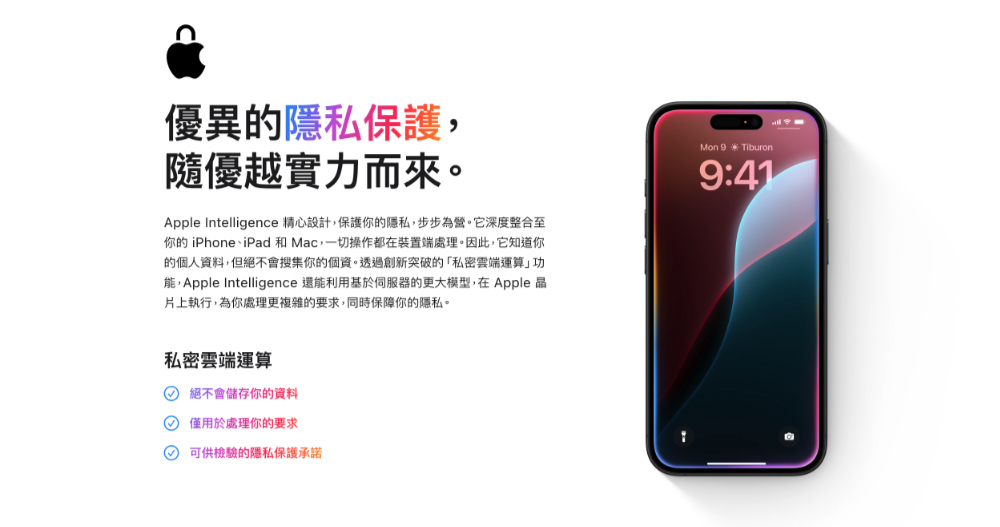
At this stage, the Apple Intelligence & Siri experience is basically the same as before, aiming to keep everything processed on-device as much as possible. If it needs help from third-party generative AI services, or even their own private cloud computing, I get the impression that Apple Intelligence will provide a clear notification and ask the user to confirm whether to send the data out.
Seriously though, if you have any data you absolutely don’t want to be used by device intelligence features—and you want to avoid constantly wondering whether these features are causing issues down the road—you can just turn them off by following this tutorial. That said, I’m not sure whether Apple will also make this feature off by default in the future; it feels like the kind of change that could happen in response to user feedback before it exits Beta.
Cited sources:TikTokvia:PhoneArena|
Further reading:
The Beauty of Efficiency: An Interview with Apple on iPhone 16 Series Product Design
Source: KOCPC Chinese