


Although there are currently some free subtitle translation tools online, they all rely on machine translation from Google, Microsoft, and others, so the quality isn’t great. Recently, I came across this powerful free open-source software called “VideoCaptioner,” which can handle video downloading (or video import) + AI transcription + subtitle translation and optimization via LLM models in one click, and finally merge the subtitle file with the video. You hardly need to configure anything—beginners can easily get started.
More importantly, the LLM model used by the built-in translation is completely free to use.
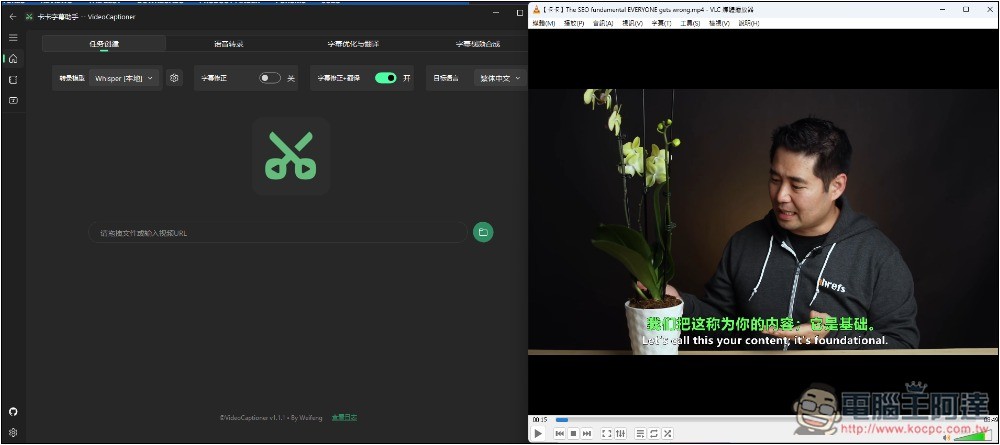
VideoCaptioner Installation Process
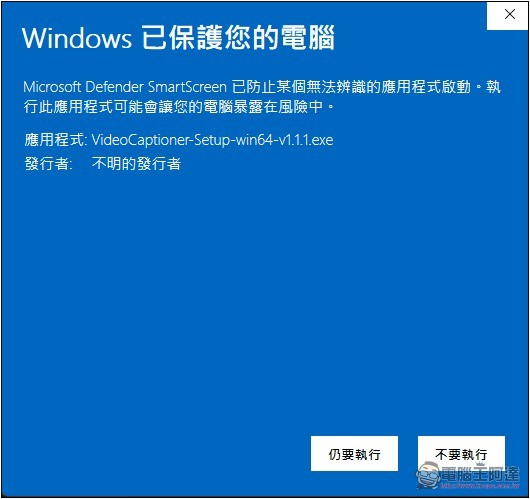
VideoCaptioner is a free open-source software, currently only available for Windows. You can download the installer from GitHub. During installation, a blue screen warning will pop up; click “More info” to continue installing:
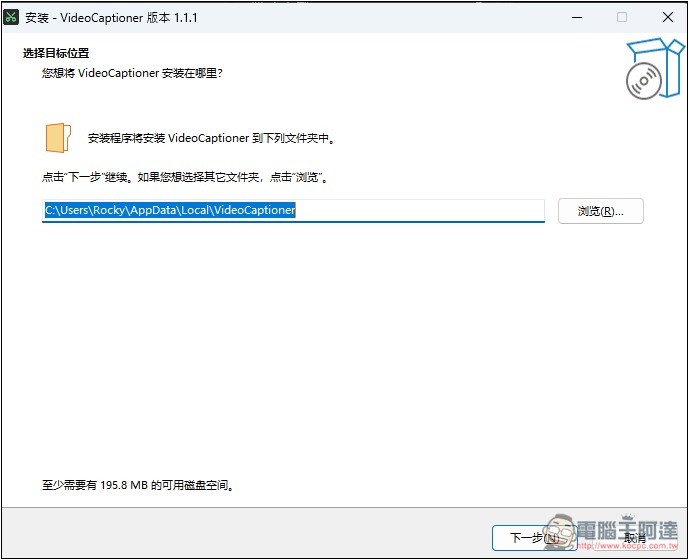
If there are no special requirements during the installation process, just keep clicking Next:
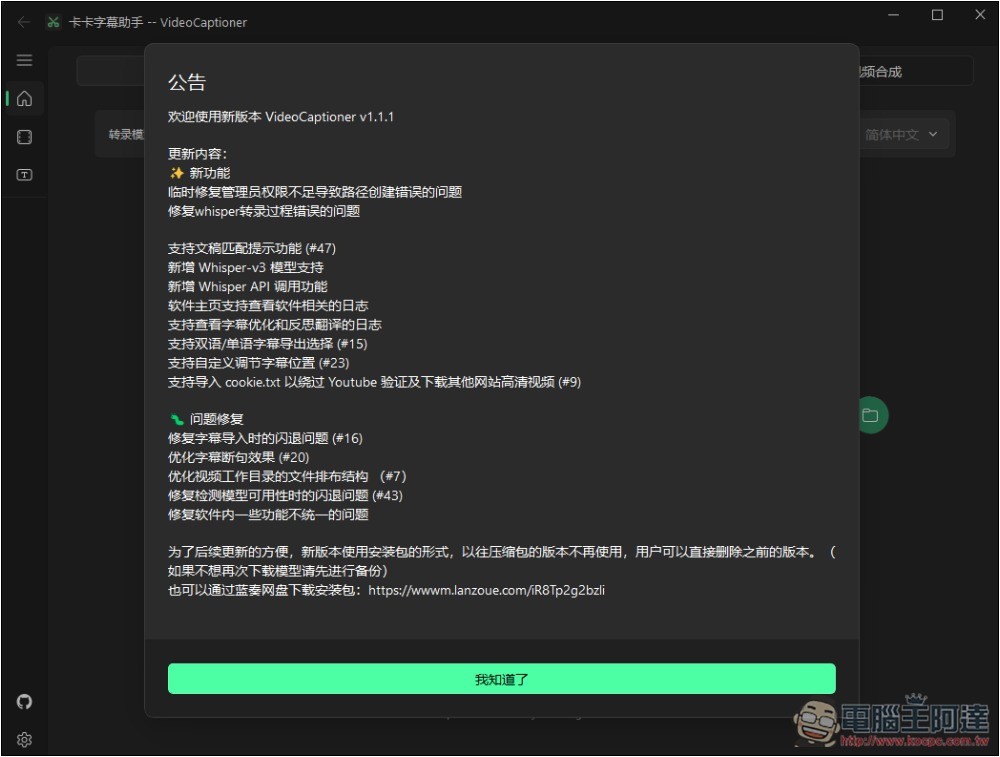
After installation, open it and you can start using it. There will be some update announcements; you can give them a quick read:
Video download + transcription + AI subtitle translation + merging, all in one go.
The operation is very simple. You can see four options at the top: “Task Creation,” “Voice Transcription,” “Subtitle Optimization and Translation,” and “Subtitle Video Synthesis.” Each one handles a complete processing step, and the last three options can be used independently.
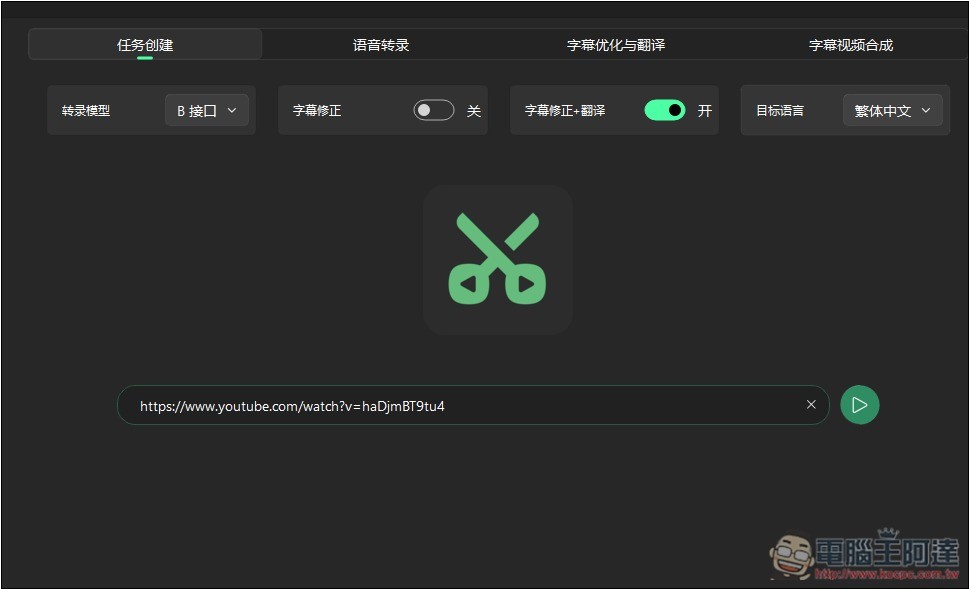
If you want to do it all at once, use Create Task and paste the video URL you want to convert, or import the video file directly. Video URLs support YouTube, Bilibili, and others. At the top, you can also choose the transcription model, subtitle correction, subtitle correction + translation, and the target language.
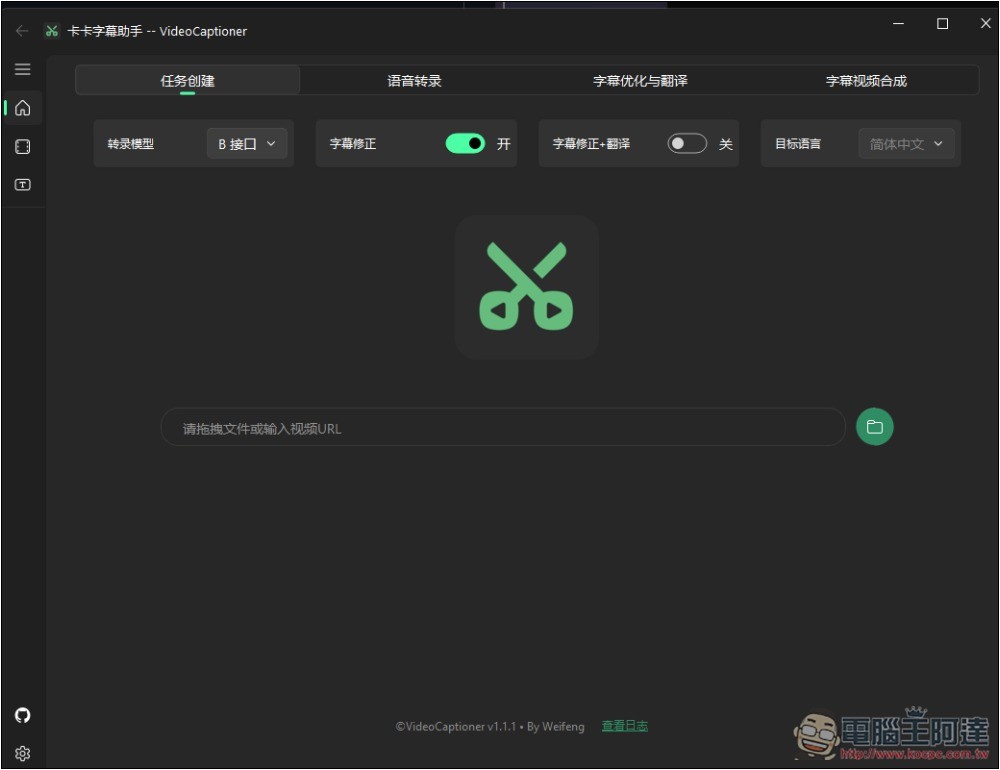
The target language is the language you choose to translate into, and there is a Traditional Chinese option.
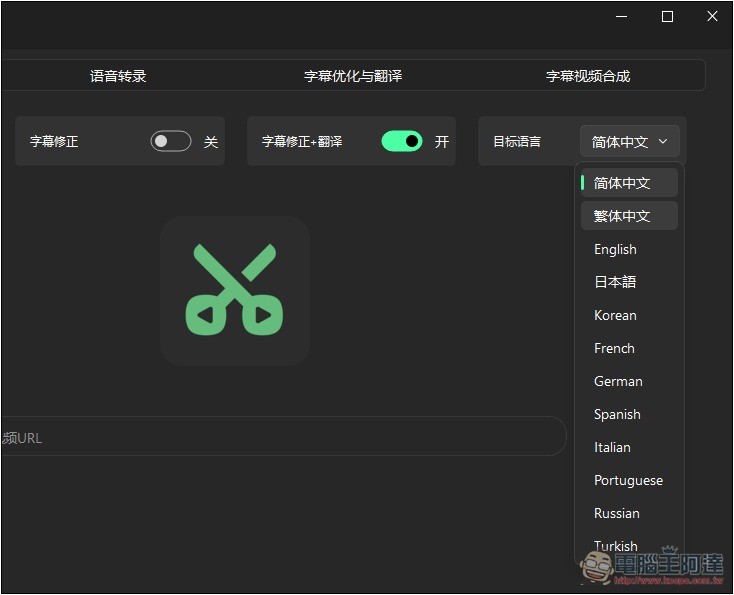
The transcription model is used to convert a video’s audio into subtitles. There are four options: “B interface”, “J interface”, “Whisper local”, and “Whisper API”. The first two are online versions; once selected, they can be used without any setup, but they only support videos in Chinese and English. If you want to transcribe videos in other languages, use the latter two:
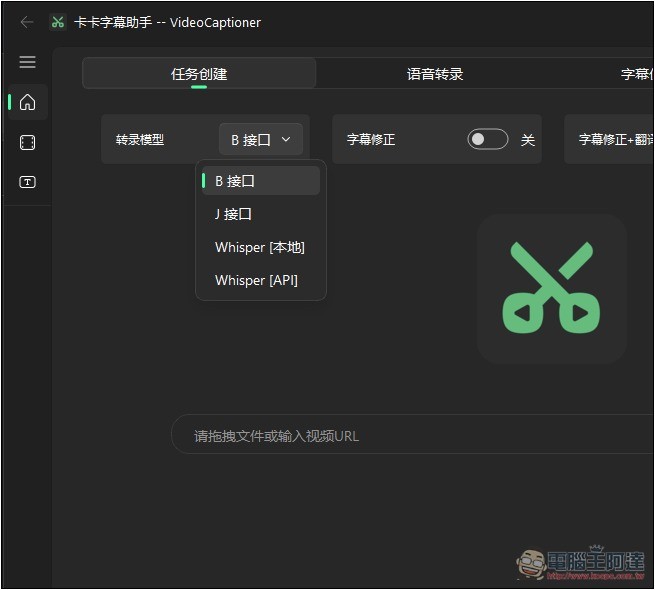
Whisper local means downloading the OpenAI Whisper model to your computer. There are tiny, small, medium, large-v1, large-v2, and large-v3, but unfortunately there’s no latest Turbo. It’s recommended to use at least large-v2 or above; the accuracy will be higher, but the files are also larger, so remember to keep more storage space.
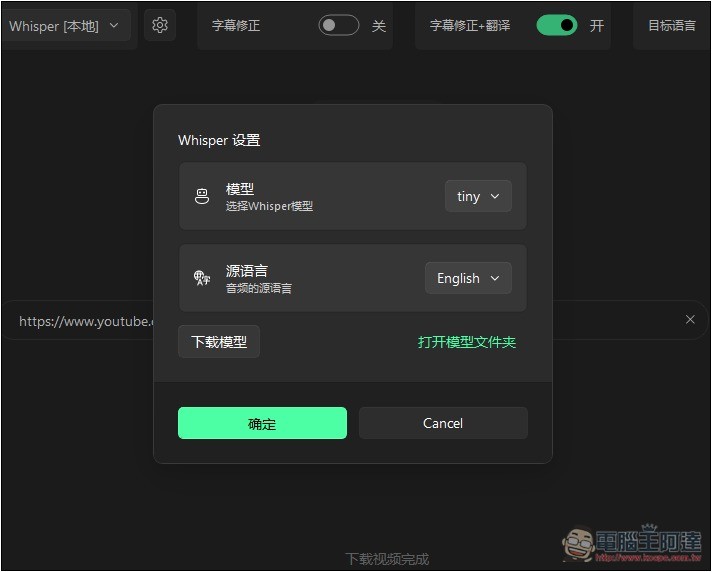
I use the online B interface to convert YouTube videos, and then I turn on “subtitle correction + translation”, so after the video is downloaded and subtitles are generated, it will also translate and optimize the subtitles.
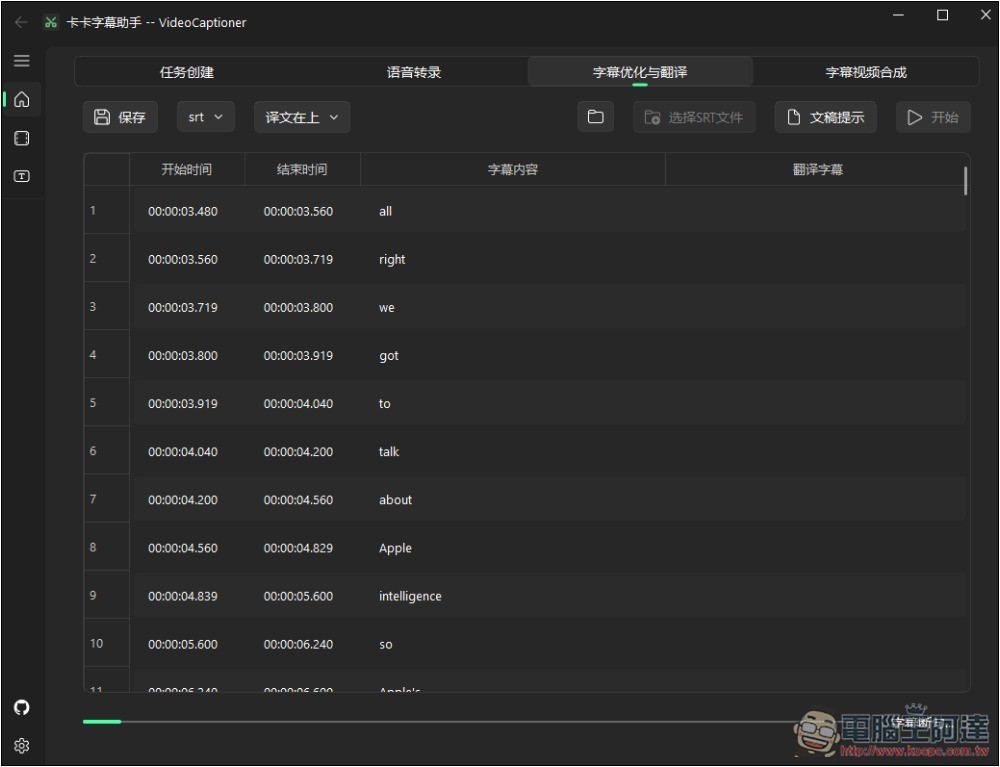
Next, just let it run to completion. The processed subtitles will display in real time. At first, only one or two words may appear—don’t worry about that. The full subtitles will show up shortly after. There’s a progress bar at the bottom:
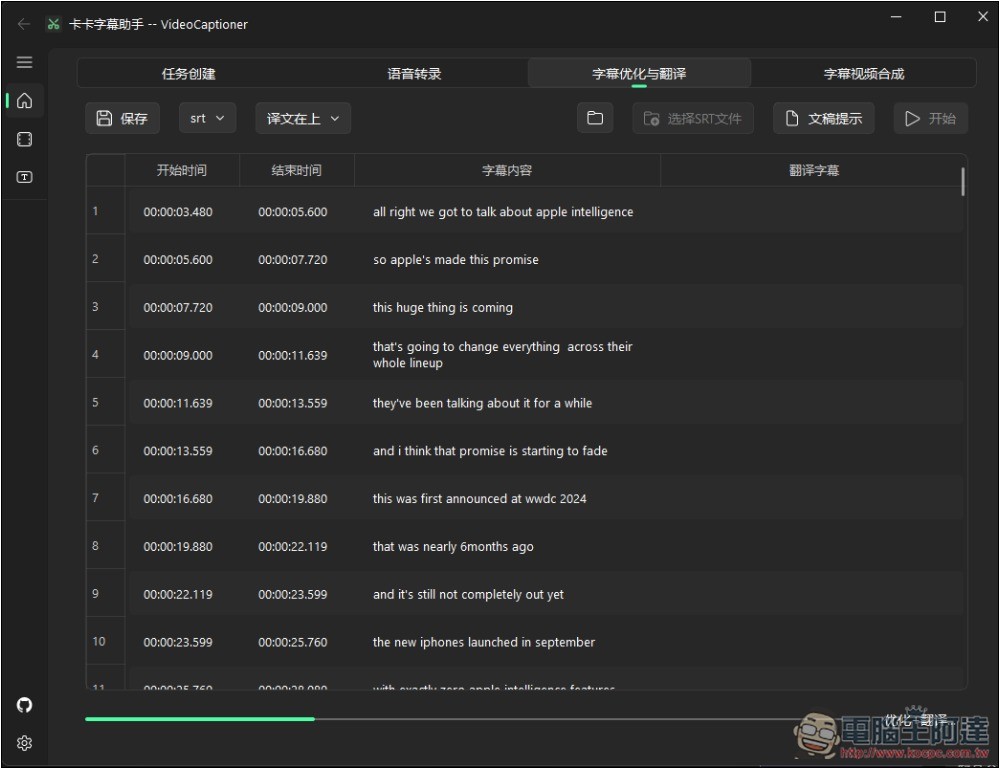
Like this, the transcription subtitles will be done in just a few minutes:
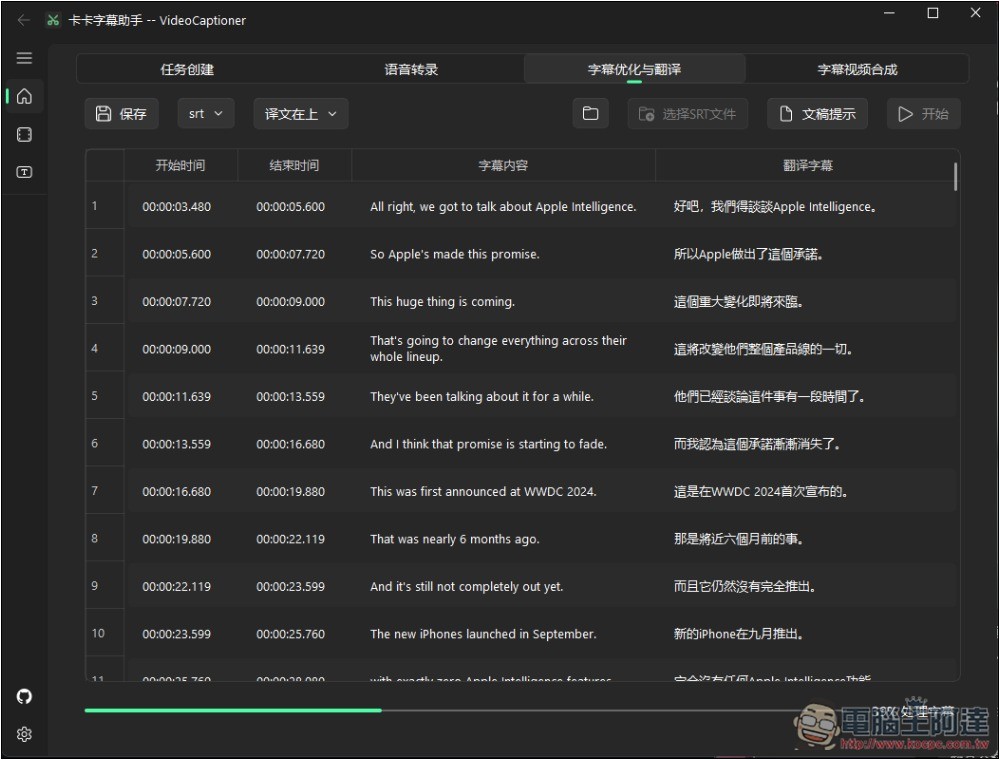
Next is subtitle translation. I’m using the built-in LLM model; the developer didn’t specify the model name, but from what I can tell, the translation quality is decent—not too bad. However, some content doesn’t get translated correctly into Traditional Chinese and ends up in Simplified.
After the subtitles are translated, it will automatically switch to merging. It will take the video’s original subtitles + the Chinese translation and merge them into the video, so you won’t need to attach external subtitles anymore:
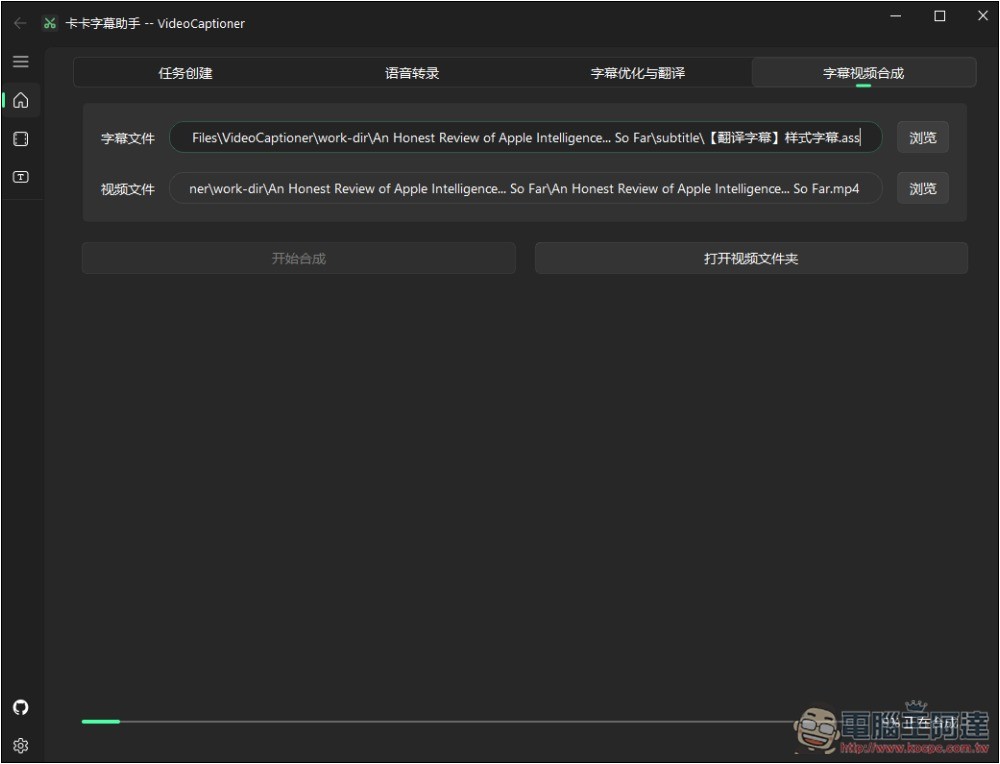
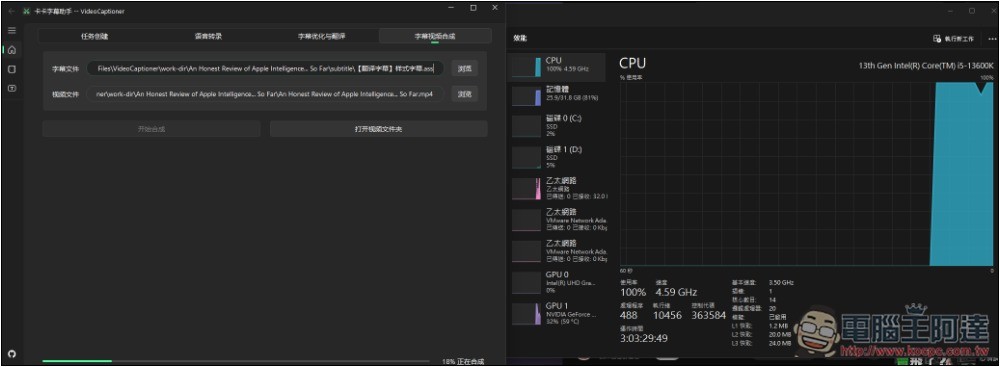
The merge process uses the computer’s CPU resources:
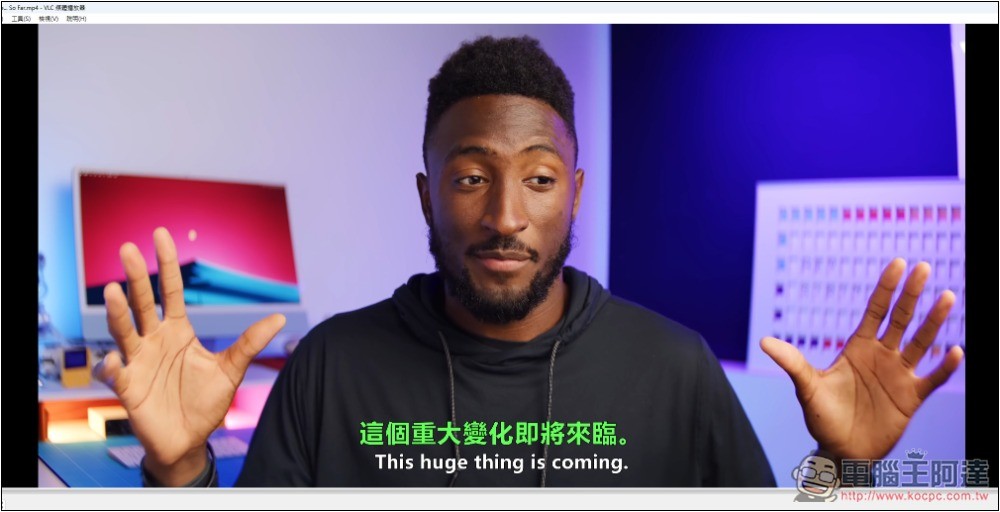
The final result will look like this—a dual-subtitle video, where settings such as subtitle color, size, and position can also be manually adjusted:
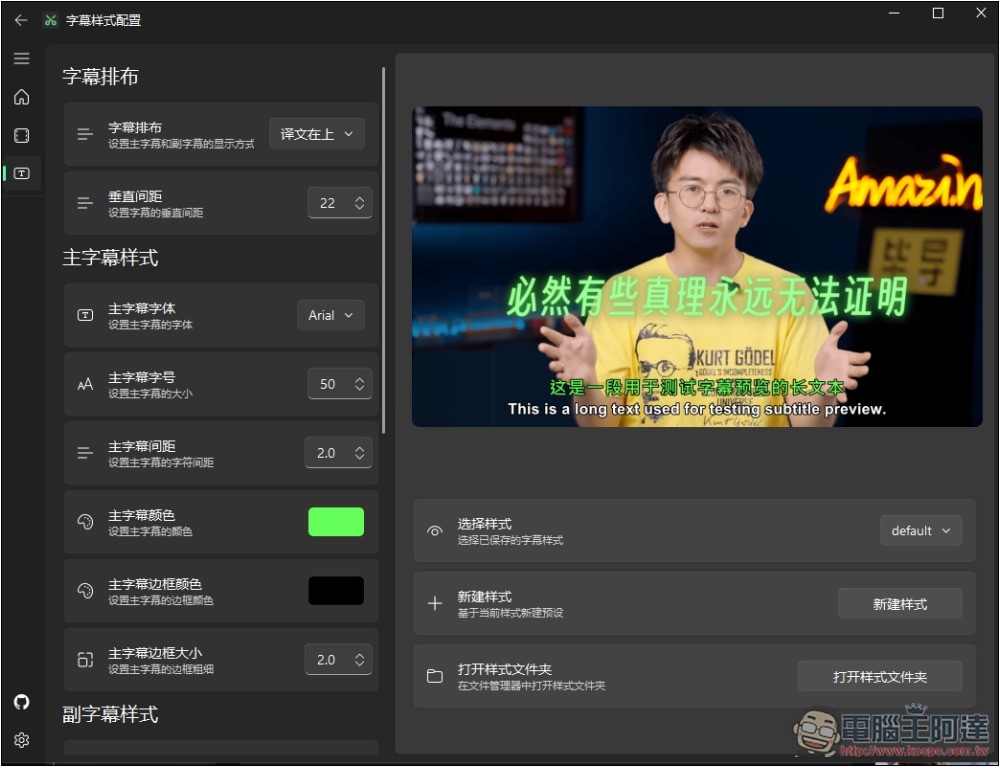
Adjust video subtitle settings
If you don’t like the default video subtitles, you can go to the fourth option on the left, where you can adjust them to your preference—such as where the subtitles appear, the spacing, font, size, color, and border color. Subtitles are also divided into main and secondary ones. On the right, there’s a screen for you to preview:
Switch to the OpenAI model for translation.
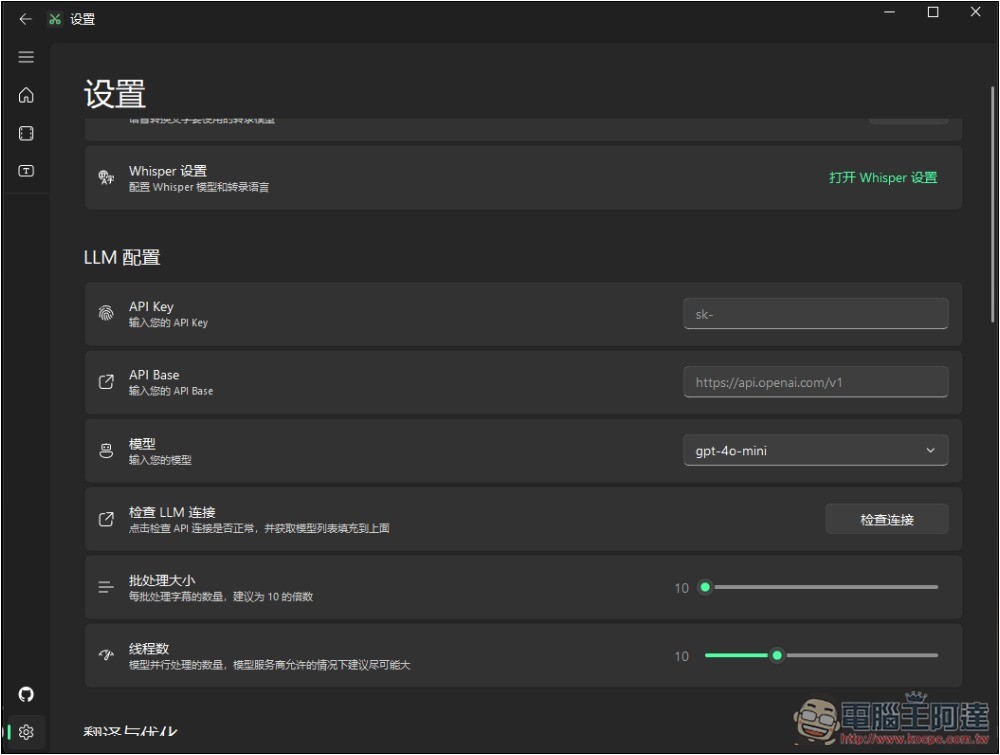
If you’re not fully satisfied with the built-in LLM translation quality, this app also supports OpenAI models, but you’ll need to enter your own API Key. Scroll to the bottom of Settings, and you’ll find an LLM configuration section. Enter your OpenAI API Key there, select a model (currently GPT-4o and GPT-4o-mini are available), and adjust the settings below as you prefer. After configuring, remember to check the connection, and if everything works, you can switch to using OpenAI models for translation.
Source: KOCPC Chinese