


Many people like to swipe their phones before going to bed, but even if the brightness of the iPhone screen is adjusted to the darkest level, it may still disturb the person next to them. If you want to swipe your phone but are worried that the screen’s light will affect others, in addition to using dark mode and adjusting the screen brightness of your iPhone, you can also use the iPhone’s zoom low-light mode! Today I will share with you the setting method of this function and the actual display effect.
iPhone Low Light Mode Hidden Tips and Settings Tutorial: Darker than Dark Mode, No Dazzling at Night
When using mobile phones at night or in dimly lit environments, if you don’t want the brightness of the iPhone screen to be too dazzling, in addition to manually adjusting the screen brightness, many people will choose to set the iOS system appearance to “dark” mode. However, when these common practices are performed in the bedroom before going to bed or in a completely dark environment (such as a movie theater), the brightness of the mobile phone screen is still somewhat too bright.
If you want to make the screen brightness darker while maintaining good readability, you can try the zoom low-light mode shared with you today. Before using the low light mode shared today, be sure to set the system appearance to dark mode. As for the screen brightness, you can turn on the low light mode and then adjust it according to the situation.
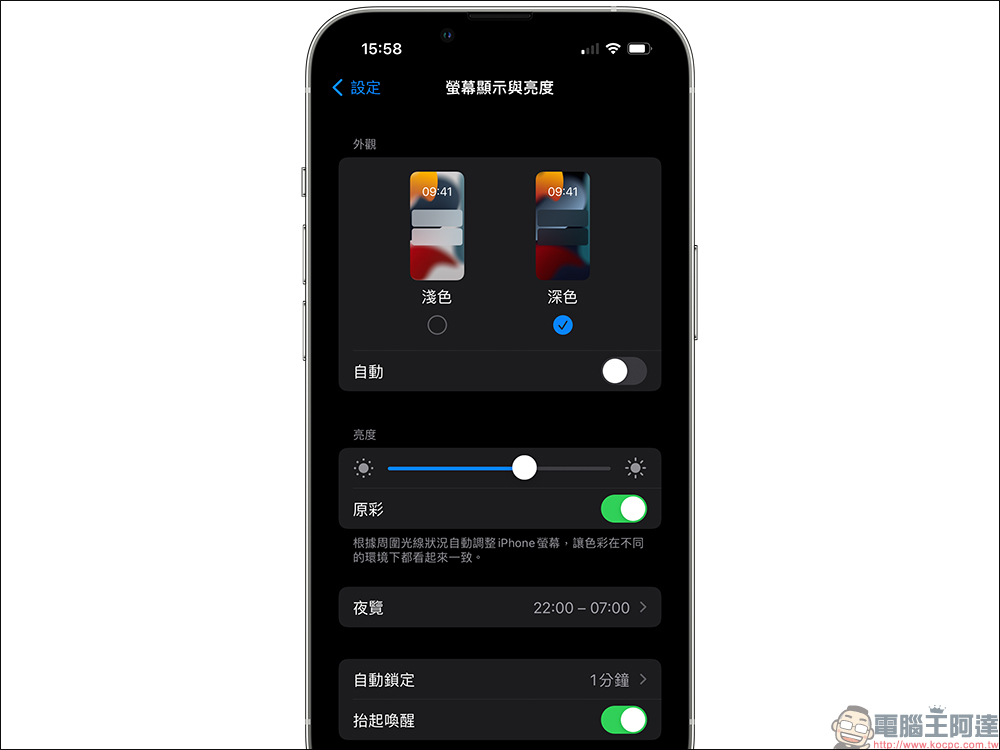
The zoom low light mode introduced this time does not automatically turn on in the normal default state, so you need to set it yourself. The following steps begin with the setup:
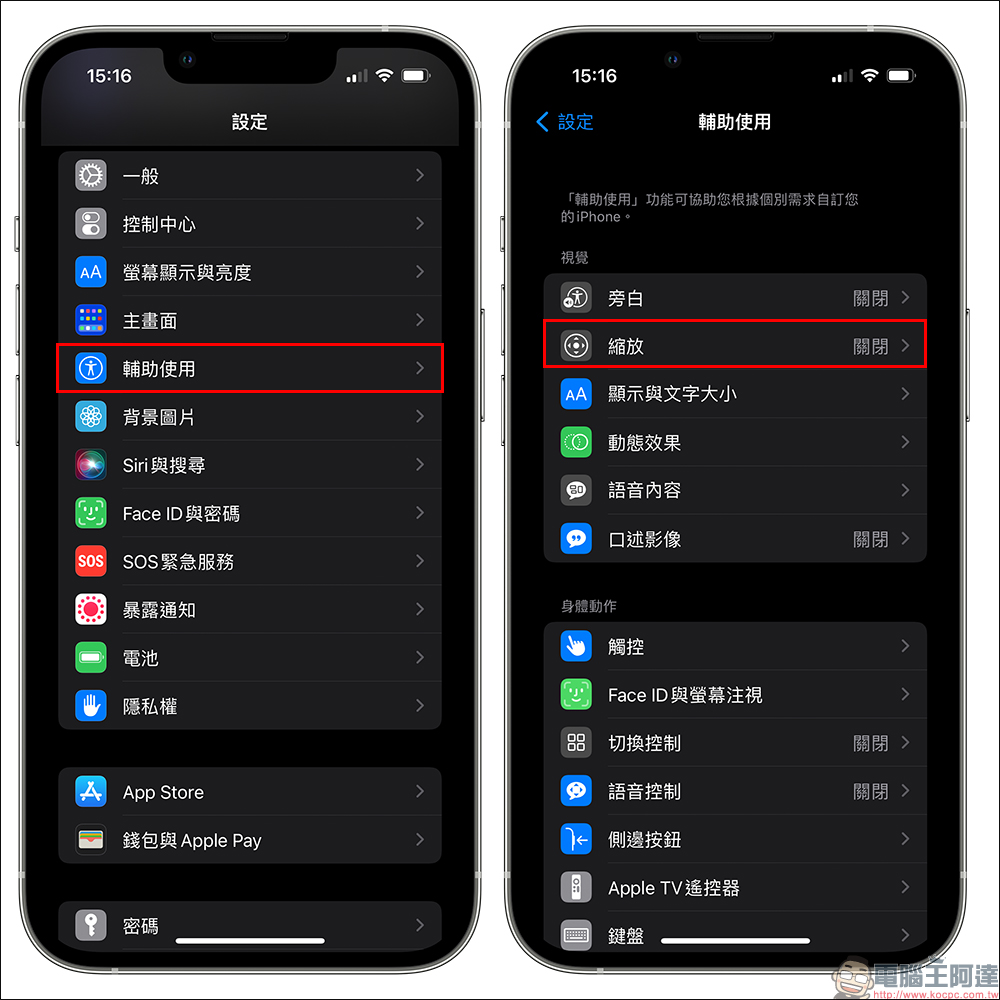
First, go to the “Settings” App, find “Accessibility”, and then click “Zoom”.
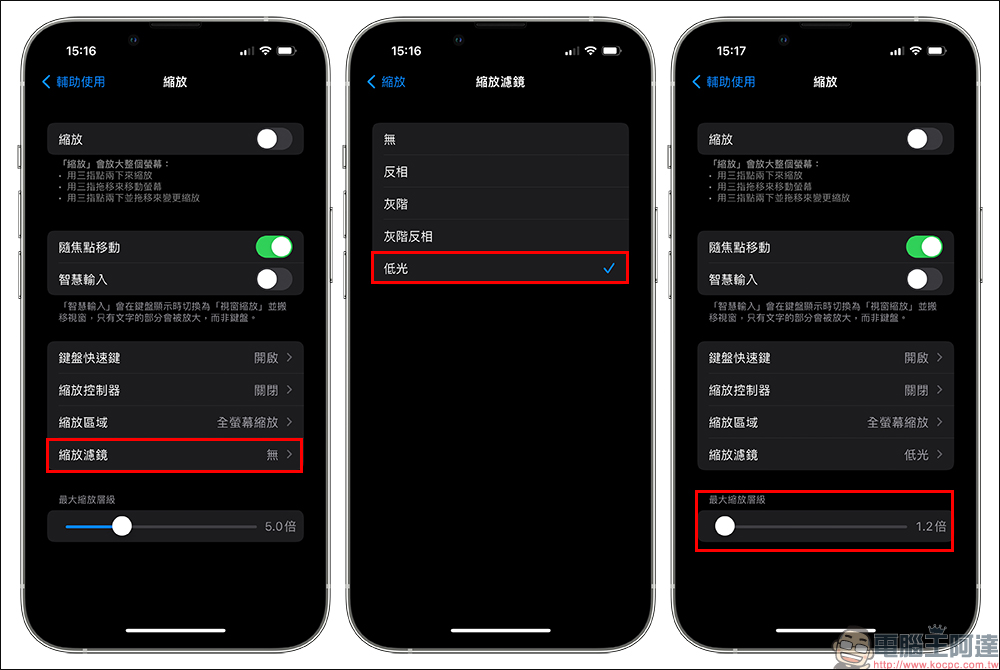
Then click “Zoom Filter” on the zoom page and check “Low Light” before returning, and set the maximum zoom level to 1.2x:
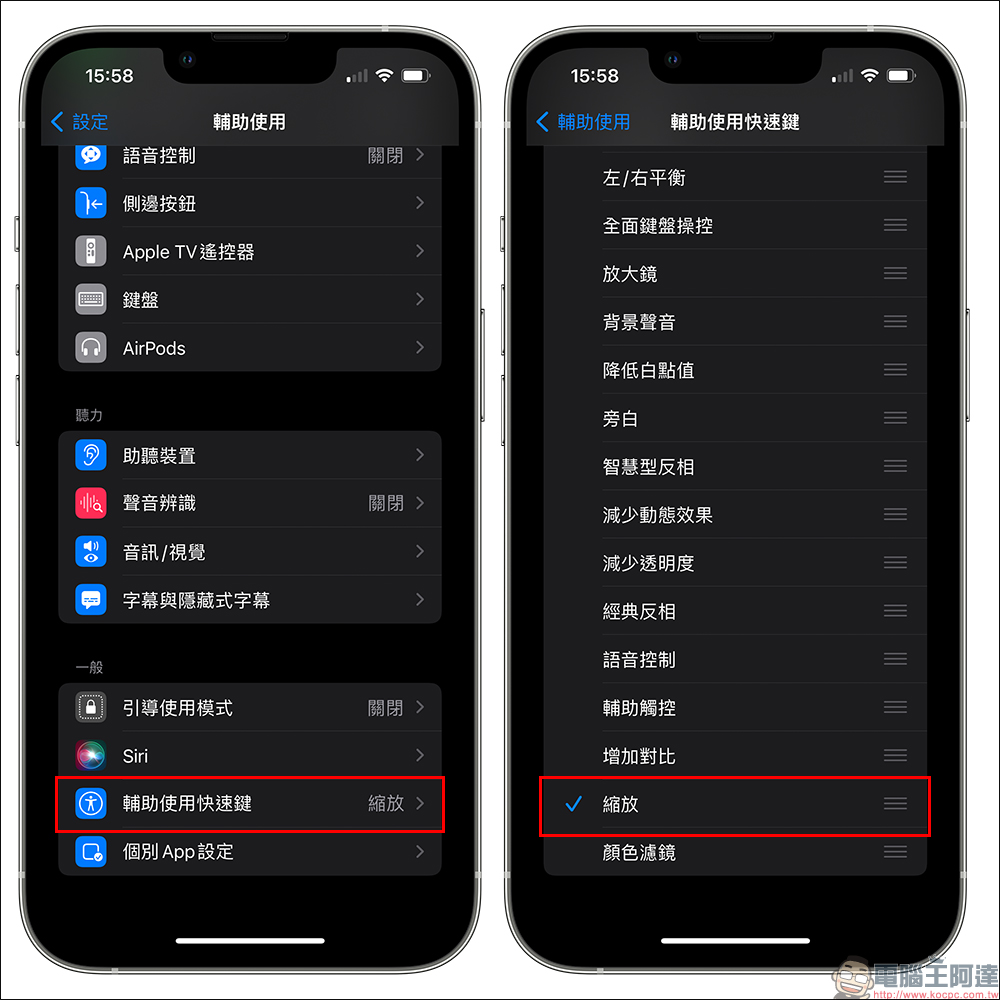
Go back to the “Auxiliary Usage” page, click “Auxiliary Usage Shortcut Keys” and check “Zoom”. Basically, the setting is complete at this stage! The next step is how to turn it on or off!
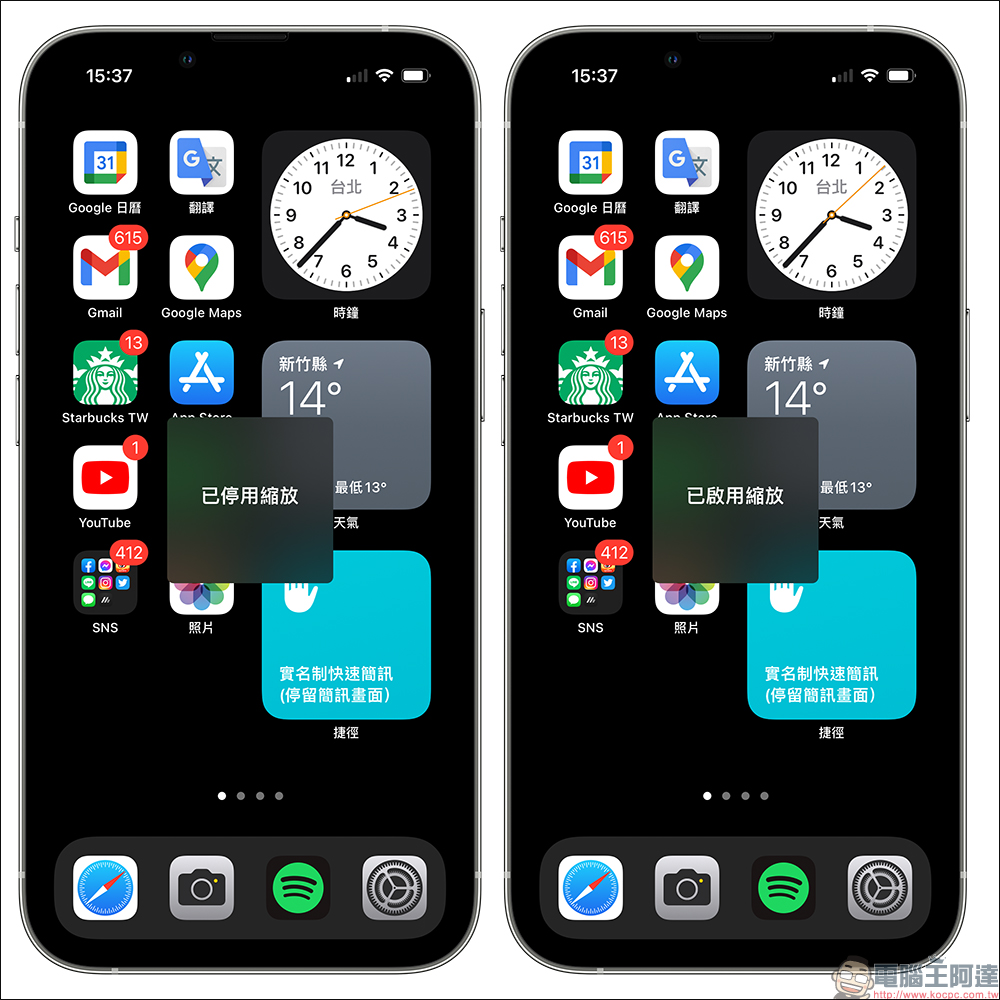
To turn on or off the “Zoom” function, just click the power button 3 times in succession, and the current status of the zoom function will be displayed on the screen. For example, when it is turned on, “Zoom Enabled” will pop up on the screen. Otherwise, if you click the power button 3 times in succession, “Zoom Disabled” will be displayed.
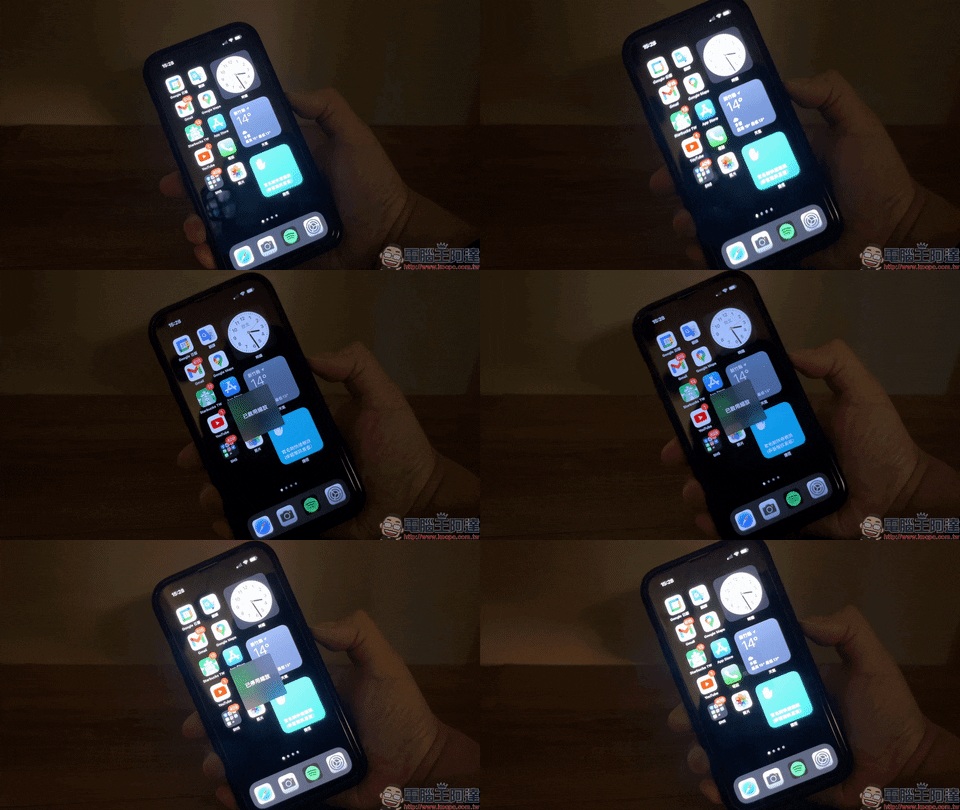
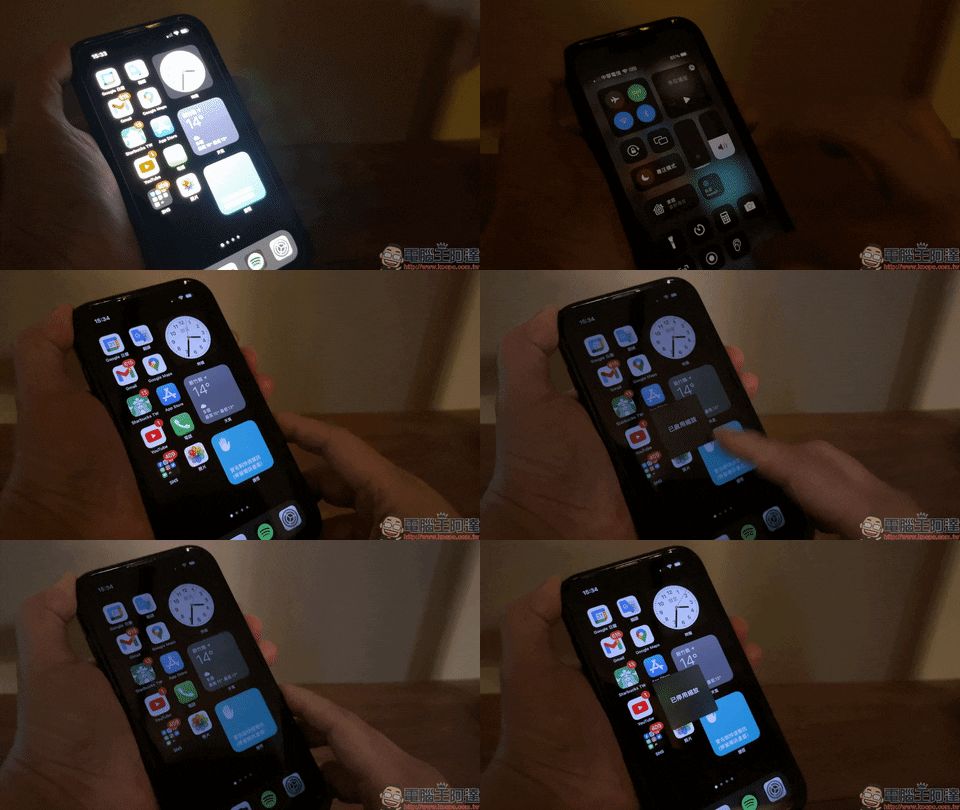
However, the above tutorial cannot show the actual effect of changing the screen brightness on the screenshot. The following demonstrates how to directly use the iPhone zoom to adjust the low light mode without adjusting the brightness. You can find that when turned on, the brightness of the iPhone screen becomes significantly darker.
What will happen if the brightness of the iPhone is originally set to “Brightest” and then switched to zoom low light mode? The brightness of the iPhone will also become less dazzling, but still maintain considerable visibility.
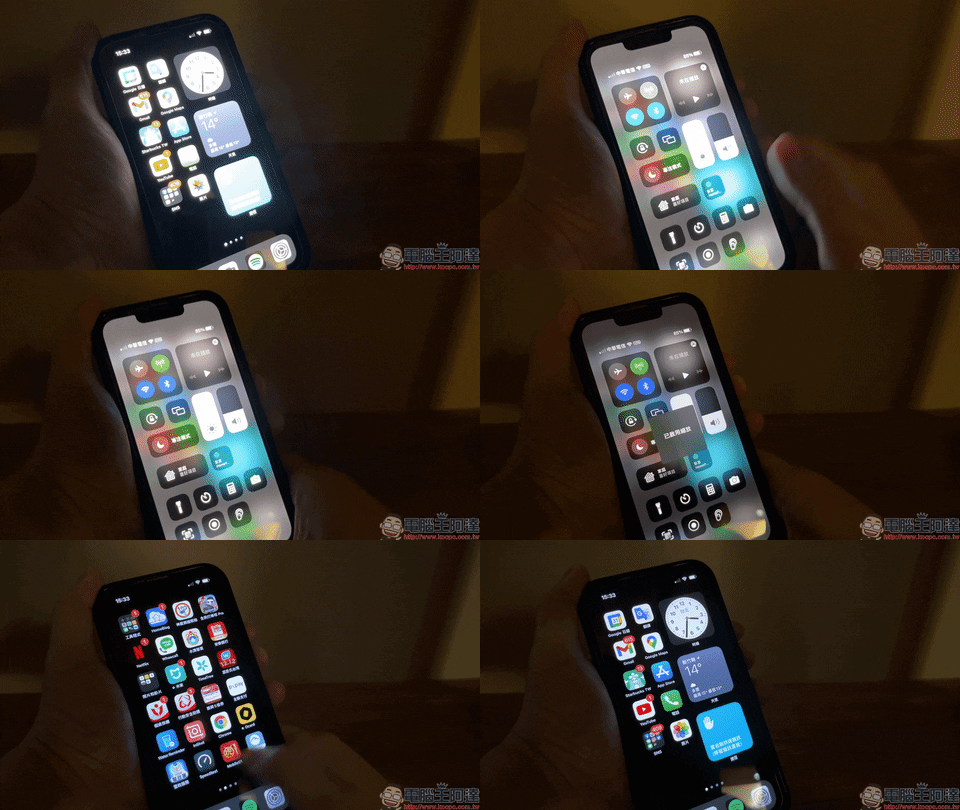
If you want to make the iPhone screen the darkest, adjust the screen brightness to the darkest level, and then turn on the zoom low light mode! You can see that the brightness of the screen is darker than in the past when just adjusting the screen brightness.
Conclusion
Although the iPhone zoom low-light mode introduced this time seems inconspicuous, you can easily turn it on when you sometimes need to use your phone at night and are worried that the light from the screen will affect others. If you do not want to continue using this feature, you can also turn it off with a convenient operation. If you have always been troubled by the screen being too bright and too glaring, you might as well learn this trick!
Source: KOCPC Chinese