


When it comes to capturing YouTube video footage, most people probably use the computer’s built-in (or separately installed) screenshot function. Although this method can also capture, sometimes it will capture the controller at the bottom of the YouTube video, or the pressing speed is too slow, and the required screen is not captured, and there is a symbol in the middle when pressing pause. This situation is the most troublesome. If you often encounter this problem, this article recommends a very practical free Screenshot YouTube extension, which is supported by Chrome and Edge. After installation, a screenshot function will appear below the YouTube video. You can capture the current scene with one click, in high quality, and also provides shortcut key settings.
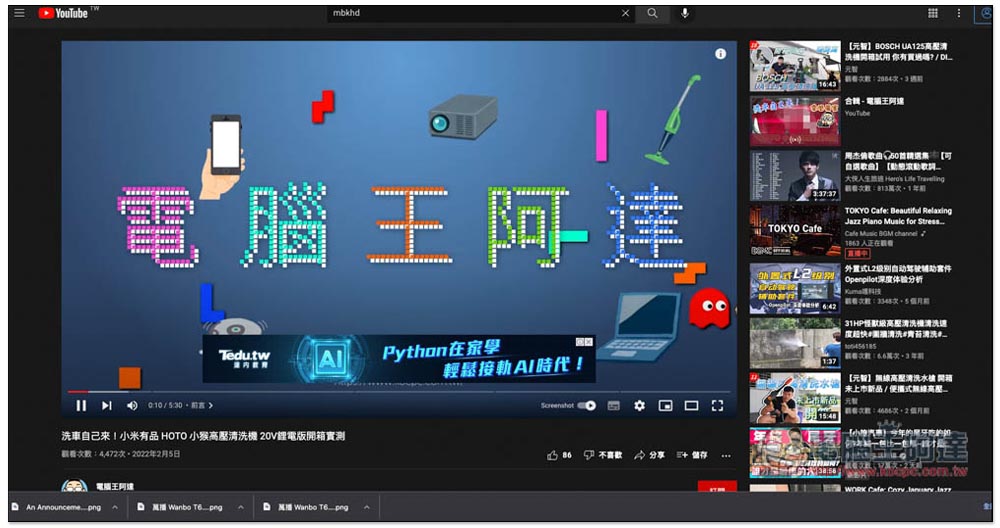
Screenshot YouTube is a free extension that lets you easily capture YouTube video footage with just one click.
Screenshot YouTube installation location:
Below I will use Chrome as an example, and the Edge operation is the same. However, when I tested Edge, I didn’t know whether it was a problem with my browser or the version provided by the Edge store was too old. It seemed that I couldn’t take screenshots. If you are using Edge and this happens, you can install the Chrome store version instead.
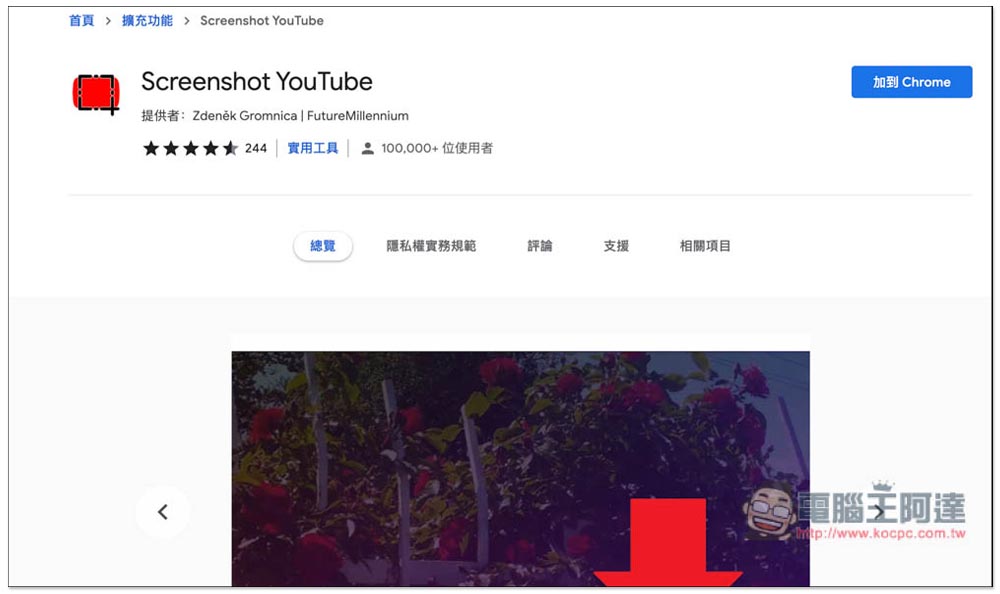
After entering the Chrome store, click “Add to Chrome”. Currently, this tool has been installed by more than 100,000 users and has a rating of 4.6 stars. This shows how easy it is to use:
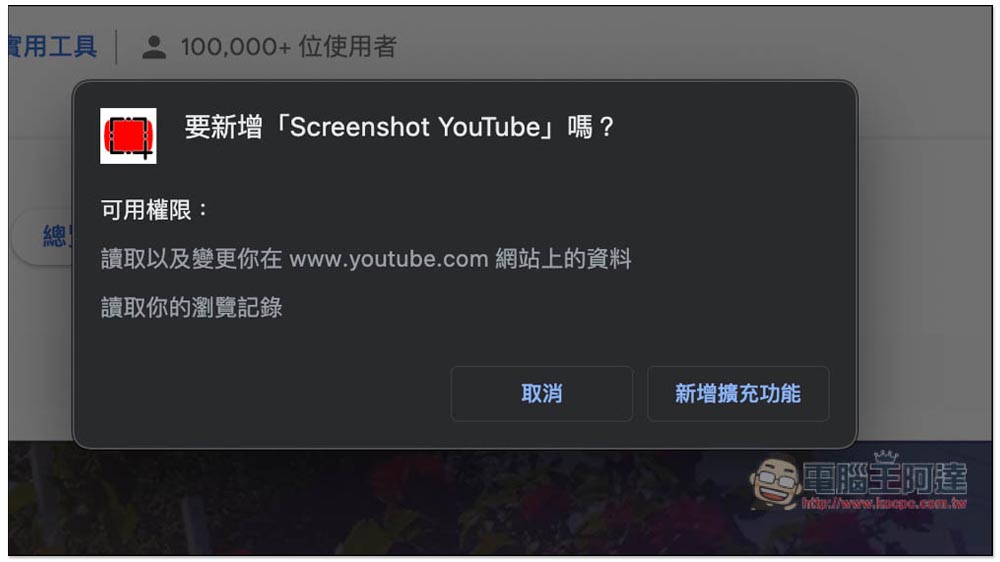
This window will pop up, click “Add extension”:
If this message is displayed in the upper right corner, it means the installation is successful. However, the Chrome browser will automatically hide the extension after it is installed by default:
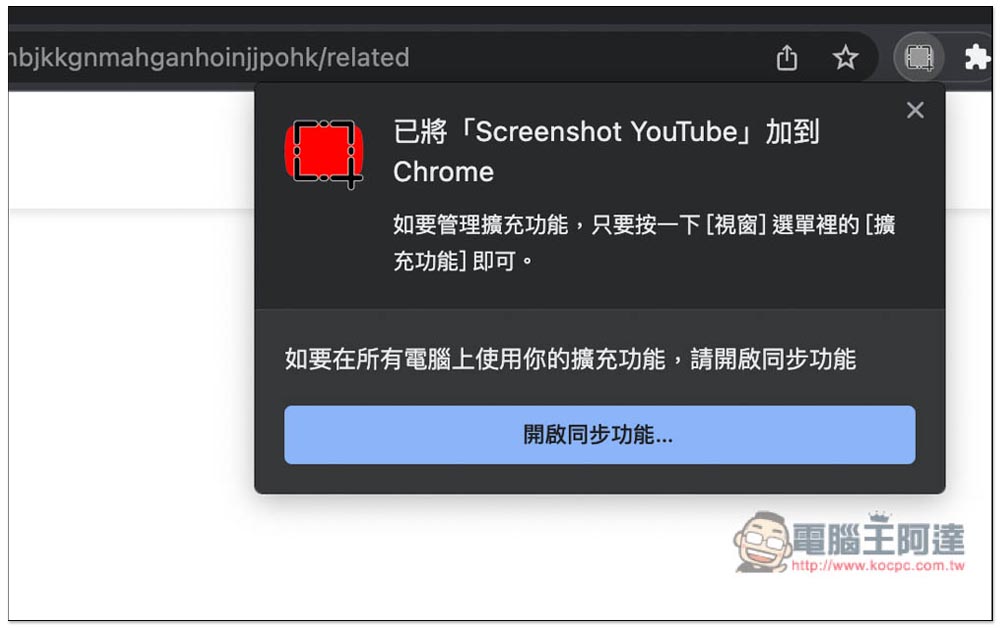
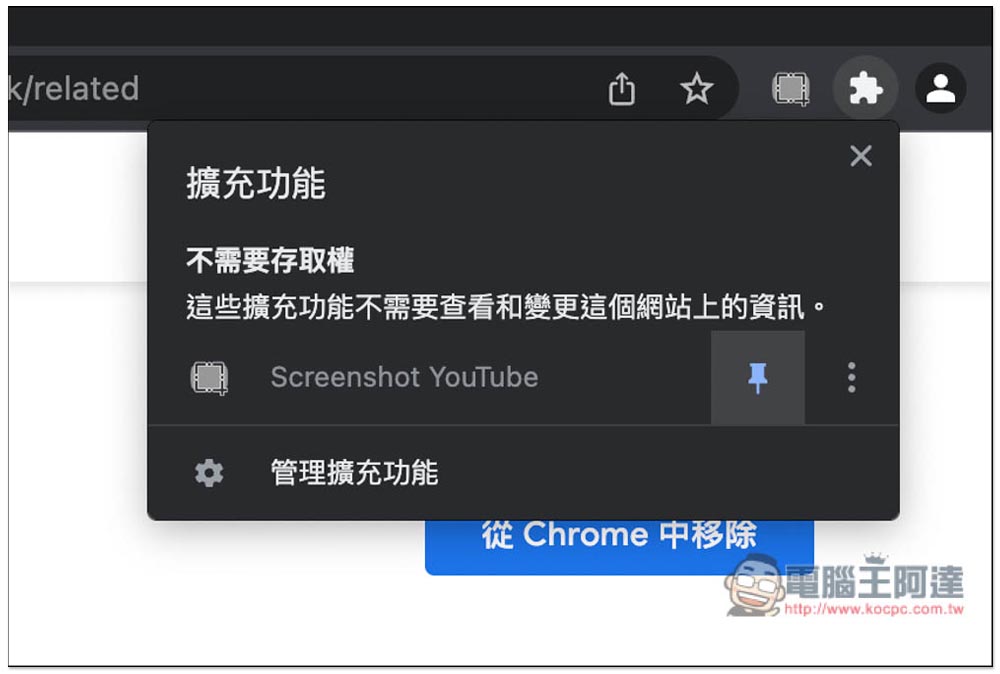
Click on the puzzle icon to find it. Open the pin and it will appear:
After opening any YouTube video, a new Screenshot button will appear in the bottom controller bar, which is to the left of the auto-play function switch. When you need to capture a YouTube video screen, click this Screenshot button, and the screenshot will be automatically downloaded to your computer:
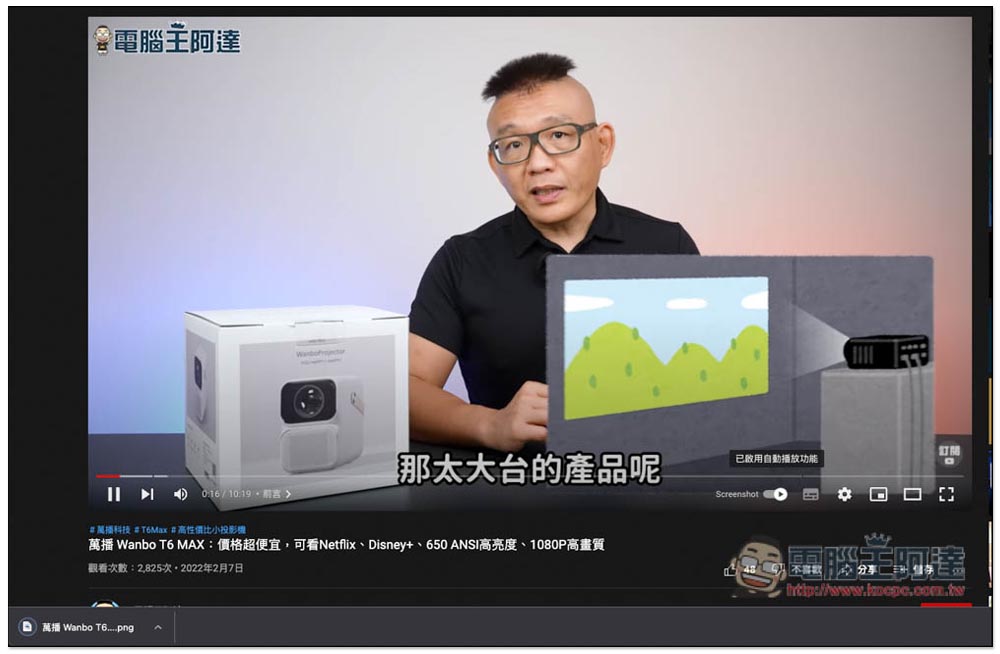
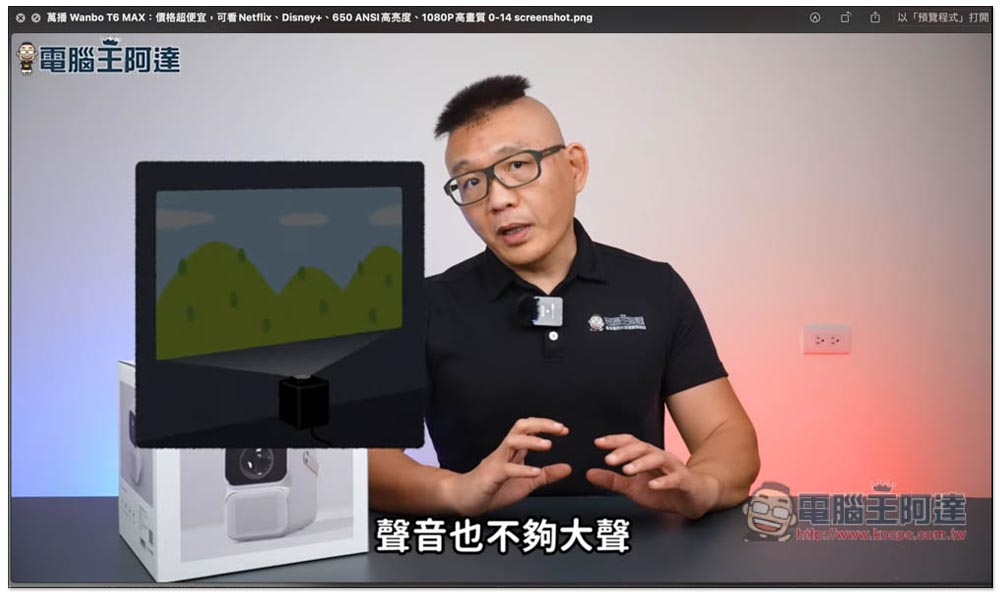
As shown in the picture below, the file name is named after the video:
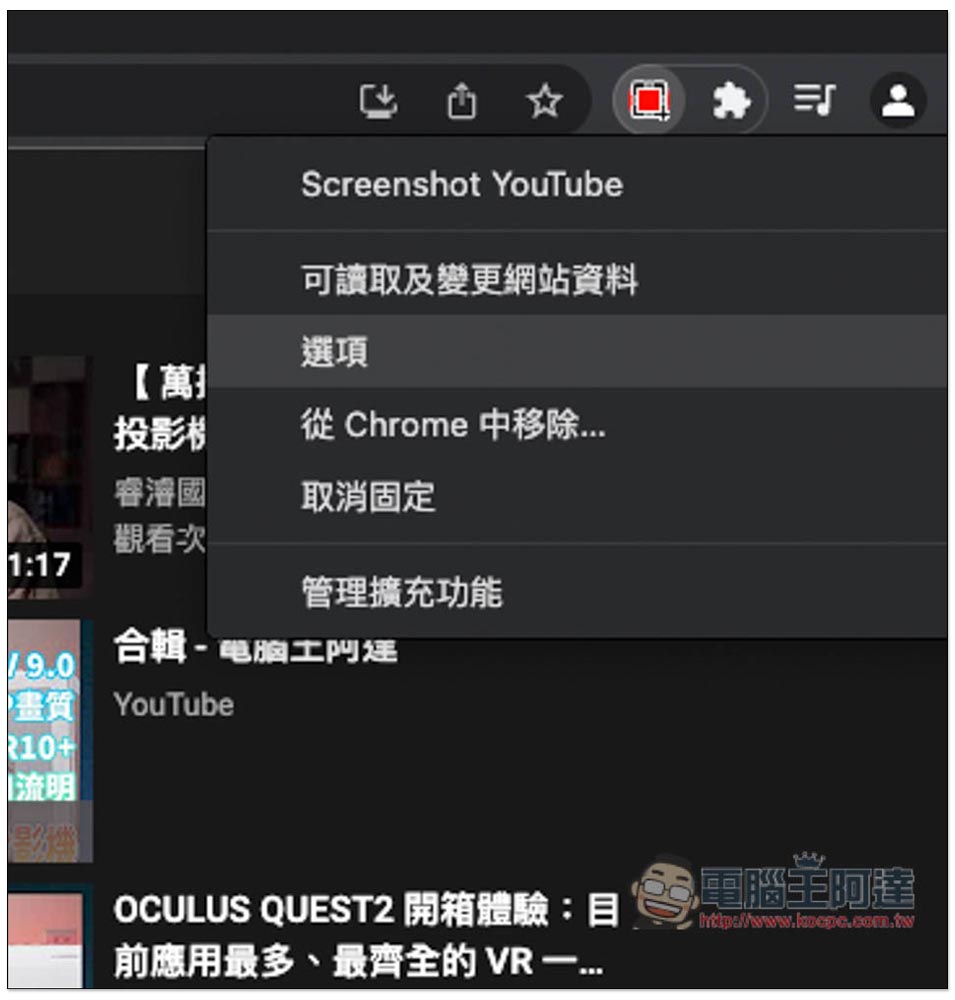
This model also has some options that can be set. After opening the icon, you can find the “Options” function:
The option settings will open. This supports shortcut keys, but it is not turned on by default. If you need it, please check the keyboard shortcut to take screenshot option, and then you can use the P shortcut key to take screenshots. Save to file or clipboard Some defaults will be automatically downloaded to the computer + copied to the clipboard. If you don’t need to copy to the clipboard, you can just download it (Save to file):
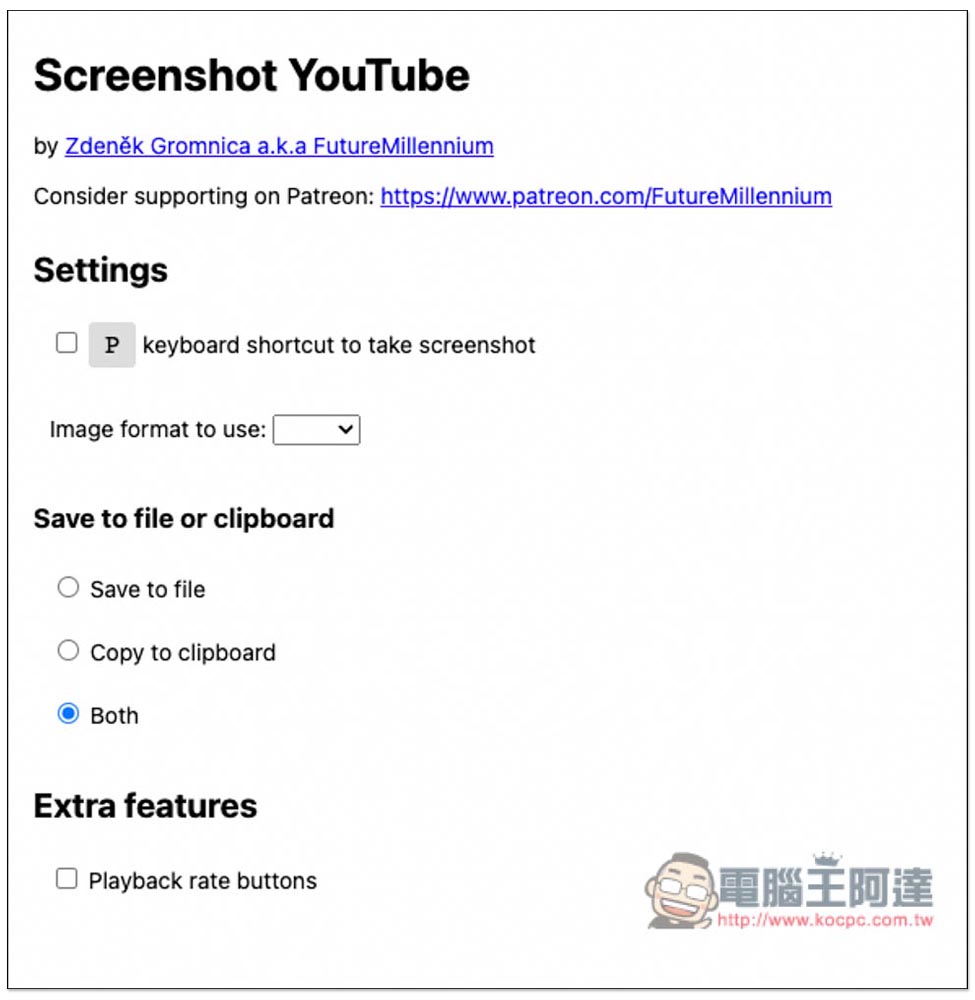
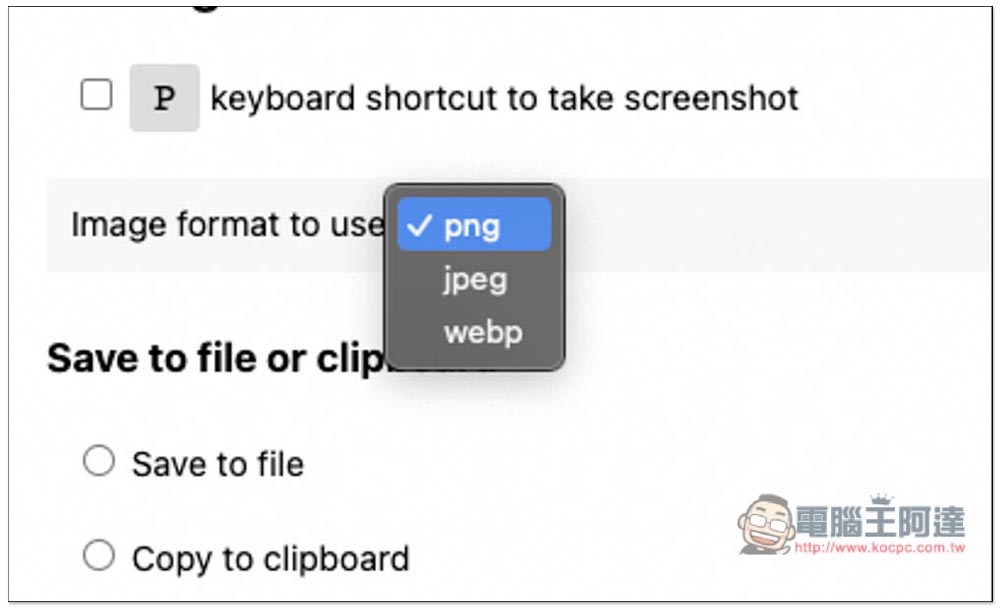
The default screenshot format is png, jpeg and webp are also provided, and those who need it can change it:
With the Screenshot YouTube extension, you won’t have to worry about capturing YouTube videos in the future. You can just press the bottom button or the P shortcut key. This is really convenient.
The only pity is that this device cannot capture YouTube video subtitles, so if you need subtitles, you can only use the screenshot function of your computer.
Source: KOCPC Chinese