


Photo Watermark is a professional watermark creation software that can add text and images to your photos to protect your photo copyright and make the photos more personalized. Whether it is image cropping, resizing and image naming, batch processing is also a feature of Watermark Software! This limited-time free event has started, and you can get a free Watermark serial number worth $24.95 for a limited time. What are you waiting for?

用 Telegram 訂閱【挨踢路人甲】最新文章:https://t.me/itwshare
▼Go to Photo Watermark’s event page and see the words “Get IT FREE”. The software worth $39.95 is free for a limited time! (There is an event website at the end of the article).

▼Scroll down and you will see that the “Download” in Step 1 is the link point for software download. In Step 2, expand the License Code and you will see the activation serial number. Please note it down.

▼Execute the downloaded installation file and execute the installation file. In the Windows 10/11 environment, a window for using this account will appear during execution. This is because a security warning window of “User Account Control” will appear due to security issues. Mainly when the user performs some actions that will affect the system, a confirmation screen will often appear, so click [Yes] to continue (if you want to remove this warning, please refer to “How to turn off User Account Control (UAC) in Windows 11″article).

▼Then the installation wizard’s welcome screen, installation path and other inquiry screens will appear. All actions can be completed by just pressing [Next] with the mouse.

▼The free version has some limitations, so press the upper right button to register.

▼The registration window will appear, click [Enter License], enter the serial number obtained previously, and press [Register] to see that the registration is successful.

▼The picture below shows the main screen of the watermark software. Although it is in English, the operation is easy to understand. Click “Add Image” to select an image to start.

▼Open the picture selection window. You can select multiple pictures for batch processing. For example, a passerby who was kicked by a passerby wants to batch process 4 pictures.

▼You can add watermark text to the “Text” tab.

▼Or insert a watermark image on the “image” tab. Regardless of the inserted text or image, in addition to the basic text settings, the text watermark can also adjust special effects such as transparency, angle, and shadow.

▼After completing the relevant watermark design, press the lower right [Run] to generate the watermark.

▼An output setting screen will appear at this time. The output formats can be JPG, GIF, BMP, PNG, TGA, TIF, ICO, PCX, etc. You can also adjust the quality of the image. The “output Folder” below is the specified output directory. Finally, press [Run] to generate the image.

▼You can see the results of each picture during the batch process.

▼After completion, you can go to the specified output directory to view, and sure enough, the text and pictures just inserted appear on the photos.

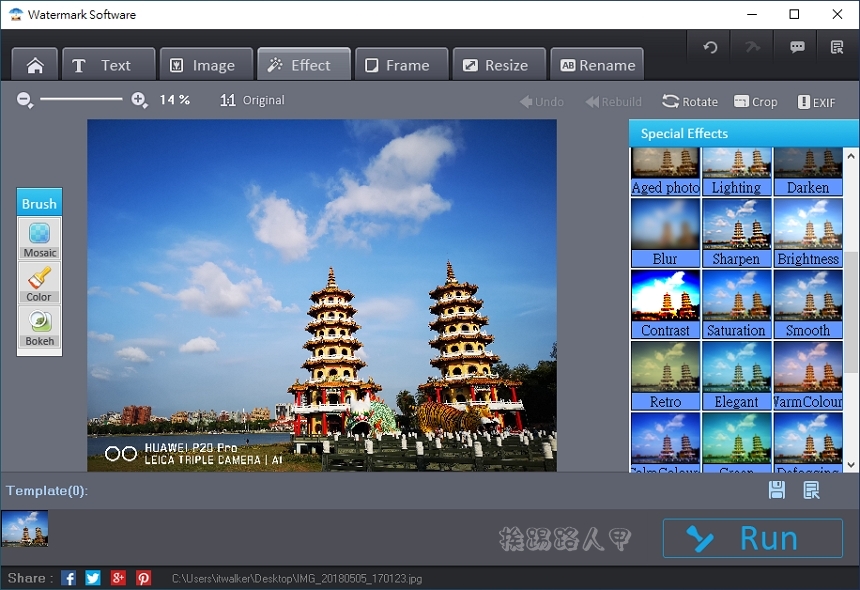
▼Watermark can also handle border functions.

▼I am a blogger and often need to edit pictures. Watermark is loved and praised by most users. With it, you can easily and quickly add watermarks to your photos to protect the copyright of your photos. In addition, you can also zoom, add borders, crop and name. Of course, the batch processing is Watermark’s unique skill. It only takes 10 seconds to easily complete more than a hundred watermarks for you. Watermark is a good little helper for editing pictures!
[Activity webpage]: Please clickhere
Further reading:
Source: KOCPC Chinese