


Mac already has a built-in screenshot function, which is generally not difficult to use. However, if you are not used to it, or the functions you need are not provided, you can try the screenshot tool shottr. It provides many functions, such as the most commonly used arrows, text, mosaics, etc. It even has OCR recognition function and supports multiple languages. It is completely free.

Introduction to shottr, a free screenshot tool that is better than Mac’s built-in screenshot function and provides a lot of practical functions
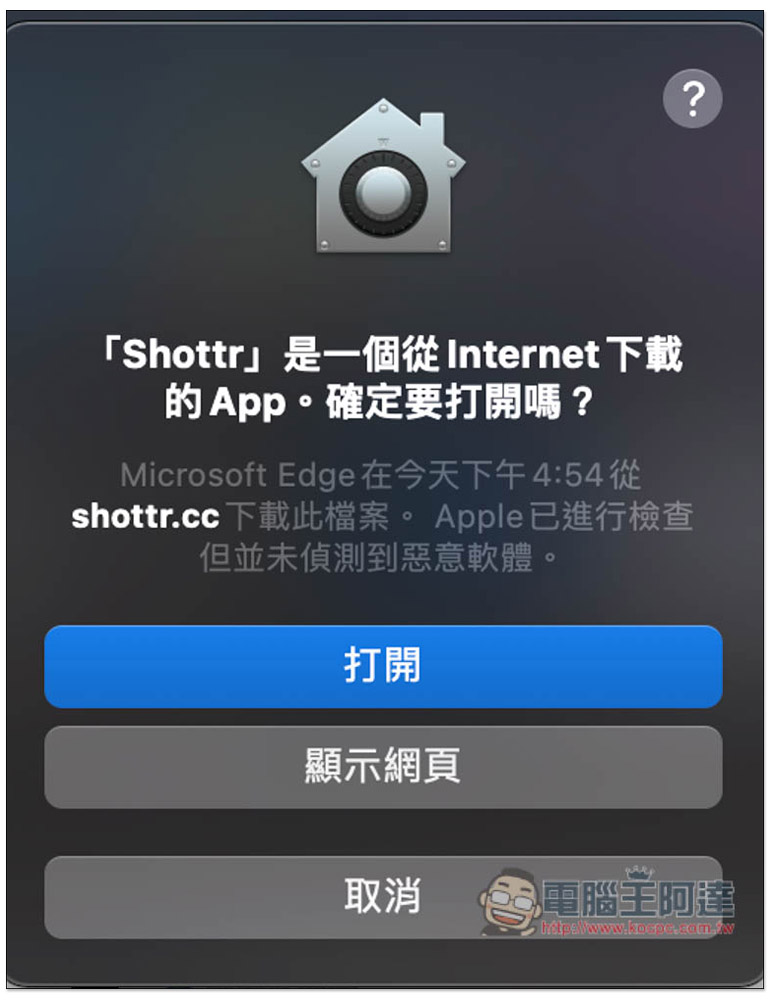
shottr is not on the App Store. You need to go to the official website to download it. After the download and installation is completed, this window will pop up when you open it for the first time. Click to open it:
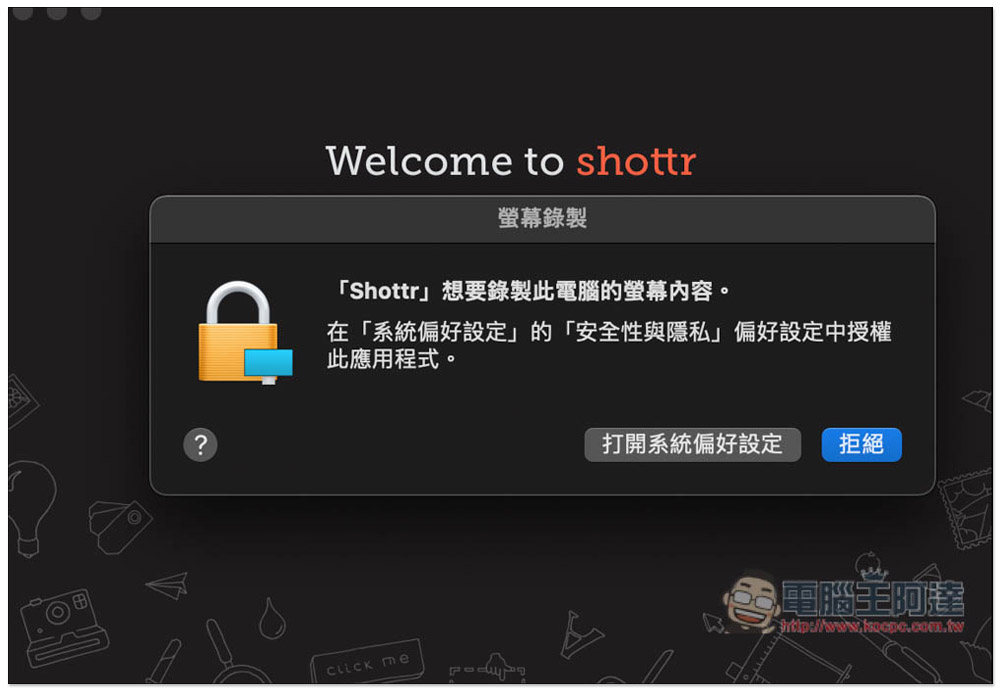
Before you start using it, you need to make some settings, click “Open System Preferences”:
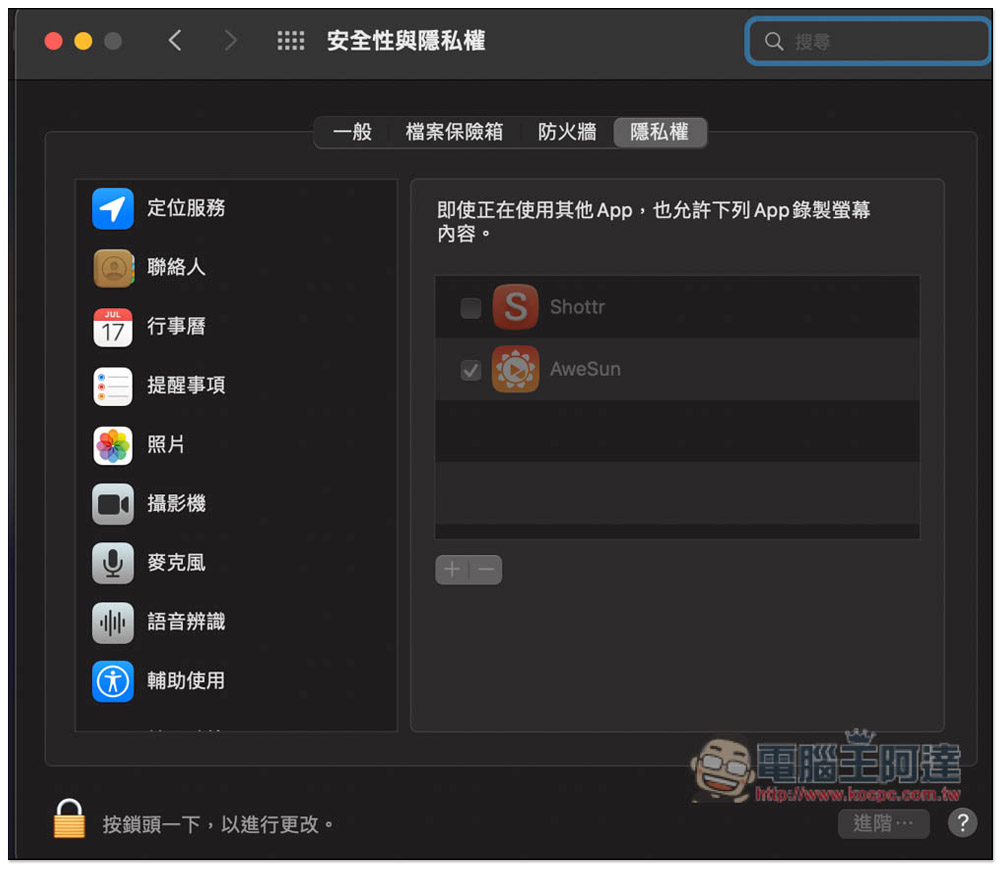
The security and privacy settings will open. You need to open Shottr on the right. It is locked by default. Please press the lock in the lower left corner to unlock. You will then be asked to enter your login password or use Touch ID:
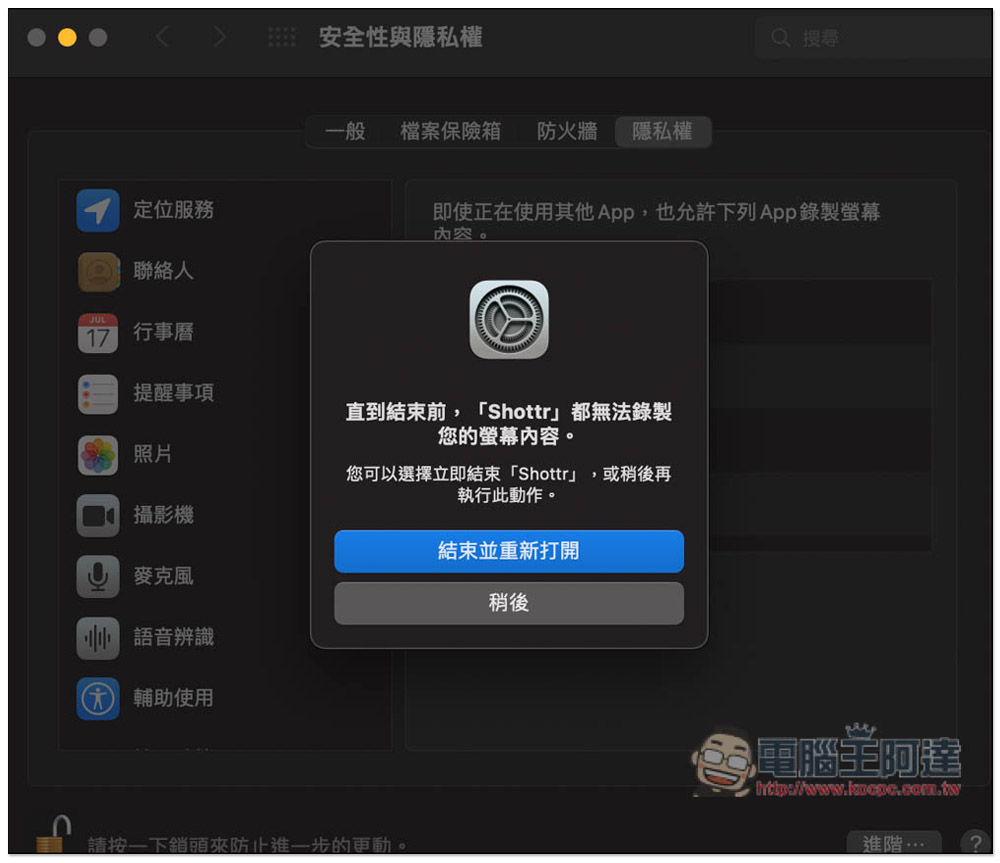
After ticking, please click “End and reopen”:
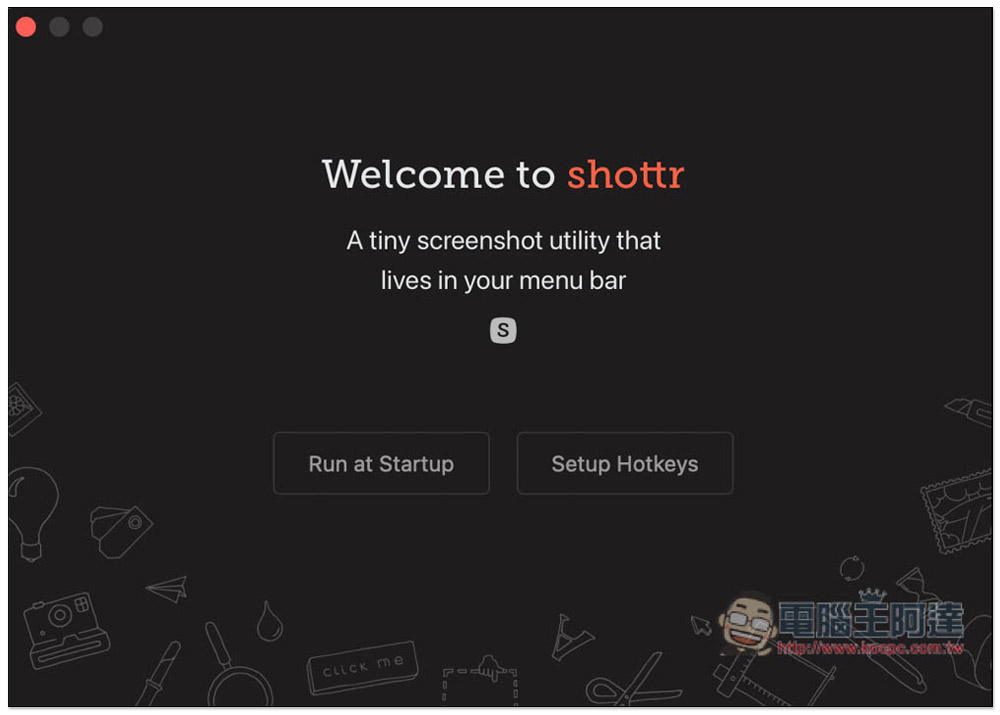
And you’re ready to go! If you want this screenshot software to automatically open when you start the computer, you can click Run at Startup on the left:
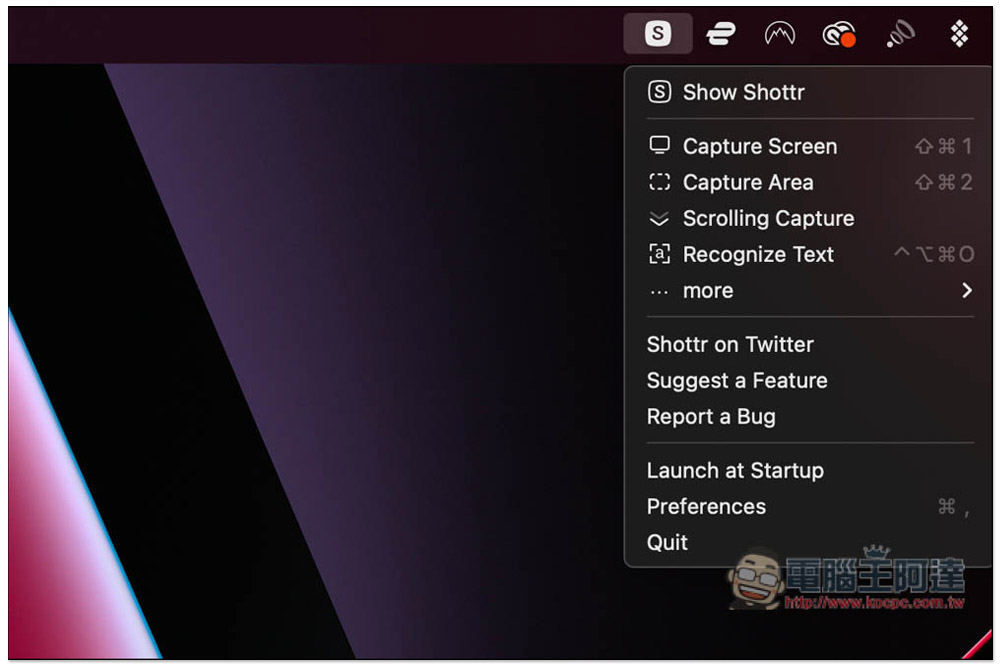
There will also be a small icon in the Menu Bar in the upper right corner. It is recommended to open it at first and see how to use the hotkeys. Commonly used screenshot modes have built-in hotkeys, such as: window screenshot, selected screenshot, OCR function, and the operation method is similar to the Mac’s built-in screenshot, so it is easy to get started:
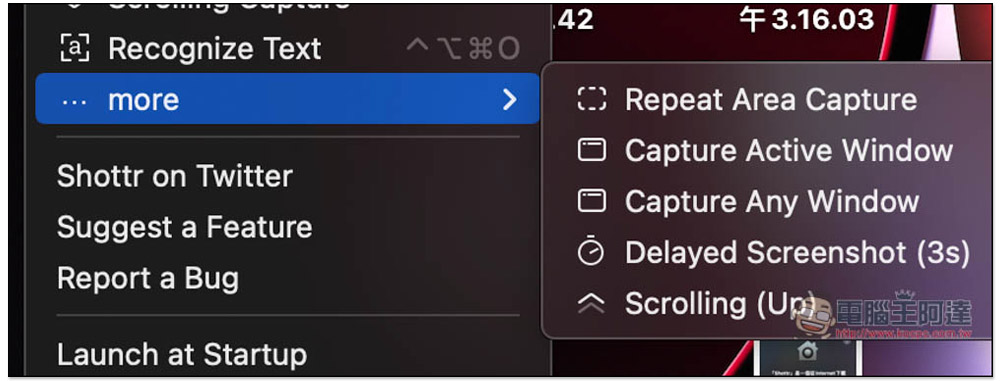
There are more screenshot modes in More:
Unlike Mac’s built-in screenshot, shottr will directly enter the post-production mode after taking the screenshot, so you can use both. For example, if you only need to take a screenshot, use the built-in screenshot function, and if you want to post-produce, use shottr. The toolbar is located at the top, with arrows, text, lines, frames, circles, blur, etc., and the color code can be copied on the far right:
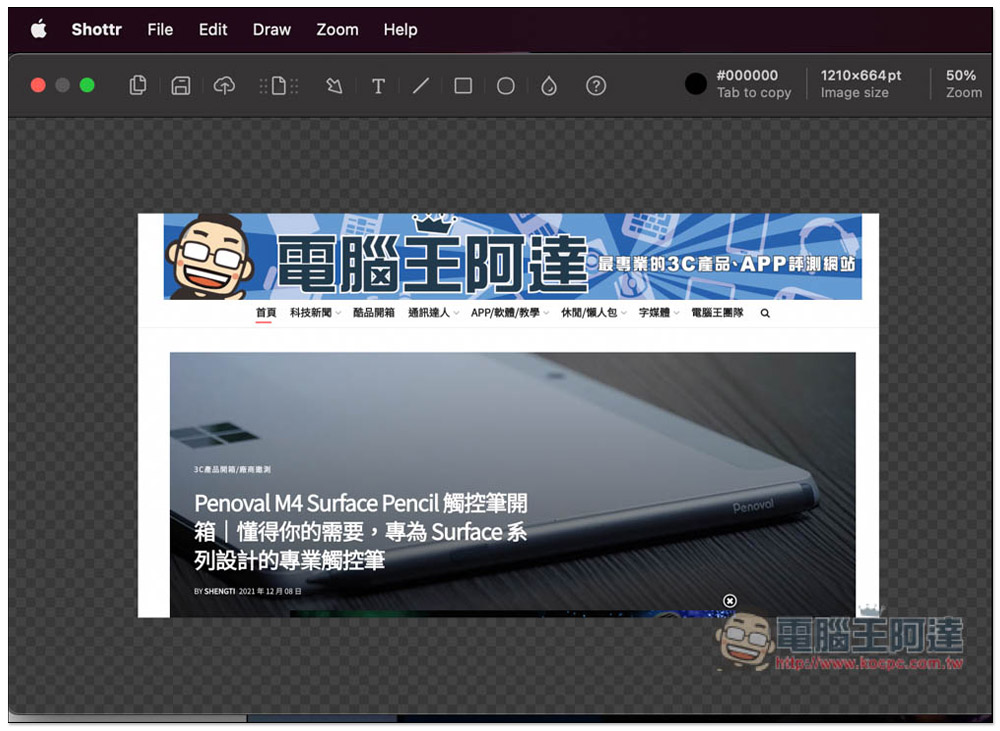
I think the operation of adding arrows and text is easier to use than the built-in one on Mac. It is very smooth. Unlike the built-in one, which has too many settings, it may not be clear sometimes:
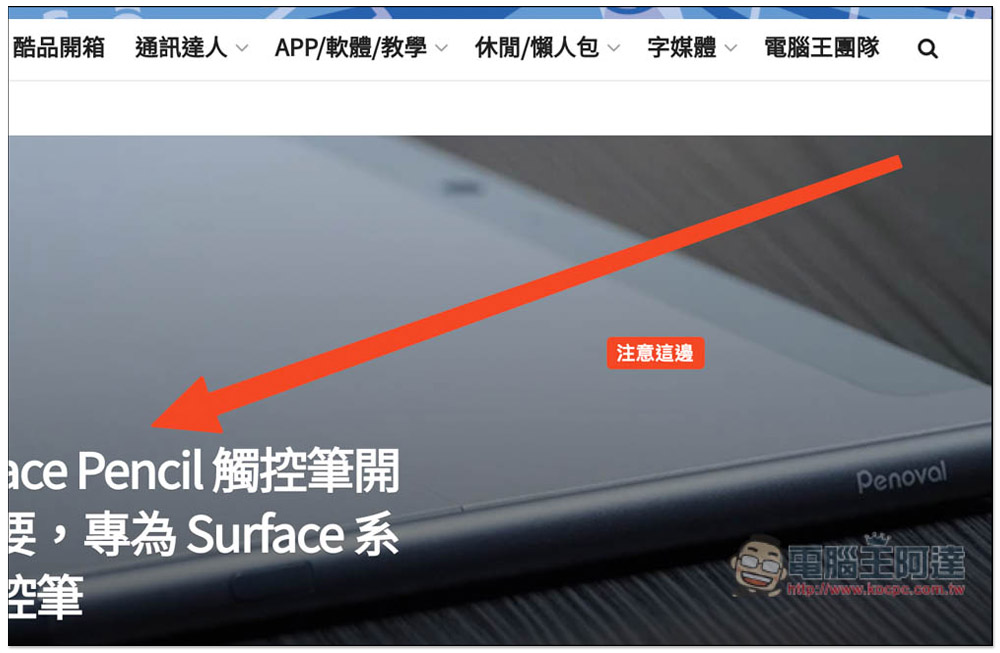
The post-production function also supports some shortcut keys, which are provided here for your reference:
- ⌘ (CMD) + 1: Scale to fit
- ⌘ (CMD) + 0: Zoom to 100%
- ⌘ (CMD) + + / -: Zoom in / out
- Two-finger spread/swipe in on the trackpad: zoom in/out
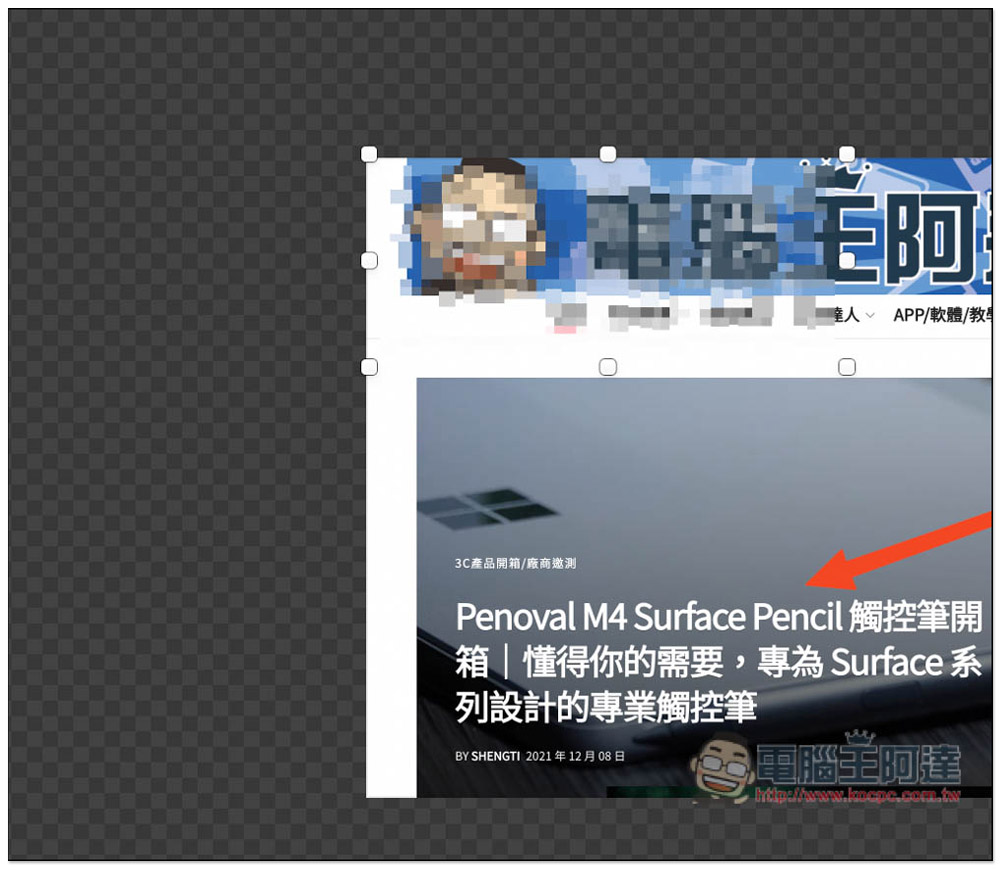
The mosaic function is also very convenient, so you no longer need to use post-production software such as Photoshop. You can add directly after taking a screenshot:
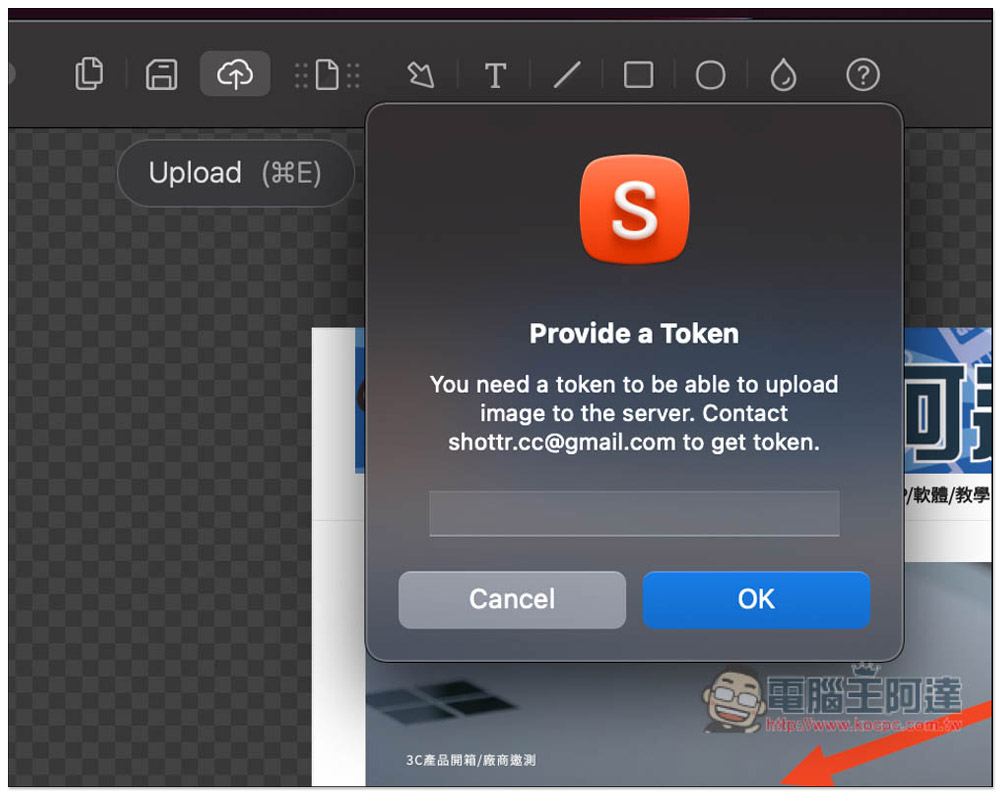
In addition to saving to the local machine, this model also supports uploading functions, but a Token is required:
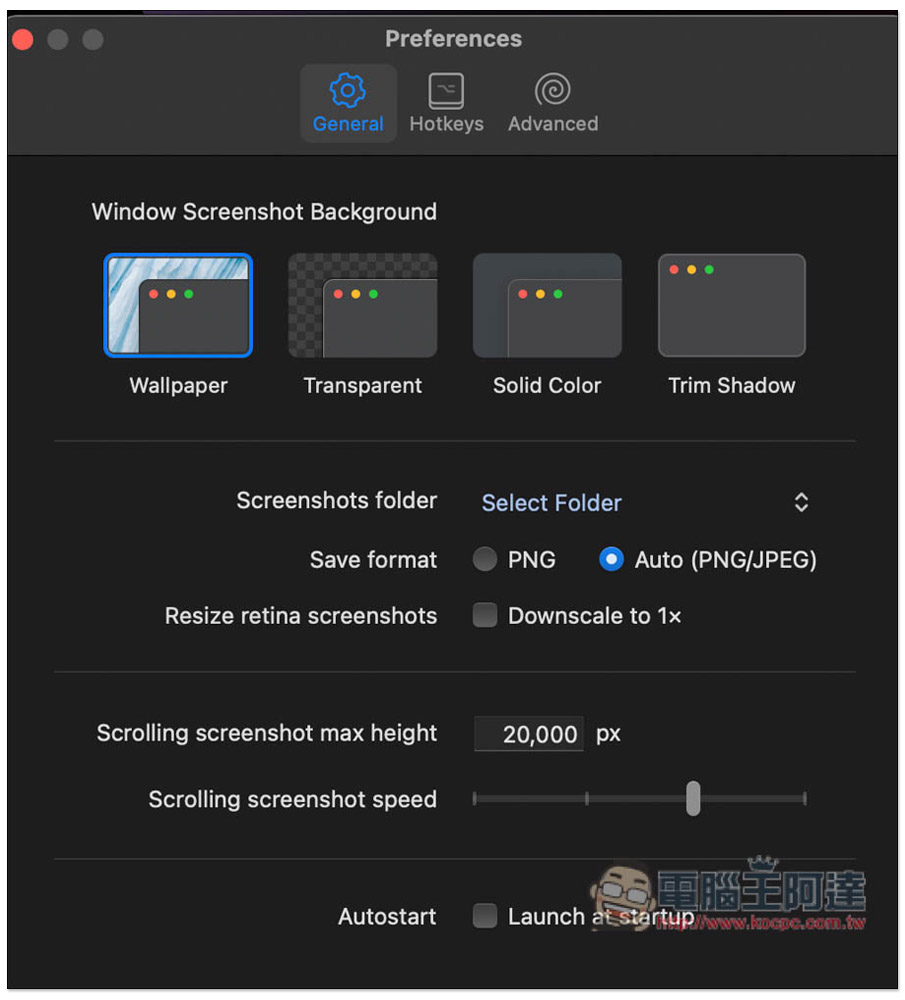
There are many options to adjust in the settings, the default is automatic saving format (PNG / JPG), you can also specify to save only PNG:
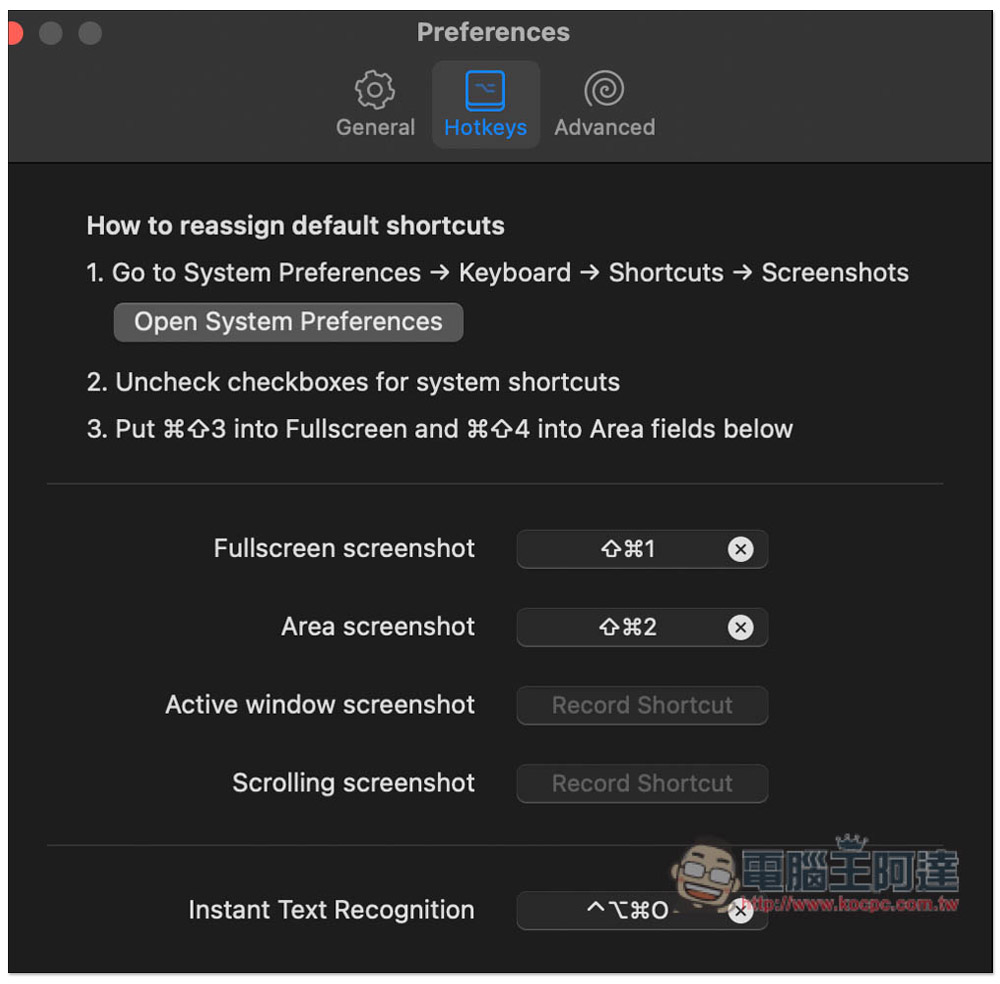
The hotkey part can also be modified, if you are not used to it. There are no hotkeys for active windows and scrolling screenshots by default, and you need to set them yourself:
Generally speaking, screenshot tools with so many functions require additional payment, but shottr is really a blessing to let people use it for free. Anyway, if you feel good about it and want to support them, there is also a sponsorship function on the website, you can consider checking it out.
Source: KOCPC Chinese