


before When LINE 11.18.0 is updated, a new “chat room icon” function will be added to message notifications, as of now, it is still limited to iOS users and must be updated to iOS 15 (inclusive) or above to be applicable. With the recent launch of LINE 12.0.0 update, users can freely adjust whether to display personal pictures of chat room icons according to their needs. In addition, this update also launches the “Built-in Chat Media Search” experimental function and other updates, come and see how to use it!

LINE 12.0.0 update: Added “Display personal pictures” function, “Built-in media search in chat” experimental function and other updates
Recently, LINE quietly launched the LINE 12.0.0 version update. In addition to continuing to optimize LINE’s user interface, it also optimized functions launched in the past to make it more convenient for users to use. Below, I would like to share with you two of the new features that I am most excited about this time.

LINE version 12.0.0 updates:
- Improve group voice call and video call functions:
- Change the way menus are displayed during calls
- Added the ability to share smartphone screens during group voice calls
- The microphone can be turned off in the preview screen of the group video call
- The following new features have been added for iOS 15 (inclusive) and above devices:
- Added a “chat room built-in media search function” in LINE Labs that can search pictures/voices/videos in the chat room
- Added a setting to hide the sender’s “personal picture display” in message reminders
- When creating a photo album or notepad, the creator’s personal picture will be displayed in the reminder.
A new “Show personal picture” setting is added to message notifications to hide the sender’s personal picture.
After the LINE 11.18.0 iOS update was released, the notification message would display the caller’s personal picture when users with iOS 15 (inclusive) or above used LINE. At that time, if you wanted to hide the notification picture, you could only turn off “Show message content” altogether. For users who do not want to click to read the message but do not want to reveal the caller to others, this function will cause inconvenience in use.
However, after the LINE 12.0.0 update, LINE users with different needs can finally choose whether to display or hide personal pictures in notification messages!
The setting path is as follows: Just go to “Settings” > “Reminders” > “Show Personal Pictures”. If you want to display the messenger’s personal picture or group picture in the same message, you can turn this feature on. If you don’t want it to be displayed, you can turn it off.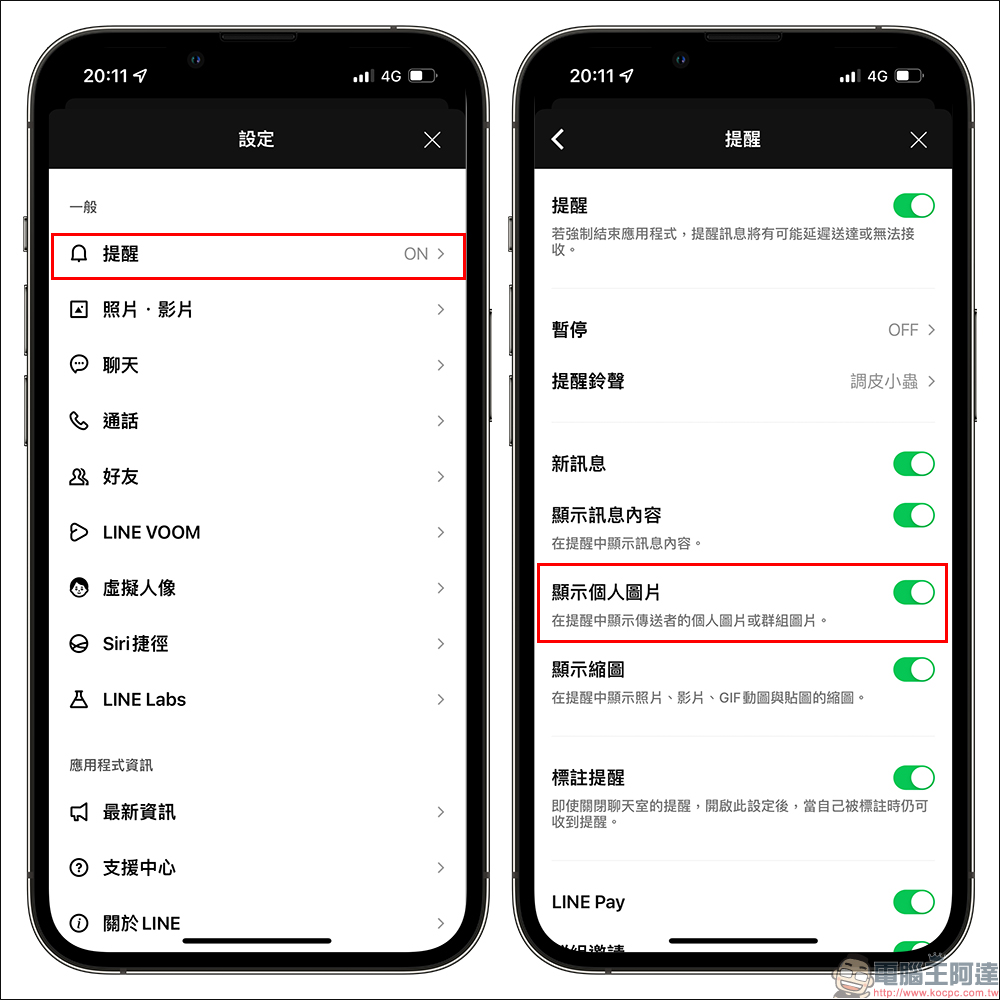
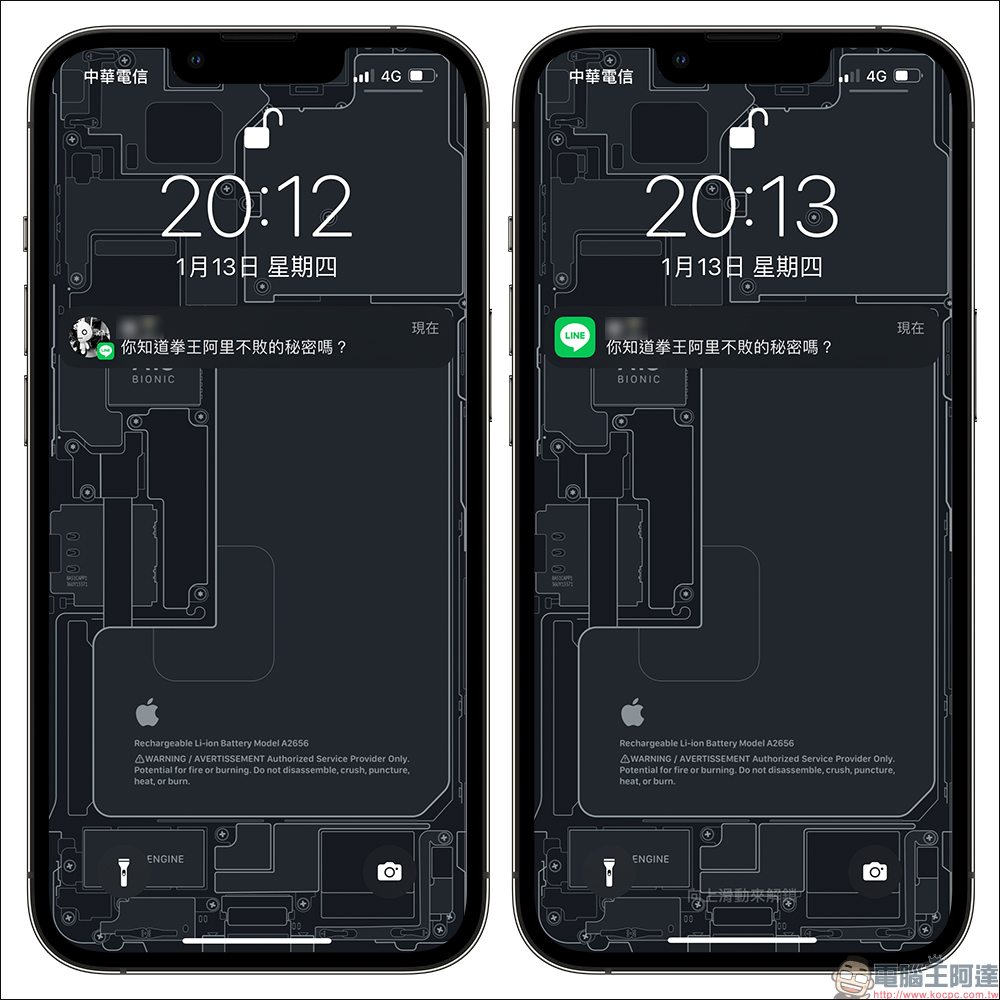
The left side of the picture below shows the notification screen with “Show personal picture” turned on. Once turned on, the sender’s personal picture will be displayed. The right side of the picture below shows the notification screen with “Show personal picture” turned off. Although the personal picture will not be visible, the messenger’s nickname and message content can still be seen.
“Built-in media search in chat” experimental feature
Before some new features are officially launched, LINE will take the lead in launching test functions in LINE Labs for LINE users to try out, and will also evaluate and adjust the planning of new features based on user feedback. In this LINE 12.0.0 version update, LINE Labs also launched a “built-in media search function in the chat room”, so that the search of chat history is no longer limited to text content. Users can enter descriptions or keywords to search for chat history of images, videos, and audio.
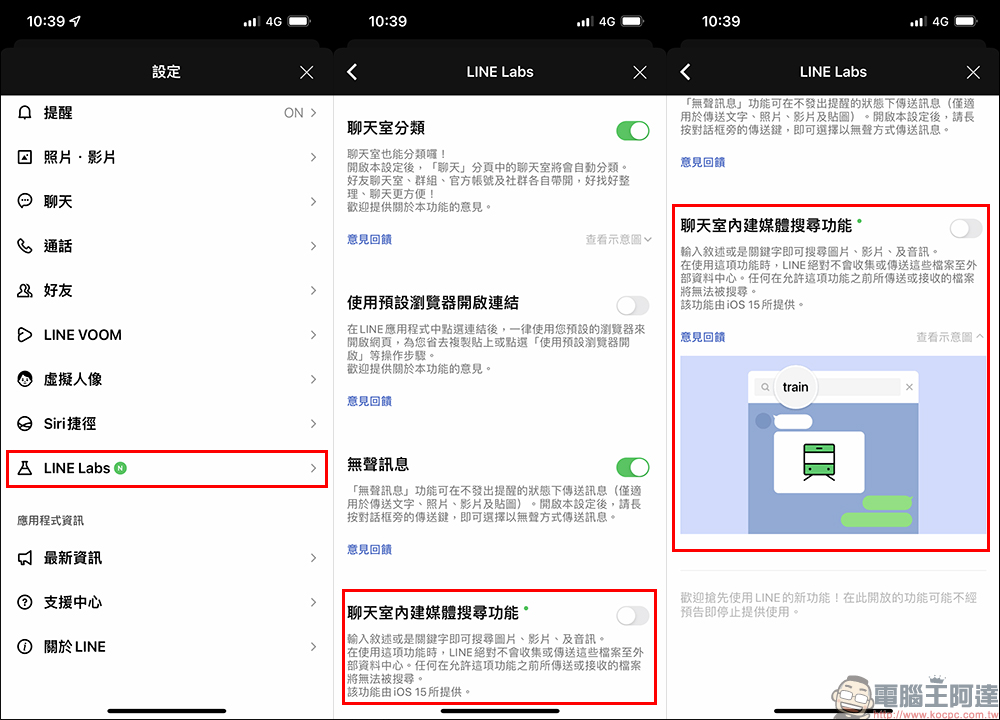
However, it is important to note that files sent or received before this feature is turned on will not be searchable, and this feature is currently available to users of iOS 15 (inclusive) and above. When this function is turned on, since images, videos, and audio need to be searched through the user’s device, LINE will not collect the user’s media files and send them to external data centers when using this function, so users can use it with confidence.
In addition, this function requires about 60MB of storage space to run smoothly. After confirmation, click “Download” and it will be activated after completion.
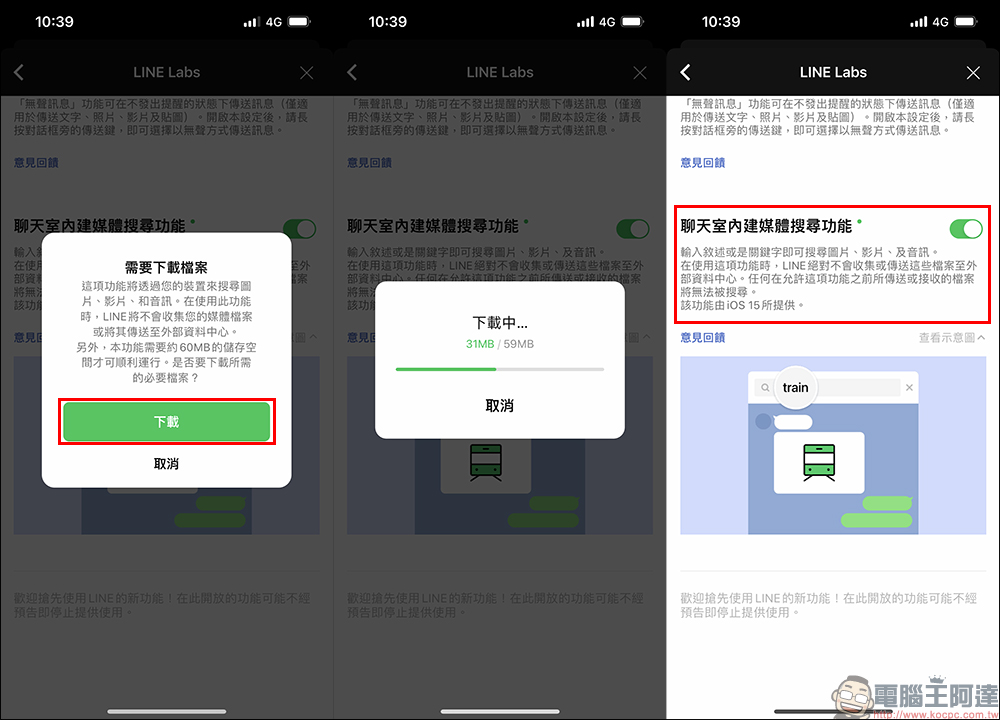
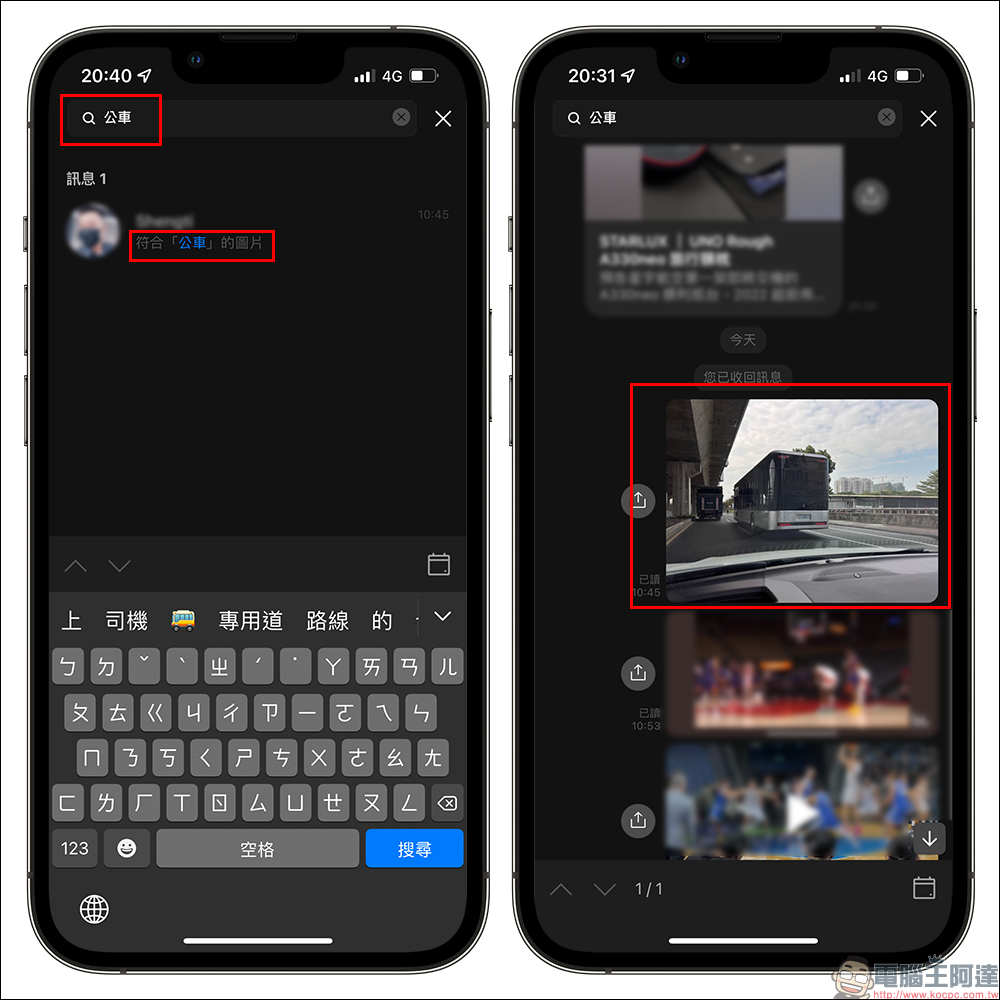
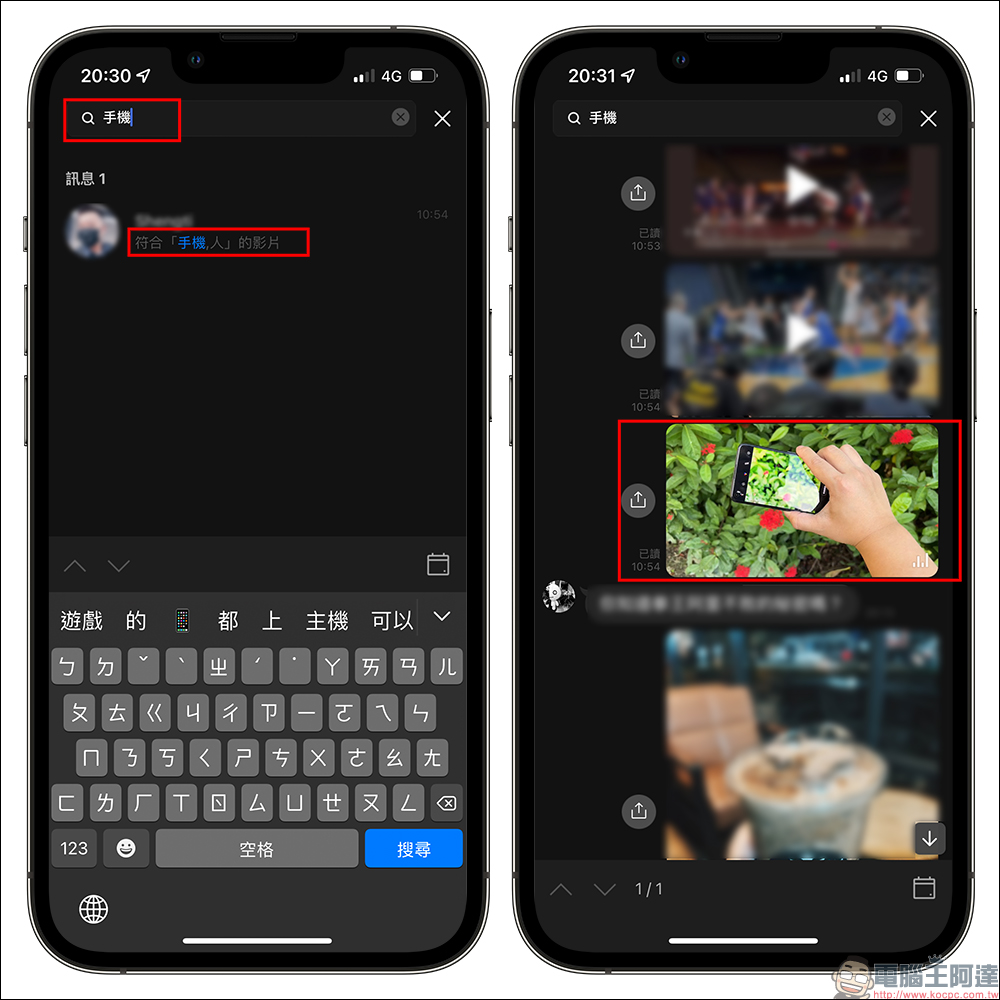
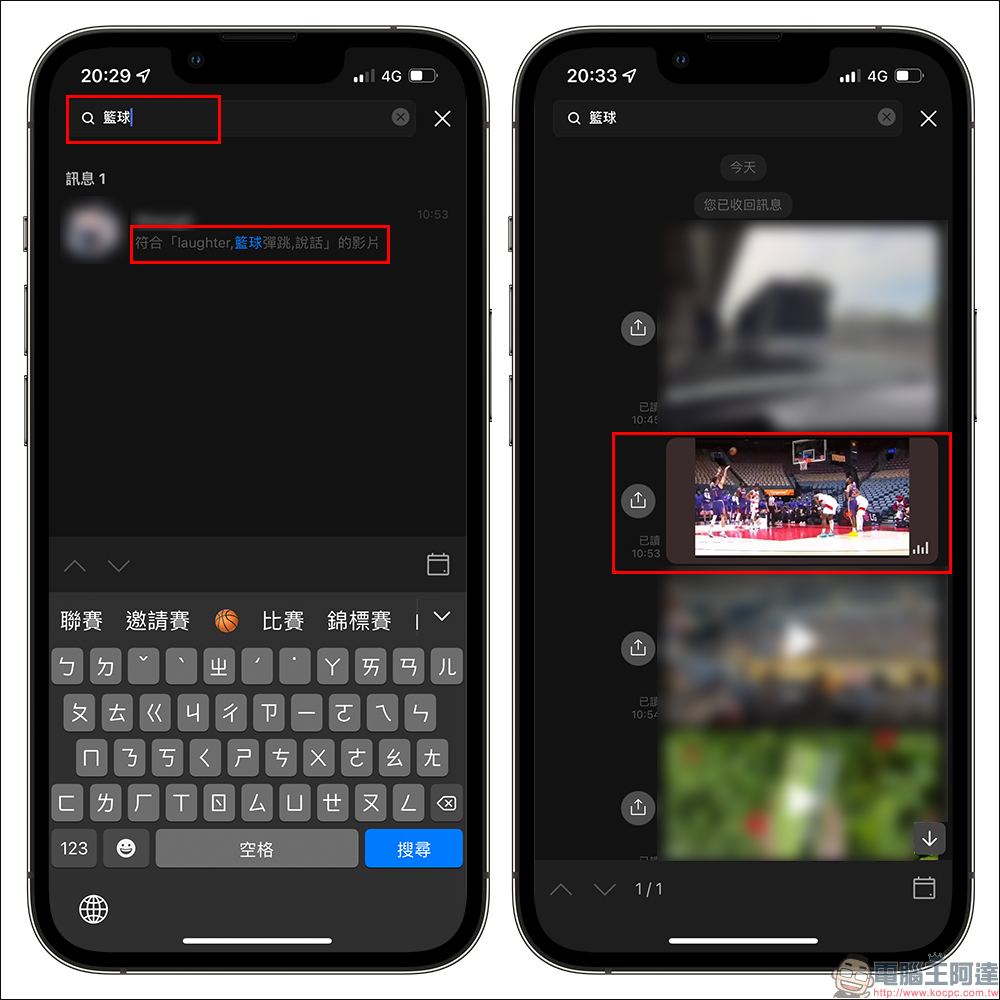
Once enabled, users only need to enter descriptions or keywords when searching chat history on LINE to find matching images, videos or audio content.
Take the search for “bus” as an example. If there are matching search results, the following images matching “bus” will be displayed.
For example, when searching for video content in a chat conversation, you can also successfully query:
Further reading:
LINE free sticker collection: 30 free LINE stickers for limited time download!


Source: KOCPC Chinese