


Adobe Lightroom (LR for short) has always been a commonly used photo editing software for many photography players. As the price of high-capacity memory cards has become more popular, and mobile phones have gradually added the RAW file shooting function only available in high-end cameras, more and more people are using RAW files with high tolerance to shoot. Like me, most of them don’t need intensive editing, so most of them use LR to retouch the photos and submit them. Since many people ask about importing photos into LR, I will teach you how to import photos using two methods. In addition, I will also teach you how to add photos to the same folder. I will also provide some simple tutorials on LR in the future:
The first step is to set up
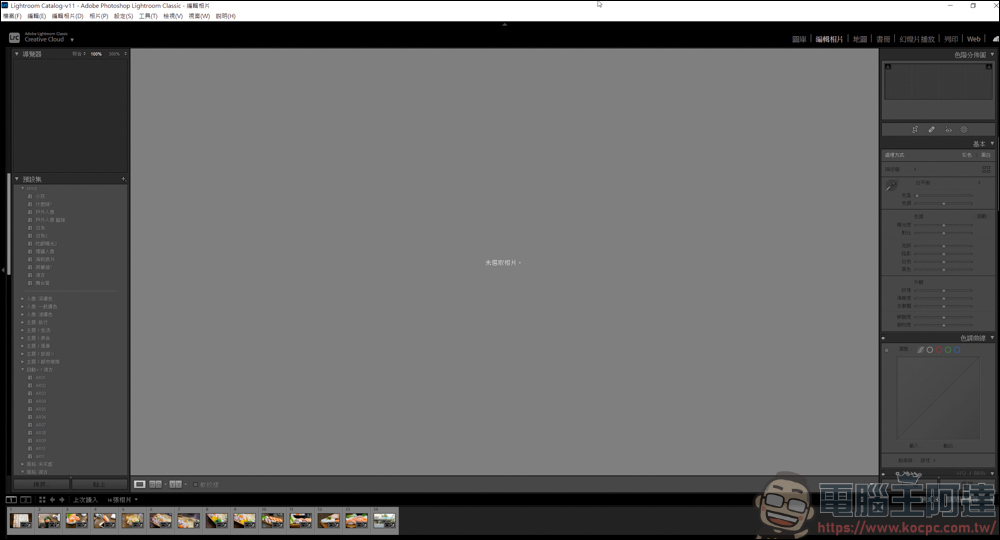
First open your LR, usually it will be recommended to deal with setting issues first:
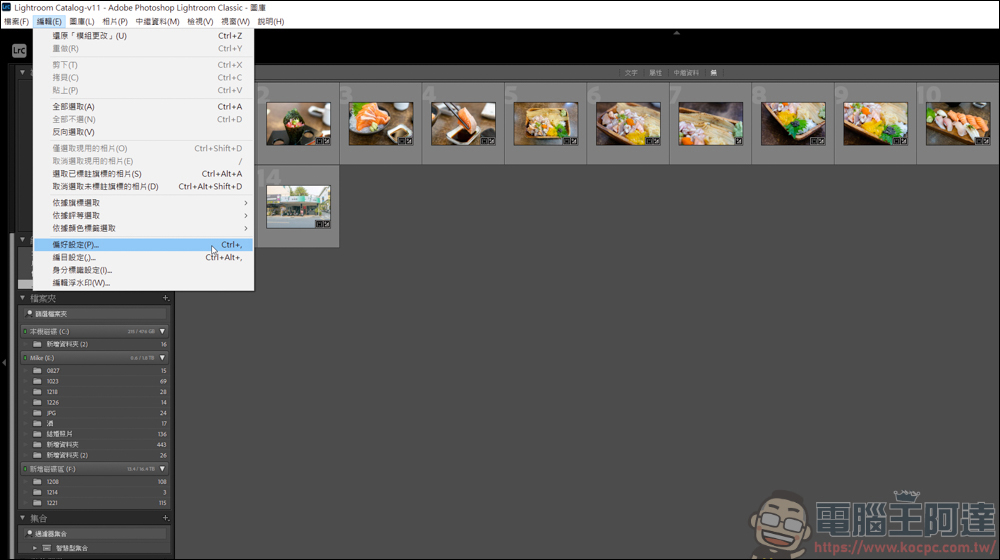
First go to [Edit] → [Preferences]:
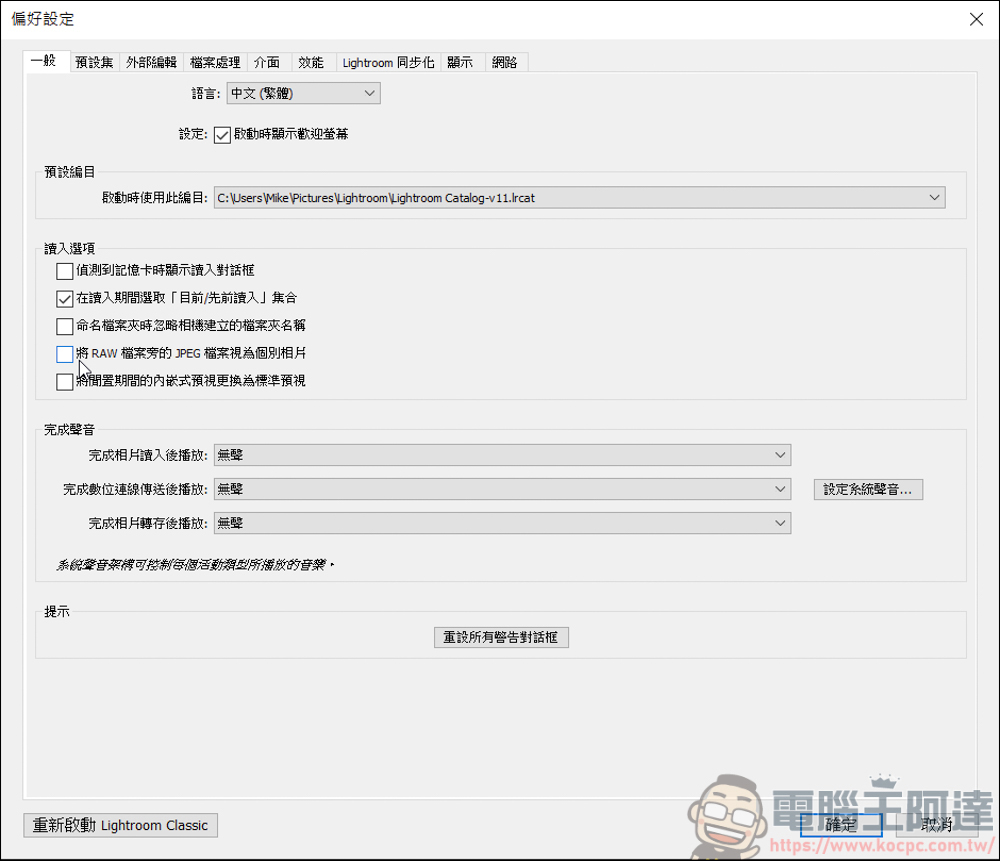
First uncheck “Treat JPEG files next to RAW files as individual photos”, so that when reading photos, if there are RAW + JPG in the same folder, LR will only read RAW files. If checked, it will read both RAW + JPG:
Method 1 – Drag method
The first method is my most commonly used method, which is to drag RAW files directly into LR. First, I will classify the two in the folder. For demonstration purposes, I will first select all RAW + JPG. Before throwing it into LR, remember to click on the gallery page in the upper right corner of LR to use it:
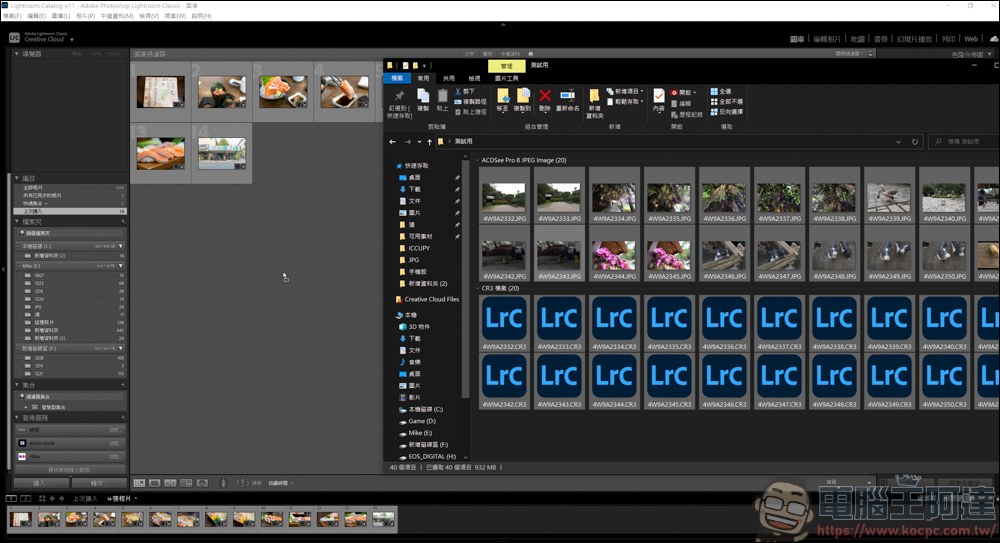
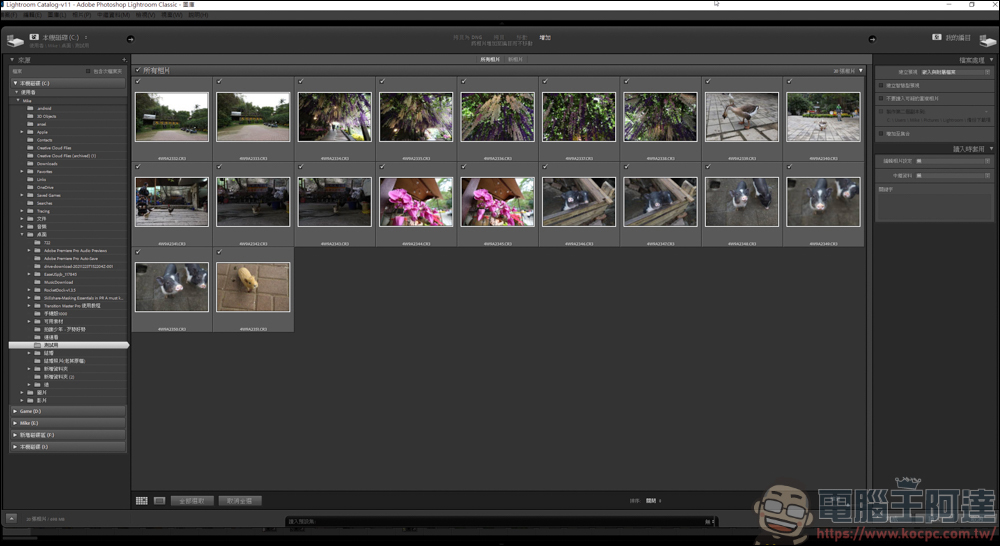
After I select all RAW + JPG and throw them into LR, LR will only read in RAW files because the previous settings have already eliminated JPG:
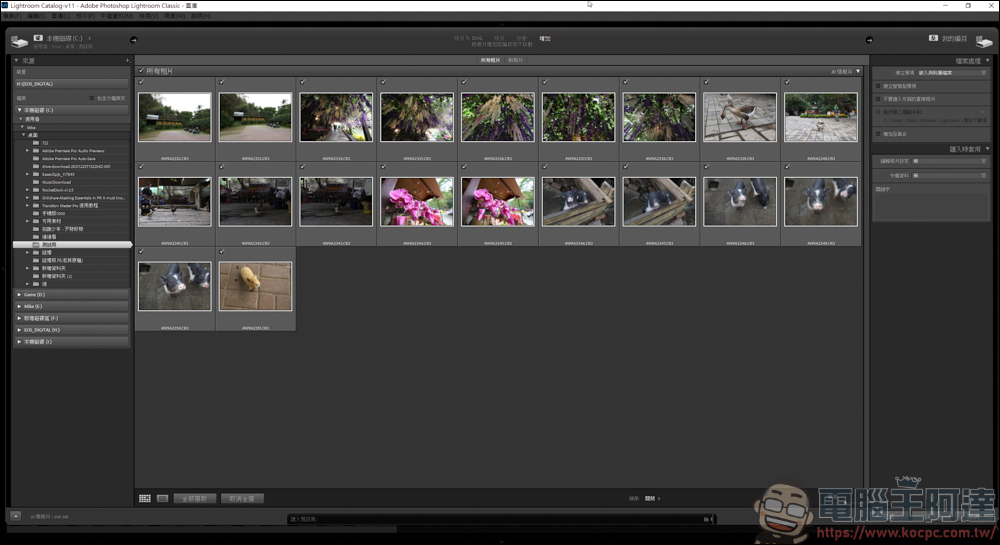
After clicking Read in the lower right corner of the picture above, you can process these RAW files in LR:
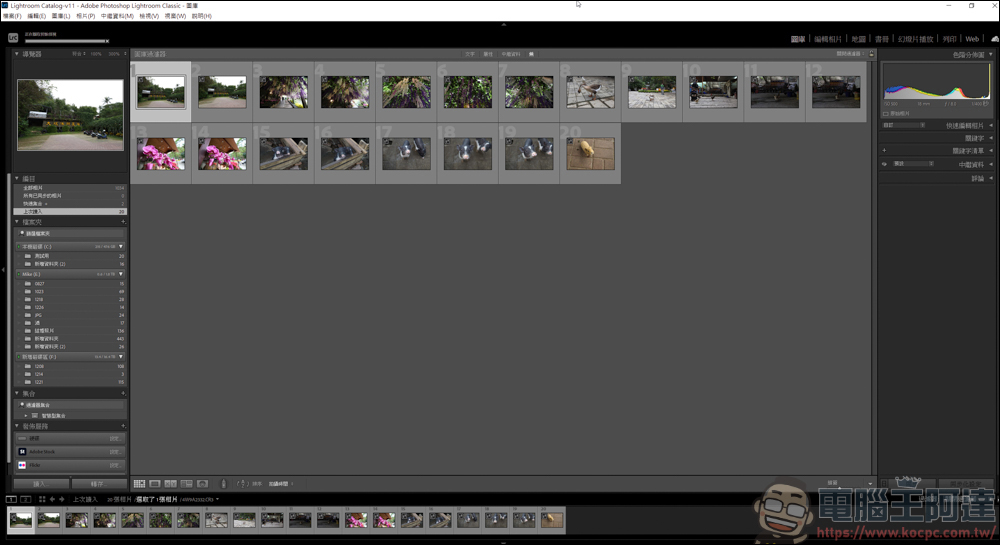
Method 2 – File search folder
Next, let’s teach another method. In addition to the drag method above, you can also directly use [File] → [Read Photos and Videos]:
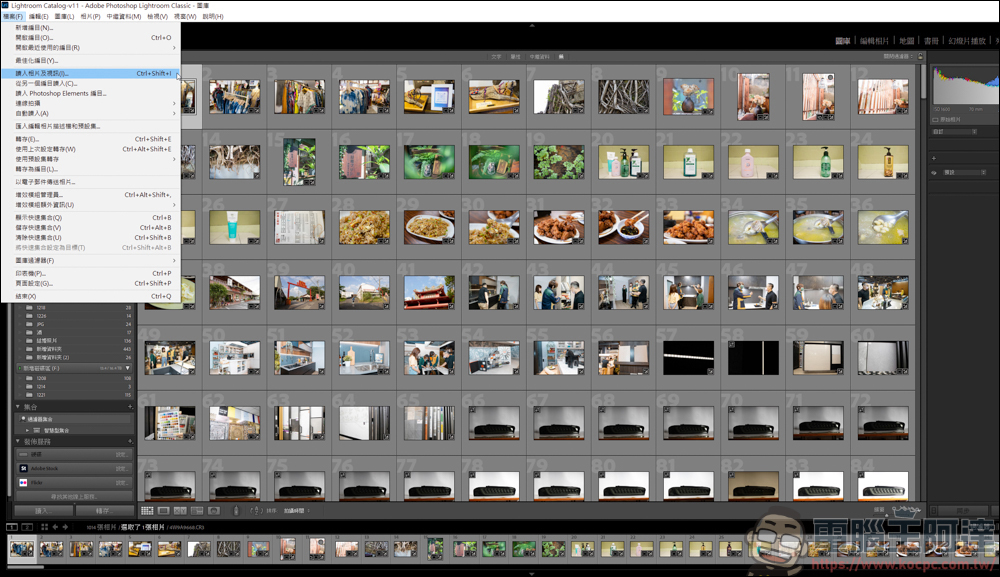
Just find the folder of the photo and press read, and it will appear. The next steps are the same as dragging, so I won’t go into details:
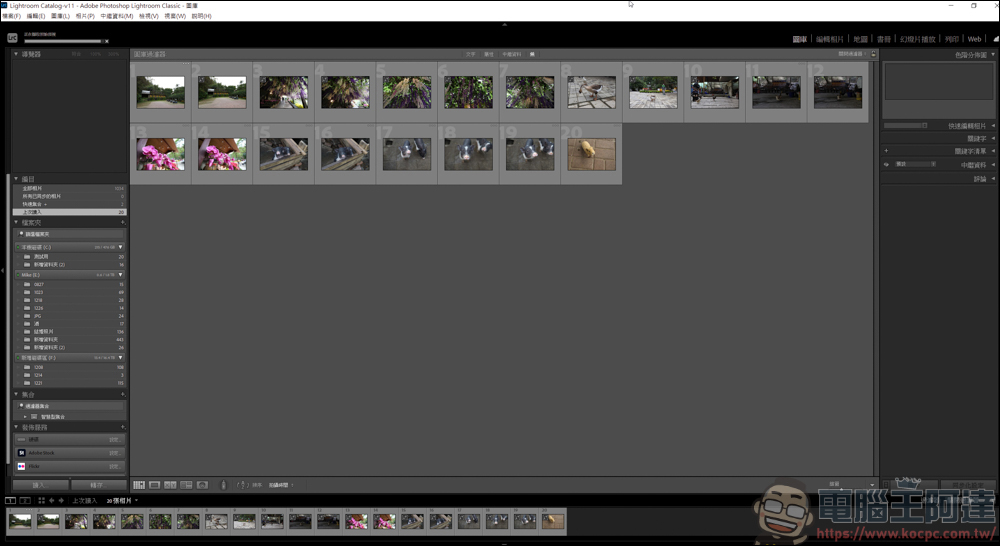
How to add new photos to the same folder?
Sometimes when organizing photos, I find that I forgot to put several photos in the same directory. Although you can open a separate folder to deal with it, for people with obsessive-compulsive disorder, they are still used to putting photos of the same day or type together:
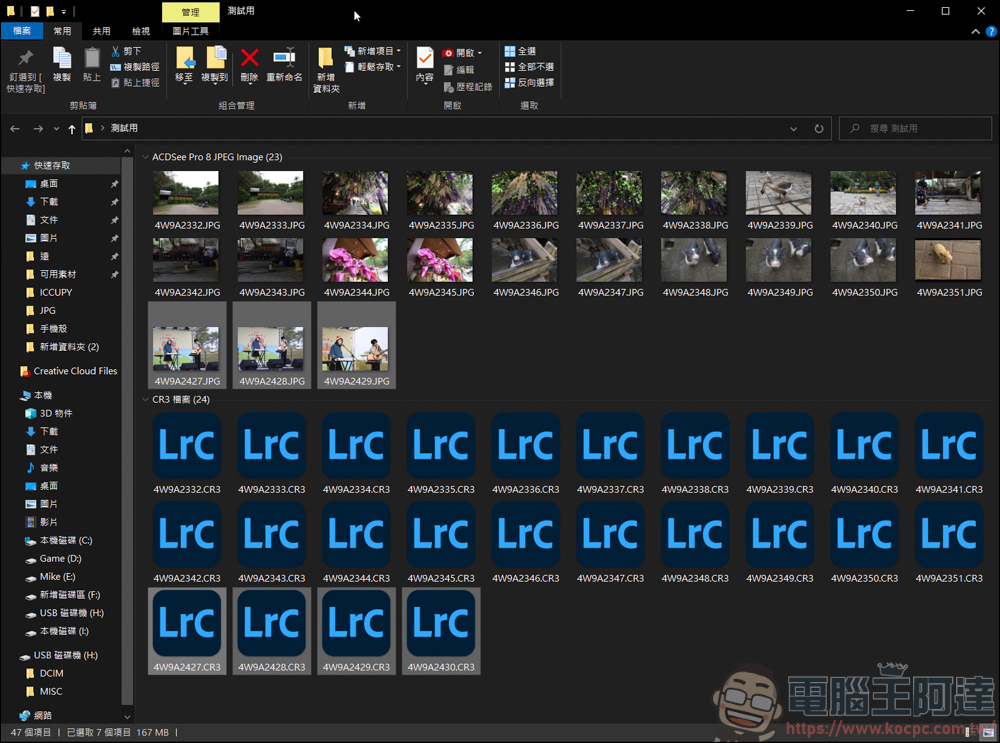
The method is also very simple. If you don’t know which photos you have added, just select all the RAWs in the folder (you can use the above methods 1 & 2), and then throw them into LR. Here you can see that in addition to the RAWs we read previously (turn gray), the four newly added photos have also been read in:
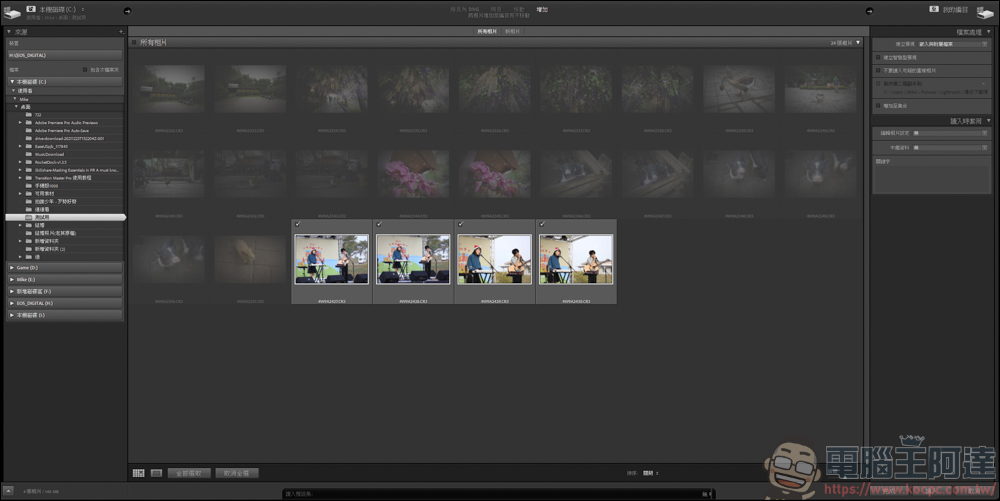
After pressing read, wait…why are there only four new photos in the same folder? Where did the original photos go?
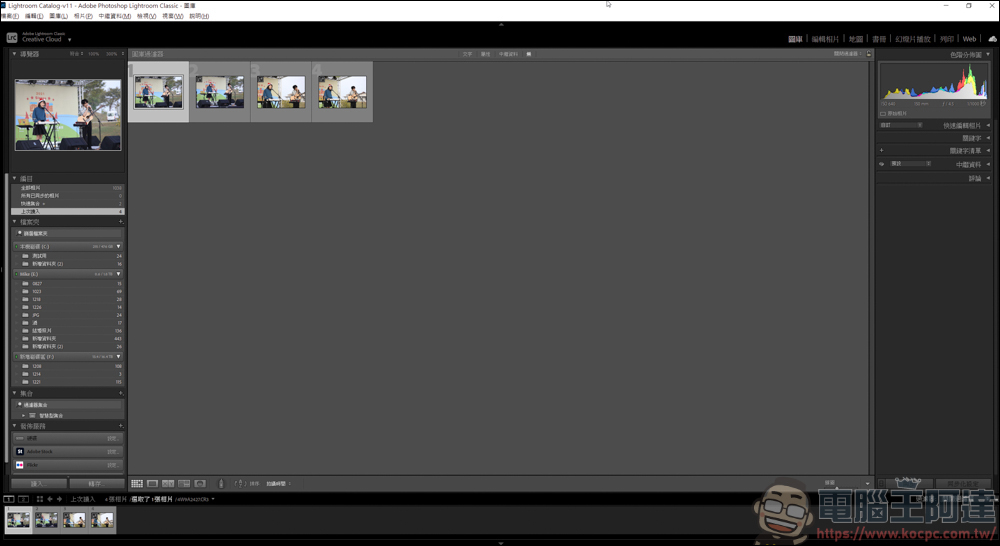
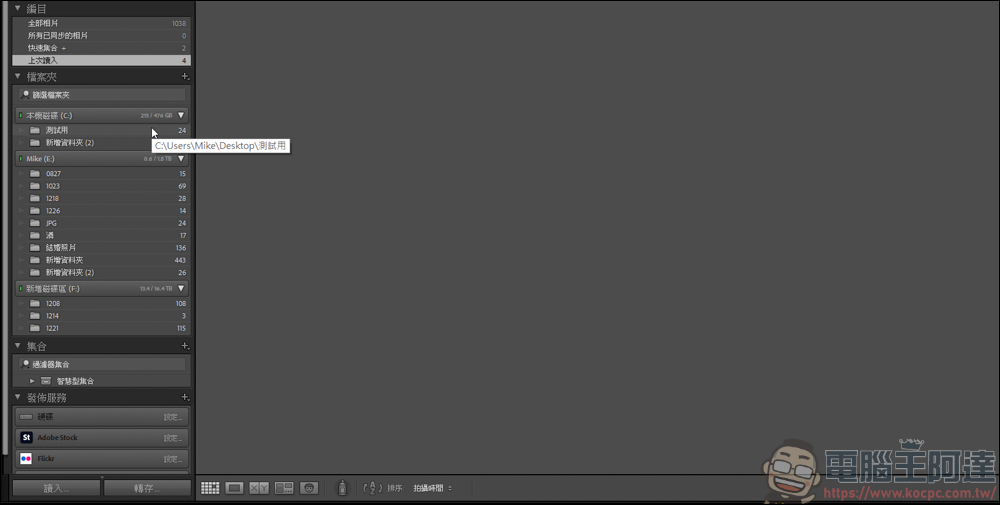
Don’t be nervous, because when loading new photos, only the currently loaded new photos will be displayed. Just find the folder on the left side of LR and click on it:
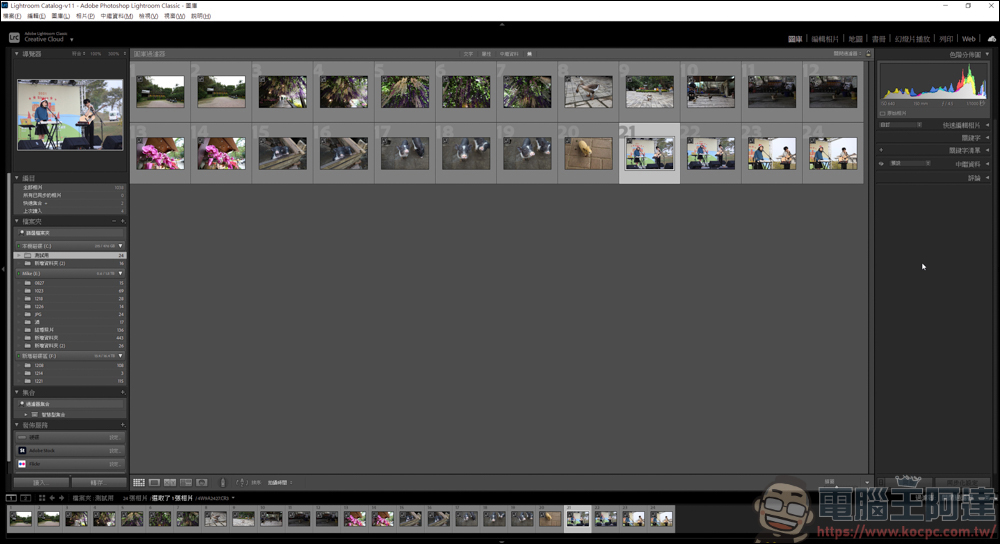
In this way, all the photos in the folder will be displayed. The above is the teaching this time. I will also write some LR teachings later:
Other LR tutorials
Use Adobe Lightroom to create your own signature file!
A brief discussion on whether RAW files of photos should be saved as DNG files or RAW files?
Source: KOCPC Chinese