


When it comes to the most popular and best-selling true wireless Bluetooth earbuds in the world, it is definitely the AirPods series. It is not only compact but also maintains sound quality at a certain level. It also unlocks many other features for iPhone users, such as evolved Siri communication. Apple launched an automatic switching feature in September 2020, allowing AirPods and its Beats headphones to seamlessly switch between devices, but what if you don’t want to switch?
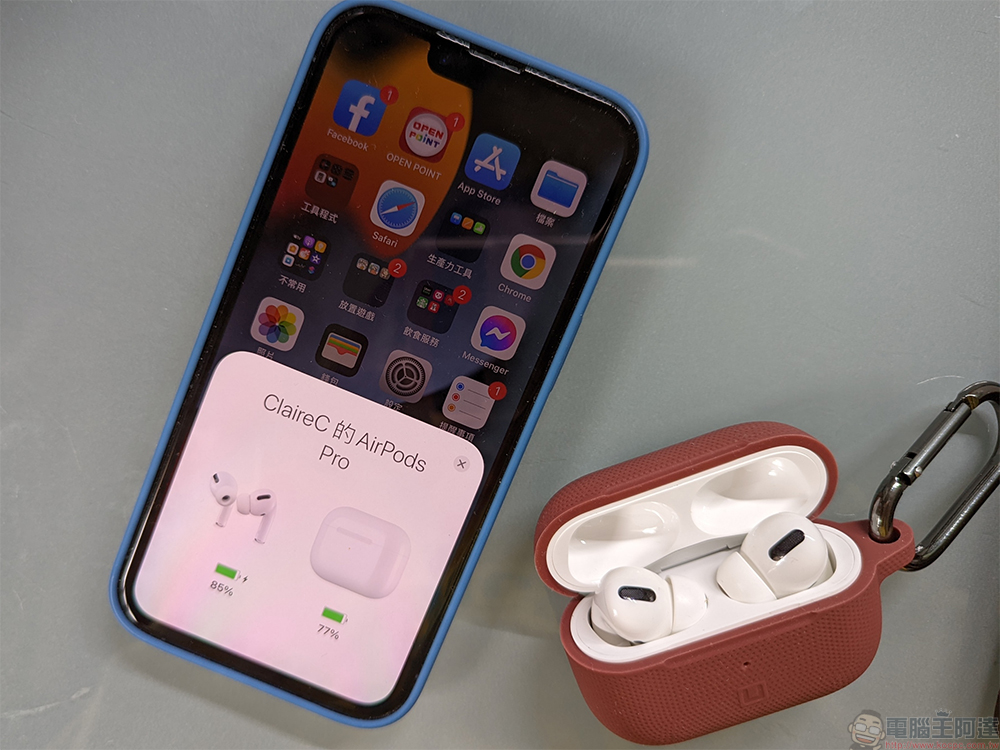
How to stop AirPods from automatically switching between devices?
Because AirPods are associated with an Apple ID, any Apple device logged in to the same account can share an AirPods. For example, if you are using AirPods to listen to music on your Mac, and you want to switch to listening to it on your iPhone, as long as you start playing on your iPhone, AirPods will automatically switch to connect to your iPhone, and it will also automatically switch to it when you make a call. While automatic switching is convenient, it can be annoying at times, and luckily there is a way to turn it off.
It is not difficult to turn off this feature. First, you need to set it through the device that AirPods is currently connected to.
Turn off AirPods auto-switching on iPhone, iPad
- Open “Settings” and select “Bluetooth”.
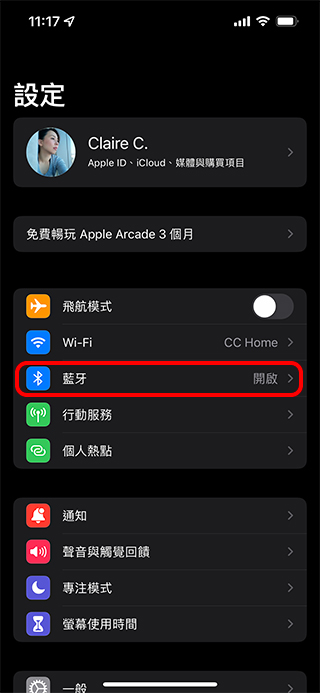
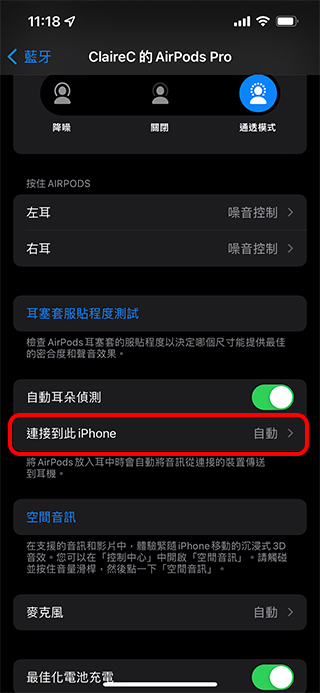
- Click the “i” icon next to AirPods in “Bluetooth” and then click “Connect to this iPhone (or iPad)”.

- Change the connection option to “Last connected to this iPhone (or iPad).”

Turn off AirPods automatic switching on Mac
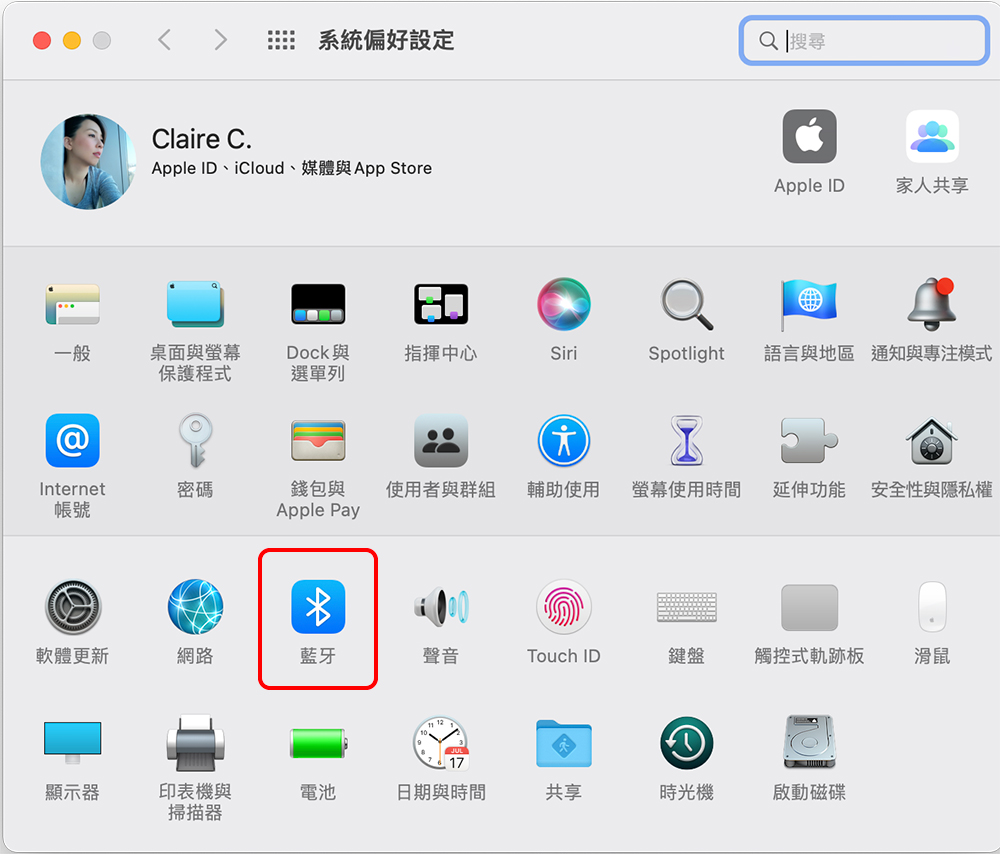
- After opening “System Preferences”, select “Bluetooth”.
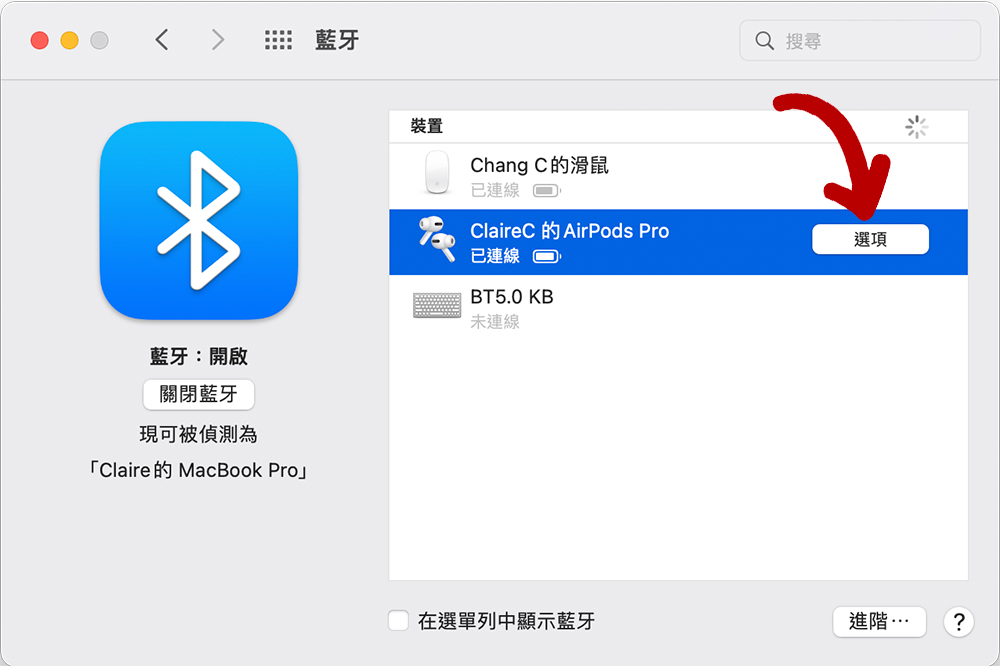
- After clicking AirPods Pro, click “Options” at the back.
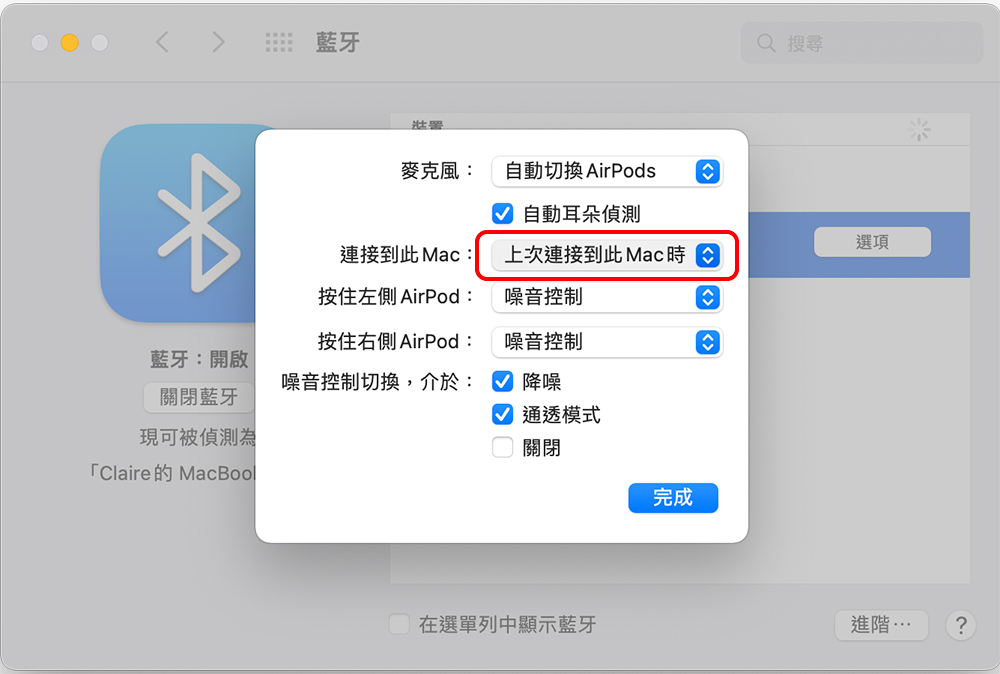
- Change “Connect to this Mac” to “Last time I connected to this Mac” and click “Finish”.
It must be noted that if you have multiple devices (such as iPhone, iPad, Mac, etc.), you must perform the above steps on each device, at least on the device that you do not want AirPods to automatically switch connections. If you want your AirPods to switch between iPhone and iPad but not Mac, in this case, you just need to perform the procedure to change the connection on Mac.
Source: KOCPC Chinese