


Sometimes when taking screenshots or recording web pages, there may be some information that you don’t want others to see. Most people probably use other image editing software, such as Photoshop. Such as mosaic, etc. This post-production operation is actually quite troublesome, especially when there are a lot of photos. This article will recommend a very useful extension function “ZeroBlur”, which can specify a certain area in the web page to be blurred. In this way, you can use this function to blur out the information you do not want to be seen, and then take screenshots and record videos. There are many aspects.
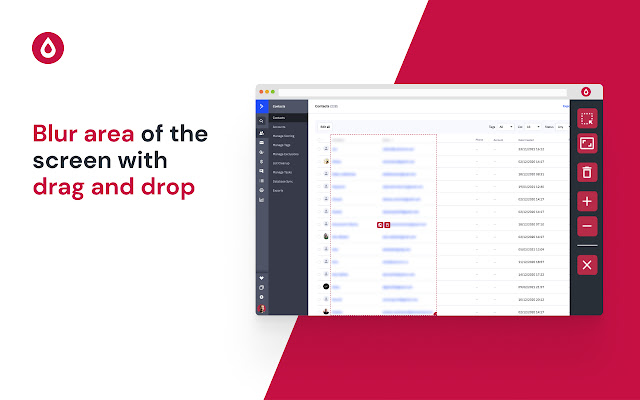
Introduction to the ZeroBlur extended function, which can easily blur any block in the web page
The ZeroBlur extension can be installed on both Chrome and Edge. I will use Edge as a demonstration below, and the operation is the same.
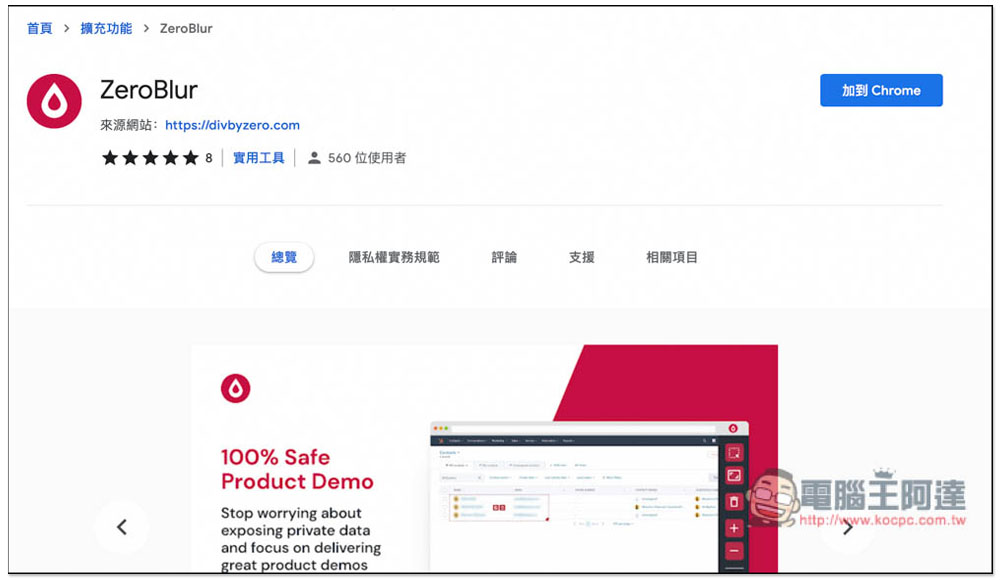
After entering the extension store, click “Add to Chrome” on the upper right:
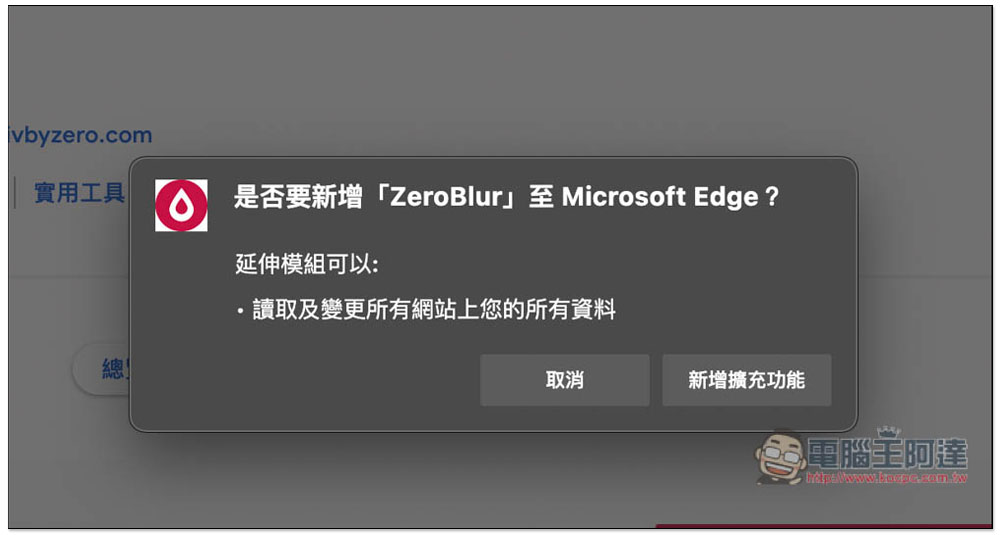
This small window will pop up at the top. Click on Add Extension to install it:
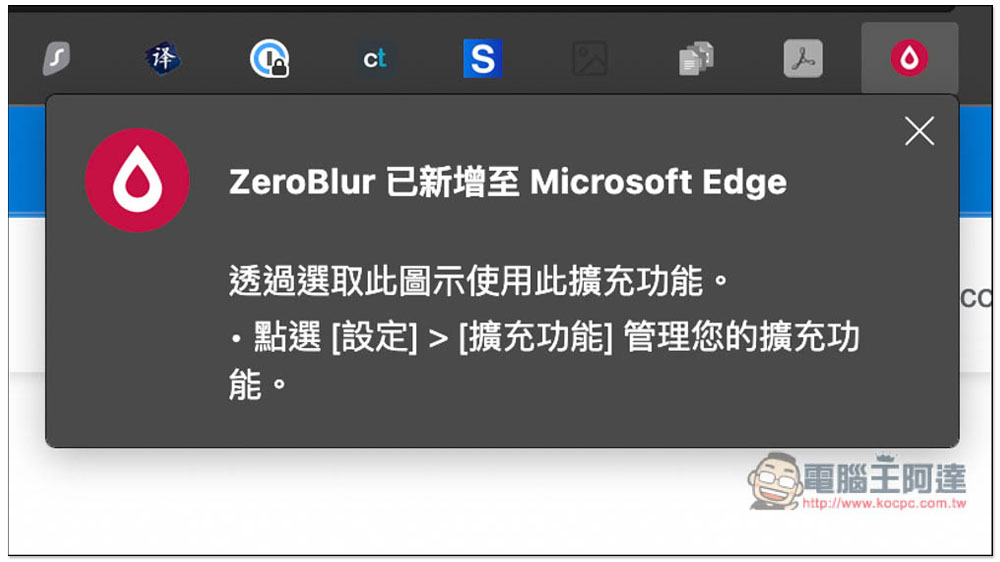
The installation is complete. If the small icon does not appear on your computer, go to the extended management function on the far right and open ZeroBlur and it will appear:
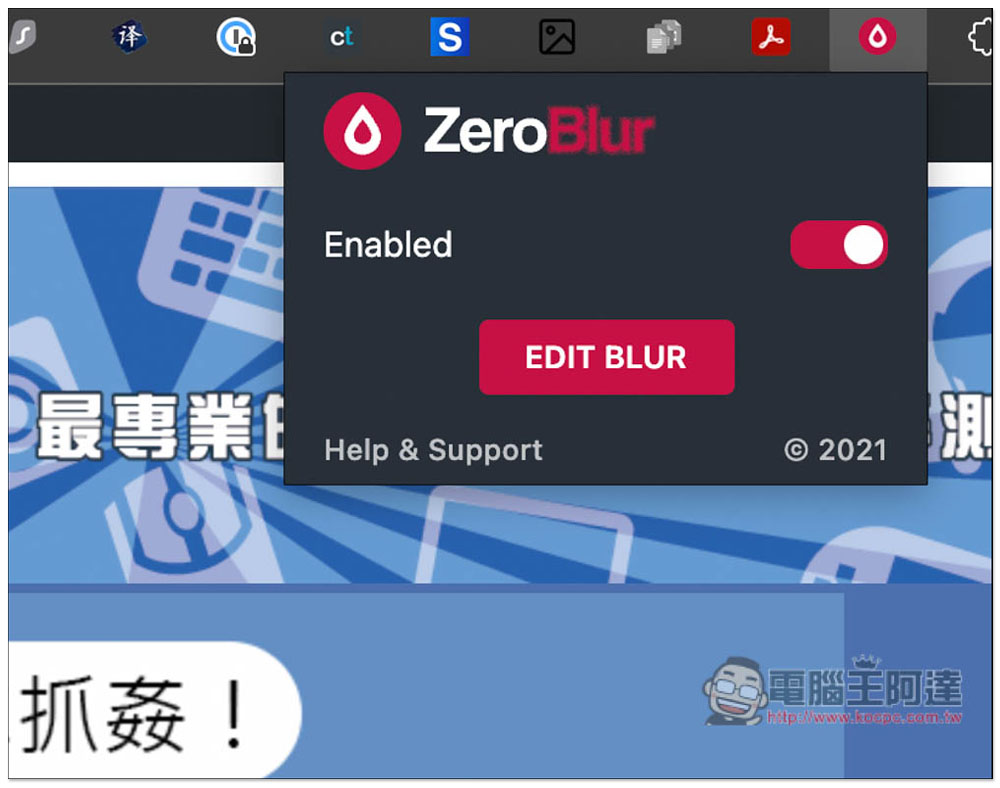
The usage is very simple. When you need to blur the images on the web page, just click EDIT BLUR:
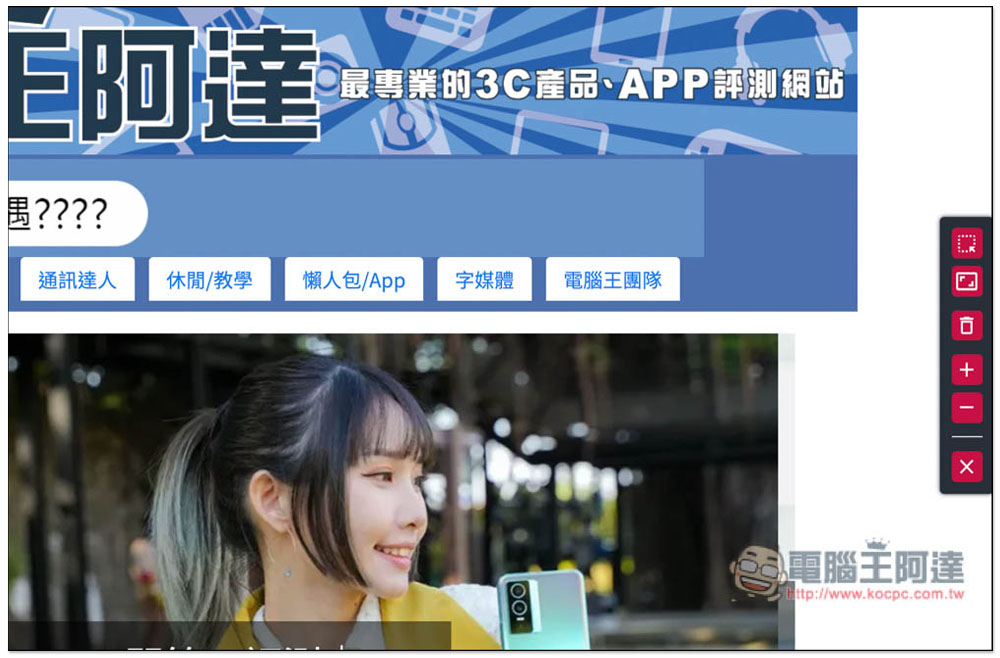
A row of toolbars will appear on the far right. The top one is for automatically detecting blocks in web pages, and the second one is for specifying ranges. It is recommended to use the second one for easier use:
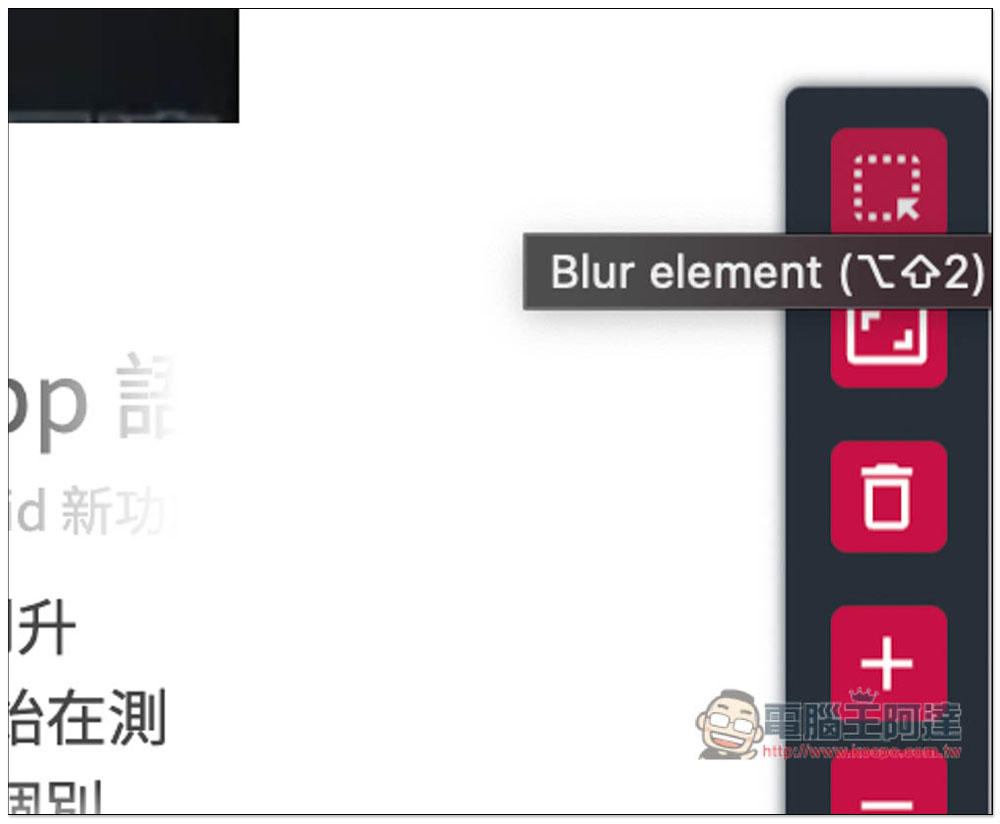
You can also move your mouse over the function to view the function name:
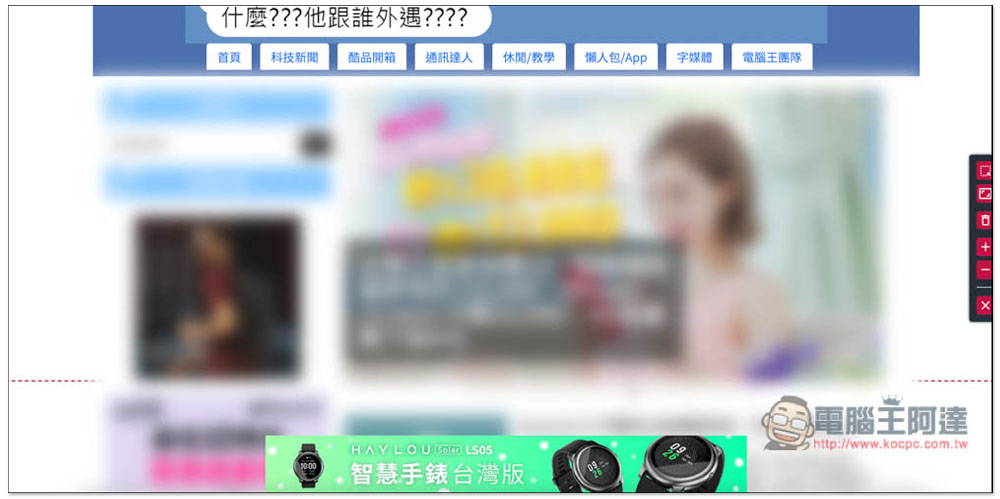
Like this, I specified that the lower half is blurred, so that after taking the screenshot, only the upper part can be seen:
The degree of blur can also be adjusted. Press + to increase and – to decrease:
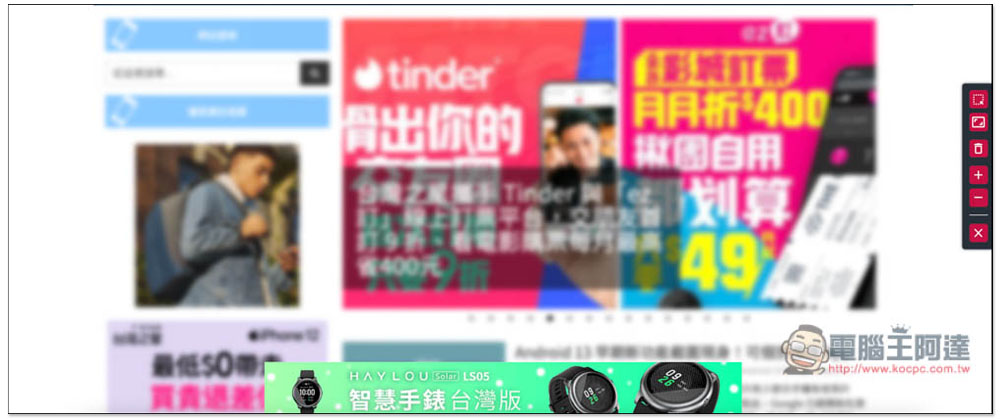
After you take the screenshot or record the video, remember to throw the blurry block into the trash, otherwise even if you close the browser, the webpage will still be blurry when you open it again:

It’s a pity that this extended function does not provide screenshots and recordings, otherwise it would be more convenient. Compared to entering the Photoshop image editing software for post-production, blurring in advance can save a lot of time, especially if you take a lot of screenshots or need to record the screen.
Source: KOCPC Chinese