


I wonder if everyone who has been using iPhone is still familiar with the built-in functions? With the launch of the iOS 15 system, Apple recently shared a 10-must-learn practical tips for iPhone on the official Apple Support YouTube channel, allowing everyone to quickly understand many usage tips that may be overlooked at ordinary times. These 10 tips can also help you use your iPhone better every day!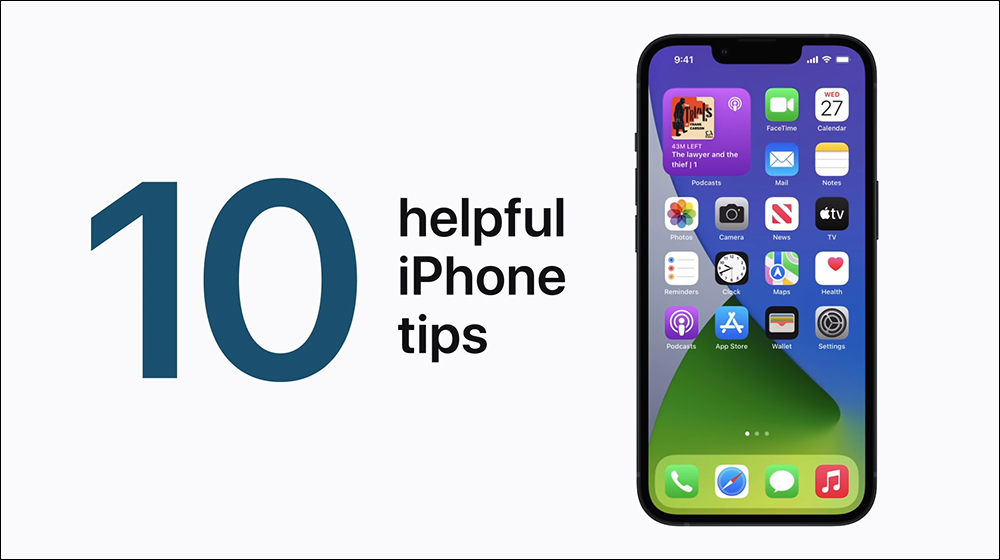
▲Picture source:Apple Support (YouTube)
Apple officially teaches 10 practical tips you must learn to use iPhone
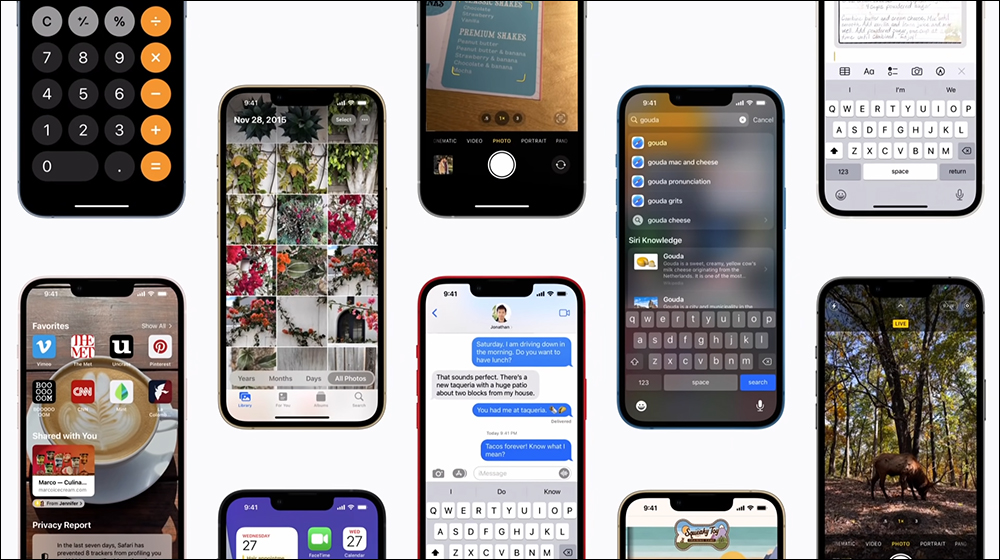
The iPhone has many thoughtful little features and ways to use it, but not everyone may learn all of them. Therefore, Apple officials also personally teach 10 practical tips that must be learned for iPhone to the majority of iPhone users.
▲Picture source:Apple Support (YouTube)
1. Computer | Swipe to clear numbers, copy, and paste
If you make a mistake when using “Computer” or want to recalculate, you can slide the number left or right like an “eraser” to delete the number.

▲Picture source:Apple Support (YouTube)
Long press the number to copy or paste the number, which is also more convenient for copying or calculating multiple digits.

▲Picture source:Apple Support (YouTube)
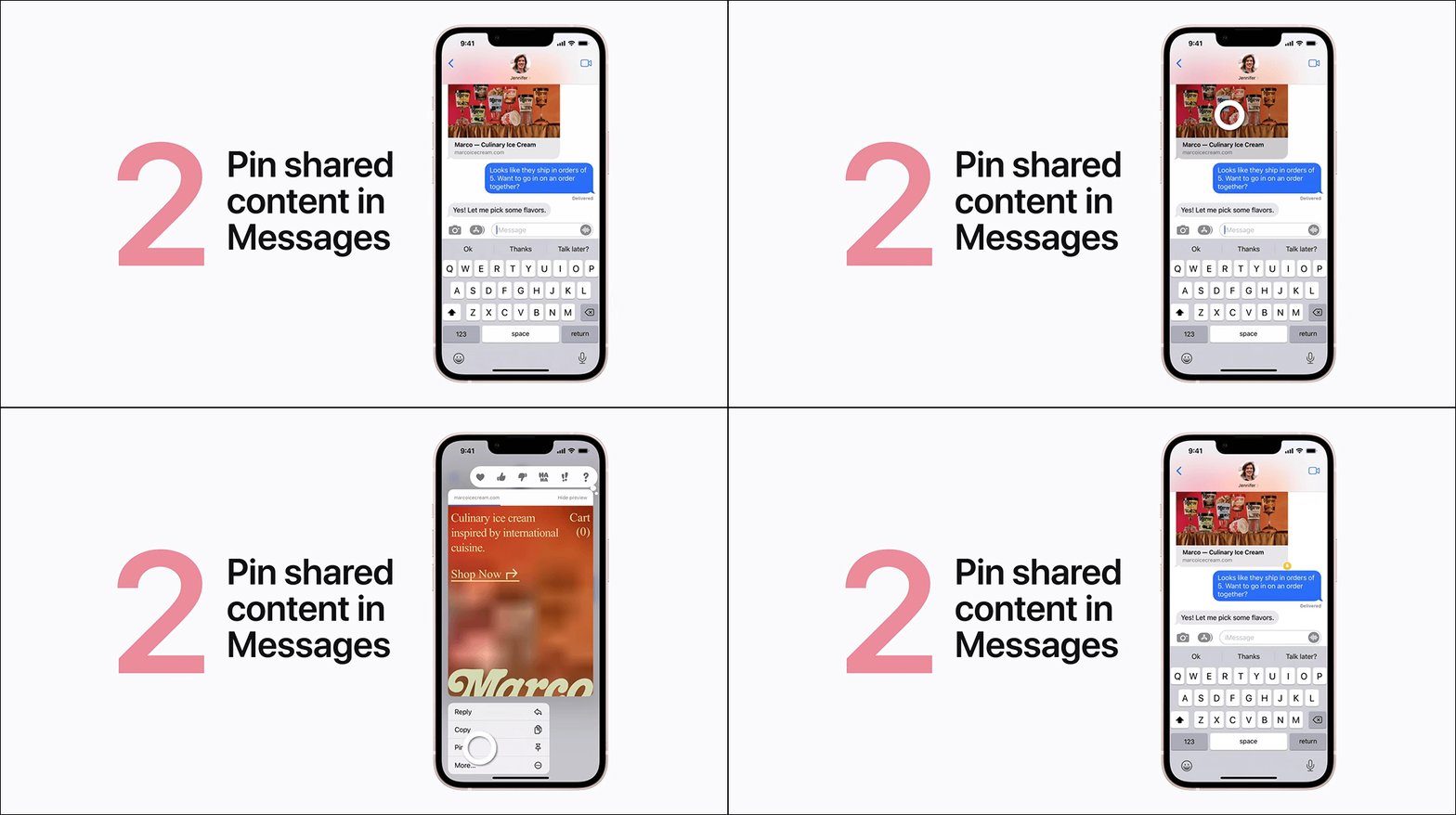
2. iMessage|Pin messages
When sending an iMessage message in “Messages”, if there is an important message that you want to record, you can long press the message and select “Pin” to prevent the message from being flooded.
▲Picture source:Apple Support (YouTube)
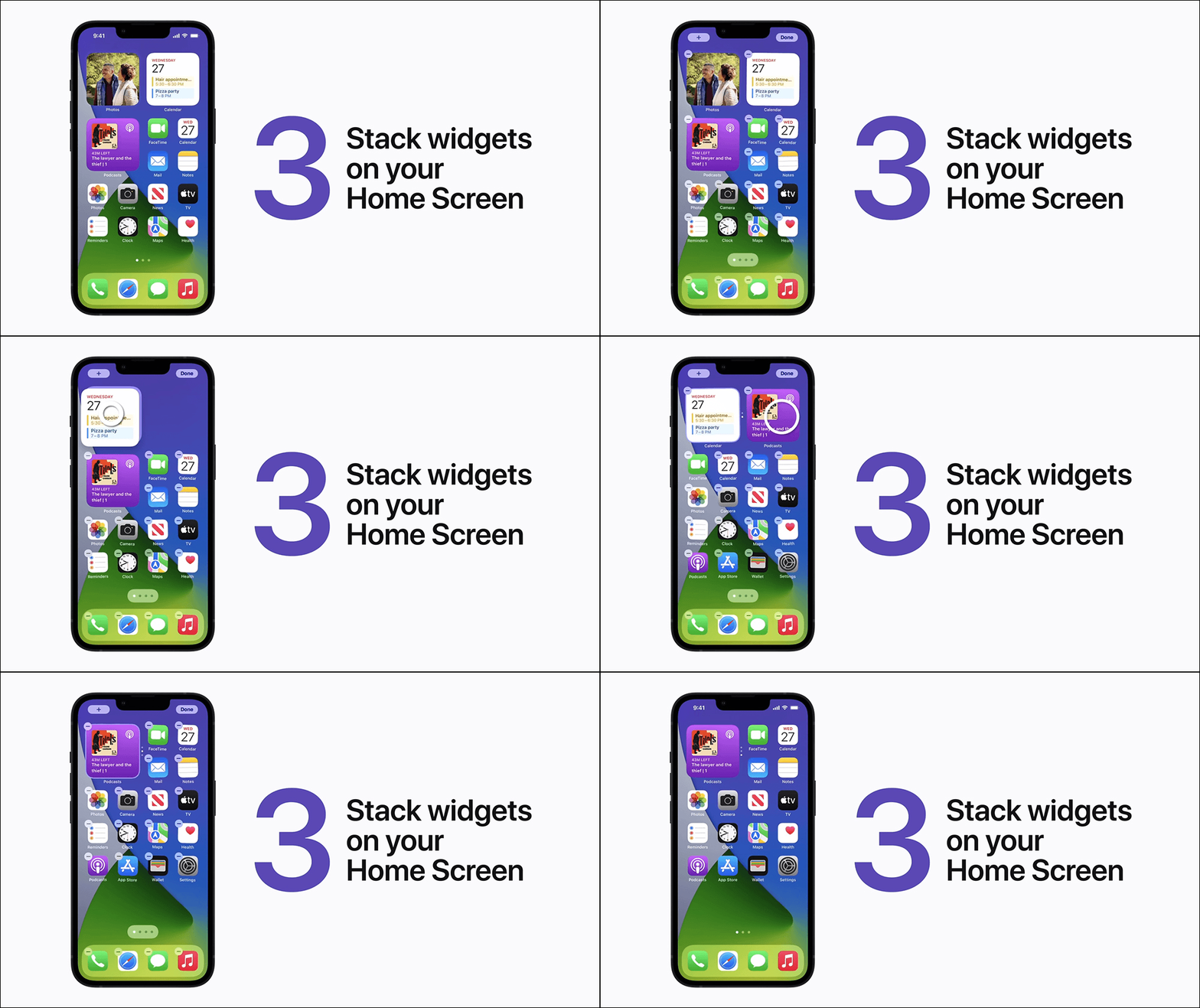
3. iOS Desktop Gadgets | Stacked Gadgets (iOS 14 and above)
The iOS desktop gadget function has been added since iOS 14. If you want to make the home screen cleaner, you can use the “stack” method to drag and stack multiple gadgets together (up to 10 gadgets can be stacked). The user can then slide up and down the stacked set of widgets to easily switch between different widgets.
▲Picture source:Apple Support (YouTube)
4. Add multiple selected pictures to other apps
When browsing the web, if you want to select multiple pictures and add them to other apps, you only need to long-press one picture and then click on other pictures you want to select multiple times. Press and hold your finger until you switch to other apps and then release. Then you can select multiple pictures and add them directly to other apps.

▲Picture source:Apple Support (YouTube)
5. Typing|Alternate text
We always have some commonly used idiomatic words when typing. If you want to speed up typing, you can set this group of text as “alternative text” to save time.
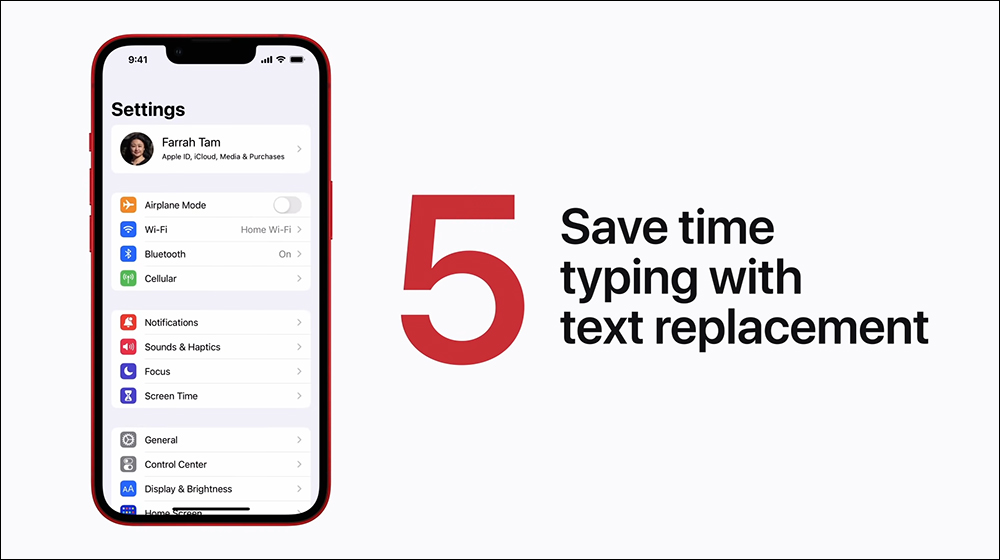
▲Picture source:Apple Support (YouTube)
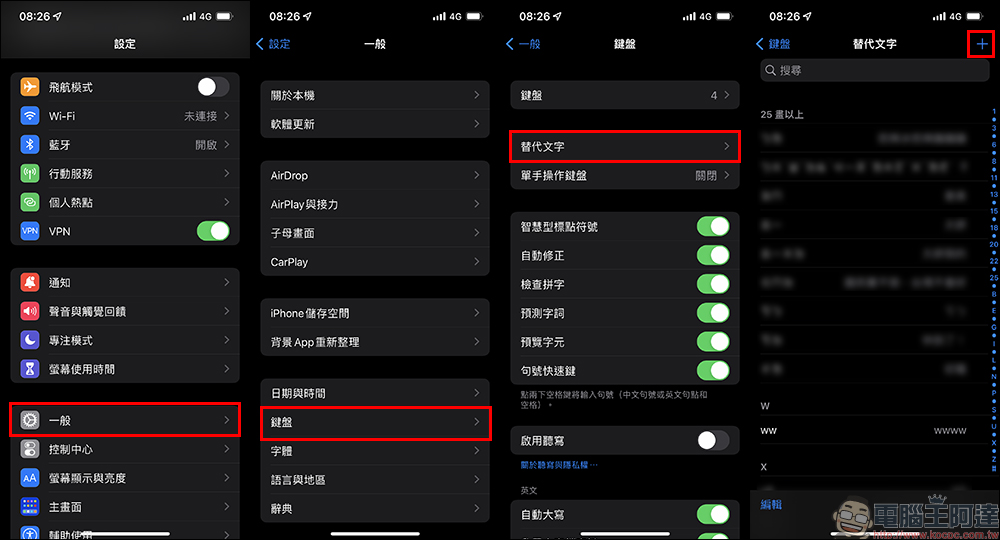
For the setting process, go to “Settings” > “General” > “Keyboard” > “Alt text” > click “+” to add alternative text:
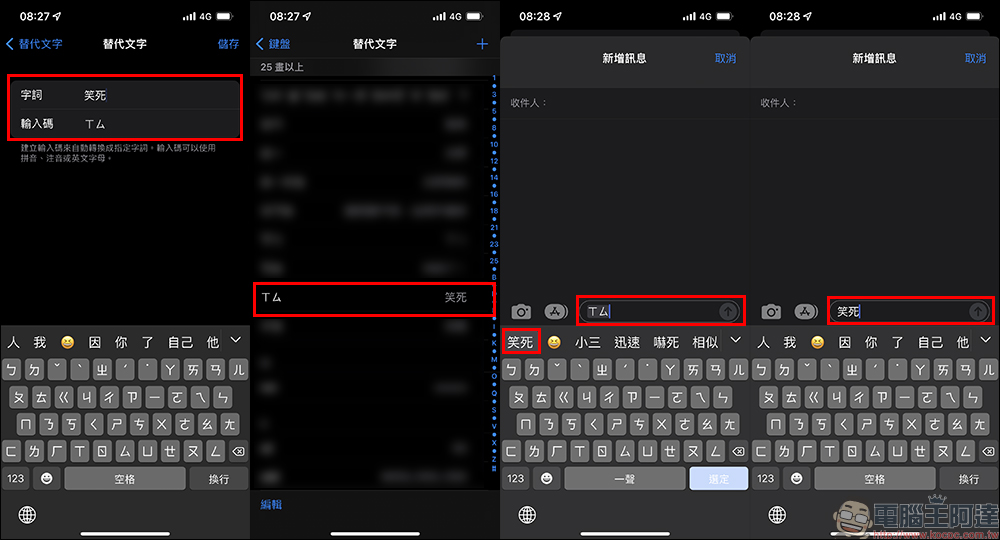
In the alternative text setting page, “word” is the final word to be automatically generated, and “input code” is the keyword that needs to be entered during keyboard input. After the setting is completed, when typing text on iPhone, just type a keyword and you will be able to find the set of alternative text in the suggested text list.
6. Screen lock slide to quickly launch the camera
When the screen is locked, in addition to long-pressing from the bottom of the iPhone’s home screen to turn on the camera or flashlight, users can also slide the home screen to quickly turn on the camera in the locked state.

▲Picture source:Apple Support (YouTube)
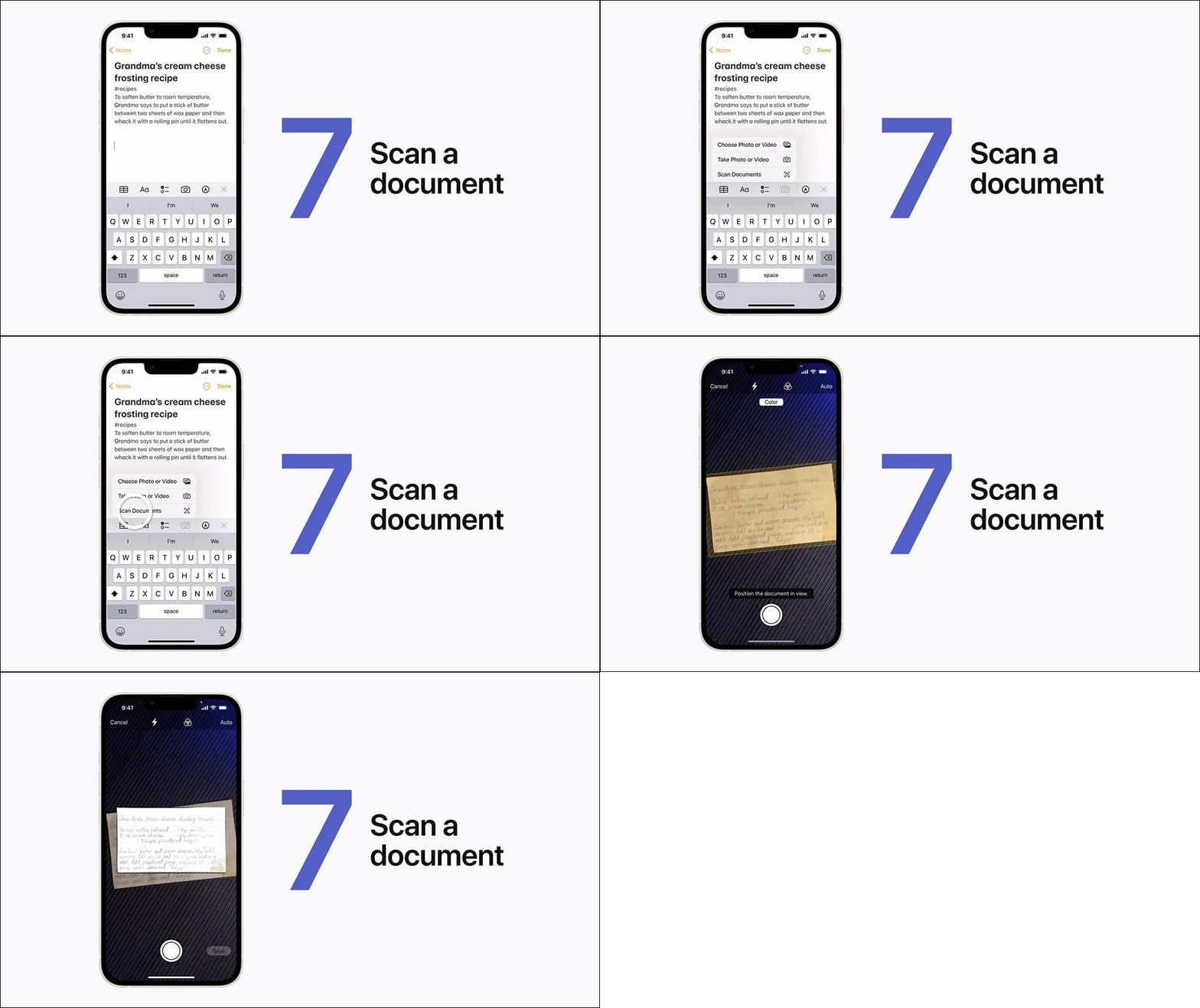
7. Memo|Scanned documents (iOS 15 and above)
In iOS 15, users can click “Scan Documents” in the “Notes” App, turn on the camera to shoot and scan documents, and the iPhone will automatically recognize and screenshot the text content.
▲Picture source:Apple Support (YouTube)
8. Original text (iOS 15 and above)
The “original text” function added in iOS 15 allows users to quickly select, copy, and translate text passages after capturing documents with the camera, and directly paste them in other apps for use.

▲Picture source:Apple Support (YouTube)
9. Photos | Quickly slide to the top and bottom of the page
In the “Photos” (Album) App, if the user wants to quickly slide to the top to view the oldest photos/videos in the “Album” display mode, they only need to click on the top of the screen to jump directly; if they click to select the latest photos/videos, click the “Album” button to jump directly to the latest photos/videos.
If the user is in the “Image” display mode, clicking the top of the screen can quickly jump to the earliest timeline; clicking the “Image” button will return to the latest timeline.

▲Picture source:Apple Support (YouTube)
10. Spotlight search
Swipe down from the iPhone home screen (unlocked or not) to open the quick search page to query various functions on the web, apps, or phone.

▲Picture source:Apple Support (YouTube)
full video
Further reading:
Xiaomi Youpin launches the ultra-compact Fixnow dual-purpose car cleaning machine, which weighs only 2.4 kg and supports a variety of water supply modes and usage scenarios.

Xiaomi launches Mijia smart dehumidifier 22L, supporting three modes: smart, drying, and sleep

Source: KOCPC Chinese