


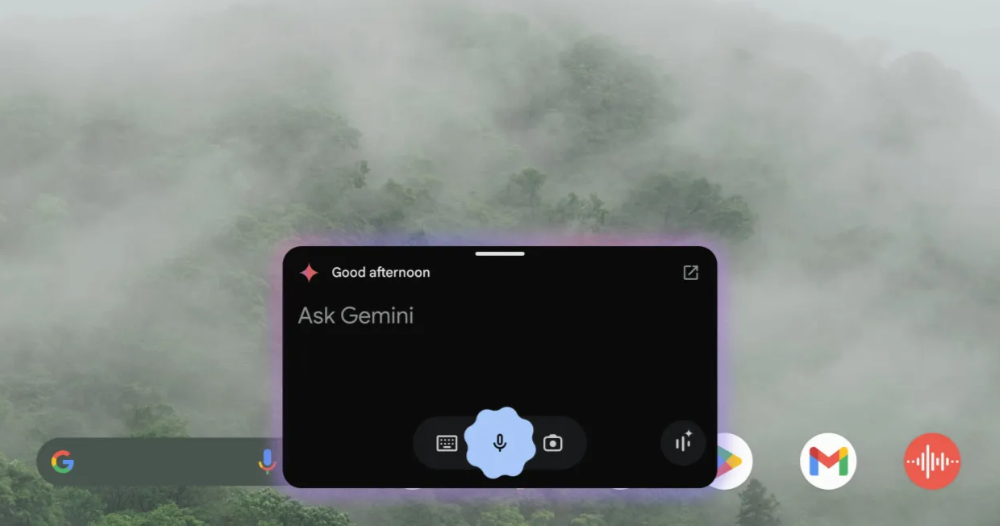
The “floating window” desktop window multitasking interface has also been confirmed to arrive in Gemini’s dedicated app, meaning that in addition to voice, voice assistant buttons, or system gestures, there is now another convenient multitasking method that keeps generative AI at your side – the key point being that this will be a full-featured version, not just a quick-action interface for the voice assistant. Continue reading the report on Google Gemini introducing multitasking floating window support and how to enable it.
▲Image source: 9to5Google
Google Gemini Introduces Multitasking Floating Window Support, Here’s How to Enable It
Although in the highly open Android ecosystem, quite a few systems already offer multitasking solutions – native system features do too – when it comes to “window-style” multitasking interfaces that better utilize the large screens of tablets or foldable phones, the desktop window feature that the new-generation Android 15 began offering through APIs does deliver a notably smooth and satisfying user experience.
▲Image source: Google
Now this feature has also been confirmed to arrive in the dedicated Gemini app, meaning that in addition to using voice, the voice assistant button, or system gestures, there’s now another convenient multitasking option that keeps generative AI at your side—and the key point is that this will be a full-featured version, not just a quick-action interface for the voice assistant.
This means that if you need to compile information, assist with creative work, or even write code and solve math problems, you can directly turn the Gemini App into a windowed interface to make further use of it.
How do I use Google Gemini’s multitasking floating window feature?
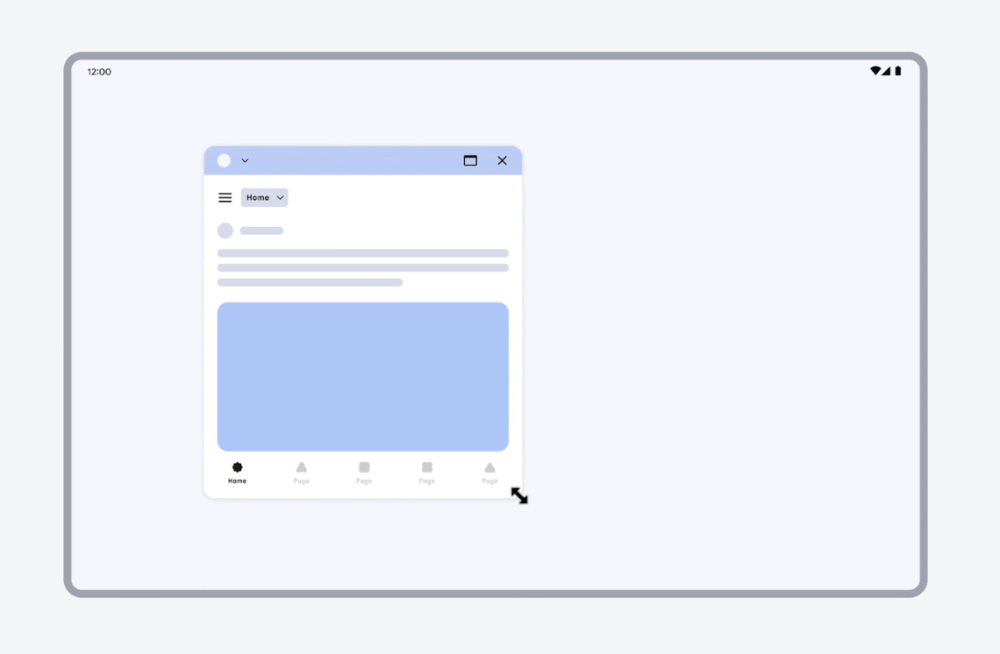
After the update that enables Android’s windowing feature, a gray button resembling a system control bar will appear at the top of the Gemini app. With it, you can easily drag to turn Gemini into a window. On the large screens of tablets or foldable phones, you can flexibly make use of the full range of generative AI capabilities on mobile platforms. In addition to dragging the Gemini app around to rearrange it, you can also adjust the window’s ratio and size via its corners—making it very flexible and convenient.

▲Figure: Reference operation method for Android desktop window (Source:Google)。
Before this, the Android system also supported basic split-screen functionality. For users who want to use multiple apps at the same time, these features mean you don’t need to prepare two mobile devices—you can handle different tasks simultaneously on a single device.
Here we also briefly review how to use split screen. Simply use the “Recent apps” icon. Select the app you want to use in split screen mode, then choose “Open in split screen view mode”. The app will then occupy half the screen. Repeat this step to place a second app on the screen for use.
Citation source:9to5Google|
Further Reading:
Source: KOCPC Chinese