


Although LINE officially provides a backup function, anyone who has used it knows that it often fails and crashes if the file is too large, and it does not support cross-system synchronization, so it cannot be done.Android to iOS LINE(or vice versa iOS to Android LINE), and this article will recommend an excellent LINE message backup software “iMyFone iTransor for LINE”. It can synchronize the transfer of chat records across systems, and the operation is very simple. Connect two mobile phones to the computer and follow the on-screen instructions to complete the step-by-step process. Even people who do not know computers can get started quickly. It also provides functions such as backing up LINE to the computer and exporting chat records. With this set, you no longer have to worry about LINE message backup problems, Windows, Mac There are all versions, and I will introduce them to you in detail below.
iMyFone iTransor for LINE official website
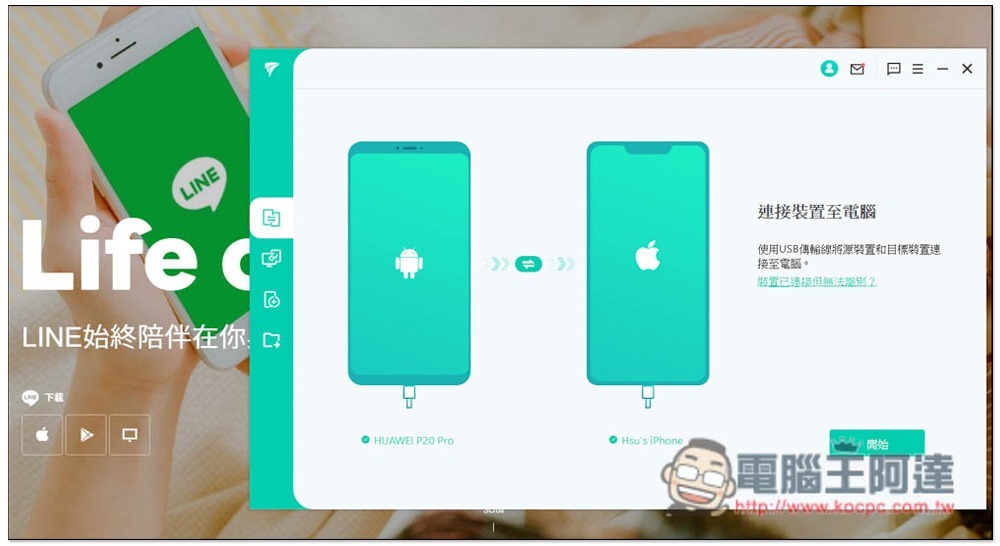
iMyFone iTransor for LINE user interface introduction
The operating interface of iMyFone iTransor for LINE is designed to be very simple and is available in Traditional Chinese. After selecting the mode you want, you can start backing up or transferring LINE data by connecting it to your phone.
The menu is on the left and offers four modes:
- Transfer LINE data between Android and iOS devices
- Back up LINE data for Android and iOS devices
- Restore LINE data from iTransor backup to iOS / Android devices
- Read and export LINE data from iTransor backup
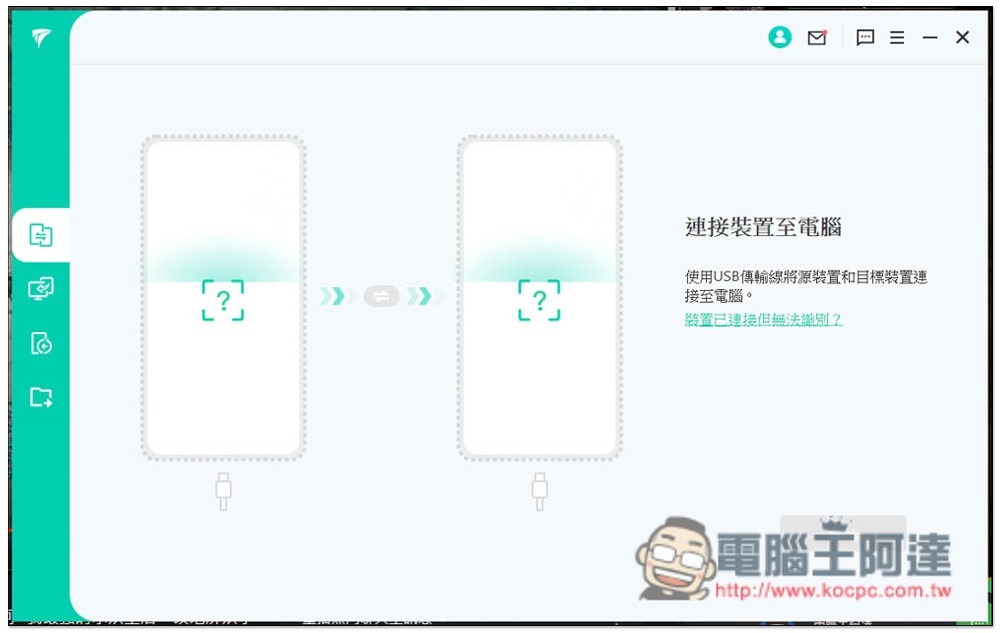
Transfer LINE data between Android and iPhone
The official LINE backup does not support cross-system synchronization, so if you are planning to switch to iPhone or Android, iMyFone iTransor for LINE is definitely your best choice. You can transfer data directly and just follow the instructions on the screen. I actually tested it successfully. I never thought that it would be so easy to transfer LINE data across systems. I had tried another one before which was more troublesome.
After turning on the “Transfer LINE data between Android and iOS devices” mode, connect both mobile phones to the computer. Here I will demonstrate the question that most people have, how to transfer LINE data from Android to iPhone (and vice versa).
Select your original Android phone on the left, and your newly purchased iPhone on the right. Android phones also need to enable “Developer Mode” and “USB Debug Function”:
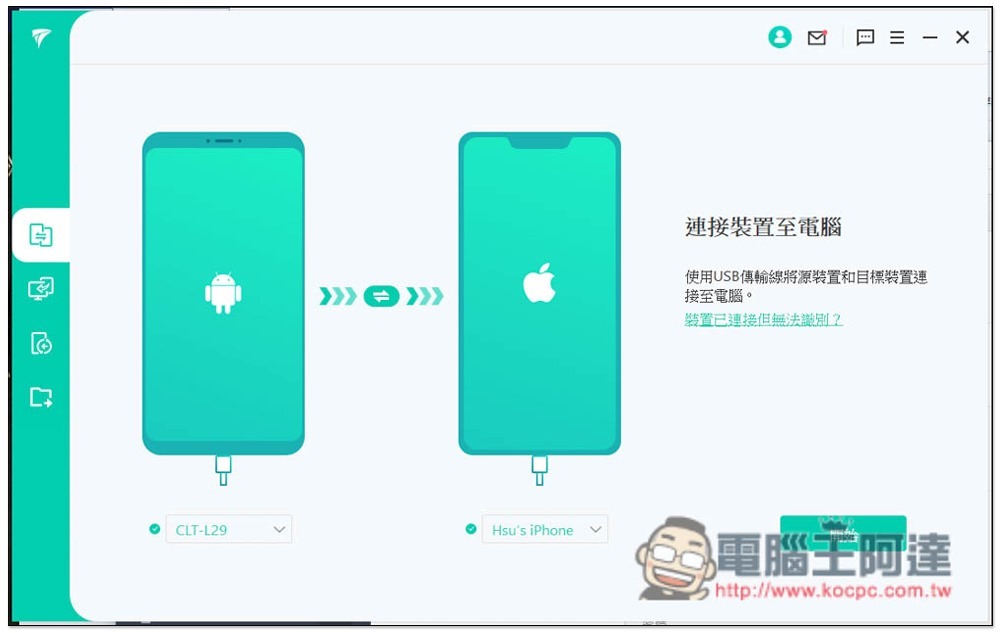
A prompt will pop up indicating that the new device’s LINE data will be overwritten. Press OK:
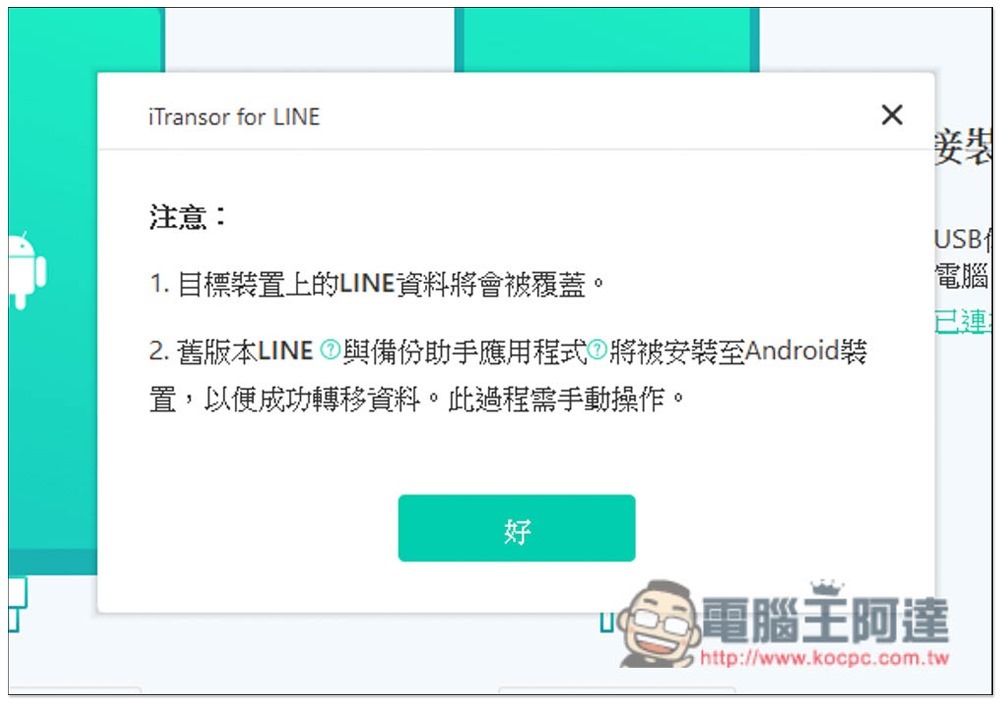
The Android process is actually the same as the previous backup. It will back up data by installing an old version of LINE. It will also recommend that you back up LINE data to Google Cloud first (that is, use LINE official backup):
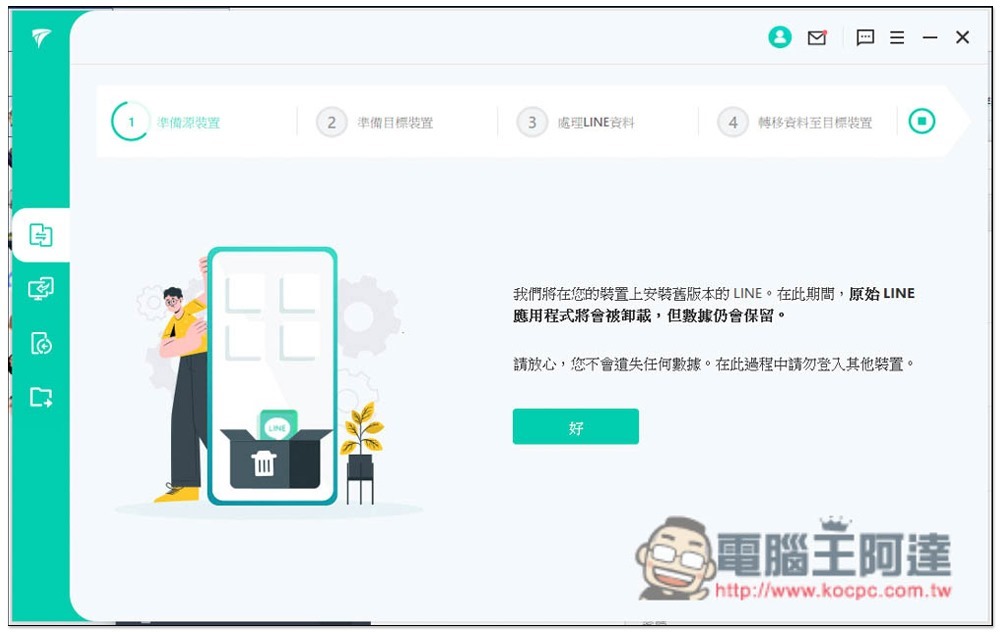
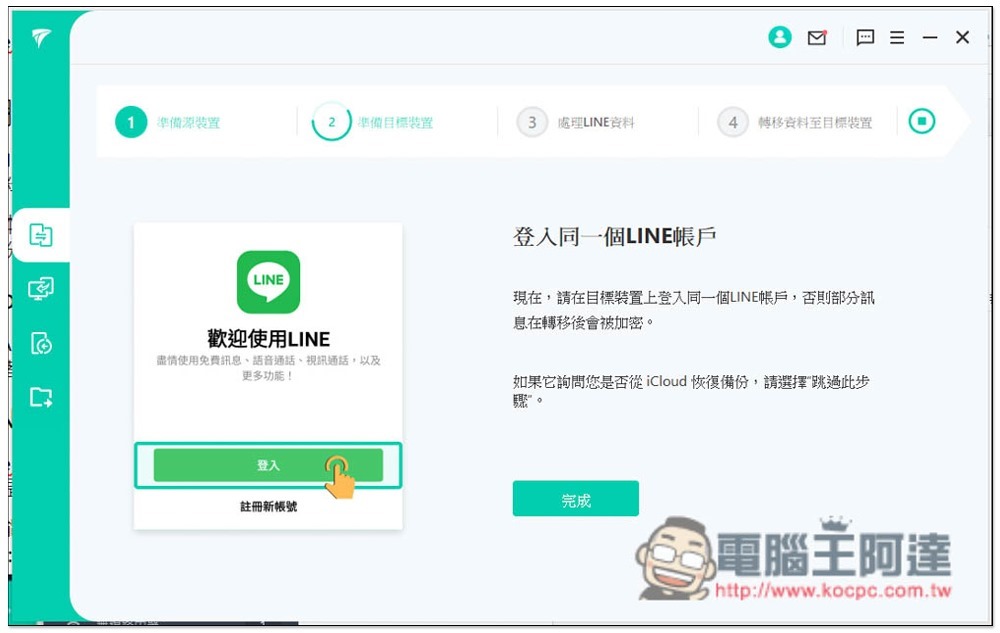
You will then be asked to log in to your LINE account on your iPhone. Remember to skip this step when restoring iCloud backup, and then press Done on the screen:
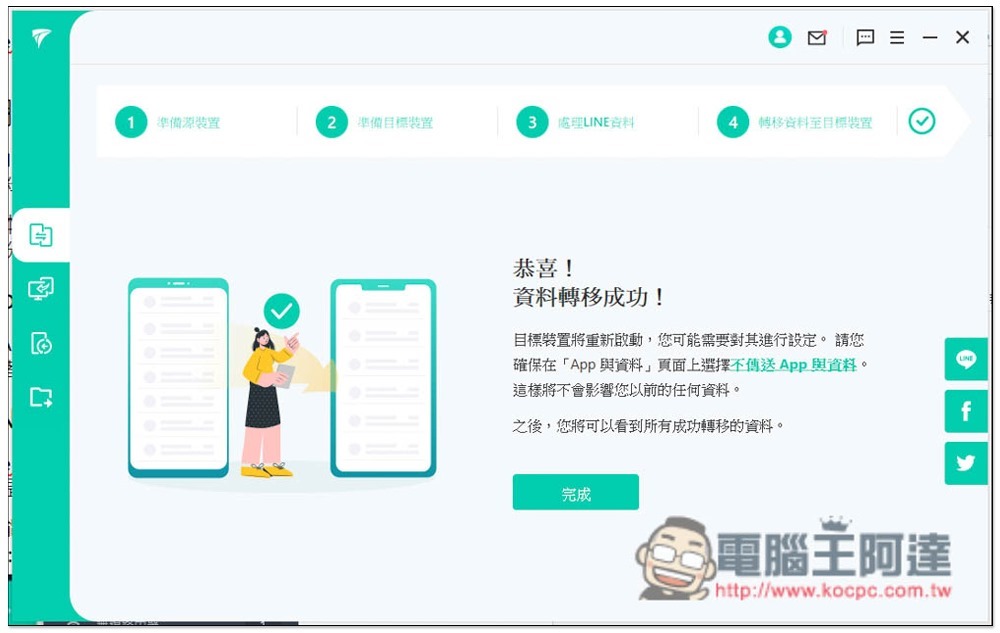
The transfer is now complete! Super simple:
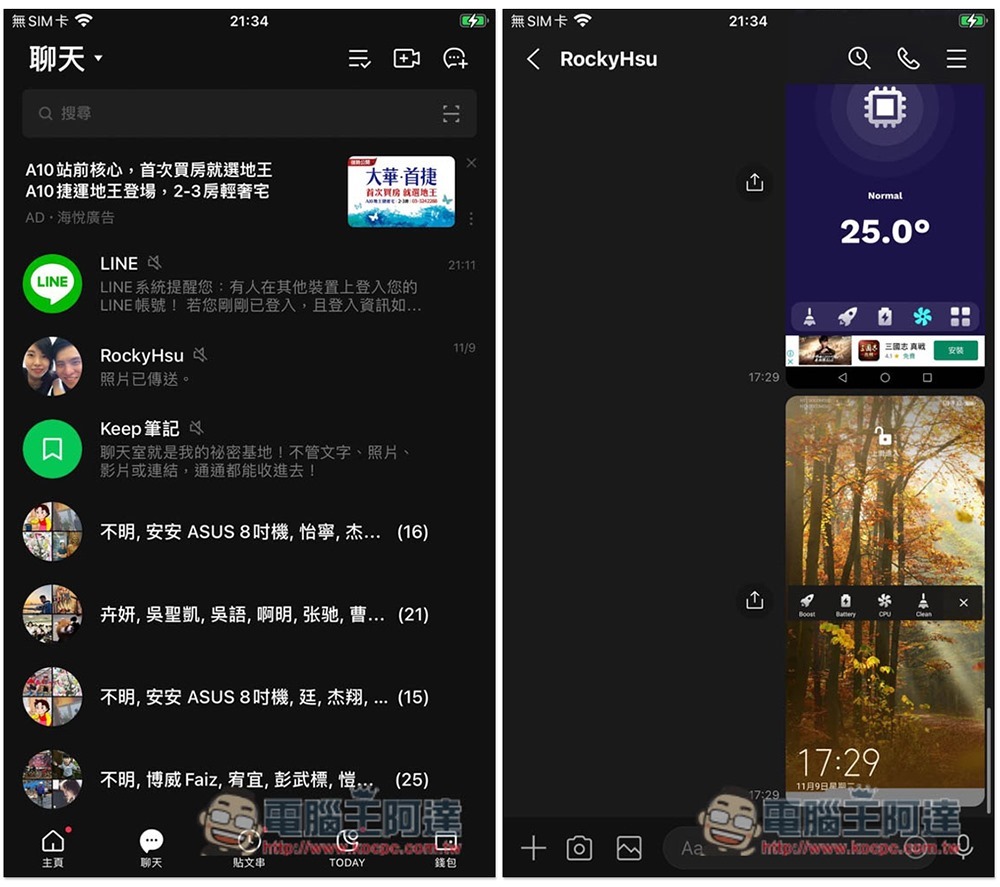
The picture below is a screenshot of LINE from my original Android phone, taking the Rocky conversation window as an example:
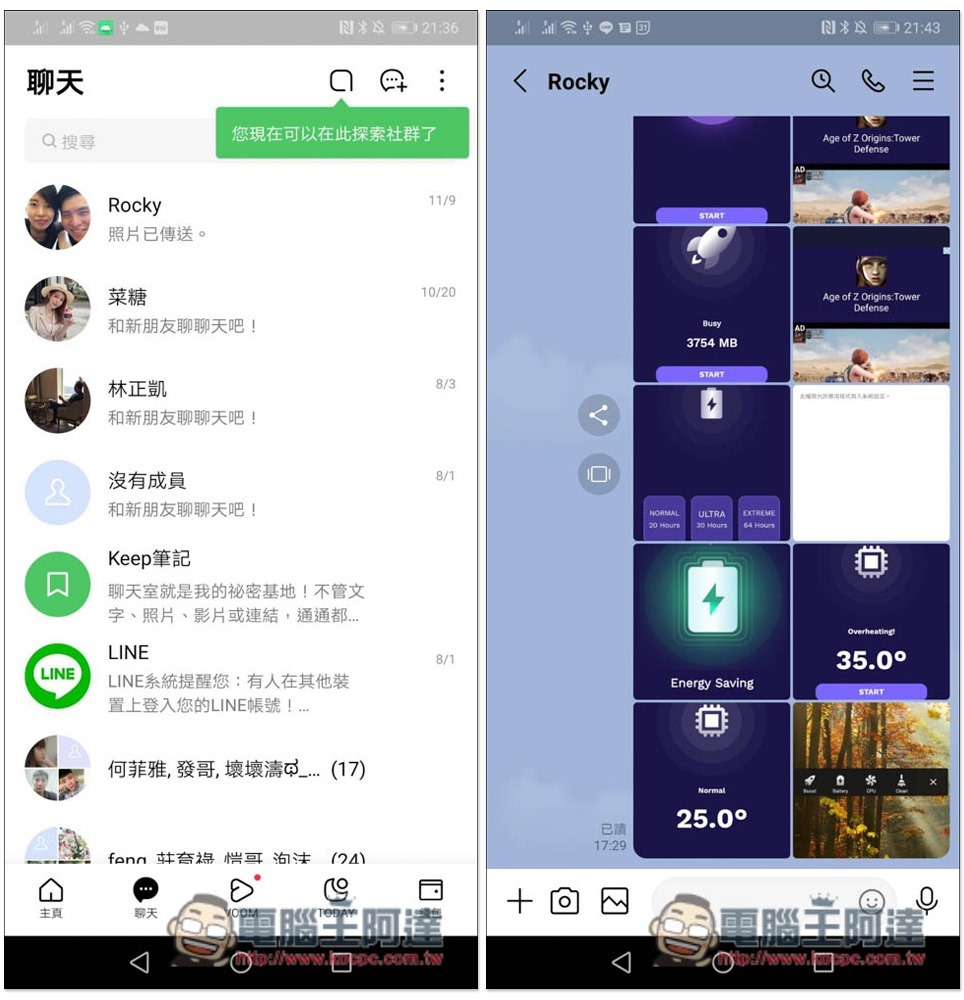
Screenshot of the new iPhone LINE after the transfer. Not only are all the chat rooms available, but the conversation content is also completely transferred:
Back up LINE chat history of Android and iPhone to computer (free function)
Backing up LINE chat history has always been a headache for many people. In addition to the possible backup failure mentioned at the beginning, the elders may not understand Google Drive and iCloud at all. With iMyFone iTransor for LINE, LINE backup becomes very easy. Open the software and connect your phone to easily back up to the computer with one click. What’s even better is that all LINE The backup content can be viewed on your computer and the chat history, photos, videos, and audio you need can be exported. Details will be introduced later.
iPhone LINE chat history backup
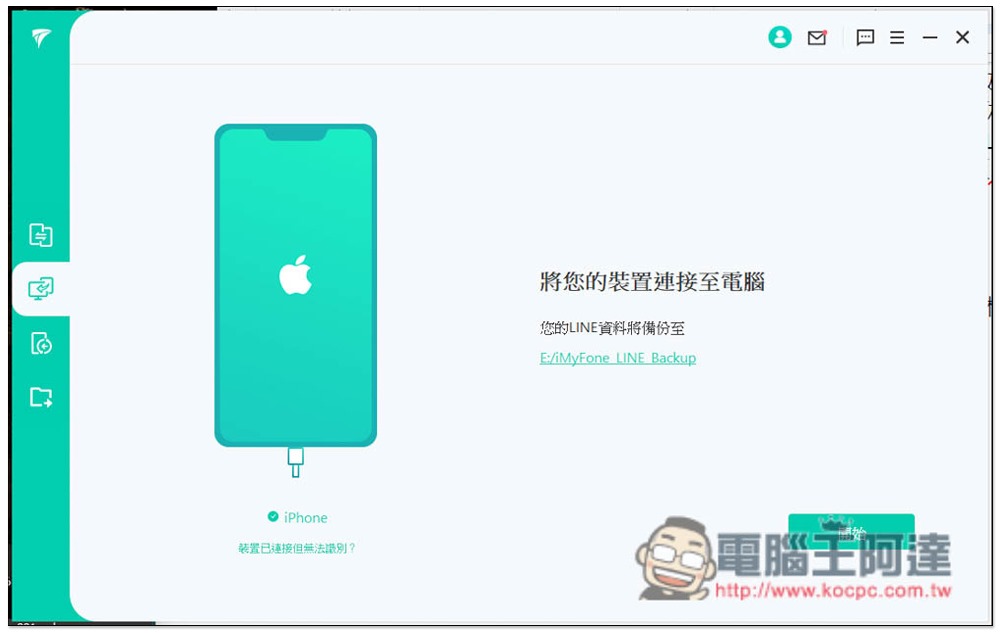
iPhone’s LINE backup can be said to be the simplest. After turning on the backup mode, click “Start” and it will be backed up immediately:
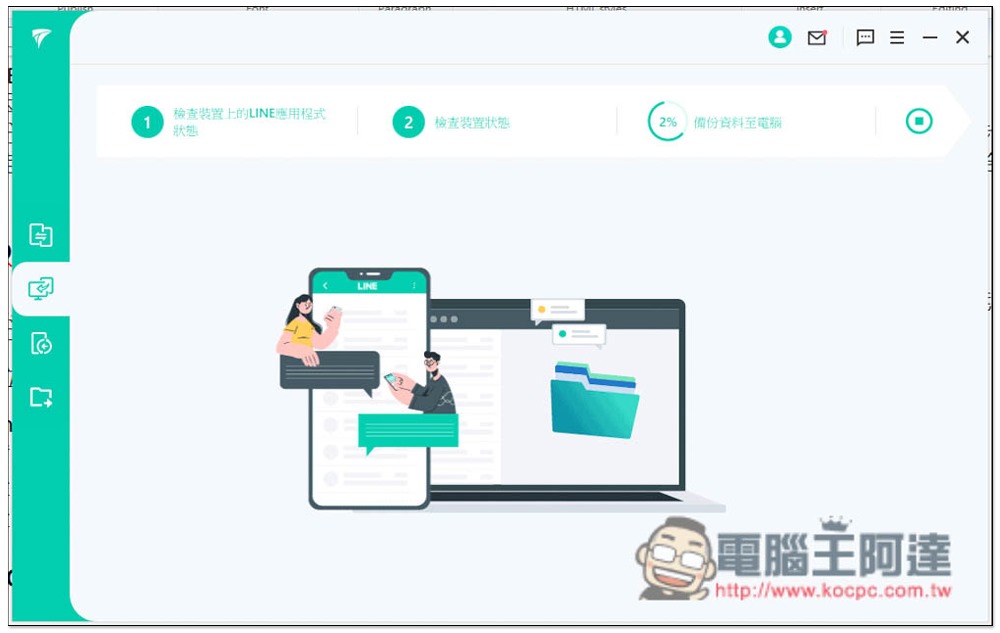
There are three steps, and they will be completed after all have been run:
Android LINE chat history backup
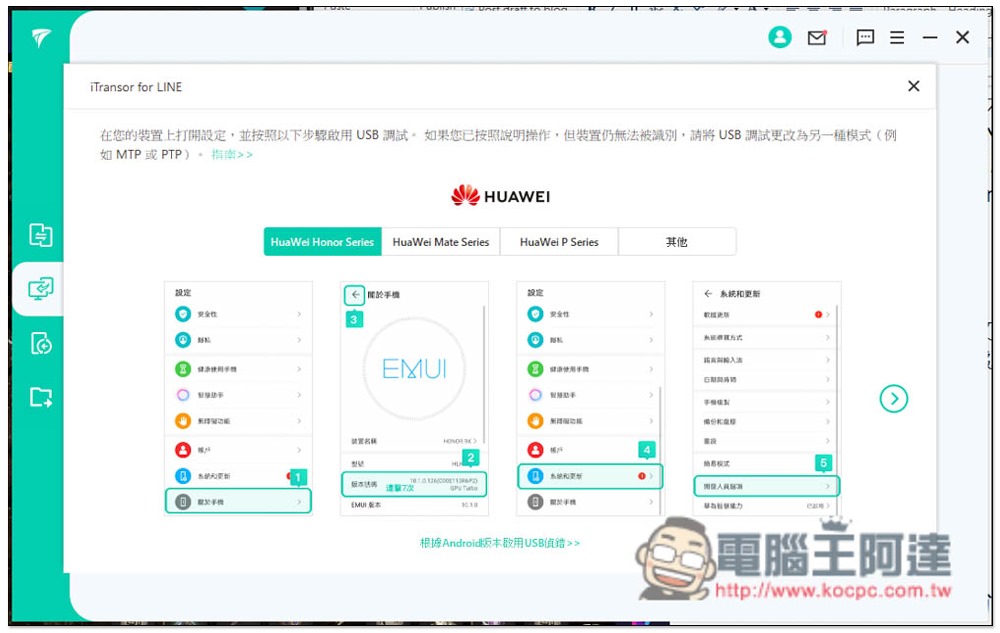
Android needs to turn on “Developer Mode” and “USB Debugging Function” first. It doesn’t matter if you don’t know how to operate it. iMyFone iTransor for LINE will automatically detect your phone brand and display instructions, so just follow the step-by-step operation on the screen:
Once completed, you can start the backup:
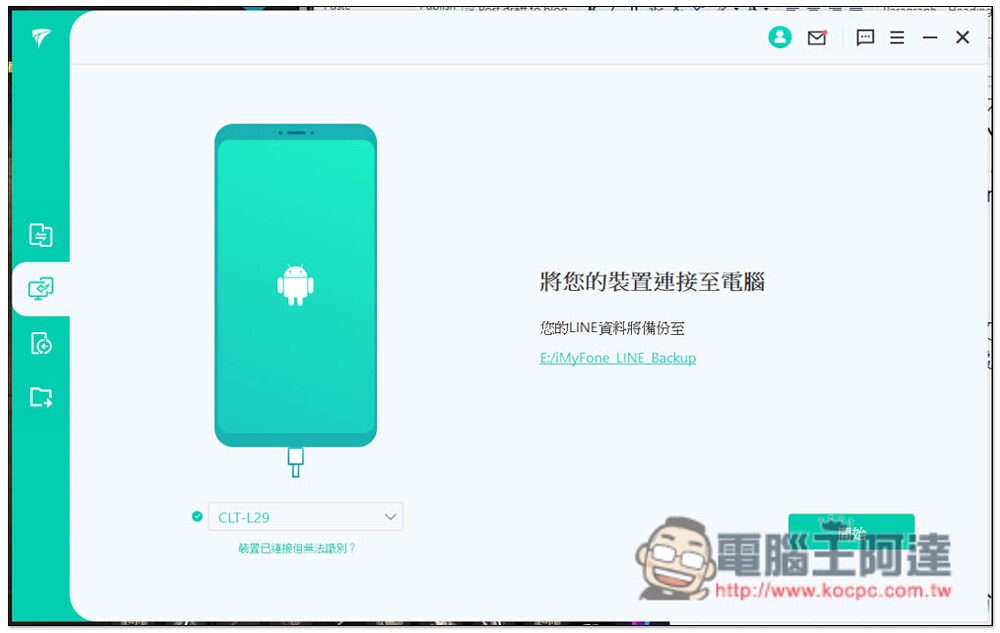
I would first recommend backing up chat history to Google Drive (that is, LINE’s own backup function) before proceeding to the next step:
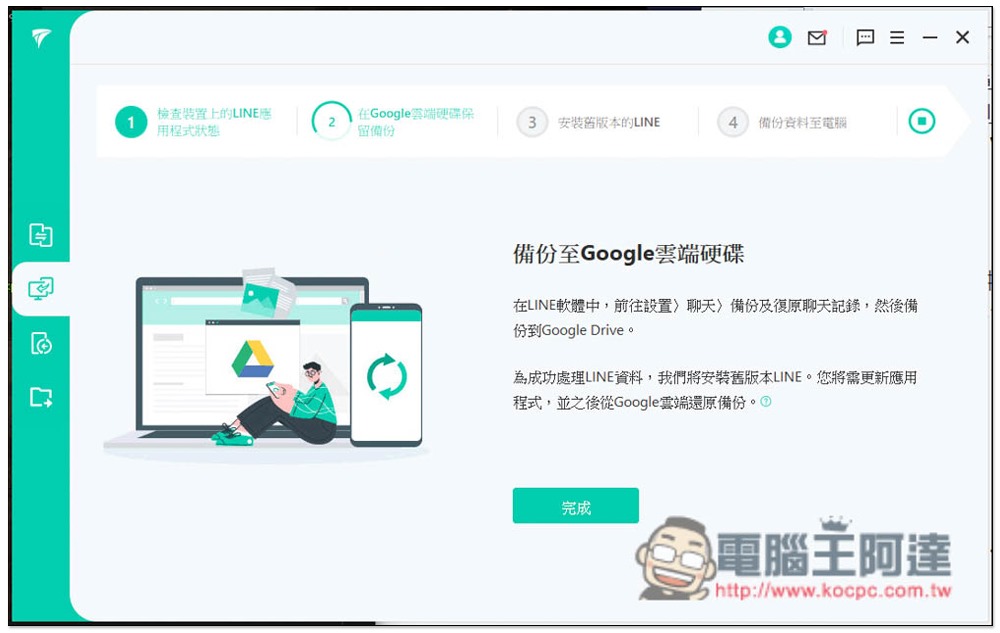
Because it will remove your current LINE and install the old version of LINE for backup. This process will not lose any of your current LINE data. After the backup is completed, reinstall LINE and you can continue to use it normally. The chat history will be at:
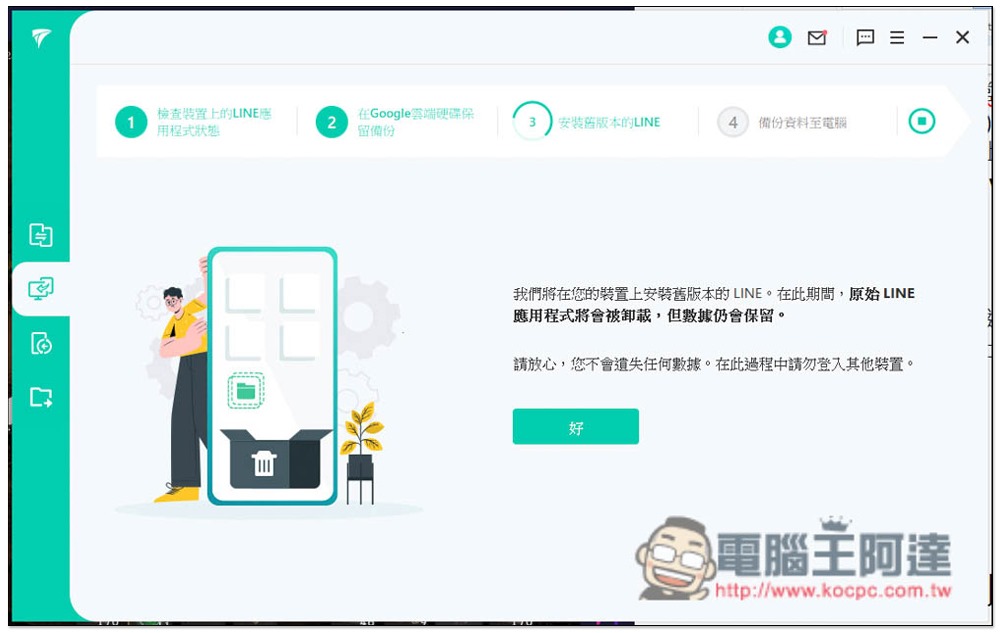
The phone will pop up a window to complete the backup, click “Backup my data”:
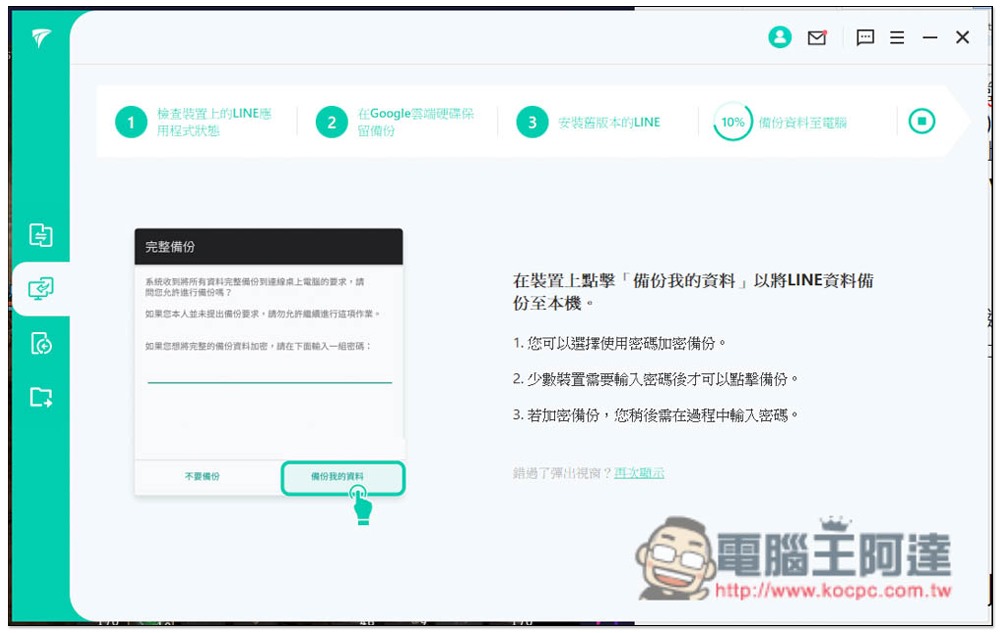
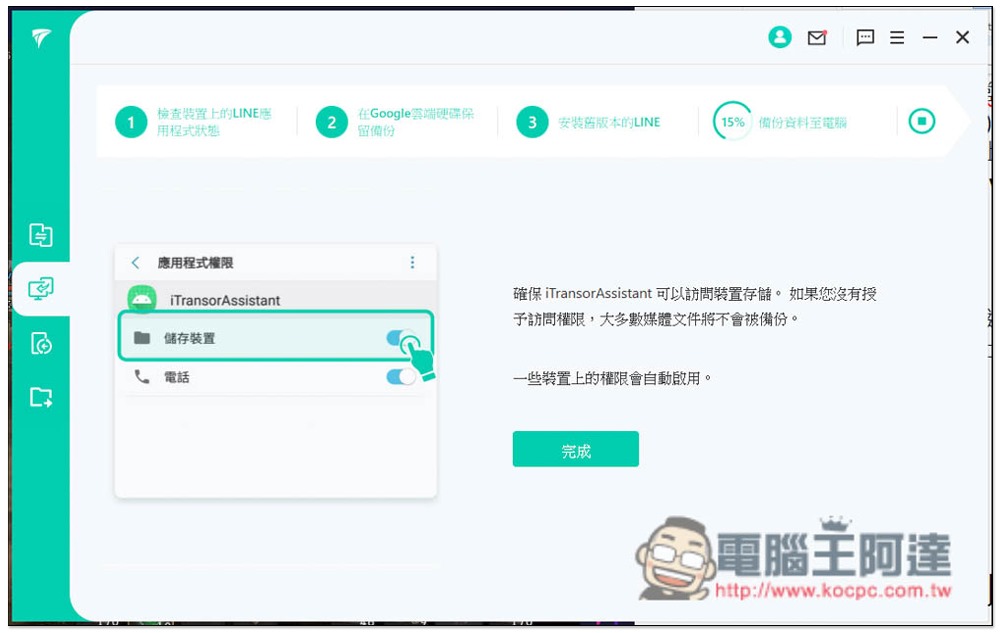
Then the iTransorAssistant assistant will be installed automatically. If a window pops up, please open the “Storage Device”:
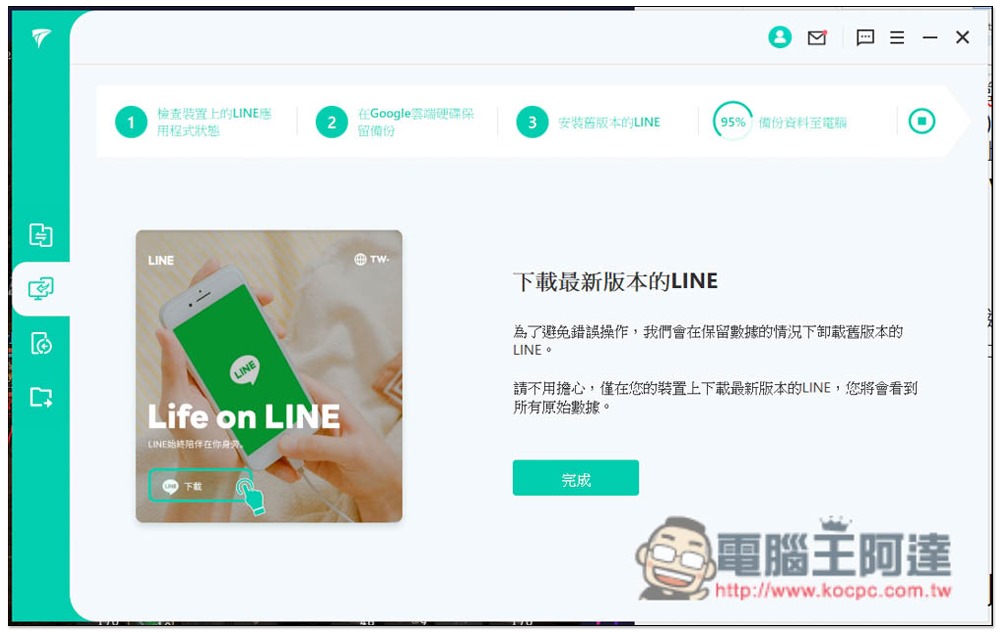
After the backup is completed, the old version of LINE will be automatically deleted. The original LINE on the phone needs to be manually downloaded and installed from the Play Store again:
I actually tested that after reinstalling LINE on my phone, all the chat data are there, and there is no need to log in again. When you open it, you will go directly to the LINE homepage, which is quite amazing:
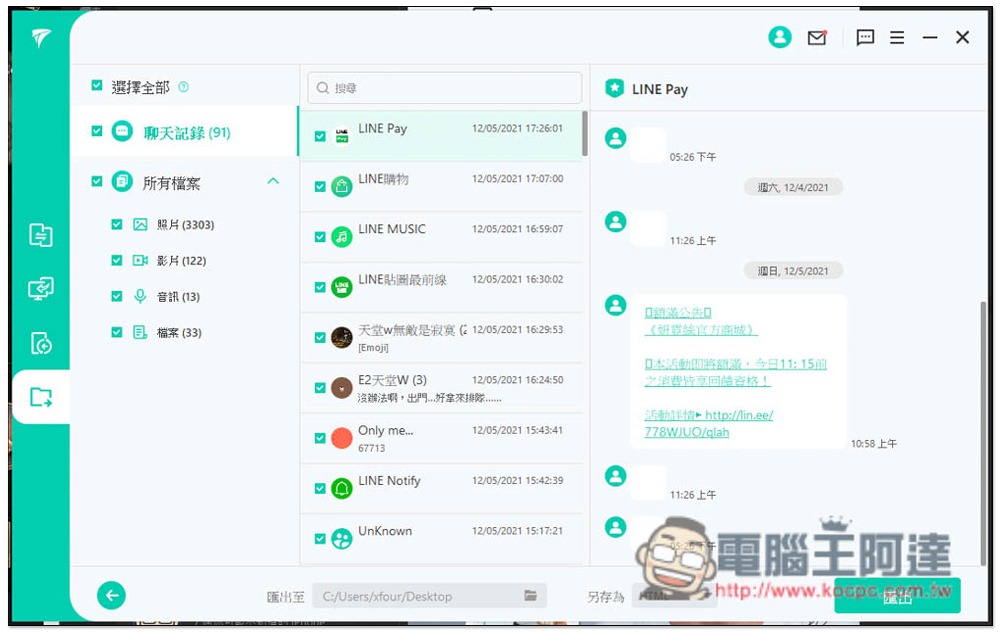
All chat history, photos, videos, and audio will be backed up:
iMyFone iTransor for LINE can back up LINE on up to 5 mobile phones, so after buying it, you can also back up your family members and other companions, which is very good.
Restore LINE backup on computer to iPhone or Android phone
In addition to direct transfer, iMyFone iTransor for LINE can also back up previous LINE data and restore it to iPhone and Android phones. Therefore, it is highly recommended to develop the habit of regular backup, so that you don’t have to worry if your phone suddenly breaks and you cannot use LINE. Moreover, it can be restored even if you change a phone with another operating system (you need to log in to the same LINE account).
Each backup is independent and will not overwrite previous ones, so remember to delete useless LINE backups manually, otherwise they will take up a lot of computer space. After finding the backup you want to restore, press the restore button on the lower right:
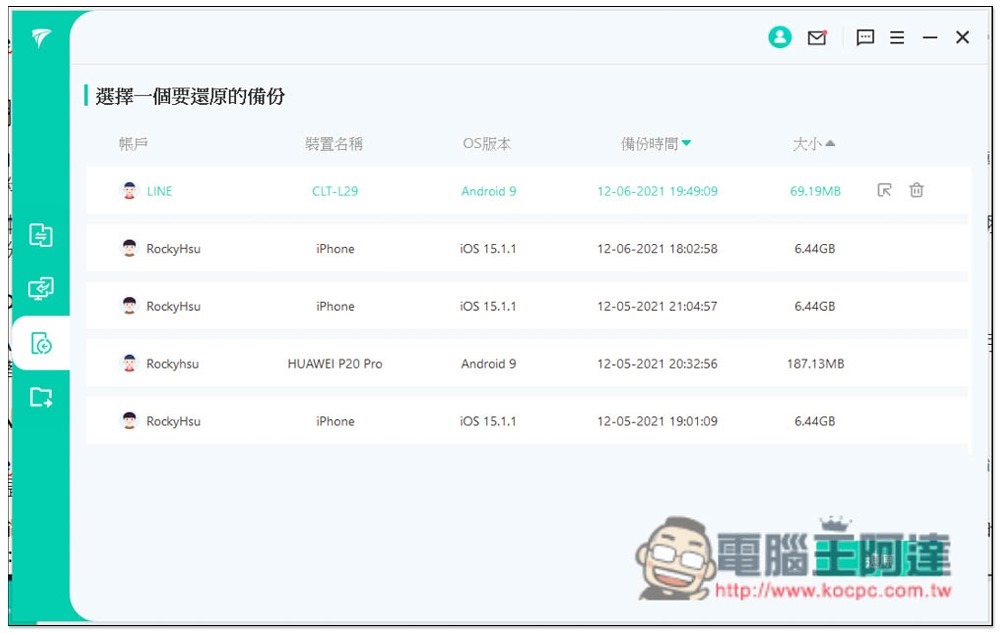
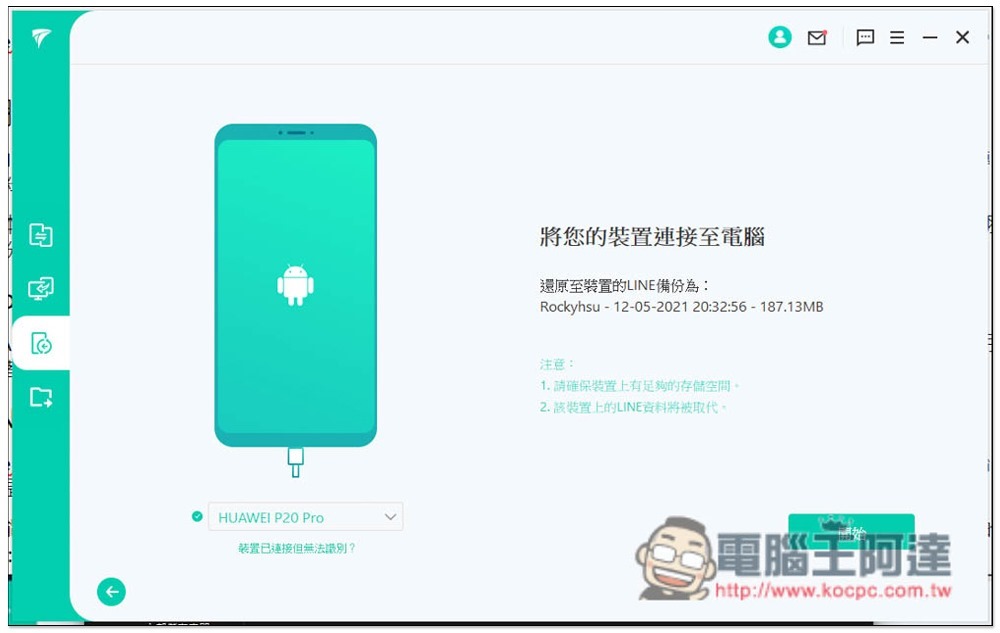
You will be asked to preview the data first to see if it is correct. If you have no problem, press Continue:
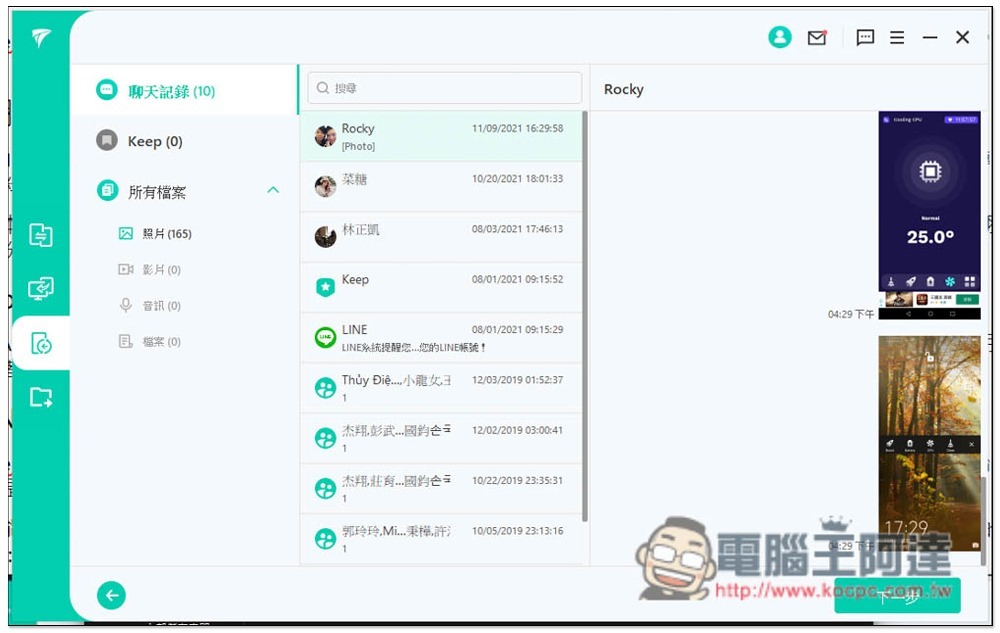
Then just follow the on-screen instructions step-by-step to complete:
Export LINE chat history, photos, videos and other backup data to your computer
All data backed up by iMyFone iTransor for LINE can be exported to your computer, such as chat logs, photos, videos, audios, and files, in original size and not compressed.
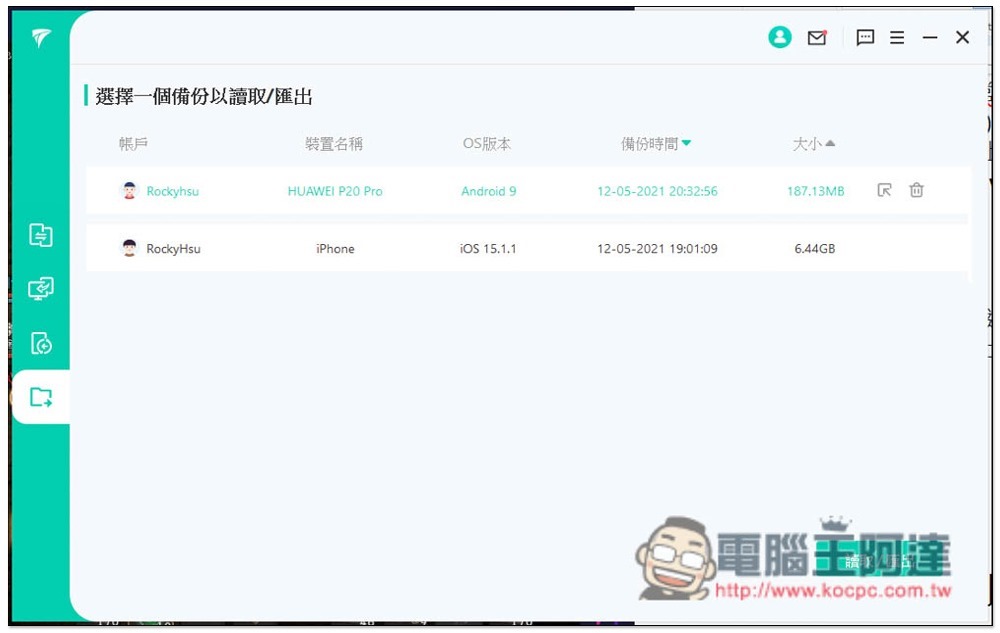
Open the last item in the menu, “Read and export LINE data from iTransor backup”, and you will see your LINE backup and select the backup content you want to export:
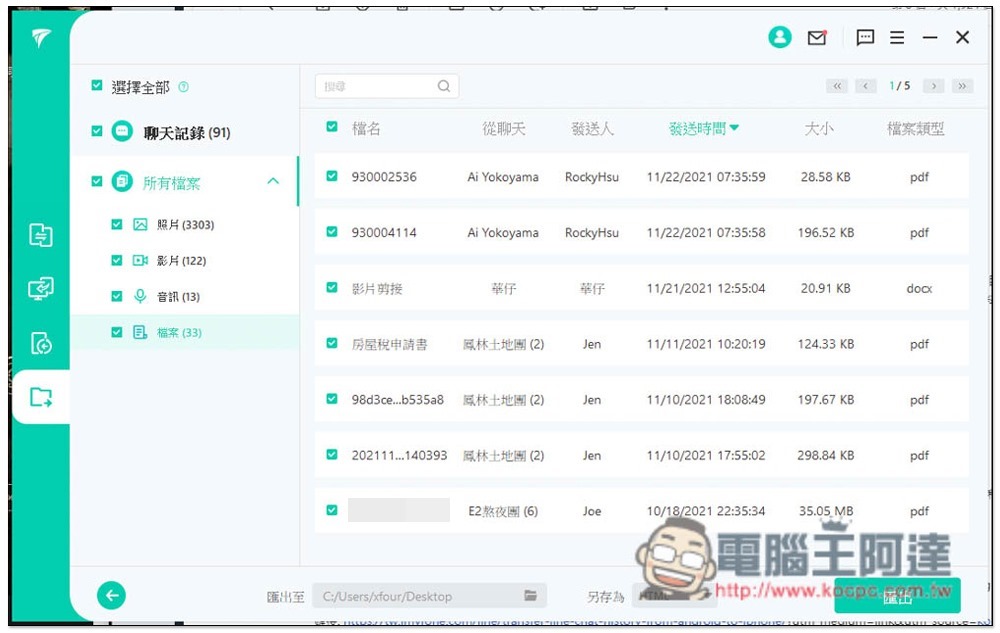
Then you can see all your LINE backup content, all of which are checked by default. If you want to export all the content, just click “Export” in the lower right corner. Photos and videos can be previewed first to make sure they are correct before exporting:
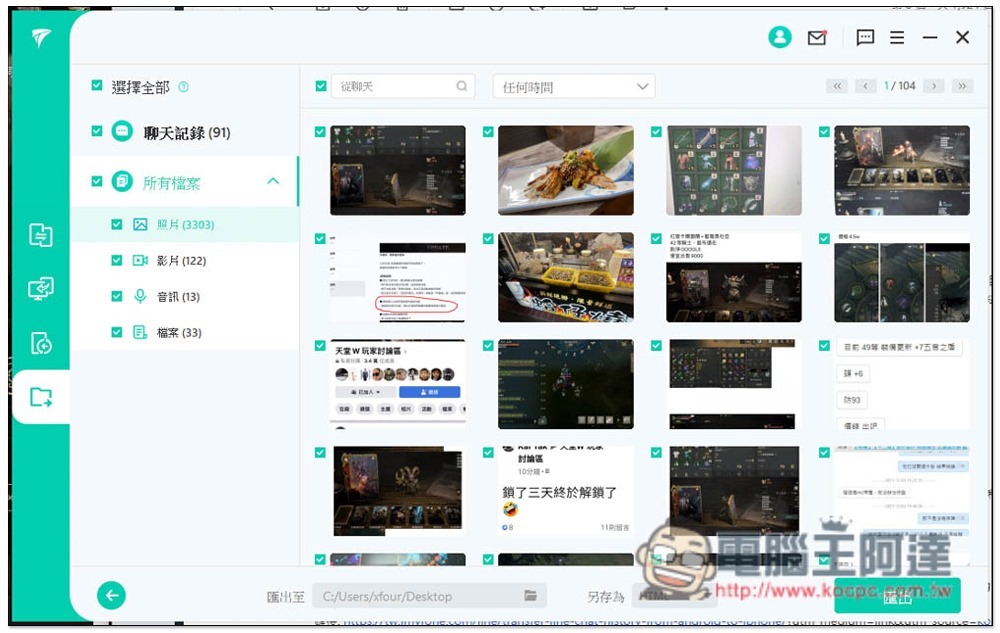
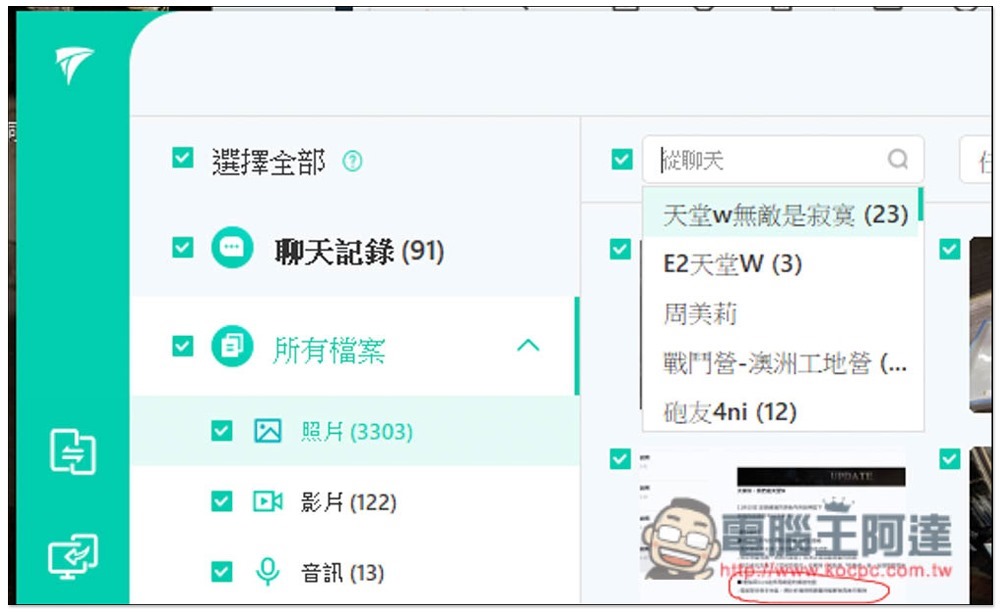
This set has a great feature. After clicking the “From Chat” search bar above, you can specify the chat room you want to browse. This is super convenient and you can quickly find the data you want to export:
Which chat room the file belongs to, the sending time, and the file type will also be displayed:
Chat records can be exported to three formats: XLS, HTML, and PDF:

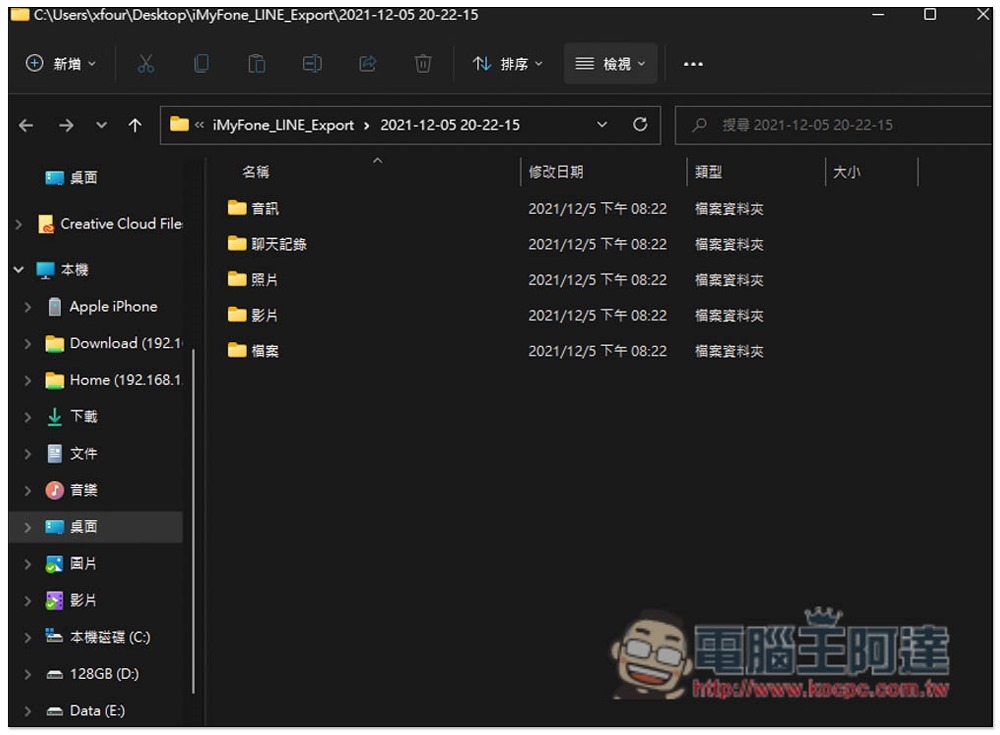
After the export is completed, the corresponding folder will be automatically created, which is quite considerate:
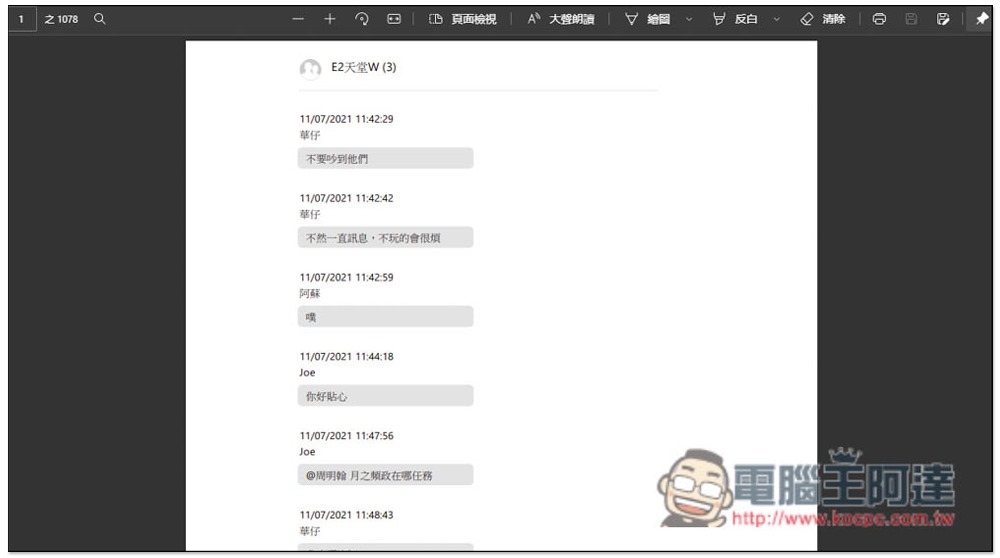
Below is how chat records are exported to PDF. Each message will be clearly marked with the date, who sent it, and content. With this export function, you don’t have to worry about losing LINE chat records in the future! As long as you back up frequently, you can retrieve it at any time:
Summarize
This one iMyFone iTransor for LINE Super convenient LINE transfer tool, it can be said that almost every LINE user recommends it. With this set, you no longer have to worry about backing up LINE or transferring chat history to phones with different operating systems. You can even export chat messages into PDF and save them permanently. There are many functions that LINE official does not have, and more importantly, the operation is super simple!
The “LINE backup to computer” function of iMyFone iTransor for LINE is completely free, so if you just want an extra backup for emergencies, you can use the free version. Other functions need to be upgraded to the paid version to use.
In addition, the Mac version currently only supports transfer from iOS/Android to iOS devices. The function of transferring iPhone/Android to Android is expected to be added within 1 month. All functions of the Windows version are available.
iMyFone iTransor for LINE official website
Below is the official video tutorial on transferring LINE chat records from Android to iPhone. Those who want to know more about the detailed steps are recommended to watch:
Source: KOCPC Chinese